
In the rapidly evolving landscape of digital education, maintaining academic integrity in online assessments has become paramount. Respondus LockDown Browser stands as a cornerstone solution, designed to create a secure testing environment by preventing students from accessing other applications, websites, or digital resources during an exam. For institutions leveraging online learning, and for students navigating these platforms, understanding the proper installation and setup of LockDown Browser is not just a recommendation—it’s a necessity for a smooth, fair, and stress-free examination experience.
This comprehensive guide is tailored to walk you through every step of installing Respondus LockDown Browser, ensuring you’re fully prepared for your next online assessment. We’ll delve into its functionalities, detail the installation process across various operating systems, provide essential pre-exam best practices, and offer practical troubleshooting tips. By following these instructions, you’ll not only master the technical aspects but also cultivate a proactive approach to digital security and academic productivity, aligning perfectly with the core tenets of our tech-focused community.
Understanding Respondus LockDown Browser
Before diving into the installation specifics, it’s crucial to grasp what Respondus LockDown Browser is, why it’s used, and what fundamental requirements your system needs to meet. This foundational knowledge will demystify its operation and underscore the importance of correct setup.
What is LockDown Browser?
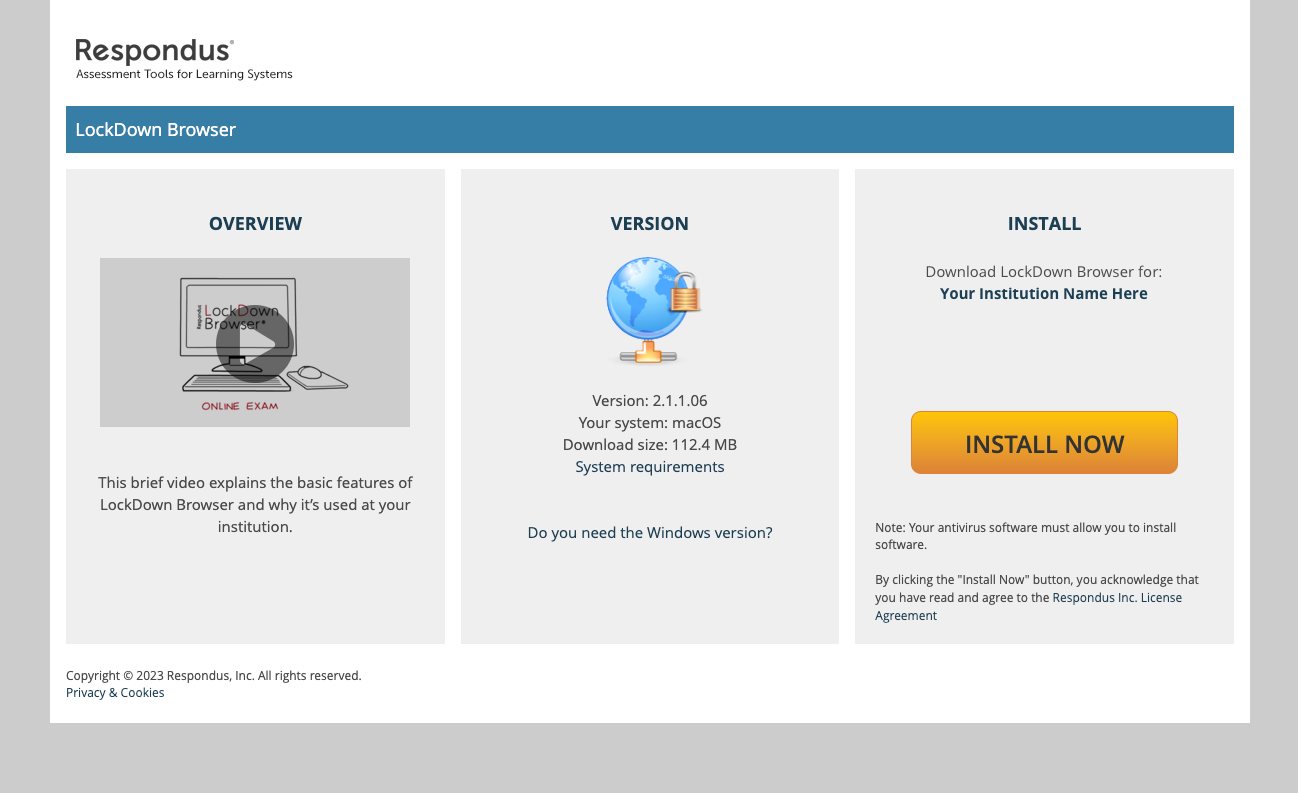
Respondus LockDown Browser is a custom browser that “locks down” the testing environment within a learning management system (LMS) like Canvas, Blackboard, Brightspace, or Moodle. When an exam requires LockDown Browser, students are unable to print, copy, access other applications, go to other websites, or use messaging programs during the assessment. It essentially transforms your computer into a dedicated testing station, isolating the exam experience from potential distractions and unauthorized resources.
Its core functionalities include:
- Full-Screen Mode: Prevents minimizing or exiting the exam until submitted.
- Disabled Navigation: Blocks access to other websites or applications.
- Copy/Paste Prevention: Restricts copying exam content or pasting external information.
- No Printing or Screenshots: Maintains the security of exam questions and answers.
- Optional Webcam Monitoring (Respondus Monitor): For enhanced integrity, some exams may require Respondus Monitor, which uses your webcam to record the student during the exam, flagging suspicious behaviors for review.
The primary goal is to level the playing field, ensuring all students adhere to the same rules and academic honesty standards, regardless of their physical location. This commitment to fairness is a vital aspect of digital security in education.
Why Proper Installation Matters
A successful exam experience heavily relies on a flawless technical setup. Improper installation of LockDown Browser can lead to a host of problems, from persistent error messages and software crashes to an inability to start or submit an exam. Imagine the stress of facing technical difficulties just minutes before a crucial assessment!
Proper installation is key for several reasons:
- Seamless Exam Access: Ensures you can launch and participate in your exams without technical hitches.
- Optimal Performance: A correctly installed browser performs efficiently, minimizing lag or freezes during an exam.
- Enhanced Productivity: By avoiding technical snags, you save valuable time and reduce pre-exam anxiety, allowing you to focus purely on the assessment content.
- Digital Security Assurance: A correctly configured LockDown Browser guarantees that the secure testing environment functions as intended, protecting the integrity of the exam and your academic record.
Ignoring proper installation steps can transform a straightforward process into a source of significant frustration, directly impacting your academic productivity and potentially compromising your exam performance.
System Requirements and Compatibility
Before initiating the download, verify that your device meets the minimum system requirements for Respondus LockDown Browser. While these can vary slightly with updates, general guidelines are as follows:
- Operating Systems:
- Windows: Windows 10, 8, 7. (Windows 10 S Mode is not supported).
- Mac: macOS 10.12 to macOS 12.0+ (check specific versions for the latest compatibility).
- iPad: iOS 11.0+ (requires a compatible iPad and the free LockDown Browser app from the App Store).
- Chromebook: Must have the LockDown Browser Extension enabled by your institution.
- Memory (RAM): 2 GB RAM (a minimum of 4 GB is recommended for optimal performance, especially with Respondus Monitor).
- Hard Drive Space: 200 MB of free hard drive space.
- Internet Connection: A reliable broadband internet connection is essential for downloading, updating, and taking exams.
- Webcam (for Respondus Monitor): A functional webcam (internal or external) and microphone are required if your exam uses Respondus Monitor.
- Administrator Privileges: You will need administrator rights on your computer to install the software.
Always check with your institution’s IT support or the specific exam instructions for the most up-to-date system requirements, as they might have particular configurations or recommended versions.
Step-by-Step Installation Guide
The installation process for LockDown Browser is generally straightforward, but it’s critical to follow the instructions precisely, especially regarding the source of the installer file. Your institution often provides a customized version, making it imperative to use their specific link.
Obtaining the Installer File
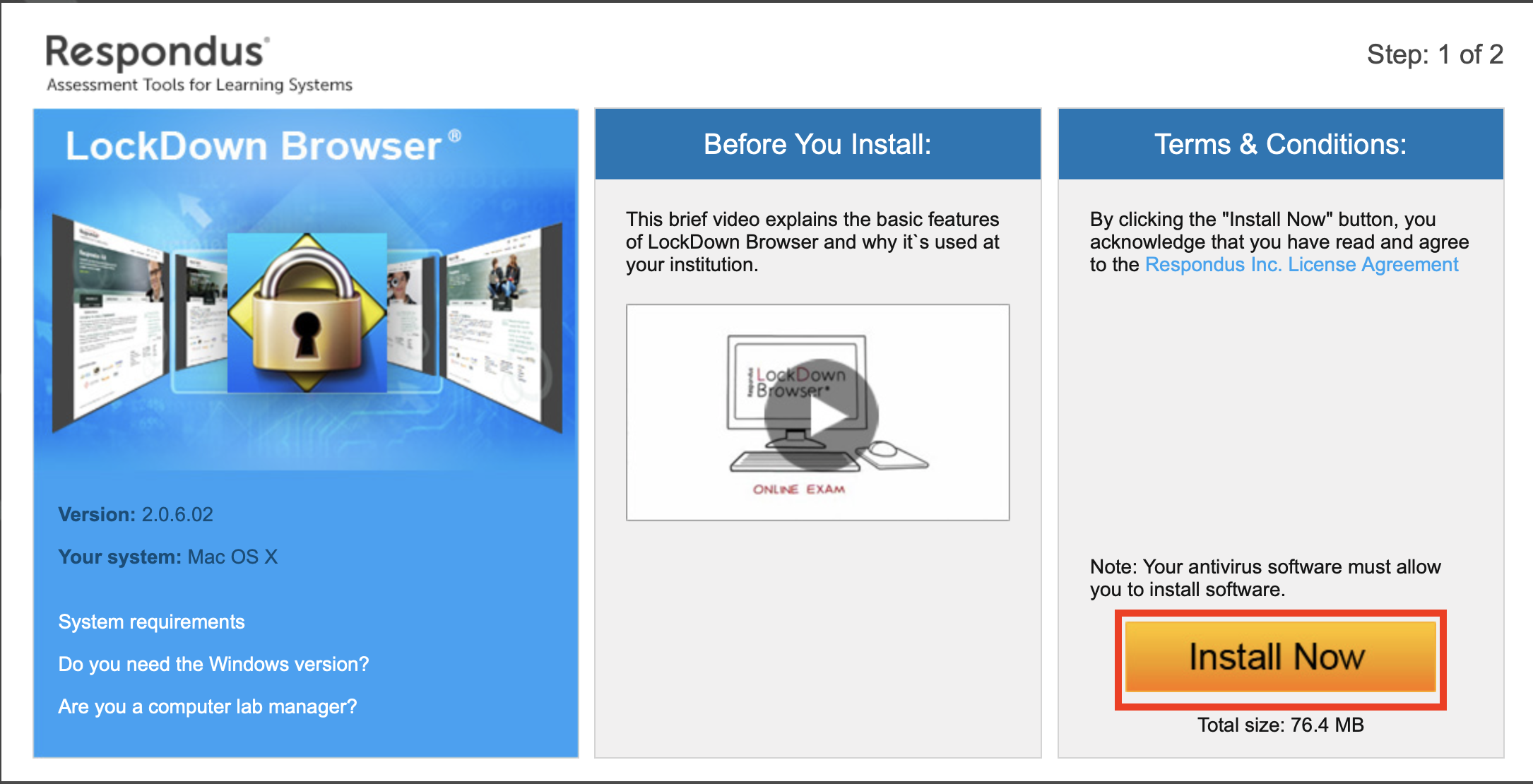
This is arguably the most critical step. Do NOT download LockDown Browser directly from the Respondus website (respondus.com) unless explicitly instructed by your institution.
Your university or college typically provides a unique download link for their customized version of LockDown Browser. This customized version is configured to work specifically with their learning management system (LMS) and exam settings.
To find your institution’s download link:
- Check your LMS: Look for announcements, course information, or a specific “Respondus LockDown Browser” module within your course (e.g., Canvas, Blackboard, Moodle, Brightspace).
- Institution’s IT Support Page: Most universities have dedicated IT support pages with guides and direct download links.
- Exam Instructions: The instructions for an exam requiring LockDown Browser will almost always include a link to download the software.
Once you locate the correct link, click it to download the installer file to your computer.
Installing on Windows
The Windows installation process is similar to many other software installations.
- Locate the Installer: Once the download is complete, navigate to your “Downloads” folder or the location where you saved the installer file. The file will typically be named
LockDownBrowser-xxxxxxxx.exe. - Run as Administrator: Right-click on the installer file and select “Run as administrator.” This ensures the software has the necessary permissions to install correctly.
- Language Selection: If prompted, select your preferred language and click “Next.”
- Accept License Agreement: Read through the Respondus LockDown Browser License Agreement. To proceed, you must select “I accept the terms of the license agreement” and click “Next.”
- Installation: Click “Install.” The installation wizard will now copy the necessary files to your system. This may take a few minutes.
- Finish: Once the installation is complete, click “Finish.” A LockDown Browser shortcut will usually be placed on your desktop and in your Start Menu.
Installing on Mac
Mac users follow a slightly different, but equally simple, procedure.
- Locate the Installer: After downloading, find the
LockDownBrowser-xxxxxxxx.zipor.dmgfile in your Downloads. - Open the Archive/Disk Image: If it’s a
.zipfile, double-click to extract it. If it’s a.dmg(disk image) file, double-click it to open. A new window will appear, typically showing the LockDown Browser icon. - Drag to Applications: Drag the “LockDown Browser” application icon from the opened window into your “Applications” folder alias within the same window. This will copy the application to your Applications folder.
- Close and Eject: Close the installation window. Then, drag the “Respondus LockDown Browser” disk image icon from your desktop (or sidebar in Finder) to the “Eject” icon in the Dock to safely unmount it.
- Launch (First Time): Navigate to your “Applications” folder, find “LockDown Browser,” and double-click to launch it. The first launch might prompt you about downloading required components or performing an update. You may also encounter security warnings from macOS (Gatekeeper) asking if you are sure you want to open an application downloaded from the internet. Click “Open” to proceed.
Installing on iPad (Optional, if applicable)
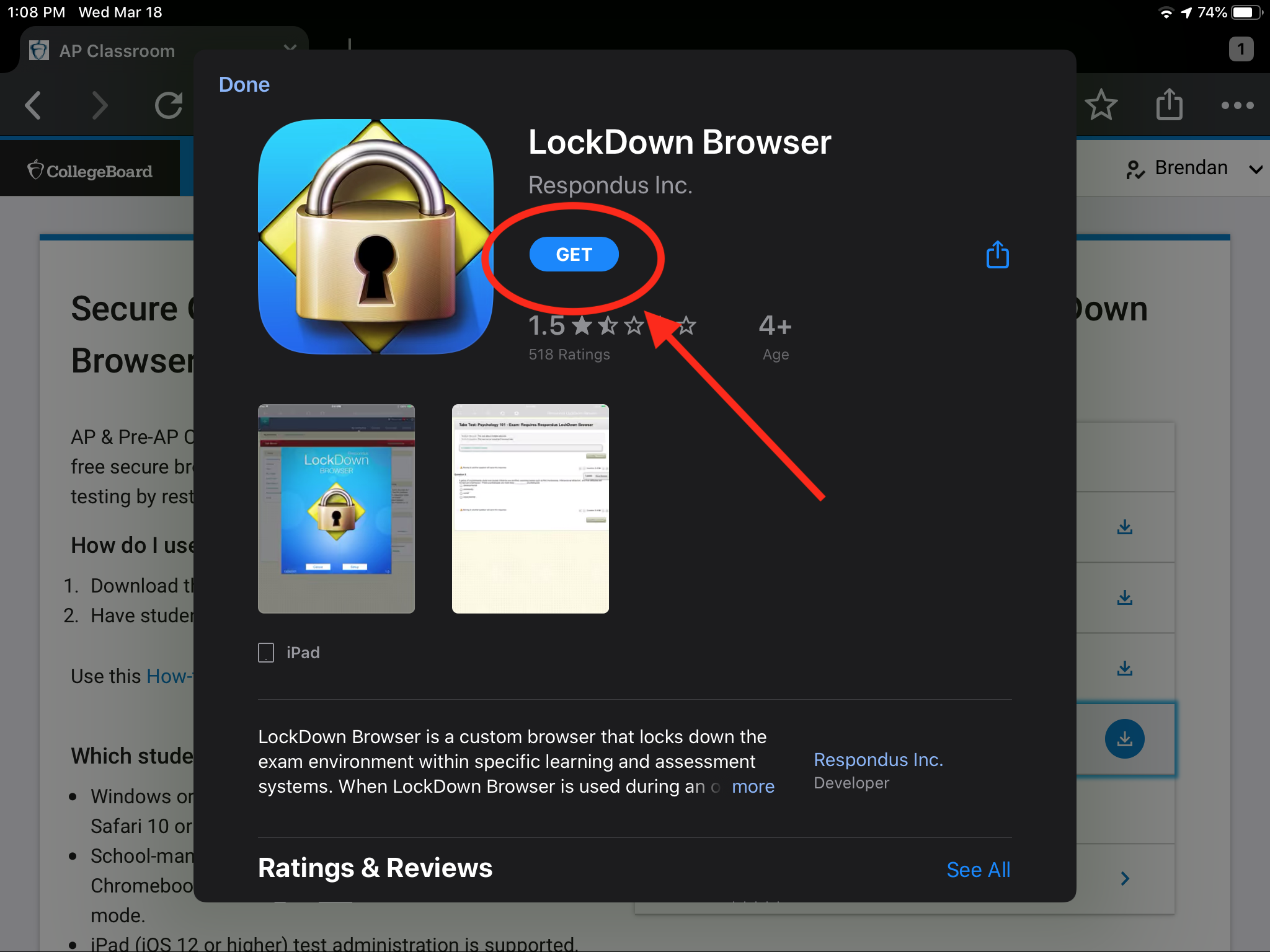
If your institution supports taking exams on an iPad with LockDown Browser, the process is through the App Store.
- Open App Store: On your iPad, open the Apple App Store.
- Search: Search for “Respondus LockDown Browser.”
- Download: Tap “Get” or the cloud icon to download and install the app.
- Launch and Select Institution: Open the LockDown Browser app. The first time you launch it, you’ll likely need to select your institution from a list. Once selected, you can access your LMS and navigate to your exam.
Installing on Chromebook (Optional, if applicable)
Chromebook support for LockDown Browser requires a specific extension and is contingent on your institution enabling it.
- Log in to LMS: Log into your institution’s LMS (e.g., Canvas, Blackboard) using the standard Chrome browser.
- Navigate to an Exam: Attempt to access an exam that requires LockDown Browser.
- Prompt for Extension: The system will detect that you are using a Chromebook and prompt you to install the Respondus LockDown Browser Extension from the Chrome Web Store. Click “Install Now.”
- Add Extension: Click “Add to Chrome” and then “Add extension” in the pop-up window.
- Launch Exam: Once the extension is added, you’ll be redirected back to your LMS, and LockDown Browser will launch to begin your exam.
- Note: The Chromebook version of LockDown Browser runs entirely within the Chrome browser environment using an extension, not as a standalone application.
Initial Launch and Verification
After installation, it’s a good practice to launch LockDown Browser once to ensure everything is set up correctly and to allow it to perform any initial updates.
- Launch: Click the LockDown Browser shortcut on your desktop (Windows) or find it in your Applications folder (Mac) and double-click.
- Updates: The browser may check for and install updates automatically. Allow this process to complete.
- LMS Selection (if prompted): Some versions may ask you to select your institution’s learning management system from a dropdown list.
- Access LMS Login: You should now see the login page for your institution’s LMS (e.g., Canvas, Blackboard). This confirms successful installation. You don’t need to log in now unless you are preparing for an exam.
Pre-Exam Preparation and Best Practices
Successful installation is just the first step. To guarantee a smooth exam experience and maximize your productivity, meticulous preparation before each assessment is crucial. These best practices also contribute to the overall digital security of your testing environment.
Running the LockDown Browser Check
Before every exam, especially if it’s your first time using LockDown Browser or if it’s been a while, utilize the built-in system check.
- Launch LockDown Browser: Open the application.
- Click “Help”: On the LockDown Browser toolbar, usually at the top, you’ll find a “Help” button.
- Select “Run System Check”: This tool will verify various system components:
- Webcam and Microphone: Essential if your exam uses Respondus Monitor.
- Internet Connection: Checks for stability.
- Operating System: Confirms compatibility.
- LockDown Browser Version: Ensures you have the latest updates.
- Address Issues: If the system check flags any issues, address them immediately. This proactive step can prevent significant problems during your exam.
Closing Other Applications and Processes
LockDown Browser is designed to prevent access to other applications, but it’s best practice to close everything before launching it. This minimizes potential conflicts, frees up system resources, and enhances performance.
- Manual Closure: Close all open web browsers, word processors, email clients, communication apps (Slack, Discord, Zoom), and other software.
- Task Manager/Activity Monitor: For Windows, press
Ctrl+Shift+Escto open Task Manager. For Mac, pressCmd+Option+Escfor Force Quit Applications, or use Activity Monitor. Identify and close any unnecessary background processes that might interfere or consume resources. Pay special attention to screen-sharing applications, virtual machine software, or VPNs, as these are common culprits for conflicts. This step is critical for ensuring the “digital security” of your testing environment, as some apps could theoretically bypass LockDown Browser’s restrictions if left running.
Ensuring a Stable Internet Connection
A reliable internet connection is paramount. Even if LockDown Browser is installed perfectly, a dropped connection can lead to exam submission issues or even invalidate your attempt.
- Wired Connection: Whenever possible, use an Ethernet cable to connect directly to your router. This provides the most stable and fastest connection, reducing latency and packet loss compared to Wi-Fi.
- Minimize Network Usage: Ask others in your household to avoid bandwidth-intensive activities (streaming movies, large downloads, online gaming) during your exam time.
- Test Connection: Run a quick internet speed test before your exam to ensure adequate bandwidth.
Charging Your Device
A simple but often overlooked step: ensure your laptop or tablet is fully charged, or better yet, plug it into a power source for the duration of the exam. Running out of battery mid-exam is a preventable disaster.
Understanding the Exam Environment
If your exam uses Respondus Monitor (webcam proctoring), be aware of its requirements:
- Quiet and Private Location: Take your exam in a location free from distractions and other people.
- Good Lighting: Ensure your face is clearly visible.
- Clear Desk: Remove any prohibited materials from your workspace.
- Room Scan: Be prepared to perform a room scan with your webcam if instructed, demonstrating your environment is clear of unauthorized aids.
Understanding and adhering to these requirements is crucial for both academic integrity and avoiding flags that could delay your grade or require review.
Troubleshooting Common Installation and Launch Issues
Even with careful preparation, technical issues can arise. Knowing how to diagnose and resolve common problems with LockDown Browser can save valuable time and prevent panic during critical moments.
“Missing Administrator Privileges” Error
This error occurs when the installer or the application attempts to perform an action that requires elevated permissions on your operating system, but your user account doesn’t have them.
- Solution:
- Run as Administrator: Right-click the LockDown Browser installer file (for installation issues) or the LockDown Browser shortcut (for launch issues) and select “Run as administrator” (Windows) or enter your administrator password when prompted (Mac).
- Contact IT: If you are using a school-issued computer or do not have administrator rights on your personal device, you will need to contact your institution’s IT help desk for assistance.
“Another Program is Preventing Launch” Error
This is one of the most frequent issues. LockDown Browser is designed to detect and block specific types of software that could compromise exam security, such as screen-sharing programs, virtual machines, communication tools, and certain types of antivirus/security software.
- Solution:
- Identify and Close: Carefully read the error message, as it often names the offending program. Close that program manually.
- Task Manager (Windows): Open Task Manager (
Ctrl+Shift+Esc), go to the “Processes” tab, identify any suspicious or conflicting programs, and click “End task.” - Activity Monitor (Mac): Open Activity Monitor (Finder > Applications > Utilities), search for the conflicting app, select it, and click the “X” button to quit it.
- Disable Temporarily: If an antivirus or security suite is flagged, you might need to temporarily disable it (at your own risk) or add LockDown Browser to its whitelist. Remember to re-enable it after your exam.
- Restart: Sometimes, a full system restart can clear stubborn background processes.
Update Issues
LockDown Browser regularly releases updates to improve functionality, fix bugs, and ensure compatibility. If your version is outdated, you might encounter issues.
- Solution:
- Allow Automatic Updates: When you launch LockDown Browser, it usually prompts you to update if a new version is available. Always allow these updates to run.
- Force Update: If you suspect an update issue, launch LockDown Browser and click the “Help” button, then look for an option like “Check for Updates” or “About LockDown Browser” which often triggers a check. If no specific update option is available, uninstalling and reinstalling the latest version from your institution’s link is the most reliable method.
Browser Not Closing Properly
On rare occasions, LockDown Browser might freeze or refuse to close normally after an exam.
- Solution (Windows): Press
Ctrl+Alt+Delto open the Windows Security screen, then click “Task Manager.” Find “Respondus LockDown Browser” under the “Applications” or “Processes” tab, select it, and click “End task.” - Solution (Mac): Press
Cmd+Option+Escto open the “Force Quit Applications” window. Select “LockDown Browser” and click “Force Quit.” - Restart: As a last resort, restart your computer.
Webcam/Microphone Not Detected (Respondus Monitor)
If your exam uses Respondus Monitor and your webcam or microphone isn’t detected:
- Check Physical Connections: Ensure the webcam (if external) is properly plugged in.
- System Privacy Settings:
- Windows: Go to Settings > Privacy > Camera/Microphone and ensure “Allow apps to access your camera/microphone” is ON, and LockDown Browser is listed and allowed.
- Mac: Go to System Preferences > Security & Privacy > Privacy > Camera/Microphone and ensure LockDown Browser is checked.
- Drivers: Ensure your webcam and microphone drivers are up-to-date. You can usually find these in Device Manager (Windows) or System Information (Mac), or by visiting the manufacturer’s website.
- Restart LockDown Browser: Close and relaunch LockDown Browser, then try the webcam check again.
Contacting Support
If you’ve tried these troubleshooting steps and are still experiencing issues, don’t hesitate to seek help.
- Your Institution’s IT Help Desk: For issues related to installation, login, or general software conflicts, your university’s IT support is your first point of contact. They are familiar with your institution’s specific setup and can provide tailored assistance.
- Respondus Support: For highly specific technical issues directly related to the LockDown Browser software’s core functionality that your institution’s IT cannot resolve, they may direct you to Respondus’s own support resources.
Remember, proactive communication with support channels, well in advance of an exam, is a key component of effective digital productivity and academic planning.
Conclusion
Installing and preparing for online exams with Respondus LockDown Browser doesn’t have to be a daunting task. By following this comprehensive guide, you equip yourself with the knowledge and steps necessary to ensure a smooth, secure, and stress-free experience. From understanding its purpose and meeting system requirements to executing the installation across various platforms, and from adopting crucial pre-exam best practices to confidently troubleshooting common issues, you are now well-prepared.
In an increasingly digital academic world, embracing technologies like LockDown Browser is part of adapting to new learning environments. Mastery of these tools not only contributes to your personal productivity by minimizing technical headaches but also reinforces the principles of digital security and academic integrity that are vital for credible online education. Be proactive, prepare thoroughly, and approach your online assessments with confidence, knowing you’ve set yourself up for success.
aViewFromTheCave is a participant in the Amazon Services LLC Associates Program, an affiliate advertising program designed to provide a means for sites to earn advertising fees by advertising and linking to Amazon.com. Amazon, the Amazon logo, AmazonSupply, and the AmazonSupply logo are trademarks of Amazon.com, Inc. or its affiliates. As an Amazon Associate we earn affiliate commissions from qualifying purchases.