
Jupyter Notebooks have revolutionized the way data scientists, researchers, and educators interact with code, data, and visualizations. Offering an open-source web application that allows you to create and share documents containing live code, equations, visualizations, and narrative text, Jupyter has become an indispensable tool in the modern technological landscape. Its versatility extends across various programming languages, though it’s most famously associated with Python, R, and Julia. From exploratory data analysis and statistical modeling to machine learning and deep learning projects, Jupyter Notebooks provide an interactive and iterative environment that significantly streamlines development workflows.
The ability to combine executable code with rich textual explanations, mathematical equations, and multimedia elements in a single document makes Jupyter a powerful storytelling and reproducibility tool. It fosters a collaborative environment where insights can be shared transparently, and experiments can be reproduced reliably. For anyone looking to delve into data science, artificial intelligence, scientific computing, or even advanced software development, mastering Jupyter Notebooks is a foundational step. This comprehensive guide will walk you through the process of installing Jupyter Notebooks, ensuring you have a robust environment ready for your projects. We will cover the most common and recommended installation methods, discuss prerequisites, and touch upon essential initial steps to get you started on your interactive computing journey.

1. Prerequisites for a Seamless Installation
Before diving into the installation process, it’s crucial to understand the foundational technologies that Jupyter Notebooks rely upon. A little preparation can save a lot of troubleshooting later on. Ensuring your system meets the basic requirements and understanding the underlying components will make the entire setup process much smoother and more intuitive.
Understanding Python and Pip
Jupyter Notebooks are primarily built on Python, making a functional Python installation the first and foremost requirement. Python is a high-level, interpreted programming language renowned for its readability and versatility. Most modern operating systems come with a version of Python pre-installed, but it’s often an older version (Python 2.x) and not always configured for easy package management. For Jupyter, we highly recommend using Python 3.x, ideally the latest stable release, as Python 2 reached its end-of-life and is no longer supported.
Accompanying Python is pip, its official package installer. pip allows you to install and manage additional libraries and dependencies that aren’t part of the Python standard library. When you install Python 3.4 or later, pip is usually included by default. You’ll use pip to install Jupyter Notebooks directly if you already have a Python environment set up or prefer a minimalist approach. Verifying that both Python and pip are correctly installed and added to your system’s PATH environment variable is a critical preliminary step. This ensures that your command line can locate and execute Python and pip commands from any directory.
Choosing Your Environment (Anaconda vs. Pip)
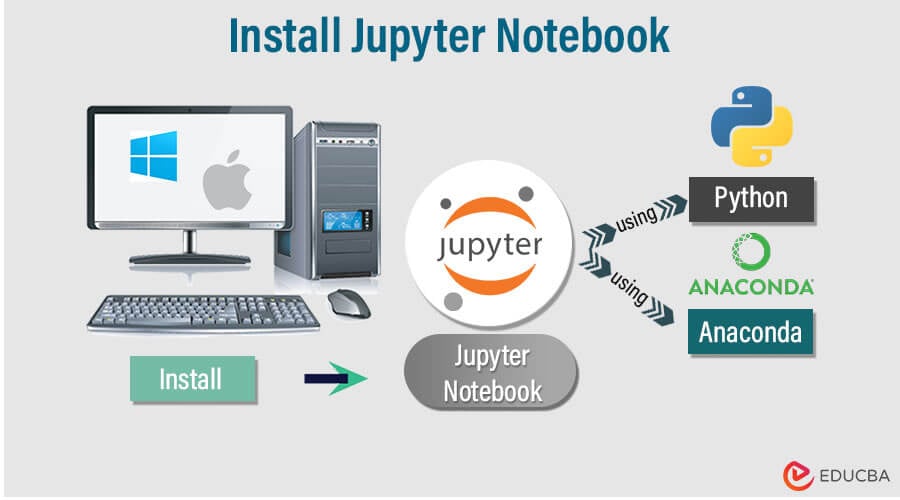
When it comes to installing Python packages, and specifically Jupyter Notebooks, you generally have two primary pathways, each with its own advantages: using a comprehensive distribution like Anaconda or installing via pip into an existing Python environment.
Anaconda is a popular, open-source distribution that simplifies package management and deployment. It comes pre-packaged with Python, the conda package manager (an alternative to pip), and hundreds of scientific computing libraries, including Jupyter, NumPy, Pandas, Matplotlib, and scikit-learn. Anaconda is particularly recommended for beginners or those who want a “batteries-included” solution for data science. It manages virtual environments effectively, preventing conflicts between different project dependencies.
Installing via pip is suitable if you already have a Python installation and prefer to manage your packages more granularly. This method is often favored by developers who want to keep their Python environment lean or who are working on specific projects that require precise dependency control within virtual environments. While pip can install Jupyter directly, you’ll be responsible for installing other data science libraries as needed. Both methods are valid, but Anaconda offers a more streamlined experience for those new to the data science ecosystem.
2. The Anaconda Navigator Approach (Recommended for Beginners)
For many, especially those new to data science or Python development, the Anaconda distribution provides the most straightforward and comprehensive way to get Jupyter Notebooks up and running. Anaconda bundles Python, Jupyter, and a vast collection of essential data science libraries into a single, easy-to-install package, eliminating the complexities of managing individual dependencies.
Downloading and Installing Anaconda
The first step is to download the Anaconda installer for your specific operating system (Windows, macOS, or Linux). Navigate to the official Anaconda website (www.anaconda.com/products/individual) and locate the “Anaconda Individual Edition” download section. Ensure you select the Python 3.x version, which is the standard for modern development. The installer package will be relatively large (typically 500MB to 1GB) due to the extensive collection of bundled libraries.
Once the download is complete, run the installer. The installation process is largely wizard-driven:
-
Welcome Screen: Click “Next” to begin.
-
License Agreement: Read and accept the license terms.
-
Installation Type: For most users, “Just Me” is sufficient unless you have specific multi-user requirements on a shared machine.
-
Installation Location: Choose a destination folder. The default location is usually fine, but ensure you have enough disk space.
-
Advanced Options: This is a crucial step.
-
“Add Anaconda to my PATH environment variable”: While Anaconda generally advises against this to prevent conflicts with other Python installations, many users find it convenient for command-line access. If you’re new, you might consider checking this box for simplicity, understanding its implications. Otherwise, you’ll need to open the Anaconda Prompt (Windows) or Terminal (macOS/Linux) to access Anaconda’s Python and commands.
-
“Register Anaconda as my default Python 3.x”: It’s generally safe to leave this checked, as it makes Anaconda’s Python the default for applications that look for a Python interpreter.
-
-
Complete Installation: Click “Install” and wait for the process to finish. This can take several minutes.
Launching Jupyter Notebooks via Anaconda Navigator
After a successful installation, you can launch Jupyter Notebooks through the Anaconda Navigator, a graphical user interface (GUI) that comes with Anaconda.
-
Open Anaconda Navigator:
-
Windows: Search for “Anaconda Navigator” in the Start Menu and click to open it.
-
macOS: Open Launchpad or search in Spotlight for “Anaconda Navigator.”
-
Linux: Open your terminal and type
anaconda-navigatorthen press Enter.
-
-
Navigate to Jupyter Notebook: Once Anaconda Navigator loads, you’ll see a dashboard displaying various applications. Locate the “Jupyter Notebook” tile. It typically has a distinct icon.
-
Launch Jupyter: Click the “Launch” button associated with the Jupyter Notebook tile. This action will:
-
Start a local web server on your computer.
-
Automatically open a new tab in your default web browser (e.g., Chrome, Firefox, Safari). This browser tab will display the Jupyter Notebook dashboard, showing the file system of the directory from which the server was launched (usually your user’s home directory).
-
From this dashboard, you can navigate through your files, create new notebooks, open existing ones, and manage running kernels. This method provides an intuitive, click-and-go experience, making it highly recommended for beginners.
3. The Pip Installation Method (For Existing Python Environments)
For users who already have a Python environment set up, prefer a minimalist installation, or want to manage packages within specific virtual environments, the pip installation method is an efficient alternative. This approach offers more granular control over your Python environment and its dependencies, making it a favorite among experienced developers.
Verifying Python and Pip Installation
Before proceeding with pip installation, it’s essential to ensure that Python and pip are correctly installed and accessible from your command-line interface.
-
Open your Terminal or Command Prompt:
-
Windows: Search for “Command Prompt” or “PowerShell” in the Start Menu.
-
macOS/Linux: Open the “Terminal” application.
-
-
Verify Python Installation: Type the following command and press Enter:
python --versionor, if
pythonpoints to Python 2:python3 --versionYou should see a version number (e.g.,
Python 3.9.7). If you receive an error, Python is either not installed or not added to your system’s PATH. In that case, you’ll need to install Python 3 from python.org before proceeding. -
Verify Pip Installation: Next, verify
pip:pip --versionor for Python 3 specific
pip:pip3 --versionYou should see
pipalong with its version number (e.g.,pip 21.2.4 from ...). Ifpipis not found, you might need to install it. On Windows, ensure you checked the “Add Python to PATH” option during Python installation. On Linux/macOS, it often comes with Python 3, but if not,sudo apt install python3-pip(Debian/Ubuntu) orbrew install python(macOS Homebrew) might be necessary. It’s also a good practice to upgradepipto its latest version:pip install --upgrade pip
Installing Jupyter via Pip
With Python and pip confirmed, installing Jupyter Notebooks is a single, straightforward command.
-
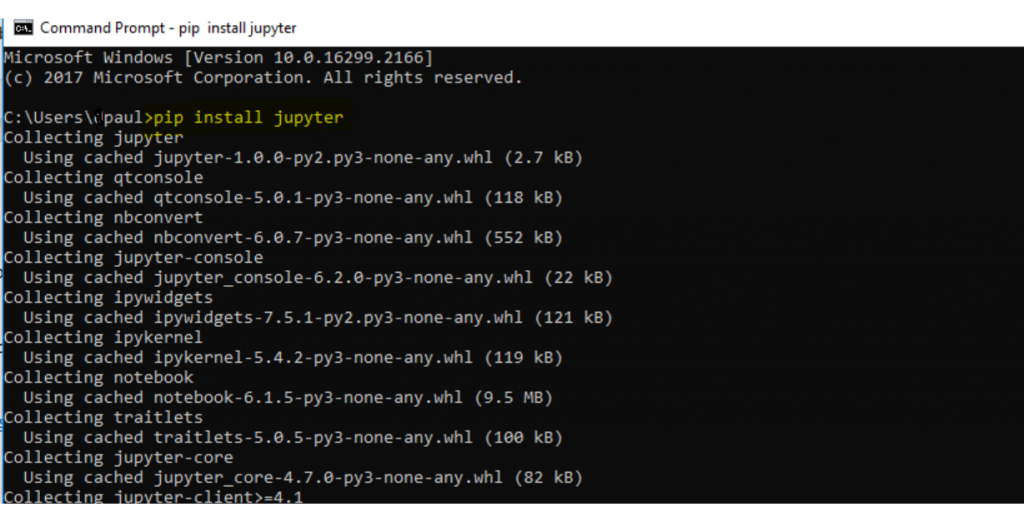
Install Jupyter: In your terminal or command prompt, execute the following command:
pip install jupyterThis command will download and install the core Jupyter package and all its necessary dependencies, including the IPython kernel (which powers Python execution in notebooks). The process might take a few minutes, depending on your internet connection and system speed. You will see a stream of packages being downloaded and installed.
-
Optional: Install Additional Kernels: While
pip install jupytergives you the Python kernel, if you plan to use other languages like R or Julia, you’ll need to install their respective kernels separately after installing Jupyter. For example, for R:install.packages('IRkernel') # In R console IRkernel::installspec() # In R consoleEach language has its own specific installation steps for its Jupyter kernel.
Launching Jupyter Notebooks from the Command Line
Once Jupyter is installed via pip, you can launch it directly from your terminal or command prompt.
-
Navigate to Your Project Directory (Optional but Recommended): It’s good practice to launch Jupyter Notebooks from the directory where you want to store your notebooks and related project files. Use the
cdcommand to change directories:cd /path/to/your/projectFor example:
cd Documents/DataScienceProjects. -
Launch Jupyter Notebook: With your current working directory set (or from your home directory if you don’t navigate), simply type:
jupyter notebookPress Enter. Similar to the Anaconda Navigator method, this command will:
-
Start a local web server.
-
Automatically open a new tab in your default web browser, displaying the Jupyter Notebook dashboard. The dashboard will show the contents of the directory from which you launched the command.
-
You can then create new notebooks, open existing ones, and begin coding. Remember to keep the terminal window where you launched jupyter notebook open, as closing it will shut down the Jupyter server. To stop the server gracefully, go back to the terminal and press Ctrl+C twice.
4. Verifying Your Installation and First Steps
After successfully installing Jupyter Notebooks, the next logical step is to ensure everything works as expected and to take your first tentative steps into creating an interactive document. This verification process is quick and provides immediate feedback on your setup.
Creating Your First Notebook
Once the Jupyter Notebook dashboard opens in your web browser (either from Anaconda Navigator or the command line), you’ll see a file explorer interface.
-
Navigate to a Desired Folder: Use the dashboard to browse to a folder where you’d like to store your new notebook, or simply stay in the current directory (often your home directory).
-
Create a New Notebook:
-
Click the “New” button, typically located on the right side of the dashboard.
-
From the dropdown menu, select “Python 3” (or the name of your Python kernel if it’s different). This will open a new, blank notebook in a separate browser tab.
-
Congratulations! You’ve successfully created your first Jupyter Notebook. The new tab will display a single, empty “cell.” This is where you’ll write and execute your code or Markdown text.
Exploring the Jupyter Interface
Take a moment to familiarize yourself with the basic components of the Jupyter Notebook interface in your newly created notebook:
-
Cells: The fundamental building blocks of a notebook. There are two main types:
-
Code Cells: Where you write and execute your programming language code (e.g., Python).
-
Markdown Cells: Where you write narrative text, explanations, equations, and rich media using Markdown syntax.
-
-
Toolbar: Located at the top, it contains icons for common actions like saving, inserting cells, cutting/copying/pasting cells, running cells, and changing cell types.
-
Menu Bar: Provides access to various functions, including saving the notebook, downloading it in different formats (e.g., PDF, HTML, Python script), and managing the kernel.
-
Kernel: The “engine” that executes the code in your notebook. The kernel runs in the background. The current kernel status (e.g., “Idle” or “Busy”) is usually indicated in the top-right corner.
Your First Code Execution:
-
Click on the first empty cell to select it.
-
Ensure the cell type is set to “Code” (you can change this from the toolbar dropdown).
-
Type a simple Python command, for example:
print("Hello, Jupyter!") -
To execute the cell, click the “Run” button in the toolbar (looks like a play icon) or press
Shift + Enter. -
You should see the output
Hello, Jupyter!directly below the cell.
This simple exercise confirms that your Jupyter Notebook installation is working correctly and your Python kernel is executing code as expected.
5. Common Issues and Troubleshooting
While the installation process is generally straightforward, users occasionally encounter issues. Knowing how to diagnose and resolve these common problems can save considerable frustration and get you back on track quickly.
Environment Path Issues
One of the most frequent problems, especially on Windows, is Python or Jupyter not being recognized by the command line. This usually manifests as “command not found” errors when you type python, pip, or jupyter in your terminal.
Solution:
-
Windows: During Python installation, ensure you check the “Add Python to PATH” option. If you missed it, you’ll need to manually add Python’s installation directory (e.g.,
C:Python39andC:Python39Scripts) to your system’s PATH environment variables. Alternatively, use the Anaconda Prompt which automatically configures the PATH for Anaconda’s environment. -
macOS/Linux: Ensure Python is installed in a standard location and that your shell configuration file (e.g.,
.bashrc,.zshrc) includes the correct paths. Reinstalling Python using a package manager like Homebrew on macOS often resolves this.
Dependency Conflicts
Sometimes, installing new packages can lead to conflicts with existing ones, especially if you have multiple Python installations or are managing many different project environments.
Solution:
-
Virtual Environments: The best practice to avoid dependency conflicts is to use virtual environments. Tools like
venv(built into Python 3),virtualenv, orcondaallow you to create isolated Python environments for each project. This ensures that packages installed for one project don’t interfere with another.# Using venv (Python 3.x) python3 -m venv my_project_env source my_project_env/bin/activate # On Windows: .my_project_envScriptsactivate pip install jupyter # Install Jupyter in this isolated environment -
Anaconda: If using Anaconda,
condaenvironments are excellent for this purpose. You can create a new environment:conda create -n my_jupyter_env python=3.9 conda activate my_jupyter_env conda install jupyter -
Specific Errors: If you encounter specific
pipdependency resolution errors, try upgradingpip(pip install --upgrade pip) or specifying exact package versions known to be compatible.
Port Already in Use
When you launch jupyter notebook, it attempts to start a web server on a default port, usually 8888. If another application is already using this port, Jupyter will fail to launch or report a “port already in use” error.
Solution:
-
Automatic Port Assignment: Jupyter is usually smart enough to try the next available port (e.g., 8889, 8890). So, if you see it launch on a different port, that’s normal.
-
Manual Port Specification: You can manually specify a different port when launching Jupyter:
jupyter notebook --port 8889 -
Identify and Terminate Conflicting Process: On Linux/macOS, you can use
lsof -i :8888to find the process ID (PID) using the port, and thenkill -9 <PID>to terminate it. On Windows, you might usenetstat -ano | findstr :8888to find the PID, then use Task Manager ortaskkill /PID <PID> /Fto kill the process.
By understanding these common issues and their resolutions, you can effectively troubleshoot and maintain a robust Jupyter Notebook environment.
Jupyter Notebooks stand as a cornerstone for interactive computing, empowering users to blend code, text, and rich media into dynamic documents. Whether you opt for the comprehensive Anaconda distribution or prefer the targeted pip installation, getting Jupyter Notebooks up and running is an accessible process that unlocks a world of possibilities in data science, machine learning, and beyond. With your environment now configured, you are well-equipped to embark on exploratory data analysis, build sophisticated models, visualize complex datasets, and share your insights with unparalleled clarity. Embrace the interactive nature of Jupyter and begin transforming your computational ideas into tangible, shareable results.