
In an increasingly digital world, the need for reliable physical output remains undiminished. From printing essential documents for work or study to preserving cherished memories through photos, our printers serve as a vital link between the digital and the tangible. Among the myriad of printer brands available, HP stands out as a household name, synonymous with quality and innovation. However, even the most advanced HP printer is merely an inert piece of hardware without the correct software bridge to your computer: the printer driver.
A printer driver is a fundamental piece of software that enables your computer’s operating system to communicate effectively with your printer. Without it, your computer wouldn’t understand how to translate your digital documents into the precise commands required for the printer to place ink on paper. Installing the right HP printer driver is the first and most crucial step toward unlocking your device’s full potential, ensuring optimal performance, access to advanced features, and a smooth, frustration-free printing experience. This comprehensive guide will walk you through various methods of installing HP printer drivers, offering insights into best practices, troubleshooting common issues, and maintaining your printer for long-term efficiency.

Understanding HP Printer Drivers: The Core of Your Printing Ecosystem
Before diving into the installation process, it’s essential to grasp what a printer driver is and why its role is so critical in your tech setup. This foundational understanding will not only help you install the driver correctly but also empower you to troubleshoot potential issues more effectively.
What is a Printer Driver and Why is it Essential?
At its heart, a printer driver is a translator. It acts as an intermediary, converting the generic print commands from your computer’s operating system (like Windows, macOS, or Linux) into a specific language that your particular HP printer model can understand and execute. Every printer model, even within the same brand like HP, has unique functionalities, internal architecture, and command sets. Without a driver, your operating system would be sending gibberish to the printer, resulting in no output or errors.
Beyond basic communication, printer drivers are essential for several key reasons:
- Enabling Full Functionality: Generic drivers might allow basic printing, but a dedicated HP driver unlocks all the advanced features of your specific model. This includes duplex printing, specific paper size handling, color management, scanning capabilities (for All-in-One printers), ink level monitoring, and advanced print quality settings.
- Optimized Performance: Drivers are designed to maximize the speed and efficiency of your printer, ensuring documents are processed quickly and without unnecessary delays. They also manage printer memory and resources effectively.
- System Compatibility: Drivers bridge the gap between your operating system and hardware, ensuring seamless integration and stable operation. An outdated or incorrect driver can lead to system crashes, software conflicts, and general instability.
- Security and Stability: Official drivers from HP are rigorously tested for compatibility and security. They help protect your system from vulnerabilities that might arise from using unverified or generic software.
Why Choose Official HP Drivers?
While there might be third-party driver providers or generic drivers built into operating systems, opting for official HP drivers directly from the manufacturer is always the recommended approach. Here’s why:
- Guaranteed Compatibility and Performance: Official drivers are specifically engineered for your HP printer model, ensuring perfect compatibility and unlocking every feature the hardware offers. They are optimized for peak performance and reliability.
- Security and Trust: Downloading drivers from HP’s official website guarantees that the software is legitimate, free from malware, and hasn’t been tampered with. This is a critical aspect of digital security, protecting your computer from potential threats.
- Access to Latest Features and Bug Fixes: HP frequently updates its drivers to introduce new functionalities, improve performance, and fix any bugs or vulnerabilities discovered. Using official sources ensures you always have access to the latest, most stable version.
- Comprehensive Support: Should you encounter any issues, HP’s customer support and online resources are tailored to work with their official drivers, making troubleshooting much smoother.
Step-by-Step Installation Methods for Your HP Printer
Installing an HP printer driver can be done through several methods, each suited to different scenarios and user preferences. We’ll explore the most common and effective ways to get your HP printer up and running.
Method 1: The Recommended Approach – Using the Official HP Website
This is the most reliable and recommended method for installing your HP printer driver, ensuring you get the latest, most compatible software directly from the source.
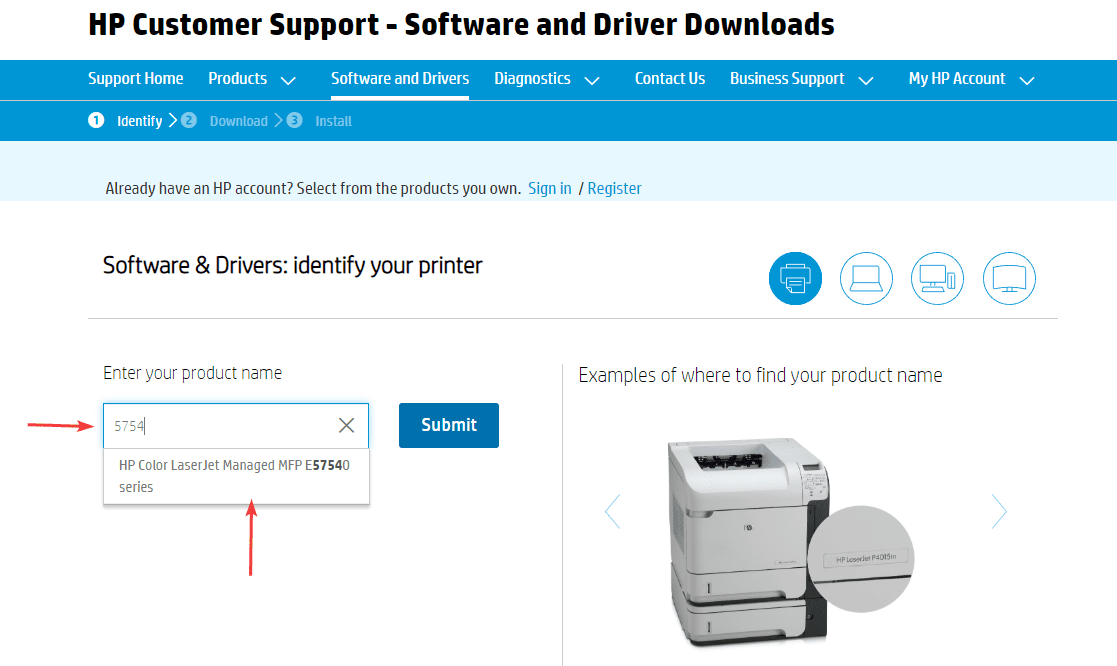
- Identify Your HP Printer Model: Before you begin, you need to know the exact model number of your HP printer. This information is typically found on a label on the printer itself (often on the front, back, or underside), or on the printer’s packaging. It might look something like “HP LaserJet Pro MFP M227fdw” or “HP DeskJet 3755.”
- Open Your Web Browser and Go to HP Support: Navigate to HP’s official support website. The most common address is
support.hp.com. - Locate the Driver Download Section: On the HP support page, look for a search bar or a section dedicated to “Software & Drivers” or “Support.” Enter your exact printer model number into the search bar.
- Select Your Operating System: Once you’ve searched for your printer, HP’s website should automatically detect your operating system (e.g., Windows 11, macOS Ventura). If it doesn’t, or if you need to download drivers for a different OS, manually select the correct one from the dropdown menu. This step is crucial for ensuring driver compatibility.
- Download the Full Feature Software and Driver: HP typically offers several downloads. Look for the “Full Feature Software and Driver” package. This is usually the largest file, as it includes not only the basic printer driver but also additional software like HP Smart, HP Scan utilities, and other helpful tools that unlock your printer’s complete feature set. If you only need basic printing, a “Basic Driver” might be available, but the full package is generally preferred.
- Run the Installer: Once the download is complete, locate the downloaded file (usually in your “Downloads” folder) and double-click it to start the installation process.
- Follow On-Screen Prompts: The HP installer is typically user-friendly. Follow the instructions provided in the setup wizard. You may be asked to:
- Accept terms and conditions.
- Choose installation options (e.g., recommended or custom).
- Select your connection type (USB, Wireless, Ethernet). If connecting via USB, the installer will usually prompt you to connect the printer to your computer when it’s ready. For wireless connections, you might need to enter your Wi-Fi network details during the setup.
- Register your product (optional).
- Complete the Installation and Test Print: Once the installation finishes, you might be prompted to restart your computer. After restarting (if necessary), perform a test print to confirm that the printer is functioning correctly.
Method 2: Streamlining with the HP Smart App
For many modern HP printers, especially those designed for home and small office use, the HP Smart app offers an intuitive and streamlined installation and management experience. It integrates driver installation with mobile printing, scanning, and ink ordering features.
- Download HP Smart:
- For Windows 10/11: Open the Microsoft Store, search for “HP Smart,” and click “Get” or “Install.”
- For macOS: Open the App Store, search for “HP Smart,” and click “Get” or “Install.”
- For Mobile Devices (iOS/Android): Download the “HP Smart” app from the App Store or Google Play Store.
- Launch HP Smart and Create an Account: Open the HP Smart app after installation. You may be prompted to create an HP account or sign in if you already have one. This account helps manage your printer, subscriptions, and services.
- Add Your Printer: Click on the “Add Printer” or “+” icon within the HP Smart app.
- Follow In-App Instructions: The app will guide you through the process of finding and setting up your printer.
- For Wi-Fi Printers: Ensure your printer is powered on and connected to the same Wi-Fi network as your computer or mobile device. HP Smart will scan for available printers. Select your printer from the list.
- For USB Printers: Connect your printer to your computer via a USB cable if prompted.
- Install Drivers (Automatically): HP Smart will often automatically detect your printer model and download/install the necessary drivers in the background. It integrates the driver setup into the printer addition process.
- Complete Setup and Utilize Features: Once the printer is added, you can use HP Smart to print, scan, check ink levels, order supplies, and access various printer settings directly from the app.
Method 3: Leveraging Built-in Windows Drivers or Windows Update
Sometimes, especially for older or simpler HP printer models, your Windows operating system might already have a basic driver built-in or can automatically find one through Windows Update. This method is convenient but might not always provide the full suite of features.
- Connect Your HP Printer: Power on your HP printer and connect it to your computer.
- USB: Plug the USB cable into an available port on your computer.
- Wireless: Ensure the printer is connected to your local Wi-Fi network. Your computer should be on the same network.
- Allow Windows to Detect: Windows will typically detect the new hardware and attempt to install a suitable driver automatically. You might see a notification indicating “Device setup in progress” or “Installing device software.”
- Check Device Manager (If Auto-Install Fails): If Windows doesn’t automatically install the driver or if the printer isn’t working correctly:
- Right-click the Start button and select “Device Manager.”
- Look for your printer under “Printers” or “Other devices.” If it appears with a yellow exclamation mark, it indicates a driver issue.
- Right-click on the printer and select “Update driver.”
- Choose “Search automatically for updated driver software.” Windows will search your computer and then Windows Update for a suitable driver.
- Add Printer Manually (If Not Detected):
- Go to “Settings” > “Bluetooth & devices” > “Printers & scanners” (or “Devices and Printers” in older Windows versions).
- Click “Add a printer or scanner.”
- If your printer appears, select it and follow the prompts. If it doesn’t appear, click “The printer that I want isn’t listed,” and then choose options like “Add a local printer or network printer with manual settings” or “Add a Bluetooth, wireless or network discoverable printer” and follow the wizard.
Method 4: The Traditional CD/DVD Installation (For Older Models)
While less common with newer printers, many older HP models came bundled with an installation CD or DVD. This method is straightforward if you still have the disc and a CD/DVD drive.
- Insert the Installation Disc: Place the HP printer installation CD or DVD into your computer’s optical drive.
- Run the Setup Program: In most cases, the disc will auto-run, and an installation wizard will pop up. If it doesn’t, open “File Explorer” (or “My Computer”), navigate to your CD/DVD drive, and double-click on “Setup.exe” or a similar executable file.
- Follow On-Screen Instructions: The installation wizard will guide you through the process, similar to Method 1. You’ll typically be asked to accept terms, choose installation types, and specify your connection method (USB or wireless).
- Connect Printer When Prompted: For USB connections, the installer will usually tell you when to connect the printer to your computer. For wireless setups, it will guide you through connecting the printer to your Wi-Fi network.
- Complete Installation: Once done, perform a test print.
Troubleshooting Common HP Printer Driver Installation Issues
Even with careful execution, you might encounter issues during driver installation. Here are some common problems and their solutions.
“Driver Not Found” or Installation Failure
- Verify Printer Model and OS: Double-check that you’ve selected the exact printer model and the correct operating system version (e.g., Windows 11 64-bit) when downloading the driver from HP’s website. A mismatch is a common cause of failure.
- Corrupt Download: The downloaded driver file might be corrupt. Delete it and download it again, ensuring a stable internet connection during the download.
- Antivirus/Firewall Interference: Temporarily disable your antivirus software and firewall during the installation process. Remember to re-enable them immediately afterward for digital security.
- Run as Administrator: Right-click the installer file and select “Run as administrator” to ensure it has the necessary permissions.
- Clean Previous Installations: If you had an old driver installed, remnants might cause conflicts. Use the “Add or Remove Programs” utility (or “Apps & features” in Windows Settings) to uninstall any previous HP printer software, then restart your computer before attempting a fresh installation.
Printer Not Connecting or Functioning After Installation
- Check Physical Connections:
- USB: Ensure the USB cable is securely connected to both the printer and the computer. Try a different USB port or cable.
- Wireless: Verify that your printer is powered on and connected to the correct Wi-Fi network. Check the printer’s display for network status. Ensure your computer is also on the same network. Restart your router, printer, and computer.
- Printer Status: Make sure the printer is turned on and free of errors (like paper jams or low ink).
- Printer Spooler Service: In Windows, the “Print Spooler” service manages print jobs. If it’s stuck, restart it:
- Search for “Services” in the Windows search bar and open it.
- Scroll down and find “Print Spooler.”
- Right-click it and select “Restart.”
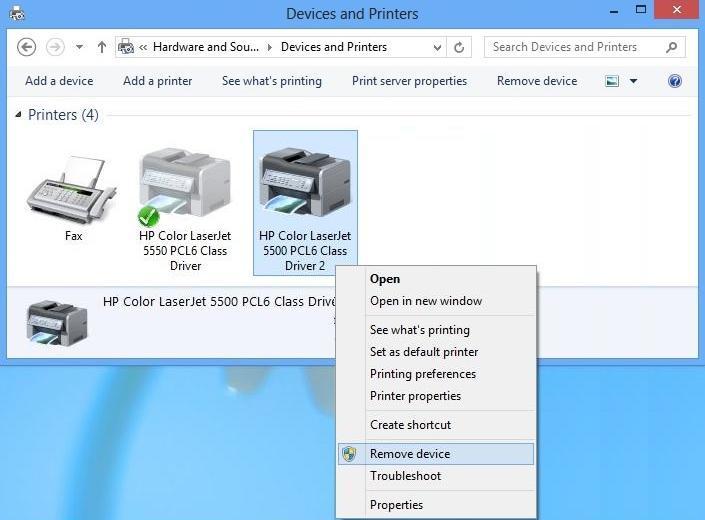
- Remove and Re-add Printer: Go to “Settings” > “Bluetooth & devices” > “Printers & scanners.” Remove your HP printer from the list, restart your computer, and then try adding it again.
Addressing Driver Conflicts and Compatibility Problems
- Uninstall Old Drivers: If you’re upgrading or switching printers, residual old drivers can cause conflicts. Thoroughly uninstall all printer-related software via “Apps & features” or “Programs and Features” before installing new drivers.
- Compatibility Mode: For older printers on newer operating systems, try running the driver installer in compatibility mode. Right-click the installer, go to “Properties,” then “Compatibility,” and select an older Windows version.
- HP Print and Scan Doctor: HP offers a free diagnostic tool called “HP Print and Scan Doctor” that can automatically detect and fix many common printer and driver issues. Download it from the HP support website.
Digital Security Considerations During Driver Download
Always prioritize digital security by downloading drivers exclusively from the official HP support website. Third-party driver download sites, while seemingly convenient, can often bundle drivers with unwanted software, adware, or even malware, compromising your system’s security and privacy. Verifying the website’s URL (support.hp.com or hp.com) and looking for secure connection indicators (like a padlock icon in your browser’s address bar) are simple but effective security measures.
Maintaining Optimal Printer Performance: Driver Updates and Best Practices
Installing your HP printer driver is the first step, but ensuring sustained performance requires ongoing attention, particularly to driver updates. Regular maintenance is crucial for a smooth and productive tech experience.
The Importance of Regular Driver Updates
Driver updates are not just about fixing problems; they are about enhancing your printer’s overall functionality and security.
- Performance Enhancements: Updates often include optimizations that can improve printing speed, color accuracy, and overall output quality.
- Bug Fixes: Manufacturers continuously identify and patch bugs or glitches that might affect printer reliability or specific features.
- New Features: Sometimes, updates introduce new capabilities to your printer, such as support for new paper types, enhanced cloud printing features, or improved mobile integration.
- Security Patches: Just like operating systems, drivers can have security vulnerabilities. Updates often include patches to protect against potential threats, a vital aspect of maintaining a secure digital environment.
- Compatibility with OS Updates: As operating systems evolve, drivers need to be updated to maintain full compatibility with the latest versions and features of Windows or macOS.
How to Keep Your HP Drivers Updated
Keeping your drivers current doesn’t have to be a chore. Here are the primary methods:
- HP Support Assistant: This is HP’s dedicated software tool, often pre-installed on HP computers, that helps manage drivers, software, and troubleshooting for all your HP devices. It can automatically check for and install the latest drivers for your HP printer.
- Windows Update (for basic drivers): Windows Update sometimes delivers driver updates, especially for basic functionality. Ensure your Windows Update settings are configured to include driver updates.
- Manual Checks on HP Website: Periodically visit
support.hp.com, enter your printer model, and check the “Software & Drivers” section for any new releases. This is the most reliable way to get the latest full-feature drivers.
Beyond Drivers: Holistic Printer Maintenance Tips
While drivers are key, holistic printer maintenance ensures longevity and consistent quality.
- Firmware Updates: Beyond software drivers, printers have internal firmware. HP occasionally releases firmware updates to improve hardware functionality, security, and compatibility. Check the HP support website for your printer’s firmware updates and follow their instructions carefully.
- Regular Cleaning: Dust, paper fibers, and ink residue can build up, affecting print quality and potentially causing jams. Follow your printer’s manual for recommended cleaning procedures.
- Use Quality Consumables: Always use genuine HP ink cartridges or toner, and appropriate paper types. This prevents damage to the printer, ensures optimal print quality, and supports the manufacturer’s warranty.
- Proper Paper Handling: Load paper correctly, avoid overfilling the tray, and store paper in a dry environment to prevent curling or moisture damage.
- Network Stability: For wireless printers, ensure your Wi-Fi network is stable and provides good signal strength to the printer.
Conclusion: Empowering Your Printing Experience
The seemingly simple act of installing an HP printer driver is, in fact, a critical gateway to unlocking your printer’s full potential and ensuring a seamless, productive printing experience. By understanding the role of drivers, choosing official sources for installation, and knowing how to troubleshoot common issues, you empower yourself to overcome potential technical hurdles.
In an era where technology plays an increasingly central role in both our personal and professional lives, a well-configured and maintained printer is an indispensable tool. Whether you rely on the tried-and-true method of downloading from the official HP website, the modern convenience of the HP Smart app, or even the simplicity of built-in OS drivers, the goal remains the same: efficient, high-quality output. By diligently applying the knowledge in this guide, including keeping your drivers updated and practicing good printer maintenance, you’re not just installing software; you’re investing in reliable productivity and a smoother workflow for all your printing needs.
aViewFromTheCave is a participant in the Amazon Services LLC Associates Program, an affiliate advertising program designed to provide a means for sites to earn advertising fees by advertising and linking to Amazon.com. Amazon, the Amazon logo, AmazonSupply, and the AmazonSupply logo are trademarks of Amazon.com, Inc. or its affiliates. As an Amazon Associate we earn affiliate commissions from qualifying purchases.