
The Nintendo Wii, a groundbreaking console that redefined motion control gaming, holds a special place in the hearts of millions. While its official lifespan may have concluded, its potential extends far beyond its original design thanks to the vibrant world of “homebrew.” For tech enthusiasts and casual users alike, installing homebrew on your Wii is a transformative process, unlocking a universe of customization, media playback, and classic gaming emulation that breathes new life into the aging console. This comprehensive guide delves into the technical aspects and step-by-step procedures required to unleash your Wii’s full capabilities, transforming it into a versatile entertainment hub.

Understanding Wii Homebrew: A Gateway to Customization
At its core, homebrew refers to software created by hobbyists and developers that runs on a proprietary hardware platform, like the Wii, without official endorsement from the manufacturer. For the Nintendo Wii, homebrew opens doors that Nintendo never intended, empowering users with unprecedented control and functionality.
What is Wii Homebrew?
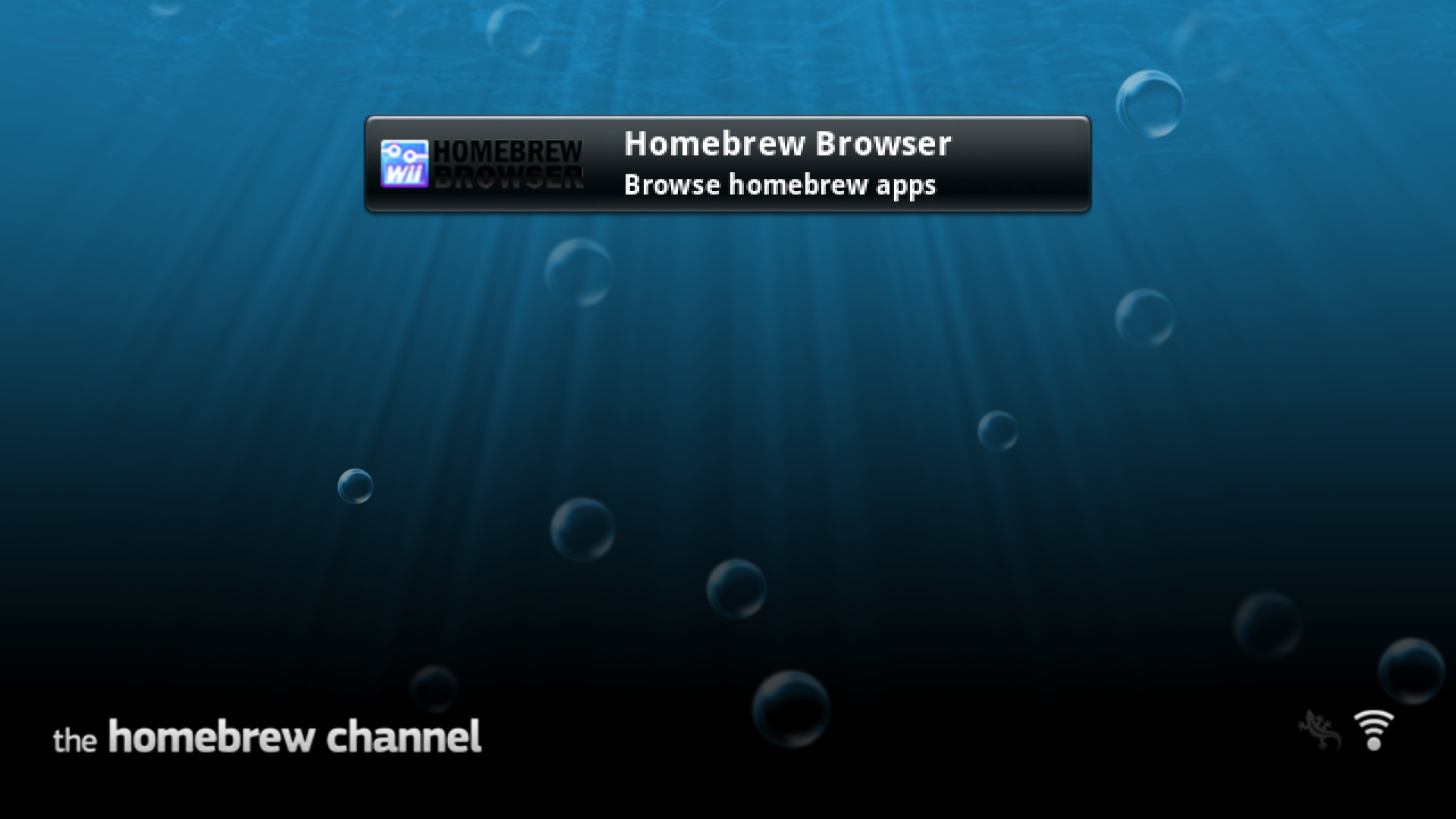
Wii Homebrew encompasses a wide range of unofficial applications, utilities, and games designed to run on the console. Unlike commercially released games or WiiWare titles, homebrew applications are typically free, community-driven, and aim to expand the system’s utility in ways never imagined by its creators. This ecosystem thrives on the ingenuity of developers who exploit vulnerabilities in the Wii’s firmware to enable the execution of unsigned code. The primary gateway to this world is the Homebrew Channel, a custom application that functions much like the Wii Menu but is dedicated to launching homebrew software. Once installed, it becomes the central hub for all your custom applications.
The Benefits of Homebrewing Your Wii
The allure of homebrewing a Wii is multifaceted, catering to various interests:
-
Emulation: Perhaps the most compelling reason for many, homebrew allows the Wii to run emulators for a vast array of classic consoles, including the NES, SNES, N64, Sega Genesis, and even PlayStation 1. This transforms your Wii into a retro gaming powerhouse, giving new life to your old game ROMs.
-
Media Playback: With homebrew media players like MPlayer CE or WiiMC (Wii Media Center), your console can play a wide variety of video and audio formats, often directly from a USB drive or SD card. This effectively turns your Wii into a basic, yet capable, media center for your living room.
-
Custom Games and Applications: Beyond emulation, the homebrew scene offers unique indie games, utility tools, and even custom versions of existing games. This includes things like alternative browsers, file managers, and various system customization tools.
-
DVD Playback: While some early Wii models could play DVDs with a specific firmware hack, homebrew applications like the WiiMC make DVD playback possible on virtually any model, bypassing region locks and other restrictions.
-
System Customization: Change themes, alter system settings that are normally inaccessible, and fine-tune your console experience beyond official parameters.
-
Game Backups: Homebrew allows you to create backups of your physical Wii and GameCube games and run them directly from a USB hard drive, preserving your collection and reducing wear on your disc drive.
Important Considerations and Disclaimers
While the benefits are extensive, it’s crucial to approach homebrewing with an understanding of its implications:
-
Warranty: Homebrewing technically voids your console’s warranty. However, given the Wii’s age, this is rarely a significant concern for most users today.
-
Bricking Risk: Although rare if instructions are followed carefully, there is a theoretical risk of “bricking” your console (rendering it inoperable) if something goes wrong during the installation process, especially with certain low-level modifications. Tools like BootMii are designed to mitigate this risk by providing backup and restore capabilities.
-
Legality of ROMs: While installing homebrew itself is generally legal, the acquisition and use of copyrighted game ROMs and ISOs without owning the original games is a legal gray area and often violates copyright law. Users are responsible for understanding and adhering to local laws regarding digital media.
-
Online Services: While less relevant now, Nintendo could historically ban homebrewed consoles from accessing online services. With official online services largely discontinued for the Wii, this is no longer a practical concern.
-
Firmware Updates: Always exercise caution with official Nintendo firmware updates after homebrewing, as they can potentially remove homebrew or create conflicts. It’s generally advised to avoid updating if your console is homebrewed, or to research compatibility thoroughly before proceeding.
Essential Prerequisites and Preparations
Before embarking on the homebrew installation, careful preparation is key. Gathering the necessary tools and understanding your console’s specific characteristics will ensure a smooth process.
Required Hardware and Software
To successfully homebrew your Wii, you’ll need a few essential items:
-
Nintendo Wii Console: Any model of the Wii (RVL-001 or RVL-101 Wii Family Edition) is compatible, though the original RVL-001 offers more options for BootMii installation. The Wii Mini cannot be homebrewed.
-
SD Card: An SD card (not SDHC or SDXC for older Wiis, unless formatted correctly) is crucial. A size between 2GB and 32GB is ideal. Ensure it’s formatted to FAT32.
-
Computer with SD Card Reader: Needed to transfer files to your SD card.
-
Internet Connection for Wii: The Wii needs to be connected to the internet to download the exploit payload.
-
Wii Remote: A standard Wii Remote (RVL-003 or RVL-036) without Wii MotionPlus built-in is usually required for the initial exploit. Newer MotionPlus Inside remotes might not work with some older exploits.
Preparing Your SD Card
The SD card serves as the temporary storage for the exploit files and the permanent home for your homebrew applications. Proper preparation is vital:
-
Backup Data: If your SD card contains important files, back them up to your computer before proceeding, as it will be formatted.
-
Format to FAT32: Insert your SD card into your computer. Go to “My Computer” or “This PC,” right-click on the SD card drive, and select “Format.” Choose “FAT32” as the file system. Ensure “Quick Format” is unchecked for a thorough format, though a quick format is usually sufficient.
-
Create a “apps” Folder: Once formatted, create a new folder named
apps(all lowercase) on the root of your SD card. This folder will house your homebrew applications.
Identifying Your Wii System Version
Knowing your Wii’s system version is critical, as it dictates which exploit method is compatible.
-
Access Wii Settings: Turn on your Wii. From the Wii Menu, click the “Wii Options” button (bottom-left corner).
-
Go to Wii Settings: Select “Wii Settings.”
-
Check System Menu Version: In the top-right corner of the Wii Settings screen, you’ll see a version number, e.g., “Ver. 4.3U” (U for USA, E for Europe, J for Japan, K for Korea). Make a note of this version. For most modern homebrew guides, version 4.3 is the target, as it’s the latest official firmware update.

Step-by-Step Guide: Installing the Homebrew Channel
The most common and user-friendly method for installing the Homebrew Channel on a Wii running firmware 4.3 is via the “LetterBomb” exploit. This method utilizes an exploit in the Wii Message Board to run unsigned code.
Setting Up Your Wii for the Exploit
-
Internet Connection: Ensure your Wii is connected to the internet. Navigate to “Wii Options” > “Wii Settings” > “Page 2” > “Internet” > “Connection Settings.” Confirm that a connection is active.
-
Retrieve MAC Address: While in “Internet Settings,” go to “Console Information.” Make a note of your Wii’s MAC address, as you’ll need it for the LetterBomb website.
-
Clear Message Board: Go back to the Wii Menu and open the “Wii Message Board.” Delete any messages that are more than a day old. This helps prevent conflicts with the exploit message. Set the date on your Wii back by one day to ensure the exploit message appears on the correct day.
Deploying the LetterBomb Exploit
This step involves generating a custom exploit file for your specific Wii and then triggering it.
-
Visit the HackMii Installer Website: On your computer, open a web browser and go to
please.hackmii.com. -
Select System Version and Region: On the website, choose your Wii’s system menu version (e.g., 4.3) and region (U for USA, E for Europe, J for Japan, K for Korea).
-
Enter MAC Address: Carefully input your Wii’s MAC address that you noted earlier.
-
Choose Your Package: Select “Bundle the HackMii Installer for me!” and complete the captcha.
-
Download Exploit: Click “Cut the red wire” or “Cut the blue wire” to download the LetterBomb ZIP file. The file name will be something like
LetterBomb.zip. -
Extract to SD Card: Extract the contents of the
LetterBomb.zipfile directly to the root of your SD card. Ensure that theboot.elffile and theprivatefolder are placed directly on the SD card, not within another folder. -
Insert SD Card: Safely eject the SD card from your computer and insert it into the SD card slot on the front of your Wii.
Installing the Homebrew Channel and BootMii
With the SD card inserted and the exploit ready, it’s time to run the HackMii Installer.
-
Trigger LetterBomb: On your Wii, go to the “Wii Message Board.” Navigate forward or backward one day using the arrow buttons until you find a red letter icon with a bomb. Click on it.
-
HackMii Installer: The screen will go black, and text will begin to scroll, indicating the LetterBomb exploit is running. After a few seconds, the HackMii Installer will load. Wait for the “Press 1 to continue” prompt and press the ‘1’ button on your Wii Remote.
-
Install Homebrew Channel: On the HackMii Installer menu, select “Install The Homebrew Channel” and follow the on-screen prompts. Choose “Yes, continue” and then “Continue.”
-
Install BootMii: After the Homebrew Channel installation, the installer will prompt you to install BootMii. It is highly recommended to install BootMii.
-
BootMii as boot2: If your Wii is an older model (RVL-001) and compatible, install BootMii as “boot2.” This provides the highest level of brick protection by running before the Wii firmware.
-
BootMii as IOS: If “boot2” is not an option (common on newer RVL-001 models or all RVL-101 models), install BootMii as “IOS.” While less robust than boot2, it still allows for NAND backups and restores.
-
Perform NAND Backup: Immediately after installing BootMii, select “Prepare SD card” (if prompted) and then “Backup NAND” from the BootMii menu. This creates a complete copy of your Wii’s internal memory on your SD card, which is crucial for recovery in case of future issues. Store this backup safely on your computer as well.
-
-
Exit Installer: Once both the Homebrew Channel and BootMii are installed, select “Exit” to return to the Wii Menu.
Congratulations! The Homebrew Channel should now appear on your Wii Menu as a new channel.
Post-Installation: Expanding Your Wii’s Capabilities
With the Homebrew Channel firmly in place, your Wii is now a blank canvas awaiting customization. The next steps involve populating it with useful applications and understanding how to manage your newly unlocked console.
Installing Homebrew Applications
Installing homebrew applications is straightforward once the Homebrew Channel is set up:
-
Download Applications: Find desired homebrew applications (e.g., emulators, media players, backup loaders) from reliable sources like Wiibrew.org. These applications are usually distributed as ZIP files.
-
Extract to “apps” Folder: Each application should be extracted into its own subfolder within the
appsfolder on your SD card. For example, if you download an emulator called “Snes9x GX,” you would extract it so that the path looks likeSD:/apps/snes9x_gx/boot.dol(orboot.elf). Theboot.dol(orboot.elf) file is the executable, and it typically resides alongside other necessary files (like icons, metadata, and data folders) within its application-specific folder. -
Launch from Homebrew Channel: Insert the SD card into your Wii. Launch the Homebrew Channel. You should see a list of all the applications you placed in the
appsfolder. Select the desired application and launch it.
Understanding Wii Homebrew Loaders and Forwarders
As you delve deeper into homebrew, you’ll encounter two important concepts:
-
USB Loaders: For playing game backups (ISO files) from a USB hard drive, you’ll need a USB Loader. Popular choices include USB Loader GX and WiiFlow. These applications allow you to browse, launch, and manage your game collection stored on an external USB device, effectively replacing the need for physical discs. They are installed like any other homebrew app (in the
appsfolder) and then configured to recognize your USB drive. -
Forwarders: A forwarder is a small channel that appears on your main Wii Menu. Instead of launching an application directly, a forwarder “points” to a homebrew application located on your SD card or USB drive and launches it from there. This allows you to launch your favorite homebrew apps (like USB Loader GX or WiiMC) directly from the familiar Wii Menu, bypassing the need to enter the Homebrew Channel first. Forwarders are often installed using a WAD manager, another homebrew application that handles custom channel installations.
Maintaining and Troubleshooting Your Homebrewed Wii
Keeping your homebrewed Wii running smoothly involves a few best practices:
-
Regular NAND Backups (if BootMii as IOS): If you installed BootMii as IOS (not boot2), it’s a good idea to periodically re-do your NAND backup, especially after making significant system changes or installing new channels.
-
Keep Applications Updated: While not as critical as official firmware, many homebrew applications receive updates that improve compatibility, add features, or fix bugs. Check the official pages for your favorite apps periodically.
-
Use Reliable Sources: Only download homebrew applications and files from trusted sources like Wiibrew.org or official project pages to avoid corrupted files or malware.
-
Troubleshooting: If an application crashes or your Wii behaves unexpectedly, the first step is often to restart the console. If issues persist, try removing the problematic application, re-downloading it, and ensuring your SD card is not corrupted. For more complex issues, online homebrew communities (forums, Reddit) are excellent resources for assistance.
-
Avoid Official Firmware Updates: As mentioned earlier, once homebrewed, it’s generally best to avoid official Nintendo system updates, as they can sometimes interfere with or remove homebrew components.
Installing homebrew on your Wii is a rewarding technical endeavor that unlocks a console’s dormant potential. By following these steps and understanding the underlying principles, you transform your classic gaming machine into a versatile and customizable entertainment device, ready to serve as a hub for retro gaming, media playback, and a host of unique applications. Embrace the power of customization and rediscover your Wii.
aViewFromTheCave is a participant in the Amazon Services LLC Associates Program, an affiliate advertising program designed to provide a means for sites to earn advertising fees by advertising and linking to Amazon.com. Amazon, the Amazon logo, AmazonSupply, and the AmazonSupply logo are trademarks of Amazon.com, Inc. or its affiliates. As an Amazon Associate we earn affiliate commissions from qualifying purchases.