
The world of software development, and indeed many tech-adjacent fields, is increasingly reliant on robust version control systems. Among these, Git stands out as the undisputed leader, and GitHub is its most popular web-based hosting service. For Windows 11 users who are also exploring the powerful Linux environment through Windows Subsystem for Linux (WSL), the question of how to integrate GitHub seamlessly arises. This guide will walk you through the process, ensuring you can leverage the full power of GitHub directly within your Windows 11 Ubuntu WSL environment.
The synergy between Windows 11 and WSL opens up a world of possibilities for developers. You get the familiarity and vast software ecosystem of Windows, combined with the command-line prowess and open-source tools often associated with Linux distributions like Ubuntu. GitHub, being a central hub for code collaboration, open-source projects, and personal repositories, is an essential tool in this ecosystem. Installing and configuring Git and GitHub access within your Ubuntu WSL on Windows 11 is a straightforward process that unlocks significant productivity gains.
Understanding the Tools: Git, GitHub, and WSL
Before diving into the installation steps, it’s crucial to understand what each of these components brings to the table.
Git: The Foundation of Version Control
Git is a distributed version control system (DVCS) designed to track changes in source code during software development. It allows multiple developers to work on a project simultaneously without overwriting each other’s work. Key Git concepts include:
- Repository (Repo): A project’s directory where Git stores all its files and revision history.
- Commit: A snapshot of your project at a specific point in time. Each commit has a unique identifier and a message describing the changes.
- Branch: An independent line of development. Developers can create branches to work on new features or bug fixes without affecting the main codebase.
- Merge: The process of integrating changes from one branch into another.
- Clone: Creating a local copy of a remote repository.
GitHub: The Collaborative Hub
GitHub is a web-based platform that uses Git for version control. It provides a centralized place to:
- Host Repositories: Store your Git repositories in the cloud.
- Collaborate: Facilitate teamwork through features like pull requests, issue tracking, and code reviews.
- Discover Projects: Explore a vast collection of open-source projects.
- Build a Portfolio: Showcase your work to potential employers or collaborators.
- CI/CD: Integrate continuous integration and continuous delivery pipelines.
Windows Subsystem for Linux (WSL): Bridging the Gap
WSL allows you to run a Linux environment, including distributions like Ubuntu, directly on Windows without the overhead of a traditional virtual machine or dual-boot setup. This is particularly beneficial for developers who need access to Linux command-line tools and workflows while still operating within their familiar Windows environment. For many, WSL has become an indispensable tool for development, testing, and running various applications.
Installing Git and Configuring GitHub in Windows 11 Ubuntu WSL
Now, let’s get down to the practical steps of setting up Git and your GitHub account within your Windows 11 Ubuntu WSL. This process involves installing Git itself on Ubuntu, and then configuring it to communicate securely with your GitHub account.
Installing Git on Ubuntu WSL
The first step is to ensure that Git is installed within your Ubuntu distribution. If you’ve recently installed Ubuntu via WSL, Git might already be present. However, it’s always good practice to update your package list and install or update Git to the latest stable version.
-
Open your Ubuntu WSL terminal: You can do this by searching for “Ubuntu” in the Windows search bar and launching the application, or by typing
wslin a Command Prompt or PowerShell window. -
Update your package list: This command fetches the latest information about available packages from the repositories.
sudo apt updateYou’ll be prompted for your Ubuntu user password.
-
Upgrade existing packages (optional but recommended): This ensures that all installed packages are up-to-date.
sudo apt upgrade -yThe
-yflag automatically answers “yes” to any prompts. -
Install Git: If Git is not already installed, or if you want to ensure you have the latest version, use the following command:
sudo apt install git -y -
Verify the installation: To confirm that Git has been installed successfully, you can check its version:
bash

git --version
This should output the installed Git version number, something likegit version 2.xx.x.
Configuring Git with Your GitHub Credentials
Once Git is installed, you need to configure it with your identity so that Git knows who is making the commits. This information is embedded in every commit you make.
-
Set your Git username: Replace
"Your Name"with your actual name as you want it to appear on GitHub.git config --global user.name "Your Name" -
Set your Git email address: Use the email address associated with your GitHub account.
bash

git config --global user.email "your.email@example.com"
These commands use the --global flag, meaning these settings will apply to all your Git projects on this Ubuntu WSL instance.
Authenticating with GitHub
To push your local repositories to GitHub or pull from remote ones, you need to authenticate your Git client with your GitHub account. There are a few primary methods to achieve this:
1. Using a Personal Access Token (Recommended for command line)
Personal Access Tokens (PATs) are a more secure and flexible alternative to using your GitHub password directly. They act as a replacement for your password when interacting with GitHub via the command line.
-
Generate a Personal Access Token on GitHub:
- Log in to your GitHub account.
- Click on your profile picture in the upper-right corner, then select “Settings.”
- In the left sidebar, scroll down to “Developer settings” and click on “Personal access tokens.”
- Click “Generate new token.”
- Give your token a descriptive name (e.g., “WSL-Git-Access”).
- Set an expiration date for the token. It’s good practice to set an expiration date for security.
- Under “Select scopes,” grant the necessary permissions. For most basic Git operations, the
reposcope (which grants full control of private and public repositories) is sufficient. You can be more granular if needed. - Click “Generate token.”
- IMPORTANT: Copy the generated token immediately. You will not be able to see it again. Store it in a secure place (like a password manager).
-
Configure Git to use the token: When Git prompts for your username and password, enter your GitHub username and paste your generated Personal Access Token as the password.
Alternatively, you can use a credential helper. Git Credential Manager (GCM) is a popular choice and can be installed separately or often comes bundled. For WSL, you can often leverage its integration.
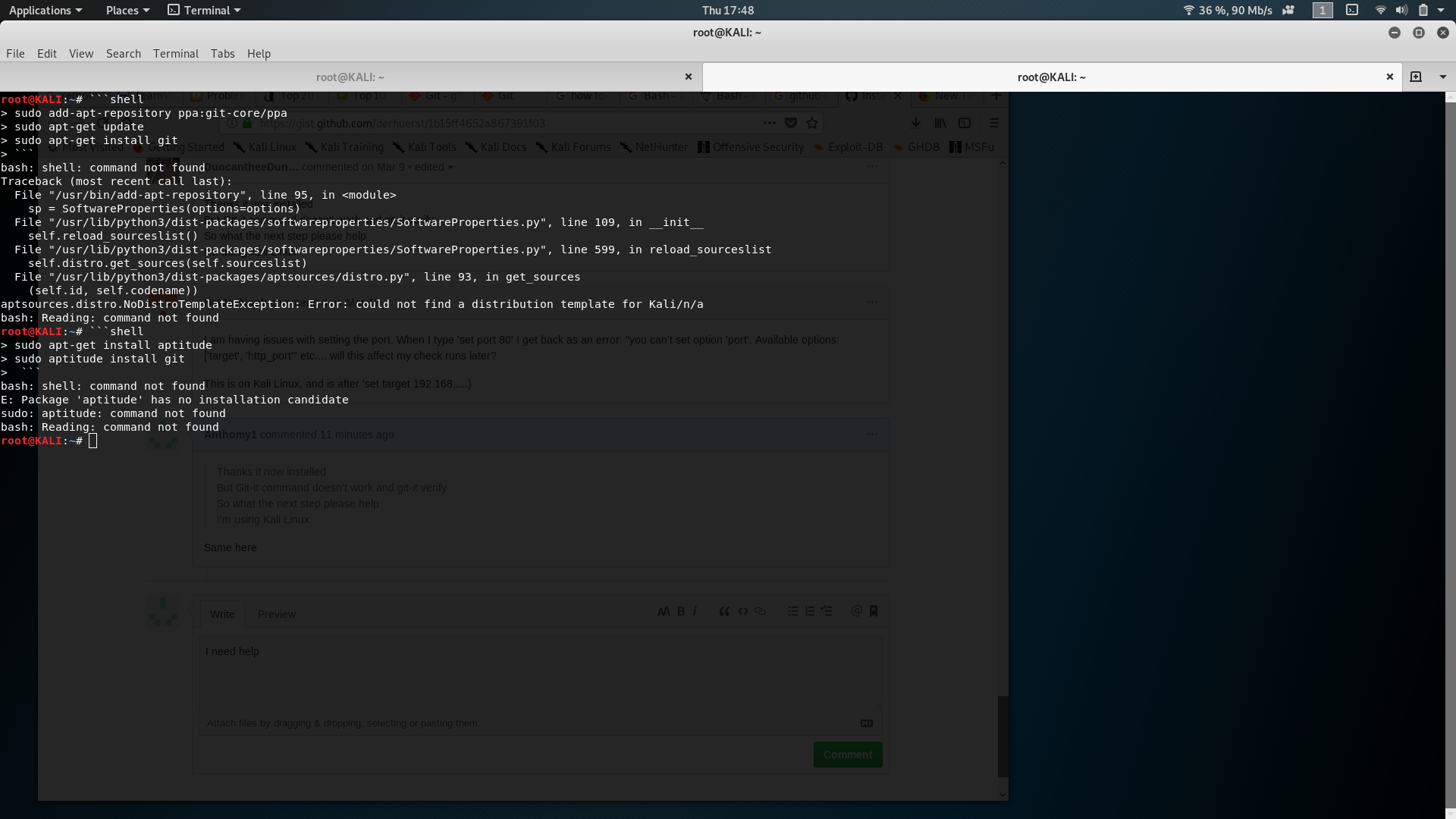
If you are using Git Credential Manager, once you perform an operation that requires authentication (like `git push`), it should prompt you to log in via your browser or to enter your PAT.
2. Using SSH Keys (Advanced, but very convenient)
SSH keys provide a highly secure and convenient way to authenticate with GitHub without needing to enter your password or token repeatedly.
-
Generate an SSH key pair:
- In your Ubuntu WSL terminal, run the following command:
bash

ssh-keygen -t ed25519 -C "your.email@example.com"
Replace"your.email@example.com"with your GitHub email. This command will generate a public and private key pair. You’ll be asked where to save the key (press Enter to accept the default location) and to enter a passphrase (optional but recommended for added security).
- In your Ubuntu WSL terminal, run the following command:
-
Add the SSH agent to your PATH (if not already):
eval "$(ssh-agent -s)" -
Add your SSH private key to the ssh-agent:
ssh-add ~/.ssh/id_ed25519(Replace
id_ed25519if you used a different filename). -
Copy your SSH public key:
cat ~/.ssh/id_ed25519.pubThis will display your public key. Copy the entire output.
-
Add the SSH public key to your GitHub account:
- Go to your GitHub “Settings.”
- In the left sidebar, under “Access,” click “SSH and GPG keys.”
- Click “New SSH key.”
- Give your key a descriptive title (e.g., “Windows 11 Ubuntu WSL Key”).
- Paste your copied public key into the “Key” field.
- Click “Add SSH key.”
-
Test your SSH connection:
bash

ssh -T git@github.com
You should see a message like: “Hi username! You’ve successfully authenticated, but GitHub does not provide shell access.”
Now, when you interact with GitHub repositories using SSH URLs (which typically start with git@github.com:...), Git will use your SSH keys for authentication.
Working with GitHub Repositories in WSL
With Git installed and your authentication configured, you’re ready to start using GitHub within your Windows 11 Ubuntu WSL.
Cloning a Repository
To work on an existing project hosted on GitHub, you’ll want to clone its repository to your local WSL file system.
-
Navigate to your desired directory: Use the
cdcommand in your Ubuntu WSL terminal to go to the folder where you want to store your projects. For example:cd ~/projects(Ensure the
projectsdirectory exists or create it withmkdir projects). -
Clone the repository: Find the repository on GitHub, click the “Code” button, and copy the SSH or HTTPS URL. Then, in your terminal, run:
git clone git@github.com:username/repository-name.gitor for HTTPS:
git clone https://github.com/username/repository-name.gitReplace
usernameandrepository-namewith the actual GitHub username and repository name.If you used SSH, authentication should be seamless if you followed the SSH setup. If you used HTTPS and haven’t configured a credential helper, Git will prompt you for your GitHub username and password (or PAT).
Creating and Pushing a New Repository
To start a new project and host it on GitHub:
-
Create a new directory for your project:
mkdir my-new-project cd my-new-project -
Initialize a Git repository:
git initThis creates a new
.gitsubdirectory in your project, initializing it as a Git repository. -
Create some files: Add some initial files to your project. For example, create a
README.md:echo "# My New Project" > README.md -
Stage your changes: Add the new files to the staging area, which prepares them for a commit.
git add .The
.stages all changes in the current directory. -
Commit your changes: Record the staged changes with a commit message.
git commit -m "Initial commit" -
Create a new repository on GitHub:
- Go to GitHub.com and click the “+” icon in the upper-right corner, then select “New repository.”
- Enter a repository name (e.g.,
my-new-project). - Add a description.
- Choose whether to make it public or private.
- You can choose to initialize it with a README, .gitignore, or license, but since we’ve already created a local repo, it’s often simpler to leave these unchecked and push our existing local content.
-
Link your local repository to the remote GitHub repository: GitHub will provide you with commands to do this. It will look something like this:
git remote add origin git@github.com:your-username/my-new-project.gitReplace
your-usernameandmy-new-projectaccordingly. Theoriginis the conventional name for your primary remote repository. -
Push your local commits to GitHub:
bash

git push -u origin main
(Ormasterif your default branch is namedmaster). The-uflag sets the upstream branch, so future pushes can simply begit push.
Essential Git Commands for Daily Use
git status: Shows the current state of your working directory and staging area.git log: Displays the commit history.git diff: Shows the differences between your working directory and the staging area, or between commits.git pull: Fetches changes from a remote repository and merges them into your current branch.git push: Uploads your local commits to a remote repository.git branch: Lists, creates, or deletes branches.git checkout: Switches between branches or restores working tree files.
Troubleshooting Common Issues
While the installation is generally straightforward, you might encounter a few hiccups.
- Authentication Errors: Double-check your Personal Access Token or SSH key setup. Ensure the token has the correct scopes and hasn’t expired. For SSH, verify that the public key is correctly added to GitHub and that your agent is running and has the private key loaded.
- “Repository not found” Errors: Ensure you have the correct username and repository name in your
git remote addcommand or when cloning. Check for typos. - Firewall Issues: While less common for standard Git operations, ensure your Windows firewall or any network firewalls are not blocking outbound connections on port 443 (HTTPS) or port 22 (SSH) to GitHub.
- WSL Path Differences: Remember that Windows and Linux paths are different. Your WSL filesystem is typically mounted under
/mnt/c/,/mnt/d/, etc., but you’ll usually work within the Linux filesystem of your Ubuntu distro (e.g.,/home/your-user/).
Conclusion
Integrating GitHub into your Windows 11 Ubuntu WSL environment is a powerful step towards a streamlined and efficient development workflow. By following these steps, you can install Git, configure your GitHub credentials securely using Personal Access Tokens or SSH keys, and begin cloning, pushing, and managing your projects with ease. This setup allows you to harness the best of both worlds: the robust tools and command-line flexibility of Linux, all within the familiar and integrated environment of Windows 11. Embrace this powerful combination to enhance your productivity and contribute to the vibrant world of software development.
aViewFromTheCave is a participant in the Amazon Services LLC Associates Program, an affiliate advertising program designed to provide a means for sites to earn advertising fees by advertising and linking to Amazon.com. Amazon, the Amazon logo, AmazonSupply, and the AmazonSupply logo are trademarks of Amazon.com, Inc. or its affiliates. As an Amazon Associate we earn affiliate commissions from qualifying purchases.