
In today’s visually-driven digital landscape, the fonts we use are far more than mere characters on a screen. They are powerful tools that shape perception, convey emotion, and form the very foundation of visual communication. For Mac users, known for their preference for sleek design and intuitive interfaces, the ability to seamlessly integrate new fonts is a crucial skill. Whether you’re a professional designer crafting a brand identity, a content creator enhancing your visual narratives, a student personalizing your reports, or simply someone looking to refresh your digital experience, installing new fonts on your macOS device is a straightforward process that unlocks a world of creative possibilities.
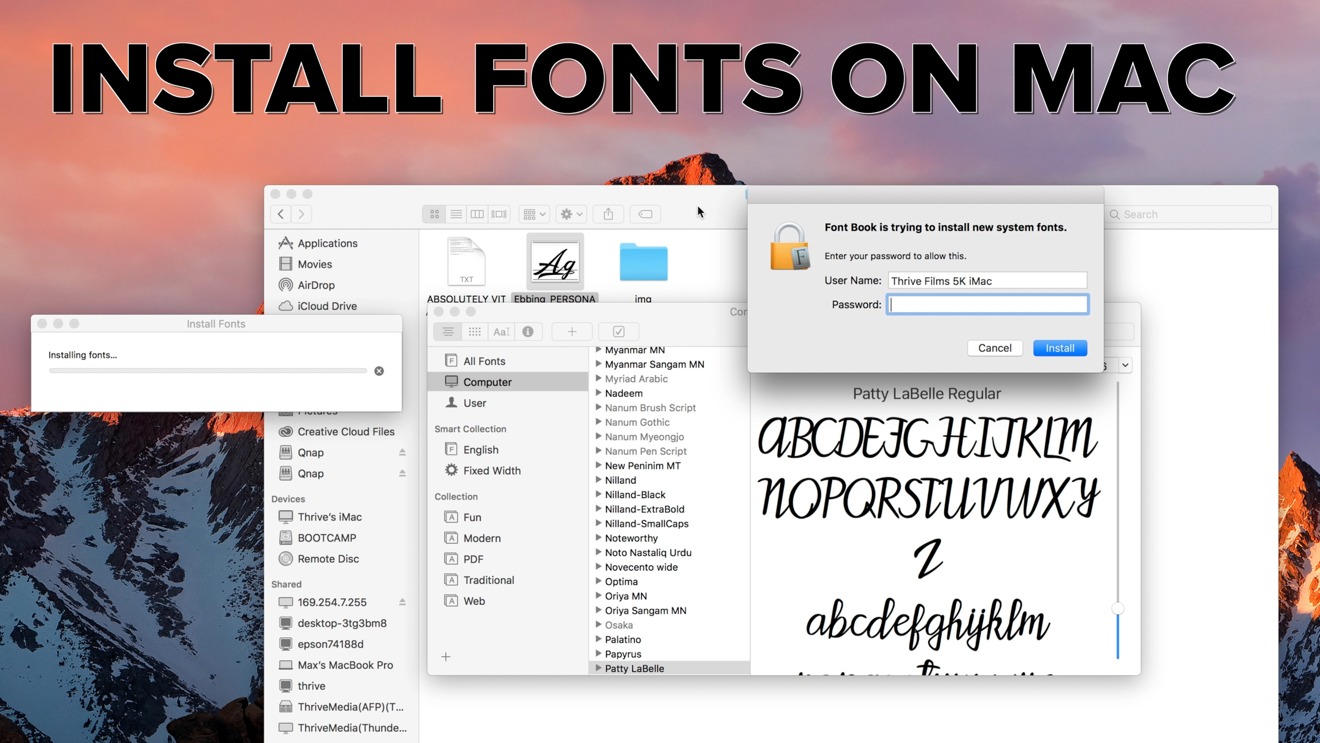
This comprehensive guide will walk you through everything you need to know about installing, managing, and optimizing fonts on your Mac. We’ll delve into the practical steps, explore the various sources for acquiring fonts, and touch upon best practices that align with modern tech trends, brand strategy, and even smart financial decisions in your digital toolkit. By the end, you’ll not only master the technical “how-to” but also appreciate the profound impact a well-chosen typeface can have on your productivity, personal brand, and overall digital aesthetic.
I. Understanding the Landscape: Why Fonts Matter and Where to Find Them
Before diving into the installation process, it’s essential to grasp the significance of fonts and understand where to reliably source them. In the fast-evolving tech world, where user experience and visual appeal are paramount, fonts play a pivotal role in everything from app interfaces to marketing campaigns. They dictate readability, set a mood, and are often the first impression a viewer has of your content or brand.
The Impact of Typefaces on Tech, Brand, and Productivity
From a Tech perspective, fonts are fundamental software assets. macOS, with its robust Font Book utility, is designed to handle a diverse array of font files, ensuring compatibility across applications and consistent rendering. Modern fonts are often optimized for various screen resolutions and digital environments, pushing the boundaries of what’s possible in digital typography.
For Brand building, fonts are non-negotiable. A distinct and consistent typeface is a cornerstone of corporate identity and personal branding. Think of iconic brands; their logos and marketing materials are instantly recognizable, often largely due to their unique font choices. A consistent font across your website, social media, presentations, and documents reinforces your brand’s personality and professionalism, building trust and recognition among your audience.
In terms of Productivity, selecting the right font can significantly impact how efficiently you work and how effectively your message is received. A legible font can reduce eye strain, making long reading or writing sessions more comfortable. A distinctive font can help organize information visually, making complex documents easier to digest. Custom fonts allow you to tailor your workspace to your preferences, fostering a more engaging and less monotonous environment.
Navigating Font File Types and Reputable Sources
Understanding font file types is crucial for a smooth installation process. The two most common formats you’ll encounter are:
- TrueType Fonts (.ttf): Developed by Apple and Microsoft, TTF fonts are widely supported and contain all the data necessary for displaying text, including the glyph outlines and metrics. They are excellent for general use and compatibility.
- OpenType Fonts (.otf): A more advanced format, OpenType fonts were developed jointly by Adobe and Microsoft. OTF fonts can contain more character glyphs (including ligatures, small caps, and alternative characters) and support more sophisticated typographic features, making them a favorite among professional designers.
While less common for direct installation onto your operating system, you might also encounter Web Open Font Format (.woff, .woff2) files. These are optimized for web use and are integrated into websites via CSS, not typically installed directly on your Mac for use in desktop applications.
When it comes to sourcing fonts, especially considering Digital Security and Money aspects, choose wisely:
- Free Font Repositories:
- Google Fonts: An expansive library of high-quality, open-source fonts. Excellent for web and print, with clear licensing for commercial use. A financially savvy choice for small businesses and individuals.
- DaFont & 1001 Free Fonts: Offer a vast selection of free fonts, often contributed by independent designers. Always check the licensing agreement (personal use vs. commercial use) before integrating into a brand project to avoid potential legal issues.
- Font Squirrel: Curates high-quality, 100% free-for-commercial-use fonts. They even offer a “Webfont Generator” which is useful for web developers.
- Premium Font Marketplaces & Subscriptions:
- Adobe Fonts (included with Creative Cloud): If you’re a subscriber to Adobe Creative Cloud, you have access to thousands of professional fonts that can be easily synced to your desktop. This is a massive value proposition for designers, making a Creative Cloud subscription more cost-effective.
- MyFonts, Fontspring, Fonts.com: These are leading marketplaces for purchasing individual font licenses from various foundries. This is where you’ll find unique, high-quality, and often exclusive typefaces, which can be a significant investment but a powerful asset for distinct branding.
- Independent Foundries: Many renowned type foundries sell their fonts directly (e.g., Hoefler&Co., Commercial Type). These are often high-end, meticulously crafted fonts for discerning professionals.
Always prioritize reputable sources to avoid corrupted files, malware, or licensing infringements, which can be a hidden cost in time and resources if not handled carefully.
II. The Core Process: Installing Fonts on Your Mac
Installing fonts on macOS is remarkably straightforward, thanks to the integrated Font Book application. Apple has designed the process to be intuitive, ensuring that even novice users can expand their font library with ease. There are primarily two methods: the quick double-click and the drag-and-drop technique.
Method 1: The Quick Double-Click Installation
This is the most common and arguably the simplest way to install a font.
- Download Your Font: Begin by downloading your desired font file(s) from a reputable source. These will typically be compressed in a
.zipfile. Locate the downloaded file, which usually appears in yourDownloadsfolder, and double-click the.zipto extract its contents. You’ll then see the actual font file(s) – either.ttfor.otf. - Locate the Font File: Navigate to the folder where you extracted the font files. If there are multiple font styles (e.g., Bold, Italic, Light), each will typically be a separate
.ttfor.otffile. - Initiate Installation: Double-click on the individual font file (e.g.,
MyriadPro-Regular.otf). This action will automatically open the Font Book application, which is the built-in font management utility on macOS. - Preview and Install: Font Book will present you with a preview of the font. This is an excellent opportunity to see how the typeface looks before committing to installation. If you’re satisfied, click the “Install Font” button located at the bottom right of the Font Book window.
- Font Validation: Font Book performs a quick validation check to ensure the font file isn’t corrupted or causing conflicts. If any issues are detected (e.g., duplicates or minor errors), Font Book will notify you and offer options to resolve them. For most well-sourced fonts, this process will be seamless.
- Confirmation: Once installed, the font will appear in your Font Book library and will be available for use in almost all applications on your Mac, including Pages, Keynote, Microsoft Word, Adobe Photoshop, Figma, and more.
Method 2: Drag and Drop into Font Book
For installing multiple fonts simultaneously, or if you prefer a more visual approach, dragging and dropping is an efficient alternative.
- Prepare Your Fonts: Download and extract all the font files you wish to install, as described in Method 1. Make sure all
.ttfand.otffiles are visible in a Finder window. - Open Font Book: Launch the Font Book application. You can find it in your
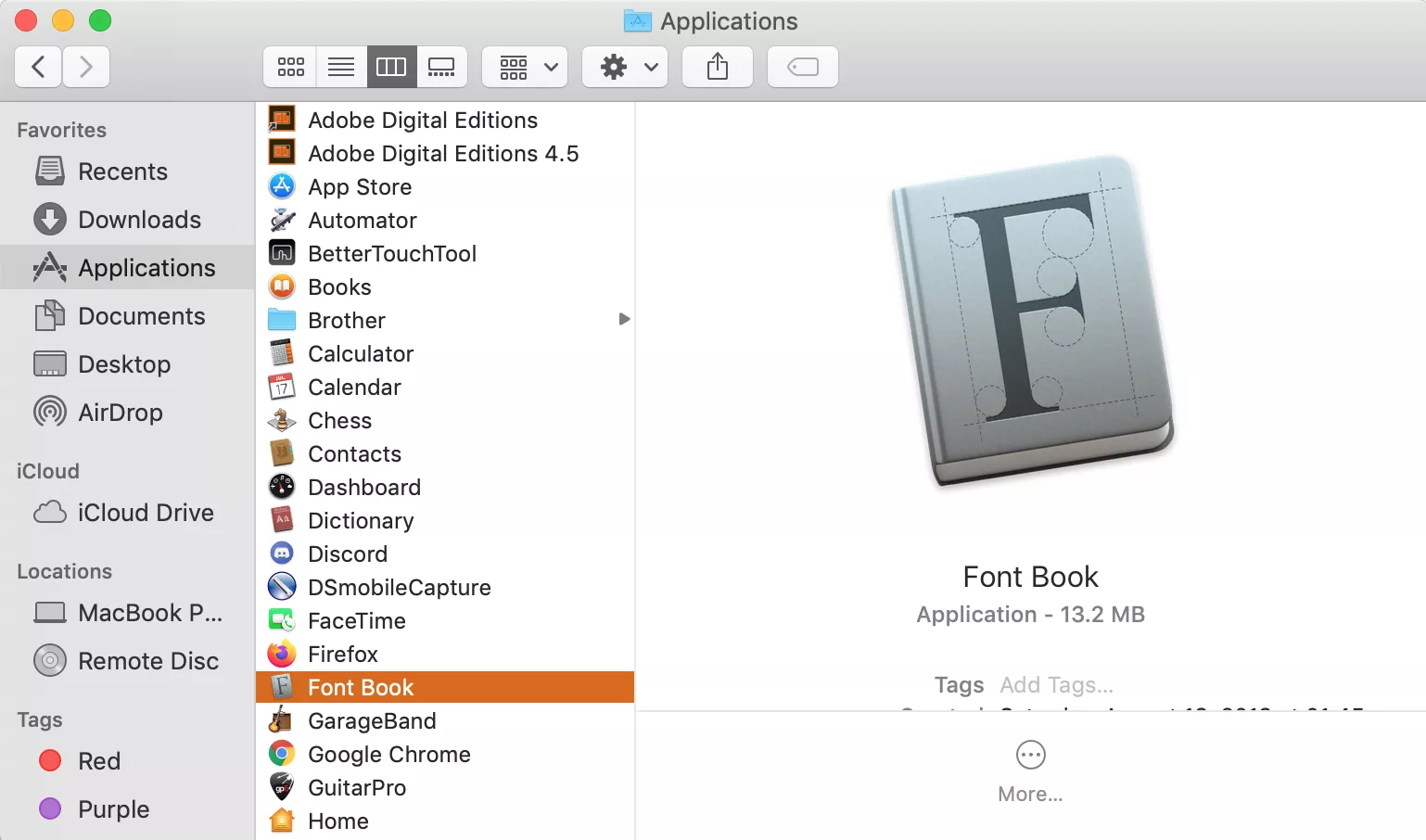
Applicationsfolder, or by searching for “Font Book” using Spotlight (Command + Spacebar). - Drag and Drop: Select all the font files you want to install from your Finder window. Then, drag these selected files directly into the Font Book application window. You can drop them into the “All Fonts” section or a specific collection if you’ve already set one up.
- Install and Validate: Font Book will then prompt you to install the fonts, perform validation, and integrate them into your system, similar to the double-click method.
After installation, it’s a good practice to restart any applications that were open during the font installation process (e.g., Word, Photoshop). This ensures that the applications refresh their font caches and recognize the newly added typefaces.
III. Mastering Your Typography: Managing and Troubleshooting Fonts
Installing fonts is just the first step. Effective font management is key to maintaining a responsive system, enhancing productivity, and preventing “font clutter.” macOS provides powerful tools within Font Book to help you organize, activate, deactivate, and troubleshoot your font library, keeping your digital workspace lean and efficient.
Organizing Your Font Library with Font Book
Font Book isn’t just an installer; it’s a robust font management system designed to bring order to your growing collection.
- Activation and Deactivation: Not every font needs to be active all the time. Deactivating fonts you don’t frequently use can improve system performance and reduce the loading time in applications with extensive font menus. Simply select a font or a group of fonts in Font Book and click the checkbox next to its name in the font list to toggle its activation status. Deactivated fonts remain on your system but are not available to applications.
- Creating Collections: For designers or users with specific project needs, organizing fonts into collections is invaluable. You can create custom collections for “Brand Fonts,” “Web Design,” “Holiday Projects,” “Personal Use,” or “Serif Fonts,” “Sans-serif Fonts,” etc. To create a collection, click the
+button in the bottom left corner of Font Book, name your collection, and then drag fonts from your “All Fonts” list into it. This streamlines font selection and boosts workflow efficiency, a huge win for productivity. - Resolving Duplicate Fonts: It’s common to accidentally install the same font multiple times, especially when downloading from different sources. Font Book automatically detects duplicates during installation and allows you to resolve them. You can choose to keep both copies (though rarely necessary), disable one, or remove one entirely. To manually check for duplicates, go to
Edit > Look for Enabled Duplicates...in the Font Book menu bar. - Font Validation: Regularly validating your fonts ensures their integrity and prevents system instability. Font Book can check for corrupted or malformed font files that could lead to application crashes or incorrect rendering. To validate, select the fonts you want to check and go to
File > Validate Fonts. This is a critical security and stability measure, preventing potential software vulnerabilities or performance issues caused by poorly made font files.
Troubleshooting Common Font Issues
Even with Font Book’s capabilities, you might occasionally encounter issues. Here’s how to address the most common problems:
- Font Not Appearing in Applications:
- Restart the Application: The most frequent solution. Applications often cache their font lists and need a restart to recognize newly installed fonts.
- Check Font Book: Ensure the font is listed in Font Book and is “Active” (checkbox is ticked).
- Validate the Font: Use Font Book’s
Validate Fontsfeature to check for errors. - Restart Your Mac: As a last resort, a full system restart can clear deeper caches and resolve stubborn issues.
- Corrupted or Damaged Fonts: If Font Book identifies a font as corrupted, it’s best to remove it and try downloading it again from the original source. A corrupted font can lead to unpredictable behavior in applications.
- Conflicting Font Versions: Sometimes different versions of the same font can cause conflicts. Use Font Book’s duplicate resolution feature to disable or remove older or problematic versions.
- Performance Issues (Slowdown): Having thousands of active fonts can sometimes slow down applications or even your system. Deactivate fonts you don’t regularly use, organizing them into collections for easy re-activation when needed.
- Permissions Issues: Rarely, a font file might have incorrect permissions. While macOS usually handles this automatically, if you suspect permission problems, you can try repairing disk permissions (though this is less common in modern macOS versions) or simply reinstalling the font.
By actively managing your font library and knowing how to troubleshoot, you can ensure a smooth, efficient, and visually appealing digital experience on your Mac.
IV. Beyond the Basics: Best Practices and Advanced Considerations
As you become more adept at installing and managing fonts, there are several best practices and advanced considerations that can further enhance your workflow, protect your brand, and make smart financial decisions regarding your typography assets. These insights are particularly relevant for professionals in design, marketing, and content creation, where fonts are often critical intellectual property.
Licensing: Understanding Your Rights and Obligations (Money & Brand)
Perhaps the most overlooked but crucial aspect of font usage is licensing. Just like software or stock photos, fonts are copyrighted works. When you download or purchase a font, you’re not buying the font itself, but a license to use it under specific conditions.
- Personal Use vs. Commercial Use: Many free fonts are “free for personal use” but require a separate license (or prohibit commercial use entirely) if you intend to use them for business logos, marketing materials, products for sale, or client work. Failing to adhere to commercial licensing agreements can lead to legal complications, expensive fines, and damage to your brand’s reputation. This is a critical “money” consideration, as the cost of an appropriate license pales in comparison to legal fees.
- Desktop vs. Web vs. Embedding Licenses: Different uses often require different licenses. A desktop license allows you to install the font on your computer for print and digital design. A web license (often for
.woffor.woff2files) allows you to embed the font on a website. An embedding license might be needed for PDFs, e-books, or apps where the font data is packaged within the file. Always read the End User License Agreement (EULA) carefully. - Font Subscription Services: Services like Adobe Fonts, Google Fonts, and others simplify licensing by offering broad usage rights within their ecosystems, often for a single subscription fee. This can be a financially sound investment for individuals and teams needing a diverse, legally compliant font library.
Digital Security and Performance (Tech)
Downloading fonts from random sources can be risky. Malicious actors sometimes embed malware or viruses within seemingly harmless font files.
- Reputable Sources Only: Always download fonts from well-known, trusted websites (Google Fonts, Adobe Fonts, established foundries, major font marketplaces). Avoid obscure sites or torrents unless you can verify their legitimacy.
- System Performance: While modern Macs are powerful, an excessively large number of active fonts can still slightly impact system startup times and the responsiveness of applications with extensive font menus. Use Font Book to deactivate fonts you don’t need regularly. This keeps your system lean and applications snappy, optimizing your tech workflow.
- Font Caching: macOS and individual applications maintain font caches to speed up loading. If you encounter persistent issues with a font, clearing these caches can sometimes resolve the problem. This can be done via third-party maintenance tools or by manually deleting cache files (though caution is advised with manual deletion).
Consistency Across Platforms and Devices (Brand & Productivity)
In an age of multi-device workflows and collaborative projects, font consistency is paramount for maintaining brand integrity and productivity.
- Cloud Syncing: For teams, utilizing font services that offer cloud syncing (like Adobe Fonts) ensures that everyone on the team has access to the same, approved fonts. This eliminates discrepancies and speeds up collaborative design and content creation.
- Embedded Fonts in Documents: When sharing documents, especially those intended for print or presentation on other machines, consider embedding fonts within the file (e.g., in PDFs, some Office documents). This ensures that the recipient sees the document exactly as intended, regardless of whether they have the specific font installed on their system.
- Web-Safe Fonts and Fallbacks: When designing for the web, while custom web fonts are powerful, it’s good practice to define “web-safe” fallback fonts in your CSS. This ensures that if a custom font fails to load, your content remains readable and your brand’s message isn’t lost.
Backup Your Font Library (Digital Security & Money)
Your collected font library, especially if it includes purchased premium fonts, represents a significant creative and financial asset.
- Regular Backups: Treat your font folder like any other important data. Regularly back up your
~/Library/Fontsfolder (and any custom font folders) to a cloud service, external drive, or network storage. This protects your investment and ensures you don’t lose access to crucial typefaces if your system crashes or you migrate to a new machine. - Cloud Storage for Downloads: Keep copies of your original
.zip,.ttf, or.otffont files in cloud storage (iCloud Drive, Dropbox, Google Drive). This makes it easy to reinstall them on new devices or after a system wipe, without having to re-download from potentially defunct sources or search for purchase receipts.
By embracing these best practices, you move beyond mere font installation to truly master your typographic environment on Mac. You’ll not only enhance your personal productivity and creative output but also safeguard your digital assets and strengthen your brand identity in a discerning digital world.

Conclusion
Installing fonts on your Mac is a simple yet incredibly impactful way to personalize your digital experience, elevate your creative projects, and reinforce your brand’s visual identity. From the intuitive drag-and-drop actions in Font Book to the strategic selection of typefaces from reputable sources, macOS makes the process accessible to everyone.
We’ve explored how fonts are central to Tech innovations in digital interfaces, how they are vital components of a robust Brand strategy, and how thoughtful management can even influence your Money through wise licensing choices and efficient workflows. By understanding the different font types, navigating reliable sources, mastering Font Book’s features for installation and management, and adopting best practices for licensing and security, you gain powerful control over your digital canvas.
So go ahead, explore the vast world of typography. Discover fonts that resonate with your personal aesthetic, align with your professional brand, and enhance your daily productivity. Your Mac is ready to host your next favorite typeface, transforming your words into art and making your digital presence truly your own. The perfect font is just a few clicks away, waiting to unlock new dimensions of expression and impact.
aViewFromTheCave is a participant in the Amazon Services LLC Associates Program, an affiliate advertising program designed to provide a means for sites to earn advertising fees by advertising and linking to Amazon.com. Amazon, the Amazon logo, AmazonSupply, and the AmazonSupply logo are trademarks of Amazon.com, Inc. or its affiliates. As an Amazon Associate we earn affiliate commissions from qualifying purchases.