
Android’s open-source nature is one of its greatest strengths, offering users a degree of freedom and flexibility rarely found in other mobile operating systems. While the Google Play Store serves as the primary gateway for acquiring applications, it’s not the only gateway. For various reasons, users may wish to install applications that aren’t available on the Play Store, or perhaps different versions of apps they already use. This process, often referred to as “sideloading,” involves installing apps directly from an Android Package Kit (APK) file.
Sideloading can unlock a world of possibilities, from accessing geo-restricted content and beta versions of popular apps to installing open-source projects and older, more stable iterations. However, with great freedom comes great responsibility. Installing APKs from unknown sources carries inherent risks, primarily concerning digital security and device stability. This comprehensive guide will walk you through the entire process, from understanding what an APK is to safely installing it on your device, while also highlighting the crucial security considerations to keep in mind.
Understanding APK Files and Why You Might Sideload
Before diving into the “how-to,” it’s essential to grasp the fundamental concept of an APK file and the motivations behind choosing to install apps outside the conventional Play Store ecosystem. This foundational understanding empowers users to make informed decisions about their device’s security and functionality.
What Exactly is an APK?
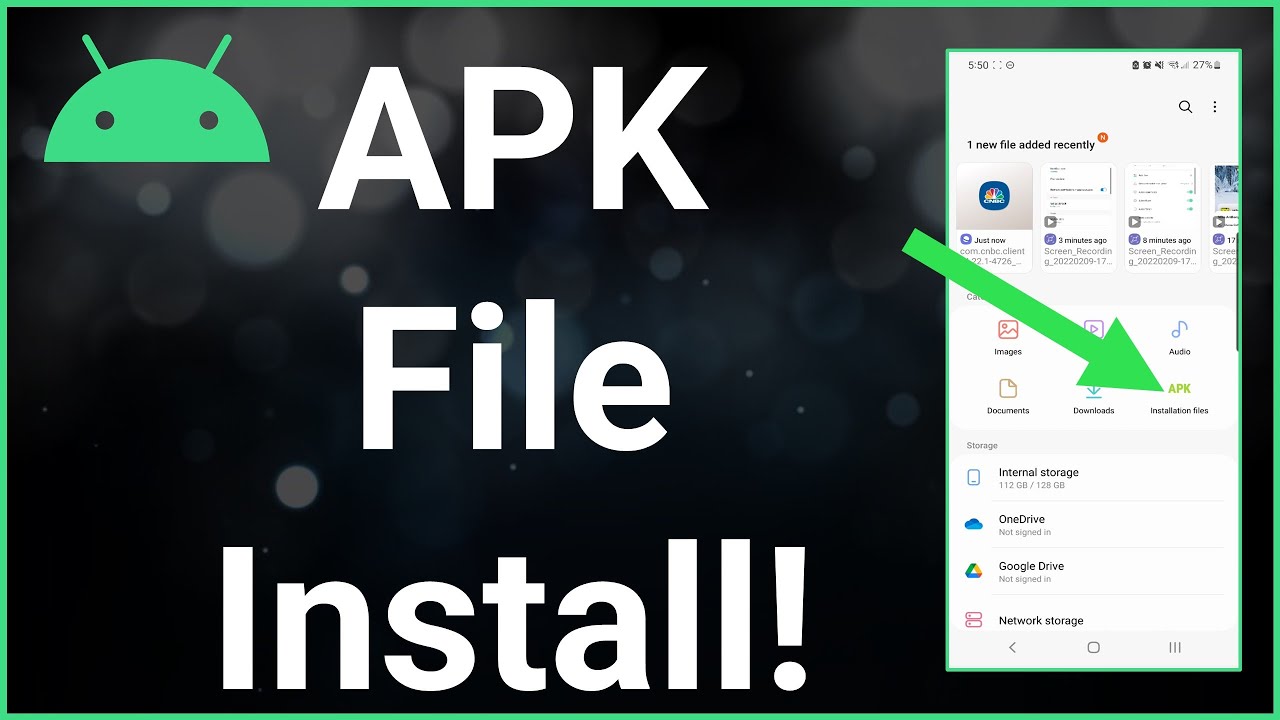
An APK, which stands for Android Package Kit, is the package file format used by the Android operating system for the distribution and installation of mobile apps. Think of it as the Android equivalent of an .exe file on Windows or a .dmg file on macOS. When you download an app from the Google Play Store, the Play Store essentially downloads and installs an APK file in the background without you ever seeing it.
An APK file contains all the elements that an application needs to install correctly on your device. This includes the program’s code, resources (like images, sounds, and layouts), assets, certificates, and manifest file. The manifest file, in particular, is crucial as it describes the application’s structure, specifies the permissions it requires (e.g., access to your camera, contacts, or location), and declares the minimum Android version needed to run the app. Understanding these components underscores why reviewing permissions is so vital, especially when sideloading.
Why Go Beyond the Play Store?
The Google Play Store offers a curated, generally secure, and convenient experience for app acquisition. So, why would anyone choose to bypass it and delve into the world of APKs? There are several compelling reasons:
- Access to Geo-Restricted or Unavailable Apps: Some apps might not be available in your region due to licensing agreements or regional policies. Sideloading an APK can often bypass these geographical restrictions. Similarly, certain apps might be delisted from the Play Store but still functional and desired by users.
- Beta Versions and Early Access: App developers often release beta versions of their applications to a limited audience for testing before a public launch. These betas are typically distributed as APK files, giving enthusiastic users a sneak peek at upcoming features and the opportunity to provide feedback.
- Older App Versions: Sometimes, a new update to an app might remove a beloved feature, introduce unwanted changes, or simply be less stable than a previous version. Sideloading allows you to install an older APK version, rolling back to a more preferred state.
- Open-Source and Niche Applications: Many developers create powerful open-source or niche applications that may not meet Google’s strict Play Store policies or simply aren’t designed for a mass market. These are often distributed directly as APKs through developer websites or open-source repositories.
- Privacy-Focused Alternatives: Some users actively seek alternatives to popular apps that might be perceived as having excessive data collection practices. Privacy-focused apps are sometimes found outside the Play Store, distributed directly by their creators.
- Developer Testing: For app developers themselves, sideloading is a routine part of their workflow, allowing them to install and test their own applications during development before submission to the Play Store.
While these reasons highlight the utility of sideloading, they also subtly point to the need for caution. The freedom to install anything also means the freedom to install something malicious, emphasizing the importance of securing your device.
Preparing Your Android Device for APK Installation
Before you can install an APK, your Android device needs a slight adjustment to its security settings. This step is the most critical part of the preparation and directly impacts your device’s vulnerability.
The Critical “Install Unknown Apps” Permission
For many years, Android had a single, system-wide toggle called “Unknown Sources” that allowed or disallowed the installation of apps from any source other than the Play Store. While straightforward, this approach had a significant security flaw: once enabled, any app could install other apps without user consent, provided it had the necessary permissions.
Recognizing this risk, Google revamped the permission system starting with Android 8.0 Oreo. Instead of a global toggle, Android now requires you to grant specific permission to individual apps that you want to use for installing other applications (e.g., your browser, file manager, or a messaging app). This is known as “Install unknown apps” or “Install other apps” permission.
Why is this change important for digital security?
This granular control is a massive leap forward for digital security. If you download an APK through your Chrome browser, you only need to grant Chrome permission to install unknown apps. Once the app is installed, you can revoke Chrome’s permission, preventing any future malicious downloads (perhaps through a compromised website) from automatically installing software without your explicit consent. This significantly reduces the attack surface compared to the old “Unknown Sources” global switch.
Choosing a Reputable APK Source
The single most important step in safely sideloading an APK is selecting a trustworthy source for your download. This decision directly correlates with your digital security and the stability of your device. Downloading APKs from unreliable or suspicious websites is akin to installing software from a random, unverified source on your computer – it’s an invitation for malware, viruses, and privacy breaches.
What constitutes a reputable source?
- Official Developer Websites: If the app has an official website, this is usually the safest place to download its APK, especially for open-source projects or beta programs.
- Well-Known APK Repositories: Websites like APKMirror, F-Droid, and APKPure are generally considered reliable.
- APKMirror: Known for hosting free apps, typically mirroring versions directly from the Play Store, often signed by the original developers. They also offer older versions and beta releases. They verify the cryptographic signatures of new APKs against the original developer’s signature to ensure authenticity.
- F-Droid: A repository specifically for free and open-source software (FOSS) for Android. Apps here are audited for security vulnerabilities and ensure no proprietary tracking.
- APKPure: Another popular repository offering a wide range of apps, including geo-restricted ones. While generally reliable, exercise slightly more caution here compared to APKMirror due to their broader selection and less stringent verification process, though they also implement signature verification.
- Direct from Developers (e.g., GitHub): Many open-source developers host their APKs directly on platforms like GitHub. These are usually safe if you trust the developer’s reputation.
What to avoid:
- Random websites with pop-ups: If a site bombards you with ads, redirects, or prompts to download suspicious files, close it immediately.
- Sites promising “free paid apps”: These are almost always scams designed to distribute malware.
- Links from unsolicited emails or messages: Treat these with extreme suspicion.
Always verify the legitimacy of the source before downloading. Check user reviews, forum discussions, and ensure the website URL looks legitimate.
Step-by-Step: Installing an APK File on Android
Once you’ve identified a reliable source and understand the security implications, the actual installation process is straightforward. We’ll outline the general steps, keeping in mind that minor variations might occur based on your Android version and device manufacturer.
Step 1: Download the APK File
Using your device’s web browser (e.g., Chrome, Firefox), navigate to your chosen reputable APK source and download the APK file.
- You’ll likely see a warning about the file type potentially harming your device. This is a standard Android security message for any file downloaded outside the Play Store. As long as you’re confident in your source, proceed by tapping “OK” or “Download.”
- The APK file will be saved to your device’s “Downloads” folder by default.
Step 2: Enable “Install Unknown Apps”
This is the crucial security step. The method varies slightly depending on your Android version:
For Android 8.0 (Oreo) and newer:
- Open your device’s Settings app.
- Go to Apps & notifications (or just “Apps” or “Applications Manager”).
- Tap Special app access (you might need to tap “Advanced” or the three-dot menu first).
- Select Install unknown apps (or “Install other apps”).
- You’ll see a list of apps. Find the app you used to download the APK (e.g., Chrome, your preferred browser, or your File Manager app).
- Tap on the app and toggle the “Allow from this source” switch to the On position.
For Android 7.x (Nougat) and older:
- Open your device’s Settings app.
- Go to Security (or “Lock screen & security”).
- Look for “Unknown sources” and toggle the switch to the On position.
- You’ll receive a warning about the risks; read it and tap “OK” to confirm.
- Important: Remember to disable “Unknown sources” immediately after installing your APK for older Android versions to minimize risk.
Step 3: Locate and Initiate Installation
Now that your device is prepared, you can start the installation.
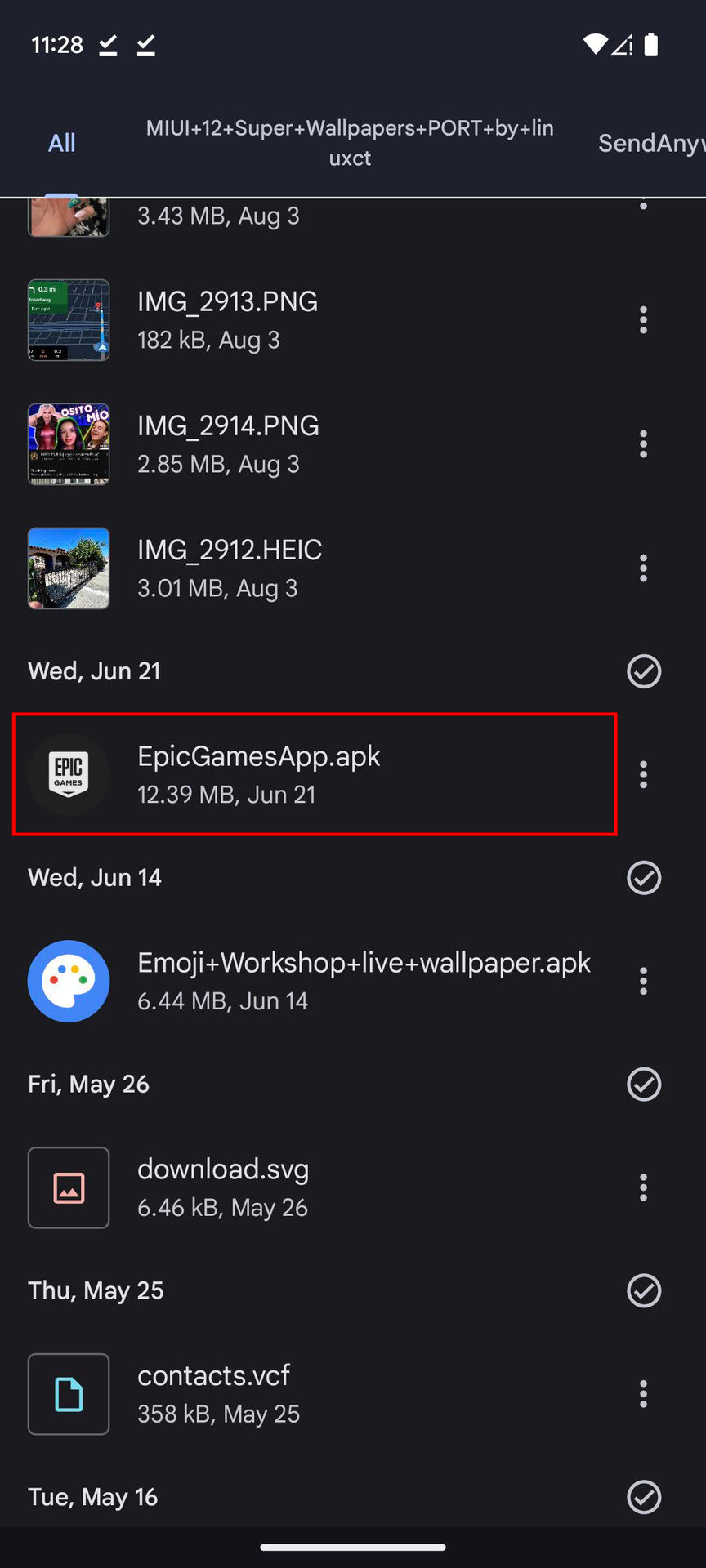
- Open your device’s File Manager app (e.g., “Files by Google,” “My Files,” or a third-party file manager).
- Navigate to your Downloads folder.
- Locate the
.apkfile you downloaded. Its name will usually be the app’s name followed by its version number (e.g.,youtube_v16.14.34_apkpure.apk). - Tap on the APK file.
Your device will now present you with an installation screen.
Step 4: Review Permissions and Complete Installation
Before tapping “Install,” take a moment to review the app’s requested permissions.
- The installation screen will display a summary of permissions the app needs (e.g., access to your camera, contacts, microphone, storage).
- Exercise caution: Does a simple calculator app need access to your camera and microphone? Probably not. If the requested permissions seem excessive or unrelated to the app’s stated function, it’s a red flag. Consider canceling the installation and deleting the APK.
- If the permissions seem reasonable for the app’s functionality, tap “Install.”
The app will now install on your device. Once complete, you’ll see an “App installed” message, with options to “Open” the app or tap “Done.”
Step 5: Post-Installation Best Practices
After successfully installing the APK, follow these crucial steps to maintain your device’s security:
- Disable “Install unknown apps” permission: Go back to Settings > Apps & notifications > Special app access > Install unknown apps. Find the app you granted permission to (e.g., Chrome) and toggle “Allow from this source” back to Off. This is paramount for digital security, especially on older Android versions where you disabled “Unknown sources” globally.
- Delete the APK file: Once the app is installed, you don’t need the APK file anymore unless you plan to install it again later or share it. Deleting it frees up storage and removes a potential vector if the file somehow becomes compromised later.
- Regular security scans: Consider running a scan with a reputable mobile antivirus app, especially after sideloading. Many apps from trusted cybersecurity brands (e.g., Bitdefender, Malwarebytes, Avast) offer free versions for Android.
Navigating the Risks and Ensuring Digital Security
While sideloading offers undeniable advantages, ignoring the associated risks would be irresponsible. The open nature of Android, which facilitates sideloading, also makes it a potential target for malicious actors. Understanding these threats and implementing preventative measures is crucial for protecting your personal data and device integrity.
The Hidden Dangers of Sideloading
The primary reason Google Play Store exists is to provide a relatively safe and curated environment. Bypassing it means foregoing its built-in protections:
- Malware and Viruses: This is the most significant risk. Malicious APKs can contain viruses, trojans, ransomware, or spyware designed to steal your personal information (passwords, banking details), hijack your device, display intrusive ads, or even lock you out of your phone. These often disguise themselves as legitimate apps.
- Data Theft and Privacy Breaches: A malicious app can silently collect your location data, contacts, call logs, SMS messages, and even record audio or video without your knowledge. This data can then be sold to third parties or used for identity theft.
- Unstable or Buggy Applications: Apps not distributed through official channels might be poorly coded, untested, or incompatible with your specific device and Android version. This can lead to frequent crashes, performance issues, battery drain, or even system instability.
- Lack of Automatic Updates: Sideloaded apps don’t receive automatic updates from the Play Store. This means you’ll miss out on new features, performance improvements, and, most importantly, critical security patches. Running outdated software is a significant security risk as vulnerabilities can be exploited.
- Excessive Permissions: Malicious APKs often request far more permissions than they legitimately need (e.g., a flashlight app requesting access to your contacts or SMS). If you grant these, you’re giving the app carte blanche to abuse your data.
- Adware and Unwanted Pop-ups: Some APKs, particularly those promising “free” versions of paid apps, might inject aggressive adware onto your device, leading to a frustrating user experience and potential redirection to malicious websites.
Essential Security Measures for Sideloading
Mitigating these risks requires vigilance and adherence to best practices. Think of it as being your own security gatekeeper:
- Prioritize Reputable Sources: As discussed, this is your first and strongest line of defense. Stick to official developer websites or well-known, verified APK repositories like APKMirror or F-Droid. If you have any doubt about a source, do not download the file.
- Verify App Signatures (Advanced): For highly sensitive apps, some advanced users compare the cryptographic signature of the downloaded APK with the official signature of the app (often available on reputable APK repositories like APKMirror). If the signatures don’t match, the APK has been tampered with.
- Review Permissions Meticulously: Always scrutinize the permissions an app requests during installation. If something feels off or excessive for the app’s intended function, cancel the installation. You can also review and revoke permissions after installation via Settings > Apps > [App Name] > Permissions.
- Install a Reputable Mobile Antivirus/Anti-Malware App: Running a reliable security app on your Android device is highly recommended, especially if you regularly sideload. These apps can scan APK files before installation and continuously monitor your device for malicious activity. Examples include Malwarebytes, Bitdefender, Avast, or AVG.
- Keep Your Android OS Updated: Ensure your Android operating system is always up to date. System updates often include critical security patches that protect against newly discovered vulnerabilities, making it harder for malicious apps to compromise your device.
- Exercise Caution with “Free” Paid Apps: The adage “if it’s too good to be true, it probably is” applies perfectly here. Apps promising premium features for free are almost guaranteed to be malicious or riddled with adware. Support developers by purchasing legitimate apps.
- Backup Your Data Regularly: In the worst-case scenario where your device is compromised, having a recent backup of your essential data (photos, contacts, documents) can be a lifesaver, allowing you to factory reset your device without losing everything.
- Use Strong Passwords and Two-Factor Authentication (2FA): While not directly related to APK installation, robust account security practices provide an additional layer of protection if a malicious app manages to steal login credentials from your device.
Troubleshooting Common APK Installation Issues
Even with careful preparation, you might encounter issues during or after APK installation. Here are some common problems and their potential solutions.
“App Not Installed” Errors
This is one of the most frequent errors users face. Several factors can cause it:
- Insufficient Storage: Your device might not have enough free space to install the app.
- Solution: Free up space by deleting unnecessary files, apps, or clearing cache data.
- Conflicting App Signatures: If you’re trying to install an update or a different version of an app you already have, and the APK’s cryptographic signature doesn’t match the installed version’s signature, Android will block the installation. This often happens if you try to install an app from a different source (e.g., an APKMirror version over a Play Store version).
- Solution: Uninstall the existing version of the app first, then try installing the new APK.
- App Incompatibility (Android Version/Architecture): The APK might be designed for a different Android version or processor architecture (e.g., 64-bit app on a 32-bit device, or vice-versa).
- Solution: Check the APK source for details on compatibility. Look for “minimum Android version” and CPU architecture (ARM, ARM64, x86, x86_64). Reputable sites like APKMirror often label these.
- Corrupted APK File: The download might have been incomplete or corrupted.
- Solution: Delete the downloaded APK and try downloading it again from a reputable source.
- Blocked by Security Software: Your device’s built-in security features or a third-party antivirus app might be preventing the installation.
- Solution: Temporarily disable your antivirus software (if you have one) and try again. Re-enable it immediately after.
Parsing Package Errors
A “There was a problem parsing the package” error usually indicates an issue with the APK file itself.
- Corrupt or Incomplete Download: The most common cause.
- Solution: Delete the APK and redownload it, ensuring a stable internet connection.
- Incompatible Android Version: The APK might be for a much newer or older Android version than your device supports, causing the parser to fail.
- Solution: Verify the APK’s minimum Android version requirement.
- Damaged File: The file might have been damaged during transfer or storage.
- Solution: Redownload from a trusted source.
App Crashing or Not Functioning
After successful installation, if the app crashes immediately or doesn’t work correctly:
- Compatibility Issues: The app might not be fully compatible with your specific device model, Android version, or custom ROM.
- Solution: Check online forums or the app’s support page for known compatibility issues. You might need to find an older or different version of the APK.
- Missing Dependencies: Some apps require specific Google Play Services versions or other system components that might be missing or outdated on your device (common if you’re using a device without Google Play Services).
- Solution: Ensure Google Play Services is updated or, if your device lacks it, confirm the app is designed to run independently.
- Corrupted Installation: The installation might have completed, but some files might be corrupted.
- Solution: Uninstall the app, reboot your device, and try installing the APK again.
- Permissions Not Granted: The app might be crashing because it doesn’t have a crucial permission it needs to function (e.g., storage access).
- Solution: Go to Settings > Apps > [App Name] > Permissions and ensure all necessary permissions are granted.
When troubleshooting, always start with the simplest solutions (re-download, check storage) and gradually move to more complex ones. If an app consistently fails despite your best efforts, it might be best to abandon it and look for an alternative, prioritizing your device’s stability and security.

Conclusion: Empowering Your Android Experience with Caution
Installing APKs on Android offers a powerful avenue for customization, flexibility, and access to a wider range of applications than typically found within the confines of the Google Play Store. Whether you’re seeking early access to beta features, a specific older version of an app, or an open-source alternative not listed in official repositories, sideloading empowers you to tailor your Android experience precisely to your needs.
However, this power comes with a critical caveat: the responsibility for your device’s digital security falls squarely on your shoulders. Bypassing the Play Store’s curated environment means foregoing some of its inherent protections against malware, unstable software, and privacy breaches. By diligently following the guidelines outlined in this article—prioritizing reputable sources, meticulously reviewing app permissions, diligently disabling “Install unknown apps” permission after use, and maintaining robust security practices—you can significantly mitigate these risks.
Sideloading should not be feared, but respected. Approach it with an informed perspective, a healthy dose of skepticism regarding unverified sources, and a commitment to protecting your digital footprint. By doing so, you can safely unlock the full potential of your Android device, leveraging its open nature to enhance your mobile technology experience while maintaining peace of mind regarding your digital security.
aViewFromTheCave is a participant in the Amazon Services LLC Associates Program, an affiliate advertising program designed to provide a means for sites to earn advertising fees by advertising and linking to Amazon.com. Amazon, the Amazon logo, AmazonSupply, and the AmazonSupply logo are trademarks of Amazon.com, Inc. or its affiliates. As an Amazon Associate we earn affiliate commissions from qualifying purchases.