
In today’s digital landscape, the visual appeal of a document can be as crucial as its content. Whether you’re crafting a professional report, designing a compelling presentation, or simply personalizing a letter, the right typography can dramatically enhance readability, convey specific emotions, and reinforce your message. While Microsoft Word offers a robust selection of default fonts, the ability to install and utilize custom fonts unlocks a world of creative possibilities, allowing you to tailor your documents with unparalleled precision and style. This guide will walk you through the entire process, from understanding font types to leveraging your newly installed fonts within Word, ensuring your creations always stand out.
The Power of Custom Typography: Why Go Beyond Defaults?
Before diving into the mechanics, it’s essential to appreciate the strategic advantage that custom fonts provide. Far from being a mere aesthetic choice, typography plays a critical role in communication and perception. A thoughtfully chosen font can significantly impact how your audience receives and interprets your content, making the effort to expand your font library a worthwhile investment in your digital toolkit.
Enhancing Visual Appeal and Readability
Standard fonts like Calibri or Times New Roman are ubiquitous for a reason: they are highly readable and widely accessible. However, their very commonality can lead to documents blending into the background. Custom fonts offer a fresh perspective, allowing you to select typefaces that perfectly complement your content’s tone and purpose. A clean, modern sans-serif might convey innovation for a tech proposal, while an elegant serif could lend gravitas to an academic paper. Beyond aesthetics, specialized fonts, such as those designed for dyslexic readers or specific language scripts, can dramatically improve accessibility and comprehension for diverse audiences.
Reinforcing Branding and Personal Style
For businesses, personal branding, or even creative projects, consistency is key. Using a unique, custom font that aligns with your brand identity across all your documents, presentations, and digital communications creates a cohesive and professional image. It helps establish recognition and reinforces your distinct presence. For individuals, custom fonts allow for a deeper level of personalization, enabling you to express your unique style and make your documents truly yours, moving beyond the generic feel of default options.
Overcoming Design Limitations and Creative Blocks
Sometimes, the limitations of available fonts can hinder your creative vision. A specific design trend might call for a particular handwritten script, a robust display font for a headline, or a minimalist geometric typeface for a clean layout. Having a diverse font collection at your disposal removes these barriers, enabling you to execute your creative ideas precisely as envisioned. It empowers you to break free from creative blocks often imposed by a limited palette, fostering innovation and originality in your document design.
Decoding Font Files: Understanding the Basics
Before you can install a font, it’s crucial to understand what you’re working with. Fonts are essentially software files that contain instructions for how characters should be displayed. While there are many font formats, two are predominantly used and supported across most operating systems and applications, including Microsoft Word.
TrueType Fonts (TTF)
TrueType Fonts, recognizable by their .ttf file extension, were developed by Apple and Microsoft in the late 1980s. They are one of the most common font formats and are widely supported across various platforms. TTF fonts are known for their excellent scalability and on-screen readability, making them a reliable choice for both print and digital use. They contain all the necessary data for displaying characters at any size without pixelation, ensuring crisp text regardless of zoom level or output resolution.
OpenType Fonts (OTF)
OpenType Fonts, typically identified by the .otf file extension, are a newer and more advanced format developed jointly by Microsoft and Adobe. Building upon the TrueType standard, OpenType fonts offer enhanced features, including support for a larger character set (allowing for more extensive multilingual support), advanced typographic features like ligatures, alternate characters, small caps, old-style figures, and contextual substitutions. These features provide designers with greater control over the appearance of text, allowing for more sophisticated and aesthetically pleasing layouts. OTF fonts are generally preferred for professional design work due to their flexibility and richer typographic capabilities. Both TTF and OTF files are compatible with Microsoft Word and can be installed using similar methods.
Where to Safely Acquire Fonts
The internet is a vast repository of fonts, both free and paid. When downloading fonts, always prioritize reputable sources to avoid potential malware or licensing issues.
-
Free Font Websites: Google Fonts, Font Squirrel, DaFont, and 1001 Free Fonts offer extensive collections of free fonts, often with clear licensing information (personal use vs. commercial use).
-
Paid Font Marketplaces: Adobe Fonts (included with Creative Cloud subscriptions), MyFonts, Fontspring, and Creative Market provide high-quality, professionally designed fonts, often with more comprehensive character sets and robust licensing options for commercial projects.
-
Design Resources: Many design-oriented websites and blogs frequently offer free or discounted fonts as part of promotions or resource packs.
Always double-check the licensing terms of any font you download, especially if you plan to use it for commercial purposes, to ensure compliance and avoid copyright infringement.
The Installation Process: Bringing Fonts to Your System
Installing a font isn’t about placing it directly into Word; it’s about installing it onto your operating system. Once installed system-wide, the font becomes available to all compatible applications, including Microsoft Word, PowerPoint, Excel, and others. The process is straightforward, with slight variations between Windows and macOS.
Step-by-Step for Windows Users
The installation process on Windows is streamlined and typically involves just a few clicks.
1. Download and Extract the Font File
Start by downloading your desired font from a reputable source. Most fonts, especially those downloaded in batches, will come in a compressed .zip file.
-
Locate the downloaded
.zipfile, usually in your “Downloads” folder. -
Right-click the
.zipfile and select “Extract All…” or use a dedicated unzipping tool like 7-Zip or WinRAR. -
Choose a destination folder for the extracted files (your Downloads folder is fine) and click “Extract.” You will now see the individual font files (e.g.,
.ttf,.otf) within the newly created folder.
2. Install the Font
There are two primary methods for installing fonts on Windows:
-
Method A: Right-Click Install (Recommended for Single Fonts)
-
Navigate to the folder where you extracted the font files.
-
Locate the font file(s) you wish to install (e.g.,
MyCustomFont-Regular.ttf,MyCustomFont-Bold.otf). -
Right-click on the font file.
-
From the context menu, select “Install.” If you have administrator privileges, the font will be installed immediately. If not, you might be prompted for an administrator password.
-
For font families (e.g., regular, bold, italic), you may need to repeat this process for each style or select multiple files simultaneously (Ctrl+click) and then right-click “Install.”
-
-
Method B: Using the Fonts Folder (For Multiple Fonts or Management)
-
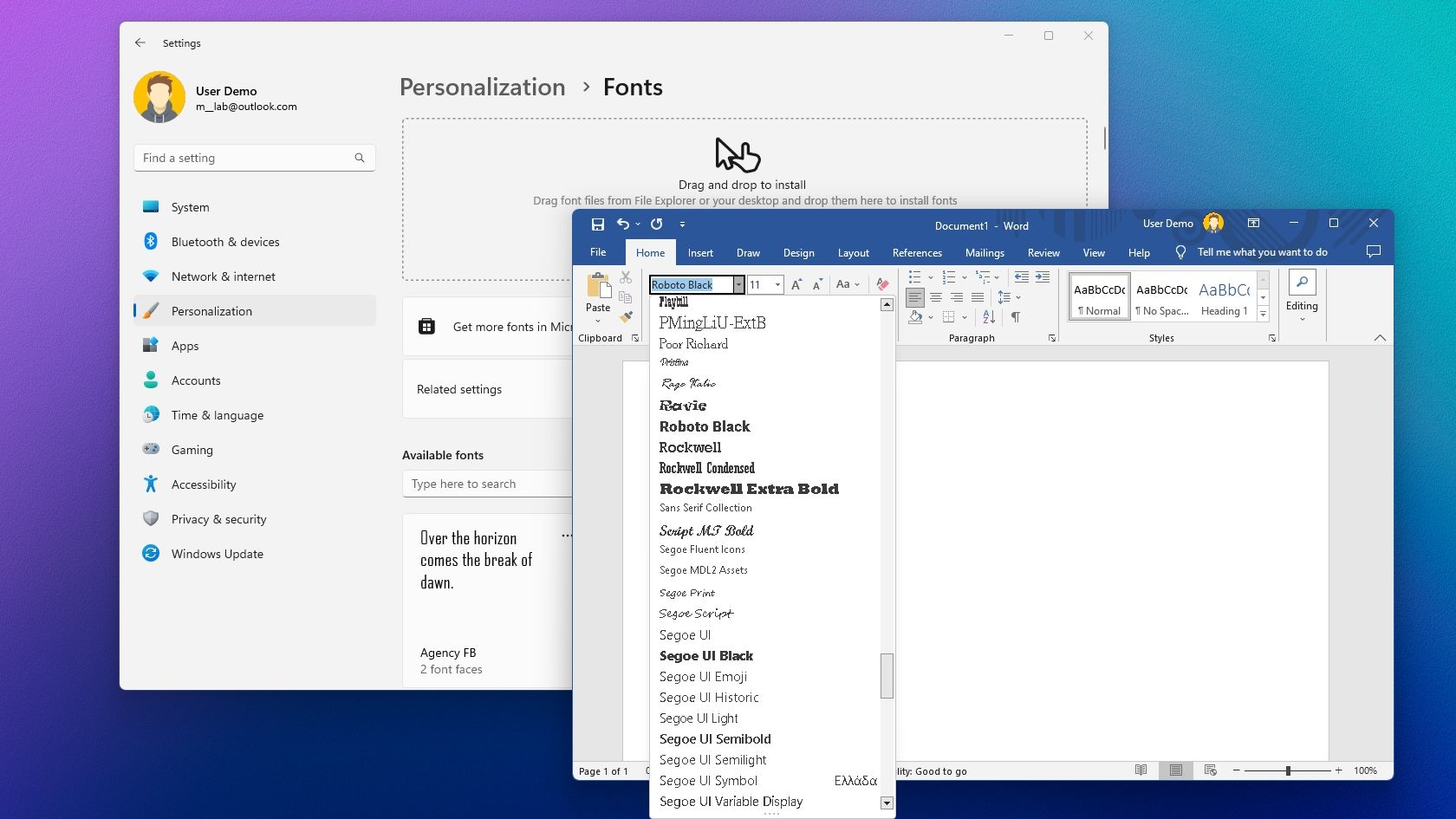
Open the “Control Panel” (search for it in the Start menu) or go to “Settings” > “Personalization” > “Fonts.”
-
If using Control Panel, ensure “View by” is set to “Large icons” or “Small icons,” then click “Fonts.”
-
In the Fonts window, you can simply drag and drop the extracted font files (all
.ttfor.otffiles) directly into this window. Windows will automatically install them. -
Alternatively, you can click “File” > “Install New Font…” (if using an older Control Panel view) and browse to your font files.
-
Step-by-Step for macOS Users
macOS provides an intuitive application called Font Book for managing and installing fonts.
1. Download and Extract the Font File
Similar to Windows, download your desired font. If it’s in a .zip file:
- Double-click the
.zipfile. macOS’s built-in Archive Utility will automatically decompress it, creating a new folder containing the font files (e.g.,.ttf,.otf).
2. Install the Font via Font Book
-
Navigate to the folder where you extracted the font files.
-
Locate the font file(s) you wish to install.
-
Method A: Double-Click Install (Recommended)
-
Double-click on the font file (e.g.,
MyCustomFont-Regular.otf). -
This will open the Font Book application, displaying a preview of the font.
-
Click the “Install Font” button in the dialog box. Font Book will validate the font and add it to your system.
-
-
Method B: Drag and Drop into Font Book
-
Open the Font Book application directly (found in your Applications folder).
-
Drag the extracted font files (all
.ttfor.otffiles) from their folder directly into the Font Book window. -
Font Book will then prompt you to install them.
-
Font Book offers robust features for managing your fonts, including previewing, disabling, and validating fonts to check for issues.
Activating and Using Your New Fonts in Microsoft Word
Once a font is installed on your operating system, it should immediately become available within Microsoft Word. However, there’s a crucial step to ensure Word recognizes it, especially if the application was open during installation.
1. Restart Microsoft Word (If Necessary)
If Microsoft Word was open while you were installing the fonts, it might not automatically detect them. To refresh Word’s font library:
-
Save any open documents.
-
Completely close Microsoft Word.
-
Reopen Microsoft Word. This action forces the application to re-read your system’s font directories, making the newly installed fonts accessible.
2. Accessing the Font in Word
With Word restarted (if needed), using your new font is as simple as selecting any other font.
-
Open a new or existing document in Microsoft Word.
-
Go to the “Home” tab on the Ribbon.
-
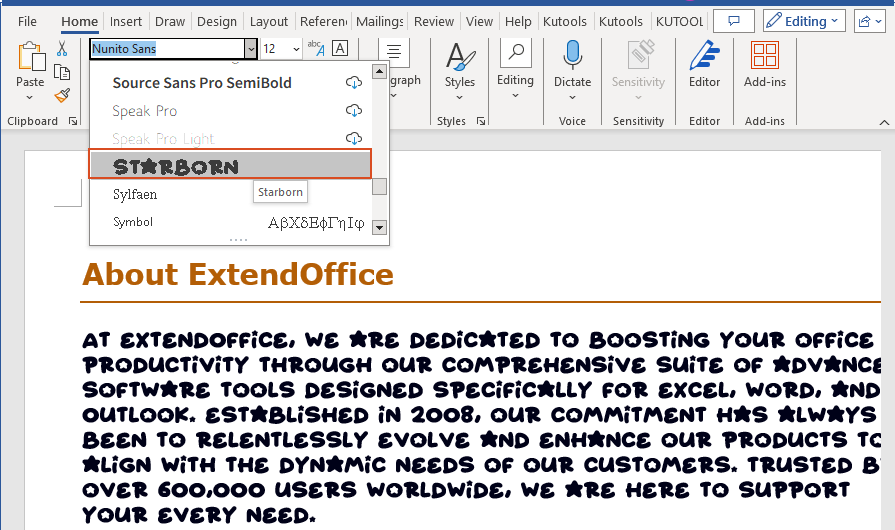
In the “Font” group, click the dropdown arrow next to the current font name (e.g., “Calibri”).
-
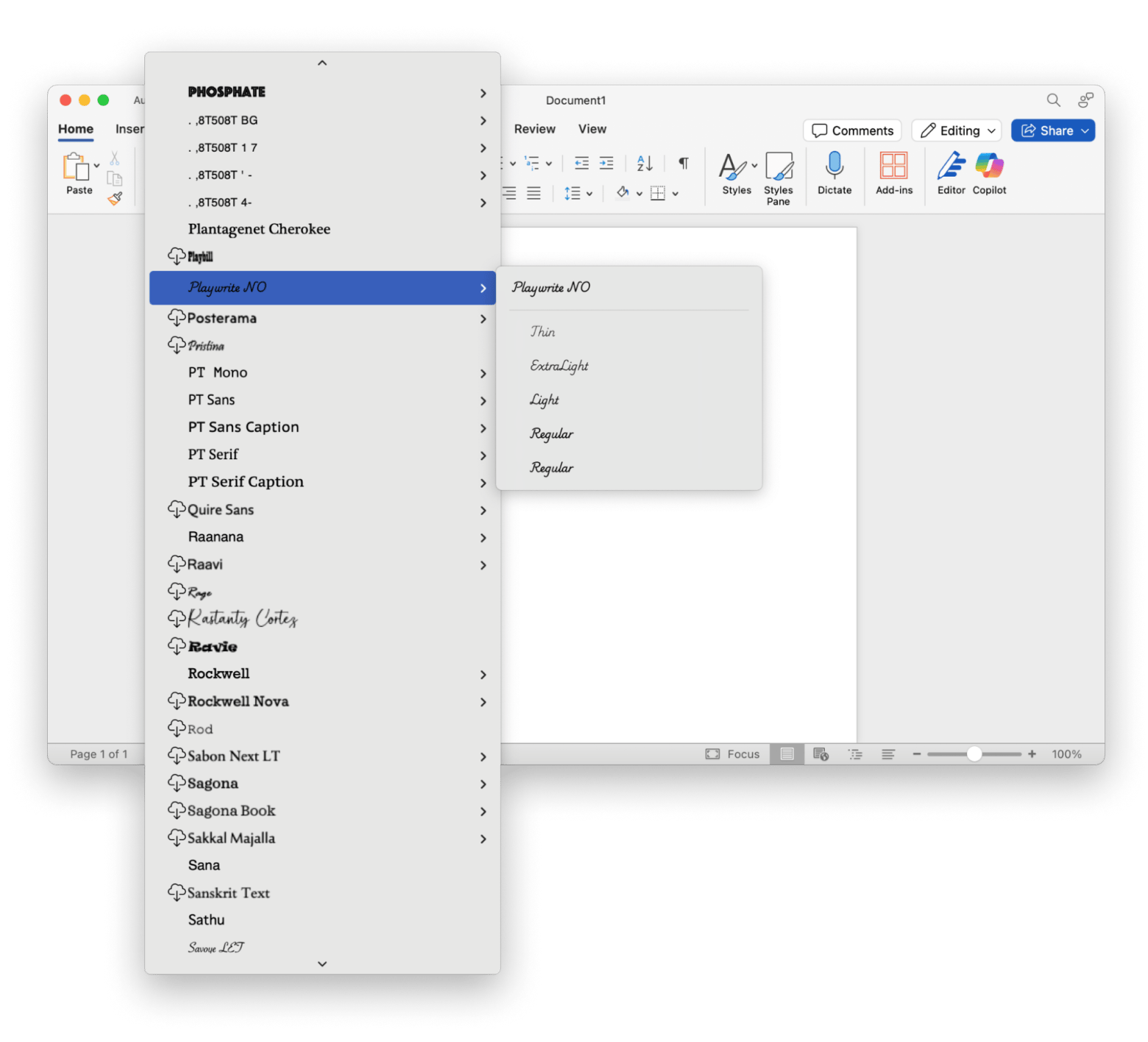
Scroll through the list. Your newly installed font(s) should now appear alphabetically among the other available fonts.
-
Select the font. Any new text you type will now appear in your chosen font. To change existing text, select the text first, then choose your new font from the dropdown list.
3. Troubleshooting: When Fonts Don’t Appear
Occasionally, a newly installed font might not show up in Word. Here are common reasons and solutions:
-
Word Was Not Restarted: This is the most frequent issue. Ensure you’ve completely closed and reopened Word.
-
Incorrect File Type: Ensure you installed a compatible font file (
.ttfor.otf). Other file types (e.g.,.zipitself,.eot,.woff) are not system-installable fonts. -
Corrupt Font File: Rarely, a font file might be corrupt or malformed. Try downloading the font again from a different source, or use your OS’s font utility (Font Book on Mac) to validate the font during installation.
-
Installation Error: Double-check that the installation process completed successfully. On Windows, verify it appears in “Settings” > “Personalization” > “Fonts.” On Mac, check Font Book.
-
Font Name Discrepancies: Sometimes, the actual font name in the system might differ slightly from the file name. For example, a file named
My_Awesome_Font.ttfmight appear as “My Awesome Font Regular” in Word. Scroll carefully through the list.
Advanced Font Management and Best Practices
Beyond basic installation, a few advanced considerations can enhance your font experience and ensure professional document creation and sharing.
Font Embedding for Document Portability
One critical aspect of using custom fonts is ensuring your documents look consistent when shared with others. If you use a custom font that the recipient doesn’t have installed on their system, Word will substitute it with a default font, potentially ruining your layout and design.
-
Solution: Embed the fonts within your Word document.
-
In Word, go to “File” > “Options” (on Windows) or “Word” > “Preferences” (on Mac).
-
Select “Save” from the left-hand menu.
-
Under “Preserve fidelity when sharing this document,” check the box “Embed fonts in the file.”
-
You can choose between “Embed only the characters used in the document (best for reducing file size)” or “Embed all characters (best for editing by other people).” The latter will result in a larger file size but allows the recipient to edit the document using your custom font.
-
Click “OK.”
-
Important Note: Not all fonts are licensable for embedding. Check the font’s license if you plan to share documents where the font needs to be editable by others.
-
Uninstalling and Managing Fonts
Over time, you might accumulate a large number of fonts, which can sometimes slow down system performance or make it harder to find the fonts you actually use.
-
Windows: Go to “Settings” > “Personalization” > “Fonts.” You can click on a font to view its details and then click “Uninstall” to remove it from your system.
-
macOS: Open Font Book. Select the font you wish to remove, then go to “File” > “Remove Selected Fonts,” or right-click the font and choose “Remove.”
Regularly reviewing and removing unused fonts can help keep your system tidy and efficient.
Licensing and Commercial Use Considerations
While many fonts are available for free personal use, commercial licenses are often required for business applications (e.g., creating documents for clients, marketing materials, company logos). Always check the End-User License Agreement (EULA) for each font you download. Ignorance of licensing terms is not a valid defense against copyright infringement. If in doubt, purchase a commercial license or choose a font explicitly labeled for commercial use. Reputable font sources clearly state their licensing terms.
Conclusion
The ability to install and utilize custom fonts in Microsoft Word is a powerful tool for anyone looking to elevate their documents beyond the ordinary. By understanding the different font types, following the straightforward installation steps for your operating system, and leveraging Word’s capabilities, you unlock a new dimension of creative control. Whether your goal is to enhance readability, reinforce a brand identity, or simply express your personal style, custom typography provides the means to achieve it. Embrace the versatility of a diverse font library, and transform your documents from functional texts into compelling visual statements.
aViewFromTheCave is a participant in the Amazon Services LLC Associates Program, an affiliate advertising program designed to provide a means for sites to earn advertising fees by advertising and linking to Amazon.com. Amazon, the Amazon logo, AmazonSupply, and the AmazonSupply logo are trademarks of Amazon.com, Inc. or its affiliates. As an Amazon Associate we earn affiliate commissions from qualifying purchases.