
Linux, a powerhouse of open-source flexibility and customization, is a popular choice for developers, tinkerers, and anyone seeking an alternative to mainstream operating systems. While its command-line interface offers unparalleled control, many users still prefer the ease of graphical interfaces for everyday tasks. Among the most fundamental of these tasks is web browsing, and for many, Firefox stands out as a preferred choice. Its robust features, commitment to privacy, and extensive add-on ecosystem make it a compelling option. This guide will walk you through the straightforward process of installing Firefox on various Linux distributions, ensuring you can start browsing securely and efficiently in no time.

Understanding Your Linux Distribution and Package Management
Before diving into the installation process, it’s crucial to understand that Linux isn’t a single entity but rather a kernel around which numerous “distributions” are built. These distributions, such as Ubuntu, Debian, Fedora, Arch Linux, and many others, often employ different package management systems. This system is essentially a software repository and a tool for installing, updating, and removing software packages on your system. Knowing which package manager your distribution uses is key to following the correct installation steps.
Common Package Managers and Their Commands
The most prevalent package managers can be broadly categorized:
- Debian-based distributions (e.g., Ubuntu, Linux Mint, Debian): These distributions primarily use
apt(Advanced Packaging Tool). Commands often look likesudo apt updateto refresh the package list andsudo apt install firefoxto install a package. - Fedora and RHEL-based distributions (e.g., Fedora, CentOS, Rocky Linux): These systems utilize
dnf(Dandified YUM) or its predecessoryum. Installation commands typically involvesudo dnf install firefoxorsudo yum install firefox. - Arch Linux and its derivatives (e.g., Manjaro): Arch Linux employs
pacman. Installation is usually done withsudo pacman -S firefox. - OpenSUSE: This distribution uses
zypper. The command to install Firefox would besudo zypper install firefox.
Understanding these differences will help you adapt the general instructions to your specific Linux environment.
Installing Firefox via Your Distribution’s Package Manager
This is by far the most recommended and common method for installing Firefox on Linux. Using your distribution’s official repositories ensures that you receive updates automatically through your system’s regular update process, and it guarantees compatibility with your existing system.
For Debian and Ubuntu-Based Systems
If you are using Ubuntu, Linux Mint, or any other distribution based on Debian, the process is exceptionally simple.
-
Open the Terminal: You can usually find the terminal application in your system’s application menu, often under “Utilities” or “System Tools.” Alternatively, you can use the keyboard shortcut
Ctrl+Alt+T. -
Update Your Package List: It’s always a good practice to update your system’s package list before installing new software. This ensures you are aware of the latest available versions. Type the following command and press Enter:
sudo apt updateYou will be prompted to enter your user password. Type it in (you won’t see any characters appear as you type) and press Enter.
-
Install Firefox: Now you can install Firefox using the
apt installcommand:sudo apt install firefoxThe system will show you the packages that will be installed and ask for confirmation. Type
Yand press Enter to proceed. -
Launch Firefox: Once the installation is complete, you can find Firefox in your application menu, usually under “Internet” or “Web.” You can also launch it from the terminal by typing
firefoxand pressing Enter.
For Fedora and RHEL-Based Systems
If you are using Fedora, CentOS, Rocky Linux, or similar distributions, the process is similar but uses dnf or yum.
-
Open the Terminal: Locate and open the terminal application.
-
Update Your Package List (Optional but Recommended): While
dnfandyumare generally good at checking for the latest versions during installation, it’s still a good habit.
Fordnf:sudo dnf check-updateFor
yum:sudo yum check-update -
Install Firefox:
Usingdnf:sudo dnf install firefoxUsing
yum:sudo yum install firefoxConfirm the installation when prompted by typing
yand pressing Enter. -
Launch Firefox: Firefox will be available in your application menu. You can also launch it from the terminal by typing
firefox.
For Arch Linux and Derivatives
Arch Linux users and those on distributions like Manjaro will use pacman.
-
Open the Terminal: Launch your terminal emulator.
-
Update Your Package List and System: It’s a common practice on Arch to update the entire system when updating the package list.
sudo pacman -Syu -
Install Firefox:
sudo pacman -S firefoxConfirm the installation with
yand Enter. -
Launch Firefox: Find Firefox in your application menu or type
firefoxin the terminal.
For OpenSUSE

OpenSUSE users employ the zypper package manager.
-
Open the Terminal: Access your terminal.
-
Update Package Repositories:
sudo zypper refresh -
Install Firefox:
sudo zypper install firefoxConfirm the installation.
-
Launch Firefox: Locate Firefox in your application menu or type
firefoxin the terminal.
Installing Firefox from Mozilla’s Official PPA (Advanced Users)
While the distribution’s package manager is the easiest and most integrated way, sometimes you might want the absolute latest release of Firefox as soon as it’s available, even before it hits your distribution’s stable repositories. In such cases, especially on Ubuntu-based systems, you might consider using Mozilla’s official Personal Package Archive (PPA). This is a more advanced method and requires caution.
Important Note: Using PPAs can sometimes lead to conflicts if not managed carefully. It’s generally recommended to stick to your distribution’s official repositories unless you have a specific need for the bleeding edge.
-
Open the Terminal: Launch your terminal.
-
Add the Mozilla PPA: For Ubuntu and its derivatives, you can add the PPA with the following command:
sudo add-apt-repository ppa:mozillateam/ppaYou will be prompted to press Enter to confirm adding the PPA.
-
Update Your Package List: After adding the PPA, you must update your package list again to include the new repository.
sudo apt update -
Install or Upgrade Firefox:
If Firefox is not installed:sudo apt install firefoxIf you already have Firefox installed from your distribution’s repositories and want to upgrade to the version from the PPA, the
apt install firefoxcommand will usually handle the upgrade. -
Pinning Firefox to Prevent Downgrades (Optional but Recommended for PPA users): To ensure that Firefox is always updated from the PPA and not accidentally downgraded by a repository update, you can “pin” it. This involves creating a preferences file.
Create a new file:echo ' Package: firefox* Pin: release o=LP-PPA-mozillateam Pin-Priority: 1001 ' | sudo tee /etc/apt/preferences.d/mozilla-firefoxThis command essentially tells
aptto give a very high priority (1001) to packages namedfirefox*coming from themozillateamPPA. -
Launch Firefox: As before, you can launch it from the application menu or by typing
firefoxin the terminal.
Verifying the Installation and Initial Setup
Once Firefox is installed, it’s good practice to verify it’s working correctly and to perform some initial setup to enhance your browsing experience and security.
Launching Firefox and Checking the Version
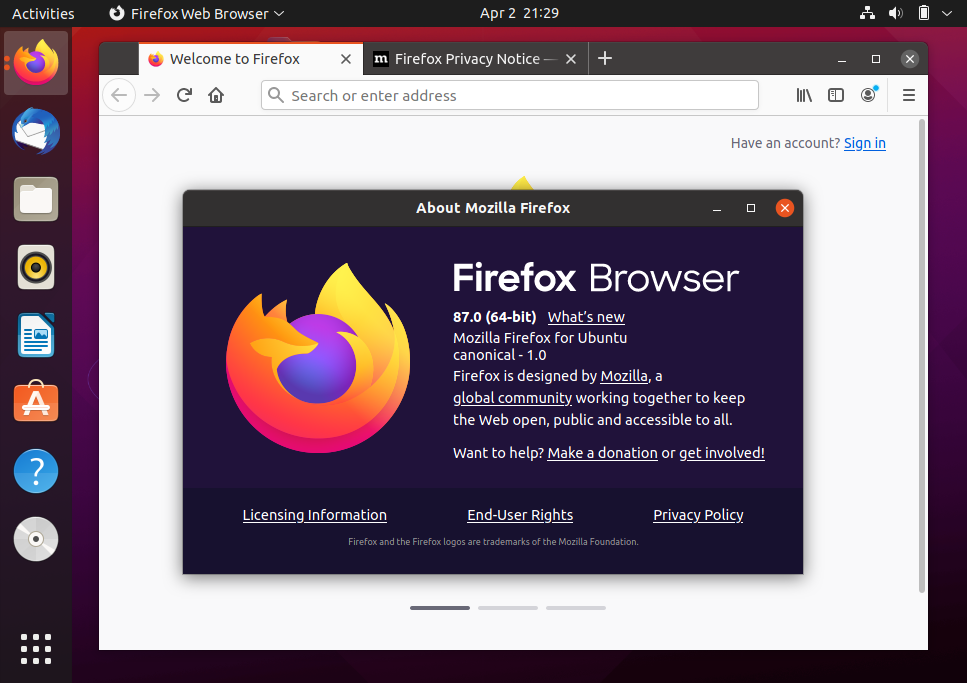
After following the installation steps for your distribution, locate the Firefox icon in your application menu. Click on it to launch the browser. If it opens without errors, the installation was successful.
To check the version of Firefox you have installed, you can:
- Click on the menu button (three horizontal lines) in the top-right corner of the Firefox window.
- Select “Help.”
- Click on “About Firefox.”
This will open a new tab displaying the exact version of Firefox you are running, along with any available updates.
Initial Configuration for Privacy and Productivity
Upon first launch, Firefox might present you with a welcome tour and options to import bookmarks or settings from other browsers. Take a moment to explore these.
Key areas to consider for initial setup:
- Homepage and New Tab Page: You can customize what appears when you open Firefox or a new tab. Options include a blank page, your bookmarks, a curated page, or a specific website. Access this via
Settings > Home. - Search Engine: Firefox defaults to Google, but you can easily change this to DuckDuckGo (known for its privacy), Bing, or others. You can also add more search engines from the add-ons website. Access this via
Settings > Search. - Privacy and Security Settings: This is a crucial aspect of Firefox.
- Enhanced Tracking Protection: By default, Firefox offers Standard protection, which blocks many trackers. You can increase this to Strict (which might break some websites) or customize it. Find this under
Settings > Privacy & Security. - Cookies and Site Data: Manage how Firefox handles cookies.
- History: Configure how Firefox remembers your browsing history.
- Permissions: Manage which websites can access your location, camera, microphone, etc.
- Security: Enable features like “HTTPS-Only Mode” for an extra layer of security.
- Enhanced Tracking Protection: By default, Firefox offers Standard protection, which blocks many trackers. You can increase this to Strict (which might break some websites) or customize it. Find this under
- Add-ons and Themes: Firefox’s extensibility is one of its biggest strengths. Explore the add-ons website (accessible from the menu under “Add-ons and Themes”) to find extensions that can enhance your productivity, privacy, or browsing experience. Popular choices include ad blockers (like uBlock Origin), password managers, and note-taking tools.
By taking these steps, you ensure that your Firefox installation is not only functional but also tailored to your specific needs for privacy, security, and efficiency.
Conclusion: Embracing Firefox on Your Linux Journey
Installing Firefox on Linux is a fundamental step towards a personalized and secure computing experience. Whether you choose the simplicity of your distribution’s package manager or the immediacy of a PPA, the process is generally smooth and well-documented. Firefox, with its commitment to open standards, user privacy, and extensive customization options through add-ons, complements the ethos of Linux perfectly.
As you continue your journey with Linux, remember that understanding your system’s package manager is key to managing all your software. For Firefox, this means easy updates and seamless integration. With this guide, you should now be equipped to install, configure, and begin enjoying the benefits of one of the world’s most popular and respected web browsers on your Linux desktop. Happy browsing!
aViewFromTheCave is a participant in the Amazon Services LLC Associates Program, an affiliate advertising program designed to provide a means for sites to earn advertising fees by advertising and linking to Amazon.com. Amazon, the Amazon logo, AmazonSupply, and the AmazonSupply logo are trademarks of Amazon.com, Inc. or its affiliates. As an Amazon Associate we earn affiliate commissions from qualifying purchases.