
In the ever-evolving landscape of digital communication, emojis have transcended their initial role as simple graphical representations to become an integral part of how we express ourselves, connect with others, and even conduct business. From conveying nuanced emotions that plain text often fails to capture, to streamlining messages and adding a touch of personality, emojis have revolutionized online interactions. For anyone navigating the modern digital world – be it a tech enthusiast exploring new features, a brand manager crafting compelling narratives, or a professional optimizing productivity – understanding how to effectively access and utilize emoji keyboards is not just a convenience, but a fundamental skill.

This comprehensive guide will walk you through the process of installing and enabling emoji keyboards across various platforms. We’ll delve into the ‘how-to’ specifics for Windows, macOS, iOS, and Android, ensuring you can inject a burst of color and emotion into your messages, social media posts, and digital content with ease. Beyond the installation, we’ll explore the broader implications of emojis for personal branding, effective communication, and even touch upon their subtle influence on professional interactions and efficiency, aligning with the core tenets of technology, brand strategy, and smart money management in the digital age.
The Evolving Language of Digital Communication
The journey of emojis began with humble text-based emoticons like 🙂 and 🙁 in the early days of the internet. Fast forward a few decades, and we now have a diverse universe of pictorial characters, officially known as emojis, which have become a universal lexicon. These small icons, ranging from smiling faces and food items to animals and flags, have transformed the way we communicate, adding layers of meaning, tone, and personality that were previously difficult to convey in purely text-based formats.
More Than Just Icons: The Power of Emojis
Emojis are far more than mere decorative elements; they are powerful communication tools. They bridge cultural and linguistic gaps, allowing for a more intuitive and universal understanding of messages. In an increasingly globalized digital sphere, emojis serve as a common denominator, simplifying complex emotions and concepts into universally recognizable symbols. This ability to convey a lot with a little is incredibly valuable. For individuals, they add flair to personal conversations, making interactions more engaging and empathetic. For professionals, particularly in fields like marketing, content creation, and customer service, emojis can humanize a brand, make messages more approachable, and even improve engagement rates. A well-placed emoji can soften a critique, emphasize excitement, or simply add a friendly touch to an otherwise formal email, all contributing to a more effective and nuanced communication strategy.
Why Emojis Matter for Tech, Brand, and Productivity
The widespread adoption of emojis underscores their strategic importance across several domains.
From a Tech perspective, emoji keyboards represent a fascinating intersection of user interface design and linguistic evolution. Operating systems and software developers continually enhance emoji support, introducing new characters, improved rendering, and seamless integration into typing experiences. Staying updated with these technological advancements ensures users can access the full spectrum of expressive tools available. Moreover, the underlying technology enabling these keyboards, from predictive text that suggests relevant emojis to cross-platform compatibility, highlights significant engineering feats aimed at enriching user experience.
For Brand strategy, emojis are a double-edged sword that, when wielded correctly, can be incredibly effective. Brands leverage emojis to cultivate a distinct tone of voice, inject personality into their social media presence, and foster deeper connections with their audience. A brand using relevant, on-message emojis can appear more relatable, modern, and engaging. However, misuse can lead to misinterpretation, damage brand credibility, or alienate specific demographics. Understanding your audience and the context in which your brand operates is crucial for effective emoji integration, helping to solidify corporate identity and marketing campaigns.
In terms of Money and productivity, emojis play a subtle yet significant role. In professional settings, clear and concise communication saves time and reduces ambiguity, which ultimately translates into financial efficiency. Emojis can accelerate message comprehension, making internal communications quicker and external engagements more impactful. Imagine a project manager quickly conveying urgency with a or celebrating a milestone with a . These visual cues can be processed faster than words, reducing the time spent drafting lengthy explanations and ensuring messages resonate immediately. For businesses, enhanced clarity in customer service or marketing communications can lead to higher satisfaction, better conversion rates, and ultimately, a healthier bottom line. Investing a few moments to understand emoji keyboards can therefore yield considerable returns in both personal efficiency and professional impact.
Mastering Emoji Keyboard Installation Across Platforms
The method for installing or enabling an emoji keyboard varies significantly depending on your operating system and device. While most modern systems come with built-in emoji support, knowing how to activate and switch to these keyboards is key. Below, we provide detailed, step-by-step instructions for the most popular platforms.
Enabling Emojis on Windows Desktops and Laptops
Windows has significantly improved its emoji support over the years. You don’t typically “install” an emoji keyboard in the traditional sense; rather, you access a built-in emoji panel.
-
Using the Emoji Panel (Windows 10/11): This is the easiest and most common method.
- Step 1: Place your cursor in any text field where you want to insert an emoji (e.g., a Word document, a browser search bar, a social media post).
- Step 2: Press the Windows key + . (period) or Windows key + ; (semicolon) simultaneously.
- Step 3: An emoji panel will appear. You can browse through categories at the bottom (faces, objects, food, etc.), use the search bar at the top, or view your frequently used emojis.
- Step 4: Click on the emoji you want to insert, and it will appear in your text field.
- Pro Tip: This panel also includes kaomojis (like (╯°□°)╯︵ ┻━┻) and symbols (like arrows, currency signs, etc.), making it a versatile tool for digital expression.
-
Activating the Touch Keyboard (for specific scenarios or tablet modes): If you’re using a tablet-mode Windows device or prefer a visual on-screen keyboard, you can enable the Touch Keyboard.
- Step 1: Right-click on an empty area of your taskbar.
- Step 2: Select “Show touch keyboard button.” A small keyboard icon will appear in your system tray.
- Step 3: Click the touch keyboard icon to bring up the on-screen keyboard.
- Step 4: On the touch keyboard, look for the emoji icon (usually a smiley face) next to the spacebar or on the bottom left. Tap it to switch to the emoji layout.
Unlocking Emojis on macOS Devices
Apple’s macOS has long offered robust emoji support through its Character Viewer, which is easily accessible from anywhere.
-
Using the Character Viewer:
- Step 1: Place your cursor in any text input area.
- Step 2: Press Control + Command + Spacebar simultaneously.
- Step 3: A small emoji & symbols panel will pop up. This panel is resizable and can be dragged anywhere on your screen.
- Step 4: Browse categories on the bottom or use the search bar at the top to find your desired emoji. You can also scroll through the main window.
- Step 5: Click on an emoji to insert it. Double-clicking will insert it immediately and close the panel, while a single click will insert it and keep the panel open for multiple selections.
- Pro Tip: Like Windows, the Character Viewer also provides access to various symbols, special characters, and even different language characters, making it a powerful tool for global and nuanced communication.
-
Through Input Sources (less common for direct emoji access, but useful for general keyboard management):
- Step 1: Go to System Settings (or System Preferences for older macOS versions) > Keyboard.
- Step 2: Click on “Input Sources” (or “Input Sources” tab).
- Step 3: Ensure your preferred keyboard layout is selected. While you won’t “add an emoji keyboard” here, understanding input sources is essential if you ever need to add specific language keyboards that might have different emoji access methods or default to certain character sets.
Seamless Emoji Integration on iOS (iPhone & iPad)
iOS devices are renowned for their intuitive emoji integration, making it incredibly simple to add them to your messages. The emoji keyboard is typically pre-installed but might need to be activated if it’s not showing up.
-
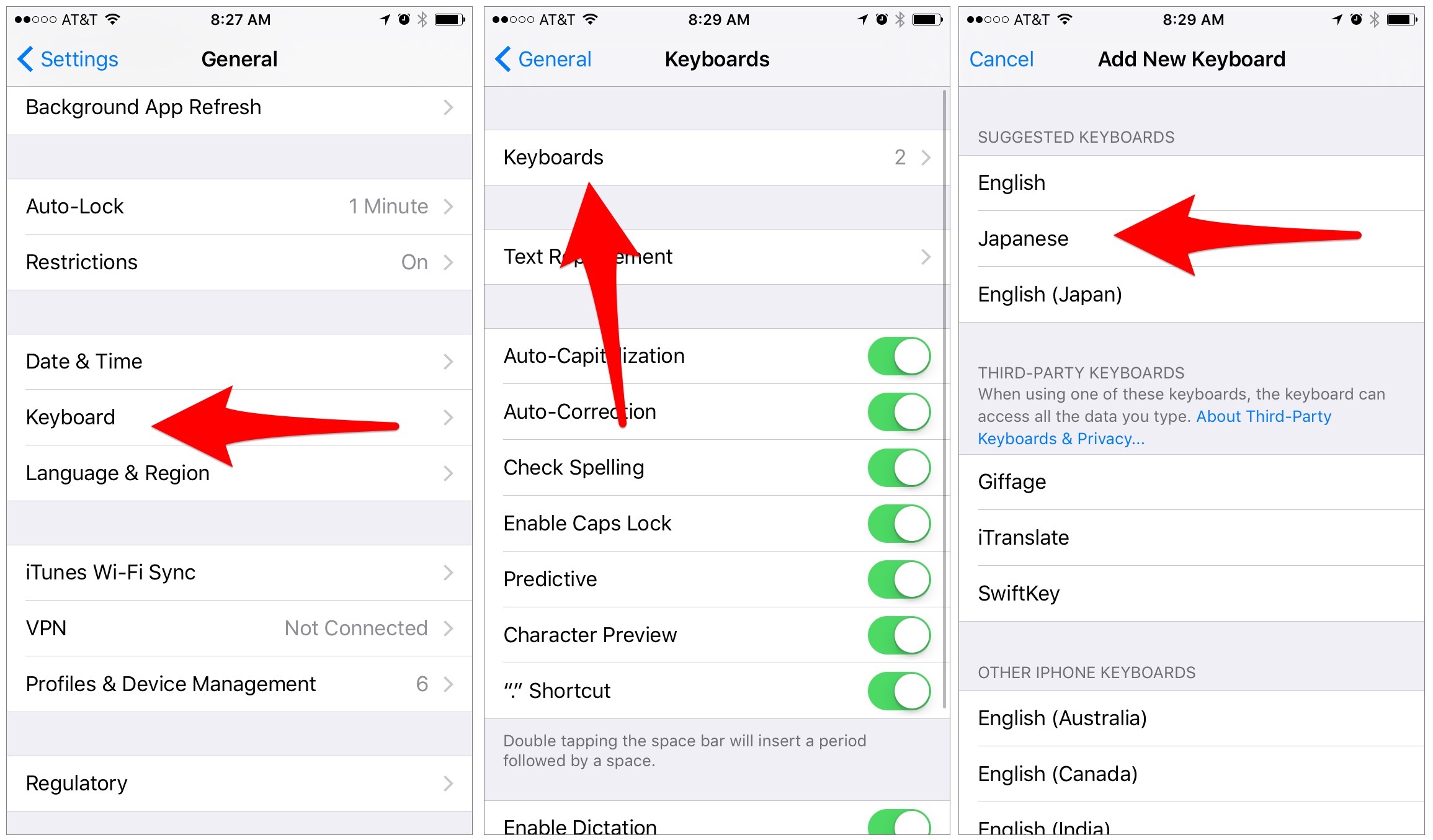
Adding the Emoji Keyboard (if not already active):
- Step 1: Go to Settings > General > Keyboard.
- Step 2: Tap on “Keyboards” (the number indicates how many keyboards you have installed).
- Step 3: Tap “Add New Keyboard…”
- Step 4: Scroll down and select “Emoji.” This will add the standard emoji keyboard to your available input methods.
-
Switching to the Emoji Keyboard:
- Step 1: Open any app that uses the keyboard (e.g., Messages, Mail, WhatsApp).
- Step 2: Tap on the text field to bring up the keyboard.
- Step 3: Look for the globe icon ( ) or a smiley face icon ( ) typically located in the bottom left corner of the keyboard.
- Step 4: Tap the globe icon repeatedly to cycle through your installed keyboards until the emoji keyboard appears. If you long-press the globe icon, a menu will pop up allowing you to select your desired keyboard directly.
- Step 5: Browse through the emoji categories at the bottom of the keyboard (faces, animals, food, etc.) or use the search bar to find specific emojis. Tap to insert.
- Pro Tip: iOS keyboards often feature a “Frequently Used” section, making your go-to emojis quickly accessible.
Effortless Emoji Setup on Android Smartphones and Tablets
Android’s emoji experience heavily depends on the keyboard app you’re using. Most modern Android phones come with Google’s Gboard or a manufacturer-specific keyboard (like Samsung Keyboard) pre-installed, both of which offer excellent emoji support.
-
Using Default Keyboards (Gboard/Samsung Keyboard):
- Step 1: Open any app that uses the keyboard.
- Step 2: Tap on the text input area.
- Step 3: Look for the emoji icon ( or a smiley face) on your keyboard. Its location can vary:
- On Gboard: It’s usually to the left of the spacebar. Long-press the comma key (,) to reveal the emoji icon, or simply tap the dedicated emoji key if present.
- On Samsung Keyboard: Often found to the left of the spacebar or accessible by long-pressing the comma key.
- Step 4: Tap the emoji icon to switch to the emoji layout.
- Step 5: Browse categories at the bottom, use the search feature, or scroll through available emojis. Tap to insert.
-
Installing a Third-Party Emoji Keyboard (e.g., Gboard, SwiftKey): If your default keyboard lacks robust emoji support or you prefer an alternative, you can install one from the Google Play Store. Gboard and Microsoft SwiftKey are excellent choices.
- Step 1: Go to the Google Play Store and search for “Gboard” or “SwiftKey Keyboard.”
- Step 2: Download and install your chosen keyboard app.
- Step 3: After installation, open the app and follow the on-screen prompts to enable it. This typically involves:
- Enabling the keyboard in your Android’s language and input settings (Settings > System > Languages & input > On-screen keyboard > Manage on-screen keyboards).
- Switching to the new keyboard as your default.
- Step 4: Once enabled and set as default, you can access emojis using the methods described above for Gboard/Samsung Keyboard, as third-party keyboards usually follow similar conventions.
Quick Access: Emoji Keyboards for Web and Other Systems
While the above covers the major operating systems, emoji access is also prevalent in other contexts:
- Web Browsers: Many online platforms (e.g., social media sites, messaging apps like Slack or Discord) have their own built-in emoji pickers directly within their text input fields. Look for a smiley face icon in the message box.
- Linux: Users often rely on tools like
ibus-uniemoji(for IBus input method) or the standard character map utilities (gucharmapfor GNOME,kcharselectfor KDE) to insert emojis. Some newer distributions integrate better emoji panels. - Browser Extensions: For platforms that lack native emoji support, browser extensions can provide quick access to a comprehensive emoji library.
Best Practices and Troubleshooting for Your Emoji Keyboard
Having an emoji keyboard is one thing; using it effectively and resolving potential issues is another. Integrating emojis thoughtfully can significantly enhance your digital presence and communication efficiency.
Elevating Your Communication: Tips for Effective Emoji Use
Effective emoji use is an art that balances personality with professionalism and clarity.
- Context is King: Always consider the platform and audience. A string of playful emojis might be perfect for a casual chat with friends but wholly inappropriate for a formal business proposal. Tailor your emoji choices to fit the tone and purpose of your message.
- Know Your Audience: Different demographics interpret emojis differently. What’s cool for Gen Z might confuse a Boomer. Brands, in particular, must conduct audience research to understand which emojis resonate and which might alienate. This plays directly into brand strategy and reputation management.
- Don’t Overdo It: A single, well-placed emoji can be impactful. A flood of emojis can make your message look cluttered, unprofessional, and even childish. Less is often more. Aim for enhancement, not distraction.
- Clarity Over Cutesy: Emojis should complement your text, not replace essential words, especially in critical communications. Avoid ambiguity; if removing the emoji changes the message’s core meaning, reconsider its use or add more descriptive text.
- Branding Consistency: For businesses and personal brands, choose emojis that align with your established brand voice and visual identity. If your brand is sophisticated, opt for more subtle or universally understood emojis. If it’s playful, you have more leeway. This contributes to a cohesive corporate identity and strengthens marketing efforts.
- Accessibility Considerations: Be mindful that not everyone can see or interpret emojis the same way. Screen readers might describe emojis literally, which could be jarring or confusing. For important information, ensure the text itself is clear, even without the emojis.
Common Issues and Quick Fixes for Emoji Keyboards
While generally reliable, emoji keyboards can sometimes present minor glitches. Here are some common problems and their solutions:
-
Emoji Keyboard Not Showing Up:
- iOS/Android: Ensure the emoji keyboard is enabled in your device’s keyboard settings. For iOS, check Settings > General > Keyboard > Keyboards. For Android, check Languages & input > On-screen keyboard > Manage keyboards.
- Windows/macOS: Double-check the keyboard shortcuts (Windows + . or Control + Command + Space). If you’re on an older system, you might need an update.
- Restart App/Device: Sometimes, simply restarting the app or your entire device can resolve temporary software hiccups.
-
Emojis Appearing as Squares or Missing:
- Outdated Software: This is the most common reason. Emojis are continually updated, and older operating systems or apps may not support the latest characters. Ensure your OS (Windows, macOS, iOS, Android) and your apps are fully updated to the latest versions.
- Font Issues: Less common, but sometimes a specific font might not support emoji characters. This is usually resolved by system updates.
- Cross-Platform Incompatibility: Very rarely, an emoji created on one system might not render perfectly on another due to slight variations in character sets, though this is becoming less frequent with standardized Unicode updates.
-
Keyboard Lagging or Crashing:
- Too Many Keyboards: If you have many third-party keyboards installed, they might consume excessive resources. Try uninstalling unused ones.
- Clear Cache: For Android, go to App info for your keyboard app (e.g., Gboard) and clear its cache. This can resolve performance issues without losing personal dictionary data.
- Insufficient RAM: If your device is struggling with overall performance, a demanding keyboard app might exacerbate the issue. Close unnecessary background apps.
- Reinstall Keyboard: If a third-party keyboard is consistently problematic, uninstalling and reinstalling it can often fix deep-seated issues.
-
Predictive Text Not Suggesting Emojis:
- Feature Not Enabled: Check your keyboard settings to ensure emoji prediction is turned on.
- Lack of Usage History: Predictive systems learn over time. The more you use certain emojis with specific words, the better the suggestions will become.
The Future Landscape of Emoticon Expression
The world of emojis is far from static. As technology advances and communication norms evolve, so too do the ways we express ourselves through these digital symbols. The trajectory of emojis points towards greater personalization, enhanced accessibility, and deeper integration with artificial intelligence.
What’s Next: Innovations in Emoji and Digital Messaging
- More Inclusive and Diverse Emojis: The Unicode Consortium, which governs emoji standards, continues to release new emojis that reflect the diversity of the global population. Expect to see more variations in skin tones, gender identities, disabilities, and cultural symbols. This push for inclusivity ensures that everyone can find emojis that authentically represent them and their experiences, enriching digital branding and fostering wider engagement.
- Personalized and AI-Driven Emoji Suggestions: AI is already playing a significant role in predictive text and emoji suggestions. Future iterations will likely offer even more intelligent and context-aware recommendations, learning individual user habits, emotional states, and even suggesting combinations of emojis to convey complex messages. This could lead to a more intuitive and efficient typing experience, saving time and boosting productivity.
- Animated and 3D Emojis: While many platforms already offer animated sticker packs, expect more dynamic, customizable, and even 3D emojis that can react to your facial expressions (like Apple’s Memoji or Samsung’s AR Emoji). These could become powerful tools for personal branding and engaging marketing content, allowing for a unique digital identity that transcends static images.
- Beyond the Keyboard: Integrated Emoji Experiences: Emojis are likely to move beyond just the keyboard. Imagine AI tools that can analyze the sentiment of a written paragraph and automatically suggest appropriate emojis, or apps that convert your voice into a sequence of descriptive emojis. This deeper integration into various software and apps will further streamline communication, offering new avenues for expression and efficiency in our tech-driven lives.
- Emoji as Data: For businesses, the future might also involve leveraging emoji usage data to gain insights into customer sentiment, market trends, and communication effectiveness. Understanding which emojis resonate with an audience could inform future brand strategy and product development, offering a unique data stream for market analysis.

Conclusion: Embracing the Richness of Digital Expression
In an increasingly digital world, the ability to communicate effectively and expressively is paramount. Emojis, once a niche feature, have evolved into a sophisticated layer of our online language, offering nuanced ways to convey emotion, enhance clarity, and build connections. As we’ve explored, whether you’re a tech-savvy individual, a brand strategist, or someone keen on optimizing productivity, mastering the emoji keyboard is a simple yet powerful skill.
From the straightforward shortcuts on Windows and macOS to the intuitive settings on iOS and Android, installing and enabling these expressive tools is an accessible process for everyone. By adopting best practices and understanding the underlying tech, you can seamlessly integrate emojis into your daily interactions, elevating your personal communications and reinforcing your professional brand.
The future promises even more dynamic and personalized emoji experiences, further cementing their role in our digital lexicon. So, take a moment to activate your emoji keyboard, explore the vast array of icons, and start adding that extra layer of expression to your messages. It’s a small step that can lead to richer conversations, stronger connections, and a more vibrant presence in the digital sphere, ultimately contributing to better communication in a world driven by technology, brand identity, and financial acumen.
aViewFromTheCave is a participant in the Amazon Services LLC Associates Program, an affiliate advertising program designed to provide a means for sites to earn advertising fees by advertising and linking to Amazon.com. Amazon, the Amazon logo, AmazonSupply, and the AmazonSupply logo are trademarks of Amazon.com, Inc. or its affiliates. As an Amazon Associate we earn affiliate commissions from qualifying purchases.