
The Amazon Fire TV Stick has become a ubiquitous device for streaming entertainment. Its affordability, user-friendliness, and vast library of apps make it a popular choice for households worldwide. However, the true potential of your Firestick often lies beyond the official Amazon Appstore. This is where “Downloader,” a powerful yet simple application, comes into play. This guide will walk you through the straightforward process of installing Downloader on your Firestick, unlocking a world of possibilities for accessing additional content and applications that aren’t readily available through conventional means.
Understanding the Power of Downloader
Before we dive into the installation steps, it’s crucial to understand what Downloader is and why it’s such a valuable tool for Firestick users. In essence, Downloader is a utility app that allows you to directly download and install files from the internet onto your Firestick. This might sound technical, but the application itself is designed with simplicity in mind.
Why Install Downloader?
The primary reason users seek to install Downloader is to access applications that are not available on the Amazon Appstore. These can include:
- Third-Party Streaming Apps: Many popular streaming services, particularly those that offer niche content or are not officially licensed for the Firestick, can be installed using Downloader. These apps might provide access to live TV channels, international content, or specific genres of movies and shows.
- Advanced Media Players: While the Firestick comes with built-in media playback capabilities, some users prefer more advanced players with enhanced features, customizability, or support for a wider range of codecs and file types.
- Utilities and Tools: Beyond entertainment, Downloader can also be used to install various utility apps that can enhance your Firestick experience, such as file managers, system optimization tools, or even VPN applications (which are crucial for privacy and accessing geo-restricted content).
- Sideloading Applications: The process of installing apps from outside the official app store is often referred to as “sideloading.” Downloader is the most common and accessible method for sideloading on the Firestick, making it an indispensable tool for anyone looking to customize their device beyond its default offerings.
How Downloader Works
Downloader functions by allowing you to input URLs (web addresses) of files you wish to download. Once you enter a URL, Downloader will fetch the file from the internet and prompt you to install it. The process is similar to downloading an app on your computer or smartphone, but it’s streamlined for the Firestick interface.
It’s important to note that while Downloader itself is a legitimate application, the content you choose to download using it is entirely your responsibility. Always exercise caution and only download files from trusted sources. Downloading pirated content or malicious software can have legal and security implications.
Preparing Your Firestick for Installation
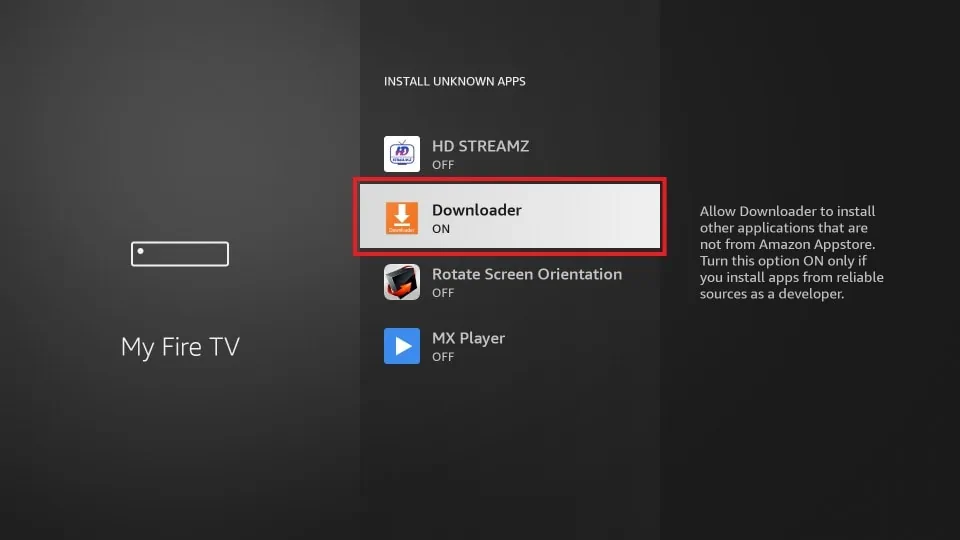
Before you can install Downloader, you need to enable a specific setting on your Firestick that allows for the installation of “apps from unknown sources.” This is a security measure implemented by Amazon to prevent accidental installation of potentially harmful software.
Enabling “Apps from Unknown Sources”
- Navigate to Settings: From the Firestick home screen, use your remote to go to the “Settings” menu. This is usually represented by a gear icon.
- Select “My Fire TV”: Within the Settings menu, find and select “My Fire TV.”
- Choose “Developer Options”: Scroll down and select “Developer Options.” If you don’t see “Developer Options,” you may need to enable it first. To do this, go back to “My Fire TV,” then select “About.” Repeatedly click on “Fire TV Stick” (or your specific Fire TV device name) about 7 times until you see a message stating “You are now a developer.” Once enabled, “Developer Options” will appear in the “My Fire TV” menu.
- Enable “Apps from Unknown Sources”: Once you are in “Developer Options,” you will see a toggle switch for “Apps from Unknown Sources.” Select this option and toggle it “On.”
- Confirm the Warning: You will see a warning message explaining the risks associated with installing apps from unknown sources. Read it carefully and select “Turn On” to proceed.
By enabling this setting, you’ve now granted your Firestick permission to install applications that haven’t been vetted by the Amazon Appstore. This is a necessary step for installing Downloader, and subsequently, other third-party apps.
Finding the Downloader App
Now that your Firestick is prepared, it’s time to locate and install Downloader itself.
- Go to the Firestick Home Screen: Press the “Home” button on your remote to return to the main screen.
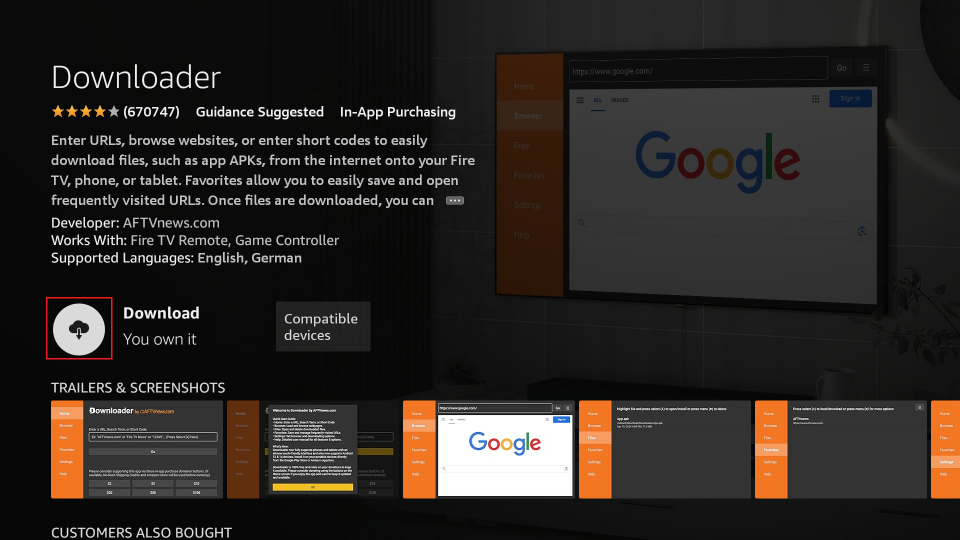
- Use the Search Function: In the top search bar, type “Downloader.”
- Select the Downloader App: As you type, a list of suggestions will appear. Look for the “Downloader” app, which typically has a blue icon with a white downward-pointing arrow. Select it.
- Click “Get” or “Download”: On the app’s listing page, you will see a button that says “Get” or “Download.” Click on it.
- Launch Downloader: Once the download and installation are complete, you will see an “Open” button. Click on it to launch the Downloader app.
Congratulations! You have successfully installed Downloader on your Firestick.
Using Downloader to Install Other Apps
With Downloader up and running, you’re ready to start installing other applications that aren’t available in the Amazon Appstore. This is where the real customization begins.
Navigating the Downloader Interface
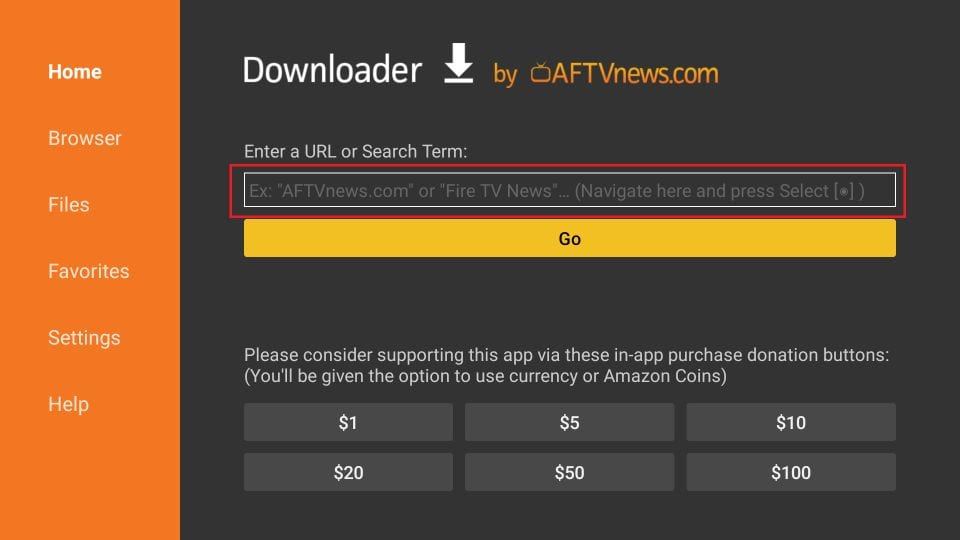
When you first open Downloader, you’ll be presented with a relatively simple interface.
- The URL Bar: This is the most important part. It’s where you will enter the web address of the file you want to download.
- Quick Access Buttons: Downloader offers quick access to commonly used features like “Home,” “Browser,” “Files,” “Settings,” and “Apps.”
- Browser Tab: This allows you to browse the web directly from your Firestick, which can be useful for finding URLs if you’re not sure of them.
Finding and Entering URLs
The key to using Downloader is finding the correct URL for the application you want to install. These URLs typically point to .apk files, which are the installation packages for Android applications.
Where to find URLs:
- Reputable Tech Websites and Forums: Many websites dedicated to Firestick and Android customization will provide direct download links or instructions on how to find them. Always prioritize sources that are known for their reliability and security.
- YouTube Tutorials: Many YouTube creators offer detailed guides on installing specific apps, and they often share the necessary URLs in their video descriptions.
- Online Communities: Subreddits like r/FireTV or dedicated Firestick forums can be excellent resources for finding links and getting help.
Important Security Note: Always be cautious about the source of your URLs. Malicious websites can host harmful .apk files that could compromise your device or steal your data. If a website seems untrustworthy or the download link appears suspicious, it’s best to avoid it.
The Installation Process
Once you have a reliable URL:
- Open Downloader: Launch the Downloader app.
- Enter the URL: In the URL bar, carefully type or paste the web address of the
.apkfile you want to download. Double-check for any typos, as even a single incorrect character will prevent the download from working. - Click “Go”: After entering the URL, select “Go.”
- Download the File: Downloader will begin to download the file. You’ll see a progress bar and download speed.
- Install the Application: Once the download is complete, Downloader will automatically prompt you to install the application. Click “Install.”
- Launch the App: After the installation, you’ll have the option to “Open” the newly installed app or “Done” to return to Downloader.
Managing Installed Apps and Clean-up
As you install more apps, it’s good practice to keep your Firestick organized.
- Clearing Cache and Data: In the Downloader “Settings,” you can find options to clear the cache and data from previous downloads. This can free up storage space.
- Uninstalling Unused Apps: You can uninstall applications directly from your Firestick’s main settings menu (Settings > Applications > Manage Installed Applications).
By following these steps, you can effectively install Downloader and then use it to expand the functionality of your Amazon Fire TV Stick with a wide array of applications. Remember to always prioritize security and download from trusted sources. Enjoy your enhanced streaming experience!
aViewFromTheCave is a participant in the Amazon Services LLC Associates Program, an affiliate advertising program designed to provide a means for sites to earn advertising fees by advertising and linking to Amazon.com. Amazon, the Amazon logo, AmazonSupply, and the AmazonSupply logo are trademarks of Amazon.com, Inc. or its affiliates. As an Amazon Associate we earn affiliate commissions from qualifying purchases.