
Ubuntu, a beacon in the open-source world, thrives on its robust package management system. At its core lies the .deb package format, the standard for distributing software in Debian-based systems like Ubuntu. While modern alternatives like Snap and Flatpak offer intriguing solutions, understanding how to install .deb files remains a fundamental skill for any Ubuntu user, empowering you with greater control over your system and access to a vast array of software not always found in official repositories.
This guide will demystify the process of installing .deb packages, walking you through both graphical user interface (GUI) and command-line interface (CLI) methods. We’ll delve into best practices, troubleshooting tips, and even touch upon how efficient software management contributes to a productive, secure, and financially savvy digital life – themes central to our discussions on Technology, Brand, and Money.

The Backbone of Ubuntu Software: Understanding .deb Packages
Before diving into installation, let’s clarify what a .deb package is. Essentially, it’s an archive file containing all the necessary components for a piece of software: the executable program, libraries, documentation, configuration files, and metadata about the package itself, including its dependencies. When you install a .deb file, your system unpacks these components and places them in the correct locations, making the software available for use.
Why is this important? For many users, particularly those venturing beyond the official Ubuntu Software Center, .deb files are the gateway to a broader universe of applications. Developers often release their software in this format, making it easy to distribute to Ubuntu and Debian users. Mastering their installation means you’re never truly limited to pre-packaged offerings, extending your technical capabilities and fostering a more personalized computing experience. From a ‘Money’ perspective, leveraging these direct .deb installations often means accessing powerful open-source tools that are free, providing significant cost savings compared to proprietary alternatives.
Preparing for a Smooth Installation
A successful software installation begins with preparation. Just as a well-orchestrated marketing campaign (Brand) or a solid investment strategy (Money) requires groundwork, so does integrating new software into your operating system. Skipping these steps can lead to frustrating issues, broken dependencies, and even system instability.
Essential Prerequisites and Best Practices
-
Verifying Source Trustworthiness (Digital Security – Tech): This is paramount. Always download
.debpackages from official developer websites or reputable sources. Malicious.debfiles can compromise your system’s security. Before downloading, check for secure connections (HTTPS), read reviews, and if possible, verify checksums provided by the developer. This practice is akin to protecting your ‘Brand’ – your system’s integrity directly reflects your digital security posture. -
Understanding Dependencies: Most software isn’t standalone; it relies on other packages (dependencies) to function correctly. When you install a
.debpackage, the system checks for these dependencies. If they’re missing, the installation might fail, or the software won’t run. While GUI tools often handle this automatically, CLI methods sometimes require manual intervention or a follow-up command. -
System Updates: A Foundation for Stability (Productivity – Tech): Always ensure your Ubuntu system is up-to-date before installing new software. This minimizes compatibility issues and ensures you have the latest security patches. Open your terminal and run:
sudo apt update
sudo apt upgrade
Keeping your system updated is a key ‘Productivity’ hack, ensuring smooth operation and reducing downtime caused by bugs or vulnerabilities.
-
Backup (Optional but Recommended): For critical systems or when installing experimental software, consider backing up your system. Tools like Timeshift can create system snapshots, offering a safety net if something goes wrong.
The Role of Package Managers in Ubuntu
Ubuntu uses a sophisticated package management system built around dpkg (Debian Package) and APT (Advanced Package Tool).
dpkgis the low-level tool that actually installs, removes, and manages individual.debpackages. It handles the unpacking and configuration.APTis a higher-level tool that interacts withdpkg. Its primary strength lies in managing repositories, resolving dependencies, and fetching packages from the internet. When you useapt installfor software from a repository,APTintelligently figures out what other packages are needed and then callsdpkgto do the actual installation.- GUI Tools like the Ubuntu Software Center and GDebi act as user-friendly front-ends for these underlying systems, abstracting away the complexity.
Graphical User Interface (GUI) Methods: Simplicity for Everyday Users
For those who prefer a visual approach, Ubuntu offers straightforward GUI options for .deb package installation. These methods are generally more user-friendly, especially for beginners, as they often handle dependency resolution automatically.
Installing .deb Packages via Ubuntu Software Center
The Ubuntu Software Center is your default gateway to applications. While primarily designed for software from official repositories, it can also open and install local .deb files.
Steps:
- Locate Your .deb File: Navigate to the folder where you downloaded the
.debpackage using your file manager (e.g., Nautilus). - Open with Software Center: Double-click the
.debfile. By default, Ubuntu should open it with the “Software Install” application, which is part of the Software Center. - Review and Install: A window will appear showing details about the package, including its name, version, and a brief description. You’ll usually see an “Install” button. Click it.
- Authenticate: You will be prompted to enter your administrative password for security purposes.
- Wait for Completion: The Software Center will proceed with the installation, including fetching any necessary dependencies from Ubuntu’s repositories. Once complete, the “Install” button will likely change to “Remove” or “Launch.”
Pros:
- User-Friendly: Very intuitive, requiring minimal technical knowledge.
- Integrated: Seamlessly integrates with the existing system.
- Dependency Resolution: Often handles dependencies automatically by fetching them from repositories.
Cons:
- Sometimes Limited: In rare cases, the Software Center might struggle with complex dependency chains or very new/uncommon
.debfiles. - Less Diagnostic Information: Provides less detailed feedback if an error occurs compared to the command line.
Leveraging GDebi Package Installer for Dependency Handling
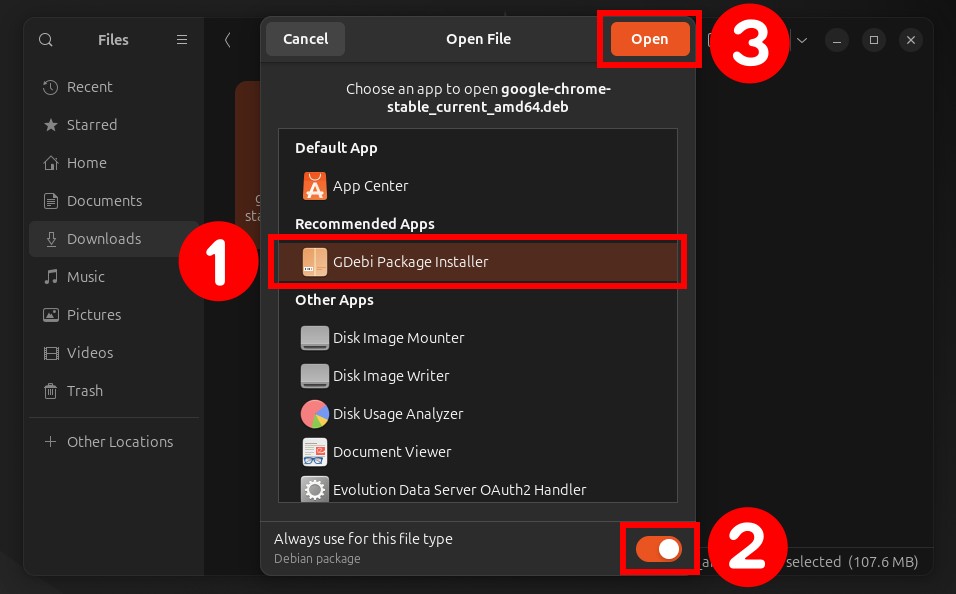
While the Software Center works well, GDebi is a dedicated .deb installer that often excels at handling dependencies. It’s a lightweight tool specifically designed for .deb packages, making it a favorite among many users. If you encounter issues with the Software Center, GDebi is an excellent alternative.
Steps:
-
Install GDebi (if not already installed): GDebi doesn’t come pre-installed with all Ubuntu versions. You can install it via the terminal:
sudo apt update
sudo apt install gdebi
Alternatively, search for “GDebi” in the Ubuntu Software Center and install it graphically.
-
Locate Your .deb File: Open your file manager and find the
.debfile. -
Open with GDebi: Right-click the
.debfile. In the context menu, select “Open With” and then choose “GDebi Package Installer.” If you don’t see it, you might need to click “Other Application” and search for “GDebi.” -
Review and Install: The GDebi window will display the package information. Crucially, it will clearly state if there are any missing dependencies and whether they can be installed. If all looks good, click the “Install Package” button.
-
Authenticate and Complete: Enter your administrative password when prompted. GDebi will then proceed to install the package and its dependencies.
Pros:
- Superior Dependency Resolution: GDebi is renowned for its efficiency in identifying and offering to install missing dependencies.
- Clear Information: Provides clear feedback on dependencies, which is helpful for troubleshooting.
- Lightweight: A minimalist tool focused solely on
.debinstallation.
Cons:
- Requires Installation: Not pre-installed by default on all Ubuntu systems.
Command Line Interface (CLI) Methods: Power and Precision
For experienced users, administrators, or those who simply prefer direct control, the command line offers robust and precise methods for installing .deb packages. While it might seem intimidating at first, mastering these commands unlocks greater flexibility, especially for automation or server environments. This approach aligns with a deep understanding of ‘Tech’ and ‘Productivity’ as it provides efficient and repeatable processes.
The dpkg Command: The Low-Level Workhorse
The dpkg command is the foundational tool for managing .deb packages. It directly interacts with the .deb file, but it doesn’t automatically handle dependencies from repositories. This means you might need to resolve them manually.
Steps:
-
Open Terminal: Press
Ctrl + Alt + Tto open your terminal. -
Navigate to the .deb File (Optional but Recommended): It’s good practice to
cdinto the directory where your.debfile is located. This makes the command simpler. For example, if your file is inDownloads:cd ~/Downloads -
Install the .deb Package: Use the
dpkg -icommand, followed by the filename:sudo dpkg -i package_name.debReplace
package_name.debwith the actual name of your file.sudois essential as package installation requires administrative privileges. -
Handling Missing Dependencies: If the installation fails due to missing dependencies,
dpkgwill output an error message indicating which packages are required. You can often resolve this usingapt install -f:
bash

sudo apt install -f
The-f(or--fix-broken) flag tellsAPTto attempt to resolve any broken dependencies by installing the missing packages. After running this, try thedpkg -icommand again if the package wasn’t fully configured. In many cases,apt install -fwill complete the installation of your.debpackage directly.
Pros:
- Direct Control: Provides the most granular control over the installation process.
- Automation: Ideal for scripting and automated deployments, which significantly boosts ‘Productivity’.
- Troubleshooting Insights: Error messages from
dpkgcan be very informative for debugging.
Cons:
- Manual Dependency Resolution: Doesn’t automatically fetch dependencies from repositories, requiring an extra step (
apt install -f). - Steeper Learning Curve: Less intuitive for new users.
Integrating apt for Seamless Installation (Advanced Tip)
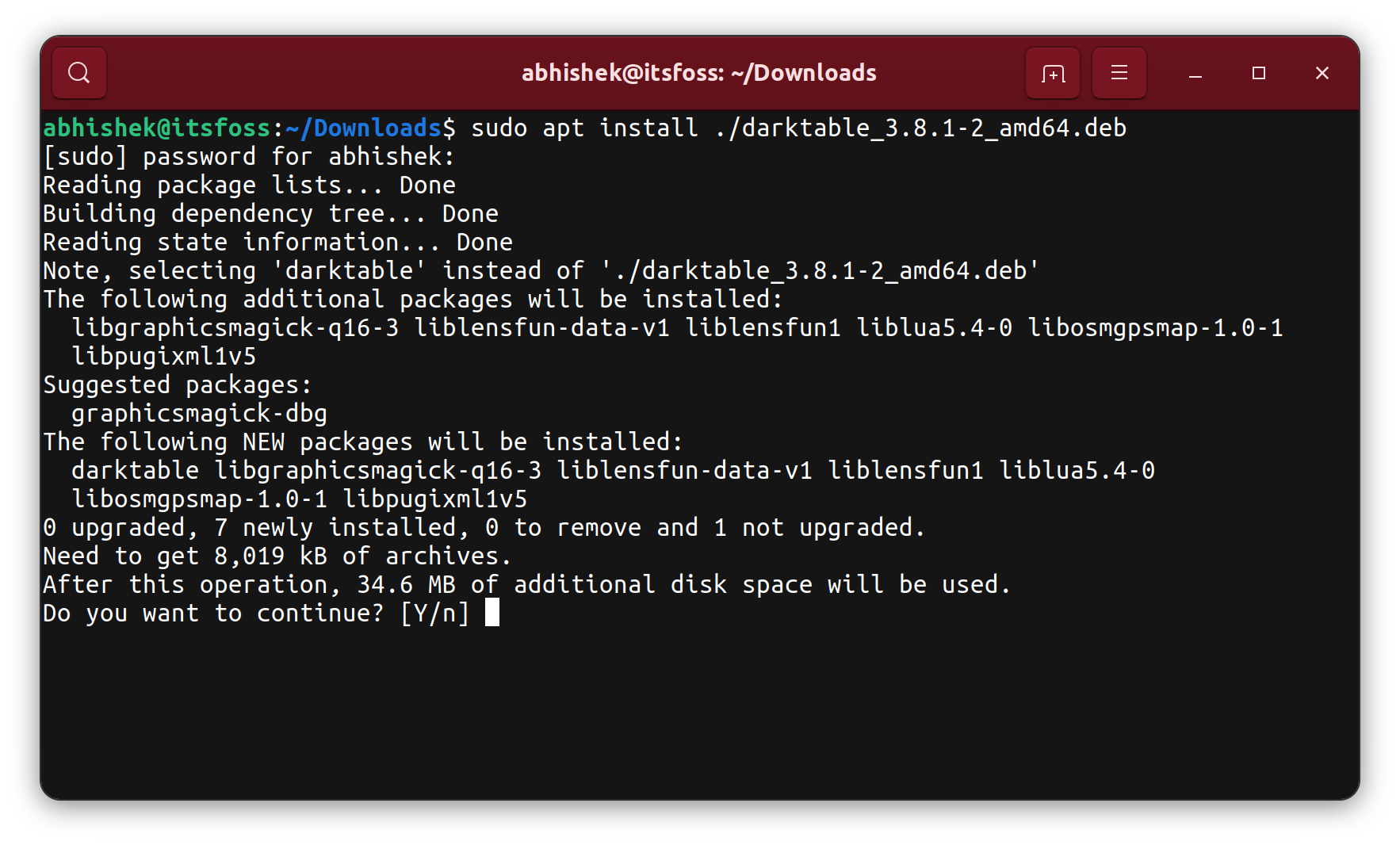
Modern versions of APT (since Ubuntu 14.04 and apt version 1.0) can directly install local .deb files and automatically resolve their dependencies, combining the power of dpkg with the intelligence of APT. This is arguably the most convenient CLI method.
Steps:
-
Open Terminal:
Ctrl + Alt + T. -
Install the .deb Package: Use
apt installbut specify the local path to the.debfile. The./before the filename is crucial as it tellsAPTyou’re referring to a file in the current directory (or a specific path):sudo apt install ./package_name.debIf your
.debfile is not in the current directory, provide its full path:sudo apt install /path/to/your/package_name.debAPTwill then display the dependencies it needs to install and ask for confirmation. -
Confirm Installation: Type
Yand pressEnter.
Pros:
- Best of Both Worlds: Combines the directness of CLI with
APT‘s excellent dependency resolution. - Efficiency: Streamlines the process compared to
dpkg -ifollowed byapt install -f. - Reliable: Less prone to “dependency hell” than
dpkgalone.
Cons:
- Requires
aptversion 1.0 or higher (standard on modern Ubuntu).
Troubleshooting Common Issues and Maintaining Your System
Even with the best preparation, you might occasionally encounter issues. Knowing how to troubleshoot and maintain your system is crucial for long-term ‘Productivity’ and ‘Digital Security’.
Addressing Dependency Problems (Digital Security – Tech)
The most common issue with .deb installations is dependency errors.
apt install -frevisited: As mentioned,sudo apt install -fis your primary tool for fixing broken packages and resolving missing dependencies. Always try this first after a faileddpkginstallation.- Removing Broken Packages: If a package installation is severely broken, it might be better to remove it and try again.
bash

sudo dpkg --remove package_name  # Removes only the package files, leaves config

sudo dpkg --purge package_name   # Removes package files and configuration

sudo apt autoremove              # Removes unused dependencies
After removal, clean up any remaining configuration files and try reinstalling. Regularly clearing out broken or unused packages contributes to a healthier system, preventing bloat and potential security vulnerabilities.
Uninstalling .deb Packages (Productivity – Tech)
Knowing how to remove software is just as important as installing it.
- Using GUI: For packages installed via the Software Center or GDebi, you can usually find them in the Software Center and click “Remove.”
- Using CLI (
apt): This is the most common and recommended way for packages that were properly installed.
bash

sudo apt remove package_name      # Removes the package, keeps config files

sudo apt purge package_name       # Removes package and all config files

sudo apt autoremove               # Removes unused dependencies
Always useapt purgefor a clean removal, especially if you never intend to reinstall the software. This frees up disk space and prevents potential conflicts.
Security Best Practices (Digital Security – Tech)
The freedom of .deb packages comes with responsibility.
- The Dangers of Untrusted Sources: Never install a
.debpackage from an unknown or untrusted source. It could contain malware, adware, or simply be poorly constructed, leading to system instability. This is a direct risk to your ‘Digital Security’ and can significantly damage your ‘Brand’ if your system becomes compromised. - Regular Updates: Keep your entire system updated, not just the packages you manually install. This includes your kernel and core system utilities, ensuring you have the latest security patches.
- Review Before Installation: If you’re unsure about a package, research it online. Look for official documentation, community discussions, and user reviews before committing to an installation.
Beyond .deb: A Glimpse into Ubuntu’s Software Ecosystem
While .deb packages are fundamental, Ubuntu’s software landscape has evolved. Modern alternatives like Snap, Flatpak, and AppImage offer different paradigms for software distribution, each with its own advantages.
- Snap: Canonical’s (Ubuntu’s parent company) universal packaging system. Snaps are self-contained and isolated from the rest of the system, theoretically improving stability and security. They are often larger but guarantee specific dependency versions.
- Flatpak: A similar universal packaging system, popular across various Linux distributions. Like Snaps, Flatpaks are sandboxed and aim for cross-distribution compatibility.
- AppImage: A single executable file that contains all necessary dependencies, requiring no installation. You simply download, make it executable, and run it. Great for portable applications.
Understanding these alternatives provides a broader perspective on ‘Technology Trends’ in the Linux world. While .deb remains crucial, knowing when to choose a Snap for its sandboxing, a Flatpak for broader compatibility, or an AppImage for portability, enhances your overall ‘Productivity’ and technical acumen.
From a ‘Brand’ perspective, maintaining a stable, secure, and well-organized digital environment is essential, whether you’re a professional or a casual user. Reliable software installation and management contribute directly to this. For ‘Money’, the ability to leverage a vast ecosystem of open-source .deb packages, often providing enterprise-level functionality for free, offers tangible financial benefits, reducing software licensing costs and allowing funds to be allocated elsewhere.
Conclusion: Empowering Your Ubuntu Experience
Mastering the installation of .deb packages on Ubuntu is a foundational skill that opens up a world of software beyond the official repositories. Whether you prefer the simplicity of GUI tools like the Software Center or GDebi, or the power and precision of CLI commands like dpkg and apt, you now have the knowledge to confidently manage your Ubuntu system.
Remember to prioritize security by only installing from trusted sources and to maintain system hygiene through regular updates and proper uninstallation. By doing so, you’re not just installing software; you’re building a reliable, efficient, and secure digital environment that supports your productivity, enhances your technical prowess, and allows you to harness the full potential of open-source technology. Embrace the power of .deb and take full control of your Ubuntu journey.