
The world of technology is constantly evolving, offering us innovative software and tools to enhance our productivity, creativity, and digital lives. For users of Linux-based operating systems, particularly those running Debian and its derivatives like Ubuntu, Mint, and Pop!_OS, encountering a .deb package is a common occurrence. These packages are the standard way to distribute and install software on such systems. While the process can seem daunting to newcomers, understanding how to install a .deb file is a fundamental skill that unlocks a vast universe of applications beyond what’s readily available in your distribution’s default repositories.

This guide will demystify the .deb installation process. We’ll cover everything from the basics of what a .deb file is, to the various methods you can employ for installation, including graphical tools and the command line. We’ll also touch upon potential pitfalls and how to troubleshoot common issues, ensuring you can confidently manage your software installations.
Understanding the .deb Package Format
Before diving into installation methods, it’s crucial to grasp what a .deb package actually represents. At its core, a .deb file is an archive file that contains all the necessary components for a specific piece of software to run on a Debian-based Linux system. This includes:
- The actual program files: These are the executables, libraries, and data files that make up the application.
- Metadata: This information is vital. It includes the package name, version number, maintainer’s details, and dependencies. Dependencies are other software packages that your desired application needs to function correctly.
- Installation scripts: These scripts automate the process of placing files in the correct locations on your system, configuring settings, and performing any necessary setup operations.
- Uninstallation scripts: Equally important, these scripts ensure that when you decide to remove the software, it’s cleaned up thoroughly without leaving behind unwanted files or configurations.
The .deb format is managed by the dpkg (Debian Package) system, which is the low-level tool responsible for handling these packages. Higher-level tools like apt (Advanced Package Tool) build upon dpkg to provide more user-friendly features like dependency resolution and repository management.
Why Install .deb Packages Manually?
While the primary and recommended way to install software on Debian-based systems is through the official package repositories using tools like apt or graphical software centers, there are several compelling reasons why you might need to install a .deb package directly:
- Software Not in Repositories: Many applications, especially newer or niche software, might not be immediately available in your distribution’s official repositories. Developers often release their software as
.debfiles for direct download. - Specific Versions: Sometimes, you might require a specific version of a software package that is older or newer than what’s offered in the stable repositories.
- Testing and Development: Developers and testers often work with pre-release versions or custom builds that are distributed as
.debfiles. - Proprietary Software: Some commercial or proprietary software might be distributed in
.debformat. - Offline Installations: In situations where internet connectivity is unreliable or unavailable, you can download
.debfiles on another machine and transfer them for installation.
Methods for Installing .deb Packages
Fortunately, installing a .deb package is not an overly complex task. Linux offers both graphical and command-line approaches to suit your preference and comfort level.
1. Graphical Installation Methods
For users who prefer a visual interface, several graphical tools can simplify the .deb installation process. These methods often handle dependencies automatically, making them very user-friendly.
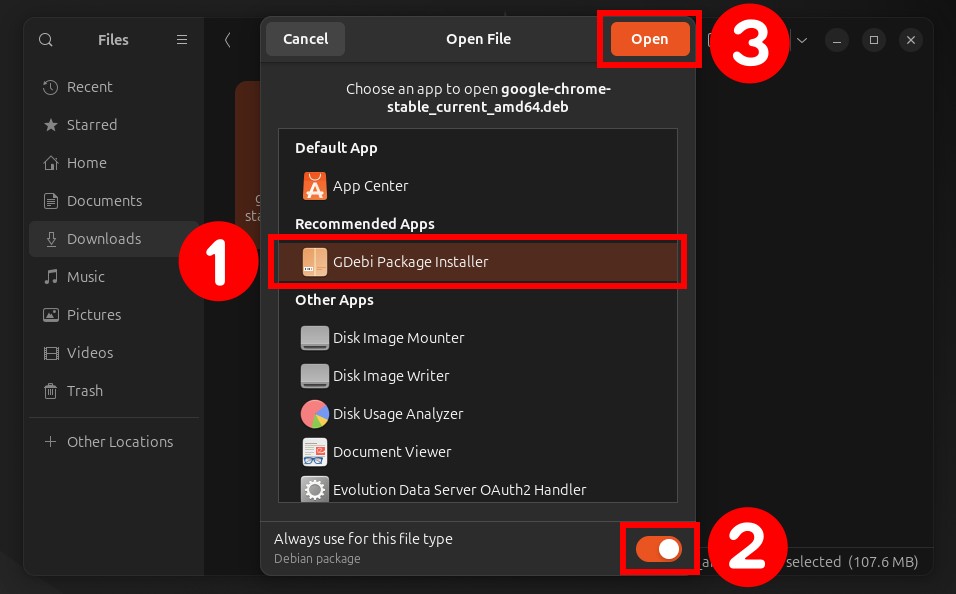
a. Using GDebi Package Installer
GDebi is a popular and straightforward graphical package installer. It’s specifically designed to install local .deb files and, crucially, it checks for and installs any missing dependencies from your configured repositories.
Steps to Install and Use GDebi:
- Install GDebi (if not already present):
Open your terminal and run:
bash

sudo apt update

sudo apt install gdebi
- Find and Open the .deb file:
Navigate to the directory where you downloaded the.debfile using your file manager. - Launch GDebi:
Right-click on the.debfile and select “Open With GDebi Package Installer” (or a similar option). - Review and Install:
GDebi will open, displaying information about the package, including its dependencies. If all dependencies are met or can be installed, you’ll see an “Install Package” button. Click it. - Authentication:
You will be prompted for your administrator password to authorize the installation.
GDebi’s strength lies in its ability to resolve dependencies, which is often the biggest hurdle when installing software outside of the main repositories.
b. Using Software Centers (e.g., Ubuntu Software, GNOME Software, Discover)
Many Linux distributions come with pre-installed software centers that also support the installation of local .deb files. These are usually the most intuitive option for beginners.
Steps to Use Software Centers:
- Find and Open the .deb file:
Locate the downloaded.debfile in your file manager. - Open with the Software Center:
Double-click the.debfile. By default, your system should open it with the default software center. - Install:
The software center will display information about the application. Look for an “Install” button and click it. - Authentication:
You’ll likely be asked for your administrator password.
These software centers are designed for ease of use and often provide a seamless experience, automatically handling dependencies in the background.
2. Command-Line Installation Methods
For those who are comfortable with the terminal, or when graphical tools are not available or fail, the command line offers robust and flexible ways to install .deb packages.
a. Using dpkg (The Low-Level Tool)
dpkg is the fundamental package management tool in Debian-based systems. It directly installs, removes, and queries individual .deb packages. However, it does not automatically resolve or install dependencies. You’ll need to handle those manually.
Steps to Install with dpkg:
- Open Terminal:
Launch your terminal application. - Navigate to the Directory:
Use thecdcommand to go to the directory where your.debfile is located. For example, if it’s in your Downloads folder:
bash

cd ~/Downloads
- Install the Package:
Use the following command, replacingpackage_name.debwith the actual name of your file:
bash

sudo dpkg -i package_name.deb
sudo: Executes the command with administrative privileges.dpkg: The command-line tool.-i: The option to “install” a package.
Handling Dependencies with dpkg:
If dpkg reports dependency errors (which it often will if dependencies are not met), you’ll see messages indicating missing packages. To fix this, you can often use apt to resolve and install the missing dependencies:
sudo apt --fix-broken install
This command will attempt to find and install all missing dependencies for packages that are currently in a broken state. After running this, you might need to re-run the dpkg -i command if the installation wasn’t fully completed initially.
b. Using apt (The Recommended Command-Line Tool)
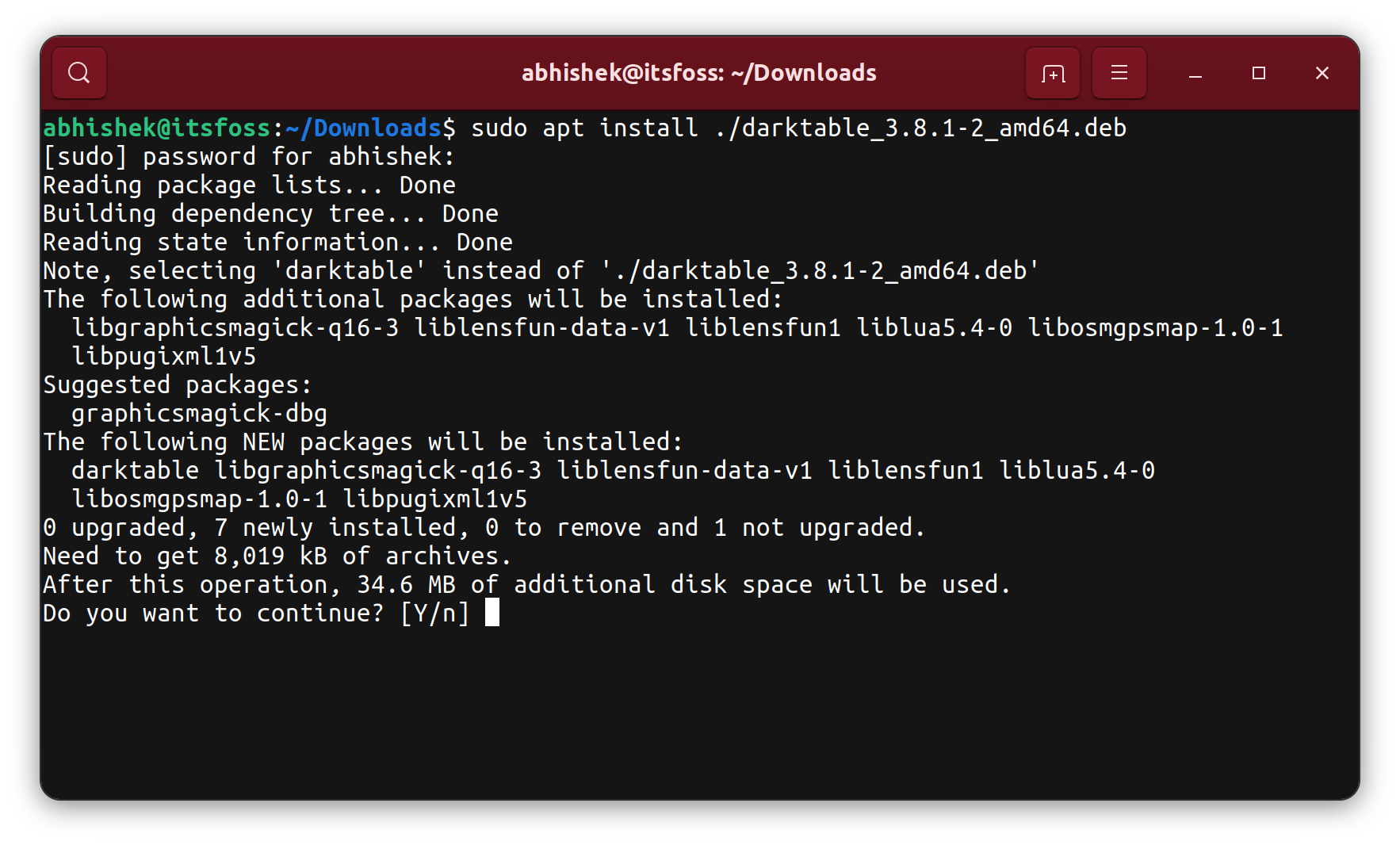
The apt command is the higher-level, more user-friendly package manager that is generally recommended for command-line operations. When you provide apt with a local .deb file, it intelligently tries to install the package and resolve any necessary dependencies from your configured repositories.
Steps to Install with apt:
- Open Terminal:
Launch your terminal application. - Navigate to the Directory:
Use thecdcommand to go to the directory where your.debfile is located.
bash

cd ~/Downloads
- Install the Package:
Use the following command, replacingpackage_name.debwith the actual name of your file:
bash

sudo apt install ./package_name.deb
sudo: Executes the command with administrative privileges.apt: The advanced package tool.install: The action to install a package../package_name.deb: This specifies the path to the local.debfile. The./is important to tellaptthat it’s a local file in the current directory.
Using apt install ./package_name.deb is often the most efficient and reliable command-line method for installing local .deb files because it automates dependency handling.
Troubleshooting Common Issues
While installing .deb packages is usually straightforward, you might occasionally encounter problems. Here are some common issues and how to address them:
Dependency Errors
This is the most frequent problem. A .deb package might require other software (libraries, other packages) that are not currently installed on your system.
- Solution:
- Graphical: GDebi or your software center will usually prompt you to install missing dependencies.
- Command-line (
dpkg): After adpkg -ifailure due to dependencies, runsudo apt --fix-broken install. This command is a lifesaver for resolving such issues. - Command-line (
apt):apt install ./package_name.debshould handle dependencies automatically. If it fails, it will usually tell you what’s missing. You can then try to install those specific dependencies first.
Package Architecture Mismatch
You might try to install a .deb package that is designed for a different processor architecture (e.g., installing an amd64 package on an arm64 system or vice-versa).
- Solution: Ensure you download the correct
.debpackage for your system’s architecture. You can usually find your architecture by runningdpkg --print-architecturein the terminal.
Corrupted .deb File
The downloaded .deb file might be incomplete or corrupted during the download process.
- Solution: Re-download the
.debfile from the source. It’s also a good idea to check the MD5 or SHA checksums provided by the software vendor if available, to verify the integrity of the downloaded file.
Conflicts with Existing Packages
In rare cases, a .deb package might conflict with software already installed on your system, especially if it tries to overwrite files belonging to another package.
- Solution: The package manager will usually warn you about conflicts. You might need to uninstall the conflicting package first, or find an alternative version of the software you’re trying to install.
Best Practices and Security Considerations
When installing .deb packages from sources outside of your distribution’s official repositories, it’s crucial to exercise caution.
- Source Reliability: Always download
.debfiles from trusted and official sources. Be wary of third-party websites that might bundle malware or older, insecure versions of software. - Understand Dependencies: If you’re installing software that has many dependencies, research them if you’re concerned about what you’re adding to your system.
- Keep Your System Updated: Regularly update your system using
sudo apt update && sudo apt upgrade. This ensures you have the latest security patches and that your dependencies are managed efficiently. - Consider Using
aptfor Local Files: As mentioned,sudo apt install ./package_name.debis generally preferred overdpkg -ibecause of its superior dependency management.
Conclusion
Installing .deb packages is an essential skill for any user of Debian-based Linux distributions. Whether you prefer the simplicity of graphical tools like GDebi or software centers, or the power and flexibility of command-line utilities like apt and dpkg, there’s a method that suits your needs. By understanding the process, potential issues, and adopting safe practices, you can confidently expand your software selection and keep your Linux system running smoothly and securely. So, the next time you encounter a .deb file, you’ll know exactly how to install it and unlock new possibilities for your digital workflow.