
The Amazon Fire TV Stick has revolutionized the way we consume media, transforming standard televisions into high-powered smart hubs. At the core of its utility is the ability to install and run a vast array of applications. Whether you are looking to access mainstream streaming services like Netflix and Disney+, or you are a power user seeking to expand the device’s capabilities through third-party software, understanding the nuances of app installation is essential.
In this comprehensive guide, we will explore the various methodologies for installing apps on your Firestick. We will move from the foundational official methods to advanced sideloading techniques, ensuring you can maximize the potential of your hardware while maintaining system stability and security.
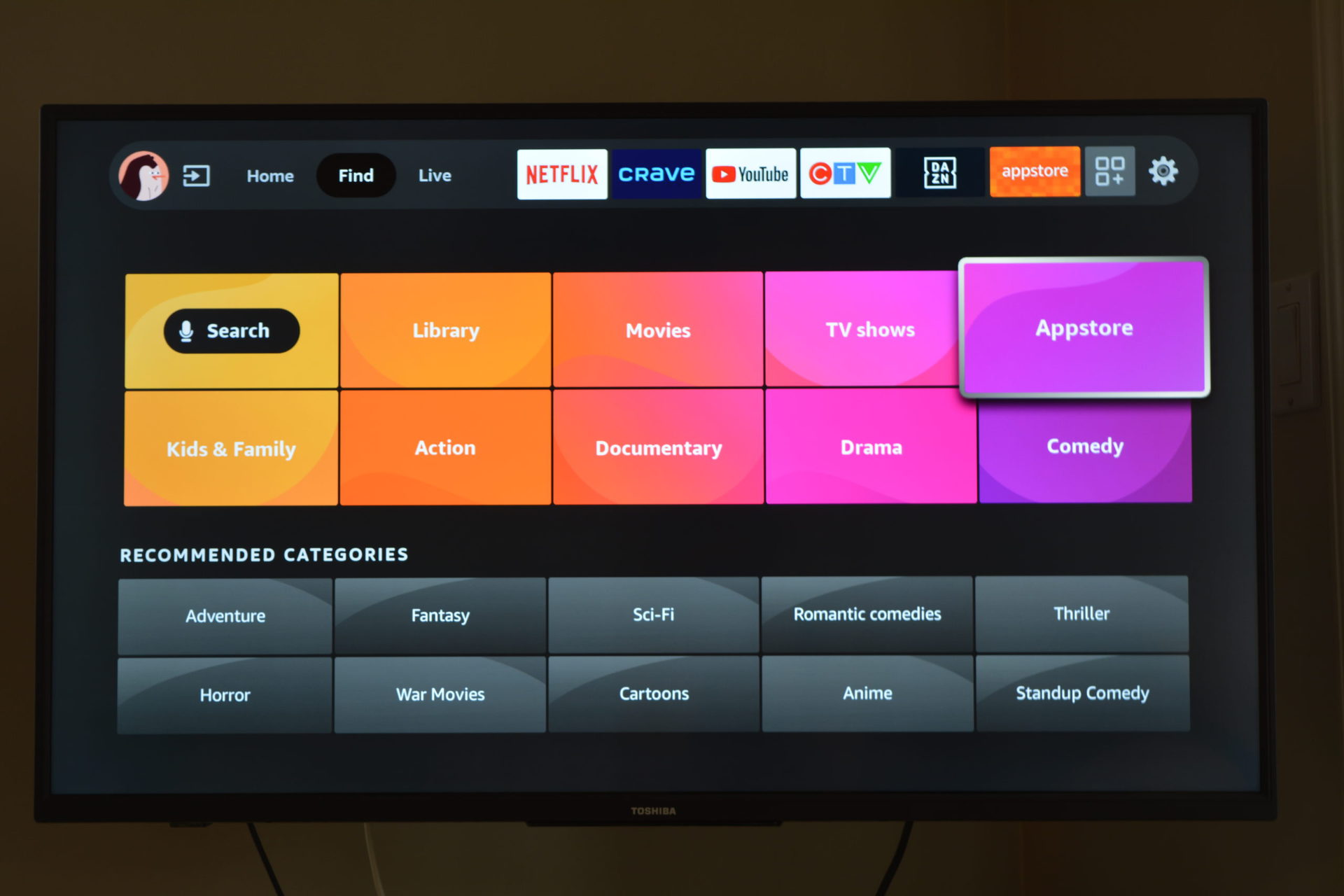
Navigating the Official Amazon Appstore
For the vast majority of users, the Amazon Appstore is the primary gateway to entertainment. Built directly into the Fire OS, the Appstore is optimized for the Firestick’s remote-friendly interface and ensures that every app downloaded is compatible with the device’s specific hardware constraints.
Searching and Discovering New Content
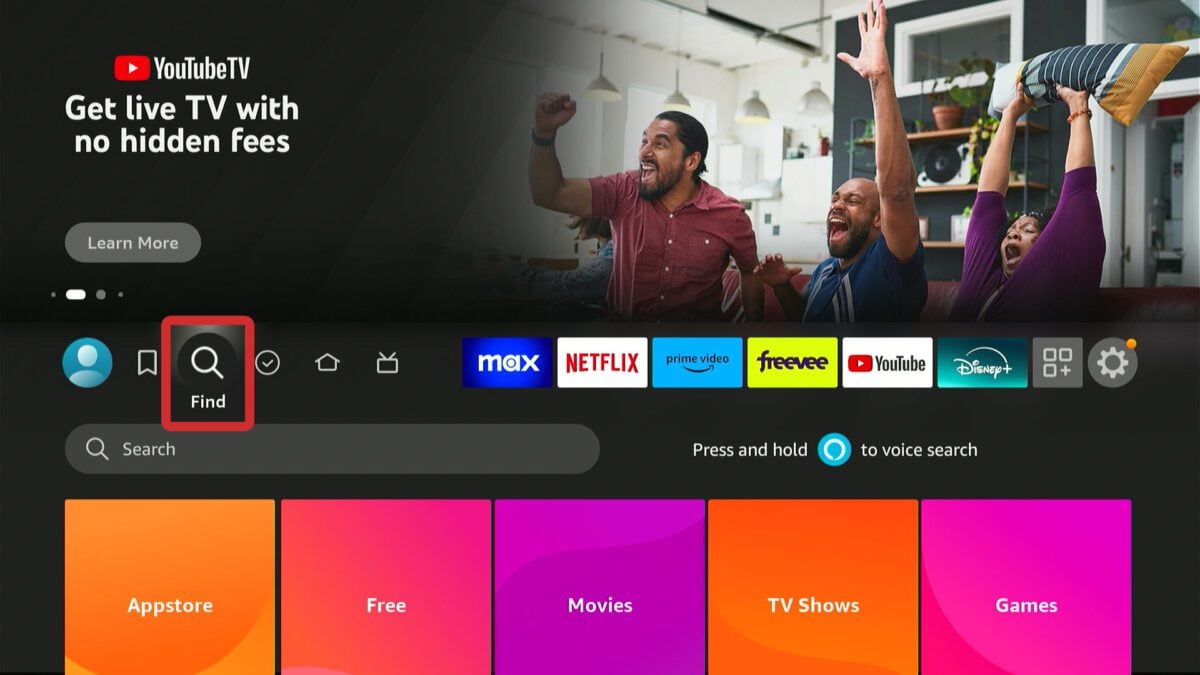
The most straightforward way to install an app is via the built-in search functionality. By navigating to the “Find” magnifying glass icon on the home screen, you can type in the name of the desired application. For a more seamless experience, the Firestick’s Alexa Voice Remote allows you to simply hold the voice button and say, “Find [App Name].”
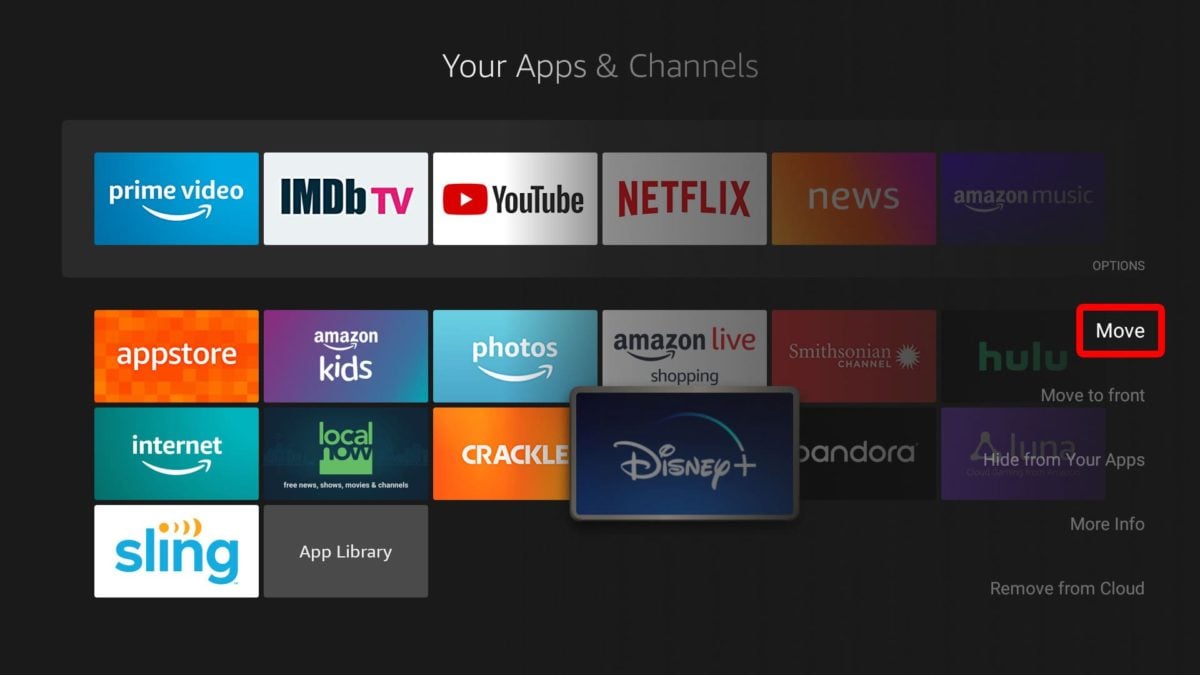
The Appstore is also categorized into genres such as “Movies & TV,” “Games,” and “Productivity.” Browsing these sections is an excellent way to discover trending tools or niche streaming platforms that you might not have known existed. Once you locate an app, clicking the “Get” or “Download” button initiates the process. The Firestick handles the download and installation in the background, placing the app icon directly into your “Your Apps & Channels” row.
Managing Subscriptions and Cloud Library
One of the technical advantages of the Amazon ecosystem is the unified cloud library. If you have previously installed an app on another Fire TV device or through the Amazon website on your desktop, that app will appear in your “Library” with a small cloud icon. This signifies that you own the license to the app, but it is not currently taking up physical storage on your stick.
Clicking these icons will trigger a fresh installation. This is a vital feature for managing the Firestick’s limited internal storage (typically 8GB), allowing you to swap apps in and out without losing your purchase history or preferences.
Automated Updates and Background Maintenance
By default, the Fire OS is designed to keep your official apps updated. In the “Settings” menu under “Applications” > “Appstore,” you can verify that “Automatic Updates” is toggled on. This ensures that you always have the latest security patches and features without manual intervention. From a technical standpoint, keeping apps updated is crucial for maintaining the integrity of the Fire OS kernel and ensuring that streaming protocols remain compatible with server-side changes.
Advanced Installation: Sideloading Apps with Downloader
While the official Appstore is extensive, it does not contain every piece of software available for the Android-based Fire OS. Sideloading—the process of installing apps from third-party sources—allows users to install browsers, specialized media players like Kodi, or utility tools that haven’t been vetted by Amazon.
Preparing Your Firestick for Third-Party Apps
Before you can sideload, you must adjust the device’s security settings. Historically, this was done via a simple toggle in the “Developer Options.” However, in recent firmware updates, Amazon has hidden this menu to protect novice users. To reveal it, navigate to Settings > My Fire TV > About, and click the name of your device seven times until a message appears saying, “No need, you are already a developer.”
Once enabled, go back to Developer Options and turn on “Install Unknown Apps.” This allows the operating system to execute APK (Android Package Kit) files that do not originate from the official store. This is a critical step that essentially “unlocks” the device for custom software.
The Role of the Downloader App
Since the Firestick does not have a traditional file explorer or a robust web browser out of the box, the “Downloader” app (developed by AFTVnews) has become the industry standard for sideloading. You can find Downloader for free in the official Appstore.
Downloader acts as a bridge; it features a simplified web browser and a file management system designed for the Firestick remote. By entering a direct URL to an APK file, Downloader fetches the package from the internet and automatically prompts the Fire OS installer to run. This method is preferred by tech enthusiasts because it eliminates the need for a secondary computer or a physical USB connection.
Understanding APKs and Safety
When sideloading, you are interacting directly with APK files. From a digital security perspective, this requires caution. Unlike the Appstore, third-party sites do not always scan for malware. It is highly recommended to only download APKs from reputable sources like APKMirror or official developer websites. Sideloading introduces a “sandbox” bypass, meaning the app has more freedom within the system, so using a VPN while downloading and using these apps is a common practice among power users to shield their data and IP address.
Alternative Methods for App Distribution
For users who want to manage their Firestick apps from a smartphone or a PC, there are several “over-the-air” methods that bypass the need for typing long URLs into the Downloader app.
Using “Send Files to TV” (SFTV)
“Send Files to TV” is a powerful utility that must be installed on both your Firestick and your Android smartphone or computer. It operates on your local Wi-Fi network to transfer files instantly. If you have an APK file on your phone, you can simply “Send” it, and it will appear in the Firestick’s internal “Download” folder.
Once the file is transferred, you can use a file manager app on the Firestick to open the APK and install it. This method is significantly faster for batch-installing multiple apps or for users who find the Firestick remote cumbersome for navigating web pages.
Cloud Storage Integration
Another sophisticated method involves using cloud services like Google Drive, Dropbox, or OneDrive. By using a file explorer app on the Firestick—such as X-plore File Manager—you can link your cloud accounts. You can upload APKs to your cloud storage from your PC and then access them directly from the Firestick’s interface. This creates a personal “repository” of apps that you can access from any Firestick device you own, making it a favorite technique for those who manage multiple setups across different rooms or locations.
ADB (Android Debug Bridge) Installations
For the most advanced users, the Android Debug Bridge (ADB) allows you to install apps via a command-line interface from a computer on the same network. By enabling “ADB Debugging” in the Developer Options, you can use a PC to “push” installations to the Firestick. While this requires more technical knowledge, it is the most reliable way to troubleshoot failed installations or to sideload system-level utilities that standard installers might reject.
Optimizing Your Firestick Experience
Installing apps is only half the battle; maintaining a high-performance environment is key to ensuring your Firestick doesn’t become sluggish over time.
Managing Storage and Performance
The Firestick’s biggest bottleneck is its limited internal storage. When you install numerous apps, the device’s “Cache” begins to fill up. To maintain speed, you should periodically go to Settings > Applications > Manage Installed Applications. From here, you can see exactly how much space each app is consuming. Clearing the cache of heavy apps like YouTube or Kodi can reclaim hundreds of megabytes, preventing the system UI from lagging.
Uninstalling and Offloading
If your device is running low on space, it is important to uninstall unused applications properly. Simply removing them from the home screen doesn’t always clear the associated data. Using the “Manage Installed Applications” menu ensures that the app and all its secondary data are scrubbed from the flash memory. For apps you use infrequently, consider “Offloading” them if the option is available, which keeps your settings but removes the bulk of the app’s code.
Enhancing Security and Privacy
With the ability to install apps from any source comes the responsibility of security. Tech-savvy users should consider installing a reputable VPN app directly onto the Firestick. This encrypts the data leaving the device, ensuring that your ISP or third parties cannot monitor your streaming habits. Furthermore, always review the “Permissions” of sideloaded apps in the settings menu to ensure they aren’t accessing parts of the system (like your contact list or location) that aren’t necessary for their function.
In conclusion, the Amazon Firestick is a remarkably flexible piece of technology. Whether you stick to the curated safety of the official Appstore or venture into the limitless possibilities of sideloading and ADB commands, the ability to customize your app library is what makes the Firestick the leading choice for digital entertainment. By following the structured approaches outlined in this guide, you can ensure a smooth, secure, and high-performance streaming experience tailored specifically to your needs.
aViewFromTheCave is a participant in the Amazon Services LLC Associates Program, an affiliate advertising program designed to provide a means for sites to earn advertising fees by advertising and linking to Amazon.com. Amazon, the Amazon logo, AmazonSupply, and the AmazonSupply logo are trademarks of Amazon.com, Inc. or its affiliates. As an Amazon Associate we earn affiliate commissions from qualifying purchases.