
Ubuntu, an immensely popular Linux distribution, stands as a pillar of reliability and versatility for users ranging from developers and system administrators to everyday desktop users. Its robust foundation, combined with a user-friendly interface, makes it an excellent choice for a wide array of computing tasks. At the heart of Ubuntu’s software management system lies the Debian package format, identified by the .deb file extension. While Ubuntu’s official repositories offer a vast collection of applications, there are frequent occasions when users need to install software that isn’t readily available through these channels. This could be due to proprietary software, newer versions not yet in the official repos, or custom applications.

Mastering the installation of .deb packages is a fundamental skill for any Ubuntu user looking to unlock the full potential of their system, offering greater flexibility and control over their software environment. This comprehensive guide will walk you through everything you need to know, from understanding what a .deb package is to employing various installation methods, both graphical and command-line, and troubleshooting common issues. By the end of this article, you’ll be well-equipped to confidently manage your software installations, enhancing your productivity and expanding your digital capabilities on Ubuntu.
Understanding .deb Packages and Why They Matter
Before diving into the “how-to,” it’s crucial to grasp the “what” and “why” behind .deb packages. This foundational knowledge empowers you to make informed decisions and troubleshoot more effectively.
What is a .deb Package?
A .deb package is the standard binary package format used by Debian and its derivatives, including Ubuntu. Essentially, it’s an archive file containing all the necessary components for a piece of software to run on a Debian-based system. This includes the executable programs, libraries, documentation, configuration files, and metadata about the package itself. The name “deb” is derived from “Debian,” the project that pioneered this packaging system.
When you install a .deb package, the system extracts these files and places them in their appropriate locations, making the software available for use. The package also specifies its dependencies—other software components or libraries that must be present for the package to function correctly. This dependency management is a critical aspect of the Debian/Ubuntu packaging system, designed to maintain system stability and prevent conflicts.
When Do You Need to Install a .deb Package?
While Ubuntu’s Software Center and the apt command provide access to thousands of applications from official repositories, there are several common scenarios where direct .deb package installation becomes necessary or highly advantageous:
- Proprietary or Third-Party Software: Many commercial applications, such as popular web browsers not bundled by default (e.g., Google Chrome, Microsoft Edge), specific media players, or specialized development tools, are distributed directly by their vendors as
.debfiles. These vendors often choose not to submit their software to the official Ubuntu repositories due to licensing restrictions or rapid release cycles. - Newer Software Versions: Software in official repositories is often slightly older to ensure maximum stability and compatibility across the entire distribution. If you require the absolute latest version of an application—perhaps for a critical bug fix, a new feature, or compatibility with cutting-edge technology—the vendor’s website might offer a
.debfile with a more recent build. This aligns with staying on top of “Technology Trends” and leveraging the newest “Software.” - Software Not in Official Repositories: Some niche applications, custom utilities, or pre-release software might never make it into the official Ubuntu repositories. In such cases, the developers often provide a
.debpackage for direct installation. - Custom Builds or Development Versions: Developers or advanced users might sometimes work with custom-compiled versions of software or beta builds. These are frequently packaged as
.debfiles for easier distribution and testing. - Offline Installation: If you need to install software on an Ubuntu machine without an internet connection, downloading the
.debfile (and its dependencies) on another connected machine and transferring it can be the only viable solution.
Understanding these reasons highlights why direct .deb package management is an invaluable skill, allowing you to tailor your Ubuntu system precisely to your needs and access a broader ecosystem of “Apps” and “Software.”
Preparing Your Ubuntu System for .deb Installation
Before you embark on installing any new software, a few preparatory steps can save you significant headaches down the line. These best practices are crucial for maintaining system stability and security, aspects that fall under “Digital Security” and good “Productivity” habits.
Essential Best Practices Before You Begin
- Backup Your System (Optional but Recommended): Especially if you’re installing complex software or making significant system changes, a backup can be a lifesaver. Tools like
Deja Dup(Backup) built into Ubuntu or third-party solutions can create snapshots of your system. This allows you to revert to a stable state if anything goes wrong. - Update Your System: Always ensure your system is up-to-date before installing new software. This minimizes compatibility issues and ensures you have the latest security patches. Open your terminal (Ctrl+Alt+T) and run:
bash

sudo apt update

sudo apt upgrade
sudo apt updaterefreshes your package lists, andsudo apt upgradeinstalls any available updates. - Understand Dependencies: Remember that
.debpackages often have dependencies. If these aren’t met, the installation will fail, or the software won’t work correctly. While modern tools handle this well, it’s good to be aware. - Check for Existing Versions: If you’re installing a newer version of software you already have, be mindful of potential conflicts. Sometimes, it’s best to remove the old version first.
Obtaining Your .deb File Safely
The source of your .deb file is paramount for system security and stability. Just as you wouldn’t download arbitrary executables on Windows, caution is advised with .deb files.
- Official Vendor Websites: This is generally the safest source. Most reputable software providers offer
.debfiles directly from their download pages. Always prefer the official source over third-party download sites. - Trusted Repositories (PPA): While not direct
.debdownloads, Personal Package Archives (PPAs) are a common way to get newer or non-official software. These add a new repository to your system, allowingaptto manage the software as usual. Though convenient, ensure the PPA is from a trusted developer or community. - Community Forums/GitHub: For niche or development software, you might find
.debfiles on project GitHub pages or community forums. Exercise extreme caution and verify the source’s reputation. - Verify Integrity: If possible, check the MD5 or SHA256 checksum of the downloaded
.debfile against the one provided by the vendor. This ensures the file hasn’t been tampered with during download. You can do this in the terminal:
bash

sha256sum /path/to/your/package.deb
Prioritizing trusted sources and verifying integrity are vital “Digital Security” practices that protect your system from malicious or corrupted software.
Method 1: Installing .deb Packages Graphically (GUI)
For users who prefer a point-and-click interface, Ubuntu offers straightforward graphical methods for installing .deb packages. These methods are generally more intuitive and handle many underlying complexities for you, aligning with ease of “Productivity.”
Using Ubuntu Software Center (or equivalent modern tool)
Ubuntu’s Software Center (or simply “Software” in newer versions) is designed to be your primary hub for managing applications. It can often handle .deb files directly.
- Locate the .deb file: Navigate to the folder where you downloaded your
.debpackage using the file manager (Nautilus). - Double-Click: Simply double-click on the
.debfile. - Open with Software: By default, Ubuntu will attempt to open
.debfiles with the Ubuntu Software application. - Install Option: The Ubuntu Software application will open, displaying details about the package. You should see an “Install” button. Click it.
- Authentication: You’ll be prompted to enter your password to authorize the installation, as this is a system-level change.
- Installation Progress: The Software Center will then proceed to install the package, often resolving basic dependencies automatically if they are available in your configured repositories.
While convenient, the Software Center can sometimes be slow or might not provide detailed feedback during dependency resolution if issues arise. For more robust dependency handling, especially for complex packages, GDebi is often preferred.
The GDebi Package Installer: Your Go-To GUI Tool
GDebi is a lightweight package installer that specifically focuses on .deb files and excels at handling their dependencies. It’s often considered superior to the built-in Software Center for .deb installations because it explicitly lists and allows you to install missing dependencies before proceeding with the main package.
- Install GDebi (if not already installed): GDebi is not always installed by default on all Ubuntu versions, but it’s readily available in the official repositories. Open your terminal (Ctrl+Alt+T) and run:
bash

sudo apt install gdebi
Enter your password when prompted. - Locate and Open the .deb file: Navigate to your
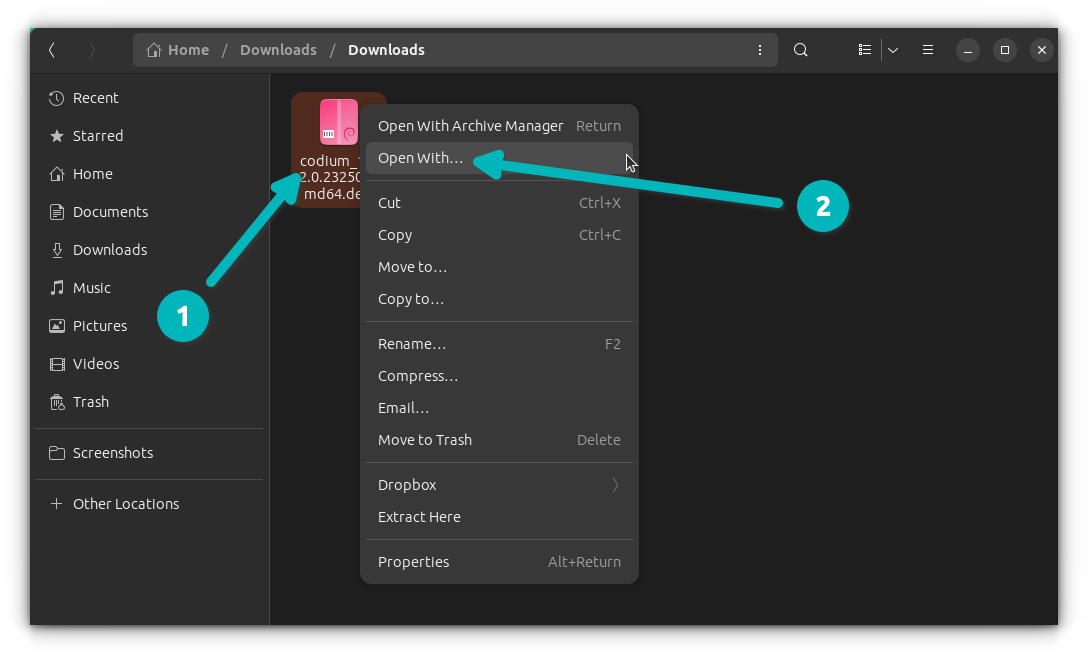
.debfile in the file manager. - Right-Click and Open With: Right-click on the
.debfile. From the context menu, select “Open With” and then choose “GDebi Package Installer.” - Review Package Information: GDebi will open, displaying the package details. Crucially, it will show you if there are any missing dependencies required for the software to function.
- Install Package: If there are no missing dependencies, or if GDebi can automatically resolve them from your repositories, an “Install Package” button will be active. Click it.
- Authentication and Installation: Provide your password when requested. GDebi will then download and install any required dependencies, followed by the main
.debpackage. - Completion: Once the installation is complete, the button will change to “Reinstall Package” or “Remove Package.” You can then close GDebi.
GDebi provides a clear and efficient way to manage .deb installations, making it an excellent tool for “Productivity” and ensuring your software runs smoothly by taking care of those pesky dependencies.
Method 2: Installing .deb Packages via the Command Line Interface (CLI)
For many experienced Linux users, the command line remains the most powerful and efficient way to interact with the system. Installing .deb packages via the CLI offers greater control, detailed feedback, and is often quicker for those comfortable with terminals. This method is particularly valued in “Tech” circles for its precision and scripting capabilities.
Before proceeding, ensure your terminal is open (Ctrl+Alt+T) and you navigate to the directory where your .deb file is located. For example, if it’s in your Downloads folder:
cd ~/Downloads
Installing with dpkg: The Fundamental Tool
dpkg is the low-level tool that actually handles the installation, removal, and management of .deb packages on Debian-based systems. While powerful, its main limitation is that it does not automatically resolve dependencies. You are responsible for ensuring all dependencies are met.
-
Install the .deb package:
sudo dpkg -i your_package_name.debReplace
your_package_name.debwith the actual name of your.debfile.sudo: Executes the command with superuser privileges (required for system-level changes).dpkg: The Debian package manager.-i: (or--install) Instructsdpkgto install the specified package.
-
Handle Dependency Errors: If the package has unmet dependencies,
dpkgwill report an error, indicating which packages are missing. The installation will likely be incomplete, resulting in a “broken” package state. You’ll see messages like:
dpkg: dependency problems prevent configuration of your_package_name:

 your_package_name depends on dependency-package-1; however:

  Package dependency-package-1 is not installed.

dpkg: error processing package your_package_name (--install):

 dependency problems - leaving unconfigured
This brings us to the next crucial step.
Resolving Dependencies with apt-get (or apt) after dpkg
After using dpkg and encountering dependency issues, you can leverage the higher-level apt (or apt-get) package manager to fix them. apt is designed to work with repositories and intelligently resolve and install missing dependencies.
-
Fix Broken Packages:
sudo apt --fix-broken install(Or the older
sudo apt-get install -f)--fix-broken: This option tellsaptto attempt to correct a system where broken dependencies exist. It will scan for any partially installed packages (like the one left bydpkg) and try to install their missing dependencies from your configured repositories.install: Although it looks like an install command, when combined with--fix-broken, it’s primarily focused on fixing existing issues.
aptwill list the dependencies it needs to install and ask for your confirmation. PressYand Enter to proceed. Once this command completes, your.debpackage should be fully configured and functional.
This two-step process (dpkg then apt --fix-broken install) is a classic method for CLI installations, offering fine-grained control and a robust way to recover from dependency challenges.
The All-in-One Approach: Using apt install ./package.deb
For modern Ubuntu versions (14.04 and later), the apt command (a newer, user-friendlier interface to apt-get and dpkg) offers a streamlined, single-command method to install local .deb files while automatically handling dependencies. This is generally the recommended CLI approach for its simplicity and efficiency, aligning perfectly with “Productivity.”
-
Install the .deb package with dependencies:
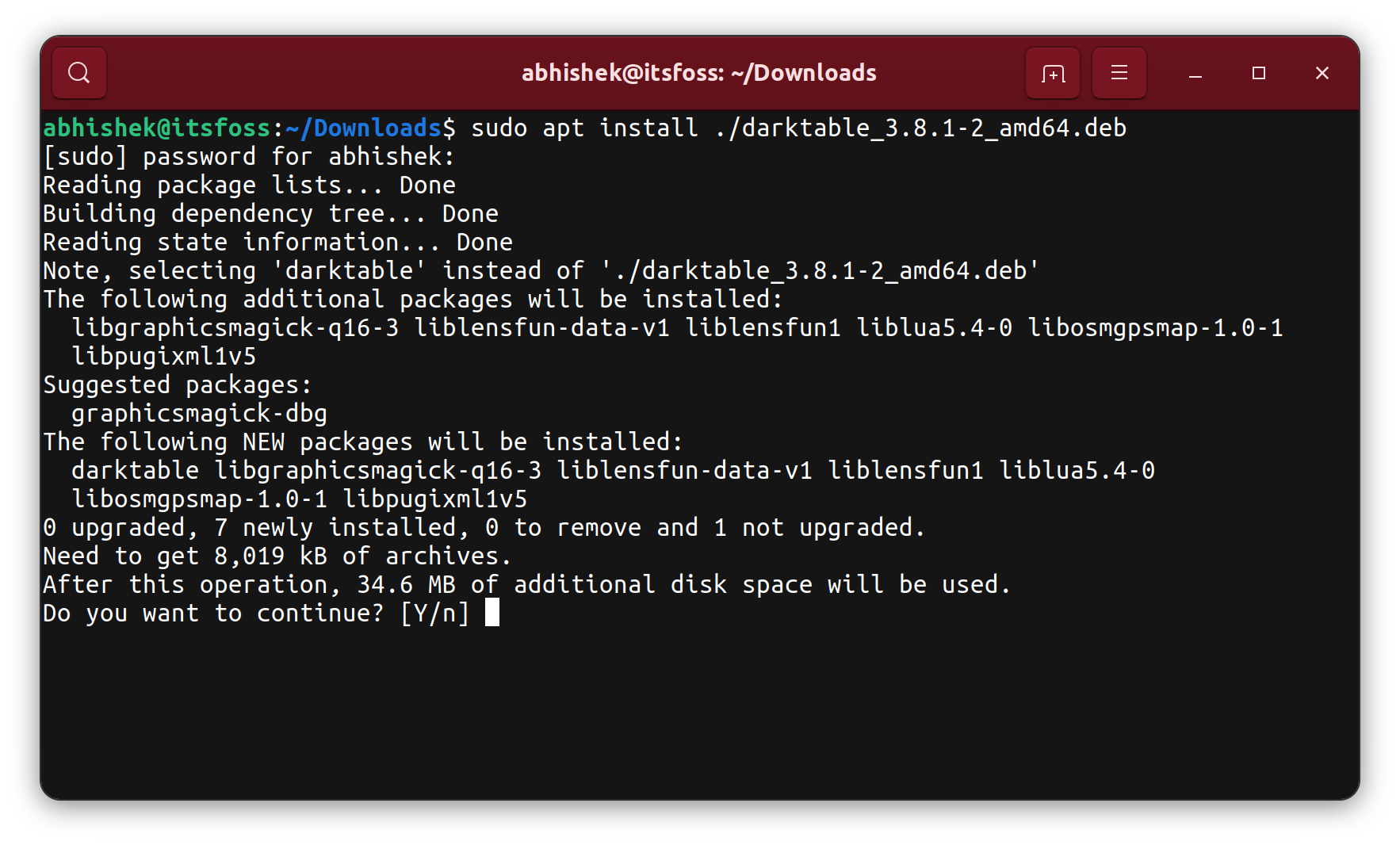
sudo apt install ./your_package_name.deb./: The crucial part here is the./before the package name. This tellsaptthat you are referring to a local file in the current directory, not a package from an online repository. Without./,aptwould try to findyour_package_name.debin the official repositories, which would likely fail.apt install: This command instructsaptto install the package. When given a local.debfile path,aptwill automatically invokedpkgfor the installation and then resolve and install any missing dependencies from the repositories.
aptwill display a list of additional packages (dependencies) it needs to install. Confirm by typingYand pressing Enter. The installation will proceed, typically without issues.
This apt install ./package.deb method is a powerful blend of dpkg‘s direct package handling and apt‘s intelligent dependency resolution, making it the most user-friendly and robust CLI option for .deb package installation.
Troubleshooting Common Issues and Advanced Tips
Even with the best tools, you might encounter issues. Knowing how to troubleshoot and manage packages effectively is key to a smooth Ubuntu experience. These tips tie into “Digital Security” and advanced “Productivity” for a stable system.
Handling Broken Dependencies
Broken dependencies are the most common problem when installing .deb files. If apt --fix-broken install doesn’t fully resolve the issue, here are a few more steps:
- Clean apt cache: Sometimes, corrupted package data can cause problems.
bash

sudo apt clean

sudo apt autoremove

sudo apt update
apt cleanclears the downloaded package files,apt autoremoveremoves automatically installed packages that are no longer needed, andapt updaterefreshes your package lists. - Manually install missing dependencies: If
aptreports specific packages are missing and--fix-brokenisn’t working, try to install them directly:
bash

sudo apt install missing-dependency-package-name
- Force reinstall: If a package is severely broken, you might try to force its reinstallation (use with caution):
bash

sudo dpkg --configure -a  # Fix any partially configured packages

sudo apt install --reinstall your_package_name
Removing .deb Packages
Knowing how to remove software is as important as knowing how to install it.
-
Using
apt(recommended for packages that installed dependencies):sudo apt remove package_nameThis removes the package but leaves its configuration files behind.
sudo apt purge package_nameThis removes the package and its configuration files entirely.
After removal, it’s good practice to runsudo apt autoremoveto clean up any dependencies that are no longer needed by other installed software. -
Using
dpkg(for direct.debremovals):
bash

sudo dpkg -r package_name  # Removes the package, keeps config

sudo dpkg -P package_name  # Purges the package, removes config
Note thatdpkgrequires the package name, not the.debfile name. You can find the package name of an installed.debfile usingdpkg -l | grep package_part_of_name.
Security Considerations When Installing .deb Files
While .deb files offer flexibility, they also introduce potential security risks if not handled correctly.
- Trust Your Source: Always download
.debpackages from official, reputable sources. Unofficial sites can host malicious or tampered packages that could compromise your system. This is a critical aspect of “Digital Security.” - Verify Checksums: If the source provides checksums (MD5, SHA256), always verify them after downloading. This confirms the file’s integrity and ensures it hasn’t been corrupted or altered.
- Understand What You’re Installing: Be cautious with packages that request extensive system permissions or that you don’t fully understand. Research unfamiliar software before installing it.
- Stay Updated: Regularly update your system (
sudo apt update && sudo apt upgrade) to patch vulnerabilities and ensure all your software dependencies are secure.
By adhering to these security guidelines, you can leverage the power of .deb packages without compromising the integrity of your Ubuntu installation.
Conclusion: Mastering .deb Package Management on Ubuntu
Installing .deb packages on Ubuntu is a fundamental skill that significantly expands your software horizons beyond the official repositories. Whether you prefer the straightforwardness of graphical tools like GDebi or the precise control offered by the command line with apt install ./package.deb, you now possess the knowledge to confidently manage these essential software components.
From understanding the core structure of a .deb package and recognizing when a direct installation is necessary, to employing best practices for system preparation and effective troubleshooting, this guide has equipped you with a robust toolkit. Remember the importance of obtaining packages from trusted sources and maintaining diligent security practices to keep your Ubuntu system stable, secure, and highly productive.
By mastering .deb package management, you’re not just installing software; you’re taking greater control over your operating system, adapting it to your unique needs, and ensuring you can always access the “Technology Trends” and “Apps” that drive your digital life forward. Embrace this power responsibly, and enjoy a more personalized and capable Ubuntu experience.