
Ubuntu, a cornerstone of the Linux desktop world, is renowned for its user-friendliness and robust package management system. At the heart of its software distribution lies the Debian package format, identified by the .deb extension. While Ubuntu’s official repositories and newer formats like Snap and Flatpak cover a vast array of applications, there are frequent occasions when users need to install software directly from a .deb file. This necessity often arises for proprietary software, newer versions not yet in official repositories, or niche applications.
This guide delves into the nuances of installing .deb files in Ubuntu, providing a professional, insightful, and engaging walkthrough for users of all experience levels. We’ll explore the various methods available, from the intuitive graphical interface to the powerful command line, ensuring you can confidently manage software outside the standard channels.
Understanding .deb Files and Ubuntu’s Package Ecosystem
Before diving into the installation process, it’s crucial to grasp what .deb files are and how they fit into Ubuntu’s broader software landscape. A solid understanding here will demystify the process and equip you with the knowledge to troubleshoot potential issues effectively.
What are .deb Files?
A .deb file is essentially an archive that contains all the necessary components for a piece of software to run on a Debian-based system like Ubuntu. This includes compiled executable programs, configuration files, libraries, documentation, and scripts to manage installation and removal. The .deb format is a core element of the Debian Project, from which Ubuntu is derived, making it a native and highly compatible package type for the operating system.
When you install software from a .deb file, you’re instructing your system’s package manager to unpack these components and place them in their appropriate locations within the file system, making the application available for use.
Ubuntu’s Diverse Package Management Landscape
Ubuntu offers several sophisticated ways to manage software, each with its strengths:
-
APT (Advanced Package Tool): This is the traditional and primary package management system for Debian-based distributions. It works with
.debpackages stored in online repositories. When you use commands likesudo apt install package_name, APT fetches the.debfile from a repository, resolves dependencies, and installs it. -
Snap Packages: Developed by Canonical (the creators of Ubuntu), Snap packages are self-contained applications that bundle all their dependencies, ensuring they run consistently across different Linux distributions. They offer improved security through confinement and easier rollbacks.
-
Flatpak: Similar to Snap, Flatpak is another universal packaging system that provides sandboxed applications, enhancing security and compatibility.
-
Official Repositories: These are curated collections of software, thoroughly tested for compatibility and security, accessible via APT.
While Snap and Flatpak offer modern solutions, .deb files remain highly relevant. Many developers still distribute their Linux software primarily as .deb packages, especially for closed-source or niche applications that might not be available in universal formats or official repositories. Understanding how to handle them directly is therefore an indispensable skill for any Ubuntu user.
When to Opt for .deb File Installation
There are several scenarios where directly installing a .deb file becomes necessary or advantageous:
-
Proprietary Software: Companies often provide their Linux applications as
.debpackages because they contain proprietary code not suitable for open-source repositories (e.g., Google Chrome, Microsoft Teams, Zoom). -
Latest Software Versions: Sometimes, the version of a specific application in Ubuntu’s official repositories might be older than the latest release. Developers frequently offer newer
.debpackages on their websites, allowing users to access new features or bug fixes sooner. -
Niche or Unofficial Applications: Software developed by smaller teams or for specific use cases might not make it into the official Ubuntu repositories or universal package formats.
-
Offline Installation: If you need to install software on an Ubuntu machine without internet access, downloading a
.debfile beforehand is often the most straightforward solution.
Essential Preparations Before Installation
Before you initiate any .deb installation, a few preparatory steps can save you significant headaches, ensuring a smooth process and preventing potential system instability. These steps underscore a professional approach to managing your operating system.
Checking System Architecture
One of the most common reasons for installation failure is an architecture mismatch. Software is compiled for specific CPU architectures, primarily 32-bit (i386) or 64-bit (amd64). Most modern Ubuntu installations are 64-bit.
You can verify your system’s architecture using the terminal:
dpkg --print-architecture
This command will typically return amd64 for a 64-bit system. Always ensure the .deb file you download matches your system’s architecture. Installing a 32-bit package on a 64-bit system (or vice-versa) without proper multi-arch support can lead to errors.
Verifying File Integrity
Downloading software from the internet always carries a degree of risk. To ensure the .deb file hasn’t been corrupted during download or tampered with by malicious actors, it’s good practice to verify its integrity. Many software providers offer checksums (like MD5, SHA-256) or GPG signatures alongside their downloads.
To check a SHA-256 checksum in the terminal:
sha256sum /path/to/your/package.deb
Compare the output with the checksum provided by the developer. If they don’t match, re-download the file. For GPG signatures, you’ll need the developer’s public key and specific tools, which is a more advanced verification method but offers stronger security.
Backing Up Important Data
While installing a .deb file is generally safe, especially if sourced from reputable providers, there’s always a minuscule risk of system issues, particularly if the package introduces conflicts or has unforeseen bugs. As a best practice, always back up critical data before installing significant software, especially if you’re experimenting with beta versions or less common applications. This is a fundamental principle of responsible system administration.
Multiple Methods for Installing .deb Files
Ubuntu offers both graphical and command-line methods for installing .deb packages, catering to different user preferences and scenarios. Understanding both empowers you to choose the most efficient approach.
Graphical Method: Using the Software Center or GDebi
This is the most user-friendly approach, ideal for those who prefer point-and-click interactions.
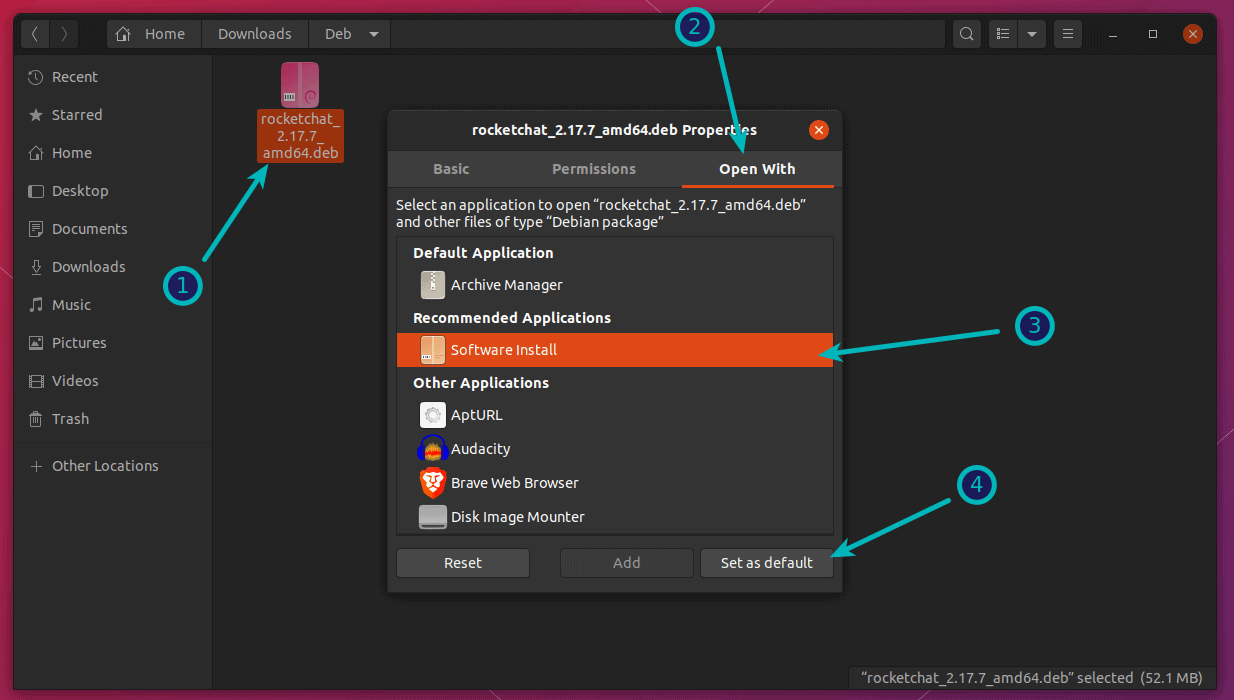
Through the Ubuntu Software Center (Gnome Software)
In many cases, simply double-clicking a .deb file will open it in the Ubuntu Software Center.
-
Locate the
.debfile: Navigate to the directory where you downloaded the.debfile (e.g., yourDownloadsfolder). -
Double-click the file: This action should automatically launch the Ubuntu Software Center.
-
Click “Install”: The Software Center will display details about the package. Click the “Install” button, and you’ll be prompted for your password to authorize the installation.
The Software Center usually handles dependencies automatically, making this a seamless experience.
Using GDebi Package Installer (Recommended Graphical Tool)
While the Software Center works, the GDebi package installer is often preferred for .deb files because it’s lightweight and excels at handling dependencies. If GDebi isn’t installed, you can get it via the terminal:
sudo apt update

sudo apt install gdebi
Once installed:
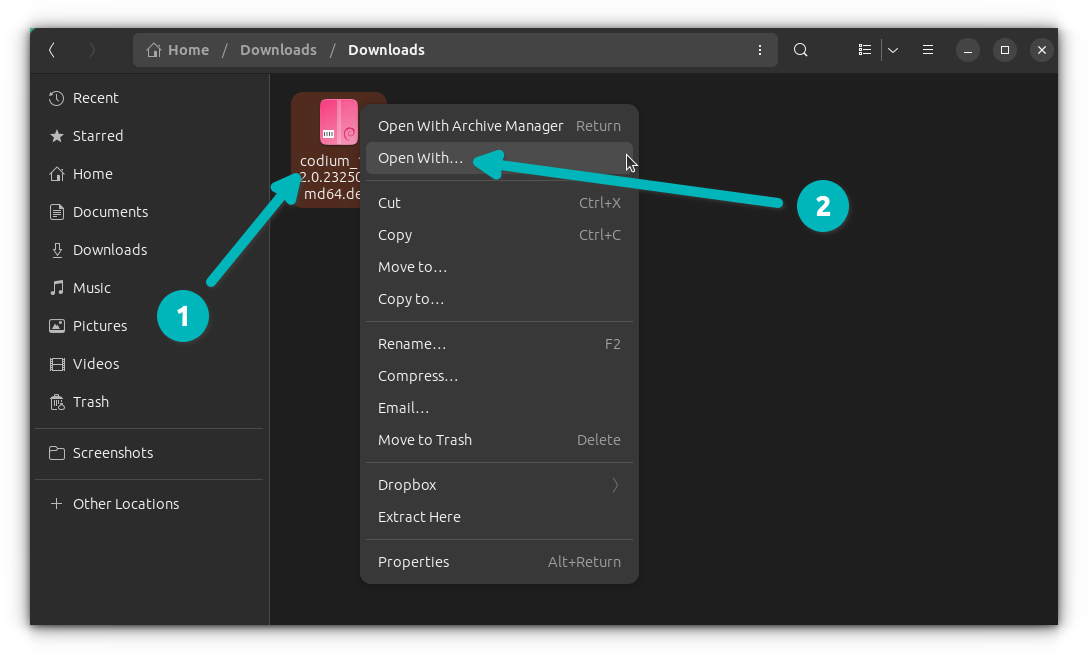
-
Right-click the
.debfile: In your file manager, right-click on the.debfile. -
Select “Open With Other Application”: Choose GDebi Package Installer from the list.
-
Review and Install: GDebi will display the package details and, critically, any required dependencies. If all dependencies are met or can be installed, click “Install Package.” Enter your password when prompted.
GDebi will then proceed with the installation, ensuring all necessary components are in place.
Command-Line Method: Using dpkg
The dpkg command is the low-level tool that actually installs, removes, and manages .deb packages. While powerful, dpkg does not automatically resolve dependencies, making it slightly more complex but essential for understanding the underlying process.
-
Open a Terminal: Press
Ctrl + Alt + T. -
Navigate to the file’s directory: Use the
cdcommand. For example, if your file is inDownloads:cd ~/Downloads -
Install the package: Use the
dpkg -icommand, replacingpackage_name.debwith your file’s actual name:sudo dpkg -i package_name.debYou will be prompted for your password.
Handling Dependency Errors with dpkg
If the installation fails with dependency errors (a common occurrence with dpkg), you’ll see messages indicating missing packages. To fix this, use APT’s dependency-fixing feature:
sudo apt install -f
or
sudo apt --fix-broken install
This command will attempt to download and install all the missing dependencies required by the .deb package you just tried to install. After running this, the installation of your .deb package should be complete.
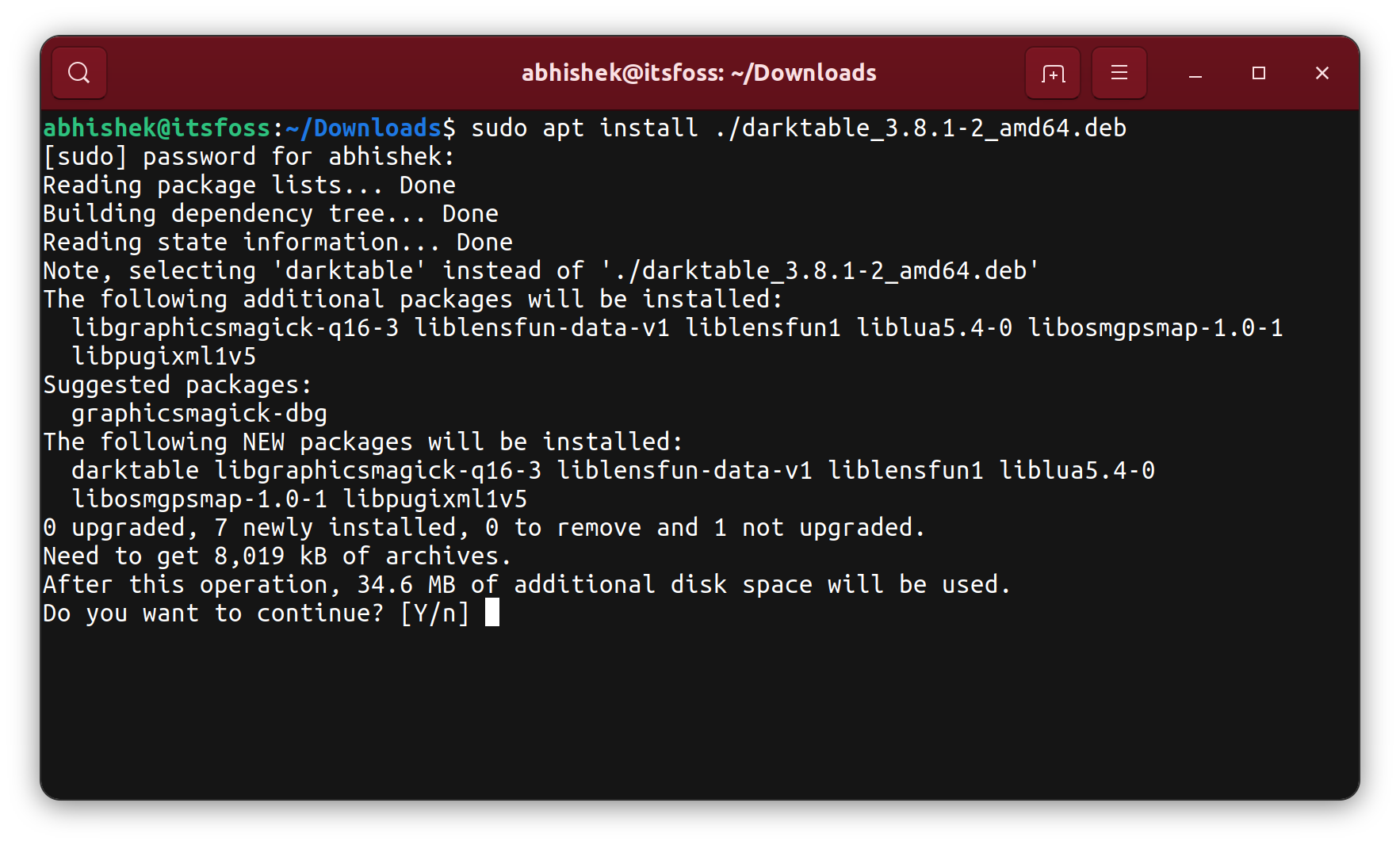
Command-Line Method: Using apt (Modern & Recommended CLI)
For a more streamlined command-line experience that does handle dependencies automatically, the apt command (introduced in Ubuntu 14.04 and evolved since) is the preferred choice. It intelligently combines the power of dpkg with APT’s dependency resolution capabilities.
-
Open a Terminal: Press
Ctrl + Alt + T. -
Navigate to the file’s directory (or provide full path):
cd ~/Downloads -
Install the package: The key here is to use
./before the.debfilename to tellaptit’s a local file, not one from a repository.sudo apt install ./package_name.debaptwill automatically identify and propose to install any missing dependencies alongside your.debfile. Confirm the installation when prompted.
This method is generally the most robust and convenient command-line approach, as it integrates dependency resolution seamlessly.
Troubleshooting Common Installation Issues
Even with the right methods, you might encounter issues. Knowing how to diagnose and resolve them is a critical skill for any Ubuntu user.
Dependency Problems
This is by far the most frequent issue. A .deb package might require other software packages to be present on your system. If these aren’t installed, the installation will fail.
- Solution: After an unsuccessful
dpkg -icommand due to dependencies, always runsudo apt install -forsudo apt --fix-broken install. When usingapt install ./package_name.deb,aptusually handles this automatically. If it doesn’t, ensure your internet connection is active, and your package lists are updated (sudo apt update).
Architecture Mismatches
Attempting to install a 32-bit .deb package on a 64-bit system (or vice-versa) without proper multi-arch setup will result in errors.
- Solution: Always double-check your system’s architecture (
dpkg --print-architecture) and download the corresponding.debfile.
Conflicts with Existing Packages
Sometimes, a .deb package might try to install files that conflict with an already installed package, or an older version of the same software is still present.
- Solution: If an older version is installed, consider uninstalling it first using
sudo apt remove old_package_name. For general conflicts, the error message will usually specify the conflicting package, which might need to be removed or upgraded.
File Not Found Errors or Incorrect Path
This is a simple user error where the terminal command cannot locate the .deb file.
- Solution: Ensure you are in the correct directory using
pwd(print working directory) andls(list files). Alternatively, provide the full, absolute path to the.debfile in your command (e.g.,sudo apt install /home/yourusername/Downloads/package_name.deb).
Permissions Issues
If you try to install without sudo, you’ll get a permission denied error.
- Solution: Always prefix
dpkgoraptinstallation commands withsudoto execute them with administrative privileges.
Post-Installation and Best Practices
Installing a .deb file isn’t always the end of the journey. Responsible software management involves verification, understanding removal, and long-term maintenance.
Verifying Successful Installation
After installation, it’s good practice to confirm the software is available.
-
Check Application Launcher: Search for the newly installed application in Ubuntu’s activities overview.
-
Terminal Verification: For command-line tools, type the application’s command in the terminal to see if it runs. You can also list installed packages with
dpkg -l | grep package_name.
Uninstalling .deb Packages
If you need to remove a .deb installed package, apt is the cleanest way.
sudo apt remove package_name
Replace package_name with the actual name of the software (which might differ slightly from the .deb filename, e.g., google-chrome-stable instead of google-chrome-stable_current_amd64.deb).
-
apt remove: Removes the package but keeps its configuration files. -
apt purge: Removes the package and its configuration files (a cleaner uninstall).
Keeping Software Updated
Software installed from .deb files downloaded directly from a developer’s website often doesn’t update automatically via sudo apt update && sudo apt upgrade.
-
PPA Integration: Some developers provide a Personal Package Archive (PPA) that you can add to your system, allowing
aptto manage updates for their software. This is the ideal solution for third-party software. -
Manual Updates: If no PPA is available, you will need to manually download and install newer
.debversions as they become available, effectively repeating the installation process to upgrade.
Security Considerations
Always download .deb files from trusted sources. Unofficial or suspicious sources can contain malicious code or compromised versions of legitimate software. Stick to the official websites of software vendors or well-known, reputable communities. This vigilance is paramount in maintaining a secure operating environment.
Conclusion
Installing .deb files in Ubuntu is a fundamental skill that extends your ability to manage software beyond the standard repositories. Whether you prefer the simplicity of a graphical installer like GDebi or the power and flexibility of the command line with apt, Ubuntu provides robust tools to handle these packages efficiently.
By understanding the nature of .deb files, preparing diligently, choosing the right installation method, and knowing how to troubleshoot common issues, you empower yourself with greater control over your Ubuntu system. Remember to prioritize security by downloading from trusted sources and to keep your software updated, ensuring a stable, secure, and productive computing experience. Embrace the versatility of Ubuntu, and confidently expand your software horizons.