
In the vast and interconnected landscape of the digital world, data transfer and network communication are the lifeblood of nearly every application, website, and service we interact with daily. From fetching web pages and downloading files to interacting with complex APIs that power AI tools and smart applications, the ability to communicate seamlessly across networks is paramount. Among the myriad tools available for this purpose, cURL stands out as a true workhorse – a versatile, robust, and indispensable command-line utility for transferring data with URLs.
For anyone delving into technology, whether you’re a seasoned developer, a system administrator, or an aspiring tech enthusiast, mastering cURL is a foundational skill. It’s not just about downloading files; it’s about understanding how the internet works, debugging network requests, automating tasks, and interacting programmatically with the digital ecosystem. This comprehensive guide will walk you through the process of installing cURL on various operating systems, verifying its setup, and introduce you to its core functionalities, empowering you to leverage this powerful tool in your daily tech endeavors, optimize your productivity, and even enhance your digital security practices.

Understanding cURL: The Versatile Command-Line Tool
Before we dive into the installation specifics, it’s beneficial to grasp what cURL is and why it has become such a critical component in the modern tech toolkit. Understanding its capabilities will not only motivate you through the setup process but also illuminate the myriad ways it can boost your efficiency and problem-solving skills.
What is cURL?
cURL is an acronym for “Client URL.” At its core, it is a command-line tool and library for transferring data with URLs. It supports a wide range of protocols, including HTTP, HTTPS, FTP, FTPS, SCP, SFTP, TFTP, DICT, TELNET, LDAP, LDAPS, FILE, POP3, POP3S, IMAP, IMAPS, SMTP, SMTPS, RTMP, RTSP, and SMB. This extensive protocol support makes cURL incredibly flexible, allowing it to interact with almost any server or service on the internet.
Developed by Daniel Stenberg, cURL has been an open-source project since 1998, evolving into one of the most widely used network tools globally. It’s often bundled with many operating systems and is a core component of countless applications and libraries that require network communication. Its strength lies in its simplicity for basic tasks and its profound depth for complex, custom requests.
Why is cURL Indispensable?
In the context of modern technology trends, cURL‘s indispensability cannot be overstated.
- API Interaction: The digital world is increasingly powered by Application Programming Interfaces (APIs). Whether you’re integrating with social media platforms, cloud services, payment gateways (relevant to “Money” topics like online income), or custom backend systems,
cURLprovides a straightforward way to send requests and receive responses. This is crucial for developers building apps, AI tools, and productivity solutions. - Debugging and Testing: Developers frequently use
cURLto test web services, diagnose network issues, and inspect HTTP headers and responses directly from the command line, bypassing browser caches and extensions that might obscure real network behavior. This ability to isolate and test network interactions is a cornerstone of efficient software development and digital security auditing. - Automation and Scripting:
cURLcan be easily incorporated into shell scripts (Bash, PowerShell, Python, etc.) to automate repetitive tasks. This could range from regularly downloading data feeds, interacting with internal monitoring systems, or backing up remote files. For “Productivity” aspects, this automation saves significant time and reduces manual errors. - File Transfer: Beyond simple web pages,
cURLis excellent for downloading large files, uploading content to FTP servers, or retrieving specific resources from complex URLs. Its ability to resume interrupted downloads (using the-C -flag) is a significant advantage. - Digital Security Analysis: Security professionals use
cURLto test web application vulnerabilities, simulate attacks (e.g., cross-site scripting, SQL injection attempts), interact with security APIs, and verify secure data transmission (SSL/TLS handshakes). UnderstandingcURLis key to robust digital security practices. - Cross-Platform Consistency:
cURLoperates virtually identically across Windows, macOS, and Linux, providing a consistent interface regardless of your underlying operating system. This makes it a universal language for network operations.
In essence, cURL acts as your direct line to the internet’s underlying mechanisms, offering unparalleled control and insight into network communication. Its relevance spans all three website topics: it’s a fundamental Tech tool, indirectly supports Brand efforts by enabling the development of robust online presences, and can contribute to efficiency and potentially automated financial tasks within the Money domain.
Step-by-Step Installation Across Major Operating Systems
While cURL is pre-installed on many systems, especially Linux and macOS, it’s essential to know how to install or update it, particularly on Windows, or if you need a specific version. This section provides detailed instructions for the most popular operating systems.
Installing cURL on Windows
Windows users often find cURL less readily available by default compared to other operating systems. However, its installation is straightforward. Recent versions of Windows 10 and 11 do include cURL out-of-the-box, but it might be an older version or located in a less accessible directory.
1. Check if cURL is Already Installed:
Open Command Prompt (CMD) or PowerShell and type:
curl --version
If you see version information, cURL is installed. If you get a “command not found” error or want a newer version, proceed with the following steps.
2. Direct Download from the Official Website (Recommended for latest version):
- Go to the official
cURLwebsite: https://curl.se/windows/ - On this page, you’ll find various builds. Look for a “Win64” (for 64-bit Windows) version. Choose the one that says “schannel” or “OpenSSL” depending on your preference for SSL/TLS backend (OpenSSL is generally more versatile for developers). For most users, a “MinGW” or “MSVC” build with “schannel” or “OpenSSL” will work fine. Download the
.ziparchive. - Extract the Archive: Create a new folder, for example,
C:curl, and extract the contents of the downloaded.zipfile into it. You should findcurl.exeinside thebinfolder. So, the path to the executable will be something likeC:curlbincurl.exe. - Add to System PATH: This is the most crucial step to use
cURLfrom any directory.- Search for “Environment Variables” in the Windows search bar and select “Edit the system environment variables.”
- In the System Properties window, click “Environment Variables…”
- Under “System variables,” find and select the “Path” variable, then click “Edit…”
- Click “New” and add the path to your
curl.exe‘s directory (e.g.,C:curlbin). - Click “OK” on all windows to save the changes.
- Verify Installation: Open a new Command Prompt or PowerShell window (existing ones won’t have the updated PATH) and type
curl --version. You should now see the version information.
3. Using Package Managers (Scoop or Chocolatey):
For developers who manage their tools with package managers, Scoop or Chocolatey offer a convenient way to install and update cURL.
- With Scoop:
If you have Scoop installed, simply open PowerShell and run:
powershell

scoop install curl
- With Chocolatey:
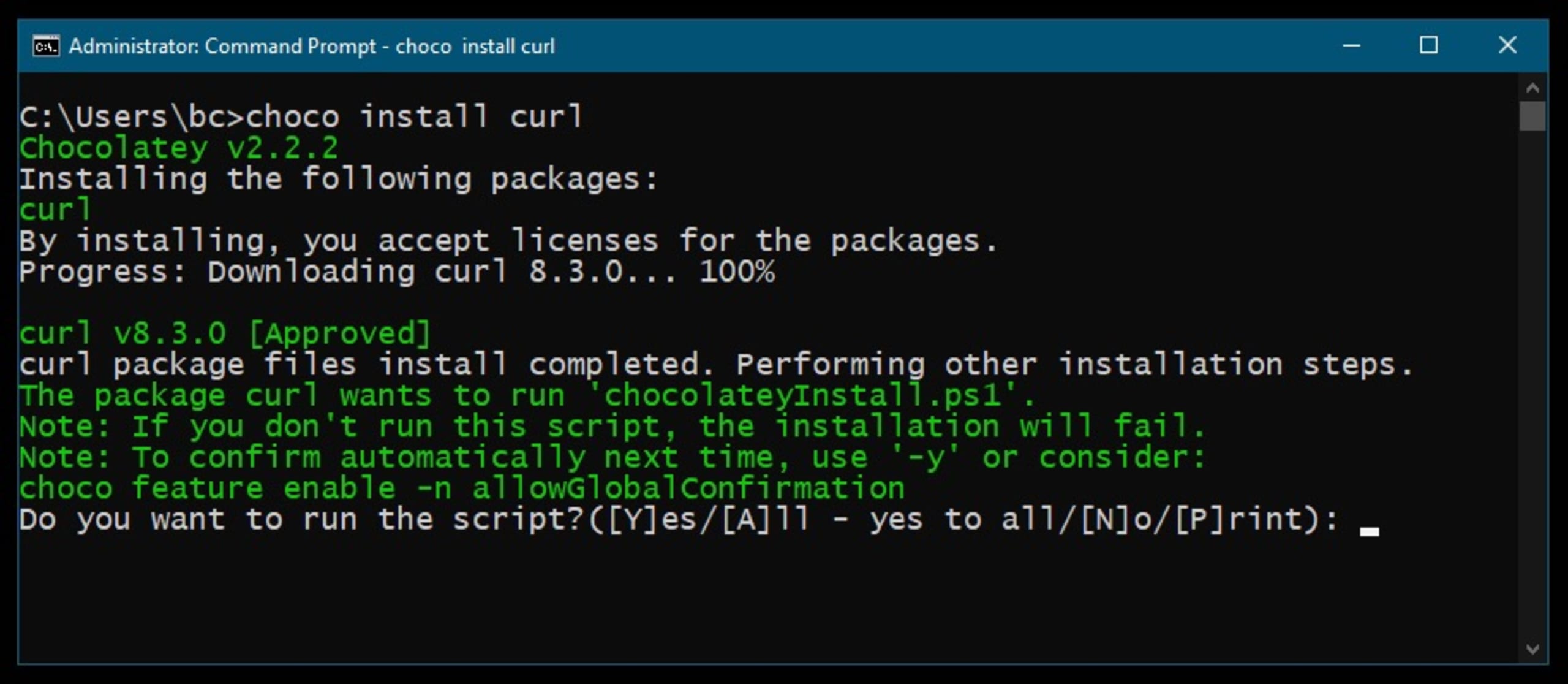
If you have Chocolatey installed, open an administrative Command Prompt or PowerShell and run:
powershell

choco install curl
These package managers automatically handle addingcURLto your PATH.
Installing cURL on macOS
macOS typically comes with cURL pre-installed, often a robust and up-to-date version.
1. Check if cURL is Already Installed:
Open Terminal (Applications > Utilities > Terminal) and type:
curl --version
You will almost certainly see version information, confirming its presence.
2. Updating or Reinstalling with Homebrew (Recommended):
Even if cURL is installed, the version included by Apple might not be the absolute latest or compiled with specific features you need. Homebrew, the popular macOS package manager, is the recommended way to manage tools like cURL.
- Install Homebrew (if you haven’t already):
Open Terminal and run:
bash

/bin/bash -c "$(curl -fsSL https://raw.githubusercontent.com/Homebrew/install/HEAD/install.sh)"
Follow the on-screen instructions. - Install or Update cURL with Homebrew:
Once Homebrew is installed, simply run:
bash

brew install curl
IfcURLis already installed via Homebrew, this command will update it. If it was installed by Apple, Homebrew will install its own version, which typically takes precedence in your PATH. - Verify Installation:
bash

curl --version
Ensure the version reported is the one installed by Homebrew if that was your intention.
Installing cURL on Linux
Like macOS, most modern Linux distributions come with cURL pre-installed or readily available through their native package managers.
1. Check if cURL is Already Installed:
Open your terminal and type:
curl --version
If it’s installed, you’ll see its version. Otherwise, proceed with the installation using your distribution’s package manager.
2. Installation via Package Manager:
- Debian/Ubuntu and Derivatives (using
apt):
bash

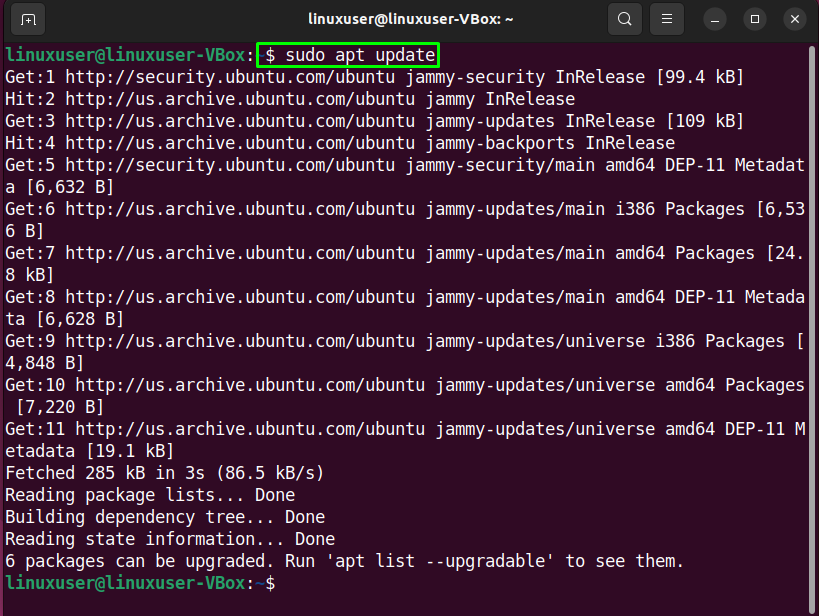
sudo apt update           # Update package list

sudo apt install curl     # Install curl
- CentOS/RHEL/Fedora and Derivatives (using
yumordnf):
For CentOS/RHEL 7 and older (usingyum):
bash

sudo yum install curl
For CentOS/RHEL 8+, Fedora (usingdnf):
bash

sudo dnf install curl
- Arch Linux and Derivatives (using
pacman):
bash

sudo pacman -S curl
- Other Distributions: Consult your distribution’s documentation for its specific package manager commands (e.g.,
zypperfor openSUSE,apkfor Alpine Linux).
Verifying Your cURL Installation
Regardless of your operating system, after installation, it’s crucial to verify that cURL is correctly installed and accessible from your command line.
Open a new terminal or command prompt window and execute:
curl --version
This command should output information about the cURL version, the SSL/TLS libraries it was compiled with (e.g., OpenSSL, GnuTLS, NSS, Schannel), and the supported protocols. If you see this output, congratulations! cURL is ready to use. If you encounter a “command not found” error, revisit the installation steps, especially ensuring the executable’s directory is correctly added to your system’s PATH.
Basic Usage and Practical Applications
Now that cURL is installed, let’s explore some of its fundamental uses. These examples will illustrate cURL‘s power for common tasks, directly enhancing your productivity and understanding of network communication.
Making Your First Request
The simplest cURL command is to fetch the content of a URL.
curl https://example.com
This command will print the HTML content of https://example.com directly to your terminal. This is a quick way to check if a website is reachable or to inspect its raw source code.
Downloading Files
cURL is excellent for downloading files, offering more control than a browser download in many scenarios.
-
Saving to a Specific Filename (
-o):
To download a file and save it with a specific name, use the-o(output) flag:curl -o homepage.html https://example.comThis will save the content of
https://example.cominto a file namedhomepage.htmlin your current directory. -
Saving with Original Filename (
-O):
If the URL points to a file with a natural filename (e.g., a.zipor.pdf), you can use the-O(remote-name) flag to save it using the server’s suggested filename:curl -O https://www.python.org/ftp/python/3.9.0/python-3.9.0-amd64.exeThis will download the Python installer and save it as
python-3.9.0-amd64.exe. -
Resuming Downloads (
-C -):
One ofcURL‘s powerful features is the ability to resume interrupted downloads. If a large download stops, you can restart it from where it left off using-C -:
bash

curl -C - -O https://large-file-server.com/very_large_archive.zip
This saves bandwidth and time, especially useful for unreliable network connections.
Sending Data (POST Requests)
Beyond fetching content, cURL can send data to web servers, which is crucial for interacting with forms, submitting data to APIs, and more.
-
Submitting Form Data (
-dor--data):
To send data using a POST request, use the-X POSTflag along with-dfor the data.curl -X POST -d "username=john.doe&password=securepassword" https://api.example.com/loginThis simulates a form submission with
application/x-www-form-urlencodedcontent type. -
Sending JSON Data (
-Hand-d):
When interacting with modern REST APIs, data is often sent as JSON. You’ll need to set theContent-Typeheader:
bash

curl -X POST

     -H "Content-Type: application/json"

     -d '{"name": "Alice", "email": "alice@example.com"}'

     https://api.example.com/users
This example demonstrates how to create a new user record via an API endpoint, a common task in software development.
Interacting with APIs
cURL is an indispensable tool for interacting with APIs, whether for developing new features, integrating with third-party services, or testing existing endpoints. This is directly relevant to “Tech” topics like AI Tools, Apps, and Software.
-
GET Request with Headers:
Many APIs require authentication tokens or specific headers.curl -H "Authorization: Bearer YOUR_API_TOKEN" -H "Accept: application/json" https://api.example.com/dataThis command fetches data, providing an authorization token in the header and specifying that it prefers JSON responses.
-
PUT and DELETE Requests:
cURLsupports all HTTP methods, enabling full CRUD (Create, Read, Update, Delete) operations.# PUT request to update data curl -X PUT -H "Content-Type: application/json" -d '{"status": "active"}' https://api.example.com/items/123 # DELETE request to remove data curl -X DELETE https://api.example.com/items/456These examples showcase how
cURLfacilitates comprehensive API interactions, making it a powerful tool for developers managing data within applications.
Troubleshooting Common cURL Issues
Even with careful installation, you might encounter issues. Here are some common problems and their solutions.
“Command Not Found” Errors
This is the most frequent issue, especially on Windows or if you’ve installed cURL manually on Linux/macOS outside of a package manager.
- Cause: Your system’s PATH environment variable does not include the directory where
curl.exe(or thecurlbinary) is located. - Solution:
- Windows: Revisit the “Add to System PATH” steps. Ensure the path is correct (e.g.,
C:curlbin) and that you’ve opened a new Command Prompt/PowerShell window after making changes. - Linux/macOS: If you installed manually, ensure the binary is in a directory listed in your
PATH(e.g.,/usr/local/bin) or linked correctly. If using a package manager, ensure the installation completed successfully. Sometimes, a reboot or logging out/in can refresh the PATH.
- Windows: Revisit the “Add to System PATH” steps. Ensure the path is correct (e.g.,
SSL Certificate Problems
Errors like “curl: (60) SSL certificate problem: unable to get local issuer certificate” indicate that cURL cannot verify the SSL certificate of the server you’re trying to connect to. This is a crucial digital security feature, preventing man-in-the-middle attacks.
- Cause:
- The server’s certificate is self-signed, expired, or invalid.
- Your system’s certificate authority (CA) bundle is outdated or missing.
- You are behind a corporate proxy that intercepts SSL traffic.
- Solution:
- Update CA Bundle: Ensure your operating system’s root certificates are up to date. On Linux,
sudo apt install ca-certificates(Debian/Ubuntu) orsudo yum update ca-certificates(CentOS/RHEL) can help. - Specify CA Bundle (Advanced): You can explicitly tell
cURLwhich CA bundle to use with--cacert /path/to/ca-bundle.crt. - Trust a Specific Certificate: For development or internal servers with self-signed certificates, you might temporarily use
--insecureor-kto bypass SSL verification. WARNING: Never use this in production environments or for sensitive data transfers, as it compromises digital security. - Proxy Issues: If behind a proxy, ensure
cURLis configured to use it (see next point). The proxy might be presenting its own certificate.
- Update CA Bundle: Ensure your operating system’s root certificates are up to date. On Linux,
Proxy Settings and Network Connectivity
If you’re in an environment with a proxy server, cURL needs to be configured to use it.
- Cause:
cURLis trying to connect directly to the internet but your network requires traffic to go through a proxy. - Solution:
- Set Proxy Environment Variables:
bash

export HTTP_PROXY="http://proxy.example.com:8080"

export HTTPS_PROXY="http://proxy.example.com:8080"

export NO_PROXY="localhost,127.0.0.1,.example.com" # Optional, for exclusions
For Windows PowerShell:
powershell

$env:HTTP_PROXY="http://proxy.example.com:8080"

$env:HTTPS_PROXY="http://proxy.example.com:8080"
These variables typically need to be set in your shell’s configuration file (e.g.,.bashrc,.zshrc, or PowerShell profile) to persist. - Specify Proxy with
-xFlag: You can also specify the proxy directly in the command:
bash

curl -x http://proxy.example.com:8080 https://example.com
- Check Firewall/Network: Ensure your firewall isn’t blocking
cURLor its network traffic. Sometimes, a VPN might interfere with local network routes.
- Set Proxy Environment Variables:
Advanced cURL Techniques and Integration
Beyond basic usage, cURL offers advanced features that can be invaluable for developers, system administrators, and anyone looking to maximize their digital productivity.
Using cURL with Authentication
Many APIs and web services require authentication. cURL supports various methods:
-
Basic Authentication (
-uor--user):curl -u "username:password" https://api.example.com/secured_resourcecURLwill encode the username and password in Base64 and send them in theAuthorizationheader. -
Bearer Token Authentication (
-H):
As seen previously, this is common for OAuth 2.0 and JWTs:
bash

curl -H "Authorization: Bearer YOUR_LONG_TOKEN_STRING" https://api.example.com/protected_data
Automating Tasks with cURL Scripts
One of the most powerful aspects of cURL is its scriptability. You can embed cURL commands within shell scripts (Bash, PowerShell, Python, etc.) to automate complex workflows. This is where cURL truly shines as a productivity tool.
Example: A Simple Health Check Script (Bash)
#!/bin/bash
URL="https://mywebapp.example.com/health"
STATUS_CODE=$(curl -s -o /dev/null -w "%{http_code}" $URL)

if [ "$STATUS_CODE" -eq 200 ]; then
  echo "Web app is healthy ($STATUS_CODE)."
else
  echo "Web app might be down or unhealthy (HTTP $STATUS_CODE)."
  # Add logic to send an alert (e.g., email, Slack message)
fi
This script periodically checks the health endpoint of a web application, demonstrating how cURL can be integrated into system monitoring and automation.
cURL in Development Workflows
In a development environment, cURL can accelerate various tasks:
- API Mocking and Testing: Quickly send requests to local development servers or test endpoints without needing a full-fledged client application.
- Performance Testing: While not a full-fledged load testing tool,
cURLcan be used in scripts to hit endpoints multiple times and get a rough idea of response times. - Inspecting HTTP Traffic: Use the
-v(verbose) flag to see the full request and response headers, SSL handshake details, and more. This is invaluable for debugging network communication.
bash

curl -v https://example.com
This detailed output helps in understanding the nuances of HTTP communication and diagnosing tricky issues.
Conclusion
cURL is far more than just a simple file downloader; it’s a swiss army knife for network interaction, an essential tool for anyone working with modern technology. From basic web page fetching to intricate API communications, its versatility makes it indispensable for developers, system administrators, and even those exploring digital security or building sophisticated AI tools.
By following this guide, you’ve learned how to install cURL across major operating systems and gained a foundational understanding of its powerful capabilities. You’ve seen how to download files, send data, interact with APIs, and troubleshoot common issues. As you integrate cURL into your workflow, you’ll discover countless ways it enhances your productivity, deepens your understanding of network protocols, and empowers you to build more robust, efficient, and secure digital solutions. Embrace cURL, and unlock a new level of command-line mastery in your tech journey.