
In the rapidly evolving landscape of home entertainment, smart TVs have become the central hub for streaming, gaming, and digital interaction. Hisense, a prominent global electronics manufacturer, offers a diverse range of smart televisions, each powered by sophisticated operating systems designed to deliver a seamless user experience. The ability to install and manage apps is at the core of this experience, transforming a mere display into a personalized entertainment portal. Whether you’re looking to catch up on the latest series, stream live sports, or dive into educational content, understanding how to effectively install applications on your Hisense Smart TV is paramount.

This comprehensive guide aims to demystify the process, catering to the various operating systems Hisense employs across its models. We’ll explore the distinct app ecosystems of Android TV, VIDAA OS, and Roku TV, providing detailed, step-by-step instructions for installing applications from official stores, and even venturing into advanced methods like sideloading where applicable. Furthermore, we’ll equip you with essential troubleshooting tips, security best practices, and advice on maximizing your Hisense Smart TV’s potential, ensuring you get the most out of your investment in cutting-edge home technology.
Understanding Your Hisense Smart TV’s Ecosystem
Hisense smart TVs are celebrated for their quality and value, but their “smart” capabilities often stem from one of several underlying operating systems. Each OS brings its own unique interface, app store, and set of features. Identifying which operating system powers your Hisense TV is the first crucial step in navigating its app installation process effectively.
Hisense Android TV: The Google Play Store Advantage
Many Hisense smart TVs run on the Android TV platform, a robust and versatile operating system developed by Google. This system is a powerhouse for app enthusiasts, primarily due to its integration with the Google Play Store. If you’re familiar with Android smartphones, you’ll find the interface intuitive and the app selection vast.
Key Characteristics of Android TV:
- Google Play Store: Access to thousands of apps, games, and streaming services.
- Google Assistant: Voice control for searching content, controlling smart home devices, and more.
- Chromecast Built-in: Seamlessly cast content from your phone or tablet directly to your TV.
- Customization: A high degree of personalization for the home screen layout.
- Sideloading Capability: Offers the flexibility to install apps from sources other than the Google Play Store (though this comes with caveats we’ll discuss later).
Hisense Android TVs are often chosen by users who value a wide range of content options, deep integration with Google services, and the flexibility to expand their entertainment horizons far beyond basic streaming. From productivity tools that allow for mirroring presentations to a plethora of gaming options, the Android TV ecosystem on a Hisense television truly embodies the “smart” in smart TV.
Hisense VIDAA OS: Simplicity and Speed
VIDAA OS is Hisense’s proprietary smart TV operating system, designed with a focus on speed, simplicity, and a user-friendly experience. It’s often found on many of Hisense’s core models and aims to provide quick access to popular streaming services without the complexity of a broader OS.
Key Characteristics of VIDAA OS:
- Streamlined Interface: A clean, intuitive layout that prioritizes easy navigation.
- Fast Boot-up and App Launch: Optimized for quick performance, getting you to your content faster.
- VIDAA App Store: A curated selection of popular global and local streaming applications. While not as extensive as the Google Play Store, it covers most major services.
- Voice Control: Many VIDAA TVs include voice interaction capabilities for searching and controlling the TV.
- Focus on Core Entertainment: Geared towards users who primarily want direct access to top streaming apps without needing a vast array of niche applications.
For users who prioritize a straightforward, no-fuss experience centered around popular streaming platforms, Hisense TVs running VIDAA OS offer an excellent solution. Its efficiency makes it a strong contender for those who value rapid access to entertainment and a simple user interface.
Hisense Roku TV: Streamlined Entertainment
Hisense also partners with Roku to integrate the Roku TV platform into some of its models. Roku is renowned for its highly user-friendly interface and extensive “Channel Store,” which is Roku’s term for its app marketplace.
Key Characteristics of Roku TV:
- Simple & Intuitive Interface: A clear, tile-based menu that is incredibly easy to navigate, even for first-time smart TV users.
- Roku Channel Store: Access to thousands of free and paid “channels” (apps), offering a huge variety of content.
- Universal Search: A powerful search function that scours across various channels to find where content is available, including pricing comparisons.
- Roku Mobile App: Allows for private listening through headphones, voice search, and easy content casting.
- Affordability & Reliability: Roku has built a strong reputation for offering reliable streaming experiences at competitive prices.
Hisense Roku TVs are an excellent choice for consumers seeking a highly intuitive smart TV experience with a vast library of entertainment options, all within an easy-to-manage ecosystem. The focus on content discovery and simplicity makes it a favorite among many households.
Step-by-Step Guide to Installing Apps
Regardless of your Hisense TV’s operating system, the core process of installing apps revolves around accessing its dedicated app store. However, the specifics of navigation and options will differ.
Installing Apps from the Official App Store
This is the recommended and safest method for adding new applications to your Hisense Smart TV. Official app stores vet applications for security and compatibility, ensuring a smooth experience.
For Hisense Android TV (via Google Play Store):
- Ensure Internet Connection: Confirm your TV is connected to a stable Wi-Fi network or via an Ethernet cable.
- Access the Home Screen: Press the “Home” button on your remote.
- Navigate to Google Play Store: Look for the “Apps” row or the “Google Play Store” icon. It often looks like a colorful triangle. Select it.
- Sign In (if prompted): If you haven’t already, you may need to sign in with your Google account. If you don’t have one, you can create one.
- Browse or Search:
- Use the navigation arrows on your remote to browse categories like “Movies & TV,” “Games,” or “Music.”
- To find a specific app, select the “Search” icon (magnifying glass) at the top of the screen. Use the on-screen keyboard or voice input (if your remote supports Google Assistant) to type the app’s name.
- Select and Install:
- Once you find the desired app, select it.
- On the app’s detail page, select the “Install” button.
- The app will download and install automatically. A progress bar will indicate its status.
- Open the App: After installation, you’ll see an “Open” button. Select it to launch the app, or find its icon on your TV’s home screen or in the “Apps” section.
For Hisense VIDAA OS (via VIDAA App Store):
- Check Network Connectivity: Verify your Hisense VIDAA TV is connected to the internet.
- Go to Home Screen: Press the “Home” button on your remote.
- Find the App Store: Look for an icon typically labeled “Apps,” “App Store,” or “VIDAA Store.” It might be a prominent tile on the home screen.
- Browse or Search:
- The VIDAA App Store usually displays popular apps and categories. Navigate through these using your remote’s arrow keys.
- If there’s a specific app you want, look for a “Search” icon (magnifying glass) within the app store interface.
- Select and Add:
- Choose the app you wish to install.
- Select the “Add” or “Install” button. The app will download and integrate into your TV’s home screen or app launcher.
- Launch the App: Once installed, you can launch it directly from the app store or find its icon on your TV’s main menu.
For Hisense Roku TV (via Roku Channel Store):
- Ensure Internet Connection: Confirm your Roku TV is connected to the internet.
- Navigate to Home Screen: Press the “Home” button on your Roku remote.
- Open Streaming Channels: Scroll down the left-hand menu and select “Streaming Channels.” This is the Roku Channel Store.
- Browse or Search:
- You can browse “Featured,” “New & Popular,” or specific categories.
- To find a particular app, select “Search Channels” from the menu. Use the on-screen keyboard to enter the app’s name.
- Add Channel:
- Select the desired “channel” (app).
- On the channel’s page, select “Add channel.”
- Roku TVs are generally very fast, and the channel should be added to your home screen within seconds.
- Move Channel (Optional): Roku adds new channels to the bottom of your list. You can highlight the channel, press the “Star” (*) button on your remote, and select “Move channel” to reposition it.
- Launch the App: Select the channel from your home screen to open it.
Sideloading Apps via USB (For Android TV)
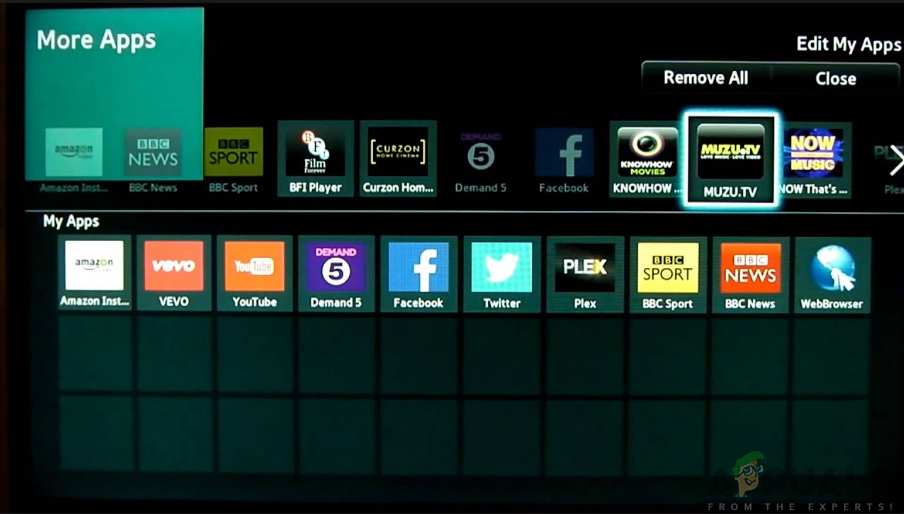
Sideloading refers to installing apps from sources other than the official app store. This method is primarily available on Hisense Android TVs due to Android’s open nature. While it offers flexibility for apps not available in the Play Store, it also carries inherent risks. This method is NOT available for Hisense TVs running VIDAA OS or Roku TV.
Prerequisites & Warnings:
- Security Risk: Sideloading APKs (Android Package Kits) from unknown sources can expose your TV to malware, viruses, and security vulnerabilities. Only download APKs from trusted websites.
- Compatibility: Sideloaded apps may not be optimized for TV interfaces and might not work correctly with your remote.
- Hisense Android TV Only: Do not attempt this on VIDAA or Roku TV models.
Steps for Sideloading on Hisense Android TV:
- Enable “Unknown Sources”:
- Go to your TV’s “Settings” (gear icon).
- Navigate to “Apps” or “Device Preferences” > “Security & Restrictions.”
- Find “Unknown Sources” and enable it for the browser or file manager app you intend to use for installation. You might need to install a file manager app from the Play Store first (e.g., File Commander, ES File Explorer) to enable this option specifically for that app.
- Download the APK File:
- On a computer or smartphone, download the
.apkfile of the app you want to install from a reputable source. Ensure it’s compatible with Android TV (not just standard Android mobile).
- On a computer or smartphone, download the
- Transfer to USB Drive: Copy the downloaded
.apkfile to a USB flash drive. - Connect USB Drive: Plug the USB drive into an available USB port on your Hisense Android TV.
- Install via File Manager:
- Open the file manager app on your TV (you might have to install one from the Google Play Store if you don’t have one pre-installed).
- Navigate to your USB drive within the file manager.
- Locate the
.apkfile and select it. - You’ll be prompted to install the application. Follow the on-screen instructions.
- Launch the App: Once installed, the app might appear in your “Apps” section or require you to go to “Settings” > “Apps” > “See all apps” to launch it.
Casting and Screen Mirroring (Alternative to Direct Installation)
Sometimes, you don’t need to install an app directly on your TV. Casting and screen mirroring allow you to display content from your smartphone, tablet, or computer onto your Hisense Smart TV, essentially using your mobile device as the app source.
- Chromecast Built-in (Hisense Android TV): Many Android TV models have Chromecast built-in. From a compatible app on your phone (like YouTube, Netflix, Spotify), look for the “Cast” icon (a rectangle with a Wi-Fi symbol). Tap it and select your Hisense TV to send the content.
- Miracast: Some Hisense TVs (especially older models or those with VIDAA OS) support Miracast. This allows you to wirelessly mirror your entire Android device’s screen to the TV. Check your phone’s settings for “Cast,” “Screen Mirroring,” or “Smart View.” On your TV, look for a “Screen Sharing” or “Miracast” app/feature.
- AirPlay (Limited/Newer Models): Some newer Hisense TVs might support Apple AirPlay 2, allowing Apple device users to cast content or mirror their screen. Look for the AirPlay icon in apps on your iPhone/iPad/Mac and select your Hisense TV.
- Third-Party Apps: Apps like SmartView (for Samsung devices) or specific manufacturer apps might offer casting features to Hisense TVs.
These methods are excellent alternatives when an app isn’t natively available on your TV’s app store or when you prefer using your mobile device’s interface.
Maximizing Your Smart TV Experience
Installing apps is just the beginning. To truly leverage the power of your Hisense Smart TV, proper app management, regular updates, and knowing how to troubleshoot common issues are crucial.
Managing and Updating Your Apps
Just like on your smartphone, apps on your smart TV need attention to perform optimally.
- Updating Apps: Regular updates bring new features, performance improvements, and crucial security patches.
- Android TV: Apps often update automatically. You can manually check by going to the Google Play Store, then “My apps” or “Manage apps & games,” and selecting “Update all” or updating individual apps.
- VIDAA OS & Roku TV: Apps on these platforms usually update in the background automatically. You typically don’t need to manually intervene. If an app isn’t working, simply restarting the TV often triggers any pending updates.
- Uninstalling Apps: Remove apps you no longer use to free up storage space and keep your TV’s interface clutter-free.
- Android TV: Go to “Settings” > “Apps” > “See all apps,” select the app, and choose “Uninstall.”
- VIDAA OS: From the home screen, highlight the app, press the “Options” or “Menu” button on your remote (often a button with three lines or dots), and select “Delete” or “Uninstall.”
- Roku TV: Highlight the channel on the home screen, press the “Star” (*) button, and select “Remove channel.”
- Clearing Cache and Data (Android TV): For problematic apps, clearing their cache or data can resolve issues without uninstalling. Go to “Settings” > “Apps” > select the app > “Clear cache” or “Clear data.” Be aware that clearing data will log you out of the app.
Troubleshooting Common App Installation Issues
Even with the clearest instructions, sometimes things go wrong. Here are solutions for common problems:
- App Not Found in Store:
- Solution: Double-check the app’s official name. Ensure the app is available for your TV’s operating system (e.g., some Android mobile apps aren’t on Android TV). Consider if casting/mirroring is an alternative. For VIDAA/Roku, some niche apps might genuinely not be available.
- Installation Failed/App Won’t Install:
- Solution:
- Check Internet Connection: A weak or unstable connection is a common culprit.
- Free Up Storage (Android TV): Your TV might not have enough space. Uninstall unused apps.
- Restart TV: A simple reboot can resolve temporary software glitches.
- Clear Cache of App Store (Android TV): Go to Settings > Apps > Google Play Store > Clear Cache.
- Update TV Software: Ensure your TV’s firmware is up to date (Settings > System/About > Software Update).
- Solution:
- App Crashes or Freezes:
- Solution:
- Force Close and Reopen: Go to Settings > Apps > Select app > Force Stop. Then reopen.
- Clear App Cache/Data (Android TV): As described above.
- Reinstall App: Uninstall the app, restart the TV, and then reinstall it.
- Check for App Updates: Ensure the app is running the latest version.
- Restart TV/Router: Sometimes, network issues cause app instability.
- Solution:
- Slow Performance:
- Solution:
- Close Background Apps (Android TV): Android TV allows some apps to run in the background. Close unused ones.
- Restart TV: A fresh start can clear memory.
- Check Internet Speed: Streaming apps require good bandwidth.
- Free Up Storage (Android TV): Less free space can lead to slower performance.
- Factory Reset (Last Resort): If all else fails, a factory reset can often resolve deep-seated issues but will erase all your settings and installed apps.
- Solution:
Enhancing Productivity and Entertainment
Hisense Smart TVs, especially those running Android TV, can transcend mere entertainment. For the “Tech” and “Productivity” minded, consider:
- Work-from-Home Tools: Apps for video conferencing (if a camera is connected), cloud storage, or even basic document viewers can turn your TV into a large-screen monitor for collaborative work or presentations.
- Educational Apps: Leverage the big screen for online courses, educational documentaries, or interactive learning platforms for children.
- Fitness and Wellness: Many streaming services offer workout videos and mindfulness guides, making your living room a personal gym or meditation space.
While “Money” might seem tangential, smart TVs contribute to financial savvy by consolidating entertainment. Instead of multiple devices (streaming stick, gaming console for media, etc.), a Hisense Smart TV can be an all-in-one solution, potentially reducing overall gadget expenditure. Furthermore, exploring free ad-supported streaming apps (FAST channels) available on all Hisense platforms can provide endless entertainment without monthly subscription fees, offering a smart way to manage your entertainment budget.
Important Considerations for Smart TV Users
Beyond installation, responsible use and understanding of your smart TV’s broader implications are vital.
Digital Security and Privacy
In an era where personal data is valuable, smart TVs, like all internet-connected devices, are potential points of vulnerability.
- Stick to Official App Stores: This is the golden rule. Apps from Google Play Store, VIDAA Store, and Roku Channel Store undergo review processes that significantly reduce the risk of malware.
- Be Cautious with Sideloading: If you must sideload on an Android TV, only obtain APKs from highly reputable sources and understand the risks. Malicious APKs can steal data, display unwanted ads, or compromise your TV’s security.
- Review App Permissions: When installing an app, especially on Android TV, pay attention to the permissions it requests. Does a flashlight app really need access to your microphone or location?
- Keep TV Firmware Updated: Hisense regularly releases software updates that include security patches. Ensure your TV is set to update automatically or check for updates periodically (Settings > System/About > Software Update).
- Use Strong Passwords: For your Google account (Android TV) or any streaming service accounts, use strong, unique passwords.
- Privacy Settings: Explore your TV’s privacy settings. You may be able to limit data collection related to advertising or usage patterns.

Optimizing Performance
To keep your Hisense Smart TV running smoothly and your apps responsive:
- Good Internet Connection: A stable and fast Wi-Fi connection is crucial for streaming high-quality content and seamless app usage. Consider an Ethernet cable for the most reliable connection, especially if you experience buffering.
- Manage Background Apps (Android TV): Regularly close apps running in the background if they’re not needed.
- Regular Restarts: Just like any computer, occasionally restarting your TV can clear out temporary files and refresh its memory, improving overall performance.
- Avoid Over-Installation (Android TV): While you have plenty of storage, installing hundreds of apps can still impact performance over time. Uninstall those you rarely use.
In conclusion, installing apps on your Hisense Smart TV is a straightforward process once you understand its operating system. By following the guidelines for each platform, practicing safe app installation habits, and performing routine maintenance, you can unlock the full potential of your smart TV, transforming it into a personalized gateway to endless entertainment, information, and even productivity. Embrace the smart capabilities of your Hisense TV and dive into a world of digital possibilities.
aViewFromTheCave is a participant in the Amazon Services LLC Associates Program, an affiliate advertising program designed to provide a means for sites to earn advertising fees by advertising and linking to Amazon.com. Amazon, the Amazon logo, AmazonSupply, and the AmazonSupply logo are trademarks of Amazon.com, Inc. or its affiliates. As an Amazon Associate we earn affiliate commissions from qualifying purchases.