
The power supply unit (PSU) is the unsung hero of any computer system, acting as the heart that delivers vital energy to every component. Without a reliable PSU, your high-performance CPU, cutting-edge graphics card, and rapid SSDs are nothing more than inert pieces of silicon and metal. Whether you’re building a new PC from scratch, upgrading an aging power supply, or replacing a faulty unit, understanding the proper installation procedure is crucial for system stability, longevity, and safety. This guide will walk you through the process, ensuring your computer receives the clean, consistent power it needs to operate flawlessly.
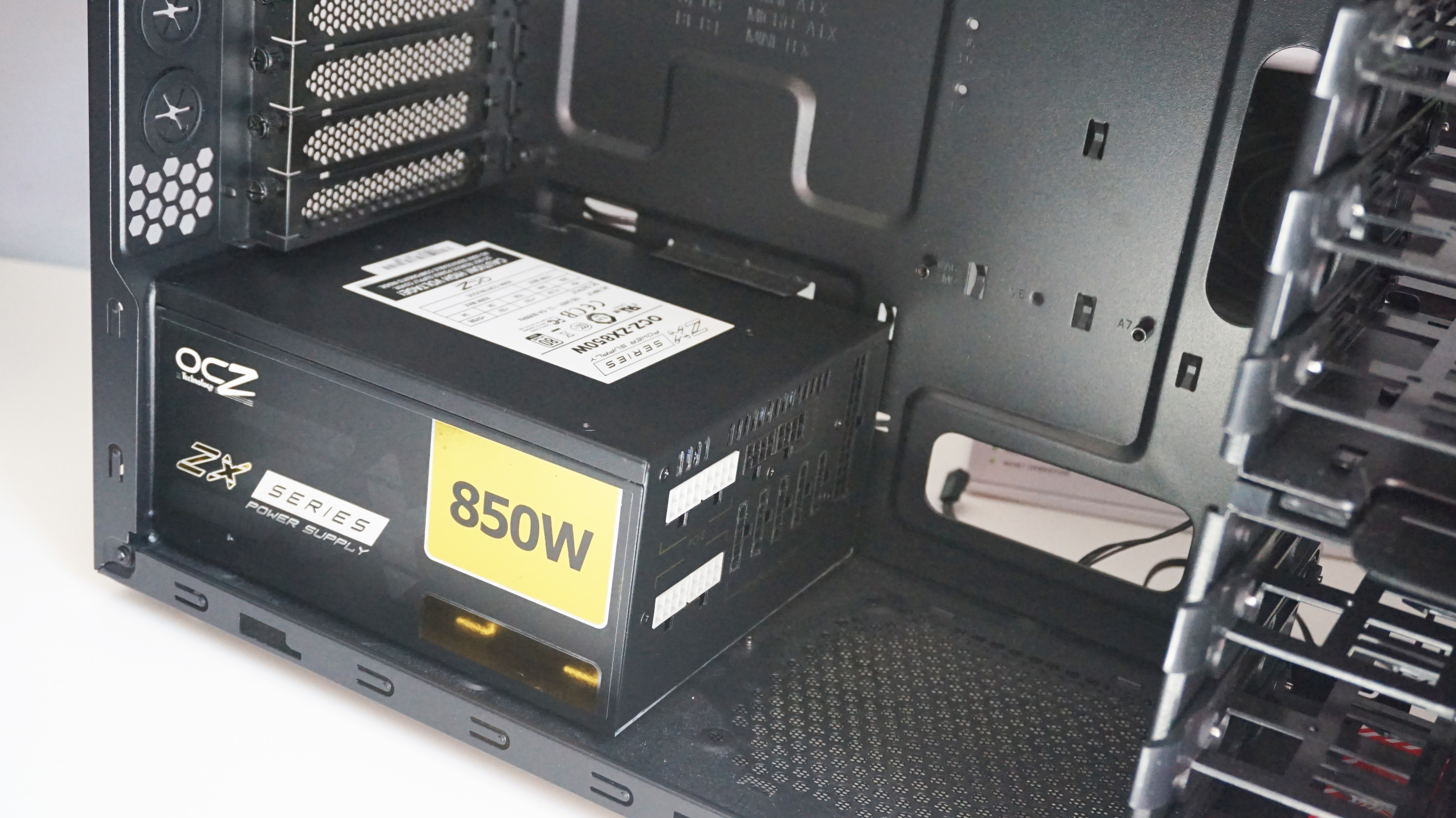
A common misconception is that all power supplies are created equal. In reality, PSUs vary significantly in wattage, efficiency, form factor, and modularity. Choosing the correct unit is the first, often overlooked, step towards a successful installation. A power supply that is too weak will lead to system instability, crashes, and potentially damage components, while an excessively powerful one might be an unnecessary expense, though it offers headroom for future upgrades. Similarly, the form factor (ATX, SFX, TFX, etc.) must match your case, and modularity (non-modular, semi-modular, fully modular) impacts ease of installation and cable management. This article will focus on the most common type: the ATX power supply, found in the majority of desktop computers.
The installation of a PSU, while seemingly straightforward, involves careful attention to detail, especially regarding cable connections and system safety. Rushing through the process or making assumptions can lead to frustration, component damage, or even electrical hazards. By following a structured approach, from initial preparation to the final boot-up, you can ensure a smooth and successful power supply installation that will keep your system running reliably for years to come. This guide aims to demystify the process, empowering both novice builders and experienced enthusiasts to confidently tackle this essential component upgrade or installation.
Before You Begin: Preparation and Safety First
Before you even think about opening your computer case, a thorough preparation phase is critical. This involves gathering the necessary tools, understanding fundamental safety precautions, and confirming that you have the right power supply for your system. Skipping these initial steps can lead to inefficiencies, potential damage, or even personal injury.
Essential Tools and Materials
Having the right tools at hand will streamline the installation process significantly. You’ll need more than just the new power supply itself.
-
Philips Head Screwdriver: This is your primary tool for opening the computer case and securing the PSU. A magnetic tip can be incredibly helpful for preventing dropped screws.
-
Zip Ties or Velcro Cable Ties: Essential for cable management, which not only makes your build look tidier but also improves airflow within the case.
-
Anti-Static Wrist Strap (Recommended): Static electricity can be a silent killer of computer components. An anti-static wrist strap, connected to a grounded metal object (like your unpainted PC case frame or a grounded outlet screw), safely dissipates any static charge from your body.
-
Flashlight or Headlamp: Computer cases can have dark corners, and a good light source will help you see connections clearly, especially in cramped spaces.
-
Small Container or Magnetic Dish: For keeping track of screws and small parts, preventing them from getting lost.
-
Your New Power Supply Unit (PSU): Ensure it’s the correct wattage, form factor, and comes with all necessary cables.
-
Manuals: Both your new PSU’s manual and your motherboard’s manual can provide specific diagrams and instructions for power connections.
Safety Precautions
Working with computer hardware, especially components connected to mains power, demands adherence to strict safety protocols.
-
Disconnect Power Completely: Always, always unplug your computer from the wall outlet before opening the case or touching any internal components. This is the single most important safety rule.
-
Ground Yourself: As mentioned, use an anti-static wrist strap. If you don’t have one, periodically touch a grounded metal object (like an unpainted part of your PC case) to discharge any static buildup. Avoid working on carpeted surfaces if possible, as they generate static easily.
-
Work in a Well-Lit, Clean Area: A cluttered or poorly lit workspace increases the risk of mistakes, dropped screws, or accidental damage.
-
Handle Components with Care: Avoid touching the gold contacts on components. Hold PCBs (Printed Circuit Boards) by their edges.
-
Be Mindful of Sharp Edges: Computer cases can have sharp edges. Exercise caution to avoid cuts.
-
Do Not Force Connections: If a cable or component isn’t fitting, double-check its orientation and connection type. Forcing it can bend pins or damage ports.
-
Give it a Moment: After unplugging the power, wait a minute or two before touching anything. Some PSUs can retain a residual charge in their capacitors for a short period.
Choosing the Right Power Supply (Revisiting Briefly)
While this guide focuses on installation, a quick recap on selection is vital. Your PSU’s wattage should match or exceed the cumulative power draw of all your components (CPU, GPU, motherboard, drives, fans, etc.). Online wattage calculators are excellent tools for this. Consider 80 Plus certification (Bronze, Gold, Platinum, Titanium), which indicates energy efficiency – higher ratings mean less wasted electricity and lower heat generation. Modularity, which determines whether cables are permanently attached (non-modular), partially attached (semi-modular), or fully detachable (fully modular), affects ease of installation and cable management. Fully modular PSUs offer the cleanest builds but are generally more expensive.
Removing the Old Power Supply (If Applicable)
If you’re upgrading or replacing an existing power supply, the first step is to carefully remove the old unit. This process involves systematically disconnecting cables and unscrewing the PSU from the case. Precision here will make the subsequent installation much smoother.
Disconnecting External Cables
Before even opening the case, ensure all external peripherals are disconnected.
-
Unplug the Power Cord: This is paramount. Ensure the power cable leading from the PSU to the wall outlet is completely removed.
-
Disconnect Peripherals: Unplug your monitor, keyboard, mouse, Ethernet cable, speakers, and any other USB devices connected to the back of your computer. This clears the workspace and prevents accidental tugging.
Opening the Computer Case
Most computer cases have side panels secured by thumbscrews or regular Philips head screws at the rear.
-
Lay the Case Down: Gently lay your computer case on its side on a flat, stable surface. This provides better access to the internal components.
-
Remove Side Panels: Unscrew and remove the side panels. Typically, you only need to remove the main access panel (usually the left side when looking at the front of the case), but removing both can aid in cable management later.
Unplugging Internal Components
This is where organization becomes key. If you’re new to this, take photos of the existing connections as a reference.
-
Motherboard Power (20/24-pin ATX): This is the largest connector, typically located on the right edge of the motherboard. It has a clip that needs to be pressed before gently wiggling and pulling the connector straight out.
-
CPU Power (4/8-pin EPS): Often located near the top-left of the motherboard, close to the CPU socket. Like the ATX connector, it has a clip.
-
Graphics Card Power (6/8-pin PCIe): If your graphics card requires auxiliary power, these cables will be plugged into its side or top. Press the clip and pull. Some high-end cards may have multiple such connectors.
-
SATA Power: These flat, L-shaped connectors power your hard drives, SSDs, and optical drives. Gently pull them straight out from the back of the drives.
-
Molex Power: Older drives, fans, or accessory cards might use these 4-pin rectangular connectors. They can be a bit stiff; wiggle them gently to loosen and pull.
-
Fan Power: Some case fans might be powered directly from the PSU via Molex or 3/4-pin connectors. Disconnect these.
Keep track of where each cable goes. If you have a non-modular or semi-modular PSU, these cables will remain attached to the old unit.
Detaching and Removing the Old Unit
Once all internal cables are disconnected from the components:
-
Locate PSU Mounting Screws: The power supply is usually secured to the rear of the computer case with four screws. These screws are typically visible from the outside of the case.
-
Unscrew the PSU: Carefully remove these screws. Hold the PSU inside the case to prevent it from dropping once the last screw is removed.
-
Slide Out the PSU: Once unscrewed, the PSU should slide out of its mounting bay. Depending on your case design, it might slide out the back or out from the inside.
-
Remove Old Unit and Cables: Carefully remove the old power supply from the case. If it’s non-modular or semi-modular, you’ll be removing all its attached cables along with it.
Installing Your New Power Supply
With the old PSU out of the way (or if you’re starting with a fresh build), it’s time to install the new unit. This phase focuses on correctly positioning, securing, and connecting all necessary power cables to your components.
Positioning and Securing the PSU

Proper orientation and secure mounting are essential for both physical stability and optimal airflow.
-
Orient the PSU: Most modern cases are designed for the PSU fan to face downwards, drawing cool air from beneath the case and exhausting it out the back. Some cases have a filtered vent on the bottom for this purpose. If your case lacks a bottom vent, or if the PSU fan is internal (common in older designs), orient it with the fan facing upwards, towards the inside of the case. Consult your case manual if unsure.
-
Slide into Place: Gently slide the new PSU into its designated bay within the computer case. Ensure it aligns correctly with the screw holes at the back of the case.
-
Secure with Screws: Use the four Philips head screws (usually provided with the PSU or your case) to secure the power supply firmly to the case from the outside. Do not overtighten, but ensure it’s snug and stable.
Connecting Motherboard Power
These are the primary power connections that bring your motherboard to life.
-
20/24-pin ATX Power: Locate the large 20+4 pin connector. Most motherboards use a 24-pin connection. If your PSU has a 20+4 pin design, simply snap the additional 4 pins alongside the main 20-pin connector. Line up the clip and pins, and push firmly until the clip latches. You’ll hear a subtle click. This is often the stiffest connector to install.
-
4/8-pin EPS (CPU) Power: Find the 4-pin or 8-pin CPU power connector near the top of your motherboard. Modern CPUs typically require an 8-pin (4+4 pin) connection. Align the connector, ensuring the clip faces outwards, and push down firmly until it latches.
Connecting Peripherals
Now, connect power to your other crucial components.
-
Graphics Card Power (6/8-pin PCIe): If your graphics card requires auxiliary power, connect the appropriate 6-pin or 6+2 pin PCIe power cables from your PSU. Many modern cards require two 8-pin connectors. Ensure the clip is aligned and push firmly until it clicks. Never use CPU (EPS) power cables for your graphics card, as they have different pinouts and can damage your GPU.
-
SATA Power: Connect the flat, L-shaped SATA power cables to your SSDs, hard drives, and any optical drives. Ensure the L-shape on the connector matches the port on the drive.
-
Molex Power: If you have older components, case fans, or accessories that use Molex connectors, plug them in now. These can be trickier; make sure the pins align perfectly before pushing.
Cable Management
This step is often overlooked but vastly improves aesthetics, airflow, and ease of future upgrades.
-
Route Cables: Use the cutouts and channels in your computer case to route cables neatly behind the motherboard tray. This hides excess cable length and keeps the main compartment clear.
-
Bundle Cables: Use zip ties or Velcro straps to bundle cables together, especially those going to the same area. This prevents them from sagging or interfering with fans.
-
Avoid Obstructions: Ensure no cables are blocking airflow from fans or obstructing any moving parts.
-
Modular Advantage: If you have a fully modular PSU, only connect the cables you absolutely need, reducing clutter significantly.
Post-Installation Checks and First Boot
After all components are connected and cables are managed, a crucial final check is necessary before the moment of truth: the first boot. This ensures everything is secure and correctly configured, minimizing the risk of issues.
Double-Checking Connections
Before closing up your case, take a moment to meticulously review every connection.
-
Motherboard Power: Verify the 20/24-pin ATX and 4/8-pin EPS (CPU) power connectors are firmly seated and latched on the motherboard.
-
Graphics Card Power: Confirm all required PCIe power cables are securely plugged into your graphics card(s) and that their clips are engaged.
-
Storage Devices: Ensure all SATA power connectors are properly attached to your SSDs, HDDs, and optical drives.
-
Fans and Peripherals: Check that any case fans or other internal peripherals requiring PSU power are correctly connected.
-
Cable Routing: Briefly scan your cable management. Are any cables pinched? Are they obstructing fans? Is anything loose?
Closing the Case and External Connections
Once you’re satisfied with the internal setup:
-
Replace Side Panels: Carefully reattach the side panels of your computer case. Ensure they fit snugly and are secured with their respective screws or latches.
-
External Peripherals: Reconnect all your external devices: monitor, keyboard, mouse, speakers, Ethernet, and any other USB devices.
-
Connect Power Cable: Finally, plug the PSU’s power cable back into the wall outlet. If your PSU has a power switch on the back, ensure it is in the ‘On’ (usually ‘I’) position.
The Moment of Truth: First Boot
This is the exciting part!
-
Power On: Press your computer’s power button.
-
Observe: Listen for fan spins, look for indicator lights on your motherboard and graphics card, and check if your monitor receives a signal.
-
Troubleshooting Readiness: Don’t panic if it doesn’t immediately boot. Be prepared to turn it off quickly if you hear unusual noises or smell anything burning (though this is rare with proper installation).
Troubleshooting Common Issues
If your computer doesn’t boot or experiences problems:
-
No Power/Lights:
-
Is the PSU switch on? (The ‘I’ position)
-
Is the wall outlet working? Try another device.
-
Is the power cord fully inserted into both the PSU and the wall?
-
Are the 20/24-pin ATX and 4/8-pin EPS (CPU) power cables fully seated? These are the most common culprits.
-
-
Fans Spin, No Display:
-
Is your monitor plugged into the graphics card (not the motherboard, unless you’re using integrated graphics)?
-
Is the graphics card fully seated in its PCIe slot?
-
Are all PCIe power cables correctly connected to the graphics card?
-
Reseat RAM sticks.
-
-
System Powers On, Then Immediately Shuts Off:
-
This could indicate a short circuit or an overloaded PSU. Double-check all connections, especially those near metal standoffs or edges.
-
Ensure no stray screws or metal objects are inside the case.
-
Verify your PSU wattage is sufficient for your components.
-
-
Unusual Noises:
-
A fan might be hitting a cable.
-
The PSU itself might be faulty.
-
For complex issues, isolate components. Try booting with minimal components (motherboard, CPU, one RAM stick, GPU if no integrated graphics).
Optimizing Your Setup: Cable Management and Future-Proofing
A successful PSU installation isn’t just about functionality; it’s also about creating an efficient and aesthetically pleasing system. Good cable management plays a significant role here, and considering future upgrades during this process can save you time and effort down the line.
Benefits of Good Cable Management
Beyond just looking neat, effective cable management offers several practical advantages.
-
Improved Airflow: Cluttered cables can obstruct the path of air moving through your case, leading to hotter components. By bundling and routing cables away from critical airflow paths, you can maintain lower temperatures and improve the efficiency of your cooling system.
-
Easier Maintenance and Upgrades: A tidy system is much easier to work with. When it comes time to clean dust, add a new drive, or upgrade a component, you won’t have to untangle a spaghetti mess of wires. Identifying specific cables becomes effortless.
-
Enhanced Aesthetics: For those with tempered glass side panels or RGB lighting, a clean interior makes your build truly shine. It showcases your components rather than distracting with a tangle of wires.
-
Reduced Stress on Connectors: Properly routed cables are less likely to be pulled taut, reducing stress on the connectors and ports of your components, which can prolong their lifespan.
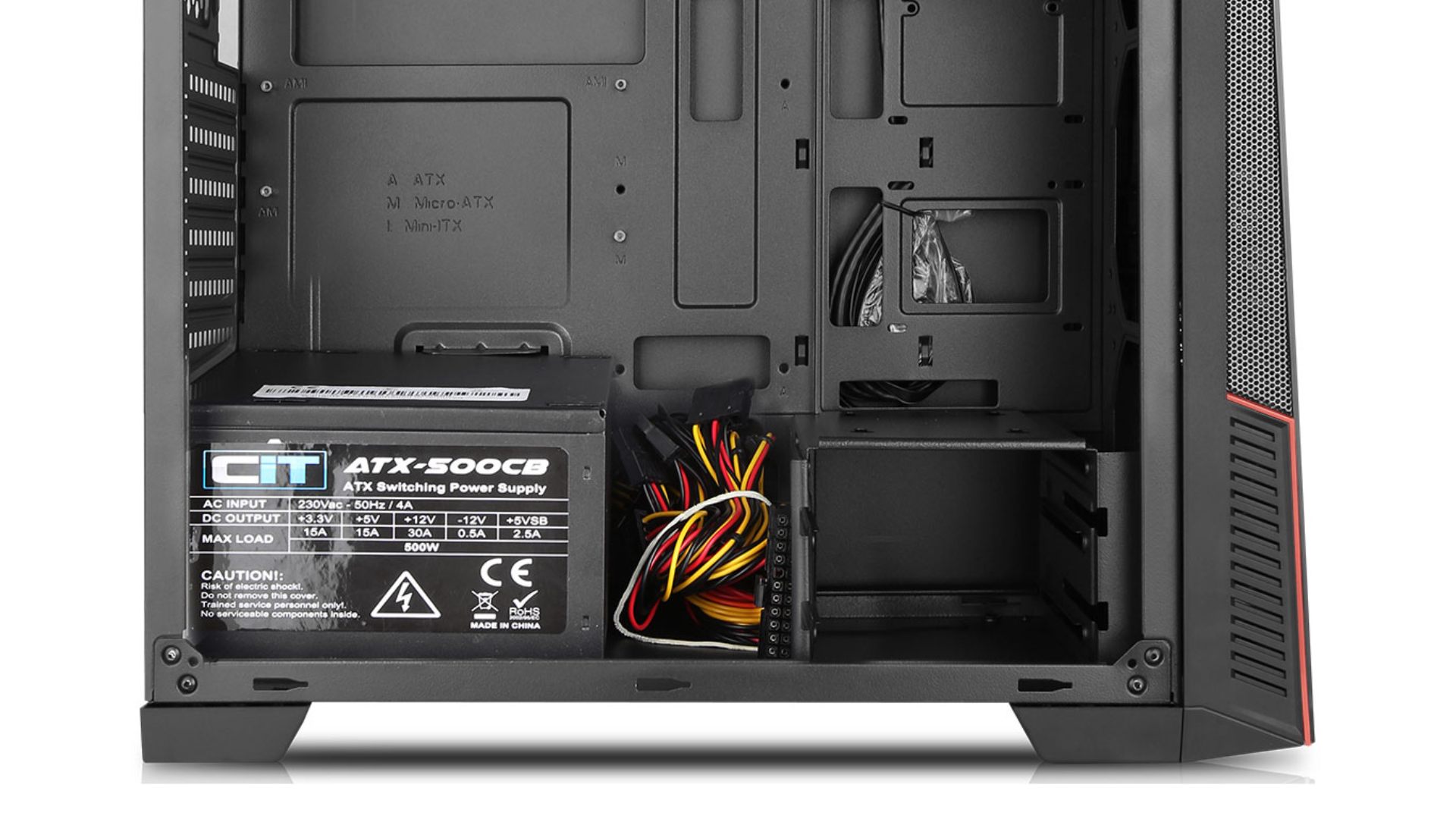
To achieve good cable management, leverage the features of your PC case, such as cable routing grommets, tie-down points, and space behind the motherboard tray. Take your time, plan your routes, and use plenty of zip ties or reusable Velcro straps.
Power Supply Considerations for Upgrades
When installing a new PSU, especially if you’re building a system with future enhancements in mind, it’s wise to consider its longevity and adaptability.
-
Wattage Headroom: While you should pick a PSU that comfortably handles your current components, leaving a 10-20% wattage headroom can accommodate minor upgrades (e.g., adding more drives, a few extra fans) without needing an immediate PSU replacement. For major GPU upgrades, you might need more.
-
Modularity: Fully modular PSUs simplify future upgrades dramatically. If you need to add a new component that requires a specific power cable, you can simply plug that cable into the PSU and route it, rather than dealing with a nest of unused, permanently attached cables.
-
Cable Types and Connectors: Ensure your PSU comes with all the necessary connectors for potential future components. For instance, if you might upgrade to a high-end graphics card, ensure your PSU has multiple 6+2 pin PCIe connectors.
-
Efficiency Rating: Investing in a higher 80 Plus efficiency rating (Gold, Platinum, Titanium) not only saves on electricity costs but also indicates a higher quality unit, which is often more durable and reliable in the long term, supporting your system through multiple upgrade cycles.
-
Warranty and Brand Reputation: A good warranty and a reputable brand are strong indicators of a PSU’s quality and the manufacturer’s confidence in their product. This provides peace of mind for future dependability.
By thinking ahead during your power supply installation, you can build a system that is not only robust and reliable today but also flexible and ready for tomorrow’s technological advancements.
Installing a computer power supply doesn’t have to be an intimidating task. With careful preparation, adherence to safety guidelines, and a systematic approach to connecting components, you can successfully integrate this vital piece of hardware into your system. Remember, the PSU is the foundation of your computer’s power delivery, and a properly installed unit ensures stability, efficiency, and longevity for all your other components. Take your time, double-check your work, and enjoy the satisfaction of powering up your meticulously assembled machine.
aViewFromTheCave is a participant in the Amazon Services LLC Associates Program, an affiliate advertising program designed to provide a means for sites to earn advertising fees by advertising and linking to Amazon.com. Amazon, the Amazon logo, AmazonSupply, and the AmazonSupply logo are trademarks of Amazon.com, Inc. or its affiliates. As an Amazon Associate we earn affiliate commissions from qualifying purchases.