
In the ever-evolving digital landscape, choosing the right tools is paramount for productivity, security, and leveraging the full potential of the internet. For users of Ubuntu, a powerful and widely-used Linux distribution, the desire to integrate familiar and feature-rich applications like Google Chrome is a common one. Chrome, with its seamless integration into the Google ecosystem, extensive extension library, and robust performance, stands as a dominant force in the web browser market. This comprehensive guide will walk you through the process of installing Google Chrome on your Ubuntu system, ensuring you have access to a browser that perfectly balances innovation with a user-friendly experience, while also touching upon the broader implications for your tech proficiency, brand interaction, and even financial ventures.
Why Choose Google Chrome for Your Ubuntu System?
Before diving into the technicalities, it’s worth exploring the compelling reasons why millions opt for Google Chrome, even on a Linux distribution renowned for its open-source ethos. The decision to install Chrome on Ubuntu isn’t just about getting a browser; it’s about tapping into a vast network of services and a user experience refined over years of development.
The Power of Google’s Ecosystem
For many, Google Chrome is more than just a browser; it’s a gateway to the entire Google ecosystem. Users with Google accounts find immense value in the seamless synchronization across devices – bookmarks, browsing history, saved passwords, and extensions are instantly available wherever you sign in. This multi-device consistency is a significant productivity booster, saving precious time and reducing friction when switching between your Ubuntu desktop, smartphone, or other devices. From Google Drive and Docs to Gmail and Calendar, Chrome facilitates a streamlined workflow, making it an indispensable tool for students, professionals, and casual users alike. This integration speaks volumes about Google’s brand strategy, creating a sticky ecosystem that encourages deeper engagement and loyalty.
Performance and User Experience
Google Chrome has long been praised for its speed and efficient handling of complex web applications. While memory consumption has historically been a point of contention, continuous optimizations have made it a robust performer, especially on modern hardware. The intuitive user interface, minimalist design, and powerful developer tools contribute to a superior browsing experience. Whether you’re streaming high-definition video, collaborating on documents, or managing intricate web projects, Chrome delivers a responsive and stable environment. This focus on performance and user experience is a cornerstone of Chrome’s brand appeal, making it a preferred choice for those who value efficiency and a smooth digital interaction.
Digital Security and Productivity Advantages
In an era where digital security is more critical than ever, Chrome offers built-in protections against phishing, malware, and unwanted software. Regular updates ensure that the browser remains fortified against the latest threats, protecting your sensitive information. Furthermore, its vast array of extensions empowers users to customize their browsing experience, boosting productivity with tools for project management, note-taking, ad-blocking, and specialized development. For those involved in online income generation or managing financial tools, these security features and productivity enhancements are invaluable. A secure browser is the first line of defense against financial fraud, while efficient tools can directly translate into saved time and increased earnings. It bridges the gap between tech utility and tangible financial benefits.
Preparing Your Ubuntu System for Installation
Before embarking on the installation process, it’s crucial to ensure your Ubuntu system is ready. A few preliminary steps will prevent common issues and guarantee a smooth setup.
Updating System Packages
Maintaining an updated system is a fundamental practice for any Linux user. It ensures you have the latest security patches, bug fixes, and compatible dependencies for new software installations. Open your terminal (you can usually find it in your applications menu or by pressing Ctrl + Alt + T) and execute the following commands:
sudo apt update
sudo apt upgrade -y
sudo apt update refreshes your package lists, fetching information about the newest versions of software available from your configured repositories. sudo apt upgrade -y then installs those updates. The -y flag automatically confirms any prompts, allowing the process to complete without manual intervention. This step is a cornerstone of good digital security practice, ensuring your foundation is stable before adding new components.
Ensuring Connectivity and Privileges
Naturally, a stable internet connection is required to download the Chrome browser and its dependencies. Confirm you are connected to the internet before proceeding. Additionally, you will need sudo (superuser do) privileges to install software on your system, which is typically the case for the primary user on an Ubuntu installation. If you encounter permission errors, ensure you are using an account with administrative rights.
Method 1: Installing Chrome via Direct Download
This is often the most straightforward method for individual users, involving downloading the official .deb package directly from Google and installing it using Ubuntu’s package manager.
Downloading the Chrome .deb Package
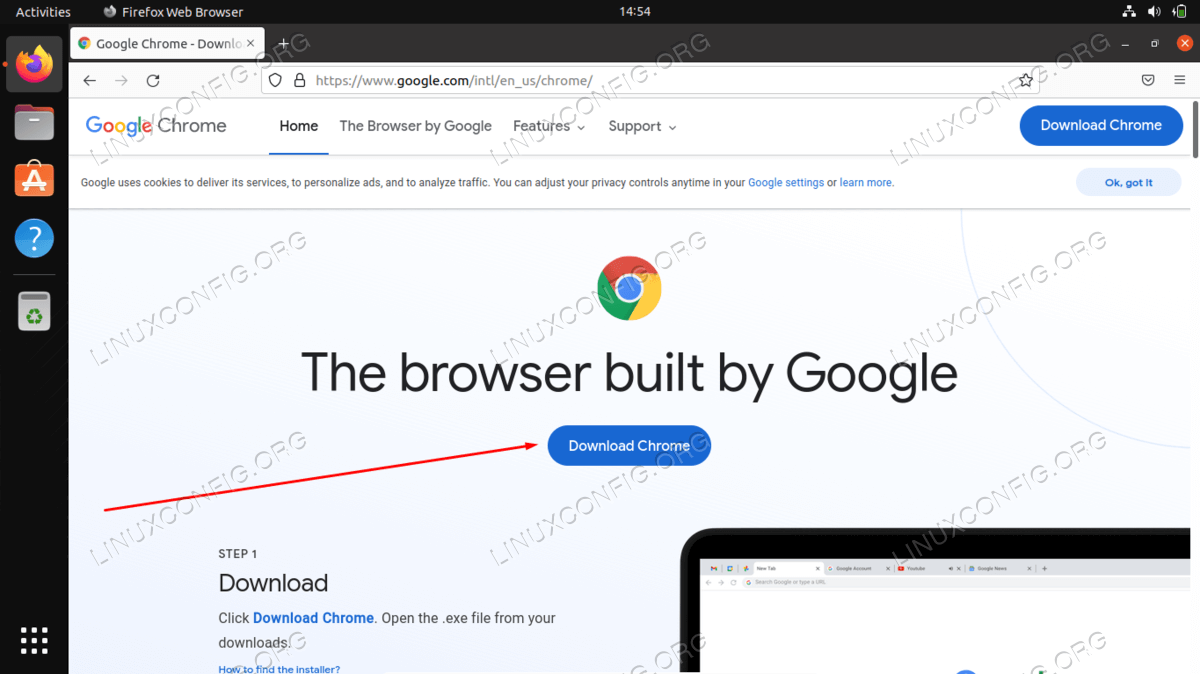
Google provides official .deb packages for Debian-based systems like Ubuntu. You can download it using the wget command directly from the terminal. This approach is efficient and bypasses the need for a graphical web browser initially.
First, navigate to your Downloads directory, or any directory where you prefer to store downloaded files:
cd ~/Downloads
Next, use wget to download the stable 64-bit Google Chrome .deb package. As of my last update, the URL below is common, but it’s always good practice to check Google’s official Chrome download page for Linux to ensure you have the very latest link for your architecture.
wget https://dl.google.com/linux/direct/google-chrome-stable_current_amd64.deb
This command will fetch the .deb file and save it in your current directory. The amd64 in the filename denotes that it’s for 64-bit systems, which most modern Ubuntu installations are.
Executing the Installation
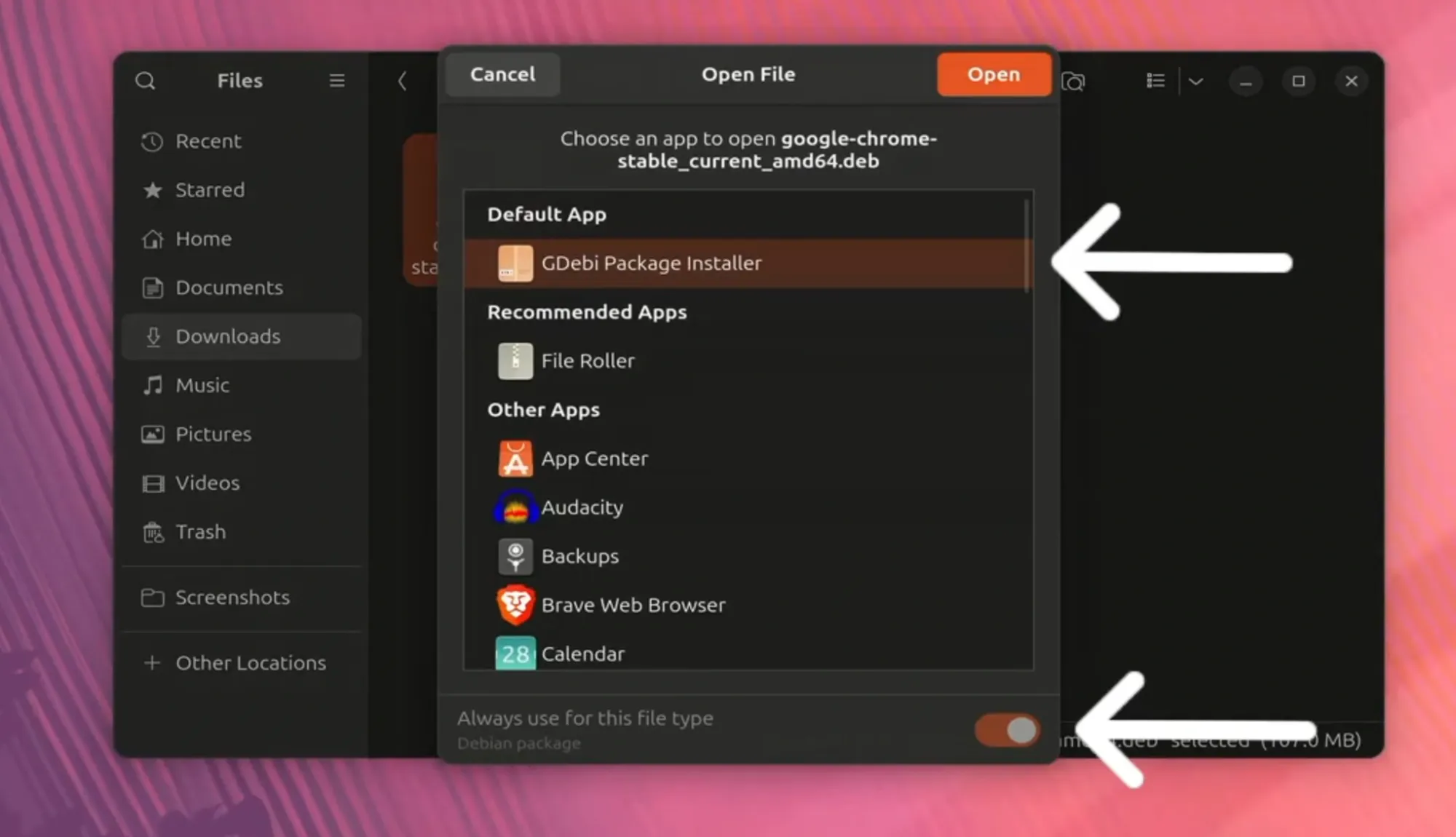
Once the download is complete, you can install the package using the dpkg command, which is the low-level tool for managing Debian packages.
sudo dpkg -i google-chrome-stable_current_amd64.deb
During this step, dpkg might report dependency errors. This is common because Chrome often relies on libraries that might not be pre-installed on every Ubuntu system. To resolve these, you can use apt to fetch and install the missing dependencies:
sudo apt install -f
The -f (or --fix-broken) flag instructs apt to find and install any missing dependencies for packages that have failed to install properly. After this command completes, Chrome should be fully installed on your system. This two-step process (installing the .deb and then fixing dependencies) is a common pattern when using dpkg directly.
Method 2: Installing Chrome by Adding the Google Repository
This method is generally preferred for its elegance and long-term benefits. By adding Google’s official repository to your system, Chrome will receive automatic updates alongside your other system packages whenever you run sudo apt update && sudo apt upgrade. This ensures you always have the latest features, performance enhancements, and crucial security patches, aligning with best practices for digital security and system maintenance.
Importing Google’s Signing Key
To ensure the authenticity and integrity of the packages downloaded from Google’s repository, you first need to import Google’s public signing key. This key allows your system to verify that the packages haven’t been tampered with.
wget -q -O - https://dl.google.com/linux/linux_signing_key.pub | sudo apt-key add -

Let’s break this down:
wget -q -O - https://dl.google.com/linux/linux_signing_key.pub: Downloads the signing key.-qmeans quiet (no output),-O -sends the output to standard output instead of a file.|: This is a pipe, which takes the output of the first command and uses it as input for the second.sudo apt-key add -: Adds the key from standard input to your system’s list of trusted keys. You might see a warning thatapt-keyis deprecated, but it still works for now. For more modern systems,signed-byinsources.list.dis preferred, but this command is widely compatible.
Adding the Chrome Repository to Your System
Now that your system trusts Google’s packages, you can add the Chrome repository to your sources.list.d directory. This tells your package manager where to find Google Chrome updates.
echo "deb [arch=amd64] http://dl.google.com/linux/chrome/deb/ stable main" | sudo tee /etc/apt/sources.list.d/google-chrome.list
This command does the following:
echo "deb [arch=amd64] ...": Prints the repository line to standard output.debindicates a Debian binary package,arch=amd64specifies the architecture, andstable mainrefers to the stable version of Chrome.| sudo tee /etc/apt/sources.list.d/google-chrome.list: Pipes the output intotee, which writes it to the specified file/etc/apt/sources.list.d/google-chrome.list. Usingsudo teeensures that the file is created with root privileges, which is necessary for modifying system configuration files.
Installing Chrome from the Repository
With the repository added, your system now knows where to find Google Chrome. The final step is to update your package lists and install the browser.
sudo apt update
sudo apt install google-chrome-stable -y
sudo apt update refreshes your system’s package lists to include the newly added Google Chrome repository. sudo apt install google-chrome-stable -y then installs the stable version of Google Chrome. The -y flag, as before, automatically confirms the installation. This method ensures that Chrome is deeply integrated into your system’s package management, making future updates effortless.
Launching and Verifying Your Chrome Installation
Once the installation process is complete using either method, you can launch Google Chrome.
You can find Chrome in your applications menu. Search for “Chrome” or “Google Chrome.”
Alternatively, you can launch it from the terminal:
google-chrome
The first time you launch Chrome, it will likely ask if you want to make it your default browser and if you want to send usage statistics to Google. Make your preferences clear. You can then sign in with your Google account to synchronize your data.
To verify the installation, you can check the installed version:
google-chrome --version
This command should display the version number of Google Chrome, confirming a successful installation.
Troubleshooting Common Installation Issues
While the process is generally smooth, you might encounter minor hurdles.
- Missing Dependencies: If you used
dpkg -iand forgotsudo apt install -f, Chrome might not launch. Running thefix-brokencommand usually resolves this. - Repository Key Issues: If
apt updatethrows warnings about untrusted repositories, double-check that you correctly imported Google’s signing key. - Internet Connectivity: Always ensure a stable internet connection for downloading packages.
- Disk Space: Ensure you have sufficient free disk space, though Chrome itself is not excessively large.
Uninstalling Google Chrome from Ubuntu
Should you ever need to remove Google Chrome from your Ubuntu system, the process is straightforward using the apt package manager.
sudo apt remove google-chrome-stable
This command removes the Google Chrome browser package. If you also want to remove associated configuration files and dependencies that are no longer needed, you can use:
sudo apt purge google-chrome-stable
sudo apt autoremove
purge removes configuration files, and autoremove cleans up any automatically installed dependency packages that are no longer required by other installed software.
Finally, you might want to remove the Google Chrome repository file that you added:
sudo rm /etc/apt/sources.list.d/google-chrome.list
sudo apt update
This ensures your system no longer attempts to look for Chrome updates from Google’s repository.
Beyond Installation: Optimizing Your Chrome Experience
With Google Chrome successfully installed on your Ubuntu system, the journey doesn’t end there. Optimizing your browser experience can significantly enhance your productivity, security, and overall interaction with the digital world.
Extensions for Productivity and Security (Tech & Money): The Chrome Web Store offers an unparalleled collection of extensions. For productivity, consider tools like “Evernote Web Clipper” for saving articles, “Grammarly” for writing assistance, or “Momentum” for a custom new tab page focused on goals. From a security standpoint, extensions like “uBlock Origin” (ad blocker), “Privacy Badger” (tracker blocker), or password managers like “LastPass” or “Dashlane” are indispensable. These tools not only protect your digital footprint but can also save you time and, indirectly, money by streamlining workflows and preventing cyber threats that could lead to financial losses.
Sync and Profiles (Brand & Tech): Leverage Chrome’s synchronization capabilities by signing in with your Google account. This ensures your bookmarks, history, passwords, and extensions are consistent across all your devices, whether they run Ubuntu, Windows, macOS, Android, or iOS. For shared computers or managing separate work/personal digital identities, Chrome’s user profiles feature is invaluable. Each profile has its own set of data, making it easy to switch between different digital personas, reinforcing personal branding or managing distinct online ventures.
Performance Tuning (Tech): Even on a powerful system, you can fine-tune Chrome’s performance. Consider managing open tabs (extensions like “Great Suspender” can help), disabling unnecessary extensions, and periodically clearing your cache and cookies. Accessing chrome://flags allows advanced users to experiment with experimental features that might improve performance or add new functionalities, though caution is advised.
Conclusion: Embracing the Chrome Ecosystem on Ubuntu
Installing Google Chrome on Ubuntu is a straightforward process that opens up a world of possibilities for users seeking a powerful, feature-rich, and highly integrated web browser. Whether you choose the direct download method or opt for the repository approach for seamless updates, the result is the same: access to a browser that stands at the intersection of cutting-edge technology, strong brand recognition, and practical utility.
From a Tech perspective, Chrome brings robust performance, extensive customization through extensions, and deep integration with the Google ecosystem to your open-source desktop. Its continuous development ensures you stay current with web standards and security protocols.
In terms of Brand, Google Chrome’s omnipresence reflects a carefully crafted strategy focusing on user experience, reliability, and accessibility. By choosing Chrome, Ubuntu users align themselves with a global digital standard, benefiting from consistent interaction across platforms and a vast support network.
And for Money, Chrome’s productivity tools, secure browsing environment, and access to online financial services and income-generating platforms make it a strategic asset. A well-configured Chrome browser can enhance efficiency, safeguard transactions, and support various side hustles or business operations, effectively linking your digital tools to your financial well-being.
By following this guide, you’ve not only installed a piece of software but integrated a key digital utility that will enhance your Ubuntu experience, enabling you to navigate the complexities of the modern web with confidence and efficiency.
aViewFromTheCave is a participant in the Amazon Services LLC Associates Program, an affiliate advertising program designed to provide a means for sites to earn advertising fees by advertising and linking to Amazon.com. Amazon, the Amazon logo, AmazonSupply, and the AmazonSupply logo are trademarks of Amazon.com, Inc. or its affiliates. As an Amazon Associate we earn affiliate commissions from qualifying purchases.