
In an increasingly digital world, the need for a reliable physical printout often remains surprisingly persistent. From important documents and contracts to creative projects and cherished photographs, a printer is an indispensable tool for both home users and businesses. Among the myriad of brands, Canon stands out as a leading name in printing technology, renowned for its commitment to quality, innovation, and user-friendly devices. Whether you’ve just invested in a brand-new Canon inkjet for vibrant photo prints or a robust Canon laser printer for high-volume document handling, getting it properly installed is the crucial first step to unlocking its full potential.

A smooth, efficient printer installation not only saves time and frustration but also ensures your device performs optimally, contributing directly to your productivity. This comprehensive guide is designed to walk you through every stage of installing your Canon printer, from the moment you unbox it to the joy of printing your first perfect page. We’ll cover various connection methods, driver installation nuances, and provide essential tips to troubleshoot common issues, empowering you to integrate your new Canon device seamlessly into your digital ecosystem.
1. Unboxing and Physical Setup: Laying the Foundation for Performance
The journey to a fully functional printer begins long before you click “print.” Proper physical setup is paramount, ensuring stability, accessibility, and the readiness of your device for its inaugural tasks. This initial phase is critical for the longevity and efficient operation of your Canon printer.
1.1 Unpacking and Inventory Check
Upon receiving your Canon printer, the first step is to carefully unbox it. Exercise caution to avoid damaging the printer or its components during removal. Once freed from its packaging, take a moment to confirm that all expected items are present. Typically, your Canon printer package should include:
- The printer unit itself
- A power cord
- Setup CD/DVD (though often optional for modern systems)
- Initial set of ink cartridges or toner cartridges
- User manual or quick start guide
- In some cases, a USB cable (though not always included, especially for wireless models)
As you remove the printer from its box, be sure to peel off all protective tapes, films, and packaging inserts. These are usually vibrant orange or blue and are placed to secure moving parts during transit. Forgetting to remove even a small piece can lead to error messages or mechanical issues later on. Refer to your quick start guide for specific instructions on what to remove.
1.2 Strategic Placement for Optimal Workflow
Where you place your printer might seem trivial, but it can significantly impact its performance, your productivity, and even the printer’s lifespan. Consider the following:
- Stable and Level Surface: Printers, especially during operation, can vibrate. A sturdy, level surface prevents unnecessary movement, reduces noise, and ensures proper paper feeding.
- Ventilation and Space: Allow adequate space around the printer for proper ventilation. Overheating can reduce component life. Also, ensure there’s enough room to open trays, access cartridges, and clear paper jams.
- Proximity to Power and Connectivity: Place the printer within easy reach of a power outlet. If you’re using a wired connection (USB or Ethernet), consider its proximity to your computer or network router. For wireless setups, ensure it’s within a good range of your Wi-Fi router to maintain a strong signal.
- Ergonomics and Accessibility: Position the printer where it’s easily accessible for loading paper, retrieving prints, and maintenance tasks without straining. In a home office, this contributes to a more productive and comfortable workspace.
1.3 Powering On and Loading Essential Supplies
With the printer correctly positioned and all protective materials removed, it’s time to prepare it for operation:
- Connect the Power Cord: Plug one end of the power cord into the printer’s power input and the other into a wall outlet. Avoid using power strips or surge protectors that are heavily loaded with other devices, especially during the initial power-on phase, to ensure stable power delivery.
- Install Ink/Toner Cartridges: This is a crucial step. Open the printer’s access door (refer to your manual for its location) and carefully install the ink or toner cartridges. Canon printers typically guide you with visual cues or on-screen instructions. Ensure each cartridge clicks firmly into place. Incorrect cartridge installation is a common source of initial errors and poor print quality.
- Load Paper: Open the paper tray, adjust the paper guides to fit the size of your paper, and load a stack of fresh, unused paper. Pay attention to the orientation instructions in your manual, as some printers require paper to be loaded face down or face up.
Once these steps are complete, power on your Canon printer. It may go through an initialization process, which can include print head alignment or calibration. Allow this process to complete without interruption.
2. Connecting Your Canon Printer: Wired or Wireless Flexibility
Connecting your Canon printer to your computer or network is the next pivotal step. Canon offers various connectivity options to suit different user needs and environments. Understanding these methods will help you choose the best setup for your home or office.
2.1 USB Connection: The Classic, Reliable Link
The Universal Serial Bus (USB) connection is the most straightforward and traditional method for connecting a printer. It offers a direct, reliable link between your computer and printer, making it ideal for single-user setups or situations where network connectivity isn’t feasible.
- Simplicity: Connect one end of the USB cable (typically a Type-B connector, square-shaped) to the printer’s USB port and the other end (Type-A, rectangular) to an available USB port on your computer.
- Plug and Play: Modern operating systems like Windows and macOS are highly adept at “Plug and Play” functionality. Once the printer is connected via USB and powered on, your computer will usually detect it automatically and may even begin searching for or installing the necessary drivers.
- Considerations: While simple, a USB connection limits where you can place your printer relative to your computer. It also means only that specific computer can directly print to it, unless it’s shared over a network. Ensure you use a high-quality USB 2.0 or 3.0 cable for optimal data transfer.
2.2 Wireless (Wi-Fi) Setup: Unleashing Network Freedom
Wireless connectivity has become the standard for most modern Canon printers, offering unparalleled flexibility. A Wi-Fi connection allows multiple devices (computers, smartphones, tablets) to print to the printer from anywhere within your network’s range, enhancing overall productivity and convenience.
Canon typically offers a few methods for connecting your printer to your Wi-Fi network:
- Method 1: WPS (Wi-Fi Protected Setup) Push Button:
- This is often the quickest method if your router supports WPS.
- Ensure your printer is powered on.
- Locate the WPS button on your Wi-Fi router (it might be labeled “WPS” or have a symbol of two arrows chasing each other). Press and hold this button for a few seconds.
- Within two minutes, press the WPS button (or the corresponding Wi-Fi button) on your Canon printer’s control panel.
- The printer will attempt to connect to your router. A successful connection is usually indicated by a solid blue or green Wi-Fi light on the printer.
- Method 2: Standard Wi-Fi Setup Using the Printer’s Control Panel:
- If your printer has an LCD screen, navigate through its menu to the “Wi-Fi Setup,” “Network Settings,” or “Wireless Setup Wizard” option.
- Select “Wireless LAN Setup” or a similar option.
- Choose “Standard setup” or “Manual setup.”
- The printer will scan for available Wi-Fi networks. Select your network’s name (SSID) from the list.
- Enter your Wi-Fi network’s password (WPA2 key) using the printer’s keypad or touchscreen. This key is case-sensitive.
- Confirm the settings, and the printer will attempt to connect.
- Method 3: Using Canon’s Setup Software:
- For many Canon models, especially those without a large touchscreen, installing the setup software on your computer first is the recommended path for Wi-Fi setup.
- Run the Canon setup utility (downloaded from Canon’s website or from the CD).
- When prompted for connection type, choose “Wireless LAN Connection.”
- The software will guide you through connecting your printer to your network, often using a temporary USB connection for initial configuration before switching to Wi-Fi.
Successful Wi-Fi setup unlocks the full potential of your printer, allowing seamless printing from any connected device, which significantly boosts digital productivity.
2.3 Ethernet Connection: The Stable Network Workhorse
For office environments or users demanding the utmost in network stability and speed, an Ethernet connection is an excellent choice. Many Canon multifunction printers (MFPs) and laser printers feature an Ethernet port.
- Robust Connectivity: Connect one end of a standard Ethernet cable to the printer’s Ethernet port and the other end to an available port on your network router or switch.
- Reliability: Ethernet connections are less prone to interference compared to Wi-Fi and often provide faster, more consistent data transfer speeds, which can be beneficial for large print jobs or shared network printers.
- Network Integration: Once connected via Ethernet, the printer becomes a full network device, accessible by any computer on the same local area network (LAN), similar to a Wi-Fi connection but with a wired backbone. The printer will typically obtain an IP address automatically via DHCP.
Choosing the right connection method depends on your specific needs, but Canon offers robust options to ensure your printer integrates smoothly into your tech setup.
3. Installing the Canon Printer Drivers and Software: The Brains Behind the Print
Connecting your printer physically is only half the battle. For your computer to communicate effectively with your Canon device and unlock all its features, you need the appropriate printer drivers and accompanying software. These digital components are the “brains” that translate your commands into actions the printer understands.
3.1 Why Drivers are Absolutely Essential
A printer driver is a piece of software that acts as an interpreter between your operating system (Windows, macOS, Linux) and the printer hardware. Without the correct driver:
- Your computer won’t recognize the printer or understand how to send print jobs to it.
- You won’t be able to access specific printer features like duplex printing, ink level monitoring, print quality settings, or scanning functionalities (for MFPs).
- Print quality might be compromised, or print jobs might fail entirely.
Proper driver installation ensures compatibility, enables full functionality, and guarantees optimal performance from your Canon printer.
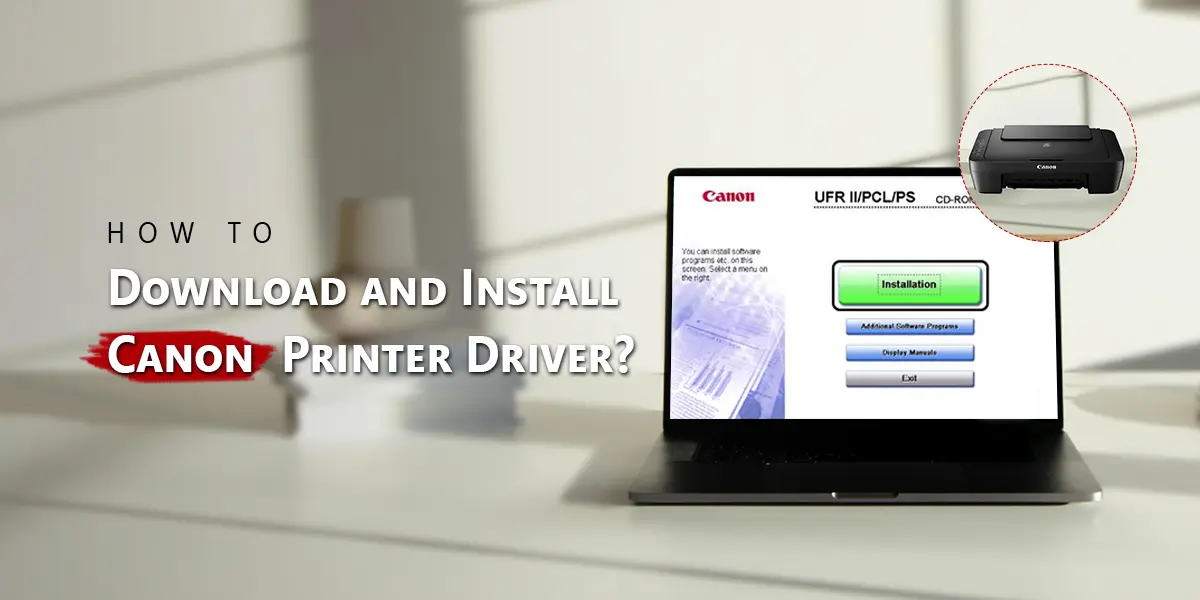
3.2 Method 1: Using the Setup CD/DVD
If your computer still has an optical drive, using the provided setup CD/DVD is often the most straightforward way to install your Canon printer.
- Insert the CD: Place the Canon setup CD into your computer’s CD/DVD drive.
- Run the Installer: The installer program should auto-run. If not, navigate to “This PC” or “My Computer,” open the CD drive, and double-click on the “Setup.exe” or similar installation file.
- Follow On-Screen Prompts: The setup wizard will guide you through the installation process. This typically involves:
- Selecting your region and language.
- Agreeing to the End-User License Agreement.
- Choosing your connection method (USB, Wi-Fi, Ethernet).
- Allowing the software to search for your printer.
- Installing the necessary drivers and utility software (e.g., Canon IJ Printer Assistant Tool, Quick Menu, My Image Garden).
- Updates: Even if using the CD, it’s a good idea to allow the installer to check for and download the latest drivers and software updates online.
3.3 Method 2: Downloading Drivers from Canon’s Official Website (Recommended)
For computers without an optical drive, or to ensure you always have the most up-to-date drivers, downloading directly from Canon’s official website is the recommended approach. This also mitigates potential security risks associated with outdated drivers.
- Visit Canon’s Support Website: Open your web browser and go to the official Canon support website for your region (e.g., usa.canon.com/support).
- Find Your Printer Model: Use the search bar or navigate through the “Printers” category to locate your specific Canon printer model. It’s crucial to enter the exact model number (e.g., “PIXMA TS9520,” “imageCLASS MF267dw”).
- Select Your Operating System: On your printer’s support page, locate the “Drivers & Downloads” section. Select your operating system (e.g., Windows 11, macOS Sonoma 14) from the dropdown menu. Ensure you choose the correct version (32-bit or 64-bit for Windows, though most modern systems are 64-bit).
- Download the Full Driver & Software Package: Canon usually provides a “Full Driver & Software Package” or a similar comprehensive installer. This is generally preferred as it includes all necessary drivers, utilities, and optional software for your printer. Download this file to your computer.
- Run the Installer: Once the download is complete, locate the downloaded file (it will typically be an .exe file for Windows or a .dmg file for macOS) and double-click to run it.
- Follow On-Screen Instructions: The installation wizard will guide you through the process, similar to using the setup CD. You’ll confirm the connection method, allow the installer to find your printer, and install the relevant software. Pay attention to any options to install “recommended” or “optional” software, as these often enhance your printer’s functionality.
Security Note: Always download drivers and software exclusively from the official Canon website to avoid malware or incompatible third-party drivers.
3.4 Method 3: Automatic Driver Installation (Windows/macOS Built-in)
Modern operating systems often have built-in driver libraries or can automatically search for drivers online. While convenient, this method might not always install the full suite of software and utilities that Canon provides.
- For Windows:
- Connect your printer via USB or ensure it’s on the same Wi-Fi/Ethernet network.
- Go to
Settings > Bluetooth & devices > Printers & scanners. - Click “Add device.” Windows will search for available printers.
- If your Canon printer appears, select it and follow the prompts. Windows Update may automatically download and install a basic driver.
- For macOS:
- Connect your printer via USB or ensure it’s on the same Wi-Fi/Ethernet network.
- Go to
System Settings > Printers & Scanners(orSystem Preferences > Printers & Scannerson older macOS versions). - Click the
+button to add a printer. - macOS will search for available printers. Select your Canon printer. It often has built-in drivers or will prompt you to download them from Apple.
While these built-in methods get you printing quickly, for the best experience and access to all features, a dedicated driver and software package from Canon’s website is usually superior.
4. Post-Installation Steps and Troubleshooting Tips: Maximizing Your Printer’s Value
Once the drivers and software are installed, you’re almost ready to enjoy your new Canon printer. However, a few final steps and awareness of common issues can ensure a truly seamless experience and prevent future headaches, safeguarding your investment and productivity.
4.1 Printing Your First Test Page
A test page is the ultimate confirmation of a successful installation. It verifies connectivity, driver functionality, ink/toner levels, and basic print quality.
- From the Driver Software: Open your printer’s properties or preferences through the Canon utilities (e.g., Canon IJ Printer Assistant Tool). Look for a “Print Test Page” button or an option under “Maintenance” or “Utilities.”
- From Operating System:
- Windows: Go to
Settings > Bluetooth & devices > Printers & scanners. Select your Canon printer, click “Printer properties,” then “Print Test Page” on the “General” tab. - macOS: Go to
System Settings > Printers & Scanners. Select your Canon printer, then click “Open Print Queue” and look for a “Print Test Page” option in the menu, or simply try printing a document from any application.
- Windows: Go to
If the test page prints correctly, congratulations! Your Canon printer is ready for action. If not, proceed to the troubleshooting section.
4.2 Exploring Advanced Features and Mobile Printing
Canon printers are designed with an array of features to enhance your printing experience beyond basic document output. Take time to explore these capabilities:
- Canon PRINT Inkjet/SELPHY App: Download this free app to your smartphone or tablet (iOS or Android). It allows you to print photos, documents, and web pages directly from your mobile device, as well as scan documents and check printer status.
- Cloud Printing Services: Many Canon printers support Apple AirPrint (for iOS/macOS devices), Mopria Print Service (for Android devices), and Google Cloud Print (though being phased out, check for alternatives like Google’s Native Print). These services enable effortless wireless printing without needing to install additional drivers on your mobile devices.
- Scanning Functionality: If you have a Canon multifunction printer (MFP), ensure the scanning software and drivers are also installed. This typically comes with the full software package from Canon. You can scan directly to your computer, cloud services, or even email.
- Duplex Printing: Many models offer automatic two-sided printing, saving paper and reducing costs. Configure this in your printer preferences when sending a print job.
Leveraging these advanced features can significantly boost your productivity and streamline your digital workflow, truly embodying the “Tech” and “Money” aspects by saving resources and time.
4.3 Common Installation Issues and Quick Fixes
Even with the best instructions, you might encounter minor hiccups. Here are some common problems and their solutions:
- “Printer Not Found” or “Offline” Errors:
- Check Physical Connections: Ensure all USB/Ethernet cables are firmly plugged in.
- Wi-Fi Connectivity: Verify the printer is connected to the correct Wi-Fi network and has a strong signal. Restart your router and printer.
- Power Cycle: Turn off both your printer and computer, wait 30 seconds, then power them back on.
- Firewall/Antivirus: Temporarily disable your computer’s firewall or antivirus software during installation, as they can sometimes block communication. Remember to re-enable them afterward.
- “Driver Not Installed” or “Incorrect Driver”:
- Re-download from Canon: Always download the latest full driver package from Canon’s official website, ensuring it matches your specific printer model and operating system version (e.g., Windows 11 64-bit).
- Uninstall Old Drivers: If you’re upgrading or troubleshooting, completely uninstall any existing printer drivers before installing new ones.
- Poor Print Quality (Streaks, Fading):
- Check Ink/Toner Levels: Ensure cartridges are not empty or low.
- Run Maintenance Utilities: Use Canon’s printer utility software to perform print head cleaning, print head alignment, or roller cleaning. These functions clear blockages and optimize output.
- Genuine Supplies: Always use genuine Canon ink or toner cartridges. Non-Canon supplies can lead to poor quality, damage the printer, and void warranties, potentially costing you more in the long run.
- Firmware Updates: Occasionally check Canon’s support website for firmware updates for your printer. Firmware updates can improve performance, add new features, and fix bugs, extending the life and efficiency of your device.
Conclusion: Empowering Your Canon Printing Experience
Installing your Canon printer might seem like a daunting task at first, but by systematically following these steps, you can ensure a smooth, successful setup. From the careful unboxing and strategic placement to selecting the right connection method and installing the essential drivers, each stage plays a vital role in unleashing your printer’s full capabilities.
A well-installed Canon printer isn’t just a piece of hardware; it’s a productivity enhancer, a creative tool, and a reliable asset that streamlines your daily tasks, whether in a bustling office or a cozy home study. By taking the time to set it up correctly and understanding its features, you’re not just installing a device – you’re investing in an efficient and hassle-free printing experience that contributes to your overall digital proficiency and potentially even your financial well-being by avoiding costly reprints or repairs.
Now that your Canon printer is ready, explore its functions, leverage its smart features, and enjoy the seamless blend of quality and convenience that Canon technology brings to your workflow. Happy printing!
aViewFromTheCave is a participant in the Amazon Services LLC Associates Program, an affiliate advertising program designed to provide a means for sites to earn advertising fees by advertising and linking to Amazon.com. Amazon, the Amazon logo, AmazonSupply, and the AmazonSupply logo are trademarks of Amazon.com, Inc. or its affiliates. As an Amazon Associate we earn affiliate commissions from qualifying purchases.