
In today’s increasingly connected world, Bluetooth technology has become an indispensable feature for seamless wireless communication between devices. Whether you’re looking to connect your wireless headphones for an immersive audio experience, pair your gaming controller for enhanced gameplay, or share files effortlessly with nearby devices, Bluetooth offers a convenient and versatile solution. However, for users who have recently upgraded to Windows 10 or are working with a desktop PC that might not have come with built-in Bluetooth, the absence of this feature can be a significant inconvenience. This guide will walk you through the entire process of installing and enabling Bluetooth on your Windows 10 system, ensuring you can unlock the full potential of wireless connectivity. We’ll cover everything from checking your current hardware to troubleshooting common issues, making this your one-stop resource for getting Bluetooth up and running.
Understanding Bluetooth and Its Importance
Before diving into the installation process, it’s beneficial to understand what Bluetooth is and why it’s so prevalent in modern technology. Bluetooth is a short-range wireless technology standard used for exchanging data between fixed and mobile devices over short distances using UHF radio waves. It’s named after Harald Bluetooth, a Viking king who united Denmark and Norway in the 10th century.
The primary advantage of Bluetooth is its ability to create personal area networks (PANs), allowing devices to connect and communicate wirelessly without the need for cables. This has revolutionized how we interact with our technology, enabling:
- Wireless Audio: Connecting speakers, headphones, and earbuds without tangled wires.
- Peripheral Connectivity: Pairing keyboards, mice, game controllers, and other input devices for a cleaner workspace.
- Device Synchronization: Effortlessly syncing data between smartphones, tablets, and computers.
- File Transfer: Sharing photos, documents, and other files between devices quickly and easily.
- Smart Home Integration: Controlling smart lights, thermostats, and other home devices.
For Windows 10 users, having Bluetooth functionality can significantly enhance productivity and entertainment. If your computer doesn’t come with it pre-installed, there are straightforward ways to add it.
Assessing Your Current Bluetooth Situation
The first and most crucial step is to determine if your Windows 10 computer already possesses Bluetooth capabilities. Many modern laptops and some desktop motherboards include Bluetooth as a standard feature. Ignoring this step could lead to unnecessary purchases or troubleshooting efforts.
Checking for an Existing Bluetooth Adapter
To check if your PC has Bluetooth, you’ll primarily use the Device Manager. This built-in Windows tool provides a comprehensive list of all hardware components connected to your computer.
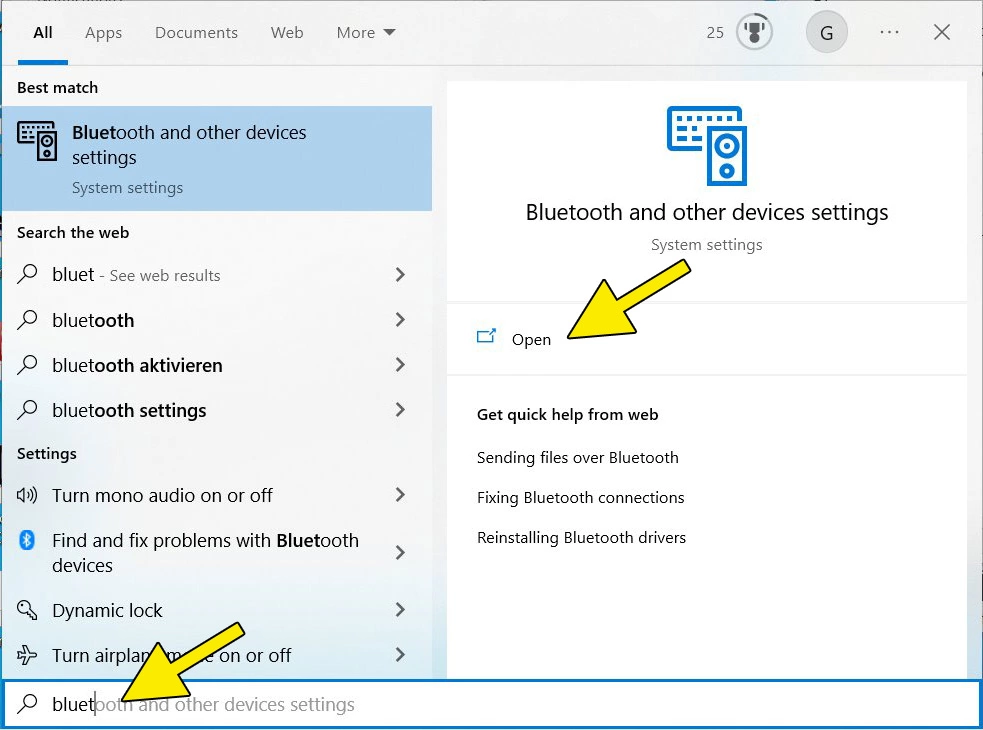
- Open Device Manager: The quickest way to access Device Manager is by right-clicking the Start button (the Windows logo in the bottom-left corner of your screen) and selecting “Device Manager” from the context menu. Alternatively, you can type “Device Manager” into the Windows search bar and select it from the results.
- Look for Bluetooth: Once Device Manager is open, carefully scan the list of hardware categories. You’re looking for a category explicitly named “Bluetooth.”
- If you see a “Bluetooth” category: This indicates that your computer has a Bluetooth adapter. You should then expand this category to see the specific Bluetooth adapter model listed. If it’s present and doesn’t show any error symbols (like a yellow exclamation mark), your Bluetooth should be functional.
- If you do NOT see a “Bluetooth” category: This means your computer does not have a built-in Bluetooth adapter. In this case, you’ll need to acquire an external Bluetooth adapter.
Understanding Bluetooth Icons in the Taskbar
Another quick visual check can be done through the taskbar.
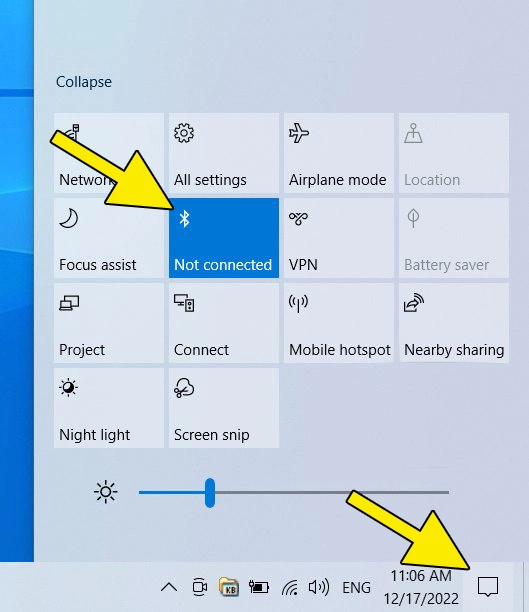
- Click the Action Center icon: This is usually found in the bottom-right corner of your screen, near the clock. It looks like a speech bubble.
- Look for the Bluetooth tile: In the Action Center, you’ll see a row of quick action buttons. If Bluetooth is available, you should see a tile for it. You can click this tile to toggle Bluetooth on or off.
- If the Bluetooth tile is present: Your system has Bluetooth.
- If the Bluetooth tile is absent: Your system likely does not have Bluetooth.
If you’ve confirmed that your system lacks Bluetooth, don’t worry. The next sections will guide you through the process of adding it.
Installing Bluetooth on Windows 10: External Adapters
For the vast majority of users whose Windows 10 PCs do not have built-in Bluetooth, the solution lies in using an external Bluetooth adapter. These are small, often USB-powered devices that effectively add Bluetooth functionality to your computer.
Types of Bluetooth Adapters
There are a few common types of external Bluetooth adapters:
- USB Bluetooth Dongles: These are the most popular and easiest to use. They plug directly into a USB port on your computer. They come in various Bluetooth versions (e.g., Bluetooth 4.0, 4.2, 5.0, 5.1, 5.2, 5.3), with newer versions offering improved speed, range, and power efficiency. For a modern experience, aim for Bluetooth 5.0 or higher.
- PCIe Bluetooth Cards (for Desktops): These are internal expansion cards that plug into a PCIe slot on your desktop computer’s motherboard. They often offer more robust connectivity and can sometimes include Wi-Fi as well. This option requires opening your computer case and is more suited for users comfortable with hardware installation.
For this guide, we’ll focus on the most common and accessible solution: the USB Bluetooth dongle.
Steps to Install a USB Bluetooth Dongle
- Purchase a USB Bluetooth Adapter: Visit an electronics retailer or an online store and select a USB Bluetooth adapter. Consider the Bluetooth version for optimal performance. Read reviews to ensure compatibility with Windows 10 and the specific features you need.
- Insert the Adapter: Once you have your adapter, plug it firmly into an available USB port on your Windows 10 computer. It’s generally recommended to use a USB port directly on the motherboard (usually at the back of a desktop PC) rather than a USB hub, especially for initial setup, to ensure sufficient power and direct communication.
- Windows Automatic Installation (Plug and Play): In most cases, Windows 10 will automatically detect the new hardware. You’ll likely see a notification in the bottom-right corner of your screen indicating that “Setting up a device” is in progress, followed by a confirmation that the device is ready to use.
- Driver Installation: Windows 10 has a vast database of drivers and will attempt to install the necessary ones automatically. This is often referred to as “Plug and Play.”
- Manual Driver Installation (If Necessary): If Windows does not automatically detect the adapter or fails to install the drivers, you’ll need to install them manually.
- Check the Adapter’s Packaging or Manufacturer’s Website: Your Bluetooth adapter should have come with a small CD containing drivers, or the manufacturer’s website will offer driver downloads.
- Locate the Driver File: If you have a CD, insert it into your computer’s optical drive and follow the on-screen prompts. If downloading from the website, ensure you download the correct drivers for your specific adapter model and for Windows 10 (32-bit or 64-bit). You’ll usually download a
.exefile. - Run the Installer: Double-click the downloaded driver file to start the installation process. Follow the instructions provided by the installer. You may need to restart your computer after the driver installation is complete.
- Verify Installation in Device Manager: After the drivers are installed (either automatically or manually), it’s good practice to re-check Device Manager.
- Open Device Manager again (as described in the previous section).
- Look for the “Bluetooth” category. It should now be present, and your Bluetooth adapter should be listed within it without any error symbols.
Once the adapter is recognized and drivers are installed, your Windows 10 system should now have Bluetooth functionality.
Enabling and Using Bluetooth on Windows 10
With the Bluetooth adapter installed and recognized, the next step is to enable it and begin pairing your devices.
Turning Bluetooth On and Off
There are a couple of straightforward ways to manage your Bluetooth settings:
Via the Settings App
- Open Settings: Click the Start button and select the gear icon (Settings). Alternatively, press
Windows key + I. - Navigate to Devices: In the Settings window, click on “Devices.”
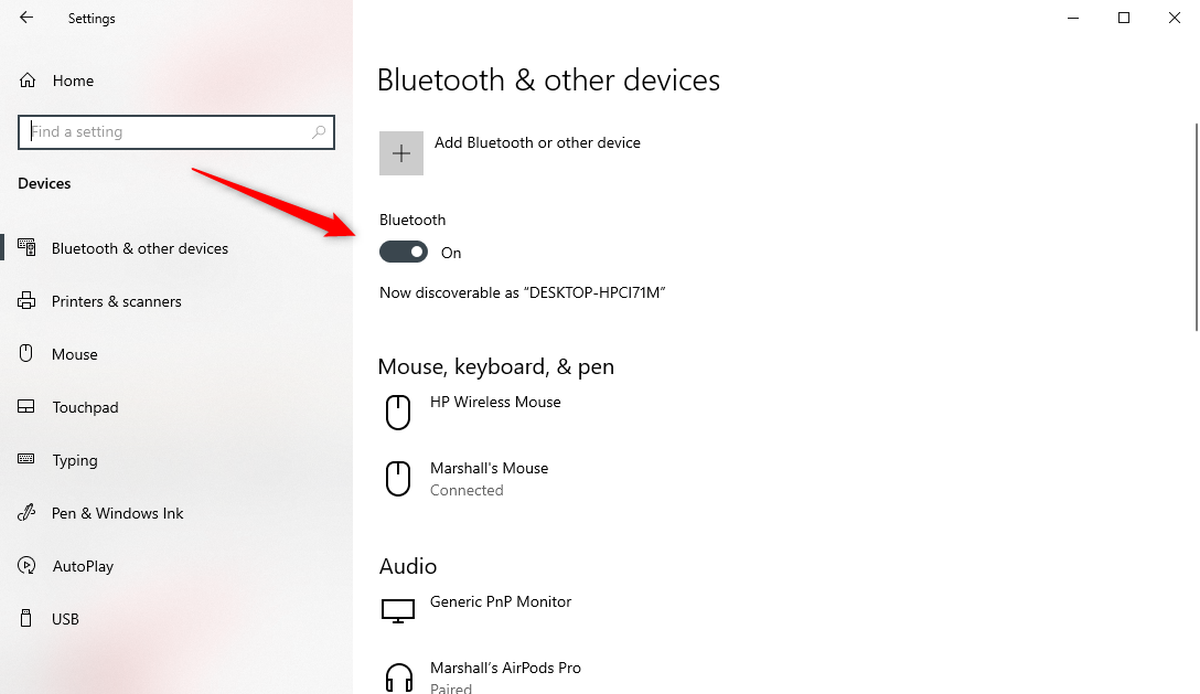
- Select Bluetooth & other devices: On the left-hand pane, click “Bluetooth & other devices.”
- Toggle Bluetooth: At the top of the “Bluetooth & other devices” screen, you’ll see a toggle switch for “Bluetooth.” Click this switch to turn Bluetooth “On” or “Off.”
Via the Action Center
- Open Action Center: Click the Action Center icon in the bottom-right corner of your taskbar.
- Click the Bluetooth Tile: If your Bluetooth adapter is installed and working, you’ll see a Bluetooth tile. Click this tile to quickly toggle Bluetooth on or off.
Pairing Bluetooth Devices
Once Bluetooth is enabled, you can start connecting your wireless peripherals.
- Put Your Bluetooth Device in Pairing Mode: This is a crucial step and varies depending on the device. Refer to your device’s manual for specific instructions. Generally, you’ll press and hold a specific button on the device until an LED light starts flashing (often blue), indicating it’s discoverable and ready to pair.
- Open Bluetooth Settings in Windows 10:
- Go to
Settings > Devices > Bluetooth & other devices.
- Go to
- Add a Device: Click the “+ Add Bluetooth or other device” button at the top of the window.
- Select Bluetooth: In the “Add a device” window, click “Bluetooth.”
- Windows Scans for Devices: Your computer will begin scanning for nearby Bluetooth devices that are in pairing mode.
- Select Your Device: Once your device appears in the list, click on its name.
- Complete the Pairing Process:
- PIN Confirmation: Some devices might display a PIN on your computer screen that you need to confirm matches the one on the device, or you may be prompted to enter a PIN (often 0000 or 1234, check your device’s manual).
- Connection Complete: Once the pairing is successful, you’ll see a confirmation message. Your device will now be listed under “Other devices” or “Audio” in the “Bluetooth & other devices” settings, and it should be ready to use.
You can now connect and disconnect your paired devices from the “Bluetooth & other devices” screen at any time.
Troubleshooting Common Bluetooth Issues
Even with a successful installation, you might encounter occasional hiccups with Bluetooth connectivity. Here are some common problems and their solutions.
Bluetooth Not Showing Up in Device Manager
If you’ve installed a USB adapter and it’s not appearing in Device Manager:
- Try a Different USB Port: Some ports might have issues or not provide enough power. Try a different port, preferably a USB 2.0 or 3.0 port directly on the motherboard.
- Restart Your Computer: A simple restart can often resolve temporary glitches.
- Reinstall Drivers: Uninstall the Bluetooth drivers from Device Manager (if they are present but have errors) and then reinstall them, either by letting Windows try again or by manually installing them from the manufacturer’s website.
- Check Manufacturer’s Support: Visit the website of your Bluetooth adapter’s manufacturer for specific troubleshooting steps or driver updates.
Bluetooth is On, But Devices Won’t Connect
If Bluetooth is enabled but you’re having trouble pairing or connecting devices:
- Ensure Device is in Pairing Mode: Double-check that your Bluetooth device is actively in pairing mode. This is the most common reason for connection failures.
- Check Device Compatibility: Ensure your Bluetooth device is compatible with the Bluetooth version of your adapter and Windows 10.
- Remove and Re-pair the Device: In
Settings > Devices > Bluetooth & other devices, find the problematic device, click on it, and select “Remove device.” Then, try pairing it again from scratch. - Restart Bluetooth Services:
- Press
Windows key + R, typeservices.msc, and press Enter. - Scroll down and find “Bluetooth Support Service.”
- Right-click on it and select “Restart.” If it’s not running, select “Start.”
- Do the same for any other related Bluetooth services you find.
- Press
- Update Bluetooth Drivers: Even if they were installed automatically, sometimes an update can fix issues. Go to Device Manager, find your Bluetooth adapter, right-click it, and select “Update driver.” Choose “Search automatically for drivers.”
Bluetooth Performance Issues (Lagging, Disconnections)
If your Bluetooth devices are slow, laggy, or frequently disconnect:
- Check Bluetooth Version: Older Bluetooth versions (like 2.0 or 3.0) might struggle with modern, high-bandwidth devices. An adapter with Bluetooth 5.0 or higher is recommended.
- Reduce Interference: Bluetooth operates on the 2.4 GHz frequency, which is also used by Wi-Fi, microwaves, and other wireless devices. Try to move your computer and Bluetooth devices away from potential sources of interference.
- Update Drivers: Ensure you have the latest drivers for your Bluetooth adapter.
- Limit the Number of Connected Devices: While modern Bluetooth supports multiple connections, performance can degrade if too many devices are actively streaming data simultaneously.
- Check Device Battery: Low battery on your Bluetooth device can lead to unstable connections.
By following these steps, you should be able to successfully install Bluetooth on your Windows 10 computer and enjoy the convenience of wireless connectivity. Whether you’re enhancing your entertainment setup, streamlining your workspace, or exploring new ways to interact with your technology, Bluetooth is a powerful tool that’s well worth the effort to implement.
aViewFromTheCave is a participant in the Amazon Services LLC Associates Program, an affiliate advertising program designed to provide a means for sites to earn advertising fees by advertising and linking to Amazon.com. Amazon, the Amazon logo, AmazonSupply, and the AmazonSupply logo are trademarks of Amazon.com, Inc. or its affiliates. As an Amazon Associate we earn affiliate commissions from qualifying purchases.