
In today’s increasingly wireless world, Bluetooth has become an indispensable technology, seamlessly connecting a myriad of devices to our computers. From wireless headphones and keyboards to smart home gadgets and file transfer capabilities, Bluetooth enhances productivity, streamlines workflows, and offers unparalleled convenience. For many, integrating Bluetooth into their system is a straightforward process, but for others, it can present a few hurdles. This comprehensive guide aims to demystify the process, walking you through every step of installing, configuring, and troubleshooting Bluetooth on your computer, ensuring you can unlock the full potential of wireless freedom.

Whether you’re looking to cut the cords on your peripherals, sync data effortlessly, or connect to the ever-expanding ecosystem of Bluetooth-enabled devices, understanding how to properly install and manage this technology is a fundamental skill in the modern digital landscape. We’ll cover everything from identifying your current Bluetooth status to installing external adapters, updating drivers, and tackling common issues, all while keeping digital security and optimal performance in mind.
Understanding Bluetooth Essentials
Before diving into the installation process, it’s crucial to grasp the fundamental concepts behind Bluetooth technology. This understanding will not only aid in a smoother setup but also empower you to troubleshoot effectively and make informed decisions about your wireless connectivity needs.
What is Bluetooth and Why Do You Need It?
At its core, Bluetooth is a short-range wireless technology standard used for exchanging data between fixed and mobile devices over short distances and building personal area networks (PANs). It operates on radio frequencies in the 2.4 GHz ISM band, making it ubiquitous for device-to-device communication without the need for cables. Invented in 1994 by Ericsson, its primary goal was to replace RS-232 data cables with a short-range wireless alternative. Since then, it has evolved through several versions (e.g., Bluetooth 4.0, 5.0, 5.2, 5.3), each bringing improvements in speed, range, power efficiency (Bluetooth Low Energy – LE), and connectivity capabilities.
The reasons for needing Bluetooth on your computer are vast and varied, touching upon aspects of productivity, entertainment, and digital security:
- Wireless Peripherals: Connect headphones, speakers, mice, keyboards, game controllers, and drawing tablets without cluttering your desk with wires. This significantly enhances ergonomic comfort and workspace aesthetics.
- File Transfer: Easily transfer photos, documents, and other files between your computer and other Bluetooth-enabled devices like smartphones or tablets, albeit typically over shorter distances than Wi-Fi.
- Smart Home Integration: Control smart lights, thermostats, locks, and other IoT devices directly from your computer, integrating your digital life with your physical environment.
- Tethering and Networking: Use your smartphone’s internet connection on your computer via Bluetooth tethering when Wi-Fi isn’t available. Some specialized applications also leverage Bluetooth for small, ad-hoc networks.
- Accessibility Features: Many accessibility devices, such as braille displays or specialized input devices, rely on Bluetooth for connectivity, making computing more accessible for individuals with disabilities.
In essence, Bluetooth offers unparalleled flexibility and convenience, transforming how we interact with our digital tools and the world around us.
Types of Bluetooth Connectivity: Built-in vs. External Adapters
When it comes to equipping your computer with Bluetooth, you’ll generally encounter two main scenarios:
- Built-in Bluetooth: Many modern laptops, all-in-one PCs, and some desktop motherboards come with Bluetooth functionality integrated directly into their hardware. This is often part of a combined Wi-Fi/Bluetooth module (e.g., an Intel AX200 chip) and requires no additional physical installation. If your computer is relatively new (last 5-7 years), there’s a good chance it already has built-in Bluetooth.
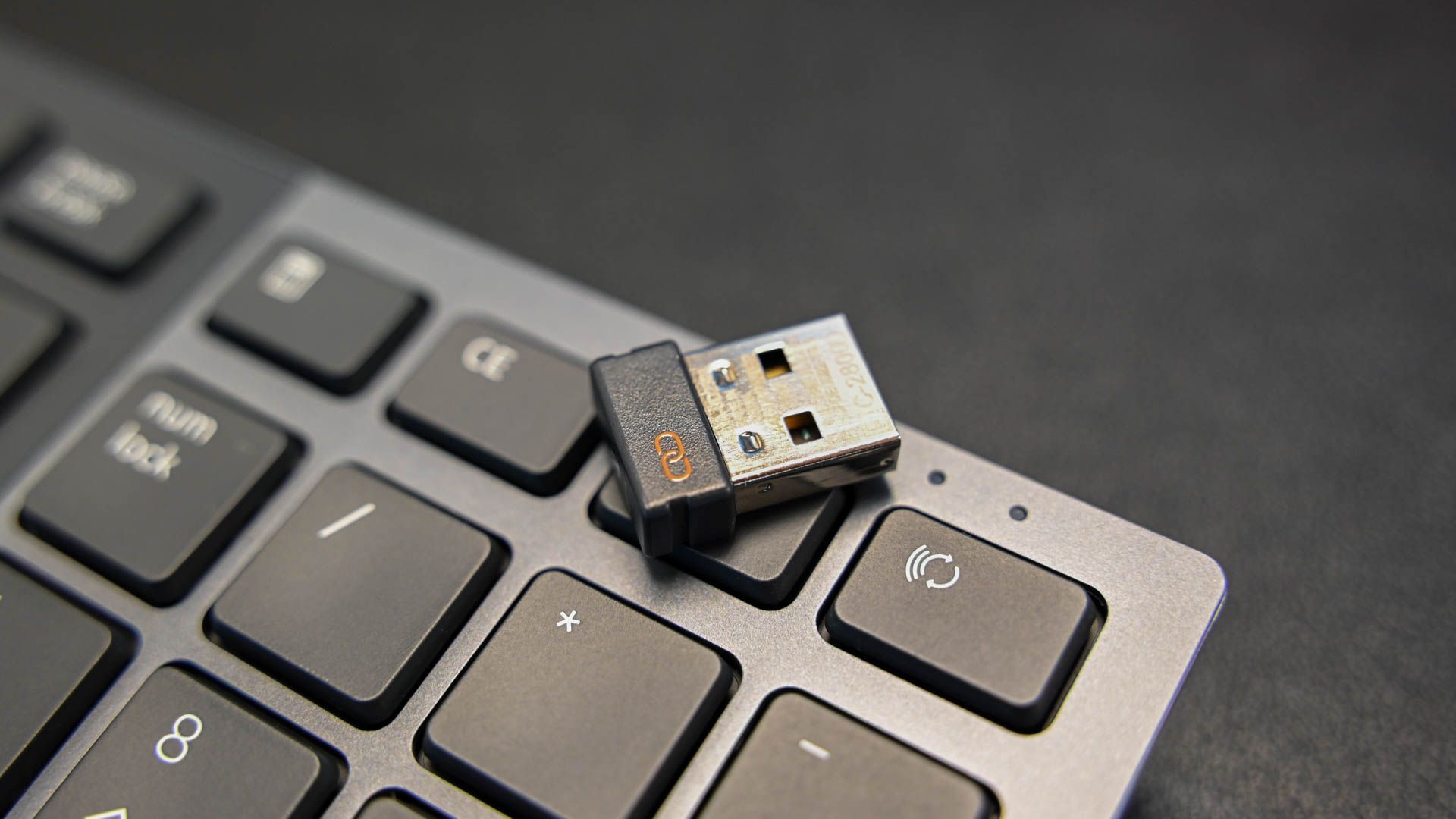
- External Bluetooth Adapters (Dongles): For older computers, custom-built desktops, or systems where the built-in Bluetooth has failed or is an outdated version, an external Bluetooth adapter is the solution. These are small USB devices that plug into an available USB port, instantly adding Bluetooth capabilities to your system. They are widely available, relatively inexpensive, and come in various versions (e.g., Bluetooth 4.0, 5.0) to suit different needs.
Understanding which type of connectivity your computer has (or needs) is the first critical step in ensuring a smooth installation process. While built-in Bluetooth often works out-of-the-box, external adapters may require a simple driver installation, which we’ll cover in the following sections.
Step-by-Step Guide: Installing Bluetooth on Your System
This section will guide you through the practical steps of getting Bluetooth up and running on your computer, whether it involves activating existing hardware or installing a new adapter.
Checking for Existing Bluetooth Functionality
Before you consider purchasing an external adapter, it’s wise to confirm whether your computer already has Bluetooth capability. This check varies slightly depending on your operating system.
For Windows Users:
- Check in Settings:
- Click the Start button, then select Settings (the gear icon).
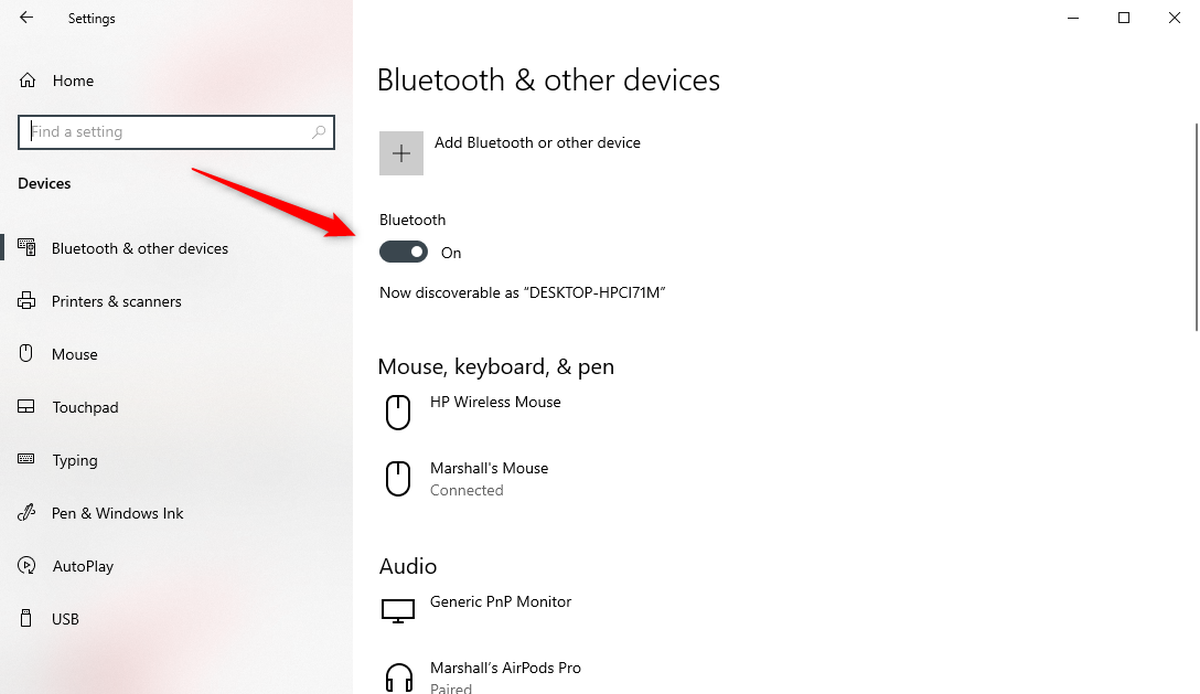
- Navigate to Devices > Bluetooth & other devices.
- If you see a toggle switch for “Bluetooth” at the top of the window, your computer has built-in Bluetooth. Ensure it’s switched On.
- Check in Device Manager:
- Right-click the Start button and select Device Manager.
- Look for a category named “Bluetooth.” Expand it to see your Bluetooth radio device (e.g., “Intel Wireless Bluetooth,” “Generic Bluetooth Adapter”).
- If you don’t see a “Bluetooth” category, it might be listed under “Network adapters” or “Other devices” (though less common for a functional built-in adapter). If no Bluetooth entry exists, your system likely lacks built-in Bluetooth.
- Action Center: Check the Action Center (bottom-right corner of the taskbar). If you see a “Bluetooth” quick action tile, it indicates functionality.
For macOS Users:
- Check in System Settings/Preferences:
- Click the Apple menu in the top-left corner, then select System Settings (or System Preferences on older macOS versions).
- Click on Bluetooth in the sidebar.
- If you see a “Bluetooth” section with a toggle to turn it “On” or “Off,” your Mac has built-in Bluetooth.
- Check in System Information:
- Hold down the Option key and click the Apple menu.
- Select System Information.
- In the sidebar under “Hardware,” click on Bluetooth.
- If your Mac has Bluetooth, you’ll see detailed information about its hardware and status. If it says “No information found,” it might lack built-in Bluetooth or have a hardware issue.
For Linux Users (Briefly):
- System Settings: Most modern Linux distributions (Ubuntu, Fedora, Mint, etc.) have a “Bluetooth” section within their system settings or control panel, allowing you to check for and manage Bluetooth devices.
- Terminal Commands: Open a terminal and type
bluetoothctlto interact with the Bluetooth daemon. If it launches, Bluetooth is present. You can also uselsusbto see if a Bluetooth adapter is recognized as a USB device.
If, after these checks, you confirm your computer does not have Bluetooth, or its existing functionality is outdated or problematic, an external adapter is your next step.
Installing an External Bluetooth Adapter (Dongle)
For computers without built-in Bluetooth or those needing an upgrade, a USB Bluetooth dongle is the most common and convenient solution.
-
Purchasing Considerations:
- Bluetooth Version: Aim for Bluetooth 5.0 or newer for better range, speed, and power efficiency (especially with Bluetooth LE devices). While older versions like 4.0 or 4.2 still work, 5.0+ offers a noticeable performance upgrade and future-proofing.
- Operating System Compatibility: Ensure the dongle explicitly states compatibility with your operating system (Windows 10/11, macOS, specific Linux distributions).
- Brand Reputation: Stick with reputable brands to ensure quality and reliable driver support.
-
Physical Installation:
- Simply plug the Bluetooth dongle into an available USB port on your computer. It can be a USB 2.0, 3.0, or 3.1 port – Bluetooth doesn’t require high bandwidth, so any standard USB port will suffice. For desktops, using a rear USB port on the motherboard can sometimes offer better signal stability than front panel ports.
-
Driver Installation:
- Automatic Installation (Plug-and-Play): Most modern Bluetooth dongles, especially those compatible with Windows 10/11 or recent macOS versions, are plug-and-play. This means the operating system will automatically detect the device and install the necessary generic drivers. You might see a notification indicating “Device setup complete” or “Installing device driver software.”
- Manufacturer’s Drivers: If automatic installation doesn’t occur, or if you encounter issues, you may need to install drivers manually. The dongle usually comes with a mini-CD containing drivers, or more commonly, you can download the latest drivers from the manufacturer’s official website.
- Navigate to the manufacturer’s support or downloads section.
- Enter the model number of your dongle.
- Download the driver package for your specific operating system version (e.g., Windows 11 64-bit).
- Run the installer executable file and follow the on-screen prompts. You might need to restart your computer after installation.
- Windows Update: Sometimes, Windows Update can automatically find and install suitable drivers for your dongle. After plugging in the dongle, run a Windows Update check.
-
Verification:
- After installation (and potential reboot), re-check the Bluetooth & other devices settings in Windows or the Bluetooth pane in macOS System Settings. You should now see the Bluetooth toggle and options to add devices.
- In Device Manager (Windows), a “Bluetooth” category should appear, displaying your newly installed adapter.
Updating or Reinstalling Bluetooth Drivers
Even with existing or newly installed Bluetooth, driver issues can arise, leading to connectivity problems, poor performance, or complete functionality loss. Regularly updating your drivers, or reinstalling them when problems occur, is a crucial maintenance step.
-
Why Update Drivers?
- Performance Improvements: Newer drivers can optimize the Bluetooth radio’s performance, leading to faster data transfer, better range, and more stable connections.
- Bug Fixes: Drivers often contain fixes for bugs that cause dropped connections, pairing issues, or compatibility problems with specific devices.
- New Features/Standards: Updated drivers can enable support for newer Bluetooth profiles or standards (e.g., LE Audio support).
- Security Patches: Like any software, drivers can have vulnerabilities. Updates often include security patches to protect against potential exploits.
-
Methods for Updating/Reinstalling Drivers:
-
Via Device Manager (Windows):
- Right-click the Start button and select Device Manager.
- Expand the Bluetooth category.
- Right-click on your Bluetooth adapter (e.g., “Intel Wireless Bluetooth,” “Generic Bluetooth Adapter”).
- Select Update driver.
- Choose “Search automatically for updated driver software” first. Windows will attempt to find a newer driver online.
- If that doesn’t work, select “Browse my computer for driver software” and point it to a folder where you’ve downloaded drivers from the manufacturer’s website.
- To reinstall: Right-click the adapter, select Uninstall device. Check “Delete the driver software for this device” if available and you want a clean reinstall. Then, restart your computer. Windows will often reinstall a generic driver, or you can manually install the manufacturer’s driver.
-
From Manufacturer’s Website: This is often the most reliable method, especially for built-in modules or specific external adapters.
- Identify your exact Bluetooth adapter model (e.g., “Intel Wi-Fi 6 AX200” or the model of your USB dongle).
- Visit the support section of your computer manufacturer’s website (for built-in) or the dongle manufacturer’s website.
- Download the latest Bluetooth driver package compatible with your OS.
- Run the installer and follow the instructions. This method often ensures you get the most optimized and feature-rich driver.
-
* **Windows Update:** Ensure your Windows operating system is always up-to-date. Sometimes, critical driver updates are delivered through Windows Update.
Always restart your computer after installing or updating drivers to ensure the changes take effect correctly.
Configuring and Using Bluetooth Devices
Once Bluetooth is installed and enabled on your computer, the next step is to connect your devices. This process, known as pairing, establishes a secure, encrypted link between your computer and the Bluetooth accessory.
Pairing Bluetooth Devices (Windows, Mac, and Linux)
The general principle of pairing is consistent across operating systems, but the navigation to initiate the process differs slightly.
General Pairing Steps:
- Enable Bluetooth on Your Computer: Ensure the Bluetooth toggle is switched “On” in your computer’s settings.
- Put Your Bluetooth Device into Pairing Mode: This is crucial. Most Bluetooth devices have a dedicated button or a specific sequence (e.g., press and hold the power button for several seconds, or a small pairing button) that puts them into a discoverable mode. Look for a blinking LED indicator, which usually signifies pairing mode. Consult your device’s manual if you’re unsure.
- Search for Devices on Your Computer: Your computer will scan for nearby discoverable Bluetooth devices.
- Select and Connect: Once your device appears in the list, select it and initiate the connection.
- Confirm Pairing: Some devices might require you to confirm a PIN or a code on both the computer and the device to ensure a secure connection.
OS-Specific Pairing Navigation:
-
Windows 10/11:
- Go to Settings > Devices > Bluetooth & other devices.
- Ensure the Bluetooth toggle is On.
- Click “Add Bluetooth or other device”.
- Select “Bluetooth” from the options.
- Windows will start searching. Select your device from the list when it appears.
- Follow any on-screen prompts for PIN confirmation.
- Once connected, your device will appear under the “Audio,” “Input,” or “Other devices” sections.
-
macOS:
- Go to System Settings (or System Preferences) > Bluetooth.
- Ensure Bluetooth is On.
- Your Mac will automatically start searching for discoverable devices.
- When your device appears in the list, click “Connect” next to it.
- Follow any prompts for PIN confirmation.
- The device’s status will change to “Connected.”
-
Linux (GNOME Desktop Example):
- Open Settings (usually from the top-right menu or Applications launcher).
- Select Bluetooth from the sidebar.
- Ensure the Bluetooth toggle is On.
- Your computer will search for devices. Select your device from the list.
- Click “Pair” and confirm any PINs.
Managing Connected Devices and Settings
After pairing, you’ll want to manage your Bluetooth connections effectively.
- Disconnecting/Removing Devices:
- Windows: In Settings > Bluetooth & other devices, click on a connected device, then choose “Disconnect” or “Remove device.” Removing a device deletes its pairing information, requiring you to re-pair it in the future.
- macOS: In System Settings > Bluetooth, hover over a connected device, then click the “X” button to remove it, or right-click to choose “Disconnect.”
- Renaming Devices: While less common for the adapter itself, you might be able to rename some connected Bluetooth devices for easier identification in your system settings.
- Power Management: On some systems, especially laptops, Bluetooth adapters might have power-saving options. In Windows Device Manager, under your Bluetooth adapter’s properties, look for a “Power Management” tab. You might find an option to “Allow the computer to turn off this device to save power.” Unchecking this can sometimes resolve intermittent connection issues, though it might consume slightly more battery.
- Security Settings: While Bluetooth pairing itself is generally secure, managing what devices can connect and limiting discoverability when not actively pairing is a good practice. Most operating systems allow you to control Bluetooth visibility.
Common Bluetooth Issues and Troubleshooting
Even with careful installation, Bluetooth can sometimes be finicky. Understanding common problems and their solutions can save you significant frustration.
Device Not Found or Pairing Problems
- Device Not in Pairing Mode: This is the most common culprit. Double-check your accessory’s manual to ensure it’s actively in discoverable pairing mode (often indicated by a rapidly blinking LED).
- Range Issues: Bluetooth has a limited range (typically up to 10 meters/30 feet, though modern versions can extend this). Ensure your device is close to your computer.
- Battery Life: Make sure your Bluetooth accessory has sufficient battery charge. Low battery can prevent it from entering pairing mode or maintaining a stable connection.
- Interference: Other 2.4 GHz devices (Wi-Fi routers, microwaves, cordless phones) can interfere with Bluetooth signals. Try moving closer to your computer or away from potential sources of interference.
- Already Paired: If the device was previously paired with another computer or phone, it might try to connect to that device first. Turn off Bluetooth on other nearby devices or “forget” the device on its previous host.
- Bluetooth Driver Issues: Corrupt or outdated drivers can prevent the adapter from functioning correctly. See the “Updating or Reinstalling Bluetooth Drivers” section.
- Restart Bluetooth Service/Adapter: Try turning Bluetooth off and then on again on your computer. For Windows, you can also restart the “Bluetooth Support Service” in the Services snap-in (type
services.mscin Run dialog).
Connection Drops or Poor Audio Quality
- Interference: Again, environmental interference is a major factor.
- Distance and Obstructions: Walls, large metal objects, or even your own body can degrade the signal.
- Driver Problems: Ensure your Bluetooth drivers are up-to-date.
- Bluetooth Version Mismatch: While generally backward compatible, using an older Bluetooth version dongle with a newer accessory (or vice-versa) can sometimes lead to suboptimal performance.
- Device Conflicts: If you have many Bluetooth devices connected simultaneously, they might be competing for bandwidth. Try disconnecting other devices.
- Codec Issues (Audio): For audio, ensure your computer and headphones are using compatible and efficient audio codecs (e.g., aptX, LDAC for higher quality, SBC for basic). Sometimes simply disconnecting and reconnecting can help.
Driver-Related Problems
- Generic Driver vs. Manufacturer Driver: While generic drivers might get Bluetooth working, manufacturer-specific drivers often provide better performance, stability, and access to advanced features. Always prefer manufacturer drivers.
- Driver Conflicts: If you’ve installed multiple Bluetooth adapters or different driver versions, conflicts can arise. A clean uninstall and reinstall of the latest driver is often the best solution.
- Windows Update Overwrites: Occasionally, Windows Update might install an older or incompatible driver. If problems start after an update, try rolling back the driver in Device Manager or reinstalling the manufacturer’s driver.
Security Best Practices for Bluetooth
While convenient, Bluetooth also presents potential security vulnerabilities if not managed properly.
- Limit Discoverability: Only enable discoverable mode on your computer (and devices) when you are actively pairing a new device. Otherwise, keep it hidden to prevent unauthorized access attempts.
- Strong PINs/Passkeys: When prompted, use a strong, unique PIN during pairing if your device allows it, rather than default options like “0000” or “1234.”
- Keep Software Updated: Regularly update your operating system, Bluetooth drivers, and device firmware. These updates often include critical security patches.
- Be Aware of “Bluejacking” and “Bluesnarfing”: While less common with modern Bluetooth versions and operating systems, older vulnerabilities allowed attackers to send unsolicited messages (bluejacking) or steal data (bluesnarfing). Keeping devices updated mitigates these risks.
- Public Networks: Be cautious when using Bluetooth in crowded public spaces.
- Disconnect Unused Devices: Remove pairing information for devices you no longer use or own.
The Broader Impact of Bluetooth in the Modern Tech Ecosystem
Beyond simply connecting peripherals, Bluetooth’s continuous evolution plays a significant role in shaping current technology trends and enhancing our digital lives.
Enhancing Productivity and Convenience
Bluetooth is a cornerstone of the modern, minimalist workspace. The ability to connect wireless keyboards, mice, and headsets not only reduces cable clutter but also offers greater flexibility in how and where we work. Presenters can control slides from across a room, and remote workers can seamlessly switch between multiple devices. Furthermore, the integration with smart home devices, health trackers, and even smart clothing, expands the “computer” beyond a mere desktop or laptop, turning it into a central hub for managing an increasingly interconnected personal ecosystem. This seamless interoperability is a huge driver for personal productivity and overall convenience, allowing users to focus more on tasks and less on tangled wires or cumbersome connections.
Future Trends and Bluetooth’s Evolution
Bluetooth technology is far from static. Its evolution continues to push the boundaries of wireless communication, aligning with broader technology trends like IoT (Internet of Things) and AI integration.
- Bluetooth LE Audio: This new standard, part of Bluetooth 5.2 and newer, promises higher quality audio at lower power consumption, enabling smaller, longer-lasting devices. It also introduces features like Auracast™ broadcast audio, allowing an audio source to broadcast to an unlimited number of nearby receivers, revolutionizing public audio experiences and assistive listening.
- Bluetooth Mesh Networking: Bluetooth Mesh allows many-to-many device communication, creating large-scale device networks. This is particularly impactful for smart home automation, industrial IoT, and building management systems, where reliable communication between numerous devices is critical.
- Increased Range and Speed: Newer Bluetooth versions consistently improve range and data transfer speeds, making the technology suitable for more demanding applications.
- Contextual Awareness and Location Services: Bluetooth Beacons and other location-based services are becoming more sophisticated, enabling indoor navigation, asset tracking, and personalized experiences in retail and public spaces.
- Enhanced Security: With each iteration, Bluetooth introduces more robust security features, addressing vulnerabilities and ensuring more secure data transmission.
These advancements underscore Bluetooth’s vital role not just in connecting our immediate peripherals but in weaving together the fabric of our interconnected digital future, facilitating smarter environments and more intuitive human-computer interactions.
Conclusion
Installing Bluetooth on your computer, whether through activating existing hardware or integrating a new external adapter, is a straightforward process that unlocks a world of wireless convenience and enhanced productivity. By following the steps outlined in this guide – from checking for existing functionality and installing drivers to effectively pairing devices and troubleshooting common issues – you can ensure a smooth and secure transition to a cable-free computing experience.
As technology continues to evolve, Bluetooth remains at the forefront of short-range wireless communication, constantly innovating to meet the demands of an increasingly connected world. Embracing this technology empowers you to take full advantage of modern gadgets, streamline your digital life, and stay ahead in the ever-changing landscape of tech trends. Now, go forth and enjoy the unparalleled freedom that wireless connectivity brings to your computer!
aViewFromTheCave is a participant in the Amazon Services LLC Associates Program, an affiliate advertising program designed to provide a means for sites to earn advertising fees by advertising and linking to Amazon.com. Amazon, the Amazon logo, AmazonSupply, and the AmazonSupply logo are trademarks of Amazon.com, Inc. or its affiliates. As an Amazon Associate we earn affiliate commissions from qualifying purchases.