
In an increasingly wireless world, Bluetooth stands as a cornerstone of digital convenience, enabling effortless connections between our myriad devices—from keyboards and mice to headphones, smartphones, and even smart home gadgets. Yet, the magic behind these seamless connections isn’t just the physical hardware; it’s the humble Bluetooth driver. Often overlooked until something goes wrong, a properly installed and updated driver is the essential software component that allows your operating system to communicate effectively with your Bluetooth hardware. Without it, your computer might as well be living in the wired age.
For those navigating the vibrant landscape of modern tech, whether you’re a casual user, a burgeoning tech enthusiast, or a professional aiming for peak productivity, understanding how to manage your device drivers is a fundamental skill. This comprehensive guide, perfectly aligned with the ‘Tech’ focus of our website, will walk you through everything you need to know about installing Bluetooth drivers, ensuring your devices always stay connected. We’ll explore various methods, tackle common troubleshooting scenarios, and provide insights to keep your wireless ecosystem running smoothly. Say goodbye to frustrating disconnections and hello to unwavering digital freedom.
The Core of Wireless: Understanding and Preparing for Bluetooth Driver Installation
Before diving into the practical steps of driver installation, it’s crucial to grasp why these small software packages are so important and what considerations you should make before you even click a download button. This foundational understanding can save you a lot of time and potential headaches down the line.
Why Bluetooth Drivers Are Crucial for Connectivity
Think of a driver as an interpreter. Your operating system (like Windows, macOS, or Linux) speaks one language, and your Bluetooth hardware speaks another. The driver is the software that translates commands from the OS into instructions the hardware understands, and vice-versa. Without this translator, even if your computer has a physical Bluetooth adapter, it simply won’t know how to use it.
A correctly installed driver ensures:
- Full Functionality: Your Bluetooth device will operate as intended, accessing all its features.
- Stability: Connections will be reliable, minimizing drops or stuttering audio.
- Performance: Data transfer speeds and responsiveness will be optimal.
- Security: Up-to-date drivers often include patches for known vulnerabilities, a critical aspect of digital security in today’s interconnected world. Obsolete drivers can be entry points for malware, making driver management a subtle but important element of protecting your digital assets.
Conversely, an outdated, corrupted, or missing driver can lead to a host of problems: Bluetooth not appearing in settings, devices failing to pair, intermittent connections, or even system instability.
Common Scenarios for Driver Installation
You might find yourself needing to install or reinstall Bluetooth drivers in several common situations:
- New PC Build or Operating System Installation: After setting up a new computer or performing a fresh OS installation, many drivers, including Bluetooth, will need to be installed.
- Adding New Bluetooth Hardware: If you’ve just plugged in a new USB Bluetooth adapter, it will require its specific driver.
- Troubleshooting Connectivity Issues: When Bluetooth suddenly stops working or behaves erratically, a driver reinstallation or update is often the first and most effective fix.
- After a Major OS Update: Sometimes, significant operating system updates can interfere with existing drivers, necessitating a refresh.
- Performance Upgrades: Newer driver versions often come with performance enhancements, bug fixes, and support for newer Bluetooth standards (like Bluetooth 5.0, 5.2, etc.), which can significantly improve your wireless experience.
Pre-Installation Checklist: What You Need to Do First
Before you embark on the journey of driver installation, a few preparatory steps can make the process smoother and prevent potential complications.
Identify Your Hardware and Operating System (OS)
The first and most critical step is to know what hardware you have and what operating system you’re running.
- Bluetooth Adapter Model: Is it an integrated chip on your motherboard (e.g., Intel Wireless-AC 9560 with Bluetooth) or a separate USB dongle (e.g., TP-Link UB400)? Knowing the exact model helps you find the correct driver. You can usually find this information on your device’s packaging, user manual, or by checking Device Manager (right-click Start -> Device Manager -> Expand “Bluetooth” or “Other devices” if unknown).
- Operating System Version: Are you running Windows 10, Windows 11, or an older version? What is the specific build number (e.g., Windows 10, version 22H2)? Drivers are OS-specific, and installing a driver for the wrong OS version can cause conflicts. To check your OS: Press
Win + R, typewinver, and press Enter. - System Type: Is your OS 32-bit or 64-bit? Almost all modern systems are 64-bit, but it’s good to confirm. Go to
Settings > System > Aboutand look for “System type.”
Safety First: Consider a System Restore Point
Whenever you’re making significant changes to your system, such as installing or updating drivers, it’s wise to create a system restore point. This acts as a snapshot of your system’s working state, allowing you to easily revert if the new driver causes unforeseen issues.
- Search for “Create a restore point” in the Windows search bar.
- In the System Properties window, ensure System Protection is “On” for your main drive.
- Click “Create…”, give your restore point a descriptive name (e.g., “Before Bluetooth driver install”), and click “Create.”
This proactive step aligns with best practices for digital security and system maintenance, safeguarding your productivity by providing a quick recovery option.
Step-by-Step Methods for Installing Your Bluetooth Driver
With your preparations complete, you’re ready to explore the various avenues for installing your Bluetooth driver. We’ll cover automatic, manual, and manufacturer-specific approaches, each with its own advantages.
The Automatic Route: Windows Update and Optional Downloads
For most users, especially on Windows systems, the operating system is remarkably capable of handling driver installations automatically. This is often the easiest and recommended first step.
Leveraging Windows’ Built-in Capabilities
Windows Update isn’t just for OS patches; it’s a powerful tool for driver management. Many generic and even specific device drivers are pushed through this service.
-
Check for Updates:
- Go to
Settings > Update & Security > Windows Update(Windows 10) orSettings > Windows Update(Windows 11). - Click “Check for updates.”
- Allow Windows to download and install any available updates. This process often includes necessary drivers, which Windows identifies based on your hardware.
- Go to
-
Explore Optional Updates: Sometimes, specific drivers aren’t critical enough for automatic installation but are offered as “optional updates.”
- After checking for updates, look for a link that says “View optional updates” or “Advanced options” -> “Optional updates.”
- Expand “Driver updates” and see if there’s a Bluetooth-related driver listed. Select it and click “Download & install.”
Windows Update is generally safe and reliable, providing drivers that have been tested for compatibility. It’s a great example of how technology trends lean towards user-friendly automation.
Manual Precision: Updating Drivers via Device Manager
When Windows Update doesn’t yield results, or if you need more control, Device Manager is your go-to tool for managing individual hardware components and their drivers.
Navigating Device Manager
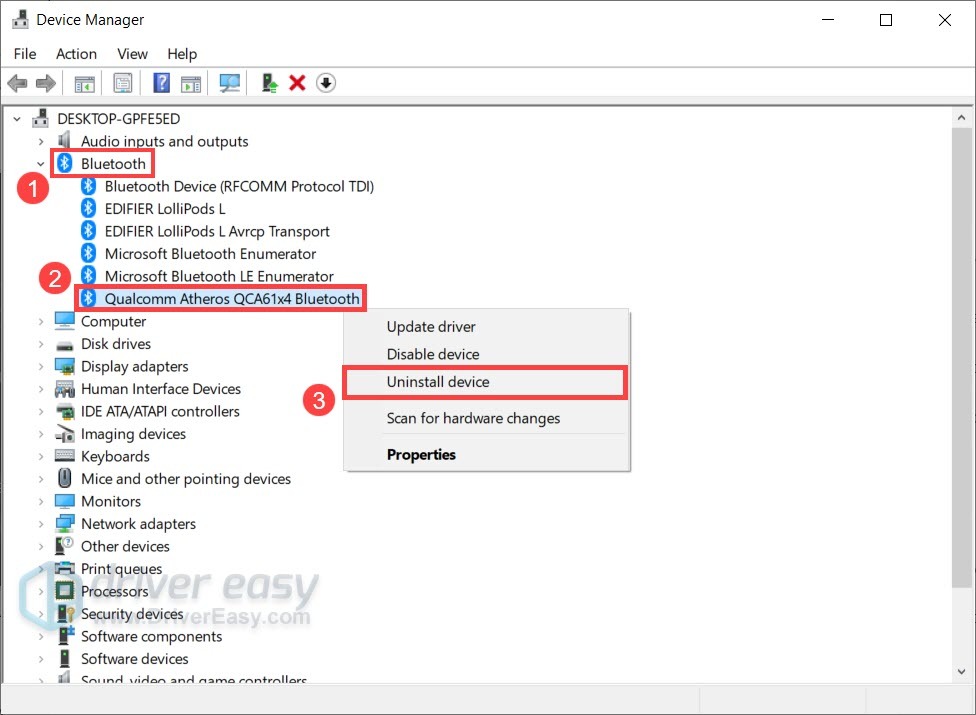
- Open Device Manager: Right-click the Start button and select “Device Manager.”
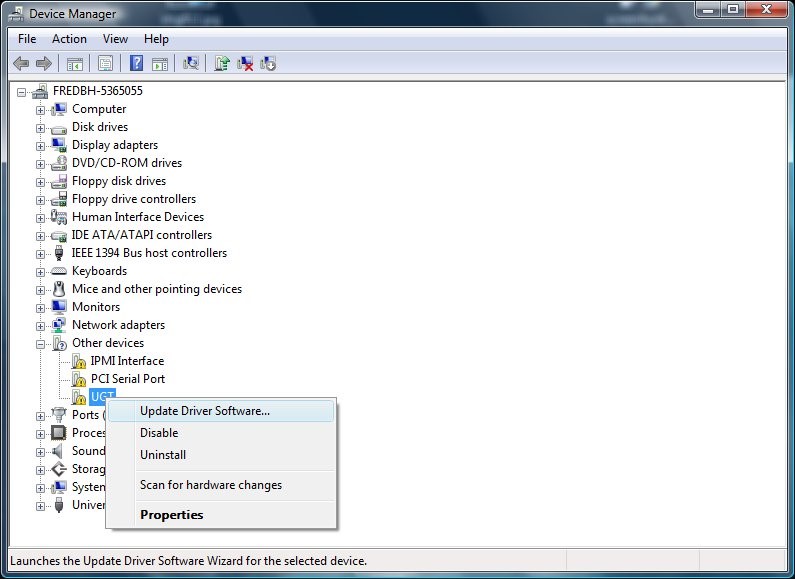
- Locate Bluetooth Device: In the Device Manager window, expand the “Bluetooth” category. You should see your Bluetooth adapter listed (e.g., “Intel(R) Wireless Bluetooth(R)”). If it’s not there, it might be under “Other devices” with a yellow exclamation mark, indicating a missing driver.
Updating and Scanning for Hardware
- Update Driver Software:
- Right-click on your Bluetooth adapter (or the unknown device).
- Select “Update driver.”
- “Search automatically for drivers”: This option will prompt Windows to search your computer and online for the latest driver. If Windows finds a newer or more suitable driver, it will install it.
- “Browse my computer for drivers”: Choose this if you’ve already downloaded a driver file (usually a
.inffile or a folder containing driver files) from a manufacturer’s website. Navigate to the folder where you saved the driver files.
- Uninstall and Reinstall (Troubleshooting): If your Bluetooth isn’t working, uninstalling the driver and letting Windows reinstall it can often resolve issues.
- Right-click your Bluetooth adapter.
- Select “Uninstall device.”
- IMPORTANT: If prompted, check the box “Delete the driver software for this device” ONLY if you intend to install a fresh driver from the manufacturer or suspect the current driver is corrupt. Otherwise, Windows might reinstall the same problematic driver.
- Restart your computer. Upon reboot, Windows will usually detect the hardware and attempt to install a generic or previously available driver.
- Scan for Hardware Changes: If Bluetooth is missing from Device Manager entirely, or if you’ve just connected a new adapter:
- Click “Action” in the Device Manager menu bar.
- Select “Scan for hardware changes.” This forces Windows to detect new hardware and attempt to install drivers.
Manufacturer’s Gold Standard: Official Driver Downloads
For the most up-to-date, stable, and feature-rich drivers, always turn to your hardware manufacturer’s official support website. This is particularly crucial for laptops and branded desktops, as they often use specialized components requiring custom drivers.
Locating the Right Driver on Support Sites
- Identify Manufacturer: Determine who made your Bluetooth adapter. For integrated adapters, this is often the PC manufacturer (Dell, HP, Lenovo, ASUS, Acer, Microsoft Surface) or the chip manufacturer (Intel, Realtek, Broadcom). For USB dongles, it’s the brand on the dongle itself (TP-Link, UGREEN, Zexmte).
- Visit Support Website: Go to the official website of the manufacturer (e.g.,
support.dell.com,support.hp.com,downloadcenter.intel.com). - Find Your Device:
- Use the search bar to enter your laptop model number (e.g., “Dell XPS 15 9500”) or the specific Bluetooth adapter model.
- Navigate to the “Support,” “Downloads,” or “Drivers” section.
- Select OS and Download:
- Crucially, select your exact operating system and its bit version (e.g., “Windows 11 64-bit”).
- Look for “Bluetooth Driver” or “Wireless Driver” (as Bluetooth is often bundled with Wi-Fi drivers).
- Download the latest available driver package. These are usually executable files (.exe) that run an installer, or zipped folders containing the driver files.
Installing the Downloaded Driver
- Run Installer: If you downloaded an
.exefile, simply double-click it and follow the on-screen instructions. The installer will typically guide you through the process. - Manual Installation (for zipped files): If you downloaded a zipped folder, extract its contents to a easily accessible location (e.g., your Downloads folder). Then, use the “Browse my computer for drivers” option in Device Manager (as described in Method 2) and point it to the extracted folder.
Relying on manufacturer drivers ensures optimal compatibility and leverages the vendor’s specific optimizations, often resulting in superior performance and fewer issues. This method is considered the “gold standard” for tech-savvy users.
Exploring Driver Utility Software (with Caution)
While Windows Update and manufacturer websites are the primary and most recommended sources, some users turn to third-party driver utility software. These tools promise to scan your system, identify outdated drivers, and automatically update them.
Benefits and Risks of Driver Updaters
- Pros: Can be convenient for identifying multiple outdated drivers across various components. Some reputable tools offer a user-friendly interface.
- Cons and Risks:
- Incorrect Drivers: Less reputable software might install generic or incorrect drivers, leading to system instability.
- Bloatware/Adware: Many free driver updaters bundle unwanted software.
- Security Concerns: Granting these tools deep system access can pose security risks if they are not from trusted sources. This touches upon digital security, a vital component of tech responsibility.
- Unnecessary Updates: Sometimes, “updating” a perfectly functional driver can introduce new bugs or compatibility issues.
Choosing Reputable Software
If you decide to use a driver utility, choose with extreme caution. Research the software thoroughly, read reviews, and stick to well-known names in the industry (e.g., IObit Driver Booster, Driver Easy, Snappy Driver Installer Origin). Always opt for paid versions from reputable companies if you can, as they are less likely to rely on bundling unwanted software. Even then, exercise critical judgment; manual driver management remains the safest and most reliable approach.
Troubleshooting, Verification, and Driver Maintenance
Even with the best installation practices, issues can arise. Knowing how to troubleshoot, verify your installation, and maintain your drivers is key to a consistent, high-performance wireless experience.
Resolving Common Bluetooth Driver Problems
Encountering a snag is common. Here are fixes for some frequent Bluetooth driver woes.
“Bluetooth Missing” and Other Errors
- Bluetooth Toggle Missing/Not Showing Up:
- Check Services: Press
Win + R, typeservices.msc, and press Enter. Find “Bluetooth Support Service.” Ensure its “Startup type” is “Automatic” and its “Status” is “Running.” If not, right-click, select “Properties,” change startup type, and then click “Start.” - Check BIOS/UEFI: On some older systems or custom builds, Bluetooth might be disabled in the motherboard’s BIOS/UEFI settings. Restart your PC and press the designated key (F2, Del, F10, F12 usually) to enter BIOS, then look for Bluetooth or Wireless settings.
- Power Management: In Device Manager, right-click your Bluetooth adapter, select “Properties,” go to the “Power Management” tab, and uncheck “Allow the computer to turn off this device to save power.”
- Check Services: Press
- “Driver Installation Failed” or Code Errors:
- Antivirus Interference: Temporarily disable your antivirus software and try the installation again. Remember to re-enable it afterward.
- Corrupt Download: Redownload the driver file, ensuring a stable internet connection.
- Incompatible Driver: Double-check that you downloaded the correct driver for your exact hardware model and OS version/architecture.
- Previous Driver Conflicts: If possible, fully uninstall any existing Bluetooth drivers (including “Delete the driver software” option in Device Manager) before attempting a fresh installation.
Reverting Drivers: Your Rollback Option
If a newly installed driver causes issues, Windows provides a “Roll Back Driver” feature, allowing you to revert to the previously installed version.
- Open Device Manager.
- Right-click your Bluetooth adapter and select “Properties.”
- Go to the “Driver” tab.
- If available, click “Roll Back Driver.” You’ll be asked to provide a reason.
This feature is a lifesaver for quickly undoing problematic updates and restoring stability, directly benefiting your productivity by minimizing downtime.
Confirming Successful Driver Installation
After going through the installation process, it’s essential to verify that everything is working as expected.
Checking Device Manager Status
- Open Device Manager.
- Expand the “Bluetooth” category.
- Look for your Bluetooth adapter. It should be listed without any yellow exclamation marks or red “X” symbols, indicating it’s functioning correctly.
- Right-click the adapter, select “Properties,” and check the “General” tab; it should state, “This device is working properly.” On the “Driver” tab, you can confirm the driver version and date.
Testing Connectivity
The ultimate test is practical application.
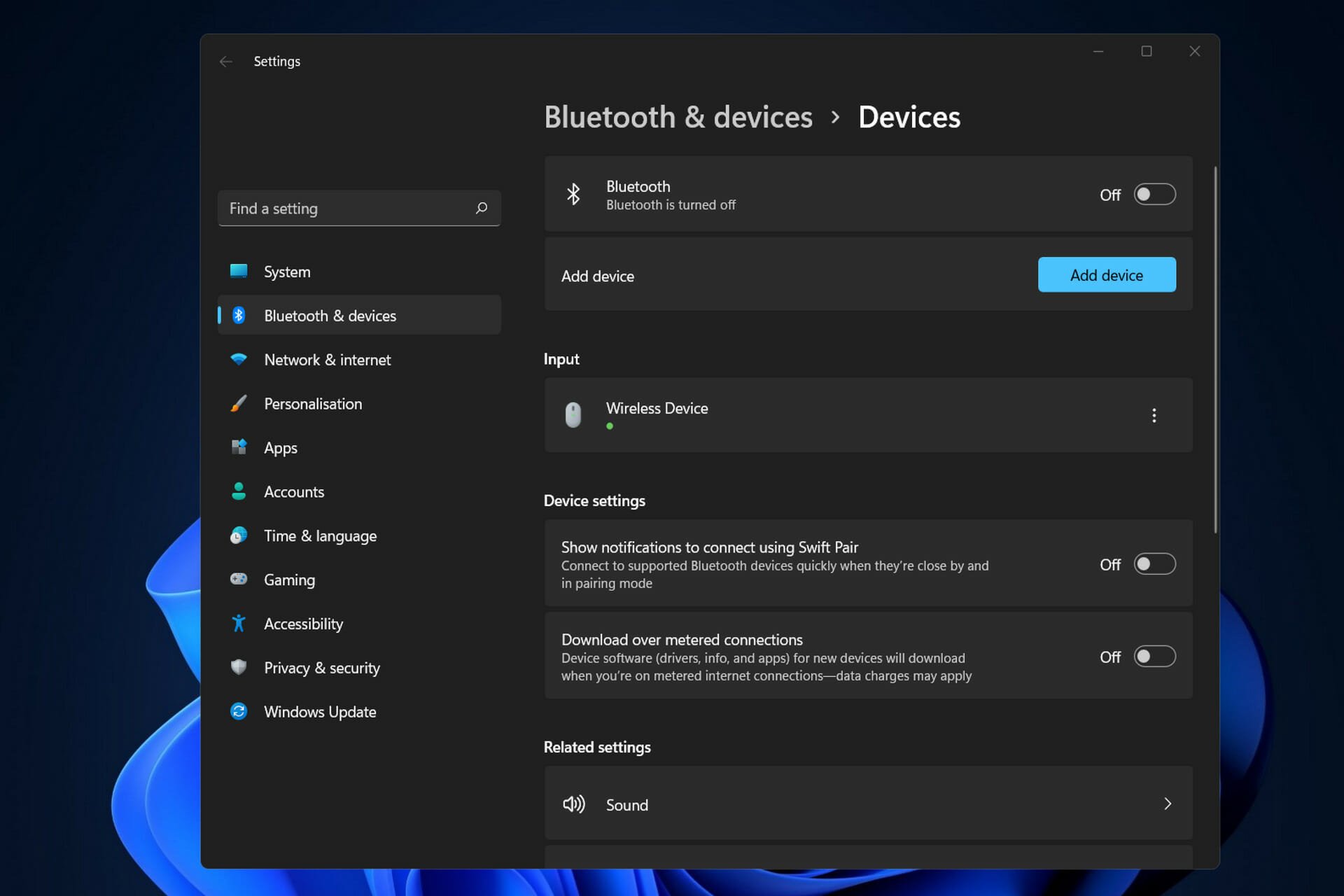
- Enable Bluetooth: Ensure Bluetooth is turned on in your Windows Settings (
Settings > Bluetooth & devices). - Pair a Device: Try pairing a known Bluetooth device, like headphones or a mouse. If it pairs successfully and functions normally, your driver installation was a success.
- Test Functionality: Stream audio, transfer a file, or use your Bluetooth peripheral to ensure full functionality.
Best Practices for Ongoing Driver Management
Installing the driver is just the first step. Proper maintenance ensures long-term reliability and performance.
- Regularly Check for Updates: Periodically check Windows Update and your manufacturer’s website for new Bluetooth driver versions. While not every update is critical, staying reasonably current can prevent future issues and improve compatibility with new devices.
- Download from Official Sources Only: Reiterate the importance of using official manufacturer websites or Windows Update. This minimizes security risks and ensures driver authenticity.
- Avoid Excessive Driver Updates: If your Bluetooth is working perfectly, you don’t necessarily need to update your driver with every new release unless there’s a specific bug fix or new feature you require. “If it ain’t broke, don’t fix it” often applies to drivers.
- Monitor System Performance: Pay attention to any unusual behavior after driver updates. If issues arise, immediately consider rolling back the driver.
These practices contribute not only to a smooth tech experience but also to overall digital security and productivity, minimizing interruptions to your workflow.
Conclusion: Empowering Your Digital Workflow with Stable Bluetooth
Mastering the installation and management of Bluetooth drivers is a fundamental skill in today’s tech-driven world. From ensuring your wireless headphones deliver crystal-clear audio during important calls to seamlessly connecting your ergonomic mouse for hours of productive work, reliable Bluetooth connectivity underpins much of our digital comfort and efficiency.
By following the methods outlined in this guide – whether it’s leveraging the automation of Windows Update, employing the precision of Device Manager, or securing the gold standard of manufacturer-specific downloads – you gain the power to troubleshoot, install, and maintain your Bluetooth hardware with confidence. Remember the importance of preparation, the value of official sources, and the necessity of ongoing driver maintenance to keep your wireless ecosystem robust and secure.
Embrace the freedom of wireless living. With a properly installed Bluetooth driver, your devices aren’t just connected; they’re intelligently integrated, empowering a more fluid, flexible, and productive digital experience.
aViewFromTheCave is a participant in the Amazon Services LLC Associates Program, an affiliate advertising program designed to provide a means for sites to earn advertising fees by advertising and linking to Amazon.com. Amazon, the Amazon logo, AmazonSupply, and the AmazonSupply logo are trademarks of Amazon.com, Inc. or its affiliates. As an Amazon Associate we earn affiliate commissions from qualifying purchases.