
Baldur’s Gate 3 (BG3) has captivated millions with its rich narrative, intricate character development, and boundless exploration of the Forgotten Realms. While Larian Studios crafted an already epic experience, the dedicated modding community has taken it to even greater heights. For many advanced modifications to function correctly, particularly those that introduce complex new systems, spells, or gameplay mechanics, a crucial tool is required: the Baldur’s Gate 3 Script Extender. This piece of software acts as a bridge, allowing mods to access deeper parts of the game’s code than the standard modding API permits, effectively “extending” the game’s script capabilities.
This comprehensive guide will walk you through everything you need to know about installing the BG3 Script Extender. Whether you’re a seasoned modder looking for a stable setup or a newcomer eager to dive into the world of enhanced BG3 gameplay, we’ll cover the prerequisites, step-by-step installation methods, verification processes, and troubleshooting tips. By the end of this article, you’ll be well-equipped to unlock a new realm of customization and elevate your Baldur’s Gate 3 adventure to unprecedented levels, harnessing the full power of community-created content that builds upon the game’s already stellar foundation.
Unleashing New Potentials in Baldur’s Gate 3: An Introduction to the Script Extender
Before we delve into the technicalities of installation, it’s essential to understand precisely what the BG3 Script Extender is and why it has become an indispensable tool for a significant portion of the modding community. Far from being just another mod, the Script Extender is a fundamental framework that underpins many of the most ambitious and transformative modifications available for Baldur’s Gate 3.
What is the BG3 Script Extender?
At its core, the Baldur’s Gate 3 Script Extender is a utility designed to inject new code and functions into the game’s runtime environment. Modern games often come with built-in modding capabilities or APIs (Application Programming Interfaces) that allow modders to alter certain aspects of the game. However, these APIs are usually limited to prevent instability or to control what can be changed. The Script Extender bypasses some of these limitations, providing mod creators with a much deeper level of access to the game’s internal systems. It essentially “extends” the scripting capabilities that Larian Studios originally provided, allowing for modifications that wouldn’t be possible otherwise. Think of it as an expansion pack for the game’s modding tools, opening up avenues for creativity that were previously inaccessible.
Why is it Essential for Modding?
The necessity of the Script Extender becomes apparent when considering the complexity of certain mods. Simple mods might involve texture changes, minor balance adjustments, or new items that fit within existing game structures. However, many of the most game-changing mods aim to introduce entirely new mechanics, override core game systems, or implement sophisticated scripts that react to player actions in novel ways. Examples include mods that:
- Alter combat mechanics fundamentally: Changing action economy, adding new spell slots, or modifying how abilities scale.
- Introduce new classes, subclasses, or races with unique abilities: These often require custom scripting to ensure their features integrate seamlessly with the game’s engine.
- Enhance UI/UX elements: Providing more detailed information, custom hotkeys, or advanced inventory management.
- Implement complex quality-of-life features: Such as advanced party management, improved companion AI, or expanded dialogue options that require deeper interaction with game logic.
Without the Script Extender, these types of modifications would either be impossible to create or would result in significant game instability. It provides the crucial hooks and entry points necessary for these elaborate scripts to execute without conflict, integrating them into the game as if they were part of the original code.
A Gateway to Advanced Customization
For players, the BG3 Script Extender is more than just a piece of software; it’s a gateway to a vastly expanded and personalized Baldur’s Gate 3 experience. By enabling a wider array of sophisticated mods, it empowers players to tailor the game precisely to their preferences. Want to make your rogue more versatile? Install a mod that adds new stealth mechanics. Dream of a specific magic user with unique spellcasting abilities? The Script Extender allows for mods that introduce them.
This tool transforms BG3 from a singular, albeit magnificent, gaming experience into a dynamic platform for endless adventures. It fosters a symbiotic relationship between players and mod developers, where the community continuously enriches the game, ensuring its longevity and replayability for years to come. Installing the Script Extender is the first step towards unlocking this boundless potential, moving beyond basic alterations to truly reshape your journey through Faerûn.
Preparing for Installation: Essential Prerequisites and Tools
Before embarking on the installation process for the BG3 Script Extender, a few preparatory steps are crucial. These ensure a smooth setup, minimize potential issues, and safeguard your game files. Neglecting these prerequisites can lead to frustration, game instability, or even corrupted saves. A little foresight here will save you a lot of headache later.
Ensuring Your Game is Ready: Latest Patches and Backups
The foundation of a successful modding endeavor lies in a properly updated and clean game installation.
- Latest Game Patch: Always ensure your Baldur’s Gate 3 installation is fully updated to the latest official patch. The Script Extender, like most mods, is developed for specific game versions. An outdated game can lead to incompatibility issues, crashes, or the Script Extender simply not working. Steam, GOG, and other platforms typically handle automatic updates, but it’s wise to double-check.
- Verify Game Files: After updating, consider verifying the integrity of your game files through your game launcher (e.g., Steam’s “Verify integrity of game files…” option). This ensures no core game files are corrupted or missing, which could interfere with the Script Extender’s operation.
- Clean Installation (Recommended for New Modders): If you’ve previously experimented with other mods or modding tools and encountered issues, a clean reinstallation of Baldur’s Gate 3 might be beneficial. Uninstall the game, manually delete any leftover files in its installation directory and user folders (like
Documents/Larian Studios/Baldur's Gate 3), then reinstall from scratch. This provides a pristine environment for your new mod setup. - Backup Your Saves and Profile: Modding, by nature, carries a slight risk of save game corruption or unexpected behavior. Before installing any mod, especially a fundamental tool like the Script Extender, always back up your existing save files and player profile.
- Navigate to:
C:Users[YourUsername]AppDataLocalLarian StudiosBaldur's Gate 3PlayerProfilesPublicSavegames - And:
C:Users[YourUsername]AppDataLocalLarian StudiosBaldur's Gate 3PlayerProfilesPublic(copy the entire ‘Public’ folder if you have custom profiles, or just the main ‘Public’ profile). - Copy these folders to a safe location on your hard drive. Should anything go wrong, you can restore your progress.
- Navigate to:
Choosing Your Modding Tool: Vortex vs. Manual Installation
For installing mods, including the Script Extender, you generally have two primary approaches: using a mod manager or performing a manual installation.
- Mod Manager (Recommended for Most Users): Mod managers like Vortex (from Nexus Mods) are highly recommended, especially for those new to modding or anyone managing a large number of mods. They automate many complex steps, handle file placement, resolve conflicts, and make it easy to enable/disable or uninstall mods. Vortex is widely supported by the BG3 modding community and integrates well with Nexus Mods, where the Script Extender is typically hosted. It streamlines the entire process, making it less prone to human error.
- Manual Installation (For Experienced Users): Manual installation involves directly copying and pasting files into your game directory. This method offers granular control and a deeper understanding of where files go, but it’s more labor-intensive, error-prone, and lacks automated conflict resolution. It’s generally preferred by experienced modders who understand game file structures and prefer not to rely on third-party tools. For the Script Extender, manual installation is often quite straightforward, but future mod management becomes more complex without a manager.
This guide will cover both methods, but if you’re unsure, start with Vortex.
Securing Your Download: Trusted Sources and Verifying Files
The internet is a vast place, and ensuring the safety of your downloads is paramount, especially when dealing with software that modifies game files.
- Trusted Sources: Always download the BG3 Script Extender from its official and widely recognized distribution channels. The primary source is usually the GitHub repository of the developer (Norbyte) or the dedicated page on Nexus Mods. These platforms are generally safe and provide the latest, verified versions. Avoid downloading from obscure forums or unknown websites, as these could potentially host outdated or malicious software.
- Verifying Files (Optional but Recommended): Some releases may include checksums (like SHA-256 hashes) to verify the integrity of the downloaded file. While not strictly necessary for most users if downloading from trusted sources, comparing the provided checksum with your downloaded file’s checksum (using a tool like 7-Zip or built-in OS commands) confirms that the file hasn’t been corrupted during download and is the exact version intended by the developer.
By meticulously following these preparatory steps, you establish a solid foundation for a successful and stable BG3 Script Extender installation, paving the way for a truly customized gaming experience.
Step-by-Step Installation Guide: From Download to Deployment
With your game prepared and an understanding of your preferred installation method, we can now proceed with the actual installation of the BG3 Script Extender. We’ll cover both the recommended method using a mod manager and the manual approach.
Method 1: Streamlined Installation with Vortex Mod Manager
Vortex is the go-to mod manager for many PC games, including Baldur’s Gate 3, largely due to its user-friendly interface and robust features. This method automates most of the heavy lifting.
Setting Up Vortex for Baldur’s Gate 3
If you haven’t already, download and install Vortex from Nexus Mods.
- Launch Vortex: Open Vortex. On the left pane, you’ll see a “Games” section.
- Detect Baldur’s Gate 3: Vortex usually auto-detects installed games. If BG3 isn’t listed under “Managed Games,” go to the “Games” tab, search for “Baldur’s Gate 3,” and click “Manage.” Vortex will then scan your system and link the game.
- Download Mods to Vortex: Ensure that “Deployment Method” in Vortex settings (Settings > Mods) is set to “Hardlink Deployment” or “Symlink Deployment” (Hardlink is often preferred for BG3 if your mod staging and game are on the same drive).
Downloading and Installing the Script Extender via Vortex
The BG3 Script Extender is typically found on Nexus Mods.
- Navigate to the Script Extender Page: Open your web browser and go to the official Baldur’s Gate 3 Script Extender page on Nexus Mods.
- Download with Mod Manager: On the Script Extender’s Nexus Mods page, locate the “Files” tab. Look for the main file and click the “Mod Manager Download” button. This will prompt Vortex to open and begin downloading the file.
- Install the Extender: Once downloaded, Vortex will list the Script Extender under the “Mods” tab. It will likely be in an “Uninstalled” state. Click “Install” on the Script Extender entry. Vortex will then process the file and integrate it into your BG3 mod setup.
- Enable the Mod: After installation, ensure the Script Extender is “Enabled” in your Vortex “Mods” tab. Vortex often does this automatically, but it’s good to verify. The status should show “Enabled” or “Deployed.”
- Deploy Mods: If prompted, or if your mods aren’t showing as deployed, click the “Deploy Mods” button (often a lightning bolt icon) at the top of Vortex. This action will apply all enabled mods, including the Script Extender, to your game directory.
Vortex is designed to place the Script Extender’s files (typically DWrite.dll) directly into the correct game directory (Steam/steamapps/common/Baldurs Gate 3/bin) without manual intervention, making it the simplest method for most users.
Method 2: The Precision of Manual Installation
For those who prefer direct control or encounter issues with mod managers, manual installation is a viable alternative. This requires careful attention to file paths.
Locating Your Baldur’s Gate 3 Installation Directory
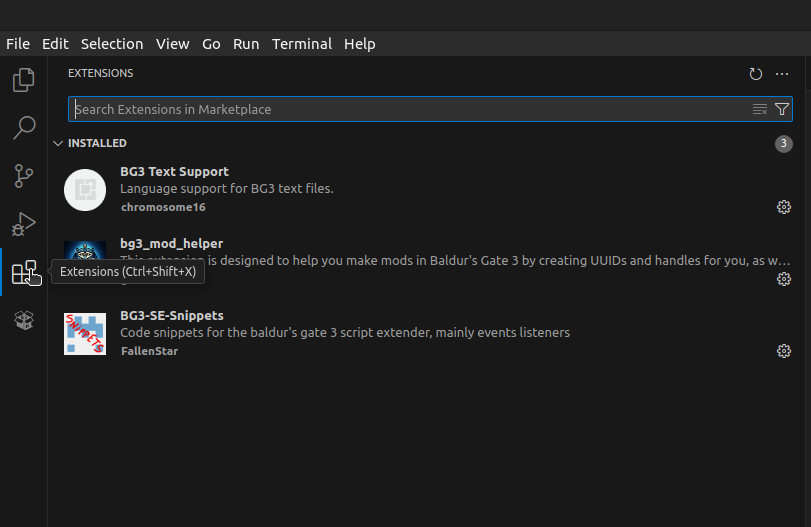
The first and most critical step is identifying where Baldur’s Gate 3 is installed on your system.
- Steam:
- Open Steam, go to your “Library.”
- Right-click on “Baldur’s Gate 3.”
- Select “Manage” > “Browse local files.”
- This will open the main
Baldurs Gate 3folder.
- GOG Galaxy:
- Open GOG Galaxy, go to “Owned Games.”
- Click on “Baldur’s Gate 3.”
- Click the “Customize” icon (next to Play) > “Manage installation” > “Show folders” > “Game.”
- This will open the main
Baldurs Gate 3folder.
Inside this main folder, you’ll find subfolders like bin, Data, etc. The Script Extender needs to go into a specific subfolder.
Extracting the Script Extender Files
- Download the Manual File: Go to the official Baldur’s Gate 3 Script Extender page on Nexus Mods (or the developer’s GitHub). Locate the “Files” tab and download the “Manual Download” option for the latest version. This will usually be a
.zipor.7zarchive. - Extract the Archive: Use a file archiver tool like 7-Zip or WinRAR to extract the contents of the downloaded archive. You should see a file named
DWrite.dlland possibly aScriptExtenderSettings.jsonfile, along with aScriptExtenderfolder containing logs and other data. - Identify the Target Directory: The
DWrite.dllfile (the core of the Script Extender) must be placed in the game’sbindirectory.- Navigate to your main Baldur’s Gate 3 installation folder (e.g.,
Steam/steamapps/common/Baldurs Gate 3). - Then, open the
binfolder. The full path should look something like:.../Baldurs Gate 3/bin/
- Navigate to your main Baldur’s Gate 3 installation folder (e.g.,
Verifying File Placement and Structure
- Copy
DWrite.dll: Copy theDWrite.dllfile that you extracted directly into thebinfolder of your Baldur’s Gate 3 installation. - Copy
ScriptExtenderFolder (Optional but Recommended): In some versions, the Script Extender download also includes aScriptExtenderfolder. This folder typically contains logging files, configuration files (likeScriptExtenderSettings.json), and other data crucial for advanced features or troubleshooting. Place this entireScriptExtenderfolder directly into the main Baldur’s Gate 3 installation directory (e.g.,Steam/steamapps/common/Baldurs Gate 3/, not in thebinfolder). If your download only containedDWrite.dll, then that’s all you need.- Final structure should look like:
.../Baldurs Gate 3/bin/DWrite.dll.../Baldurs Gate 3/ScriptExtender/(if present in the download)
- Final structure should look like:
Double-check these placements. Incorrect file placement is the most common reason for manual installation failures. Once these files are in place, the Script Extender should be ready to function.
Post-Installation: Verification, Troubleshooting, and Advanced Tips
Installing the BG3 Script Extender is only the first part of the journey. Ensuring it’s working correctly and knowing how to address potential issues are equally important for a stable modded experience.
Confirming Successful Installation: In-Game Checks and Logs
After installing the Script Extender, it’s crucial to verify that it’s active and recognized by the game.
- Launch Baldur’s Gate 3: Start the game as you normally would, either through your game launcher (Steam, GOG) or via Vortex.
- Check for Console Window (Manual Install): If you installed manually, you might briefly see a console window (a black command prompt window) appear and disappear quickly during game launch. This is often an indicator that the Script Extender is loading. For Vortex users, this window is usually suppressed.
- In-Game Confirmation:
- Many Script Extender-dependent mods will display a message in the game’s chat window (the bottom-left corner) upon loading into a save, confirming the Script Extender’s presence and version. Look for messages like “[Script Extender] vX.X.X loaded.”
- Alternatively, load a save game that uses a known Script Extender-dependent mod. If the mod’s features are working as expected, the Script Extender is likely active.
- Check Script Extender Logs: The most reliable way to confirm activation and diagnose issues is by checking the Script Extender’s log files.
- Navigate to:
C:Users[YourUsername]AppDataLocalLarian StudiosBaldur's Gate 3Script Extender(This folder is created by the extender itself, not necessarily part of the download). - Look for a log file (e.g.,
ScriptExtender.logor similar). Open it with a text editor (like Notepad++). You should see entries indicating that the extender initialized successfully, its version, and any mods it detected. Errors in this log will point to problems.
- Navigate to:
Common Issues and Their Solutions
Modding can be finicky. Here are some common problems you might encounter and how to troubleshoot them.
Game Crashes and Mod Conflicts
- Symptoms: Game crashes on startup, crashes when loading a save, or unexpected behavior.
- Causes:
- Incompatible Script Extender Version: The Script Extender is tied to specific game patches. If your game updates, the extender might need an update too.
- Mod Conflicts: Two or more mods trying to alter the same game aspect, or a mod requiring a different Script Extender version.
- Incorrect Load Order: Some mods need to load before others.
- Solutions:
- Update Script Extender: Always ensure your Script Extender is the latest version compatible with your game patch. Check the Nexus Mods page or GitHub for updates.
- Isolate Mods: Disable all other mods except for the Script Extender. If the game launches, re-enable mods one by one to identify the culprit.
- Check Mod Requirements: Ensure all your mods are compatible with each other and with the Script Extender. Read mod descriptions carefully.
- Consult Mod Manager: Vortex often has built-in conflict detection and resolution tools. Use them to manage load order and solve common conflicts.
Script Extender Not Being Detected
- Symptoms: Mods that require the Script Extender don’t work, or the in-game console message doesn’t appear.
- Causes:
- Incorrect File Placement:
DWrite.dllis not in thebinfolder. - Anti-virus Interference: Your anti-virus software might be quarantining or blocking
DWrite.dll, mistaking it for a threat. - Permissions Issues: The game or the Script Extender doesn’t have the necessary permissions to read/write files.
- Outdated/Corrupt Game Files: A fresh game install might be needed.
- Incorrect File Placement:
- Solutions:
- Re-check File Paths: Double-verify that
DWrite.dllis directly in...Baldurs Gate 3bin. - Exclusions for Anti-virus: Add your entire Baldur’s Gate 3 game directory and the
DWrite.dllfile to your anti-virus’s exclusion list. - Run as Administrator: Try launching Baldur’s Gate 3 or Vortex (if using) as an administrator.
- Re-download and Reinstall: Download a fresh copy of the Script Extender and try installing again. If using Vortex, reinstall it through the manager.
- Verify Game Files: As mentioned in the prerequisites, verify game file integrity through Steam/GOG.
- Re-check File Paths: Double-verify that
Performance Considerations
- Symptoms: Lower frame rates, stuttering, or increased loading times after installing the Script Extender and related mods.
- Causes: The Script Extender itself is very lightweight and has minimal performance impact. Performance issues usually stem from:
- Too Many Mods: Especially resource-intensive ones (high-res textures, complex scripts).
- Mod Inefficiencies: Poorly optimized mods can tax your system.
- Solutions:
- Review Your Mod List: Remove mods you don’t actively use or that are known to be performance hogs.
- Check Mod Descriptions: Mod authors often specify if their mod is performance-intensive.
- Hardware Upgrade: Sometimes, the only solution for a heavily modded game is better hardware.
Keeping Your Script Extender Updated
The Baldur’s Gate 3 Script Extender receives updates periodically, especially after major game patches from Larian Studios. It is crucial to keep your Script Extender updated to maintain compatibility and stability.
- Monitor Update Sources: Regularly check the Script Extender’s Nexus Mods page or GitHub repository for new versions. Mod authors will often announce when their mods require a new Script Extender version.
- Update Process:
- Vortex: If using Vortex, simply download the new version via the “Mod Manager Download” button, and Vortex will usually prompt you to replace the old version and redeploy.
- Manual: Download the new
DWrite.dlland replace the old one in your...Baldurs Gate 3binfolder. Also, replace theScriptExtenderfolder if a new one is provided.
Always back up your saves before updating any core modding component like the Script Extender, just in case an unforeseen issue arises.
The Broader Impact: Elevating Your BG3 Experience
The Baldur’s Gate 3 Script Extender isn’t just a technical utility; it’s a key that unlocks the full modding potential of an already fantastic game. Its existence facilitates a deeper, more personalized, and enduring relationship between players and the expansive world of Faerûn.
Beyond Basic Mods: What the Script Extender Enables
Without the Script Extender, modding for Baldur’s Gate 3 would largely be confined to simple aesthetic changes, minor data tweaks, or content additions that fit within the game’s existing framework. While valuable, this limitation would prevent the truly transformative mods that redefine gameplay, introduce complex systems, or add entirely new, dynamic content.
The Script Extender enables:
- Dynamic Class and Subclass Overhauls: Mods that rework existing classes or introduce entirely new ones, complete with unique abilities, spells, and progression paths, often rely on custom scripting to integrate seamlessly with the game’s engine.
- Advanced UI/UX Enhancements: Features like custom keybinds, more detailed item descriptions, extended inventory management systems, or even completely overhauled user interfaces often require direct manipulation of the game’s internal functions, which the Script Extender provides.
- New Gameplay Mechanics: Want a survival mode, a different combat system, or intricate crafting mechanics? These are the types of ambitious projects that flourish with the Script Extender, as they require deep interaction with core game loops and data.
- Expanded Narrative Possibilities: While less common for Script Extender-specific mods, the ability to add new dialogue conditions, alter character behaviors, or trigger complex event chains can indirectly benefit from the deeper scripting access, allowing story-driven mods to become more reactive and immersive.
In essence, the Script Extender shifts the paradigm from “modding the game” to “extending the game’s capabilities,” allowing mod developers to push the boundaries of what’s possible within Baldur’s Gate 3.
Community Creations and Future Possibilities
The BG3 Script Extender fosters a vibrant and innovative modding community. Developers are constantly experimenting with new ideas, and the extender provides them with the tools to bring those ideas to life. As new game patches are released, the Script Extender often updates in tandem, ensuring that the modding ecosystem remains alive and relevant.
This continuous development means that the future of modded Baldur’s Gate 3 is incredibly bright. Players can look forward to:
- More Sophisticated Companions and Dialogue: Mods that delve deeper into companion AI or expand dialogue trees, offering more nuanced interactions.
- Expanded Worlds and Quests: While large-scale map additions are difficult, new quest lines or mini-zones that leverage complex triggers become more feasible.
- Cross-Mod Compatibility: The Script Extender often aids in creating frameworks that allow multiple complex mods to coexist, reducing conflicts and enhancing stability.
The collective creativity of the modding community, empowered by tools like the Script Extender, ensures that Baldur’s Gate 3 will remain a fresh and engaging experience for many years, long after players have completed the vanilla campaign multiple times.

Responsible Modding: Best Practices for Stability and Enjoyment
While the Script Extender opens up a world of possibilities, responsible modding practices are key to enjoying a stable and crash-free experience:
- Read Mod Descriptions Carefully: Always check for compatibility notes, known issues, and specific installation instructions.
- Install Gradually: Don’t install dozens of mods at once. Add a few at a time, test them, and ensure everything is stable before adding more. This makes troubleshooting much easier.
- Keep Backups: Regularly back up your save games, especially before installing or updating major mods or the Script Extender itself.
- Stay Updated: Keep your game, Script Extender, and mod manager (if used) updated to their latest compatible versions.
- Engage with the Community: If you encounter issues, don’t hesitate to consult the mod’s comment section on Nexus Mods, the developer’s GitHub, or relevant modding forums. Chances are, someone else has faced a similar problem.
- Respect Mod Authors: Modding is a passion project for most creators. Show appreciation, provide constructive feedback, and always attribute their work.
By following this guide and adopting a mindful approach to modding, you’ll be able to harness the full power of the Baldur’s Gate 3 Script Extender, transforming your journey through Faerûn into an epic, personalized saga limited only by your imagination and the boundless creativity of the modding community. Dive in, experiment, and enjoy a Baldur’s Gate 3 experience that’s truly your own.
aViewFromTheCave is a participant in the Amazon Services LLC Associates Program, an affiliate advertising program designed to provide a means for sites to earn advertising fees by advertising and linking to Amazon.com. Amazon, the Amazon logo, AmazonSupply, and the AmazonSupply logo are trademarks of Amazon.com, Inc. or its affiliates. As an Amazon Associate we earn affiliate commissions from qualifying purchases.