
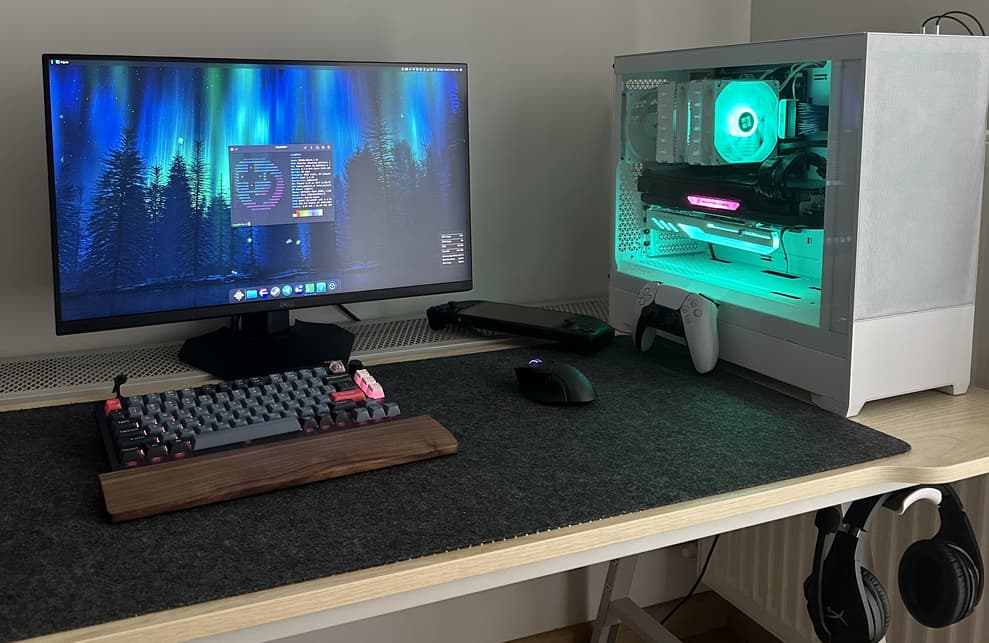
In the ever-evolving landscape of operating systems, Bazzite stands out as a compelling choice for users seeking a robust, gaming-centric, and highly stable Linux distribution. Built upon the immutable foundation of Fedora Atomic, Bazzite offers an optimized experience for a wide array of hardware, from powerful gaming PCs to portable handhelds like the Steam Deck and other devices. Its design philosophy emphasizes reliability, ease of maintenance, and out-of-the-box support for gaming, making it an attractive alternative for enthusiasts and casual users alike. This comprehensive guide will walk you through the entire process of installing Bazzite, ensuring a smooth transition to a truly modern Linux desktop and gaming platform.
Understanding Bazzite: A Modern Approach to Linux Computing
Bazzite is more than just another Linux distribution; it represents a significant leap in how operating systems can be managed and experienced. By leveraging an immutable base, it offers unparalleled system stability and transactional updates, fundamentally changing the traditional Linux paradigm.
The Philosophy Behind Bazzite: Immutability and Atomic Updates
At its core, Bazzite is built on Fedora Atomic Host technology, specifically rpm-ostree. This means the base operating system is read-only, making it incredibly resilient to corruption and ensuring that every update is transactional – either it fully succeeds, or it reverts to the previous working state. This architectural choice significantly reduces the chances of system breakage, a common concern with traditional mutable Linux distributions. Users can install additional software through Flatpak, Distrobox, or by layering packages with rpm-ostree, all while keeping the core system pristine. This separation of concerns creates a highly predictable and secure environment. For a gamer or power user, this means fewer headaches from failed updates and a consistently reliable system. The immutable nature also lends itself well to consistent behavior across different hardware, a boon for developers and testers.
Key Features and Benefits: Gaming, Multimedia, and Customization
Bazzite is engineered with a primary focus on gaming. It comes pre-configured with essential drivers, gaming launchers like Steam and Lutris, and optimizations for Proton and Wine. This means less time spent configuring and more time playing. Beyond gaming, Bazzite offers a rich multimedia experience with wide codec support and various desktop environments, including GNOME and KDE Plasma, allowing users to choose an interface that best suits their workflow. The integration of powerful tools like Distrobox provides a sandboxed environment to run applications from virtually any Linux distribution without polluting the base system, offering unmatched flexibility. Furthermore, its robust community support and active development ensure a continuous stream of improvements and timely updates, keeping your system at the cutting edge.
Target Audience: Who Benefits Most from Bazzite?
Bazzite primarily targets gamers who desire a stable, high-performance Linux gaming platform that works right out of the box. It’s particularly appealing to Steam Deck owners looking for a more versatile desktop experience while retaining gaming performance, as well as users of other gaming handhelds. Linux enthusiasts and developers will appreciate its innovative immutable design, atomic updates, and the power of Distrobox for managing development environments. Even general desktop users seeking a stable, low-maintenance, and feature-rich operating system will find Bazzite to be an excellent choice, thanks to its modern approach to software management and robust performance.
Preparing for Installation: Essential Pre-requisites
Before embarking on the Bazzite installation journey, careful preparation is crucial. Ensuring your system meets the requirements and that you have all the necessary tools will prevent potential roadblocks and ensure a smooth process.
System Requirements and Hardware Compatibility
Bazzite, being a modern Linux distribution, generally requires contemporary hardware. While specific minimums aren’t overly strict, a smooth experience benefits from:
-
CPU: A 64-bit multi-core processor (Intel or AMD).
-
RAM: At least 4GB, with 8GB or more recommended for gaming and demanding tasks.
-
Storage: A minimum of 20GB of free disk space, though 50GB or more is highly recommended for installing games and applications. An SSD is strongly advised for optimal performance.
-
Graphics: An integrated or dedicated GPU compatible with modern Linux drivers (NVIDIA, AMD, Intel). Bazzite includes up-to-date drivers, often providing an excellent experience out of the box.
-
Internet Connection: Required for downloading the ISO, updates, and additional software.
It’s always a good idea to check for specific hardware compatibility issues, especially with very new or very old components, though Bazzite generally has broad support.
Gathering Your Tools: USB Drive, Internet, and Backups
To install Bazzite, you will need a few essential items:
-
A USB Flash Drive (8GB or larger): This will be your installation media. Ensure it’s empty or contains data you don’t mind losing, as it will be completely overwritten.
-
A Reliable Internet Connection: Necessary to download the Bazzite ISO image and for the installation process to fetch any needed components or updates.
-
Backup Device: An external hard drive or cloud storage. This is arguably the most critical step. Before starting any OS installation, back up all important data from your target drive. This safeguards your files against accidental deletion or partitioning errors.
-
A Second Computer (Optional but Recommended): Useful for accessing this guide or troubleshooting if your primary machine encounters issues during installation.
Creating a Bootable Bazzite USB Drive
Once you have downloaded the Bazzite ISO image from its official source (ensure you select the correct variant for your desktop environment, e.g., GNOME or KDE, and architecture), you’ll need to write it to your USB drive to make it bootable.
-
On Windows: Tools like Rufus or Etcher (Balena Etcher) are excellent choices. Simply select your downloaded ISO, choose your USB drive, and start the process.
-
On macOS: Etcher is also highly recommended and straightforward to use.
-
On Linux: Etcher works well, or you can use the
ddcommand in the terminal for advanced users (e.g.,sudo dd if=/path/to/bazzite.iso of=/dev/sdX bs=4M status=progress, replacing/dev/sdXwith your USB drive identifier).
Verify the integrity of your downloaded ISO using its checksum before writing it to the USB drive to prevent issues during installation.
The Step-by-Step Bazzite Installation Process
With your bootable USB drive ready and data backed up, you’re prepared to begin the installation. This section will guide you through each step of the Bazzite installer.
Booting from the Installation Media
First, you need to configure your computer to boot from the USB drive.
-
Insert the USB drive: Plug your bootable Bazzite USB drive into an available USB port.
-
Access BIOS/UEFI settings or Boot Menu: Restart your computer. As it powers on, repeatedly press the key to enter your BIOS/UEFI settings (commonly F2, F10, F12, DEL, or ESC) or the Boot Menu (often F8, F10, F12). The specific key varies by motherboard manufacturer.
-
Prioritize USB Boot: In the BIOS/UEFI settings, navigate to the “Boot” tab or section. Change the boot order to prioritize your USB drive. If using the Boot Menu, simply select your USB drive from the list.
-
Save and Exit: Save your changes and exit the BIOS/UEFI. Your computer should now boot from the Bazzite USB drive, presenting you with the Bazzite boot menu. Select “Start Bazzite” or a similar option to boot into the live environment.
Navigating the Bazzite Installer
Once Bazzite loads into the live environment, you’ll see a desktop with an “Install Bazzite” icon. Double-click it to launch the Anaconda installer.
-
Language Selection: Choose your preferred language for the installation process.
-
Keyboard Layout: Select your keyboard layout. Test it to ensure special characters work correctly.
-
Time and Date: Set your time zone. This can often be automatically detected if you’re connected to the internet.
-
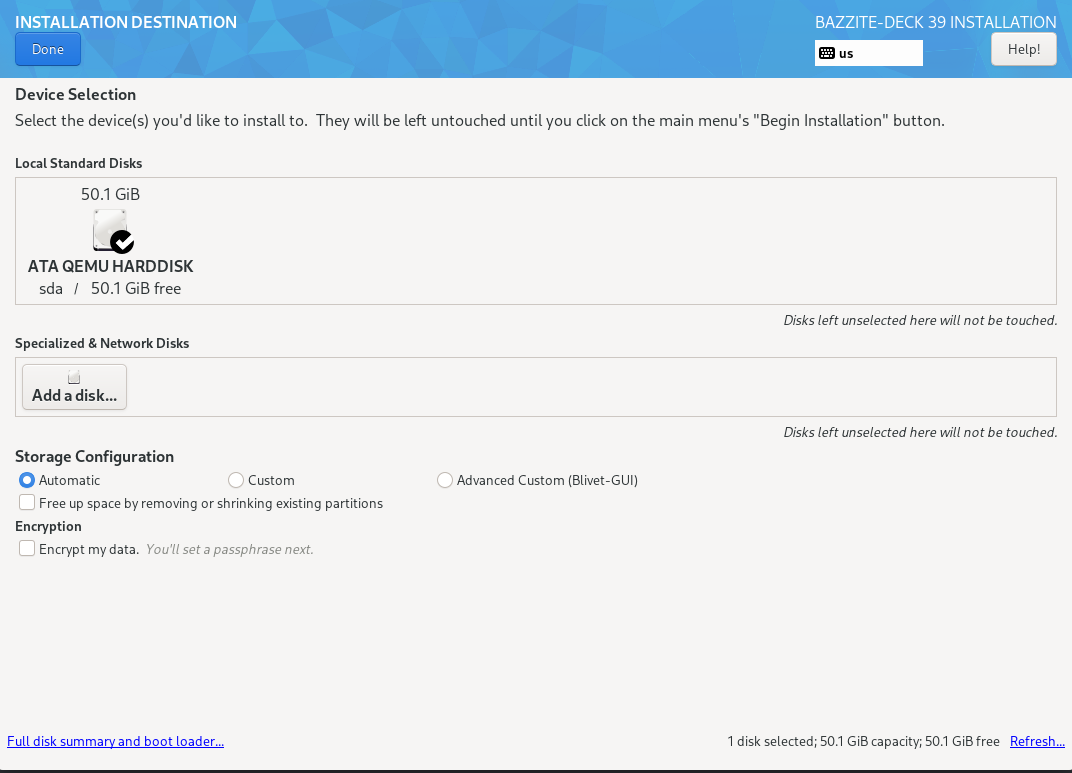
Installation Destination: This is a critical step where you select the disk(s) for Bazzite.
Disk Partitioning Strategies: Automatic vs. Manual
The “Installation Destination” screen requires careful attention, especially if you’re dual-booting or have multiple drives.
-
Automatic Partitioning: For most users, especially those dedicating the entire drive to Bazzite, choosing “Automatic” is the simplest option. Select the target drive, and the installer will create the necessary partitions (e.g., /boot/efi, /, /var, /home).
-
Manual Partitioning: If you need to:
-
Dual-boot with an existing operating system (like Windows).
-
Use specific partitions or resize existing ones.
-
Dedicate separate partitions for
/home,/var, etc. -
Configure encryption.
Select “Custom” or “Manual Partitioning.” This will open a partitioning tool where you can create, resize, and assign mount points to partitions. Ensure you have enough free space for Bazzite and avoid overwriting existing operating systems or data partitions unless intended. A common setup involves a small (500MB-1GB) FAT32 EFI System Partition (ESP), a root (
/) partition (ext4 or btrfs), and optionally a/homepartition for user data. For immutable systems, a separate/varpartition can also be beneficial. -
User Account Creation and Finalizing Installation
After configuring storage, you’ll be prompted for user details:
-
Root Password: Set a strong password for the root user. While Bazzite is designed for
sudouse, setting a root password is good practice for system recovery or advanced tasks. -
User Creation: Create a standard user account. Provide a full name, username, and a strong password. You can also choose whether this user should be an administrator (recommended for primary users).
-
Network & Hostname (Optional): If not already configured, you might set your hostname.
With all configurations complete, click “Begin Installation.” The installer will now write Bazzite to your chosen disk. This process can take some time, depending on your system’s speed and internet connection. Once complete, you’ll be prompted to reboot. Remove the USB drive when instructed or before the system reboots to prevent booting back into the installer.
First Boot and Initial Configuration
Upon reboot, your system should now boot into your newly installed Bazzite OS.
-
Welcome Screen/First-Run Wizard: You might encounter a welcome screen or first-run wizard guiding you through initial setup such as connecting online accounts, privacy settings, and selecting default applications.
-
System Updates: Even immediately after installation, it’s crucial to update your system. Open a terminal and run the update command:
rpm-ostree update. This ensures you have the latest software and security patches. -
Driver Verification: Bazzite often has excellent out-of-the-box driver support. However, for specific NVIDIA GPUs, you might want to verify or install the proprietary drivers if not automatically handled by the chosen Bazzite image.
Post-Installation: Optimizing Your Bazzite Experience
Installing Bazzite is just the beginning. To truly unlock its potential and tailor it to your needs, some post-installation steps are highly recommended.
Updating Your System and Drivers
Maintaining an up-to-date system is paramount for security and performance.
-
System Updates (
rpm-ostree update): Regularly check for and apply atomic updates. This command will download the latest immutable base image, layer any custom packages you’ve added, and create a new deployment. A reboot is usually required to switch to the new deployment. -
Flatpak Updates: Flatpaks, being sandboxed applications, are updated separately. Run
flatpak updateperiodically to keep your installed applications current. -
Firmware Updates: Use the built-in firmware update utility (often integrated with GNOME Software or KDE Discover) or
fwupdfrom the terminal to ensure your hardware firmware is up to date.
Installing Essential Software and Flatpaks
Bazzite encourages the use of Flatpaks for applications, offering isolation and ease of management.
-
GNOME Software / KDE Discover: These graphical software centers are the easiest way to browse and install Flatpak applications from Flathub.
-
Command Line (
flatpak install): For more control, useflatpak install flathub <app-id>. -
Distrobox: For applications not available as Flatpaks or for development tools, Distrobox is invaluable. It allows you to create containers based on other distributions (Ubuntu, Arch, Fedora) and install native packages within them without affecting your Bazzite base. This is powerful for specific software needs or development environments.
Configuring Gaming Environments
Bazzite excels in gaming, but a few tweaks can enhance the experience:
-
Steam: If not already pre-installed, install Steam via Flatpak. Ensure Proton is updated to the latest experimental or stable version for optimal game compatibility.
-
Lutris / Heroic Games Launcher: Install these launchers (available as Flatpaks) to manage games from other stores like Epic Games Store, GOG, or for emulators.
-
Game Performance: Familiarize yourself with tools like MangoHud for monitoring performance, and consider options like
gamemodefor automatic system optimizations during gameplay. -
Controller Support: Most modern controllers (Xbox, PlayStation, Switch Pro) should work out of the box or with minimal configuration.
Customizing Your Desktop Environment
Whether you chose GNOME or KDE Plasma, both are highly customizable.
-
GNOME: Explore GNOME Extensions (available from extensions.gnome.org) to modify the shell, add new features, or change appearances. Use the “Tweaks” tool for fine-grained control over fonts, themes, and more.
-
KDE Plasma: KDE Plasma is renowned for its extensive customization options accessible via System Settings. You can change themes, widgets, panel layouts, desktop effects, and more to create a truly personalized workflow.
Embracing the Bazzite Ecosystem: Further Exploration
Bazzite’s unique architecture offers distinct advantages and ways of working that differ from traditional Linux distributions. Understanding these will help you maximize your experience.
Understanding Immutable OS Workflows
The rpm-ostree command is your primary interface for managing the core system.
-
rpm-ostree status: Shows your current deployment, previous deployments, and any layered packages. -
rpm-ostree rollback: Allows you to revert to a previous working system snapshot, a powerful feature for troubleshooting. -
rpm-ostree override replace: For advanced users, this allows replacing base packages with custom versions, though it should be used sparingly as it goes against the immutable philosophy. -
rpm-ostree usrmerge: Convert existing system to usrmerge layout.
Embracing these commands and the layered approach to software installation will define your Bazzite management experience. It encourages a clear separation between the stable base system and user-installed applications, leading to a more robust and predictable environment.
Leveraging the Community and Documentation
The Bazzite project boasts an active and helpful community.
-
Official Documentation: Refer to the Bazzite project’s official website and documentation for in-depth information on specific configurations, troubleshooting, and advanced features.
-
Discord/Forums: Engage with the Bazzite community on platforms like Discord or dedicated forums. This is an excellent resource for getting help, sharing experiences, and staying informed about new developments.
-
GitHub: The project’s GitHub repository is where you can report bugs, suggest features, and track development progress.
Advanced Configurations and Tweaks
For users who want to push Bazzite further:
-
Kernel Parameters: Modifying GRUB kernel parameters can help with specific hardware issues or performance tuning (e.g., adding
nvme.no_idle_timeout=1for certain NVMe drives). -
Podman/Docker: Bazzite is an excellent host for containerized workloads. Explore Podman (a daemonless container engine) for running services and applications in isolated environments.
-
Hardware-Specific Optimizations: Depending on your specific hardware (e.g., specific gaming laptops, external GPUs), you might find community-driven tweaks or scripts to optimize performance or resolve unique issues. Always exercise caution and understand the implications when making advanced system changes.
Bazzite offers a modern, stable, and powerful Linux experience, particularly for gaming. By following this guide, you should have a fully functional and optimized Bazzite system ready to tackle your daily tasks and gaming adventures. Its innovative approach to system management, combined with robust out-of-the-box features, makes it a formidable contender in the Linux desktop space.
aViewFromTheCave is a participant in the Amazon Services LLC Associates Program, an affiliate advertising program designed to provide a means for sites to earn advertising fees by advertising and linking to Amazon.com. Amazon, the Amazon logo, AmazonSupply, and the AmazonSupply logo are trademarks of Amazon.com, Inc. or its affiliates. As an Amazon Associate we earn affiliate commissions from qualifying purchases.