
The world of PC gaming and software modification is a testament to the creativity and technical ingenuity of independent developers. Among the most revered tools in this niche is BakkesMod, a sophisticated utility designed specifically for the popular physics-based esport, Rocket League. Far more than a simple aesthetic modifier, BakkesMod serves as a powerful injection-based software that provides players with advanced training tools, custom visualizations, and a robust plugin architecture.
Understanding how to install BakkesMod correctly is essential for any user looking to bridge the gap between casual play and professional-grade software customization. This guide provides a detailed, tech-centric walkthrough of the installation process, security considerations, and optimization techniques to ensure a seamless integration with your digital environment.

Understanding the Technical Architecture of BakkesMod
Before proceeding with the installation, it is vital to understand what BakkesMod is from a technical perspective. BakkesMod is a third-party software that operates via “DLL injection.” This means that when the game client launches, BakkesMod “injects” its own code into the game’s process memory, allowing it to modify game variables in real-time without altering the core game files permanently.
What is BakkesMod?
At its core, BakkesMod is an external trainer and utility tool. It allows users to manipulate the physics engine in local training sessions, track MMR (Matchmaking Rating) in real-time, and utilize custom skins that are visible only to the user. From a software development standpoint, BakkesMod provides an API (Application Programming Interface) that allows third-party developers to create their own “plugins,” significantly extending the functionality of the base game.
System Requirements and Compatibility
BakkesMod is designed exclusively for the Windows operating system. As of the current software cycle, it supports both the Steam and Epic Games Store versions of Rocket League. To ensure stability, your system should meet the following technical criteria:
- Operating System: Windows 7 or higher (64-bit recommended).
- Permissions: Administrative privileges are required for the injector to function correctly.
- Dependencies: Microsoft Visual C++ Redistributable packages are often required to handle the underlying C++ code.
The Step-by-Step Installation Process
Installing BakkesMod requires a series of precise steps to ensure that the injector can communicate effectively with the game client. Unlike standard applications, BakkesMod functions as a background process that monitors the launch of the game.
Downloading the Software Package
The first step in any software installation is sourcing the files from a secure, verified location. To avoid malware or compromised versions, always download the installer directly from the official BakkesMod website.
- Navigate to the official BakkesMod homepage.
- Locate the “Download” button, which typically provides a compressed ZIP file.
- Once the download is complete, locate the
BakkesModSetup.zipfolder in your downloads directory.
Executing the Setup and Granting Permissions
Because BakkesMod interacts with other running processes, your operating system may trigger security warnings. It is important to handle these correctly to allow the software to function.
- Extract the Files: Right-click the ZIP folder and select “Extract All.” Do not run the installer from within the compressed folder, as this can lead to write-permission errors.
- Run as Administrator: Right-click
BakkesModSetup.exeand select “Run as Administrator.” This ensures the software has the necessary permissions to modify memory hooks. - Installation Path: Follow the on-screen prompts. The installer will typically default to a directory within your “AppData” folder. This is standard for software that requires frequent updates without requiring full system-wide re-installation.
Initializing the Injector
Once the installation is complete, a small window known as the “BakkesMod Injector” will appear. This is the control center for the software.
- The injector will check for updates automatically. If a new version of Rocket League has been released, BakkesMod often requires an update to match the new game build’s memory addresses.
- The status should read “Uninjected – Waiting for user to start Rocket League.” This indicates the software is ready and monitoring your system’s process list.
Configuring and Expanding the Software Ecosystem
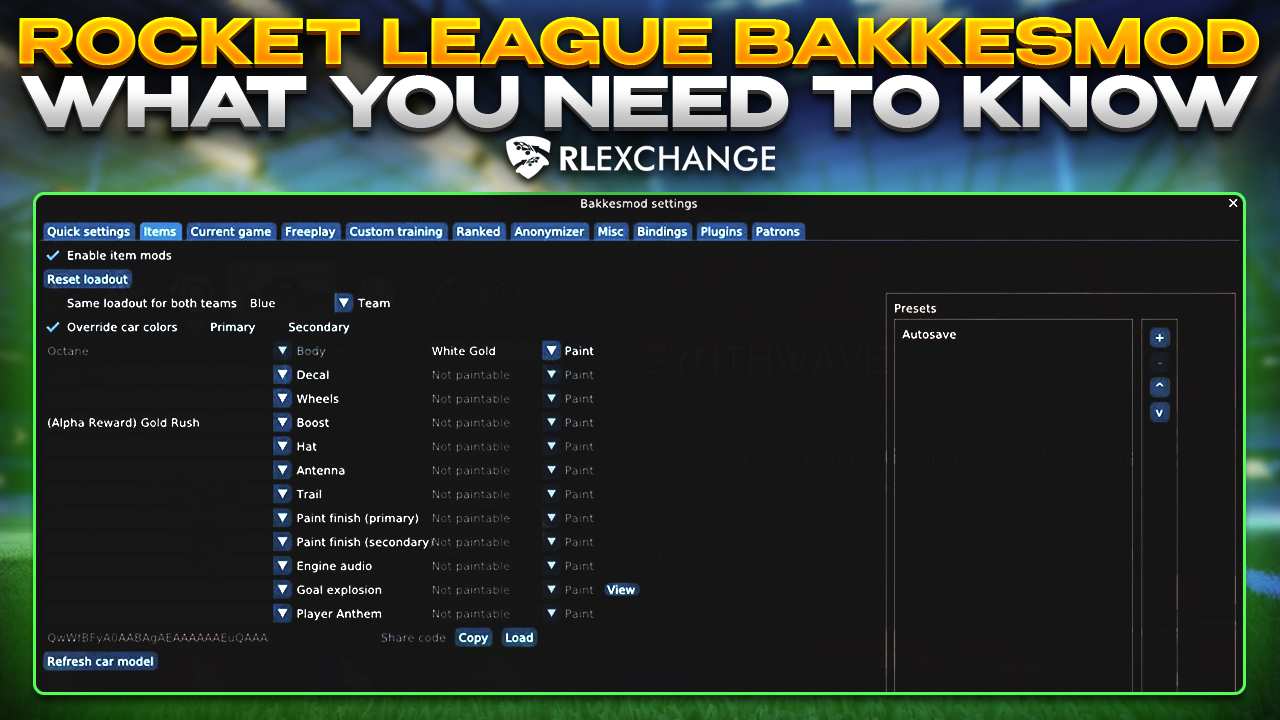
Once BakkesMod is successfully installed and the status changes to “Injected,” the user can begin customizing the experience. The interface for BakkesMod is unique in that it exists as an overlay within the game itself.
Accessing the In-Game GUI
To interact with BakkesMod, launch Rocket League. Once you are at the main menu, press the F2 key on your keyboard. This action toggles the BakkesMod Graphical User Interface (GUI). Within this menu, you will find several tabs:
- Current Items: Allows you to change the visual appearance of your vehicle.
- Ranked: Enables the visualization of MMR gains and losses after matches.
- Anonymizer: A privacy tool for content creators that hides player names and titles.
- Plugins: The hub for managing additional software modules.
Utilizing the Plugin Manager
One of the most powerful features of BakkesMod is its modularity. Through the “Plugin Manager,” users can install specialized tools developed by the community. For example, the “AlphaConsole” plugin brings back legacy features from older mods, while “Workshop Map Loader” simplifies the process of playing custom community-made levels.
To install a plugin:
- Visit the BakkesMod Plugin Wiki.
- Find a plugin and copy its ID or use the “Install with BakkesMod” button provided on the site.
- The injector will handle the download and integration of the new DLL file into the plugin folder automatically.
Navigating Digital Security and Troubleshooting
Because BakkesMod uses injection techniques—a behavior sometimes shared by malicious software—users often encounter technical hurdles during and after installation. Addressing these requires a professional approach to digital security settings.
Handling Antivirus False Positives
Windows Defender and other antivirus suites (such as Bitdefender or Malwarebytes) may flag the BakkesMod injector as a “Trojan” or “Heuristic Virus.” This is a false positive caused by the software’s method of injecting code into another process.
- Solution: You must add an “Exclusion” or “Exception” to your antivirus software for the BakkesMod installation folder. This tells the security software to trust the BakkesMod process and allow it to operate without interference.
Resolving Version Mismatches
Whenever Rocket League receives an update from Psyonix/Epic Games, the internal memory addresses of the game change. This usually causes BakkesMod to crash or fail to inject.
- The Update Cycle: The BakkesMod team usually releases an update within 24 hours of a game patch. To fix a mismatch, simply open the BakkesMod Injector and click “File” > “Check for updates.”
- Reinstalling the Injector: If the software becomes corrupted, use the “Reinstall” option within the “Help” menu of the injector. This clears the cache and restores the original DLL files.

The Significance of BakkesMod in Software Development
The existence and success of BakkesMod highlight a significant trend in the tech industry: the rise of community-driven software enhancement. By providing a stable platform for others to build upon, the creators of BakkesMod have fostered a micro-ecosystem of developers.
From a technical standpoint, BakkesMod is an impressive feat of reverse engineering. It maintains high performance with minimal CPU overhead, ensuring that the primary application (the game) does not suffer from frame rate drops or latency issues. For users, it serves as an educational entry point into how software interacts with memory and how APIs can be used to customize a digital environment.
In conclusion, installing BakkesMod is more than just adding a feature to a game; it is an exercise in managing a sophisticated software utility. By following the proper installation protocols—extracting files correctly, managing administrative permissions, and understanding the role of DLL injection—users can safely and effectively enhance their technical toolkit. As the software continues to evolve, it remains a gold standard for how third-party modifications can provide professional-grade utility to a global user base.
aViewFromTheCave is a participant in the Amazon Services LLC Associates Program, an affiliate advertising program designed to provide a means for sites to earn advertising fees by advertising and linking to Amazon.com. Amazon, the Amazon logo, AmazonSupply, and the AmazonSupply logo are trademarks of Amazon.com, Inc. or its affiliates. As an Amazon Associate we earn affiliate commissions from qualifying purchases.