
In an increasingly connected world, our televisions have evolved far beyond mere display devices. Thanks to innovations like the Apple TV, they’ve transformed into powerful entertainment hubs, gateways to a universe of content, games, and productivity tools. At the heart of this transformation lies the ability to install applications – a straightforward process that unlocks the full potential of your Apple TV. For anyone looking to deepen their digital engagement, harness cutting-edge technology, or simply optimize their home entertainment, understanding how to install apps is not just a technicality, but a fundamental step towards a richer digital lifestyle.
This comprehensive guide will walk you through everything you need to know about populating your Apple TV with your favorite applications, from the initial setup to advanced management tips. We’ll delve into the underlying technology, provide clear step-by-step instructions, and even touch upon how smart app choices can impact your personal finance and overall digital security, aligning perfectly with the modern tech consumer’s needs.
Understanding the Apple TV Ecosystem: tvOS and the App Store
Before diving into the mechanics of app installation, it’s crucial to grasp the ecosystem that powers your Apple TV. Like iPhones have iOS and Macs have macOS, Apple TV runs on tvOS, a specialized operating system designed for the big screen. This platform, meticulously crafted by Apple, is the foundation upon which your entire entertainment experience is built, ensuring a consistent and user-friendly interface.
What is tvOS and Why Does it Matter?
tvOS is more than just a software layer; it’s the core of the Apple TV’s brand promise: simplicity, elegance, and powerful performance. Optimized for television viewing, tvOS provides a fluid navigation experience with the Siri Remote, robust search capabilities, and deep integration with other Apple services. Its significance lies in its ability to standardize the app experience, ensuring that developers can create applications that look and function consistently across all Apple TV models. This consistency contributes directly to the seamless “Apple experience” that users have come to expect, reinforcing the brand’s commitment to quality and ease of use. Understanding tvOS helps users appreciate the curated nature of the Apple TV App Store and the security measures in place to protect their digital environment.
Navigating the Apple TV App Store
The App Store on Apple TV is your primary portal to discovery and installation. It’s a carefully curated marketplace offering thousands of applications spanning streaming services, games, fitness programs, news aggregators, and even utility tools. Designed with a clear, intuitive layout, it allows users to browse by category, view editor’s picks, explore collections, or search for specific titles.
The App Store itself is a testament to Apple’s brand strategy, presenting apps with high-resolution imagery, detailed descriptions, user reviews, and video previews. This rich content helps you make informed decisions about what to download, ensuring you find apps that truly meet your needs and preferences. Furthermore, the App Store acts as a gatekeeper, with Apple reviewing every submission to ensure it meets strict performance, security, and content guidelines. This commitment to quality is a cornerstone of Apple’s brand reputation and provides users with a sense of digital security and trust.
The Seamless Integration with Your Apple ID
Your Apple ID is the linchpin connecting all your Apple devices and services, and the Apple TV is no exception. When you set up your Apple TV, you sign in with your Apple ID, which then links all your purchased content – including apps, movies, and TV shows – to your device. This integration means that if you’ve purchased a universal app on your iPhone or iPad that also has a tvOS version, it might automatically appear as available for download (or even automatically download) on your Apple TV, often without additional cost. This not only enhances convenience but also represents a smart financial decision, leveraging existing purchases across your ecosystem. It embodies Apple’s integrated brand experience, making your digital life feel cohesive and efficient. Your Apple ID also facilitates Family Sharing, allowing multiple family members to access shared app purchases, which is a great financial advantage.
Step-by-Step: Installing Apps from the tvOS App Store
Installing apps on your Apple TV is a remarkably straightforward process, designed for maximum user accessibility. Whether you’re a seasoned tech enthusiast or a newcomer to the Apple ecosystem, these steps will guide you through the process.
Powering On and Getting Connected
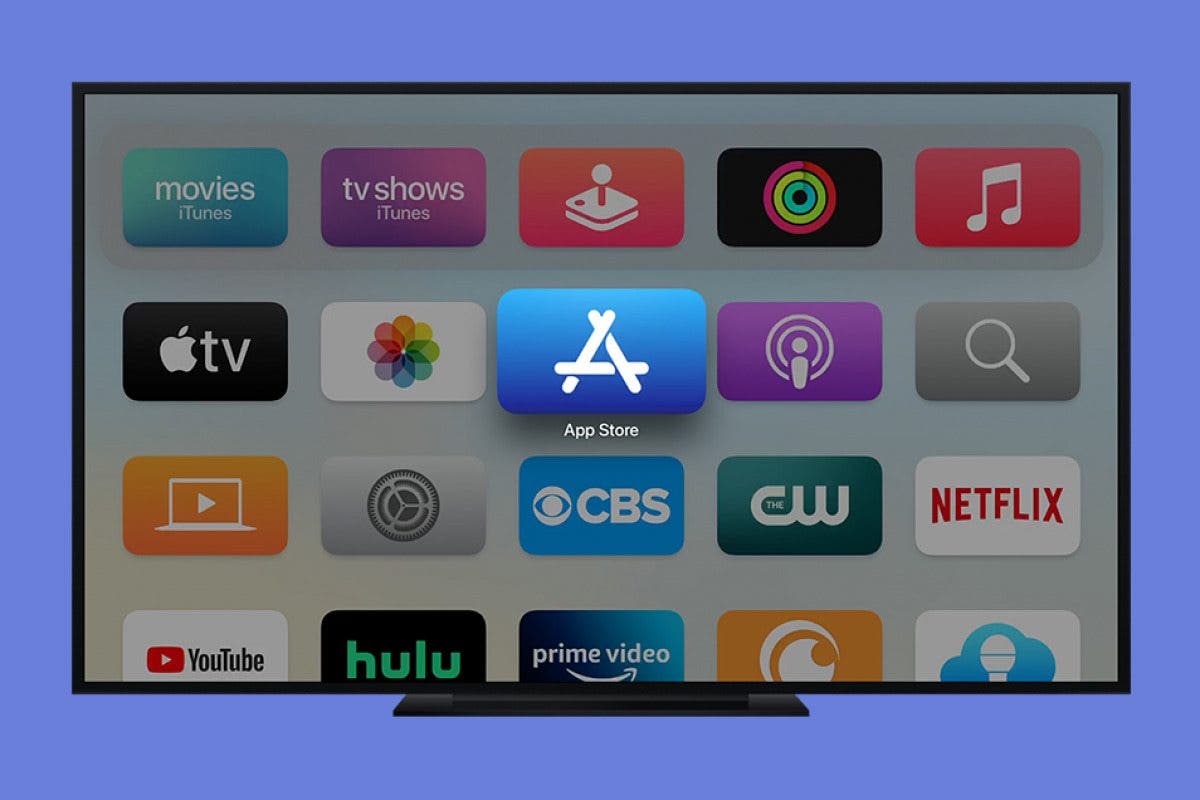
First, ensure your Apple TV is powered on and connected to your television and the internet. Stable Wi-Fi is essential for smooth downloads. Once on the main tvOS Home Screen, look for the App Store icon, which resembles a white ‘A’ in a light blue square. Select it using your Siri Remote.
Searching for Specific Apps
If you know exactly what app you’re looking for, the search function is your fastest route.
- Navigate to the “Search” tab within the App Store.
- Use the on-screen keyboard (or dictation via the Siri Remote’s microphone button) to type the app’s name.
- As you type, suggestions may appear. Select the correct app from the results.
Browsing Categories and Recommendations
For discovery, the App Store offers several browsing options:
- “Discover” tab: Features editor’s picks, trending apps, and curated collections.
- “Categories” tab: Allows you to filter apps by genre, such as “Games,” “Entertainment,” “Sports,” “Lifestyle,” and “Utilities.” This is perfect for exploring new options based on your interests.
- “Purchased” tab: Shows a list of all apps you’ve previously downloaded or purchased on any of your Apple devices that have a tvOS counterpart. This is a great way to quickly re-download apps or find ones you already own.
Downloading Free and Paid Applications
Once you’ve found an app you wish to install:
- Select the app’s icon to open its product page.
- Review the description, screenshots, and user reviews.
- For free apps, select the “Get” button.
- For paid apps, select the button displaying the price.
Authenticating Your Purchase/Download
For both free and paid apps, you may be prompted to authenticate your download:
- Enter your Apple ID password. This is a critical digital security measure, preventing unauthorized downloads.
- Use Touch ID or Face ID if you have an iOS device paired with your Apple TV and have enabled this feature for purchases.
- Once authenticated, the app will begin downloading and installing. A progress circle will appear on the app’s icon on your Home Screen.
- After installation, the app will be ready to open from your Home Screen.
Managing Your Apple TV Apps: Organization and Optimization
Installing apps is just the beginning. Effective management ensures your Apple TV remains fast, organized, and tailored to your preferences. This involves not only arranging your content but also making smart decisions about storage and subscriptions, tying into broader themes of digital security and personal finance.
Arranging Your Home Screen: Folders and Layouts

A cluttered Home Screen can quickly become overwhelming. tvOS offers intuitive tools for organization:
- Rearranging Apps: Hover over an app icon, press and hold the Siri Remote’s touch surface until the icon wiggles. You can then drag the app to a new position.
- Creating Folders: While an app is wiggling, drag it on top of another app. Both apps will automatically create a new folder. You can then rename this folder to categorize your content (e.g., “Streaming,” “Games,” “Fitness”). This is a simple yet powerful productivity hack for keeping your digital space tidy.
- Deleting Apps: While an app is wiggling, press the “Play/Pause” button on the Siri Remote. A prompt will appear asking if you want to delete the app. Confirm your choice.
Deleting and Offloading Unwanted Apps
Over time, you might download apps you no longer use, or your storage might start to fill up, potentially impacting performance.
- Deleting an App: Completely removes the app and its data from your Apple TV. This is ideal for apps you’re sure you won’t use again. (See step above).
- Offloading an App: (This feature is more prominent on iOS/iPadOS, but understanding storage management is key for tvOS.) While tvOS handles much of its storage optimization automatically, large games or rarely used apps can consume significant space. If you find your Apple TV running slowly, consider deleting large, unused apps. You can always re-download them from the “Purchased” tab in the App Store without paying again. This practice reflects smart tech usage and efficient resource management, preventing unnecessary purchases or performance degradation. To manually check storage, go to Settings > General > Manage Storage.
Keeping Apps Updated for Performance and Security
App developers frequently release updates to introduce new features, improve performance, and – crucially – patch security vulnerabilities. Keeping your apps updated is a cornerstone of digital security and ensures you’re getting the best possible experience.
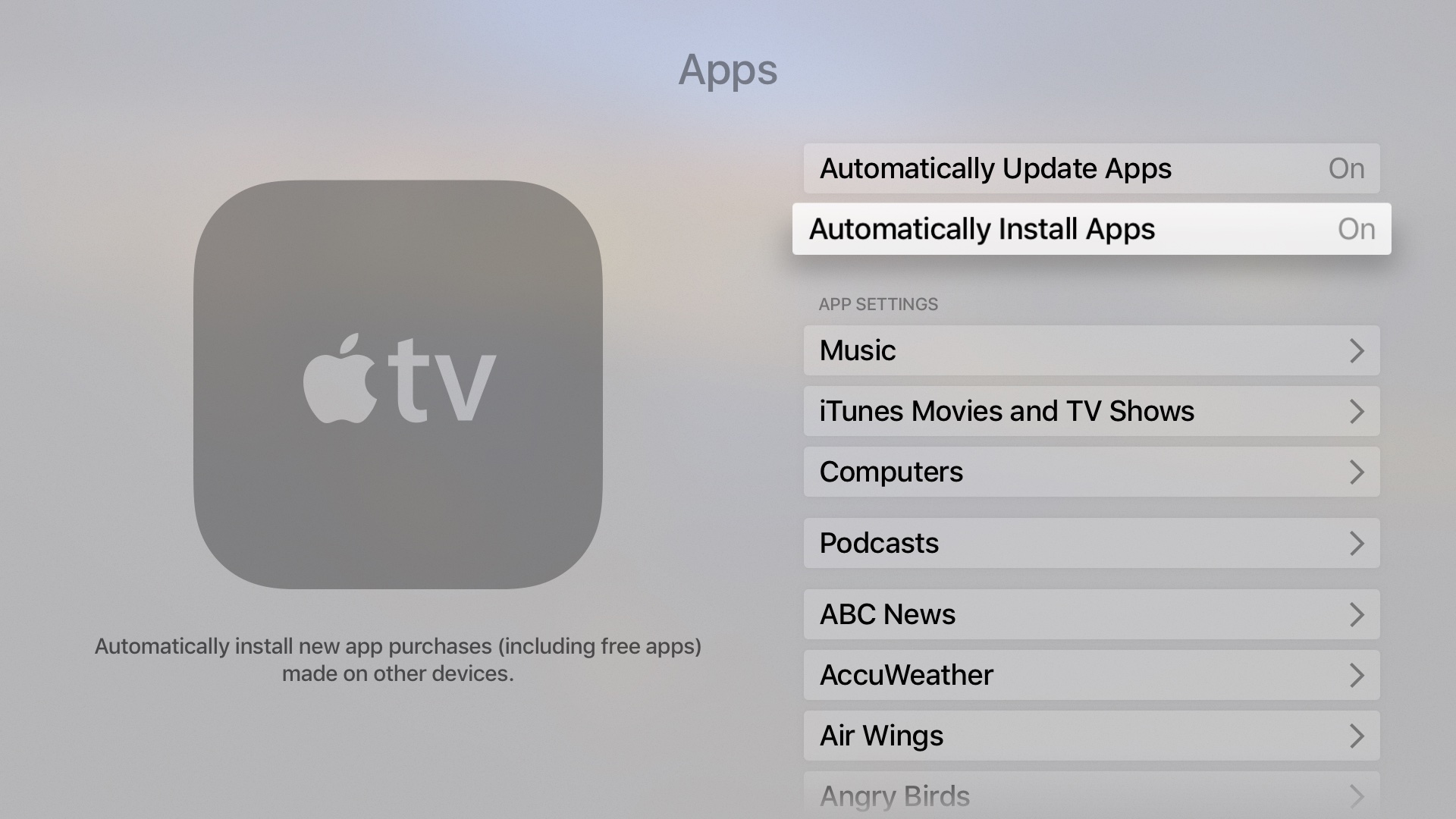
- Automatic Updates: By default, Apple TV is set to automatically update apps. You can verify or change this setting by going to Settings > Apps > Automatically Install Apps. We highly recommend keeping this enabled to ensure your device is always running the latest, most secure versions.
- Manual Updates: If automatic updates are off, or if you want to force an update, you might need to check the App Store or delete and re-download the app (though this is rarely necessary with automatic updates enabled).
Subscriptions and In-App Purchases: Navigating Costs
Many apps, particularly streaming services and games, operate on a subscription model or offer in-app purchases. Managing these can directly impact your personal finance.
- Subscription Management: All subscriptions made through the App Store on your Apple TV (or any Apple device using the same Apple ID) can be managed centrally. Go to Settings > Users and Accounts > [Your Account] > Subscriptions. Here, you can review active subscriptions, check renewal dates, and cancel unwanted services. Regularly reviewing your subscriptions is a vital financial tool to avoid unnecessary recurring costs, aligning with smart money management principles.
- In-App Purchases: Be mindful of in-app purchases, especially if children use the device. You can restrict these through Parental Controls to prevent accidental or unauthorized spending. This proactive approach safeguards your financial well-being.
Beyond the Basics: Advanced App Installation & Troubleshooting
While most app installations are straightforward, there are a few advanced scenarios and troubleshooting tips that can further enhance your Apple TV experience and maintain digital security.
Family Sharing and App Purchases
Apple’s Family Sharing feature is a fantastic financial tool. It allows up to six family members to share App Store purchases, Apple Music subscriptions, iCloud storage, and more, all without sharing Apple IDs.
- Setting Up Family Sharing: This is typically set up on an iPhone or iPad by the family organizer.
- Accessing Shared Apps on Apple TV: Once enabled, family members can access shared purchased apps on their Apple TV by navigating to the “Purchased” tab in the App Store and selecting the family member whose purchases they wish to view. This means one purchase can benefit the entire family, saving money and promoting efficient use of digital assets.
Content Restrictions and Parental Controls
For households with children, setting up Content Restrictions is essential for digital security and appropriate content consumption.
- Go to Settings > General > Restrictions.
- You’ll be prompted to set a 4-digit passcode, which will be required to change any restricted settings.
- Here, you can restrict app purchases, in-app purchases, specific app ratings, and even prevent deleting apps. This robust control system gives parents peace of mind, ensuring a safe and managed viewing environment, which is a key aspect of digital security in a family context.
When Apps Don’t Work: Basic Troubleshooting Steps
Occasionally, an app might freeze, crash, or fail to load. Here are some quick troubleshooting steps:
- Force Quit the App: Double-press the Home button on your Siri Remote to bring up the App Switcher. Swipe left or right to find the problematic app, then swipe up on its preview to close it. This often resolves minor glitches.
- Restart Apple TV: Go to Settings > System > Restart. A full restart can clear temporary software issues.
- Check for Updates: Ensure both the app and tvOS are up to date.
- Delete and Reinstall: If all else fails, delete the app (hold down on its icon until it wiggles, then press Play/Pause), then reinstall it from the App Store. This often resolves corrupted data issues. These simple tech tips can save time and frustration.
Remote App Installation (Via iPhone/iPad)
For ultimate convenience, you can even initiate app downloads for your Apple TV from your iPhone or iPad!
- Ensure both your iOS/iPadOS device and Apple TV are signed into the same Apple ID.
- On your iPhone/iPad, open the App Store.
- Search for the app you want. If it has a tvOS version, you’ll see a small Apple TV icon next to the “Get” or price button (or a cloud icon if you’ve previously downloaded it).
- Tap this button, and the app will begin downloading directly to your Apple TV. This leverages the seamless integration across Apple’s gadgets and enhances user productivity.
The Broader Impact: Apple TV Apps in Your Digital Lifestyle
The ability to install and manage apps on your Apple TV is more than a technical feature; it’s a gateway to shaping your digital lifestyle. The array of available applications constantly evolves, driven by technology trends and user demand, offering new ways to consume content, stay healthy, and even manage your smart home.
Enhancing Productivity and Smart Home Integration
While primarily an entertainment device, the Apple TV’s app ecosystem extends into productivity and smart home control. Apps like HomeKit integration allow you to monitor and control compatible smart home devices directly from your TV screen, making it a central hub for your connected living space. Voice commands through Siri can manage lights, thermostats, and cameras, showcasing the convergence of gadgets and AI tools that define modern tech trends. Fitness apps provide guided workouts in your living room, transforming your TV into a personal trainer. These integrations highlight how apps can boost personal productivity and convenience, blurring the lines between work, life, and entertainment.
The Future of Entertainment: Streaming, Gaming, and Beyond
The core strength of Apple TV lies in its entertainment capabilities, and apps are at the forefront of this evolution. With a robust selection of streaming services (Netflix, Disney+, Max, Apple TV+, etc.), live TV platforms, and immersive games (especially with Apple Arcade), your Apple TV is a versatile entertainment machine. As AI tools become more sophisticated, personalized recommendations within these apps will become even more precise, enhancing discovery. The integration with game controllers elevates the gaming experience, positioning Apple TV not just as a media player but as a viable console, driving future tech trends in casual and family gaming. This dynamic app environment means your investment in an Apple TV continues to grow in value, staying relevant with the latest content and interactive experiences.
Making Smart Financial Choices with Subscriptions
Finally, the vast world of apps necessitates smart financial choices. As discussed, managing subscriptions is key to personal finance. The ease of access to free trials and new services can lead to subscription fatigue and unexpected costs. By regularly reviewing your active subscriptions and utilizing Family Sharing, you can optimize your spending, ensuring you only pay for what you truly value. This vigilance is crucial in a digital economy where recurring payments are common. Think of your Apple TV as a financial dashboard for your entertainment spending – managing it wisely ensures your tech investment remains a source of enjoyment, not financial strain.
Conclusion
The Apple TV, powered by tvOS and its expansive App Store, is a testament to the power of a well-integrated tech ecosystem. Installing apps is the fundamental act that unlocks this potential, transforming your television into a personalized portal for entertainment, information, and even smart home control. From the simplicity of downloading a new streaming service to the strategic management of subscriptions for financial prudence, every interaction with your Apple TV apps is an opportunity to enhance your digital life.
By following this guide, you are now equipped not only with the technical know-how to install and manage applications but also with an understanding of how these actions tie into broader themes of technology trends, brand experience, digital security, and personal finance. So go ahead, explore the App Store, personalize your Apple TV, and discover how this powerful little box can truly expand your entertainment horizons. The future of your home entertainment hub is literally in your hands – or rather, on your Siri Remote.
aViewFromTheCave is a participant in the Amazon Services LLC Associates Program, an affiliate advertising program designed to provide a means for sites to earn advertising fees by advertising and linking to Amazon.com. Amazon, the Amazon logo, AmazonSupply, and the AmazonSupply logo are trademarks of Amazon.com, Inc. or its affiliates. As an Amazon Associate we earn affiliate commissions from qualifying purchases.