
In the ever-evolving landscape of personal computing, your Mac stands as a powerful canvas, ready to be customized and enhanced with a vast array of applications. From boosting your productivity with cutting-edge AI tools to unleashing your creativity with design software or simply staying connected with communication apps, the right applications are crucial for transforming your machine into a personalized powerhouse. This guide aims to demystify the process of installing apps on your Mac, ensuring you can confidently navigate the various methods available, maintain digital security, and ultimately optimize your workflow. Whether you’re a new Mac user or looking to refine your app management strategy, understanding these processes is fundamental to leveraging your technology to its fullest potential.
The macOS ecosystem offers flexibility in how users acquire and install software, primarily through two main avenues: the highly curated Mac App Store and direct downloads from the internet. Each method comes with its own set of advantages, security considerations, and best practices. As we delve into these processes, we’ll not only provide step-by-step instructions but also touch upon crucial aspects like digital security, system performance, and even how app choices can impact your personal productivity and financial management in the long run.
Navigating the Mac App Store: Your Safest Bet for Seamless Installation
For most Mac users, the Mac App Store is the primary and most recommended gateway to discovering and installing new applications. Integrated directly into macOS, it offers a streamlined, secure, and user-friendly experience, making it an ideal starting point for anyone looking to expand their software arsenal.
The App Store Advantage: Security, Updates, and Convenience
The Mac App Store is Apple’s official marketplace for macOS applications, offering a curated selection of software that adheres to stringent guidelines for quality, performance, and security. Every app submitted to the App Store undergoes a rigorous review process, ensuring it is free of malware, performs as advertised, and respects user privacy. This meticulous vetting process provides an unparalleled level of digital security, giving users peace of mind that their downloaded apps are legitimate and safe.
Beyond security, the App Store offers immense convenience. Applications purchased or downloaded from the App Store are automatically managed by the system. This means effortless installation with just a click, and more importantly, automatic updates. macOS handles checking for and installing new versions of your apps, ensuring you always have the latest features, bug fixes, and security patches without any manual intervention. This passive management significantly boosts your productivity by eliminating the need to constantly monitor individual app websites for updates.
Step-by-Step Guide to Installing from the Mac App Store:
- Launch the App Store: You can find the App Store icon in your Dock (it looks like a blue square with a white “A” inside) or by searching for it using Spotlight (Cmd + Spacebar).
- Explore and Search: Once open, you’ll see featured apps, categories, and editorial collections. Use the search bar in the top-left corner to find specific applications. For example, if you’re looking for a note-taking app, simply type “notes” or the name of a specific app like “Evernote.”
- View App Details: Click on an app’s icon or name in the search results to view its product page. Here, you’ll find descriptions, screenshots, user reviews, ratings, system requirements, and information about in-app purchases or subscriptions. Pay attention to user reviews and the app’s compatibility with your macOS version.
- Download and Install:
- For free apps, click the “Get” button, which will then change to “Install.”
- For paid apps, click the button displaying the price.
- You may be prompted to enter your Apple ID password, use Touch ID, or Face ID to confirm the purchase or download.
- Monitor Installation: The app icon will appear in your Dock with a progress bar indicating the download and installation status. Once complete, the app will be ready to launch from your Applications folder, Launchpad, or the Dock.
Understanding App Store Permissions and Subscriptions
When you install an app from the Mac App Store, macOS often prompts you to grant specific permissions, such as access to your camera, microphone, contacts, or location. These prompts are a crucial aspect of digital security, allowing you to control what data your apps can access. Always review these permissions carefully and only grant access that is necessary for the app’s functionality. You can review and adjust these permissions anytime in System Settings > Privacy & Security.
Furthermore, many modern apps, particularly those offering advanced features or cloud synchronization, operate on a subscription model or include in-app purchases. While this falls under the “Money” aspect of our website topics, it’s vital to understand how these work. Subscriptions typically offer ongoing access to premium features for a recurring fee (e.g., monthly or annually). In-app purchases might unlock specific features or content permanently. Always read the app’s description and terms to understand any associated costs before committing. The Mac App Store makes managing these subscriptions straightforward, allowing you to view and cancel them directly from your account settings. Being mindful of these costs is key to managing your personal finance in the digital realm.
Installing Apps from the Internet: Beyond the App Store
While the Mac App Store is ideal for many, a significant number of applications, especially professional tools, open-source software, or niche utilities, are distributed directly by developers through their websites. Installing these apps requires a slightly different approach and a heightened awareness of digital security best practices.
The .DMG Method: Drag-and-Drop Simplicity
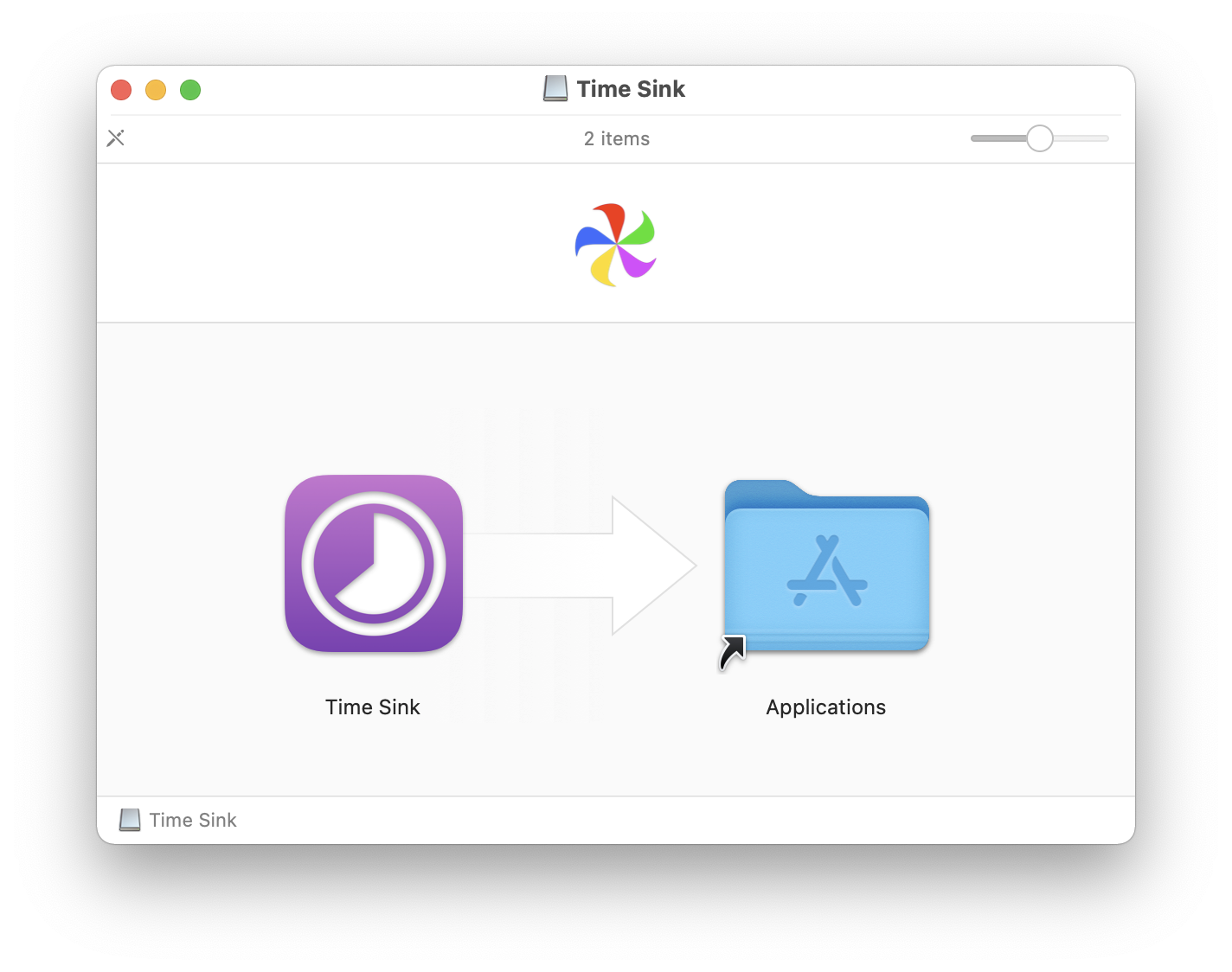
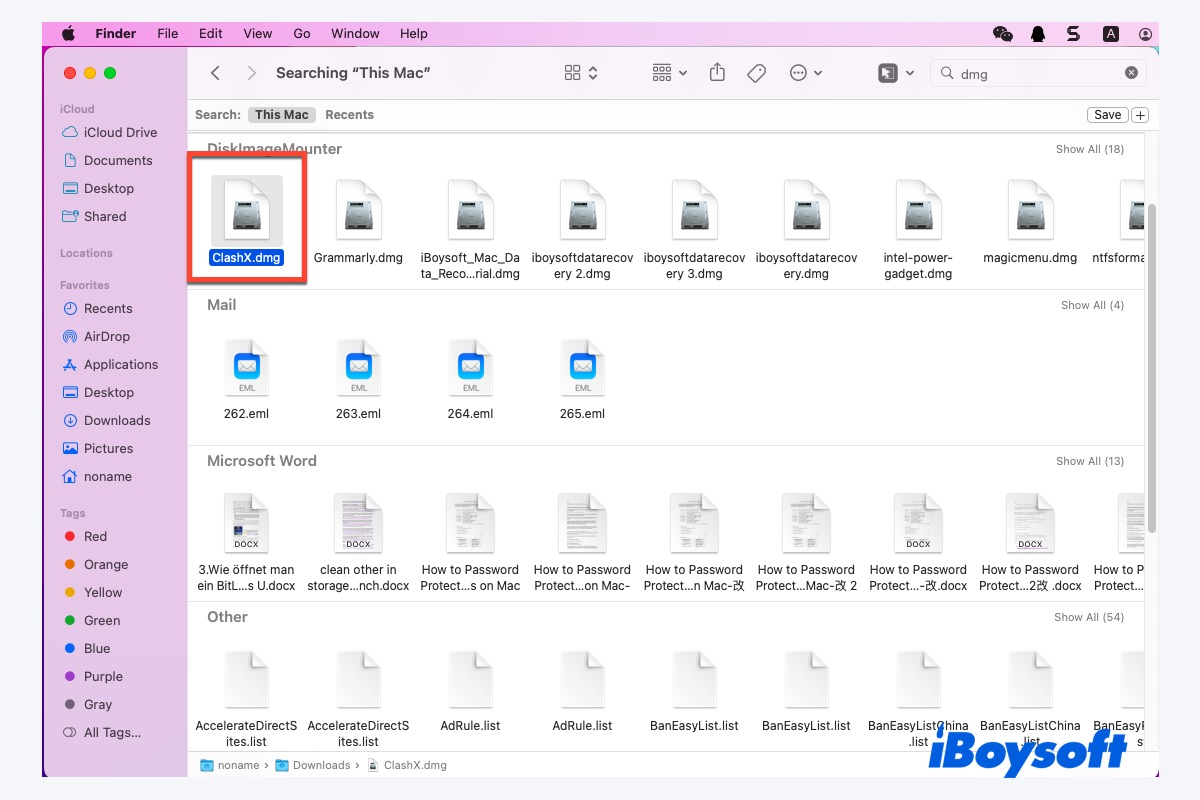
The most common method for distributing Mac applications outside the App Store is via a Disk Image file, typically with a .dmg extension. A DMG file is a virtual disk that, when opened, mounts on your desktop like a physical drive, containing the application or an installer. This method is incredibly intuitive and mirrors the old-school drag-and-drop file management.
Step-by-Step Guide to Installing from a .DMG File:
- Download the .DMG File: Navigate to the developer’s official website and locate the download link for the macOS version of their application. Always download from the official source to avoid pirated or malicious software.
- Open the .DMG File: Once downloaded, double-click the
.dmgfile in your Downloads folder or wherever you saved it. This will mount the disk image, and a new window will typically open, often displaying the app icon and an alias to your Applications folder. - Install the Application:
- Drag-and-Drop: The most common scenario is to simply drag the application icon from the mounted disk image window directly into your Applications folder (usually represented by an icon in the same window).
- Alternative: If no Applications folder alias is present, open a new Finder window, navigate to your Applications folder (in the sidebar), and then drag the app icon from the mounted DMG window to your Applications folder.
- Eject the Disk Image: After copying the app, it’s good practice to eject the disk image. You can do this by dragging the disk image icon from your desktop to the Trash (which will change to an eject symbol), right-clicking (or Control-clicking) the disk image icon and selecting “Eject,” or clicking the Eject button next to its name in a Finder sidebar. You can then delete the original
.dmgfile from your Downloads folder. - Launch the App: The app is now in your Applications folder and can be launched from there, Launchpad, or by searching with Spotlight.
Installer Packages (.PKG): Guided Installation
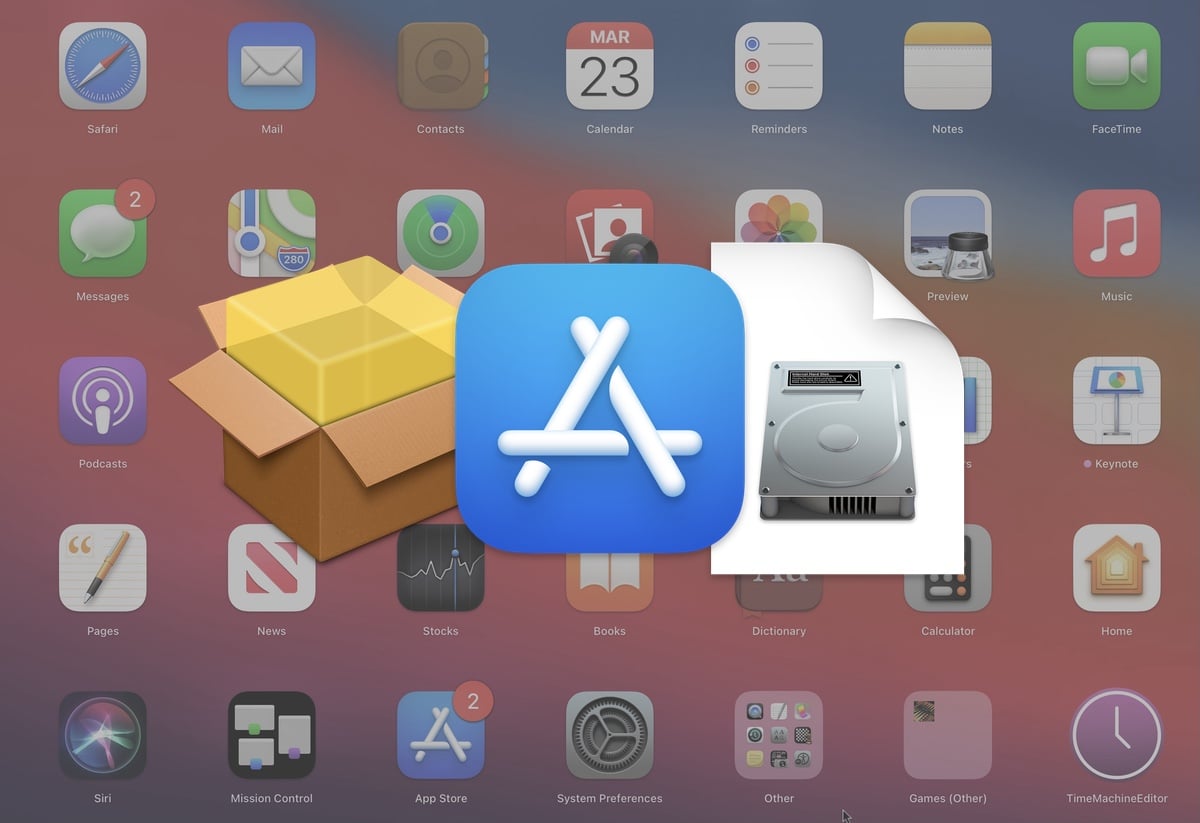
Some applications, especially larger software suites, system utilities, or those requiring specific system integrations, use installer packages with a .pkg extension. These are similar to installers on Windows and provide a more guided, multi-step installation process.
Step-by-Step Guide to Installing from a .PKG File:
- Download the .PKG File: As with
.dmgfiles, download the installer package from the developer’s official website. - Open the .PKG File: Double-click the
.pkgfile. This will launch the macOS Installer application. - Follow the Installer Prompts: The installer will guide you through several steps, which typically include:
- Introduction: A welcome message and overview.
- License Agreement: You’ll need to agree to the software license terms.
- Destination Select: Choose where to install the application (usually your main Applications folder, but some installers might offer other options).
- Installation Type: Sometimes you can customize components, but often it’s a standard installation.
- Summary: A review of your choices.
- Enter Administrator Password: To install software that affects system files or requires elevated permissions, you’ll be prompted to enter your Mac’s administrator username and password. This is a crucial security step, ensuring only authorized users can make significant system changes.
- Complete Installation: Once the installation is finished, you’ll see a confirmation message. You can then close the installer and, optionally, move the
.pkgfile to the Trash.
Gatekeeper and Security Settings: Protecting Your Mac
Installing apps from the internet requires an understanding of macOS’s built-in security features, primarily Gatekeeper. Gatekeeper is designed to protect your Mac from malicious software by verifying the origin of downloaded apps.
When you try to open an app downloaded from outside the Mac App Store, Gatekeeper performs a check. If the app is from an identified developer (meaning the developer has registered with Apple and digitally signed their software), macOS will usually allow it to open after a one-time verification. If the app is from an unidentified developer or is unsigned, Gatekeeper will block it with a message like “‘[App Name]’ can’t be opened because it is from an unidentified developer.”
How to Override Gatekeeper for Trusted Apps:
If you are absolutely certain that an app from an unidentified developer is legitimate and safe (e.g., from a reputable open-source project or a small developer you trust), you can manually override Gatekeeper:
- Attempt to open the app. When the Gatekeeper warning appears, click “Cancel.”
- Go to System Settings (or System Preferences on older macOS versions) > Privacy & Security.
- Scroll down to the “Security” section. You should see a message stating that “[App Name]” was blocked from opening because it is from an unidentified developer, with an “Open Anyway” button next to it.
- Click “Open Anyway.” You’ll be prompted again to confirm, and you might need to enter your administrator password.
Crucial Digital Security Advice: Always exercise extreme caution when downloading apps from outside the Mac App Store.
- Verify the Source: Ensure you are downloading from the official developer’s website. Be wary of third-party download sites or suspicious links.
- Read Reviews: Check reputable tech review sites or forums for information about the app and its developer.
- Antivirus/Anti-malware: While macOS is robust, running a good antivirus or anti-malware solution can add an extra layer of protection, especially when venturing beyond the App Store. This is directly relevant to our “Digital Security” theme.
Advanced Installation Methods and App Management
For power users, developers, or those seeking specific collections of software, macOS offers more advanced installation and management options. Understanding these can further enhance your productivity and streamline your digital life.
Third-Party App Managers: Power User Tools
While not necessary for every user, third-party app managers can significantly simplify the process of discovering, installing, and updating a wide range of applications, particularly for those who frequently work with developer tools or a large suite of diverse software.
- Homebrew (The Missing Package Manager for macOS): Homebrew is a free, open-source command-line package manager that allows you to easily install Unix tools, open-source software, and even many GUI applications (via Homebrew Cask). It’s a favorite among developers and technical users for its efficiency and ability to manage dependencies. While it requires comfort with the Terminal, it offers unparalleled control and automation for software installation and updates. This tool embodies the “Tech” aspects of software and AI tools for advanced users.
- Setapp (Subscription-Based App Collection): Setapp offers a different model: a subscription service that provides access to a curated library of over 240 macOS apps across various categories like productivity, design, writing, and maintenance. Instead of buying individual licenses, you pay a monthly fee for unlimited access to all apps within their collection. This can be a financially savvy choice (linking to “Money” and “Financial Tools”) if you regularly use multiple premium apps, as it often works out cheaper than purchasing each app separately. It’s a fantastic way to discover new “Productivity” and “Software” tools without individual commitment.
Updating and Managing Your Installed Applications
Maintaining your apps is just as important as installing them. Regular updates ensure you have the latest features, security patches, and performance improvements, while proper management keeps your Mac running smoothly.
- App Store Updates: For apps installed via the Mac App Store, updates are typically handled automatically in the background. You can manually check for and initiate updates by opening the App Store, clicking on your profile icon in the bottom-left corner, and reviewing the “Updates Available” section.
- In-App Updates: Many apps downloaded from the internet include their own built-in update mechanisms. This might be an “Check for Updates” option in the app’s menu bar (e.g., App Name > Check for Updates) or an automatic background update process.
- Manual Checks: For some apps, especially older or less frequently updated ones, you might need to periodically visit the developer’s website to download the latest version.
- Deleting Apps: To uninstall an app downloaded from the App Store or installed via a
.dmgfile (drag-and-drop method), simply drag the app icon from your Applications folder to the Trash. Then, empty the Trash. For apps installed via a.pkginstaller, some may come with an uninstaller utility in their original.dmgor within the Applications folder. If not, dragging to the Trash usually suffices for the main application, though some residual files might remain in your Library folders. For thorough uninstallation, third-party uninstaller apps (like AppCleaner) can help remove all associated files.
Troubleshooting Common Installation Issues
Even with a clear guide, you might occasionally encounter an issue. Here are some common problems and their solutions:
- “App can’t be opened because it is from an unidentified developer.” This is Gatekeeper in action. Follow the “How to Override Gatekeeper” steps described above if you trust the app.
- Insufficient Disk Space: If your Mac is low on storage, downloads or installations might fail. Check your storage in System Settings > General > Storage and free up space if needed.
- App Crashes During Installation/Launch: This could indicate a corrupted download, an incompatible macOS version, or a system conflict. Try redownloading the app, ensure your macOS is up to date, or restart your Mac. Check the developer’s website for system requirements.
- Permissions Issues: If an app isn’t launching or functioning correctly, check its permissions in System Settings > Privacy & Security. You might need to grant it specific access.
- “App is damaged and can’t be opened.” This usually means the download was incomplete or corrupted. Delete the downloaded file and try downloading it again. Also, ensure your internet connection is stable.
Conclusion: Empowering Your Mac Experience with Thoughtful App Choices
Installing applications on your Mac is a foundational skill that unlocks a world of possibilities, transforming your device into a powerful tool tailored to your specific needs. By understanding the distinct approaches of the Mac App Store and direct internet downloads, you gain the confidence to acquire software safely and efficiently. The Mac App Store offers unparalleled security and convenience through its rigorous vetting process and automatic updates, making it the go-to for most users. When venturing beyond, the .dmg and .pkg methods require a more vigilant approach, where knowing how to navigate Gatekeeper and prioritizing reputable sources are paramount for maintaining your digital security.
Beyond the initial installation, effective app management – including timely updates, strategic uninstallation, and leveraging advanced tools like Homebrew or Setapp – ensures your Mac remains a high-performance, productive asset. In an era where technology trends are constantly evolving, from sophisticated AI tools to innovative productivity software, your ability to thoughtfully choose, install, and manage these applications directly impacts your personal branding, your work efficiency, and even your financial management by optimizing software investments.
Ultimately, your Mac is a reflection of your digital ambitions. By mastering the art of app installation and management, you’re not just adding software; you’re actively shaping your computing experience, empowering yourself to be more productive, creative, and secure in a connected world. Embrace these methods, prioritize security, and let your Mac truly work for you.
aViewFromTheCave is a participant in the Amazon Services LLC Associates Program, an affiliate advertising program designed to provide a means for sites to earn advertising fees by advertising and linking to Amazon.com. Amazon, the Amazon logo, AmazonSupply, and the AmazonSupply logo are trademarks of Amazon.com, Inc. or its affiliates. As an Amazon Associate we earn affiliate commissions from qualifying purchases.