
The Apple iPad has revolutionized personal computing, bridging the gap between smartphones and traditional laptops with its intuitive touchscreen interface and powerful capabilities. At the heart of its versatility lies the vast ecosystem of applications, or “apps,” each designed to extend the iPad’s functionality, catering to everything from professional productivity and creative pursuits to immersive entertainment and educational tools. For any iPad user, mastering the art of installing and managing these apps is fundamental to unlocking the device’s full potential and tailoring it to their specific needs and desires.
This comprehensive guide will walk you through every step of the app installation process, from navigating the bustling App Store to troubleshooting common issues and adopting best practices for a secure and efficient app lifestyle. Whether you’re a new iPad owner eager to dive in or a seasoned user looking to refine your app management skills, understanding how to effectively harness the power of apps is crucial for maximizing your digital experience.
The iPad App Ecosystem: A Gateway to Enhanced Productivity and Entertainment
The iPad, as a premier gadget in the tech landscape, owes much of its enduring popularity to its robust and carefully curated app ecosystem. Apple’s commitment to quality, security, and user experience has fostered an environment where developers create innovative software that truly enhances the device. From sophisticated AI tools that automate tasks to cutting-edge design applications that empower creativity, the sheer breadth of available apps ensures there’s something for everyone. This “walled garden” approach, while sometimes perceived as restrictive, primarily serves to maintain high standards of digital security, performance, and user privacy – core tenets of Apple’s brand strategy.
Apps transform the iPad from a mere slab of glass and aluminum into a dynamic canvas for work, play, and learning. They allow users to engage with technology trends, stay productive, connect with others, and consume content in myriad ways. Understanding this ecosystem is the first step towards truly making your iPad an indispensable part of your daily routine.
Navigating the App Store: Your Primary Source for iPad Applications
The App Store is the official and most secure gateway to millions of applications for your iPad. It’s a digital marketplace designed for discovery, download, and management of all your apps, maintained by Apple to ensure quality, security, and compatibility. Familiarizing yourself with its layout and functions is key to a smooth app installation experience.
Getting Started with the App Store
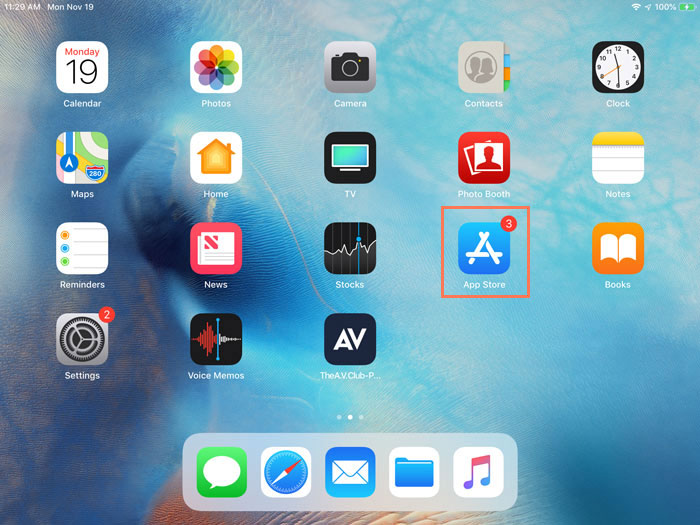
Locating the App Store icon is straightforward; it’s a blue icon featuring a white “A” formed by overlapping lines, usually found on your iPad’s Home Screen or within the Dock. Tapping it opens a vibrant interface designed for easy navigation.
The App Store typically greets you with the “Today” tab, showcasing editorial content, featured apps, and app stories reflecting current tech trends. Other essential tabs include:
- Games: Dedicated to the vast world of mobile gaming.
- Apps: Categories, top charts, and curated collections for productivity, creativity, education, and more.
- Arcade: Apple’s subscription gaming service.
- Search: Your go-to for finding specific apps by name or keyword.
Before you can download anything, ensure you have an active Apple ID. This is your personal account with Apple, linking your device to your purchases, subscriptions, and services. If you don’t have one, your iPad will prompt you to create one during setup or when you first attempt a download. An Apple ID is critical not only for app downloads but also for services like iCloud, FaceTime, and iMessage, forming a central part of your digital identity within Apple’s ecosystem.
Finding and Downloading Free Apps
Most apps offer a free version or are entirely free to download, providing an excellent way to explore new functionalities without immediate financial commitment.
- Using the Search Bar: The most direct way to find an app is to tap the “Search” tab (magnifying glass icon) and type the app’s name or a relevant keyword (e.g., “photo editor,” “note taking,” “finances”). The App Store will present a list of matching results.
- Browsing Categories and Curated Lists: If you’re looking for inspiration or general types of apps, explore the “Apps” or “Games” tabs. Here, you’ll find apps organized by category (e.g., Business, Education, Entertainment, Health & Fitness), as well as editor-curated lists like “Must-Have Apps,” “New Apps We Love,” or selections relevant to specific tech trends or productivity needs. These lists often provide excellent app reviews and recommendations.
- The “GET” Button: Once you find an app you want, tap on it to view its product page. This page provides details such as screenshots, a description, ratings, reviews, app size, compatibility, and privacy information. For free apps, you’ll see a “GET” button. Tap this button.
- Authentication: For security, you’ll be prompted to authenticate your download. This might involve using Face ID (facial recognition), Touch ID (fingerprint scan), or entering your iPad’s passcode or Apple ID password. This step ensures that only authorized users can install apps on your device, a vital digital security measure.
- Installation and Icon Appearance: After successful authentication, the “GET” button will change to a progress circle. The app will begin downloading and installing automatically. Once complete, its icon will appear on your Home Screen, usually on the next available page or within the App Library, ready for you to launch.
Acquiring Paid Applications
While many essential apps are free, some of the most powerful and feature-rich applications come with a price tag. Investing in these apps can significantly enhance your iPad’s capabilities, especially for professional tools or premium entertainment experiences.
- Understanding Pricing and In-App Purchases: Paid apps display their price directly on the button where “GET” would typically be. Be aware that many free or paid apps also offer “in-app purchases” (IAPs), which are additional content, subscriptions, or features bought from within the app itself. The app’s product page will clearly state if it offers IAPs. For subscription-based apps, you’ll see options like “Free Trial” followed by subscription tiers (e.g., monthly, annual). This relates to personal finance and how you allocate your money towards digital tools.
- Payment Methods: To purchase paid apps, your Apple ID must have a linked payment method. This could be a credit/debit card, PayPal, Apple Pay balance, or even App Store & iTunes Gift Card credit. You can manage your payment methods in your iPad’s Settings under your Apple ID profile.
- The Purchase and Download Flow: The process is similar to downloading free apps. Tap the price button, then authenticate your purchase using Face ID, Touch ID, or your Apple ID password. The amount will be charged to your linked payment method, and the app will then download and install onto your iPad.
- Subscription Models and Management: Many modern apps, especially productivity tools or entertainment services, operate on a subscription model. These offer continuous access to features for a recurring fee. You can review and manage all your active subscriptions through your Apple ID settings in the App Store (tap your profile picture in the top right corner, then “Subscriptions”). This financial management aspect is crucial for keeping track of your online income/expenses related to digital services.
Beyond Basic Installation: Optimizing Your App Experience
Installing apps is just the beginning. To maintain a high-performing, secure, and personalized iPad experience, effective app management is essential. This involves keeping apps updated, efficiently managing storage, and understanding various ways to handle your app library.
Updating Your Apps for Peak Performance and Security
Regularly updating your apps is paramount for several reasons, directly impacting your iPad’s performance, digital security, and access to the latest features.
- Why Updates are Crucial:
- Bug Fixes: Developers constantly release updates to fix glitches, crashes, and performance issues, ensuring a smoother user experience.
- New Features: Updates often introduce exciting new functionalities, UI improvements, and integrations, keeping the app current with tech trends and expanding its utility.
- Security Patches: Critically, updates frequently address security vulnerabilities that could be exploited by malicious actors. Keeping apps updated is a fundamental digital security practice, protecting your data and your device.
- Compatibility: Updates ensure apps remain compatible with the latest iOS versions, preventing functionality issues after system updates.
- Automatic Updates vs. Manual Updates:
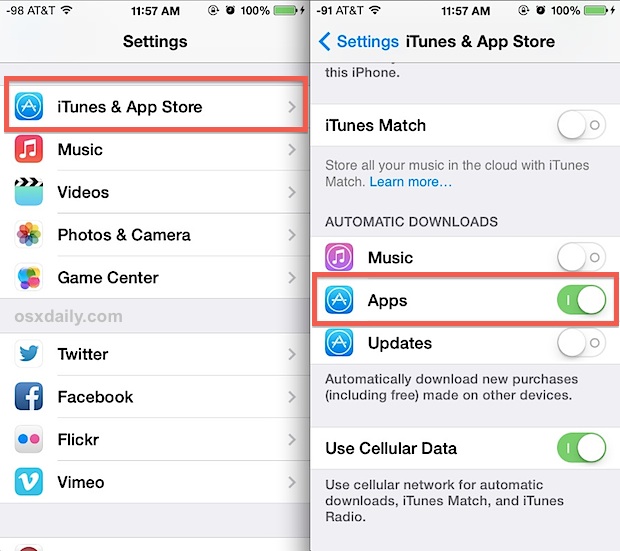
- Automatic Updates: For convenience and security, Apple allows you to enable automatic app updates. Go to
Settings > App Storeand toggle on “App Updates.” This ensures your apps are always up-to-date in the background. - Manual Updates: If you prefer more control, you can update apps manually. Open the App Store, tap your profile picture in the top-right corner, and scroll down to see “Upcoming Automatic Updates” or “Available Updates.” Tap “Update All” or “Update” next to individual apps.
- Automatic Updates: For convenience and security, Apple allows you to enable automatic app updates. Go to
- How to Check for and Install Updates: The manual check through your App Store profile is the most reliable way to see pending updates. Even with automatic updates enabled, sometimes an update might be delayed, or you might want to force an immediate update for a critical app.
Managing Your App Library: Deleting, Offloading, and Reinstalling
Your iPad’s storage is finite, and over time, apps can consume significant space. Efficient management of your app library is key to maintaining optimal performance and having enough room for new content.
- Freeing Up Space: Deleting Apps Permanently:
- From Home Screen: Touch and hold an app icon until the context menu appears, then select “Remove App” > “Delete App” and confirm. This completely removes the app and all its associated data from your iPad.
- From Settings: Go to
Settings > General > iPad Storage. Here, you’ll see a list of your apps ordered by the storage they consume. Tap an app, then select “Delete App.” This view also provides detailed information on how much space the app itself uses versus its documents and data.
- Offloading Apps: Keeping Data While Removing the App: This is a smart storage management feature. When you “Offload App” (available from the app’s storage settings or by long-pressing an icon and choosing “Remove App”), the app itself is deleted, but its documents and data are preserved. The app icon remains on your Home Screen with a small cloud symbol next to it. If you reinstall the app later, your data will still be there, saving you from having to set it up again. This is particularly useful for large apps you use infrequently but want to retain their personalized settings or content.
- Reinstalling Previously Purchased/Downloaded Apps: You can easily reinstall any app you’ve previously acquired, whether free or paid, without repurchasing it. Open the App Store, tap your profile picture, then select “Purchased” (or “My Purchases” if Family Sharing is enabled). This list shows all your apps. Find the app you wish to reinstall and tap the cloud icon with an arrow pointing down.
- Organizing Apps with Folders and the App Library: To maintain a clutter-free Home Screen, organize apps into folders by dragging one app icon onto another. Name folders intuitively (e.g., “Productivity,” “Social,” “Games,” “Money Management”). iPadOS also features the App Library, an automatic organization system that categorizes all your apps at the very end of your Home Screen pages. You can quickly search for apps here or browse by category.
Exploring Alternative App Installation Methods (Advanced & Niche)
While the App Store is the primary and recommended method for installing apps, a few alternative methods exist for specific use cases. It’s crucial to understand their purpose and limitations, particularly regarding digital security.
- TestFlight for Beta Testing: TestFlight is Apple’s official platform for distributing beta versions of apps to testers. Developers use it to gather feedback before a public release. If you’re invited to test an app, you’ll receive an invitation link or code. Installing TestFlight from the App Store allows you to then download and test beta apps. This is a common practice in software development and helps shape future tech trends.
- Enterprise App Distribution: For corporate environments, organizations can distribute proprietary apps to their employees directly, bypassing the App Store. These “enterprise apps” are signed with an Apple Enterprise Developer Program certificate. Employees usually install them via a secure internal website or Mobile Device Management (MDM) solution. These apps are specifically designed for internal business finance and operational needs.
- Sideloading and Unofficial Sources: Unlike Android, iOS has strict controls against “sideloading” apps from unofficial sources. While technically possible with complex methods involving developer accounts or jailbreaking, these practices are strongly discouraged. Sideloading apps from unverified sources poses significant digital security risks, potentially exposing your device to malware, data breaches, and instability. Apple’s ecosystem prioritizes security and a consistent user experience, making the App Store the safest and most reliable channel for app acquisition.
Troubleshooting Common App Installation Issues
Even with a smooth system like iPadOS, you might occasionally encounter hiccups during app installation or usage. Knowing how to diagnose and resolve these common problems can save you time and frustration.
Resolving Download and Installation Problems
- Checking Internet Connection: A stable Wi-Fi or cellular data connection is essential. Ensure your iPad is connected to the internet and that the signal is strong. Try opening a website in Safari to confirm connectivity.
- Insufficient Storage Space: This is one of the most frequent culprits. If your iPad is full, new apps cannot be installed. Go to
Settings > General > iPad Storageto check available space and offload or delete unnecessary apps, photos, or videos. - Apple ID Issues:
- Sign-in problems: Ensure you’re signed in to the App Store with the correct Apple ID.
- Payment method issues: For paid apps, verify your payment method is valid and has sufficient funds.
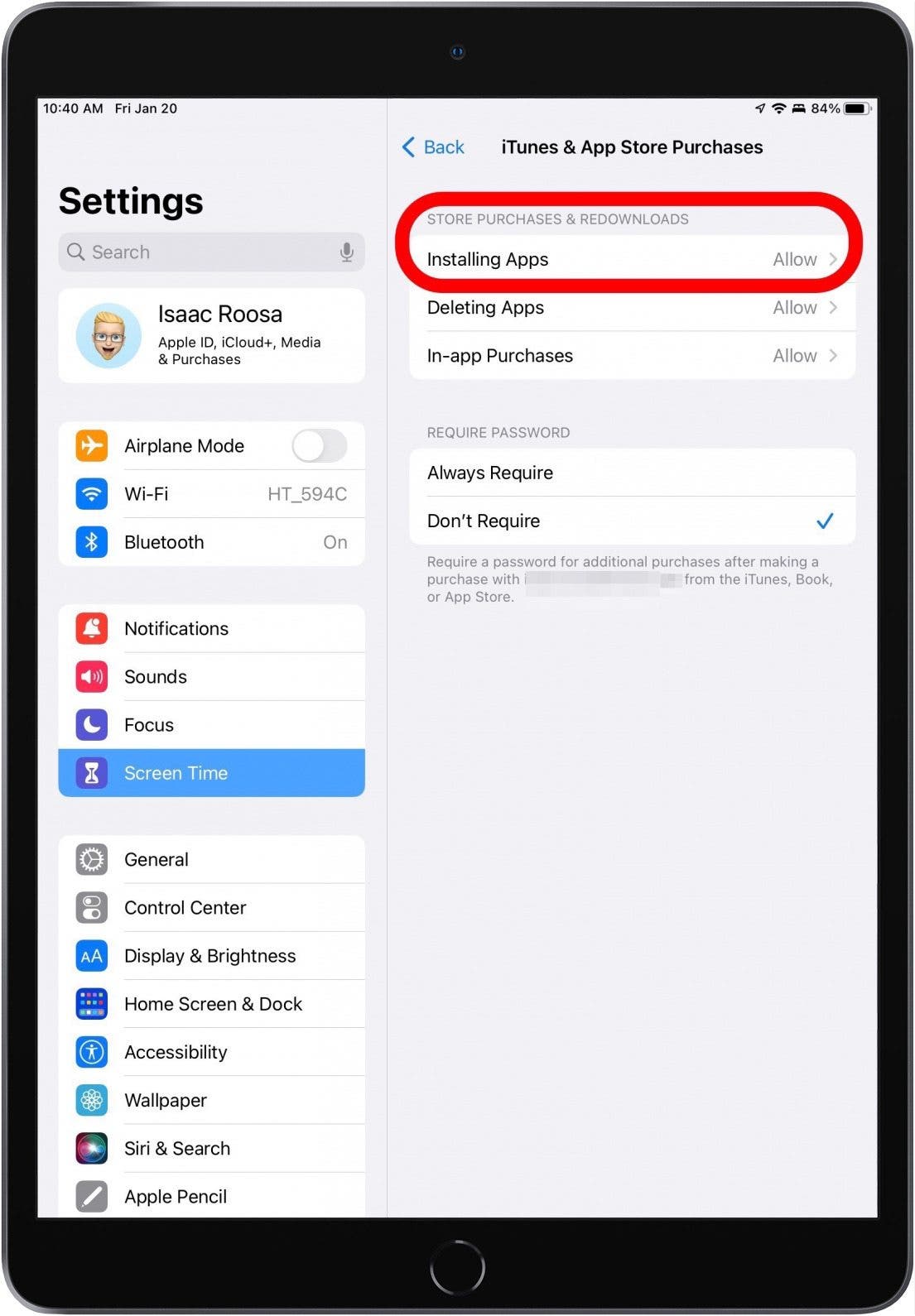
- Restrictions: Check
Settings > Screen Time > Content & Privacy Restrictions > iTunes & App Store Purchasesto ensure “Installing Apps” is allowed.
- App Store Server Status: Rarely, Apple’s App Store servers might experience temporary outages. You can check Apple’s System Status page online to see if there are any reported issues.
- Restarting iPad: A simple restart can often resolve minor software glitches causing download issues. Press and hold the power button (and either volume button on Face ID iPads) until the slider appears, then slide to power off. Wait a minute, then restart.
Dealing with App Crashes or Freezing
- Force Quitting Apps: If an app is unresponsive, swipe up from the bottom of the screen (or double-tap the Home button on older iPads) to open the App Switcher. Find the problematic app’s card and swipe it upwards to force quit. Then, try relaunching the app.
- Updating iOS: Ensure your iPad is running the latest version of iPadOS. App developers often optimize their apps for the newest OS versions, and outdated software can lead to compatibility issues and crashes. Go to
Settings > General > Software Update. - Reinstalling Problematic Apps: If an app consistently crashes, deleting it (which also removes its data) and then reinstalling it from the App Store can often fix corrupted files that might be causing the issue.
- Contacting App Developer Support: If issues persist, especially with a specific app, reach out to the app’s developer. You can usually find contact information on the app’s product page in the App Store or within the app’s settings. They may have specific troubleshooting steps or be aware of a bug they are working to fix.
Best Practices for a Secure and Efficient App Lifestyle
Beyond merely installing apps, cultivating an efficient and secure app lifestyle on your iPad involves thoughtful choices and consistent habits. This not only enhances your personal productivity but also safeguards your digital presence.
Prioritizing Digital Security and Privacy
In an era of increasing cyber threats, digital security is paramount. Your app choices and management practices play a significant role.
- Reviewing App Permissions: When an app asks for access to your camera, microphone, location, photos, or contacts, understand why it needs that access. Go to
Settings > Privacy & Securityto review and manage permissions for all your apps. Be cautious and only grant access that is clearly necessary for the app’s function. This is a crucial aspect of personal digital security. - Strong Apple ID Security: Your Apple ID is the key to your entire Apple ecosystem. Enable Two-Factor Authentication (2FA) for your Apple ID immediately if you haven’t already. This adds an extra layer of security, requiring a code from a trusted device in addition to your password, making it much harder for unauthorized access.
- Being Cautious with Unknown Sources: Reiterating the earlier point: stick to the official App Store for downloading apps. It’s curated by Apple for malware and security vulnerabilities. Avoid jailbreaking your device or installing apps from unofficial stores, as this bypasses critical security features and puts your data at severe risk.
- Keeping iOS Updated: Just as with apps, keeping your iPad’s operating system (iPadOS) up-to-date is vital for security. Apple regularly releases security patches and updates that protect against new threats.
Curating Your Digital Workspace for Productivity
Your iPad can be a powerful productivity tool or a source of distraction, depending on how you curate your app collection.
- Organizing Apps Logically: Grouping apps into intuitive folders (e.g., “Work,” “Leisure,” “Finance Tools,” “Creative Suite”) makes it easier to find what you need quickly, reducing cognitive load and boosting efficiency.
- Leveraging Widgets and Multitasking: Many apps offer widgets that can be added to your Home Screen or Today View, providing quick glances at information without opening the app (e.g., calendar, weather, to-do lists). Learn to use iPad’s multitasking features like Split View and Slide Over to use multiple apps simultaneously, dramatically improving productivity for tasks like research, writing, or data comparison. These features are at the forefront of productivity technology trends.
- Discovering Apps That Align with Your Goals: Actively seek out apps that address your specific needs. The App Store is rich with tools for personal finance, project management, language learning, fitness tracking, and more. Read app reviews, check out “Apps of the Day,” and explore curated lists that highlight beneficial apps for various aspects of life, from brand strategy development to online income tracking.
- Regularly Reviewing and Decluttering Your App Collection: Just like a physical workspace, a digital one benefits from decluttering. Periodically review your installed apps. If you haven’t used an app in months, consider deleting or offloading it. This frees up storage, reduces visual clutter, and helps you focus on the tools you truly value and use.
By adopting these practices, your iPad transforms from a mere gadget into a highly personalized and efficient tool that supports your goals, enhances your digital security, and keeps you connected to the latest technological advancements. Mastering app installation and management is not just about functionality; it’s about optimizing your entire digital lifestyle.
aViewFromTheCave is a participant in the Amazon Services LLC Associates Program, an affiliate advertising program designed to provide a means for sites to earn advertising fees by advertising and linking to Amazon.com. Amazon, the Amazon logo, AmazonSupply, and the AmazonSupply logo are trademarks of Amazon.com, Inc. or its affiliates. As an Amazon Associate we earn affiliate commissions from qualifying purchases.