
The Amazon Fire TV Stick has revolutionized the way we consume media, transforming any television into a smart hub for streaming, gaming, and so much more. Its intuitive interface and vast app ecosystem make it an incredibly versatile device. However, for newcomers, navigating the process of installing new applications can sometimes feel a little daunting. This comprehensive guide will demystify the entire process, ensuring you can effortlessly expand the capabilities of your Firestick and tailor it to your specific entertainment and productivity needs.
Whether you’re looking to dive into the latest blockbuster movies, catch up on your favorite TV shows, explore niche streaming services, or even leverage your Firestick for more practical purposes, knowing how to install apps is fundamental. We’ll cover the most common methods, from the straightforward Amazon Appstore to more advanced techniques for accessing content not officially listed. By the end of this article, you’ll be equipped with the knowledge to transform your Firestick into a personalized powerhouse.
Mastering the Amazon Appstore: The Primary Gateway for Firestick Apps
The Amazon Appstore is the official and most recommended platform for acquiring applications on your Firestick. It’s designed for ease of use and ensures that the apps you download are compatible and secure. This section will guide you through the standard installation process, highlighting the benefits and simplicity of using this built-in feature.
Accessing the Appstore on Your Firestick
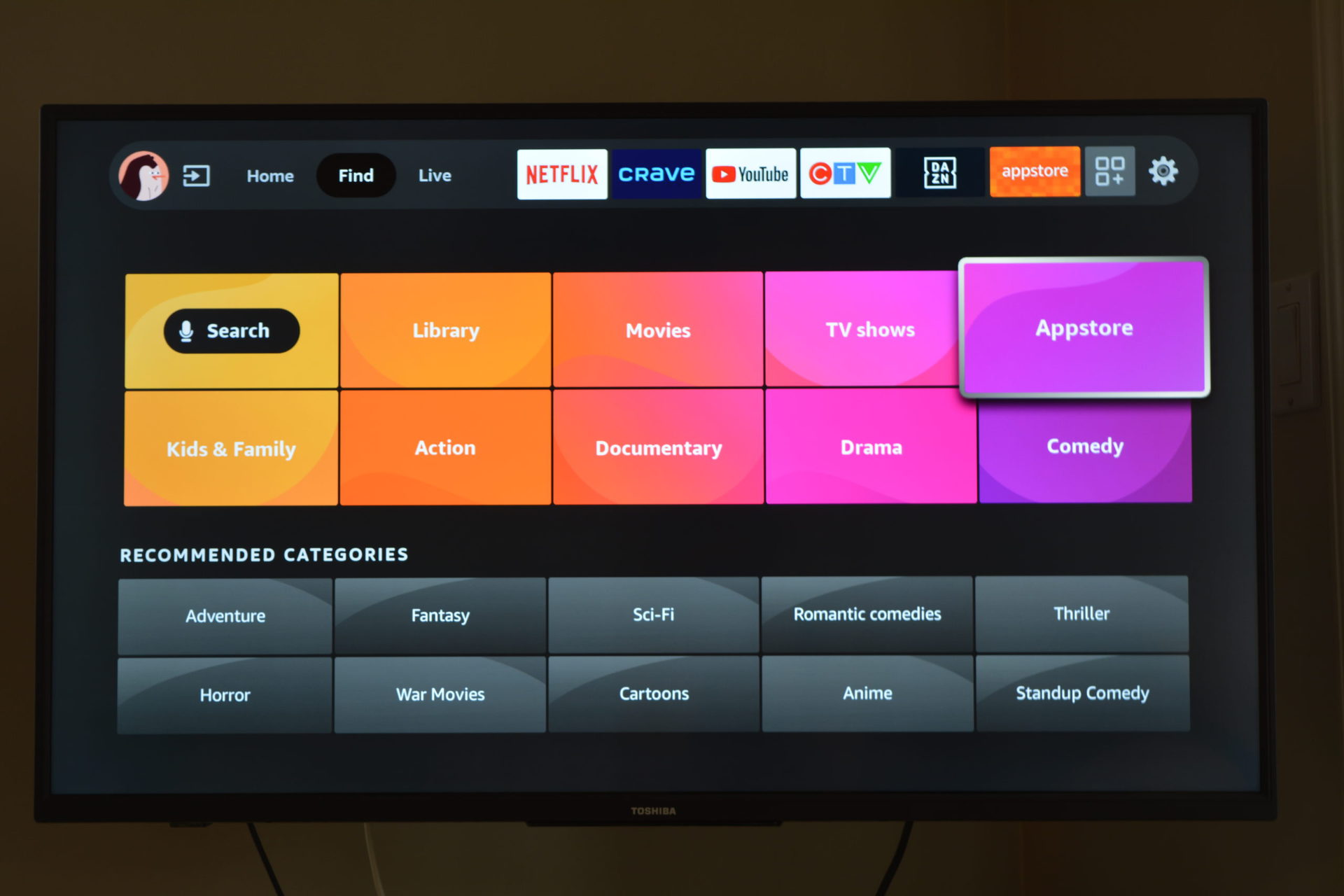
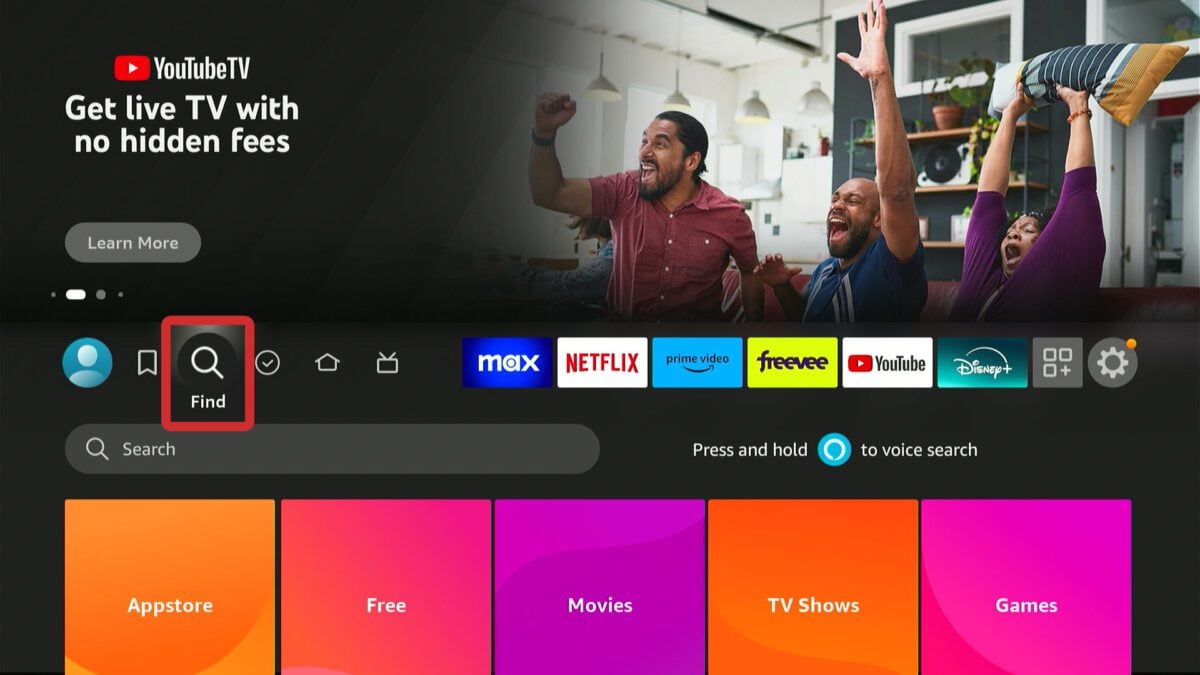
Locating the Appstore on your Firestick is the first step. Upon booting up your device, you’ll be presented with the Fire TV interface. Navigate to the “Find” or “Search” icon, typically represented by a magnifying glass. From there, you can either type “Appstore” into the search bar or select the “Apps” tab from the main menu. Once you’ve found the Appstore, select it to enter.
The Appstore is organized into various categories, making it easy to browse for what you’re looking for. You’ll find sections for “Your Apps,” “Categories,” “Top Apps,” and “Featured.” This layout is designed to help you discover new content and manage your existing applications efficiently.
Searching for and Installing Apps
Once inside the Appstore, the most direct method to find a specific application is to use the search function. If you know the name of the app you want to install (e.g., Netflix, Hulu, Disney+, YouTube), simply select the search icon and begin typing. The Firestick’s on-screen keyboard can be navigated with your remote. As you type, relevant suggestions will appear, helping you find the app quickly.
When you’ve located your desired app, click on its icon to open its dedicated page. This page will provide details about the app, including its description, screenshots, user reviews, and ratings. To proceed with the installation, select the “Get” or “Download” button. The app will then begin downloading and installing automatically. You’ll see a progress bar indicating the download status. Once completed, the app will appear in your list of installed applications, usually found under the “Your Apps & Channels” section on the Fire TV home screen.
Understanding App Categories and Recommendations
Beyond direct searching, the Amazon Appstore offers a wealth of content through its categorized sections. You can explore genres like “Entertainment,” “Games,” “Lifestyle,” “Productivity,” and many more. This is an excellent way to discover new apps you might not have known existed.
The “Top Apps” section is particularly useful for identifying the most popular and frequently downloaded applications. This can give you a good starting point if you’re unsure of what to install. Additionally, the “Featured” section often highlights new releases, seasonal content, or apps that Amazon is promoting, providing fresh ideas for your Firestick. Take advantage of these features to curate a truly personalized entertainment experience.
Beyond the Official Store: Sideloading Apps for Enhanced Functionality
While the Amazon Appstore offers a vast selection of applications, there are instances where you might want to install an app that isn’t available through the official channel. This is often the case for certain IPTV players, custom launchers, or applications that offer unique functionalities. This process is known as “sideloading,” and it requires a few extra steps.
Important Note: Sideloading involves installing applications from sources other than the Amazon Appstore. While it’s a powerful way to expand your Firestick’s capabilities, it’s crucial to only download apps from trusted sources. Installing apps from unknown or untrustworthy websites can potentially expose your device to malware or security risks. Always exercise caution and do your research.
Enabling “Apps from Unknown Sources”
Before you can sideload any application, you need to enable a specific setting on your Firestick. This setting allows the device to install apps that haven’t been verified by Amazon.
- Navigate to Settings: From your Fire TV home screen, go to “Settings” (the gear icon).
- Select “My Fire TV”: Within the Settings menu, find and select “My Fire TV.”
- Choose “Developer Options”: In the “My Fire TV” menu, you’ll see “Developer Options.” Select it.
- Enable “Apps from Unknown Sources”: You will see an option labeled “Apps from Unknown Sources.” Select it. A warning message will appear, informing you about the risks. Confirm by selecting “Turn On.”
Once this setting is enabled, your Firestick is ready to accept apps from sources outside the Amazon Appstore.
Using the “Downloader” App for Sideloading
The “Downloader” app is an indispensable tool for sideloading applications onto your Firestick. It’s a simple browser and file manager that allows you to download APK files (the Android application package format) directly from the internet and install them.
- Install the Downloader App: Search for “Downloader” in the Amazon Appstore and install it like any other app.
- Open Downloader: Once installed, open the Downloader app. You’ll be presented with a search bar.
- Enter the URL: You’ll need the direct URL of the APK file you wish to download. For example, if you want to install a specific IPTV player, you would find its APK download link from a reputable source and type it into the Downloader’s URL bar. As you type, the on-screen keyboard will be used.
- Download the APK: After entering the URL, select “Go.” The Downloader app will navigate to the website and begin downloading the APK file.
- Install the APK: Once the download is complete, Downloader will automatically prompt you to install the application. Select “Install.”
- Grant Permissions: During the installation process, you might be asked to grant certain permissions to the app. Review them and proceed with the installation.
- Delete the APK (Optional but Recommended): After installation, Downloader will usually ask if you want to delete the downloaded APK file. It’s generally a good idea to do this to free up space on your Firestick.
By following these steps, you can install a wide range of applications that are not available through the official Amazon Appstore, significantly expanding your Firestick’s capabilities.
Advanced Customization and Management of Your Firestick Apps
Once you’ve started accumulating a collection of apps, managing them effectively becomes important for maintaining a smooth and responsive user experience. This section delves into techniques for organizing your apps, uninstalling those you no longer need, and even delving into more advanced customizations like sideloading custom launchers.
Organizing Your Apps for Easy Access
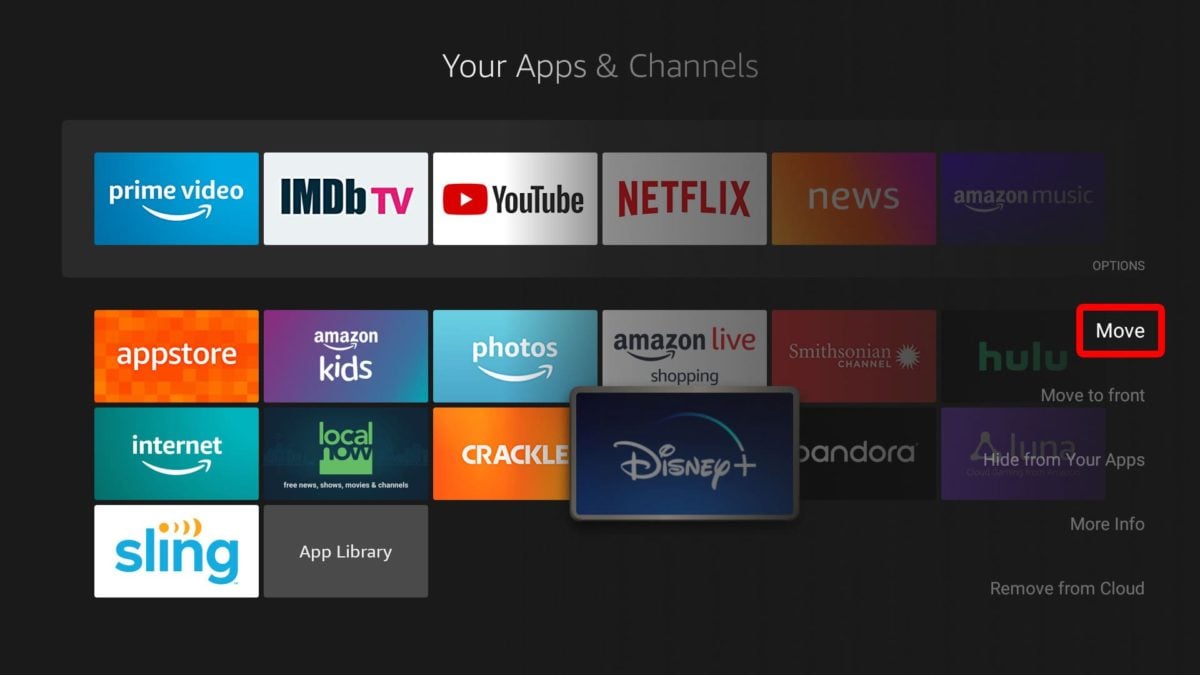
As you install more apps, your “Your Apps & Channels” list can become quite long. This is where organization becomes crucial. While the Fire TV interface offers limited customization for the main app row, you can rearrange the order of apps that appear there.
- Navigate to “Your Apps & Channels”: From the Fire TV home screen, scroll down to the row that displays your installed applications.
- Highlight an App: Use your remote to highlight the app you wish to move.
- Press the Menu Button: Press the “Menu” button on your Fire TV remote (it often looks like three horizontal lines).
- Select “Move”: A context menu will appear. Select the “Move” option.
- Rearrange: You can now use your remote’s directional pad to drag and drop the app to your desired position within the row. Press the center button on your remote to confirm the new placement.
This simple rearrangement can make a significant difference in how quickly you can access your favorite apps. For more extensive organization, consider third-party launchers (discussed below).
Uninstalling Unused Apps to Free Up Space and Improve Performance
Over time, you’re likely to install apps that you end up not using. These unused apps not only clutter your interface but also consume valuable storage space and can potentially impact your Firestick’s performance. Uninstalling them is a straightforward process.
- Navigate to Settings: Go to “Settings” from the Fire TV home screen.
- Select “Applications”: Within the Settings menu, find and select “Applications.”
- Choose “Manage Installed Applications”: This will display a list of all apps installed on your Firestick.
- Highlight the App to Uninstall: Scroll through the list and highlight the app you want to remove.
- Select “Uninstall”: On the app’s information page, you’ll see an “Uninstall” button. Select it.
- Confirm Uninstallation: A confirmation prompt will appear. Select “Uninstall” again to confirm.
The app will then be removed from your Firestick. Regularly performing this cleanup can help keep your device running smoothly.
Exploring Custom Launchers for a Personalized Interface
For users who desire a highly customized interface, sideloading a custom launcher is an advanced option. A custom launcher replaces the default Fire TV home screen with a new interface that offers more options for app organization, customization, and even direct access to specific content.
Popular custom launchers like “Wolf Launcher” or “Projectivy Launcher” can be sideloaded using the Downloader app, just like any other APK. These launchers often allow you to:
- Create custom app folders.
- Pin your most-used apps to the forefront.
- Hide unwanted pre-installed apps.
- Change the visual theme and layout of your home screen.
- Integrate third-party content sources directly into the interface.
While custom launchers offer immense flexibility, they can also be more complex to set up and may require occasional maintenance. If you’re looking to truly make your Firestick your own, exploring custom launchers is a worthwhile endeavor. Remember to always download launchers from reputable sources and follow installation instructions carefully.
Conclusion: Unleash the Full Potential of Your Firestick
The Amazon Fire TV Stick is far more than just a streaming device; it’s a versatile platform that can be customized to suit your every need. By mastering the Amazon Appstore, you gain access to a vast library of official entertainment and utility applications. For those seeking even more, the ability to sideload apps opens up a world of possibilities, allowing you to install niche software and enhance your device’s functionality beyond what’s officially offered.
Remember the importance of security and only download applications from trusted sources. Regularly organizing and cleaning up your installed apps will ensure your Firestick continues to perform at its best. Whether you’re a casual streamer or a power user, understanding how to install and manage apps on your Firestick is key to unlocking its full potential and creating a truly personalized entertainment and productivity hub. With the knowledge gained from this guide, you’re well on your way to transforming your Fire TV Stick into an indispensable part of your digital life.
aViewFromTheCave is a participant in the Amazon Services LLC Associates Program, an affiliate advertising program designed to provide a means for sites to earn advertising fees by advertising and linking to Amazon.com. Amazon, the Amazon logo, AmazonSupply, and the AmazonSupply logo are trademarks of Amazon.com, Inc. or its affiliates. As an Amazon Associate we earn affiliate commissions from qualifying purchases.