
In an increasingly connected world, our entertainment hubs have evolved far beyond mere television sets. Devices like the Apple TV stand at the forefront of this revolution, transforming your living room screen into a dynamic portal for entertainment, fitness, education, and much more. However, to truly harness the power of your Apple TV, you need to understand one crucial aspect: how to install and manage applications.
The Apple TV, often perceived primarily as a streaming box for services like Netflix or Apple TV+, is in fact a sophisticated platform running tvOS, a specialized operating system built on Apple’s robust ecosystem. Just like your iPhone or iPad, your Apple TV gains immense versatility and personalized utility through its vibrant App Store. Whether you’re a casual viewer looking for the latest movies, a fitness enthusiast seeking guided workouts, a gaming aficionado, or a professional aiming to display presentations, apps are the key to unlocking these capabilities.
This comprehensive guide aims to demystify the process of installing applications on your Apple TV. We’ll delve into the foundational steps, walk you through the navigation of the App Store, and provide practical advice for managing your digital library. By the end of this article, you’ll be fully equipped to customize your Apple TV experience, transforming it into a personalized command center for all your digital needs. This isn’t just about technical instructions; it’s about empowering you to maximize your investment in Apple’s intuitive and powerful home entertainment system, aligning perfectly with the ethos of enhancing your tech life.
Understanding Your Apple TV and Its App Ecosystem
Before diving into the mechanics of app installation, it’s essential to grasp what an Apple TV is and why its app ecosystem is so pivotal. Understanding the underlying technology and the philosophy behind Apple’s design will enhance your appreciation for its capabilities and ensure a smoother user experience.
What is Apple TV? A Glimpse at the Device and its Purpose
At its core, Apple TV is a digital media player developed by Apple Inc., designed to play digital content from various sources on a connected television set. Over the years, it has evolved significantly, moving from a simple content streamer to a powerful set-top box. Current models, primarily the Apple TV HD and Apple TV 4K, run tvOS, a dedicated operating system that provides an interface for browsing and playing content, and most importantly, access to the Apple TV App Store. Unlike smart TVs with often clunky interfaces, Apple TV offers a consistently smooth, intuitive, and high-performance experience, deeply integrated with the broader Apple ecosystem. It serves as a central hub for entertainment, connecting you seamlessly to services, games, and utilities, all controlled by the sleek Siri Remote. For many, it represents the superior brand experience and design that Apple consistently delivers across its product lines.
The Power of Apps: Why Customization Matters
The true magic of the Apple TV, much like its mobile siblings, lies in its capacity for personalization through apps. Without them, your Apple TV would merely be a portal for a few pre-installed services. With apps, however, its functionality explodes. You can transform it into:
- A Cinematic Powerhouse: Access a myriad of streaming services beyond Apple TV+, including Netflix, Disney+, Hulu, HBO Max, Prime Video, and countless others, each offering unique content libraries.
- A Personal Trainer: Download fitness apps like Peloton, Nike Training Club, or Apple Fitness+ to turn your living room into a gym with guided workouts and personalized plans.
- A Gaming Console: Explore a vast library of games, from casual puzzles to graphically rich adventures, many of which are exclusive to Apple Arcade or optimized for the big screen.
- An Educational Tool: Access learning apps, language courses, or documentary services.
- A Productivity Hub: While less common, some apps allow for collaboration, presentations, or accessing cloud storage, turning your TV into a secondary monitor for certain tasks.
This customization is a key aspect of Apple’s brand strategy – empowering users to tailor their devices to their individual needs and preferences. It’s about more than just watching TV; it’s about experiencing content and services on your terms, enhancing the value proposition of the device manifold.
Prerequisites for a Smooth App Experience
Before you embark on your app installation journey, ensure you have the following essentials in place. These prerequisites are fundamental to a seamless experience and common to most interactions within the Apple ecosystem.
- An Active Apple ID: This is your digital passport to the world of Apple. You’ll need an Apple ID to access the App Store, download apps (even free ones), make purchases, and utilize Apple services. If you don’t have one, you can create it on Apple’s website or directly from your Apple TV. Ensure it’s linked to a valid payment method if you plan to download paid apps or make in-app purchases. This also ties into the ‘Money’ aspect – managing your financial transactions within the Apple ecosystem.
- Stable Internet Connection: The Apple TV requires a robust Wi-Fi or Ethernet connection to download apps and stream content. A slow or intermittent connection will result in frustratingly long download times or failed installations. For 4K content and large game downloads, a high-speed connection is paramount.
- Up-to-Date tvOS Software: Apple regularly releases updates for tvOS, bringing new features, security enhancements, and performance improvements. Keeping your Apple TV software current ensures compatibility with the latest apps and a smooth operating experience. You can check for updates in
Settings > System > Software Updates. Staying updated is a key digital security practice, ensuring your device is protected against known vulnerabilities, a critical consideration in today’s tech landscape. - Sufficient Storage Space: While most Apple TV apps are relatively small, if you’re a heavy gamer or download many content-rich applications, you might eventually run into storage limitations. Apple TV models come with varying storage capacities (e.g., 32GB, 64GB). You can check your available storage in
Settings > General > Manage Storage.
With these prerequisites met, you’re ready to unlock the vast potential of the Apple TV App Store.
Navigating the App Store: Your Gateway to Entertainment and Utility
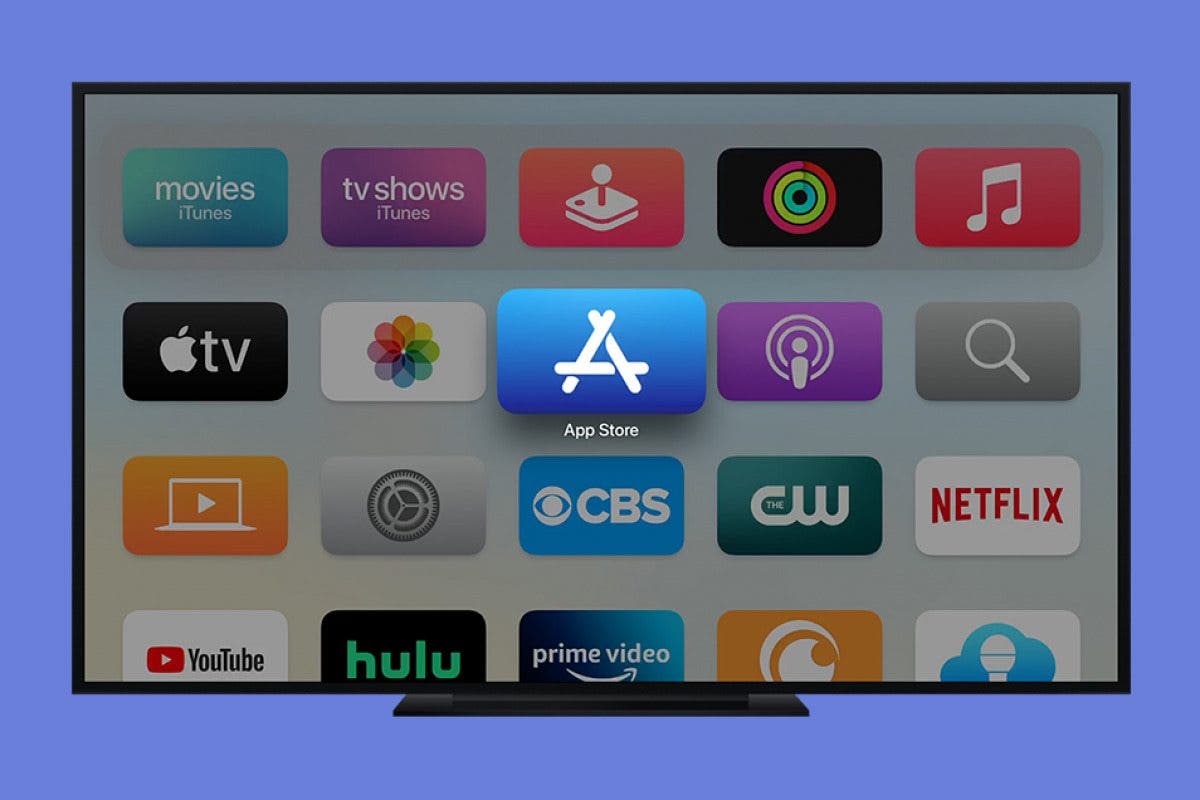
The App Store on your Apple TV is the central hub for discovering, downloading, and installing new applications. Designed with user-friendliness in mind, it mirrors the intuitive experience found on other Apple devices, ensuring that even first-time users can quickly find what they’re looking for.
Accessing and Exploring the App Store
Locating the App Store icon on your Apple TV’s Home screen is your first step. It’s typically represented by a blue icon with a white “A” logo. Once selected, you’ll be greeted by the App Store interface, which is logically organized to facilitate discovery.
The App Store is generally divided into several sections:
- Featured: This section highlights popular, new, or editor-picked apps, often showcasing cutting-edge technology or particularly engaging user experiences. It’s a great place to start if you’re looking for inspiration or the latest trends in entertainment and utility.
- Categories: For a more targeted search, the Categories section allows you to browse apps by genre, such as Entertainment, Games, Sports, Lifestyle, Kids, and more. This is particularly useful when you have a general idea of what you want but aren’t looking for a specific app.
- Top Charts: Here, you can see lists of the most popular free and paid apps, giving you insight into what other users are downloading and enjoying. This can be a good indicator of an app’s quality or broad appeal, a form of crowd-sourced brand validation.
- Purchased: This section displays all the apps you’ve previously downloaded, even if they are no longer on your Apple TV. This is incredibly handy for reinstalling apps without having to search for them again.
- Search: For when you know exactly what you’re looking for, the search function is your best friend.
Discovering New Apps: Search and Browse Functions
Finding the perfect app is often a blend of targeted searching and casual browsing.
- Using the Search Function: The Siri Remote makes searching incredibly efficient. You can either type out the app’s name using the on-screen keyboard (which can be slow) or, more conveniently, use Siri voice commands. Simply hold down the Siri button on your remote and say something like, “Search for Netflix,” “Find a fitness app,” or “Look for racing games.” Siri’s natural language processing is quite capable, making discovery swift and effortless. This leverages Apple’s advanced AI tools to enhance user experience, a core tech trend.
- Browsing Categories and Recommendations: If you’re open to discovery, spend time exploring the various categories. You might stumble upon hidden gems or apps you never knew you needed. The “Featured” and “You Might Also Like” sections often provide personalized recommendations based on your download history and popular trends, helping you cut through the clutter and find valuable additions to your Apple TV. This curated experience also contributes to the perceived quality and relevance of the Apple brand.
Downloading and Installing Apps
Once you’ve found an app that piques your interest, the installation process is straightforward.
- Select the App: Click on the app icon using your Siri Remote to open its product page. Here, you’ll find details like a description, screenshots, user reviews, ratings, privacy information, and the app’s size. Take a moment to review these details, especially user reviews, which can offer valuable insights into an app’s performance and value.
- Initiate Download/Purchase:
- Free Apps: If the app is free, you’ll see a “Get” button. Clicking this will prompt the download.
- Paid Apps: If the app costs money, you’ll see the price listed instead of “Get.” Clicking this will initiate the purchase process. You’ll typically be asked to confirm your Apple ID password or use Face ID/Touch ID on a connected iPhone/iPad if enabled for faster authentication.
- In-App Purchases: Be aware that many free apps offer in-app purchases for premium features, subscriptions, or virtual items. These will be clearly indicated on the app’s product page. This ties directly into the ‘Money’ aspect, as many apps use various monetization strategies.
- Authentication: For security, you might be required to enter your Apple ID password or use a quick authentication method. This ensures that only authorized users can download apps and make purchases, protecting your digital security and financial information.
- Installation: Once authorized, the app will begin downloading. A progress circle will appear on the app icon. After the download is complete, the app will automatically install and appear on your Apple TV Home screen, ready for use. Large apps or slow internet connections can take a few minutes.
Leveraging Family Sharing for App Access
For households with multiple Apple users, Family Sharing is an incredibly convenient feature that extends to app purchases. If you’re part of an Apple Family Sharing group, any eligible app purchased by one family member can be downloaded and used by other family members without them having to buy it again.
To access shared apps:
- Go to the App Store on your Apple TV.
- Navigate to the “Purchased” section.
- You’ll see options to view purchases “My Purchases” (your own) and “Family Purchases.”
- Select a family member’s name, and you can browse through the apps they’ve purchased and download them to your Apple TV.
This feature provides significant cost savings (Money aspect) and enhances convenience, reinforcing the value proposition of being deeply embedded within the Apple ecosystem and its associated brand benefits.
Managing Your Installed Apps: Organization and Optimization
Installing apps is only half the battle; effectively managing them ensures your Apple TV remains organized, efficient, and tailored to your evolving needs. Just like tidying up your physical living space, organizing your digital home screen enhances usability and reduces clutter.
Rearranging Apps for Personalization
As you accumulate more apps, your Home screen can quickly become a sprawling collection. Apple TV allows you to rearrange app icons to create a personalized layout that suits your workflow and preferences.
To rearrange apps:
- Navigate to the app you wish to move on the Home screen.
- Press and hold the Touch surface (or click pad on older remotes) of your Siri Remote until the app icon begins to jiggle. All app icons will enter “jiggle mode,” indicating they are ready to be moved.
- While the app is jiggling, use the Touch surface to drag the app to its desired new location.
- You can also create folders to group similar apps. While an app is jiggling, drag it on top of another app, and a folder will automatically be created, containing both apps. You can then drag other apps into this folder. This is particularly useful for categorizing games, streaming services, or utility apps, greatly enhancing organization.
- Once you’re satisfied with the arrangement, press the Menu button on your remote to exit jiggle mode and save the layout.
Thoughtful organization makes it quicker to find frequently used apps and creates a more aesthetically pleasing Home screen, aligning with a focus on productivity and efficient use of tech.
Deleting Unwanted Apps
Periodically, you might find that certain apps are no longer used, or you might need to free up storage space. Deleting apps from your Apple TV is a simple process.
To delete an app:
- Navigate to the app icon you wish to remove on the Home screen.
- Press and hold the Touch surface until the app icon begins to jiggle.
- With the app jiggling, press the Play/Pause button on your remote.
- A prompt will appear asking if you want to “Delete App.” Confirm your choice.
- Press the Menu button on your remote to exit jiggle mode.
Deleting apps frees up valuable storage space, which can be crucial on Apple TV models with smaller capacities, especially if you download large games. It also helps declutter your Home screen, making navigation more streamlined. Remember that deleting an app doesn’t delete your account or subscription associated with it; you’ll need to cancel those separately if desired.
Updating Your Apps
App developers frequently release updates to introduce new features, fix bugs, improve performance, and enhance security. Keeping your apps updated ensures you have access to the latest functionalities and helps maintain the overall stability and security of your Apple TV.
To update apps:
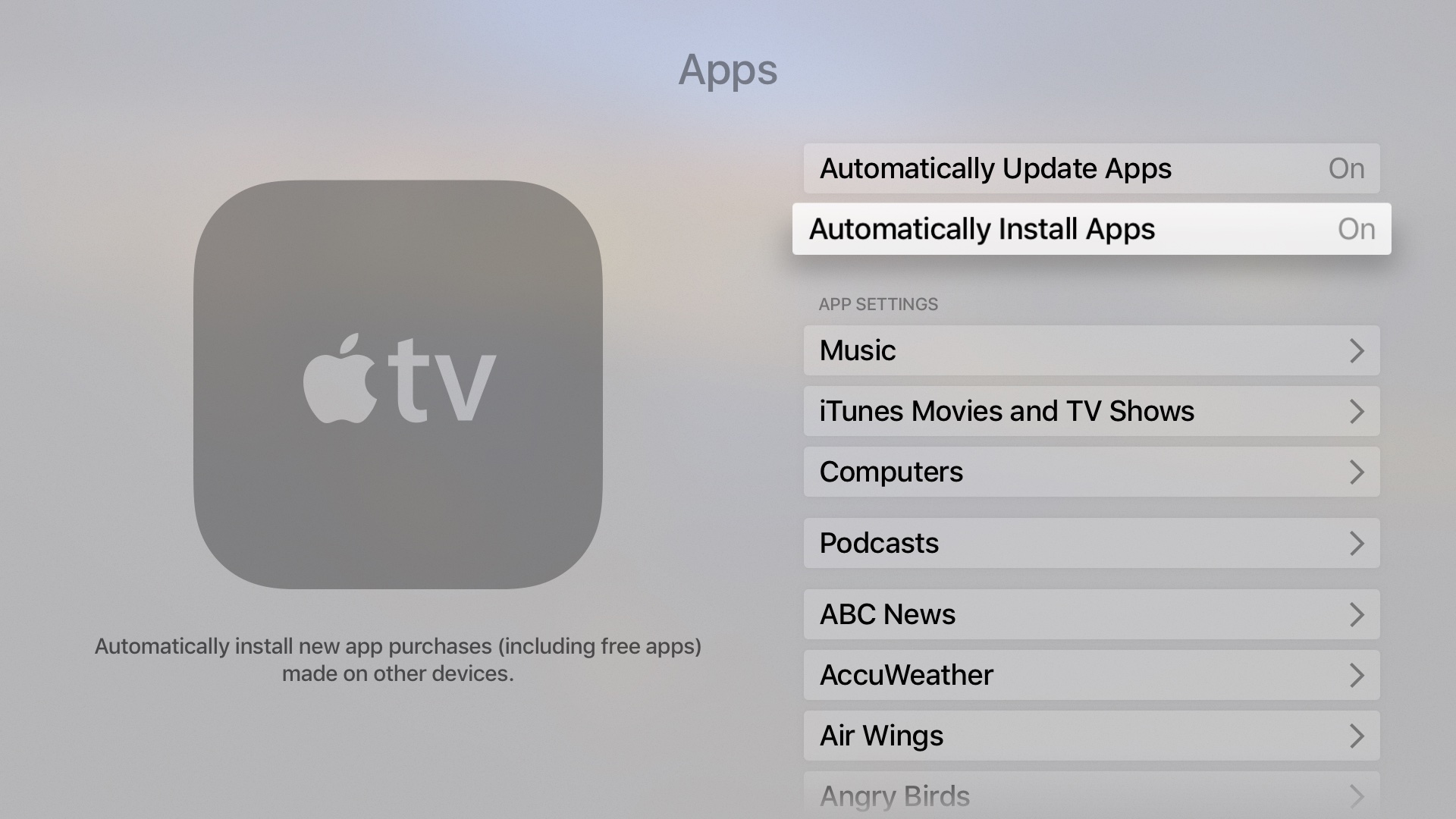
- Automatic Updates: The easiest way to keep apps updated is to enable automatic updates. Go to
Settings > Appsand turn on “Automatically Update Apps.” This is highly recommended as it keeps your apps current without any manual intervention, contributing to digital security and seamless user experience. - Manual Updates: If you prefer to manually control updates, or if an app isn’t updating automatically, you can check for updates in the App Store. Sometimes, apps requiring an update will have a small notification badge. In the App Store, navigate to your “Purchased” section or directly to an app’s product page to see if an update is available. If an update is pending, you’ll see an “Update” button instead of “Open.”
Regular updates are crucial for cybersecurity, patching vulnerabilities, and ensuring smooth compatibility with the latest tvOS versions. This aligns with the ‘Tech’ topic’s emphasis on digital security and maintaining optimal software performance.
Automatic Downloads and Settings
Apple TV offers other convenient settings related to app management:
- Automatic Downloads (Apps): If you download an app on your iPhone or iPad that also has an Apple TV version, this setting can automatically download the Apple TV version to your device. This streamlines the experience across your Apple ecosystem. You can enable or disable this in
Settings > Apps > Automatically Install Apps. - App Unloading: tvOS has a feature similar to iOS where it can “offload” infrequently used apps to free up storage while keeping their data. If you later decide to use the app, it will re-download quickly, preserving your settings. You can find this setting under
Settings > General > Manage Storage > Offload Unused Apps. This is a smart way to manage storage without permanently losing app data, a valuable tech utility.
Efficient app management contributes not just to a tidy interface but also to the longevity and performance of your Apple TV, ensuring it remains a responsive and enjoyable entertainment hub.
Troubleshooting Common App Installation Issues
While the Apple TV app installation process is generally smooth, you might occasionally encounter minor hiccups. Knowing how to troubleshoot these common issues can save you time and frustration, getting you back to your content faster.
Checking Your Internet Connection and Apple ID
The vast majority of app installation problems stem from these two fundamental components.
- Internet Connection:
- Verify Connectivity: Go to
Settings > Networkon your Apple TV. Ensure it’s connected to your Wi-Fi or Ethernet and that the status is “Connected.” - Test Connection: Try opening a pre-installed app like Apple TV+ or YouTube to see if content streams. If not, your internet connection is the likely culprit.
- Router/Modem Check: Restart your Wi-Fi router and modem by unplugging them for 30 seconds and then plugging them back in. This often resolves minor network glitches.
- Signal Strength: If using Wi-Fi, ensure your Apple TV isn’t too far from your router or obstructed by dense objects, which can weaken the signal.
- Verify Connectivity: Go to
- Apple ID:
- Sign-in Status: Go to
Settings > Users and Accounts > [Your Name]and ensure you are signed in with the correct Apple ID. - Password Verification: When prompted for your password during a download, double-check that you’re entering it correctly. Passwords are case-sensitive. If you’ve recently changed your Apple ID password, ensure all your Apple devices are updated with the new one.
- Payment Method: For paid apps, ensure your Apple ID has a valid payment method on file and that there are no issues with it (e.g., expired card). You can manage this via the App Store on your Apple TV or by logging into your Apple ID account online. Issues with payment methods directly relate to the ‘Money’ aspect and can halt app acquisition.
- Sign-in Status: Go to
Restarting Your Apple TV and Router
The classic “turn it off and on again” solution is remarkably effective for many electronic devices, including the Apple TV.
- Restart Apple TV: Go to
Settings > System > Restart. Alternatively, you can unplug the Apple TV from its power source, wait 10-15 seconds, and then plug it back in. A restart clears temporary glitches in the tvOS software that might be preventing apps from downloading or installing correctly. - Restart Router: As mentioned above, restarting your Wi-Fi router and modem can resolve network-related issues that might be interfering with downloads. It refreshes your network’s connection to the internet and can clear up IP address conflicts.
Contacting Apple Support
If you’ve exhausted the common troubleshooting steps and are still unable to install apps, it might be time to reach out for professional assistance.
- Apple Support Website: Visit support.apple.com to access extensive knowledge bases, troubleshooting guides, and community forums. You might find a solution specific to your problem there.
- Contacting Support Directly: You can schedule a call, chat with a representative online, or visit an Apple Store Genius Bar (if available) for hands-on assistance. When contacting support, be prepared to provide details about your Apple TV model, tvOS version, the specific app you’re trying to install, and the troubleshooting steps you’ve already attempted. This level of brand support is a key differentiator for Apple, ensuring customer satisfaction even when tech issues arise.
Most app installation issues are minor and easily resolved, but having a clear path for troubleshooting ensures you can always get your Apple TV performing optimally.
Beyond Installation: Maximizing Your Apple TV Experience
Installing apps is just the beginning of your journey with Apple TV. To truly maximize your experience, consider how you curate your app collection and explore additional features that enhance its value. This moves beyond basic tech functionality into strategic personalization and utilization, touching upon both ‘Brand’ (how you interact with Apple’s ecosystem) and ‘Money’ (value from subscriptions and bundles).
Curating Your Home Screen for Optimal Use
Think of your Apple TV Home screen as the dashboard of your entertainment command center. A well-organized Home screen is not just aesthetically pleasing but also highly functional.
- Prioritize Access: Place your most frequently used apps (e.g., primary streaming services, favorite games, essential utility apps) on the first row or within easily accessible folders.
- Logical Grouping: Use folders to group similar apps. For example, a “Movies & TV” folder could contain all your streaming services, a “Fitness” folder for workout apps, and a “Games” folder for all your gaming titles. This significantly reduces clutter and helps you quickly locate what you need.
- Theme-Based Organization: You might even organize by theme or user if multiple people use the Apple TV, enhancing the personalized experience for each family member.
- Remove Infrequent Apps: Periodically review your app collection and delete or offload apps you no longer use. This keeps your Home screen clean and prevents unnecessary storage consumption.
A thoughtfully curated Home screen enhances the efficiency and enjoyment of your Apple TV, making it a truly intuitive extension of your preferences.
Exploring App Bundles and Subscriptions
The ‘Money’ aspect of apps extends beyond one-time purchases. Many apps, especially streaming and fitness services, operate on a subscription model, while others are available in bundles that offer greater value.
- Subscription Management: Be mindful of app subscriptions. While many offer free trials, ensure you understand the recurring costs and cancel subscriptions you no longer need. You can manage subscriptions directly on your Apple TV via
Settings > Users and Accounts > Subscriptions, or through your Apple ID settings on another device. - App Bundles: Apple sometimes offers “app bundles” where multiple apps from the same developer or category are sold together at a reduced price compared to buying them individually. Keep an eye out for these in the App Store, as they can represent excellent value.
- Apple Arcade and Apple One: Consider Apple’s own subscription services. Apple Arcade offers access to a large library of premium games for a single monthly fee, with no in-app purchases or ads. Apple One bundles several Apple services (Apple Music, Apple TV+, Apple Arcade, iCloud+, etc.) at a discounted rate, potentially saving you money if you use multiple services. These bundled offerings exemplify Apple’s brand strategy of creating a sticky, value-driven ecosystem.

The Future of Apple TV Apps and Content
The world of technology is constantly evolving, and the Apple TV app ecosystem is no exception. Expect to see continued innovation in app development, driven by advancements in AI, virtual reality (VR), and augmented reality (AR) technologies.
- Enhanced Interactivity: Future apps might offer deeper interactivity, integrating more seamlessly with smart home devices and providing more personalized experiences based on AI-driven insights into your preferences.
- Immersive Content: With new hardware like the Apple Vision Pro on the horizon, the line between traditional TV viewing and immersive experiences is blurring. While Apple TV itself might not become an AR/VR device, its app ecosystem will undoubtedly connect to and leverage these new forms of content.
- Gaming Evolution: Expect more sophisticated gaming experiences, potentially with cloud gaming integration and advanced controller support.
- Integrated Wellness: Health and fitness apps will likely become even more sophisticated, integrating data from wearables and providing real-time feedback and personalized coaching.
Staying informed about these tech trends will allow you to anticipate and embrace the next generation of Apple TV apps, ensuring your device remains at the cutting edge of home entertainment and utility.
By thoughtfully installing, organizing, and managing your apps, and by staying aware of the broader tech landscape and value propositions, you can truly transform your Apple TV into a powerful and personalized digital hub, providing endless hours of entertainment, productivity, and connection.
aViewFromTheCave is a participant in the Amazon Services LLC Associates Program, an affiliate advertising program designed to provide a means for sites to earn advertising fees by advertising and linking to Amazon.com. Amazon, the Amazon logo, AmazonSupply, and the AmazonSupply logo are trademarks of Amazon.com, Inc. or its affiliates. As an Amazon Associate we earn affiliate commissions from qualifying purchases.