
The iPad, a marvel of modern technology, is far more than just a larger iPhone. It’s a versatile computing device, a creative canvas, a productivity powerhouse, and an entertainment hub, all thanks to its incredible ecosystem of applications. Without apps, an iPad is merely a beautiful slab of glass and metal; with them, it transforms into a personalized tool tailored precisely to your needs and ambitions. Whether you’re a seasoned tech enthusiast or a brand-new iPad owner, understanding how to effectively install, manage, and optimize your apps is fundamental to unlocking the device’s full potential.
In this in-depth guide, we’ll navigate the entire lifecycle of iPad applications, from the initial setup and discovery process within Apple’s tightly curated App Store to advanced management techniques that ensure your device remains fast, secure, and productive. We’ll delve into the nuances of free versus paid apps, discuss critical security and privacy considerations, and even touch upon troubleshooting common issues. Our goal is to empower you with the knowledge to not only install apps but to intelligently build an app ecosystem that enhances your digital life, whether for boosting productivity, unleashing creativity, or simply enjoying top-tier entertainment.
The Foundation: Preparing Your iPad for App Downloads
Before you can dive into the vast ocean of applications available, a few foundational elements must be in place. These prerequisites are crucial for a smooth and secure app installation experience and are cornerstones of Apple’s robust ecosystem, reflecting the company’s brand commitment to user-friendliness and security.
Essential Prerequisites: Apple ID, Internet, and Storage
At the heart of every iPad’s functionality, especially concerning apps, lies your Apple ID. This isn’t just a username and password; it’s your digital passport to Apple’s services, including the App Store, iCloud, Apple Music, and more. If you’ve used an iPhone, Mac, or any other Apple device, you likely already have one. If not, setting one up is a straightforward process, often guided during the initial iPad setup. Your Apple ID is vital for authenticating purchases (even free apps require authentication), managing subscriptions, and syncing app data across your devices. From a ‘Brand’ perspective, the Apple ID ensures a personalized and secure experience, tying all your Apple interactions together seamlessly.
Next, a stable internet connection is non-negotiable. Apps, even small ones, need to be downloaded from the App Store, which requires either a Wi-Fi connection or cellular data if your iPad supports it. A strong, reliable connection minimizes download times and prevents corrupted downloads. While it might seem obvious, many troubleshooting steps begin with “check your internet connection.” For larger apps or updates, Wi-Fi is generally recommended to conserve cellular data and often offers faster speeds.
Finally, sufficient storage space on your iPad is paramount. Apps vary widely in size, from a few megabytes to several gigabytes. As you accumulate more apps, photos, videos, and other data, your iPad’s storage can quickly fill up. Before downloading, it’s wise to periodically check your available storage by going to Settings > General > iPad Storage. Running low on space can prevent new apps from installing, lead to performance degradation, and even cause existing apps to crash. Understanding and managing your storage is a key aspect of maintaining a productive and efficient iPad.
Understanding the App Store Ecosystem: Apple’s Walled Garden
The App Store isn’t just a digital marketplace; it’s a carefully curated ecosystem that underpins much of Apple’s ‘Tech’ and ‘Brand’ strategy. Often referred to as a “walled garden,” this environment means that generally, all apps for your iPad must come from the App Store. While this might seem restrictive to some, it offers significant benefits:
- Security: Every app submitted to the App Store undergoes a rigorous review process by Apple. This vetting helps ensure that apps are free from malware, adhere to strict privacy guidelines, and function as advertised. This commitment to security is a major pillar of Apple’s brand reputation.
- Quality Control: Apple enforces specific design and performance guidelines. This helps maintain a high standard of user experience across different applications, ensuring apps are optimized for iPadOS, intuitive to use, and stable.
- Privacy: With features like App Tracking Transparency and detailed Privacy Nutrition Labels, Apple empowers users to understand and control how their data is used by apps. This focus on privacy is increasingly important in the digital age and is a key differentiator for the Apple brand.
- Ease of Use: The App Store itself is designed for intuitive navigation, making app discovery and installation incredibly simple for users of all technical levels.
This tightly controlled environment ensures a consistent, secure, and high-quality experience, differentiating it from more open ecosystems found on other platforms.
The Core Method: Navigating the App Store for Seamless Installation
The App Store is your primary gateway to the world of iPad applications. Its intuitive design makes finding and installing apps a remarkably straightforward process, allowing you to quickly enhance your iPad’s capabilities.
Step-by-Step: Finding, Acquiring, and Launching Your First App
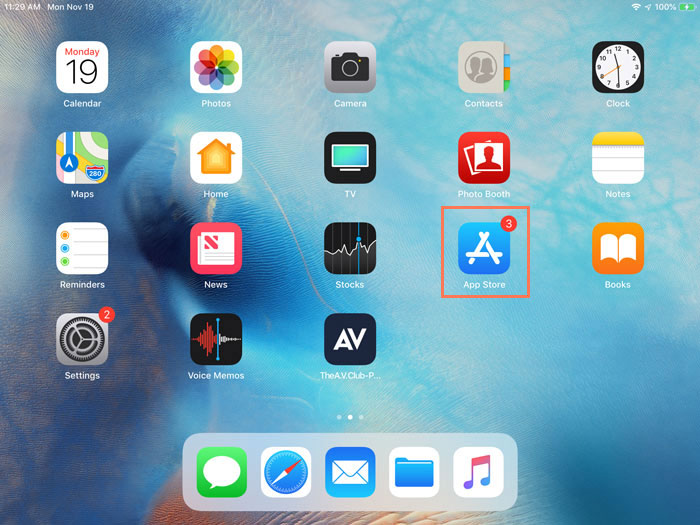
- Locate and Open the App Store: On your iPad’s Home Screen, find the iconic blue icon with a white ‘A’ in the middle. Tap it to open the App Store.
- Explore or Search:
- “Today” Tab: This tab showcases daily stories, app spotlights, and curated collections by Apple’s editors, perfect for discovering new and trending apps.
- “Games” and “Apps” Tabs: These tabs categorize applications, allowing you to browse by genre, category (e.g., productivity, entertainment, education, utilities), or collections.
- “Arcade” Tab: If you have an Apple Arcade subscription, this tab provides access to a growing library of premium, ad-free games.
- “Search” Tab: The most direct way to find a specific app. Tap the magnifying glass icon and type the name of the app or keywords (e.g., “photo editor,” “note-taking,” “video conferencing”).
- Review App Details: Once you find an app that piques your interest, tap on its icon to open its product page. This page is a treasure trove of information:
- Screenshots and Videos: Visual previews of the app in action.
- Description: A detailed overview of the app’s features and functionality.
- Ratings and Reviews: User feedback that can help you gauge the app’s quality and usefulness.
- Privacy Labels: A transparent summary of the app’s data collection practices, a testament to Apple’s focus on user privacy.
- Size: The amount of storage space the app will consume.
- Compatibility: Ensures the app works with your iPadOS version.
- Developer: Information about the company or individual behind the app, which can offer insight into its reputation and support.
- Acquire the App:
- For Free Apps: Tap the “Get” button. It will change to an “Install” button.
- For Paid Apps: Tap the button displaying the app’s price (e.g., “$4.99”). It will also change to an “Install” button.
- Authenticate Your Purchase/Download: For security reasons, you’ll be prompted to authenticate. This can be done using Face ID (if your iPad has it), Touch ID (if your iPad has it), or by entering your Apple ID password. This step confirms that you authorize the download or purchase.
- Download and Install: The app will begin downloading, indicated by a progress circle on the app icon on the Home Screen. Once the download is complete, the app will automatically install.
- Launch the App: After installation, the app icon will appear on your Home Screen. Simply tap it to open and start using your new app. It may also appear in your App Library if you’re using iPadOS 15 or later.
Free vs. Paid: Making Smart Choices and Understanding In-App Purchases
When browsing the App Store, you’ll encounter both free and paid applications. Understanding the different monetization models is crucial for making smart ‘Money’ decisions and avoiding surprises.
- Free Apps: Many excellent apps are available for free. However, “free” often comes with caveats. Some free apps may include advertisements, which developers use to generate revenue. Others follow a “freemium” model, offering basic functionality for free but requiring in-app purchases (IAPs) or a subscription to unlock premium features, remove ads, or access additional content.
- Paid Apps: These apps require a one-time upfront payment. They often offer a complete, ad-free experience with all features unlocked from the start. Developers of paid apps often rely on the initial purchase price to fund development and ongoing support.
- Subscriptions: Increasingly common, especially for productivity tools, content services, and premium utilities, subscriptions grant access to an app’s features or content for a recurring fee (monthly or annually). While they represent an ongoing cost, subscriptions often ensure continuous updates, cloud syncing, and dedicated support.
When evaluating an app, particularly free ones, always check for “In-App Purchases” listed on its product page. Understand what they entail before committing. For paid apps or subscriptions, consider the value proposition: Does the app genuinely save you time, boost your productivity, provide unique entertainment, or fulfill a critical need that justifies the cost? Many ‘Money’ focused users carefully weigh these factors, recognizing that investing in the right apps can lead to significant returns in efficiency or enjoyment.
Beyond Installation: Managing and Optimizing Your App Library
Installing apps is just the beginning. Effective management of your app library is essential for maintaining your iPad’s performance, organizing your digital life, and ensuring you get the most out of your device. This section focuses on the ‘Tech’ aspects of app longevity and efficiency.
Keeping Apps Up-to-Date and Running Smoothly
App developers frequently release updates to introduce new features, improve performance, patch security vulnerabilities, and fix bugs. Keeping your apps updated is vital for a smooth and secure user experience.
- Manual Updates:
- Open the App Store.
- Tap your profile picture (top-right corner).
- Scroll down to see pending updates. You can tap “Update All” or update individual apps by tapping “Update” next to their names.
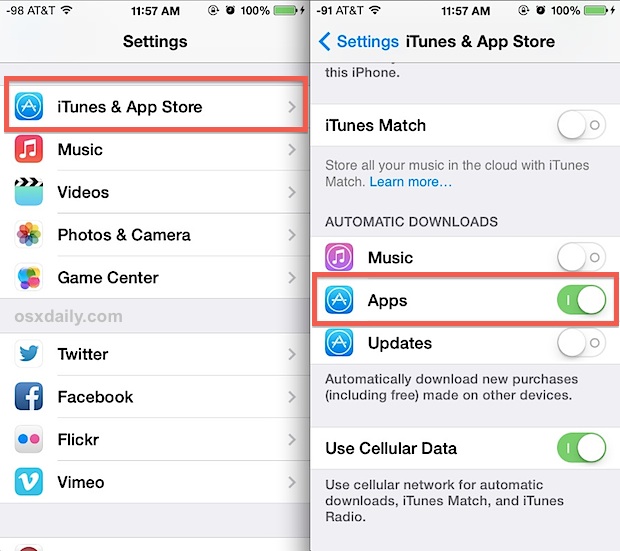
- Automatic Updates: For maximum convenience, you can enable automatic app updates.
- Go to
Settings > App Store. - Toggle on “App Updates” under the “Automatic Downloads” section.
- You can also choose to automatically download apps purchased on other devices (
Appstoggle) or in-app content (In-App Content).
- Go to
Automatic updates ensure you always have the latest versions without manual intervention, saving you time and enhancing your iPad’s security posture by quickly applying patches.
Deleting, Offloading, and Organizing for Peak Performance
As your app library grows, so does the need for effective organization and storage management. iPadOS provides several tools to help.
-
Deleting Apps (Complete Removal): If an app is no longer needed, takes up too much space, or is causing issues, you can delete it entirely.
- From the Home Screen: Lightly press and hold the app icon until a contextual menu appears. Tap “Remove App”, then “Delete App”.
- From App Library (iPadOS 15+): Swipe left to the App Library, find the app, press and hold, then tap “Delete App”.
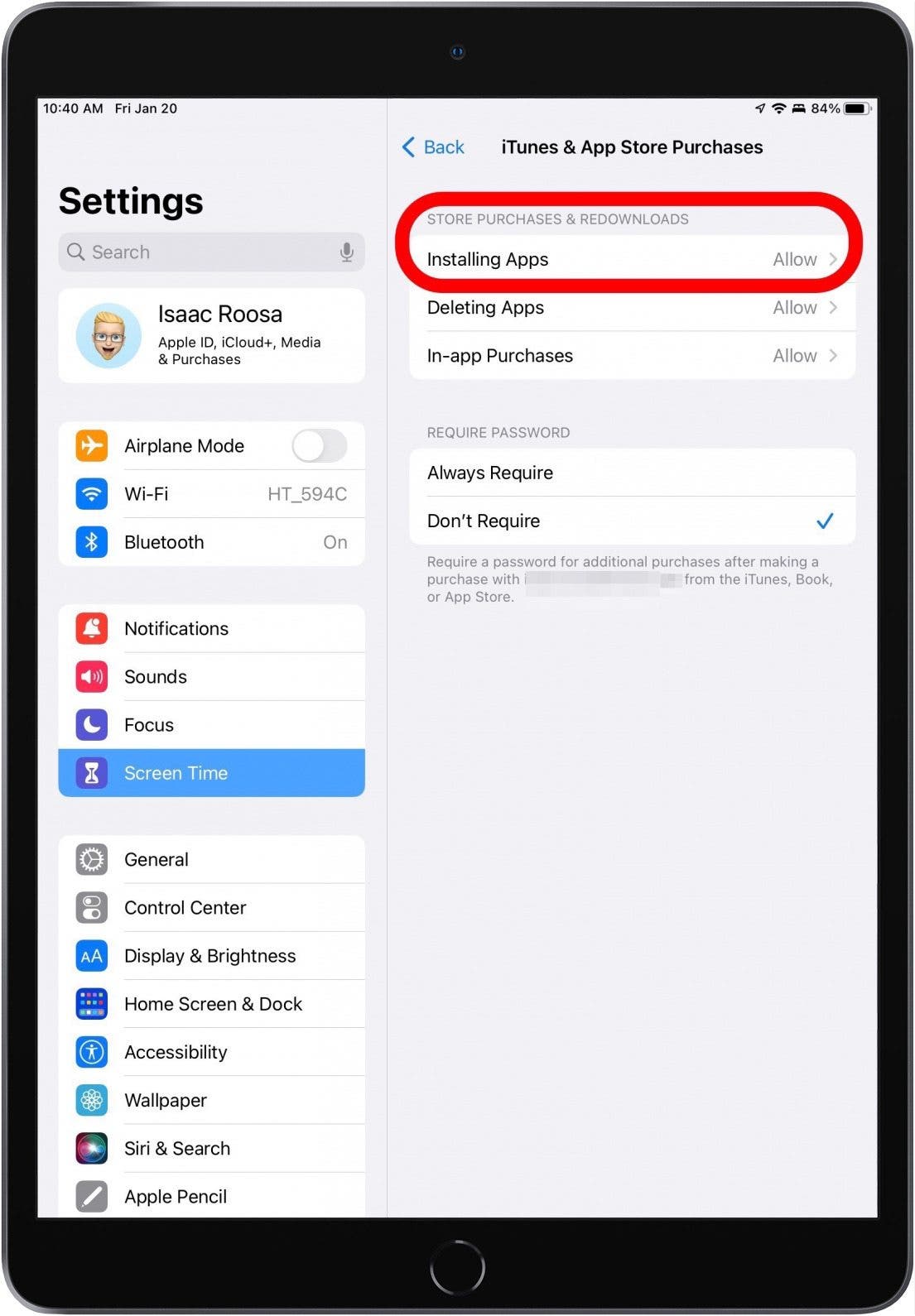
- From Settings: Go to
Settings > General > iPad Storage, tap on the app you want to remove, and select “Delete App”.
Deleting an app removes all its data from your iPad, freeing up significant storage space.
-
Offloading Apps (Saving Data, Deleting App): This feature is a lifesaver for managing storage without losing personal data or settings.
- Go to
Settings > General > iPad Storage. - You’ll see an option to “Offload Unused Apps”. Toggling this on will automatically offload apps you haven’t used in a while when storage runs low.
- Alternatively, you can manually offload specific apps by tapping on their name in the
iPad Storagelist and selecting “Offload App”.
Offloading removes the app itself but keeps its documents and data. The app icon remains on your Home Screen with a cloud icon next to its name. Tapping the icon will redownload the app if you have an internet connection, restoring it with all your previous data intact. This is excellent for apps you use infrequently but want to keep your data for.
- Go to
-
Organizing Apps: A cluttered Home Screen can hinder productivity.
- Folders: Group related apps into folders. Lightly press and hold an app icon, then drag it on top of another app. This creates a folder. You can rename the folder by tapping its title.
- Home Screen Pages: Arrange apps across multiple pages. You can rearrange pages by pressing and holding an app icon, then dragging it to the edge of the screen to move it to a different page.
- Dock: Place your most frequently used apps in the iPad’s Dock at the bottom of the screen for quick access from any app or Home Screen page.
- App Library (iPadOS 15+): Swipe all the way left on your Home Screens to access the App Library, which automatically organizes all your apps into categories. You can search for apps here or browse by category. For a streamlined Home Screen, you can hide app pages, relying primarily on the App Library for app discovery.
Exploring Alternative Installation Avenues (with caveats)
While the App Store is the primary and recommended method for installing apps, there are a few specialized scenarios where alternative approaches are used. It’s crucial to understand these are not for general consumer use and often come with specific limitations or are designed for particular purposes.
- TestFlight for Beta Apps: Apple’s TestFlight program allows developers to distribute beta versions of their apps to a limited group of testers before public release. If you’re invited to be a beta tester, you’ll download the TestFlight app from the App Store, and then use it to install and manage the beta versions of apps. This is a controlled environment for feedback and bug testing, not a general method for obtaining apps.
- Enterprise Apps and Mobile Device Management (MDM): For businesses and educational institutions, apps not available on the public App Store can be distributed internally. These “enterprise apps” are typically deployed and managed using Mobile Device Management (MDM) solutions. An MDM system allows organizations to remotely install, configure, and update apps on company-owned iPads, ensuring employees have access to proprietary tools while maintaining security and compliance. This method is strictly controlled by IT departments and not relevant for individual users.
It’s important to reiterate that “sideloading” apps (installing them from sources outside the official App Store, as is common on Android) is not a standard or officially supported practice on iPadOS for general users due to Apple’s security policies. Any attempt to bypass these measures could void your warranty, compromise your device’s security, and expose you to malware.
Ensuring a Secure and Productive App Experience
Beyond the mechanics of installation, truly mastering your iPad involves understanding how to maintain a secure environment and efficiently troubleshoot issues, ensuring that your app experience is always productive and problem-free. This ties into both ‘Tech’ and ‘Digital Security’ aspects of our website’s focus.
Prioritizing Privacy and Permissions
In an age where data is a valuable commodity, understanding and controlling app permissions is paramount. Apple has made significant strides in empowering users with privacy controls, solidifying its ‘Brand’ reputation in this critical area.
- App Tracking Transparency (ATT): Introduced in iPadOS, ATT requires apps to ask for your permission before tracking your activity across other companies’ apps and websites for advertising purposes. When prompted, carefully consider whether you want to allow tracking. You can review and change these permissions at any time in
Settings > Privacy & Security > Tracking. - Location Services: Many apps request access to your location. For navigation apps, this is essential. For others, it might be superfluous. Go to
Settings > Privacy & Security > Location Servicesto review which apps have access and change their settings (Never, Ask Next Time or When I Share, While Using the App, Always). Consider granting access only “While Using the App” unless “Always” is truly necessary. - Photos, Camera, Microphone, Contacts, etc.: Similarly, apps will request access to various other data and hardware components. Always evaluate whether the app genuinely needs this access to function. A photo editor needs access to photos, but a simple calculator app does not. You can manage these permissions in
Settings > Privacy & Securityunder each respective category. - Privacy Nutrition Labels: On every App Store product page, you’ll find a “App Privacy” section. This label, inspired by food nutrition labels, gives you an easy-to-understand summary of the data an app collects and how it’s used. Make it a habit to glance at these labels before downloading to make informed decisions about your data.
Being proactive about privacy not only protects your personal information but also contributes to a more secure and trustworthy digital environment.
Troubleshooting Common App-Related Issues
Even with the best preparation, you might occasionally encounter app-related problems. Knowing basic troubleshooting steps can save you time and frustration.
- App Not Downloading/Installing:
- Check Internet Connection: Ensure you have a stable Wi-Fi or cellular connection.
- Check iPad Storage: Verify you have enough free space (
Settings > General > iPad Storage). - Restart iPad: A simple restart can resolve temporary glitches.
- Check Apple ID: Ensure you’re signed in with the correct Apple ID and that there are no payment issues if it’s a paid app.
- Pause/Resume Download: Tap the app icon on the Home Screen during download to pause it, then tap again to resume.
- App Crashing or Freezing:
- Force Quit and Restart App: Swipe up from the bottom of the screen (or double-press the Home button on older iPads) to open the App Switcher. Swipe up on the problematic app’s card to close it. Then, tap its icon to relaunch it.
- Restart iPad: A full device restart often resolves persistent crashing issues.
- Update App: Ensure the app is running the latest version from the App Store.
- Reinstall App: If the problem persists, delete the app (consider offloading first if you want to retain data) and then redownload it from the App Store. This can fix corrupted installations.
- Check for iPadOS Updates: Sometimes, app issues are related to the operating system. Ensure your iPadOS is up to date (
Settings > General > Software Update). - Contact Developer Support: If none of the above work, visit the app’s page in the App Store and look for the “App Support” link to reach out to the developer.
- In-App Purchase Issues:
- Check Purchase History: Go to
Settings > [Your Name] > Media & Purchases > View Account > Purchase Historyto verify the purchase. - Restore Purchases: Many apps have a “Restore Purchases” option in their settings to re-enable content you’ve already bought.
- Contact Apple Support: For billing issues or if an in-app purchase doesn’t appear, contact Apple Support directly.
- Check Purchase History: Go to
Discovering New Apps: Expanding Your iPad’s Potential
The journey of app discovery is continuous. To truly leverage your iPad’s power for ‘Productivity’ and ‘Tech’ advancements, actively seek out new and useful applications.
- App Store’s Curated Sections: Regularly browse the “Today,” “Games,” and “Apps” tabs for Apple’s editorial picks, trending apps, and featured collections.
- Tech Blogs and Review Sites: Websites specializing in Apple products and apps often publish “best of” lists, in-depth reviews, and recommendations for various use cases (e.g., “best apps for students,” “top creative apps,” “essential productivity tools”).
- Social Media and Forums: Follow tech influencers, app developers, and join iPad-focused communities on platforms like Reddit or Facebook. These are great places to find user recommendations and hidden gems.
- Word of Mouth: Ask friends, colleagues, or classmates what apps they find indispensable for their work or hobbies. Personal recommendations are often the most valuable.
By actively engaging in app discovery, you can continuously expand your iPad’s capabilities, finding tools that streamline your workflow, ignite your creativity, or simply provide endless entertainment.
The Future of iPad Apps and Your Digital Lifestyle
The world of iPad apps is dynamic, constantly evolving with technological advancements and user needs. As we look ahead, several trends are poised to shape our digital lifestyle and how we interact with our iPads. The focus on ‘AI Tools’ and ‘Technology Trends’ from our website’s main topics becomes increasingly relevant here.
Artificial intelligence (AI) and machine learning (ML) are being integrated into apps at an unprecedented rate, offering smarter automation, personalized experiences, and more powerful analytical tools. Imagine apps that can predict your needs, intelligently summarize documents, or generate creative content with minimal input. Augmented reality (AR) apps will continue to blur the lines between the digital and physical worlds, transforming everything from education and shopping to gaming and interior design.
Furthermore, the emphasis on cross-device integration will likely strengthen, making the seamless flow of work and data between your iPad, iPhone, and Mac even more effortless. Developers are increasingly designing apps that are part of a larger ecosystem, enhancing overall productivity and user experience. Subscription models, while sometimes leading to “subscription fatigue” for consumers, are also enabling developers to consistently update and maintain high-quality apps, ensuring long-term value.
Ultimately, the iPad’s strength lies in its adaptability, driven by its vibrant app ecosystem. By understanding how to effectively install, manage, and discover applications, you’re not just using a device; you’re crafting a personalized digital companion that grows and evolves with your needs, making your iPad an indispensable part of your modern, connected life.
aViewFromTheCave is a participant in the Amazon Services LLC Associates Program, an affiliate advertising program designed to provide a means for sites to earn advertising fees by advertising and linking to Amazon.com. Amazon, the Amazon logo, AmazonSupply, and the AmazonSupply logo are trademarks of Amazon.com, Inc. or its affiliates. As an Amazon Associate we earn affiliate commissions from qualifying purchases.