
The Dell Chromebook 11 3189 stands as a testament to the robust and accessible nature of Chrome OS devices, often favored in educational settings and by users seeking a straightforward, secure, and cost-effective computing solution. While its native capabilities, enhanced by the Google Play Store, offer a vast ecosystem of applications, there are instances where users might encounter specific Android applications not readily available through official channels. This is where the concept of “sideloading” APKs comes into play, offering a gateway to an even broader spectrum of software. This comprehensive guide will walk Dell Chromebook 11 3189 owners through the process of installing Android Package Kits (APKs), demystifying the steps involved, outlining the necessary precautions, and ultimately empowering you to unlock the full potential of your device.
In an increasingly interconnected digital landscape, the ability to customize and extend the functionality of our devices is paramount. For tech enthusiasts, productivity-driven individuals, or those simply looking for a specific niche app, sideloading APKs can transform the Dell Chromebook 11 3189 from a reliable web-centric machine into a versatile Android powerhouse. While the process requires careful attention to detail and an understanding of potential security implications, the rewards of expanded app access, unique software tools, and enhanced device utility can be significant. Let’s dive into the world of APKs and discover how to seamlessly integrate them into your Chromebook experience, enriching your digital journey and potentially even influencing how you manage your online presence and digital finances by providing access to specialized tools.
Understanding Your Dell Chromebook 11 3189 and APKs
Before embarking on the installation journey, it’s crucial to grasp what APKs are and why you might consider sideloading them. Furthermore, understanding the inherent capabilities and limitations of your Dell Chromebook 11 3189 will set a solid foundation for a successful and secure experience.
What are APKs and Why Sideload Them?
An APK (Android Package Kit) is the package file format used by the Android operating system for distribution and installation of mobile apps. Think of it as the .exe file for Windows or .dmg for macOS, but for Android. When you download an app from the Google Play Store, you’re essentially downloading and installing an APK in the background. Sideloading refers to the process of installing an APK file manually, usually from a source other than the official Google Play Store.
There are several compelling reasons why a Dell Chromebook 11 3189 user might choose to sideload an APK:
- Access to Unavailable Apps: Some Android apps might not be available in your region, could be in beta testing phases, or might have been removed from the Play Store. Sideloading offers a direct pathway to these applications.
- Older Versions of Apps: Sometimes, newer app updates introduce unwanted changes or remove features you rely on. Sideloading allows you to install or revert to a specific older version of an app.
- Customization and Niche Tools: Many developers release specialized versions of their apps or provide tools not suitable for the general Play Store audience, catering to niche uses like specific productivity tools, brand-focused analytics apps, or even financial management utilities that integrate with specific non-standard services.
- Open-Source Alternatives: For those who prioritize open-source software, many such applications are distributed directly by their developers as APKs, bypassing official app stores. This can also tie into a “Money” theme by potentially saving on subscription fees for proprietary software.
- Testing and Development: Developers might use sideloading to test their own applications on various devices, including Chromebooks, before an official release.
The Dell Chromebook 11 3189: A Brief Overview and Its Android Capabilities
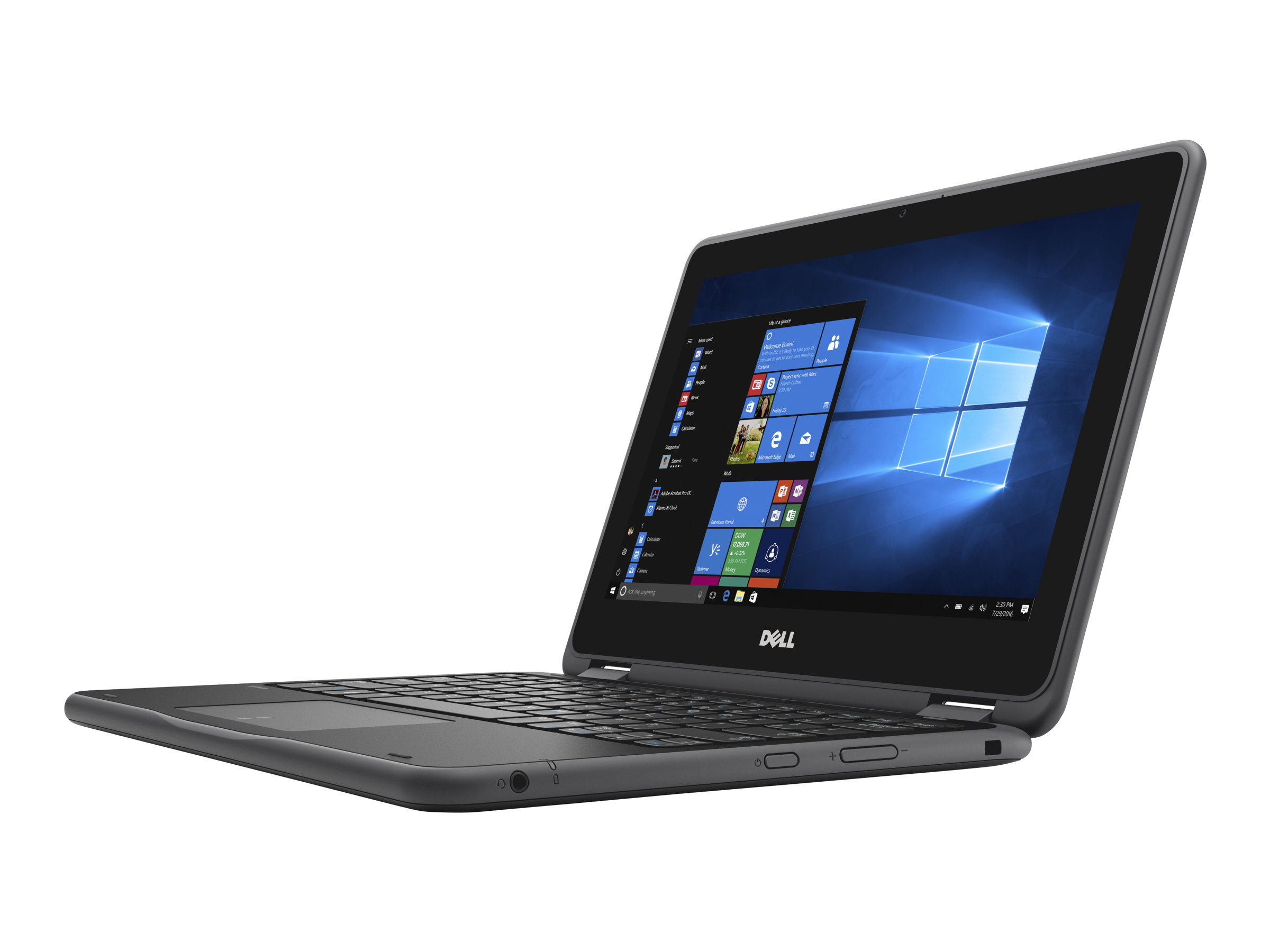
The Dell Chromebook 11 3189 is a rugged, convertible 2-in-1 device designed primarily for education and general productivity. Running Chrome OS, it benefits from Google’s commitment to security, speed, and simplicity. Crucially for our purpose, the 3189 model, like many modern Chromebooks, boasts full support for Android applications via the Google Play Store. This native compatibility is what makes sideloading APKs feasible and relatively straightforward.
Under the hood, Chrome OS leverages a Linux-based foundation, and the ability to run Android apps comes from a built-in Android container. While this container provides a secure environment for Play Store apps, extending its functionality to allow “unknown sources” for APK installation requires specific configuration changes. The 3189’s robust build quality and touchscreen interface make it an excellent candidate for running a diverse range of Android applications, further enhancing its utility beyond its initial scope. Its solid performance ensures that most Android apps run smoothly, making the effort to sideload worthwhile for unlocking specific functionalities or branding tools.
Preparing Your Chromebook for APK Installation
Before you can begin installing APKs, your Dell Chromebook 11 3189 needs a bit of preparation. This involves enabling Developer Mode, a critical step that grants the necessary permissions, and then allowing installations from “unknown sources” within the Android environment. These steps are foundational and must be completed carefully.
Enabling Developer Mode: The Gateway to Customization
Enabling Developer Mode on your Chromebook is the most significant step in allowing custom modifications, including sideloading APKs. It’s important to understand that this process will wipe all local data from your Chromebook, returning it to factory settings. Therefore, ensure all important files are backed up to Google Drive or an external storage device before proceeding.
Here’s how to enable Developer Mode:
- Backup Your Data: As mentioned, this is crucial. Sync all your files, settings, and anything else important to your Google account or an external drive.
- Enter Recovery Mode:
- Turn off your Dell Chromebook 11 3189.
- Hold down the
Esc+Refresh(circular arrow) keys, then press thePowerbutton. - Release the
Powerbutton once the screen turns on, but keep holdingEsc+Refreshuntil you see a screen that says “Chrome OS is missing or damaged. Please insert a recovery USB stick.”
- Initiate Developer Mode:
- At the “Chrome OS is missing or damaged” screen, press
Ctrl+D. - The screen will change, prompting you to “To turn OS verification OFF, press ENTER.” Press
Enter. - You’ll then see a screen saying “To turn OS verification ON, press SPACE.” DO NOT PRESS SPACE. Instead, press
Ctrl+Dagain. - Your Chromebook will now restart and begin the process of transitioning to Developer Mode. This process can take 10-15 minutes, during which your device will erase data and configure itself. You’ll see a screen with a small yellow exclamation mark or a message indicating “Developer Mode enabled.”
- At the “Chrome OS is missing or damaged” screen, press
- Complete Setup: After the setup is complete, your Chromebook will boot into a warning screen at startup. This screen warns you that OS verification is off. To proceed, you can either wait for it to automatically boot (about 30 seconds) or press
Ctrl+D. You will then be prompted to go through the initial Chromebook setup process as if it were new.
Important Considerations for Developer Mode:
- Security Risk: Running in Developer Mode slightly reduces the built-in security of Chrome OS by disabling OS verification. This means your Chromebook won’t automatically check the integrity of its system files at boot. Be extra vigilant about what you install.
- Performance: Developer Mode doesn’t typically impact performance, but the warning screen at boot-up can be a minor inconvenience.
- Warranty: While enabling Developer Mode does not technically void your warranty with Google, specific hardware issues diagnosed while in Developer Mode might be handled differently by Dell. It’s always best to check Dell’s specific policies if you have concerns.
Activating Unknown Sources for Android Apps
Once your Dell Chromebook 11 3189 is in Developer Mode and set up, you need to enable the Android container to accept installations from sources other than the Google Play Store. This is a standard Android security setting.
- Open Chrome OS Settings: Click on the time/status area in the bottom-right corner of your screen, then click the gear icon to open Settings.
- Navigate to Android Apps: In the Settings menu, scroll down to the “Apps” section and find “Google Play Store.” Click “Turn on” if it’s not already enabled, or “Manage Android preferences” if it is. This will open the Android settings window.
- Enable Unknown Sources:
- In the Android Settings window, scroll down and tap on “Apps & notifications.”
- Tap on “Special app access.”
- Tap on “Install unknown apps.”
- You will see a list of apps that can install other apps (e.g., Files, Chrome, Drive). Select the app you intend to use for installing APKs (e.g., “Files” or “My Files” is a good choice for local APKs; “Chrome” if you plan to download directly).
- Toggle the “Allow from this source” switch to
Onfor the chosen app(s).
Now your Dell Chromebook 11 3189 is fully prepared to sideload APKs. The Android container within your Chromebook is ready to accept and install applications from sources you deem trustworthy.
Step-by-Step Methods for Sideloading APKs
With your Dell Chromebook 11 3189 primed for action, you can now proceed with installing APKs. There are two primary methods we’ll explore: the straightforward approach using the native Files app, and a more advanced method leveraging Linux (Beta) and ADB for greater control and troubleshooting capabilities.
Method 1: Installing via the Files App (The Straightforward Approach)
This is generally the easiest and most recommended method for most users. It relies on the built-in Chrome OS Files app, which can access your Downloads folder and other local storage.
- Find and Download Your APK:
- Use the Chrome browser on your Chromebook to search for the desired APK. Crucially, download APKs only from reputable sources. Websites like APKMirror, F-Droid, or the official developer’s website are generally considered safe. Avoid obscure or suspicious websites, as they might host malicious APKs.
- Once found, download the APK file. It will typically land in your “Downloads” folder.
- Open the Files App:
- Click the Launcher (circle icon) in the bottom-left corner of your screen.
- Search for “Files” and open the Files app.
- Locate the APK:
- Navigate to your “Downloads” folder (or wherever you saved the APK).
- Find the
.apkfile you just downloaded.
- Install the APK:
- Double-click the APK file.
- A prompt will appear, asking if you want to install the application. It will also show you the permissions the app requires.
- Review the permissions. If you are comfortable, click “Install.”
- The installation process will begin. Once complete, you’ll see a notification that the app has been installed. You can choose to “Open” it immediately or “Done” to close the prompt.
- Launch the App:
- The newly installed Android app will now appear in your Chromebook’s App Launcher, just like any other Android app installed from the Play Store.
This method is quick, user-friendly, and sufficient for most sideloading needs. However, for more advanced scenarios or troubleshooting, the Linux (Beta) method offers more robust tools.
Method 2: Leveraging Linux (Beta) and ADB for Advanced Control
This method is more complex and suitable for users who are comfortable with the Linux command line. It provides greater control over the installation process and is particularly useful for debugging or installing apps that might not cooperate with the simpler Files app method. ADB (Android Debug Bridge) is a versatile command-line tool that lets you communicate with an Android-powered device.
Prerequisites:
- Your Chromebook must be in Developer Mode (as described in H2.1).
- You must have “Linux (Beta)” enabled on your Dell Chromebook 11 3189.
Steps to Enable Linux (Beta) and Install ADB:
- Enable Linux (Beta):
- Go to Chrome OS Settings (click time/status bar, then gear icon).
- In the left sidebar, click “Linux (Beta).”
- Click “Turn on” and follow the on-screen prompts. This will download and set up a Debian Linux container on your Chromebook. This process can take some time.
- Open Linux Terminal:
- Once Linux is installed, open the App Launcher.
- Find and open the “Terminal” app (it will be within the “Linux Apps” folder).
- Update Linux Packages:
- In the Terminal, first update your package lists and upgrade existing packages:
bash

sudo apt update

sudo apt upgrade -y
- In the Terminal, first update your package lists and upgrade existing packages:
- Install ADB (Android Debug Bridge):
- Install the
adbpackage:
bash

sudo apt install android-tools-adb -y
- Install the
- Download and Transfer APK:
- Download the APK file you want to install to your Chromebook’s Downloads folder (from a reputable source, as advised before).
- Crucially, move the APK file into your Linux filespace. The easiest way to do this is to drag and drop the APK file from the Chrome OS Files app directly into the “Linux files” folder within the Files app. This will copy the file to
~/(your home directory) in the Linux container.
- Connect ADB to Android Container:
- First, enable ADB debugging on your Chromebook’s Android container. Go to Chrome OS Settings > Apps > Google Play Store > Manage Android preferences.
- In Android Settings, go to “About device” or “About phone” (may vary slightly).
- Tap “Build number” seven times rapidly to enable “Developer options.”
- Go back to Android Settings, find “Developer options,” and enable “USB debugging.” Confirm the prompt.
- Now, in your Linux Terminal, connect ADB to the Android container:
bash

adb connect 100.115.92.2:5555
(Note: The IP address100.115.92.2is a common internal IP for the Android container on Chromebooks. If it doesn’t work, you might need to look up your specific Android container’s IP viaifconfigin a separateadb shellsession, but this IP usually works.)
You might see a prompt on your Chromebook’s screen asking to allow USB debugging from the connected computer (which is your Linux container). Grant permission.
- Install the APK via ADB:
- With the APK file moved to your Linux filespace (e.g.,
my_app.apkin your home directory) and ADB connected, use the install command:
bash

adb install my_app.apk
(Replacemy_app.apkwith the actual name of your APK file.) - If successful, you’ll see a “Success” message in the terminal.
- With the APK file moved to your Linux filespace (e.g.,
- Launch the App: The app will now appear in your Chromebook’s App Launcher alongside your other Android applications.
This ADB method is more robust for installing stubborn APKs, provides more detailed error messages if something goes wrong, and is essential for developers or users who require fine-grained control over their Android environment on the Chromebook. It aligns well with the “Tech” theme of advanced tutorials and digital security by providing a deeper understanding of the system.
Benefits, Risks, and Best Practices for Sideloading
While sideloading APKs can unlock a world of possibilities for your Dell Chromebook 11 3189, it’s crucial to understand both the advantages and the inherent risks. Adopting best practices will help you navigate this expanded digital frontier safely and effectively.
The Advantages of Expanded App Access
The primary benefit of sideloading is obvious: access to a wider range of applications. This goes beyond just entertainment; it can significantly enhance the utility of your Dell Chromebook 11 3189, impacting productivity, specific work tasks, and even personal finance management.
- Enhanced Productivity: Gain access to specialized productivity tools, unique note-taking apps, or specific office suites not officially optimized for Chrome OS or unavailable in the Play Store for your region.
- Niche Functionality: Install apps designed for very specific purposes, such as advanced photo editors, unique system utilities, or even specialized branding and marketing tools that might be crucial for online businesses or personal branding efforts.
- Open Source Freedom: Embrace the open-source community by installing FOSS (Free and Open Source Software) apps distributed as APKs, often providing powerful alternatives to commercial offerings without subscription costs, tying into smart financial choices.
- Beta Access: Be an early adopter by installing beta versions of apps, allowing you to test new features before their official release.
For users keen on optimizing their digital toolkit, sideloading transforms the Dell Chromebook 11 3189 from a standard Chromebook into a more versatile platform, capable of running a broader spectrum of Android software.
Navigating Security Concerns and Potential Pitfalls
The primary risk associated with sideloading is security. Unlike apps from the Google Play Store, which undergo rigorous security checks, sideloaded APKs bypass these safeguards.
- Malware and Viruses: The most significant threat is downloading a malicious APK. These can range from adware to sophisticated malware that steals personal data, compromises your accounts, or damages your device.
- Stability Issues: Sideloaded apps might not be fully optimized for Chrome OS or your specific Dell Chromebook 11 3189 hardware, leading to crashes, performance issues, or unexpected behavior.
- Lack of Updates: Sideloaded apps won’t automatically update through the Play Store. You’ll need to manually check for and install updates, which can be cumbersome and leave you vulnerable to security flaws in older versions.
- Privacy Concerns: Unverified apps might request excessive permissions or surreptitiously collect user data, compromising your digital privacy.
Understanding these risks is not meant to deter you but to encourage a cautious and informed approach. Your digital security and brand reputation (if sensitive data is involved) depend on it.
Sourcing APKs Safely and Maintaining Device Health
To mitigate the risks, adhere to these best practices when sideloading APKs on your Dell Chromebook 11 3189:
- Use Reputable Sources Only:
- APKMirror: One of the most trusted sources, known for hosting genuine, unsigned, and mostly untouched APKs. They verify all uploads.
- F-Droid: A repository for free and open-source Android software. All apps are vetted and built from source.
- Official Developer Websites: If an app isn’t on the Play Store, check if the developer provides an official APK directly on their website.
- Avoid Unknown Sites: Steer clear of random forums, file-sharing sites, or websites that promise premium apps for free, as these are hotbeds for malicious software.
- Verify App Permissions: Before installing any APK, carefully review the permissions it requests. Does a calculator app really need access to your contacts or location? If permissions seem excessive or unrelated to the app’s functionality, reconsider the installation.
- Keep Chrome OS Updated: Ensure your Dell Chromebook 11 3189’s Chrome OS is always updated to the latest version. Google regularly releases security patches and improvements that enhance the overall device security, including the Android container.
- Regular Backups: While Developer Mode wipes your device, once you’re set up, regularly back up important data to Google Drive. This helps in case an app causes system instability requiring a powerwash.
- Use Common Sense: If an offer seems too good to be true, it probably is. Exercise caution and trust your instincts when downloading and installing apps from outside the Play Store.
- Uninstall if Suspicious: If an app behaves erratically, drains battery excessively, displays unusual ads, or requests new permissions without an update, uninstall it immediately.
By diligently following these guidelines, you can significantly reduce the risks associated with sideloading and enjoy the expanded functionality that APKs bring to your Dell Chromebook 11 3189.

Conclusion: Unlocking New Horizons with Your Dell Chromebook 11 3189
The Dell Chromebook 11 3189, a reliable and sturdy device, inherently offers a gateway to productivity and learning. By mastering the art of sideloading APKs, you transform this capable machine into an even more versatile tool, capable of running a broader array of Android applications that might not be available through conventional channels. From accessing unique educational tools and enhancing your digital security with specialized apps, to leveraging specific branding or financial management solutions, the possibilities are vast.
While the process involves delving into Developer Mode and understanding the nuances of the Android subsystem, the detailed steps outlined in this guide provide a clear pathway forward. Remember, the power of customization comes with the responsibility of vigilance. Always prioritize security by sourcing APKs from trusted repositories, carefully reviewing app permissions, and maintaining an up-to-date operating system. By doing so, you can confidently explore new software horizons, amplify the capabilities of your Dell Chromebook 11 3189, and truly unlock its full potential for both personal and professional endeavors, enriching your tech experience, supporting your brand’s digital needs, and even improving your financial digital strategy.
aViewFromTheCave is a participant in the Amazon Services LLC Associates Program, an affiliate advertising program designed to provide a means for sites to earn advertising fees by advertising and linking to Amazon.com. Amazon, the Amazon logo, AmazonSupply, and the AmazonSupply logo are trademarks of Amazon.com, Inc. or its affiliates. As an Amazon Associate we earn affiliate commissions from qualifying purchases.