
In the ever-evolving landscape of mobile technology, Apple’s iOS ecosystem, while robust and secure, often presents a controlled environment for app installations. Typically, users are confined to the official App Store for downloading and installing applications. However, for developers, enthusiasts, and those seeking to explore beyond the mainstream, the ability to install applications directly from IPA files becomes a valuable skill. An IPA file (iOS App Store Package) is essentially the archive format used by Apple for distributing iOS applications. While the App Store streamlines the process, understanding how to install IPA files manually opens up a world of possibilities, from testing beta versions of apps to running niche or experimental software.

This guide will delve into the intricacies of installing IPA files on your iPhone, exploring the various methods available, their underlying principles, and the considerations you need to keep in mind. We’ll navigate through the technicalities, ensuring you have a comprehensive understanding of the process, catering to a broad audience with interests spanning technology, brand innovation, and even smart financial management related to digital assets.
Understanding IPA Files and the iOS App Installation Process
Before we dive into the “how-to,” it’s crucial to grasp what an IPA file is and the standard mechanisms through which iOS apps are installed. As mentioned, an IPA file is a compressed archive containing all the necessary code, resources, and metadata required for an iOS application to run on a device. Think of it as a digital package that encapsulates a complete app.
The Official App Store Route:
The primary and most secure method for installing apps on an iPhone is through the Apple App Store. This platform acts as a gatekeeper, with Apple reviewing each app for security, functionality, and adherence to their guidelines. When you tap “Get” or “Buy” on an app, Apple’s servers handle the download and installation directly onto your device. This process is seamless, user-friendly, and inherently safe, as it’s overseen by Apple.
Why Install IPA Files Manually?
Despite the convenience of the App Store, there are several compelling reasons why someone might want to install an IPA file directly:
- Developer Testing: For app developers, installing IPA files allows them to test their creations on actual devices before submitting them to the App Store. This is critical for identifying bugs, performance issues, and user experience flaws.
- Beta Program Access: Many companies offer beta testing programs for their upcoming apps or new features. Participants often receive IPA files to install and provide feedback.
- Niche or Experimental Apps: Some applications may not be suitable for the mainstream App Store due to their niche audience, experimental nature, or specific functionalities. These might only be distributed as IPA files.
- Older App Versions: In rare cases, users might need to install an older version of an app that is no longer available on the App Store.
- Jailbroken Devices (with caveats): While not always a requirement, some methods for installing IPA files might be more straightforward on jailbroken devices. However, this guide will focus on non-jailbreak methods for broader accessibility and security.
It’s important to note that installing IPA files from untrusted sources can pose significant security risks, including malware and data breaches. Always ensure you are obtaining IPA files from reputable developers or sources.
Methods for Installing IPA Files on iPhone
Installing an IPA file on an iPhone isn’t as straightforward as dragging and dropping on a computer. Apple’s security model is designed to prevent unauthorized app installations. However, several methods have emerged that allow users to achieve this, each with its own set of requirements and complexities. We will explore the most common and accessible techniques.
Method 1: Using a Computer and Third-Party Tools (e.g., AltStore)
This is arguably the most popular and user-friendly method for installing IPA files without jailbreaking your iPhone. It leverages Apple’s developer tools and a unique signing process.
How AltStore Works:
AltStore is a free, open-source app that acts as an alternative app store for your iPhone. It allows you to sideload IPA files by re-signing them with your personal Apple ID. This essentially tricks your iPhone into believing the app is a legitimate developer-signed application.
Requirements:
- A Mac or Windows Computer: You’ll need a computer to run the AltStore desktop application.
- An Apple ID: A free Apple ID is sufficient. Paid developer accounts offer longer app signing durations, but a free account works for basic sideloading.
- Latest Version of iTunes (Windows) or Xcode (Mac): These are required for AltStore to communicate with your iPhone.
- Your iPhone: Connected to your computer via USB.
- USB Cable: To connect your iPhone to your computer.
- The IPA File: The application you wish to install.
Steps:
- Download and Install AltStore: Visit the official AltStore website (altstore.io) and download the version compatible with your operating system (Windows or macOS). Install the application on your computer.
- Install AltStore on Your iPhone:
- Connect your iPhone to your computer using a USB cable.
- Open the AltStore application on your computer.
- In the AltStore menu bar (or system tray), click on “Install AltStore” and select your connected iPhone.
- You will be prompted to enter your Apple ID and password. This is used to generate a development certificate.
- On your iPhone, go to Settings > General > Profiles & Device Management (or just Device Management on older iOS versions). You’ll need to “Trust” the developer profile associated with your Apple ID.
- AltStore will then be installed on your iPhone as a regular app.
- Sideload the IPA File:
- Open the AltStore app on your iPhone.
- Navigate to the “My Apps” tab.
- On your computer, drag and drop the IPA file you want to install directly onto the AltStore application window. Alternatively, you can use the “+” button within AltStore on your computer to browse for the IPA file.
- AltStore will then process the IPA file and install it on your iPhone.
Important Considerations for AltStore:
- App Expiration: Apps installed via AltStore using a free Apple ID will expire after 7 days. This means you’ll need to refresh them by connecting your iPhone to your computer and clicking “Refresh All Apps” in the AltStore desktop application.
- Wi-Fi Sync (Optional): After the initial setup, you can enable Wi-Fi sync in AltStore, allowing you to refresh apps and install new ones without a physical USB connection, as long as your iPhone and computer are on the same network.
- Security: While AltStore is reputable, always be cautious about the IPA files you choose to install.
Method 2: Using Sideloadly
Sideloadly is another popular and user-friendly tool that simplifies the process of installing IPA files on iOS devices. Similar to AltStore, it uses your Apple ID to sign applications.
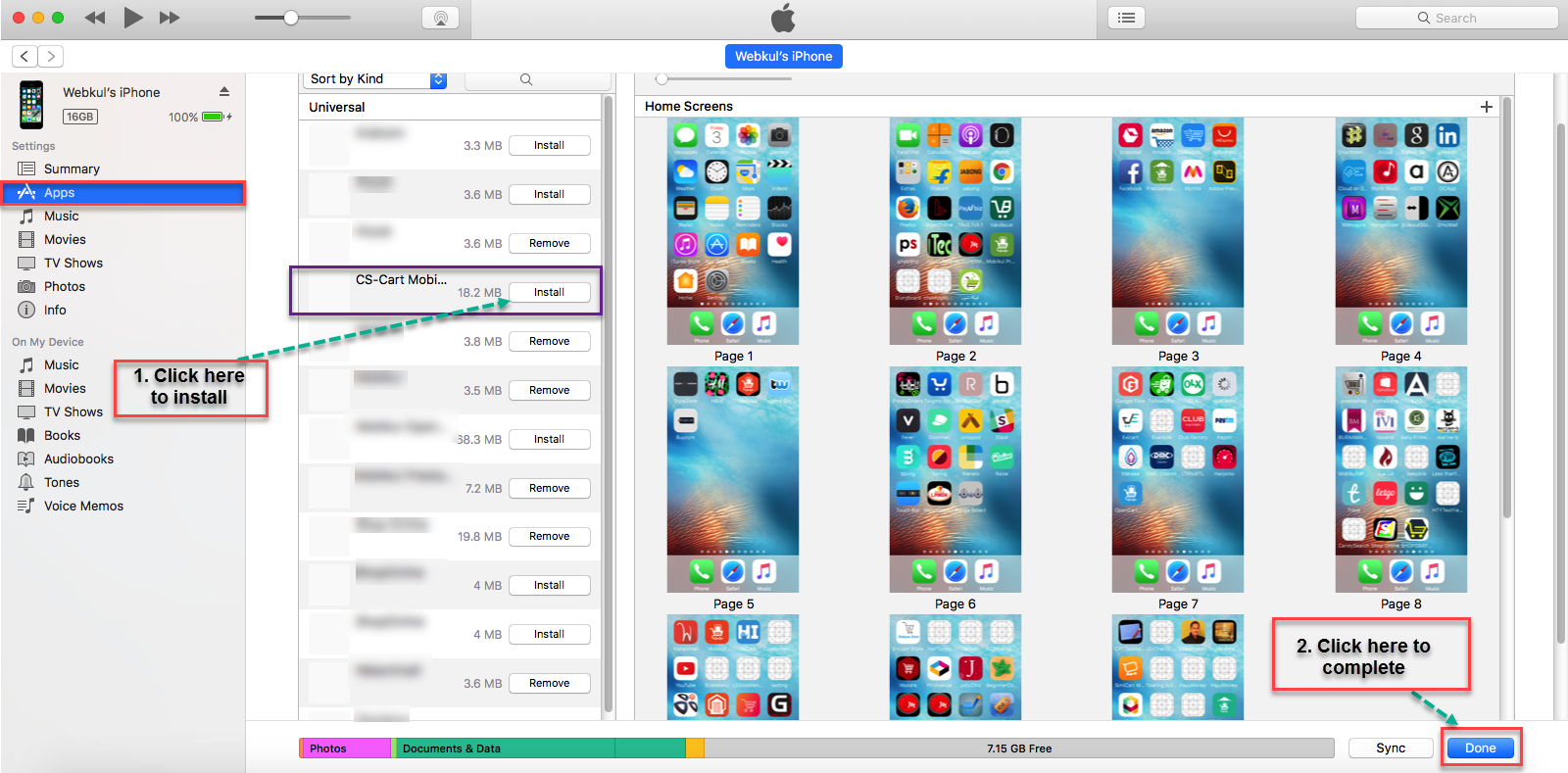
Requirements:
- A Mac or Windows Computer: To run Sideloadly.
- An Apple ID: A free Apple ID is sufficient.
- Latest Version of iTunes (Windows) or Xcode (Mac): For proper communication with your device.
- Your iPhone: Connected via USB.
- USB Cable:
- The IPA File:
Steps:
- Download and Install Sideloadly: Visit the official Sideloadly website and download the application for your operating system.
- Connect Your iPhone: Plug your iPhone into your computer using a USB cable.
- Launch Sideloadly: Open Sideloadly on your computer.
- Select Your Device: Sideloadly should automatically detect your connected iPhone. If not, select it from the device dropdown.
- Enter Your Apple ID: In the “Apple ID” field, enter your Apple ID email address. You may need to enter your password later when prompted.
- Load the IPA File: Click the “Browse” button next to the IPA field and select the IPA file you want to install.
- Install the App: Click the “Start” button. Sideloadly will then prompt you for your Apple ID password.
- Trust the Developer Profile: Once installed, you’ll need to go to your iPhone’s Settings > General > Profiles & Device Management and trust the developer profile associated with your Apple ID.
Important Considerations for Sideloadly:
- App Expiration: Like AltStore, apps signed with a free Apple ID will expire after 7 days and require re-signing.
- Ease of Use: Sideloadly is known for its intuitive interface, making it a good option for beginners.
Method 3: Using Cydia Impactor (Older Method, Potential Issues)
Cydia Impactor was a very popular tool for sideloading IPA files, particularly among those familiar with jailbreaking. While it still works for some, it has faced issues with Apple’s certificate revoking policies, making it less reliable than AltStore or Sideloadly for many users.
Requirements:
- A Computer (Windows, macOS, or Linux):
- An Apple ID:
- Latest Version of iTunes (Windows):
- Your iPhone: Connected via USB.
- USB Cable:
- The IPA File:
Steps:
- Download Cydia Impactor: Download the latest version of Cydia Impactor from its official source.
- Connect Your iPhone: Connect your iPhone to your computer.
- Launch Cydia Impactor: Open the application.
- Drag and Drop IPA: Drag your IPA file and drop it into the Cydia Impactor window.
- Enter Apple ID: You will be prompted to enter your Apple ID and password.
- Trust Developer Profile: As with other methods, you’ll need to trust the developer profile on your iPhone.
Important Considerations for Cydia Impactor:
- Reliability: Due to Apple’s ongoing efforts to prevent unauthorized signing, Cydia Impactor can be inconsistent.
- Certificate Revocation: Apple may revoke the signing certificates used by Cydia Impactor, rendering it temporarily or permanently unusable.
Considerations for Brand Building and Digital Security
When exploring methods to install IPA files, it’s important to consider the broader implications for your digital presence and security, especially if you’re involved in brand development or managing digital assets.
Brand Reputation and Trust:
If you are a developer or a brand looking to distribute pre-release versions of your app, the method of installation reflects on your brand. Using reliable and well-documented tools like AltStore or Sideloadly can foster trust among your beta testers. Conversely, relying on less secure or overly complex methods might deter potential users or testers. Ensuring a smooth and secure installation process, even for non-App Store distributions, is crucial for maintaining a positive brand image.
Digital Security Best Practices:
- Source Verification: Always download IPA files from trusted sources. Be wary of websites or individuals offering “cracked” or modified IPA files, as these are highly likely to contain malware.
- Understanding Permissions: When you install an app outside the App Store, pay close attention to the permissions it requests. Malicious apps might try to gain access to sensitive data.
- Regular Updates: Keep your sideloading tools and iOS updated. Security vulnerabilities are often patched in updates.
- Apple ID Security: Use a strong, unique password for your Apple ID and enable two-factor authentication to protect your account from unauthorized access.
From a financial perspective, while the act of installing an IPA file itself is usually free, understanding these processes can be valuable for individuals involved in the digital economy. Developers might save on costly enterprise distribution certificates for internal testing, and power users might gain access to tools or apps that offer unique functionalities, potentially leading to increased productivity or new revenue streams in their side hustles or businesses.
Conclusion: Empowering Your iOS Experience
Installing IPA files on your iPhone, while not an everyday task for most users, is an empowering skill that unlocks greater flexibility and access to the iOS ecosystem. Whether you’re a developer testing your latest creation, a beta tester for an upcoming app, or an enthusiast exploring niche software, the methods outlined above provide viable pathways.
Tools like AltStore and Sideloadly have made the process more accessible and user-friendly than ever before, allowing you to bypass the traditional App Store restrictions without compromising the core security of your device, provided you exercise caution. Always remember to prioritize obtaining IPA files from reputable sources and to maintain good digital security practices.
By understanding how to install IPA files, you gain a deeper appreciation for the underlying architecture of iOS and open up new avenues for innovation, testing, and experiencing the full breadth of applications available beyond the curated confines of the official App Store. This knowledge can be a significant asset for anyone interested in the cutting edge of technology, effective brand management in the digital space, or even smart financial decisions related to digital product development and distribution.
aViewFromTheCave is a participant in the Amazon Services LLC Associates Program, an affiliate advertising program designed to provide a means for sites to earn advertising fees by advertising and linking to Amazon.com. Amazon, the Amazon logo, AmazonSupply, and the AmazonSupply logo are trademarks of Amazon.com, Inc. or its affiliates. As an Amazon Associate we earn affiliate commissions from qualifying purchases.