
In the intricate world of computing, where every component plays a pivotal role in the grand symphony of performance, the often-overlooked chipset drivers stand as silent conductors. For users running AMD-powered systems, understanding how to properly install and maintain these crucial software packages isn’t just a technical chore; it’s a fundamental step towards unlocking your PC’s full potential, ensuring stability, and safeguarding your digital experience. This comprehensive guide will walk you through the process of installing AMD chipset drivers, from understanding their importance to troubleshooting common issues, all while highlighting their broader implications for your technology, brand loyalty, and even your finances.
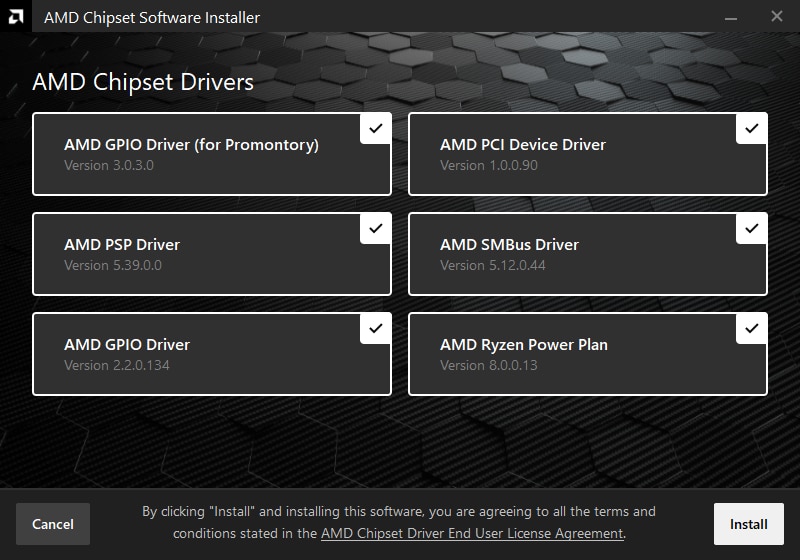
Why AMD Chipset Drivers Are Crucial for Your System’s Health
Your computer is a complex ecosystem of hardware components, each designed to perform specific tasks. However, these components don’t communicate directly with each other in a chaotic free-for-all. Instead, they rely on a central intermediary: the chipset. This set of integrated circuits on your motherboard manages the flow of data between your processor (CPU), memory (RAM), storage drives (SSDs/HDDs), expansion cards (like graphics cards), and other peripherals. Without proper communication, your system would be slow, unstable, or simply non-functional.
Understanding the Role of Chipset Drivers
Chipset drivers are the software instructions that enable your operating system to recognize, communicate with, and properly utilize the specific features and capabilities of your motherboard’s chipset. Think of them as the interpreters that translate the complex language of your hardware into instructions your operating system can understand and execute. They facilitate crucial functions such as:
- Data Transfer Speeds: Optimizing the pathways for information exchange between components, ensuring data moves efficiently.
- USB and SATA Port Functionality: Ensuring your connected devices and storage drives are recognized and perform as expected.
- Power Management: Implementing efficient power delivery to components, which impacts performance and energy consumption.
- System Stability: Preventing crashes, freezes, and other unpredictable behaviors by ensuring harmonious component interaction.
- Peripheral Compatibility: Enabling proper communication with various external devices.
Without up-to-date and correctly installed chipset drivers, your system might experience bottlenecks, reduced performance, compatibility issues with newer hardware, or even critical system failures. It’s a foundational layer of software that directly impacts the user experience and the longevity of your hardware investment.
Benefits of Keeping Your Drivers Updated
Regularly updating your AMD chipset drivers isn’t just about fixing problems; it’s about continuously enhancing your system. The benefits are manifold:
- Performance Gains: Manufacturers often release driver updates that include optimizations, leading to faster data transfer, improved responsiveness, and better overall system performance, especially in demanding applications or games.
- Bug Fixes and Stability Improvements: Updates address known software bugs that could cause crashes, freezes, or other stability issues, making your PC more reliable.
- Enhanced Security: While less common than for operating systems, driver updates can sometimes patch security vulnerabilities that might be exploited by malicious software.
- Compatibility with New Hardware and Software: As new peripherals, storage technologies, or operating system features emerge, updated drivers ensure your chipset can fully support them.
- New Features and Optimizations: Occasionally, driver updates introduce new functionalities or fine-tune existing ones, allowing you to leverage the full capabilities of your AMD platform.
For the tech-savvy user, keeping drivers updated is an integral part of system maintenance, akin to regular software updates for your operating system or applications. It’s a proactive measure that prevents issues and ensures you’re getting the most out of your hardware.
Recognizing When an Update is Needed
How do you know it’s time to update your AMD chipset drivers? While it’s generally good practice to check for updates every few months, certain signs and situations specifically call for it:
- System Instability: Frequent crashes, blue screens of death (BSODs), or unexplained freezes could indicate driver conflicts or outdated drivers.
- Performance Degradation: If your system feels slower than usual, or specific tasks (like file transfers) are lagging, new drivers might offer a fix.
- New Hardware Installation: When you upgrade components like a new SSD or an expansion card, ensuring your chipset drivers are current helps guarantee full compatibility and optimal performance.
- After an Operating System Update: Major OS updates (e.g., Windows feature updates) can sometimes introduce incompatibilities with older drivers, necessitating an update.
- Manufacturer Recommendations: AMD frequently releases new driver versions. Checking the official AMD support website regularly for your specific chipset is the most reliable way to stay informed.
Staying vigilant for these indicators, or simply integrating driver checks into your routine tech maintenance, will ensure your AMD system runs smoothly and efficiently for years to come.
Preparing for Your AMD Chipset Driver Installation
Before you dive into the installation process, a few preparatory steps are essential. These steps ensure you download the correct drivers, minimize the risk of complications, and provide a safety net should anything go awry.
Identifying Your Motherboard and Chipset
The first and most critical step is knowing exactly what hardware you have. AMD produces various chipsets (e.g., B450, X570, B650) for different generations of processors and motherboards. Installing the wrong driver can lead to instability or system malfunctions.
Here’s how to identify your chipset:
- System Information (Windows): Press
Win + R, typemsinfo32, and press Enter. Look for “BaseBoard Manufacturer” and “BaseBoard Product” to identify your motherboard model. Once you have the motherboard model, a quick search on the manufacturer’s website (e.g., ASUS, MSI, Gigabyte) will tell you which AMD chipset it uses. - Device Manager (Windows): Press
Win + Xand select “Device Manager.” Expand “System devices.” Look for entries containing “AMD Chipset” or similar. While this can provide some clues, it’s often less precise than identifying the motherboard. - Third-Party Tools: Utilities like CPU-Z are excellent for providing detailed information about your CPU, motherboard (including chipset), memory, and graphics card. Download and run CPU-Z, then navigate to the “Mainboard” tab to find your manufacturer and model.
- Physical Inspection: If you built your PC or can easily open it, the motherboard model is usually printed clearly on the board itself, often near the CPU socket or PCIe slots.
Once you know your motherboard model and, by extension, its AMD chipset, you’re ready to proceed to the next crucial step.
Backing Up Your System (A Critical Step)
This step cannot be overstated. Any significant system change, especially driver installations that touch core components like the chipset, carries a small risk of unforeseen issues. A proper backup acts as your safety net, allowing you to revert to a previous, stable state if something goes wrong. This aligns perfectly with themes of digital security and productivity discussed on our “Tech” section.
- Create a System Restore Point: In Windows, search for “Create a restore point.” In the “System Protection” tab, click “Create…” and give your restore point a descriptive name (e.g., “Before AMD Chipset Driver Update”). This allows you to roll back system files and drivers to that point.
- Full System Backup: For maximum peace of mind, consider a full disk image backup using Windows’ built-in backup tools or third-party software. This creates a complete snapshot of your entire drive, including your operating system, programs, and personal files. This practice isn’t just for driver updates; it’s a fundamental aspect of robust digital security and data management. It saves you time, stress, and potential financial loss from data corruption.
Downloading the Correct Drivers
With your system identified and backed up, it’s time to acquire the drivers. Always download chipset drivers from the official AMD website. Avoid third-party driver download sites, as they may offer outdated, incorrect, or even malicious software.
- Visit the AMD Support Website: Go to
www.amd.com/support. - Use the Auto-Detect Tool (Optional, but Recommended): AMD often provides an “Auto-Detect and Install” tool that can scan your system and recommend the correct drivers. This is convenient and reduces the chance of error.
- Manual Selection: If you prefer to download manually or the auto-detect tool isn’t working:
- Navigate to the “Drivers & Support” section.
- Under “Drivers for AMD Ryzen™ Chipsets,” select your specific chipset series (e.g., “AMD B650 Chipset,” “AMD X570 Chipset”).
- Then choose your operating system (e.g., Windows 11 – 64-Bit Edition).
- Download the latest available driver package. The file will typically be an executable (
.exe).
Always double-check that the operating system version (e.g., Windows 10, Windows 11) and bit-version (32-bit or 64-bit) match your system. Downloading the wrong version can prevent installation or cause issues.
Step-by-Step Guide to Installing AMD Chipset Drivers
Now that you’ve completed the preparations, you’re ready to install the drivers. This process is generally straightforward but requires attention to detail.
Clean Installation vs. Update Installation
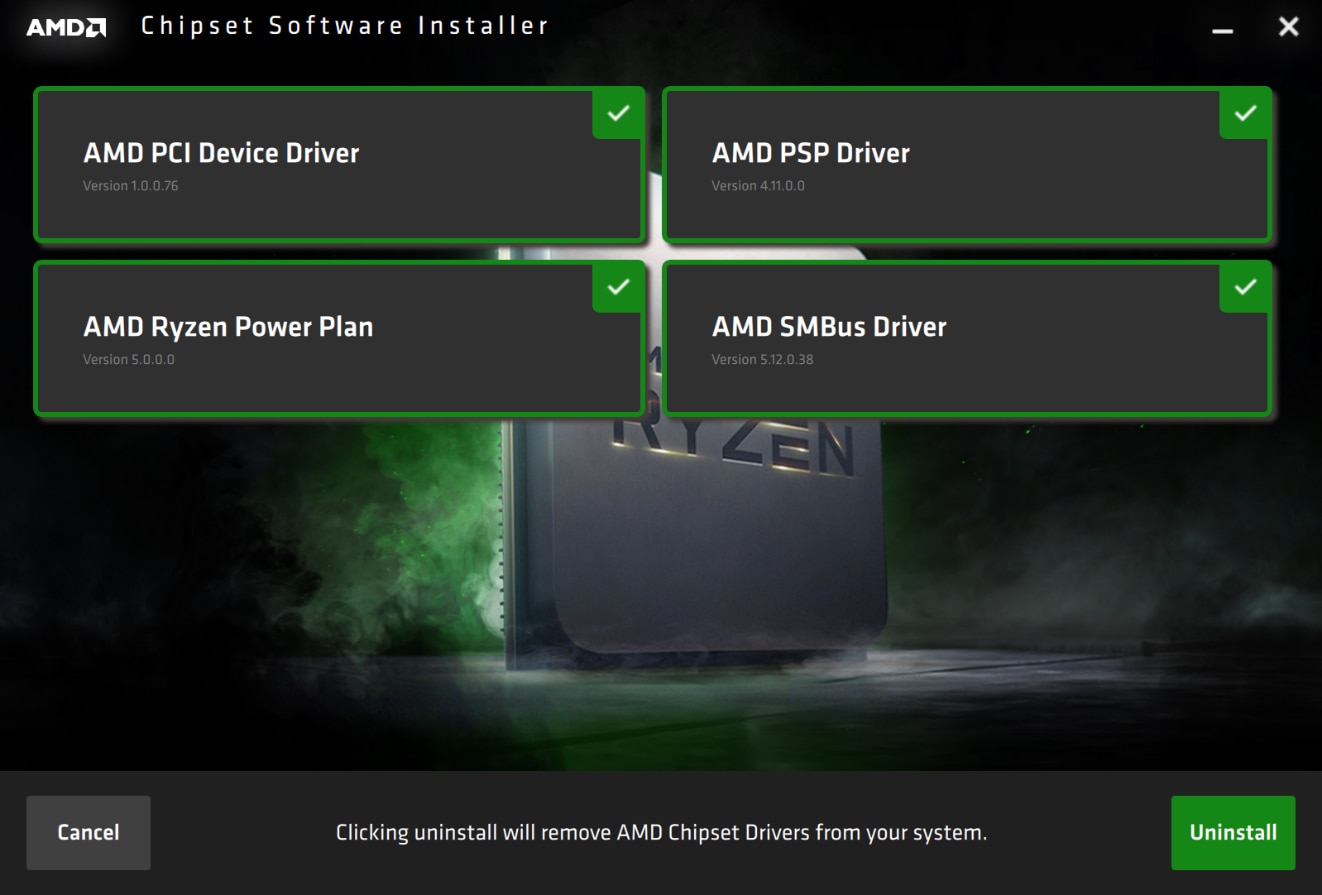
Before running the installer, you have a choice: a clean installation or an update.
- Update Installation (Standard): If you’re simply updating an existing driver version, you can usually run the new installer directly. It will overwrite the older files. This is often sufficient for minor updates.
- Clean Installation (Recommended for Major Updates or Issues): For major driver version jumps, or if you’ve been experiencing system instability, a clean installation is highly recommended. This ensures all old, potentially problematic driver files are removed before the new ones are installed. AMD provides a utility for this:
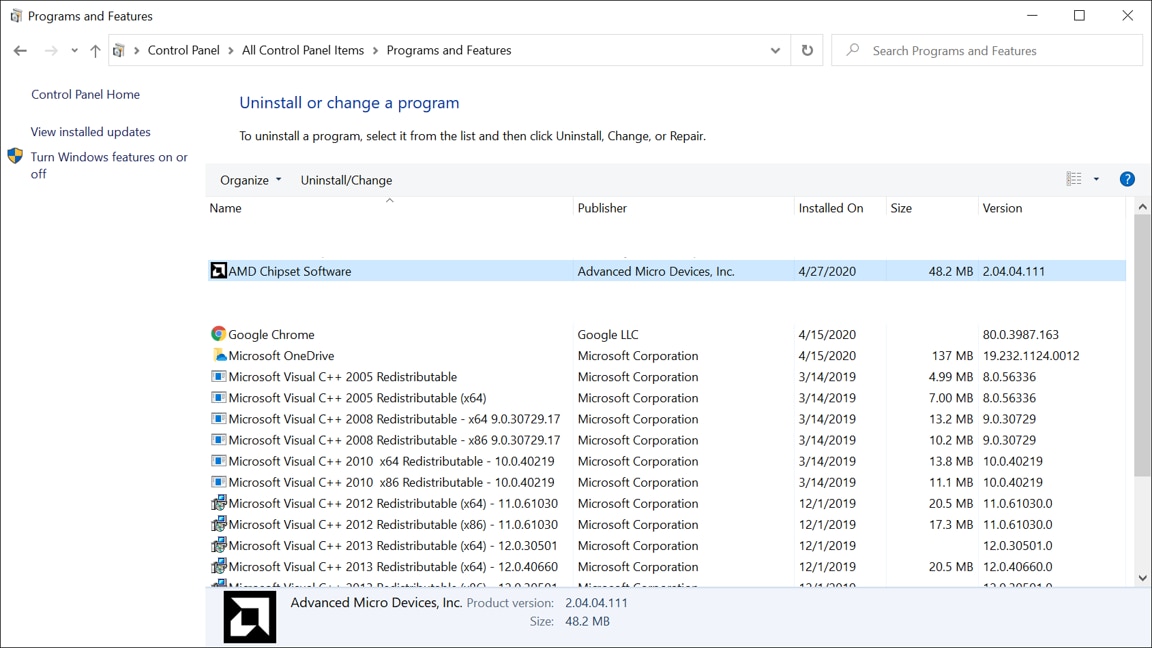
- Download AMD Cleanup Utility: This tool can be found on the AMD support site, often alongside the chipset drivers or as a standalone download.
- Run in Safe Mode: For best results, boot your Windows into Safe Mode before running the Cleanup Utility. This prevents other programs from interfering with the uninstallation process.
- Execute Cleanup Utility: Run the tool, follow the prompts, and allow it to uninstall all AMD software and drivers. Your screen may flicker or change resolution during this process.
- Restart: After the cleanup, restart your computer into normal mode.
Performing a clean installation removes potential conflicts and ensures a fresh slate for the new drivers, optimizing system stability and performance from the start.
The Standard Installation Process
Whether you performed a clean uninstall or are simply updating, the installation process for the new drivers is similar:
- Close All Applications: Before running the installer, close any open programs, especially those that might be using system resources heavily.
- Locate the Downloaded File: Find the
.exefile you downloaded from AMD’s website. - Run as Administrator: Right-click the
.exefile and select “Run as administrator.” This grants the installer the necessary permissions to modify system files. - Follow On-Screen Prompts:
- Extraction: The installer will likely first extract its contents to a temporary folder.
- License Agreement: Accept the end-user license agreement.
- Installation Type: Choose “Install” or “Express Install.” A custom install might allow you to select specific components, but for most users, the default express option is fine.
- Installation Progress: The installer will copy files and configure your system. This might take several minutes, and your screen may flash or temporarily go black as drivers are loaded.
- Restart Your System: Once the installation is complete, the installer will prompt you to restart your computer. It is crucial to restart immediately to finalize the driver installation and allow the new drivers to take effect. Do not delay this step.
Verifying Successful Installation
After your system restarts, it’s a good idea to confirm that the new drivers have been installed correctly.
- Device Manager: Press
Win + Xand select “Device Manager.” Expand “System devices.” Look for entries related to “AMD Chipset” (e.g., “AMD SMBus,” “AMD GPIO Controller”). Right-click on them, select “Properties,” then “Driver” tab. Check the “Driver Version” and “Driver Date” to ensure they match the version you just installed. - AMD Software: If you installed the full AMD Adrenalin Software suite (which often includes chipset drivers), open it and navigate to the “System” or “Hardware” section to see driver version information.
- System Stability: The most important verification is the absence of issues. Your system should feel responsive, stable, and any previous performance problems should be resolved. Run a few applications, transfer some files, and generally use your PC as you normally would.
Troubleshooting Common Issues and Advanced Tips
Even with careful preparation, sometimes things don’t go as planned. Here’s how to address common issues and some advanced tips for driver maintenance.
Dealing with Installation Errors
- “Installation Failed” / “Error 1603”:
- Run as Administrator: Always ensure you’re running the installer with administrator privileges.
- Disable Antivirus/Firewall Temporarily: Security software can sometimes interfere with installations. Temporarily disable them (remember to re-enable afterward).
- Corrupted Download: The driver file might be corrupted. Delete it and re-download from the AMD website.
- AMD Cleanup Utility: If upgrading, try running the AMD Cleanup Utility first (preferably in Safe Mode) to remove old drivers entirely, then attempt a clean install of the new drivers.
- Windows Updates: Ensure your Windows installation is fully updated, as some driver installations depend on recent OS patches.
- System Instability After Installation: If your system becomes unstable (crashes, freezes, BSODs) immediately after installing new drivers, it indicates a problem with the new drivers or an incompatibility.
- System Restore Point: Immediately revert to the system restore point you created before the installation. This is the quickest and safest way to get back to a stable state.
- Device Manager Rollback: In Device Manager, right-click on the problematic “AMD Chipset” device, select “Properties,” go to the “Driver” tab, and click “Roll Back Driver.” This attempts to restore the previous driver version.
- Safe Mode: If your system won’t boot normally, try booting into Safe Mode, then attempt a rollback or run the AMD Cleanup Utility.
Reverting to Previous Driver Versions
Knowing how to roll back drivers is an essential skill for any PC user.
- Via System Restore: This is the most robust method. Use the “System Restore” utility in Windows and select the restore point you created prior to the driver update. This will revert your entire system to that state.
- Via Device Manager:
- Open Device Manager (
Win + X-> “Device Manager”). - Expand “System devices.”
- Right-click on the relevant AMD chipset entry (e.g., “AMD SMBus,” “AMD GPIO Controller”).
- Select “Properties.”
- Go to the “Driver” tab.
- If available, click “Roll Back Driver.” If it’s grayed out, Windows doesn’t have a previous driver package to revert to, or it was a clean install.
- Open Device Manager (
Always keep a copy of a known-good, stable older driver version on hand if you frequently experiment with new releases.
The Long-Term Value of Driver Maintenance
Beyond immediate performance gains and stability fixes, diligent driver maintenance carries significant long-term value, resonating with “Tech” and “Money” aspects of our website.
- Extending Hardware Longevity: A well-maintained system with optimal driver support experiences less stress, potentially extending the lifespan of your motherboard and other components. Preventing overheating or inefficient power delivery through updated drivers can make a real difference.
- Maintaining Resale Value: A PC that performs consistently well, without known software issues, will inherently hold more value if you decide to sell or upgrade later. Potential buyers are more confident in a system that has been cared for.
- Optimizing Power Consumption: Newer chipset drivers often include power management optimizations that can lead to reduced energy consumption, lowering your electricity bill over time – a direct financial benefit.
- Future-Proofing (to an extent): While you can’t truly future-proof hardware, keeping drivers updated ensures your system remains compatible with the latest software and peripherals for as long as possible, delaying the need for costly upgrades.
This proactive approach to tech maintenance is an investment in your system’s future, translating into both performance benefits and financial savings in the long run.
The Broader Impact: Tech, Brand, and Your Bottom Line
The seemingly simple act of installing AMD chipset drivers extends far beyond a technical procedure. It touches upon how we interact with technology, the trust we place in brands, and the economic implications of our tech choices.
Tech: Maximizing Your Investment and Experience
For technology enthusiasts and everyday users alike, the goal is always to get the most out of our hardware. Installing the correct and latest AMD chipset drivers is a fundamental step in achieving this. It ensures your Ryzen processor, Radeon graphics, and the entire AMD ecosystem within your PC operate in perfect harmony. From the instantaneous loading of applications to the smooth rendering of complex graphics in the latest games, and even the efficiency of mundane file transfers, updated drivers underpin a superior user experience. Neglecting this maintenance is akin to buying a high-performance sports car and never changing its oil – you’re simply not realizing its full potential, and you’re inviting problems down the road. It’s about leveraging every bit of the technological prowess you’ve invested in.
Brand: AMD’s Commitment to Performance and Your Trust
Hardware manufacturers like AMD pour immense resources into designing cutting-edge chipsets. But the hardware is only as good as the software that enables it. The continuous release of updated drivers is a direct reflection of AMD’s commitment to its brand reputation and its users’ satisfaction. When drivers are stable, performant, and regularly updated, it builds trust in the AMD brand. Users see that AMD stands behind its products, offering ongoing support and improvements long after the initial purchase. Conversely, poorly maintained or buggy drivers can severely damage a brand’s image, leading to frustration, lost loyalty, and a perception of unreliability. For AMD, delivering robust driver support isn’t just a technical necessity; it’s a critical component of their brand strategy, fostering a loyal community of users who advocate for their products.
Money: Avoiding Costly Issues and Enhancing Value
In the realm of personal finance and business investments, every dollar counts. Your PC is an investment, whether for work, education, or entertainment. Neglecting driver updates can have tangible financial consequences:
- Preventing Costly Repairs: System instability, crashes, and hardware conflicts caused by outdated drivers can sometimes manifest as what appear to be hardware failures. Paying for diagnostics or replacement parts when a simple driver update could have solved the issue is a wasteful expense. Proactive driver maintenance minimizes these risks.
- Optimizing Performance for Productivity: For those who rely on their PC for online income, side hustles, or business finance, system performance directly translates to productivity. A faster, more stable system means less downtime, quicker task completion, and ultimately, greater earning potential. Every minute saved waiting for a lagging system is money gained.
- Maintaining Resale and Upgrade Value: As discussed, a well-maintained PC fetches a better price on the second-hand market. When you decide to upgrade, a system that has been diligently updated and performs optimally will provide a higher return on your initial investment, making your next upgrade more financially viable.
- Energy Efficiency: Modern drivers often incorporate power efficiency improvements. Over months and years, these small savings in electricity consumption can add up, contributing to a leaner personal or business budget.
In essence, the small effort invested in regularly updating your AMD chipset drivers is a smart financial decision, safeguarding your hardware investment, boosting your productivity, and preventing avoidable expenses.
Conclusion
Installing AMD chipset drivers is far more than a routine technical task; it’s a vital practice that underpins the stability, performance, and longevity of your AMD-powered PC. From ensuring seamless communication between your components to unlocking the latest optimizations and features, these drivers are the unsung heroes of your system. By understanding their importance, diligently preparing for installation, following the correct steps, and knowing how to troubleshoot, you empower yourself to maintain a top-performing machine.
Moreover, this act of technical stewardship reverberates across broader domains. It ensures you maximize your technological investment, fosters trust and loyalty in the AMD brand, and ultimately contributes to a more efficient and financially sound computing experience. In a world increasingly reliant on digital tools, taking control of your PC’s fundamental health through proper driver management is an essential skill for every modern user. So, take the time, download those updates, and enjoy the optimized performance that your AMD system was truly designed to deliver.
aViewFromTheCave is a participant in the Amazon Services LLC Associates Program, an affiliate advertising program designed to provide a means for sites to earn advertising fees by advertising and linking to Amazon.com. Amazon, the Amazon logo, AmazonSupply, and the AmazonSupply logo are trademarks of Amazon.com, Inc. or its affiliates. As an Amazon Associate we earn affiliate commissions from qualifying purchases.