
In the dynamic world of digital design and content creation, typography is far more than just selecting letters; it’s a powerful tool that conveys emotion, establishes hierarchy, and, critically, builds brand identity. For professionals and enthusiasts alike, access to a vast, high-quality font library is an indispensable asset. This is precisely where Adobe Fonts steps in, offering an expansive collection of typefaces seamlessly integrated into the Adobe Creative Cloud ecosystem. This comprehensive guide will walk you through the process of installing and leveraging Adobe Fonts, transforming your creative workflow and elevating your design projects.

Whether you’re a seasoned graphic designer, a budding web developer, or a digital marketer crafting compelling visuals, understanding how to effectively manage your typography is key to productivity and achieving a polished, professional aesthetic. Adobe Fonts not only simplifies font management but also ensures you’re always working with legally licensed typefaces, removing a significant hurdle for commercial use. Let’s delve into how this powerful resource can be harnessed to its fullest potential, enhancing your tech-driven creative process and bolstering your brand’s visual language.
Understanding Adobe Fonts: A Creative Essential
For decades, designers had to manually acquire, install, and manage fonts, often dealing with licensing complexities and compatibility issues. Adobe Fonts streamlines this entire process, providing a robust, cloud-based solution that integrates directly with Adobe’s suite of creative applications.
What are Adobe Fonts?
Adobe Fonts, previously known as Typekit, is a vast online library of high-quality fonts included with every Adobe Creative Cloud subscription. Unlike traditional font management where you download and install individual font files onto your operating system, Adobe Fonts operates on a sync-and-use model. When you activate a font from the Adobe Fonts website, it’s automatically synced to your Creative Cloud desktop application and becomes available across all your Adobe desktop applications, such as Photoshop, Illustrator, InDesign, and Premiere Pro.
This cloud-centric approach means you have instant access to thousands of professionally designed typefaces without the hassle of manual installation or the concern of outdated font files. The library is constantly updated, offering a diverse range of styles from classic serifs and modern sans-serifs to elegant scripts and quirky display fonts, catering to virtually any design requirement. This convenience not only saves time but also ensures consistency across different devices and team members working on the same project, which is a significant boon for large-scale branding efforts and collaborative workflows.
Why Adobe Fonts are Indispensable for Creatives
The advantages of utilizing Adobe Fonts extend far beyond mere convenience. For anyone serious about design and branding, they offer a critical edge in terms of quality, efficiency, and compliance.
Firstly, the breadth and quality of the library are unparalleled. Adobe curates its collection from world-renowned type foundries, ensuring that users have access to meticulously crafted typefaces that meet professional standards. This high standard of typography directly translates into visually appealing and readable designs, which is fundamental for effective communication and strong brand messaging.
Secondly, seamless integration and productivity are core benefits. With fonts automatically syncing, designers can jump between projects and applications without worrying about missing typefaces. This uninterrupted workflow boosts productivity, allowing creatives to focus more on design and less on technicalities. For tech-savvy professionals, this means more time spent on innovation and less on administrative tasks, aligning perfectly with modern productivity trends.
Thirdly, legal licensing and peace of mind are invaluable. All fonts available through Adobe Fonts are licensed for both personal and commercial use, covering print, web, and even embedding in PDFs. This removes the legal ambiguity often associated with free font downloads or complex individual licensing agreements, ensuring that your branding and marketing materials are always compliant. From a “Money” perspective, this single subscription offers immense value, eliminating the need to purchase expensive individual font licenses, which can quickly add up for agencies or freelancers working with diverse clients. Investing in Adobe Creative Cloud effectively becomes an investment in a legally secure, premium font library, contributing directly to a professional and trustworthy brand image.
Prerequisites and Getting Started
Before diving into the activation process, ensuring you have the necessary components in place will make your experience smooth and efficient.
What You Need Before You Begin
To successfully install and use Adobe Fonts, you’ll need a few essentials:
- An Active Adobe Creative Cloud Subscription: Adobe Fonts is an exclusive benefit of Creative Cloud. This means you need an active subscription to any Creative Cloud plan (e.g., Photography Plan, Single App, All Apps plan). Without a valid subscription, you won’t be able to activate or sync fonts.
- The Adobe Creative Cloud Desktop Application: This application is the central hub for managing your Adobe services, including font synchronization. You’ll need to download and install this app onto your computer (Windows or macOS). Once installed, ensure you are logged in with the Adobe ID associated with your active Creative Cloud subscription. The app acts as the bridge between the online font library and your desktop applications.
- A Stable Internet Connection: Since Adobe Fonts relies on cloud synchronization, a reliable internet connection is crucial for browsing the font library, activating new fonts, and ensuring they sync correctly to your desktop applications. Once synced, you can often work offline, but initial activation and future updates require connectivity.
- Compatible Operating System: Adobe Creative Cloud applications, and by extension Adobe Fonts, are designed to work seamlessly on modern versions of Windows and macOS. Ensure your operating system meets the minimum requirements for your Creative Cloud desktop app.
Meeting these prerequisites ensures a hassle-free journey into the world of Adobe Fonts, allowing you to quickly enhance your creative toolkit.
Navigating the Adobe Fonts Ecosystem
The Adobe Fonts ecosystem primarily consists of two key components that work in tandem: the Adobe Fonts website (fonts.adobe.com) and the Creative Cloud desktop application.
The Adobe Fonts website is your primary portal for exploring and activating fonts. It offers a rich interface with powerful search, filtering, and categorization tools, allowing you to discover new typefaces based on style, classification, properties (e.g., x-height, contrast), language support, and even recommended pairings. This is where you’ll browse the extensive library and initiate the activation of fonts you wish to use. The website also provides details on font families, designers, and usage examples, making it an excellent resource for typographical inspiration and research—an invaluable asset for designers looking to strengthen their brand’s visual narrative.
The Creative Cloud desktop application then serves as the crucial link between the website and your desktop software. Once you activate a font on the website, the Creative Cloud app takes over, downloading and syncing the necessary font files to your local system in the background. It also provides a dedicated “Fonts” tab where you can view all your activated fonts, monitor their sync status, and deactivate fonts you no longer need. This app essentially acts as your personal font manager, ensuring that your selected typefaces are readily available in Photoshop, Illustrator, InDesign, and other compatible applications, streamlining your tech workflow and enhancing productivity.
Step-by-Step Guide to Activating and Using Adobe Fonts
The process of activating and using Adobe Fonts is designed to be intuitive and efficient. Follow these steps to enrich your typography toolkit.
Activating Fonts from the Adobe Fonts Website
This is where your journey into the vast Adobe Fonts library begins.
Step 1: Go to fonts.adobe.com and Log In.
Open your web browser and navigate to fonts.adobe.com. You will be prompted to log in using your Adobe ID, which should be linked to your active Creative Cloud subscription. This ensures that your activations are tied to your account and sync correctly.
Step 2: Browse the Font Library.
Once logged in, you’ll land on the main page showcasing the extensive font library. Take advantage of the powerful search and filtering options located on the left sidebar. You can filter by:
- Classifications: Sans-serif, Serif, Slab Serif, Script, Blackletter, Monospace, etc.
- Properties: Weight, Width, x-height, Contrast, Cap Height, and more, allowing for precise selection.
- Tags: Modern, Elegant, Geometric, Display, Handwriting, etc.
- Languages: To ensure character support for specific regions.
- You can also search directly by font name if you have a specific typeface in mind. This robust filtering system is a productivity hack in itself, helping designers quickly narrow down choices that align with specific brand guidelines or project requirements.
Step 3: Select a Font Family or Specific Weights/Styles.
Click on any font family that catches your eye to view its details page. Here, you can preview the font in various sizes, test custom text, and see all the available weights and styles (e.g., Light, Regular, Semibold, Bold, Italic). This detailed view is crucial for understanding how a font will perform in different contexts, which is vital for maintaining a consistent brand aesthetic.
Step 4: Click “Activate” or Toggle the Activation Switch.
On the font family page, you’ll see a toggle switch next to each individual weight/style, or an “Activate all fonts” button at the top if you wish to activate the entire family. Simply toggle the switch for the specific fonts you want to use. A small confirmation message will appear, indicating that the font is being activated and synced to your Creative Cloud desktop app. It’s generally a good practice to activate only the weights and styles you immediately need, as this helps maintain system performance and a clutter-free font menu.
Managing Your Activated Fonts via the Creative Cloud Desktop App
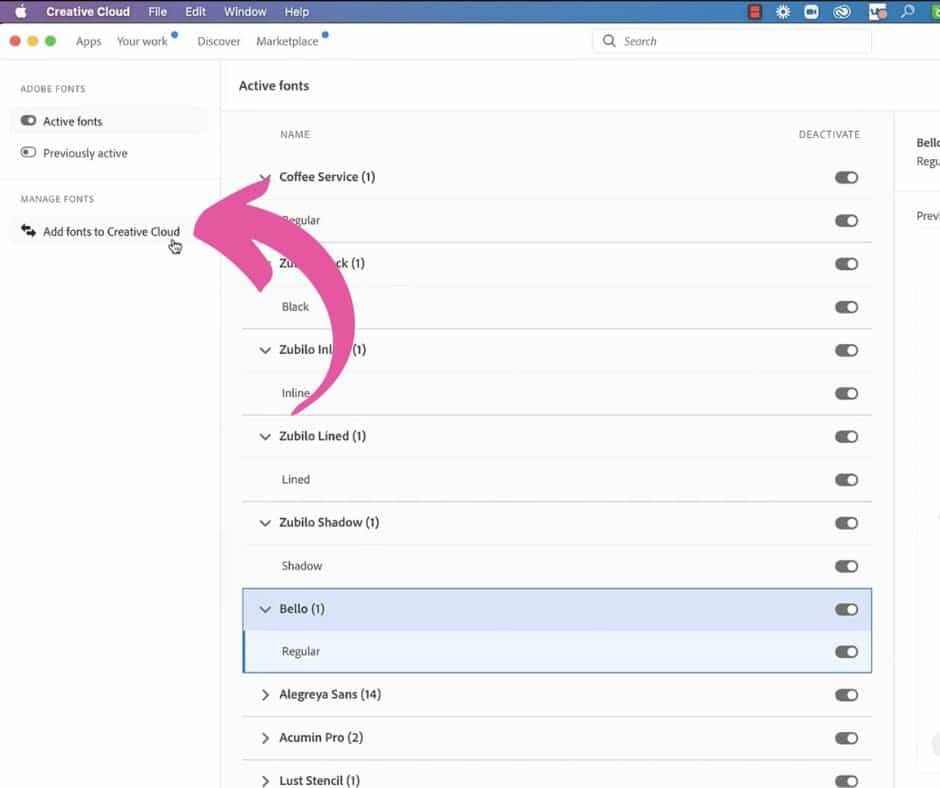
The Creative Cloud desktop application is your control panel for all synced Adobe Fonts.
Step 1: Open the Creative Cloud Desktop App.
Launch the Adobe Creative Cloud desktop application on your computer. If it’s not already running, you can find it in your system tray (Windows) or menu bar (macOS).
Step 2: Navigate to the “Fonts” Tab.
Within the Creative Cloud app, click on the “Fonts” tab in the left-hand navigation pane. This section is dedicated to all your Adobe Fonts activity.
Step 3: Monitor Sync Status and View Active Fonts.
Under the “Fonts” tab, you’ll see a list of “Active Fonts” and potentially a section for “Previously Active Fonts.” The “Active Fonts” list shows all the fonts you’ve recently activated from the Adobe Fonts website. You can verify their sync status here; usually, they sync almost instantly if you have a good internet connection. This real-time feedback is a core aspect of the seamless tech integration Adobe offers.
Step 4: Deactivate Fonts If Needed.
To deactivate a font, simply click the toggle switch next to its name in the “Active Fonts” list within the Creative Cloud app. Deactivating a font removes it from your system and your Adobe applications. This is useful for decluttering your font menus, improving application performance, or managing the number of active fonts, especially if you have a very large collection. It’s a good practice for optimizing your creative environment and ensuring you’re only working with relevant typefaces for current projects.
Utilizing Adobe Fonts in Your Creative Applications
Once a font is activated and synced, it becomes instantly available across your Adobe Creative Cloud applications.
Step 1: Open Your Preferred Adobe Application.
Launch an application like Photoshop, Illustrator, InDesign, Premiere Pro, or any other Adobe Creative Cloud app. If the application was already open during font activation, you might need to restart it for the newly synced fonts to appear in its font menus.
Step 2: Access the Font Menu.
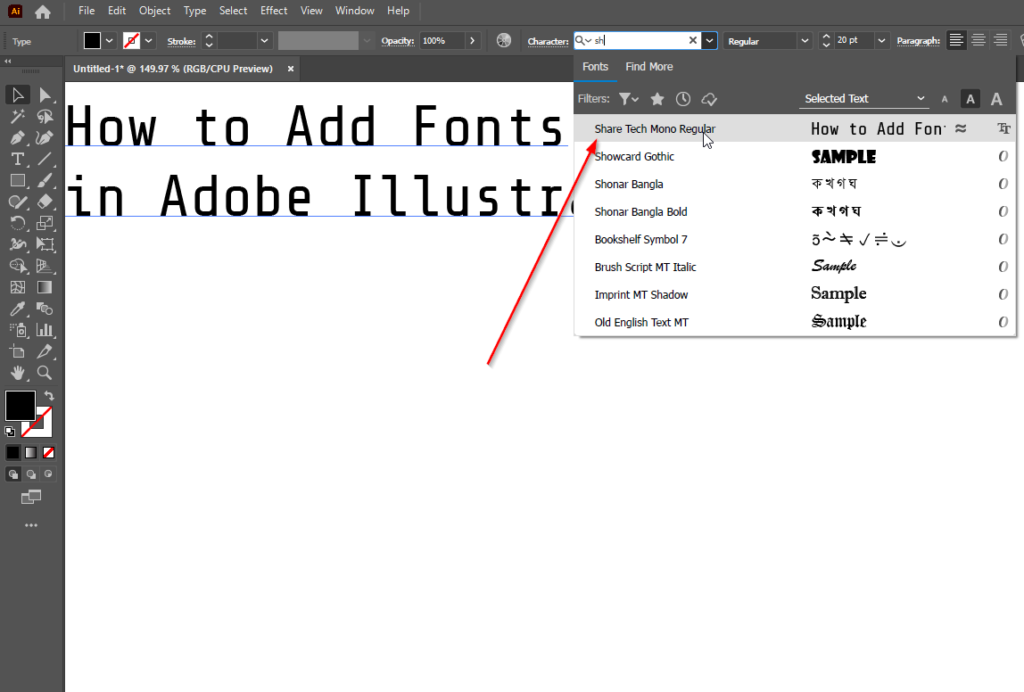
When you’re working with text in your application (e.g., using the Type Tool in Photoshop or Illustrator), navigate to the font selection dropdown menu. This menu is usually found in the Options bar, Character panel, or Properties panel, depending on the application.
Step 3: Select Your Adobe Font.
Scroll through the font list, and you’ll find your newly activated Adobe Fonts listed alongside any other locally installed fonts. Adobe Fonts are often identifiable by a small Adobe icon next to their name or grouped in a specific section within the font menu. Select the desired font, and it will be applied to your text layer. The beauty of this system is its universality; once synced, these fonts are treated just like any other system font within Adobe applications, providing a consistent user experience. This consistent font availability across the Creative Suite ensures brand guidelines are easily adhered to, a critical element of corporate identity and marketing design.
While primarily designed for Adobe applications, once synced via the Creative Cloud desktop app, many Adobe Fonts will also become available in other non-Adobe applications on your system (like Microsoft Word, Google Docs via desktop sync tools, or other design software). However, full functionality and future updates are best guaranteed within the Adobe ecosystem.
Troubleshooting and Best Practices
Even with a streamlined system like Adobe Fonts, occasional hiccups can occur. Knowing how to troubleshoot common issues and adopting best practices will ensure a smooth, efficient workflow.
Common Issues and Quick Fixes
Most problems with Adobe Fonts can be resolved with a few simple checks.
- Fonts Not Syncing/Missing in Applications:
- Check Internet Connection: Ensure your computer has a stable and active internet connection. Adobe Fonts requires connectivity for activation and syncing.
- Verify Creative Cloud Login: Make sure you’re logged into the Creative Cloud desktop application with the Adobe ID associated with your active subscription.
- Restart Creative Cloud App: Sometimes, simply quitting and relaunching the Creative Cloud desktop app can refresh the sync process.
- Restart Creative Application: If your design application (e.g., Photoshop) was open during font activation, restart it. Applications typically load available fonts upon launch.
- Check “Fonts” Tab in CC App: Look for error messages or sync failures in the “Fonts” tab of the Creative Cloud app. It might provide specific reasons for non-syncing.
- Clear Font Cache: In rare cases, a corrupted font cache on your operating system can prevent fonts from appearing. Searching for “clear font cache [Your OS]” will usually provide instructions. This is a more advanced step, typically a last resort.
- Slow Performance with Many Active Fonts:
- While modern systems handle many fonts well, having thousands of active fonts can occasionally slow down application launch times or font menu responsiveness. Deactivating unused fonts (see below) is the primary solution.
- Font Conflicts:
- Adobe Fonts is generally good at managing potential conflicts with locally installed versions of the same font. However, if you experience unusual font behavior, temporarily deactivating the Adobe Fonts version (or uninstalling the local version) can help isolate the issue.
Optimizing Your Font Workflow
Beyond troubleshooting, adopting strategic habits can maximize your Adobe Fonts experience and maintain a high level of productivity.
- Activate Only What You Need: Resist the temptation to activate every font you like. For each project, activate only the specific font families, weights, and styles required. This keeps your font menus tidy and minimizes system load, contributing to faster application performance—a subtle but important element of tech optimization.
- Organize by Project: Consider creating a collection of activated fonts for each major project. Once a project is complete, you can deactivate those fonts, keeping your active font list lean and focused. This strategy aligns well with efficient project management, a key aspect for any successful brand or business.
- Regularly Review and Deactivate: Periodically go through your “Active Fonts” list in the Creative Cloud desktop app and deactivate any fonts you haven’t used recently. This decluttering improves overall system responsiveness and makes it easier to find the fonts you truly need.
- Stay Updated: Ensure your Creative Cloud desktop application and your individual Adobe applications are always updated to the latest versions. Adobe frequently releases updates that improve font synchronization, performance, and compatibility. This commitment to staying current with software versions is crucial for maintaining digital security and leveraging the latest features.
- Understand Licensing for Use Cases: While Adobe Fonts are broadly licensed for commercial use, specific scenarios like embedding fonts in apps or using them on certain types of web servers might have nuanced guidelines. Always refer to the official Adobe Fonts licensing terms on their website for detailed information to ensure legal compliance for your brand’s assets. This vigilance protects your brand from potential legal issues and reinforces its professional integrity.
The Strategic Impact of Professional Typography
Beyond the technical steps of installation, the strategic deployment of typography holds immense power in shaping perceptions, strengthening brand identity, and ultimately impacting business success.
Elevating Your Brand Identity with Thoughtful Typography
In the realm of branding, typography is akin to a brand’s voice. It communicates personality, values, and professionalism even before a single word is read. Thoughtful typography, powered by the vast resources of Adobe Fonts, is therefore not just an aesthetic choice but a strategic imperative.
Choosing the right fonts for your brand allows you to convey a specific mood and evoke desired emotions. A sleek sans-serif might project modernity and efficiency, while an elegant serif could suggest tradition and trustworthiness. Consistent application of these chosen typefaces across all touchpoints – from your website and marketing materials to social media graphics and product packaging – builds a cohesive and memorable corporate identity. This consistency fosters recognition, making your brand instantly identifiable and creating a sense of reliability for your audience. For digital marketers and brand strategists, the ability to rapidly experiment with and implement high-quality typefaces from Adobe Fonts means faster iteration and more impactful campaigns. This directly translates into better engagement and a stronger market presence, which are tangible returns on investment for any business. The powerful connection between visual design and audience perception underscores why meticulous font selection and management, facilitated by technology like Adobe Fonts, is a non-negotiable aspect of modern brand building.
Beyond Installation: Maximizing Your Investment in Adobe Fonts
Installing fonts is merely the first step. To truly maximize your investment in Adobe Fonts and your Creative Cloud subscription, it’s essential to integrate them deeply into your creative strategy and workflow.
Exploring New Fonts Regularly: The Adobe Fonts library is constantly evolving. Make it a practice to periodically browse new additions or explore fonts outside your usual comfort zone. This continuous exploration can spark fresh ideas, keep your designs contemporary, and prevent your brand’s visual language from becoming stale. The dynamic nature of this resource means your tech toolkit is always expanding, offering new avenues for creative expression.
Font Pairing Principles: Don’t just pick one font; learn the art of font pairing. Combining two or three complementary typefaces (e.g., a strong display font for headings, a legible serif for body text, and a clean sans-serif for accents) can add depth and visual interest to your designs. Adobe Fonts often provides pairing suggestions, which can serve as an excellent starting point for those looking to refine their typographic skills. This sophisticated use of typography is a hallmark of strong brand design and sophisticated marketing efforts.
The Long-Term Value: Consider the comprehensive value of your Creative Cloud subscription. Adobe Fonts is just one component alongside industry-standard applications, cloud storage, and collaborative tools. This integrated ecosystem provides a holistic solution for creative professionals, making the subscription a smart “Money” investment that significantly boosts productivity and the quality of your output. The efficiency gained by having a unified platform for all your creative needs contributes to a healthy bottom line for freelancers and large agencies alike. By ensuring your team has access to consistent, legally compliant, and high-quality typographic resources, you’re not just installing fonts; you’re investing in a powerful competitive advantage that underpins the visual integrity and success of your brand.
In conclusion, mastering Adobe Fonts is more than just a technical skill; it’s a strategic move for any creative professional or business serious about their digital presence. By understanding its features, streamlining your installation process, and adopting best practices, you unlock a world of typographic possibilities that will undoubtedly elevate your designs, strengthen your brand, and enhance your overall creative productivity.
aViewFromTheCave is a participant in the Amazon Services LLC Associates Program, an affiliate advertising program designed to provide a means for sites to earn advertising fees by advertising and linking to Amazon.com. Amazon, the Amazon logo, AmazonSupply, and the AmazonSupply logo are trademarks of Amazon.com, Inc. or its affiliates. As an Amazon Associate we earn affiliate commissions from qualifying purchases.