
In the modern digital era, the landscape of interactive entertainment has been fundamentally reshaped by software distribution platforms. At the pinnacle of this evolution stands Steam, the flagship service developed by Valve Corporation. Originally launched in 2003 as a way for Valve to provide automatic updates for their games, Steam has blossomed into a comprehensive ecosystem that serves as a storefront, a social network, and a technical framework for millions of users worldwide. For any newcomer to the world of PC gaming, understanding how to install Steam—and how to configure it for peak performance—is the first essential step into a broader digital universe.

Understanding the Steam Ecosystem: More Than Just a Launcher
Before diving into the technical steps of installation, it is crucial to understand what Steam represents in the current tech landscape. It is not merely a “launcher”; it is a sophisticated piece of software that manages Digital Rights Management (DRM), matchmaking servers, video streaming, and community features.
The Evolution of Digital Distribution
Steam’s journey from a controversial mandatory update tool for Half-Life 2 to the industry standard is a masterclass in software iteration. Today, it hosts tens of thousands of games ranging from AAA blockbusters to niche indie projects. Its architecture is designed to handle massive data throughput, ensuring that when you download a game, you are utilizing some of the fastest content delivery networks (CDNs) available globally. This technical reliability is why Steam remains the preferred choice for software developers and gamers alike.
Why Steam Remains the Industry Standard
From a technical perspective, Steam offers features that many competitors still struggle to replicate. The Steam Workshop allows for seamless mod integration, while the Steam Cloud ensures your save files are synchronized across every device you own. Furthermore, the integration of “Proton” (a compatibility layer) has revolutionized gaming on non-Windows platforms, making the installation of Steam more relevant than ever for Linux and Steam Deck users.
Preparing Your System for Installation
A professional approach to software installation begins with a hardware and software audit. While the Steam client itself is lightweight, the environment in which it operates will dictate the quality of your experience.
Minimum and Recommended Hardware Requirements
To run the Steam client, you don’t need a supercomputer. However, modern iterations of the software use an embedded Chromium browser for the store and community tabs, which can be memory-intensive.
- Operating System: Windows 7/10/11, macOS (10.13 High Sierra or newer), or a modern Linux distribution (Ubuntu, Fedora, etc.).
- Memory: At least 512 MB of RAM is required for the client, though 4GB+ is recommended for a smooth interface experience.
- Storage: The client occupies approximately 1GB of space, but you must account for the massive storage needs of the games you intend to download. An SSD (Solid State Drive) is highly recommended over a traditional HDD for faster boot times and UI responsiveness.
Checking Operating System Compatibility
Ensure your OS is fully updated. Windows users should check for pending Windows Updates, as Steam relies on certain C++ Redistributable packages and DirectX runtimes to function correctly. Mac users should be aware that since macOS Catalina, 32-bit applications are no longer supported; while the Steam client is 64-bit, many older games on the platform may not run on modern Apple hardware.
Step-by-Step Installation Guide Across Multiple Platforms
The installation process is streamlined but varies slightly depending on your operating system’s architecture. Following these steps ensures a clean installation without registry errors or file conflicts.

Installing Steam on Windows 10 and 11
The majority of Steam users operate on Windows. To install:
- Download: Navigate to the official Steam website (steampowered.com) and click the “Install Steam” button. This will download the
SteamSetup.exefile. - Execution: Run the installer with administrative privileges. This allows Steam to create the necessary directories in your
Program Files (x86)folder. - Wizard Configuration: Follow the prompts. You will be asked to select your language and the destination folder. It is generally best to keep the default path unless you have a dedicated drive for software.
- Initial Update: Once the wizard finishes, Steam will launch and immediately begin downloading the latest “bootstrap” files. This ensures you are running the most recent version of the client.
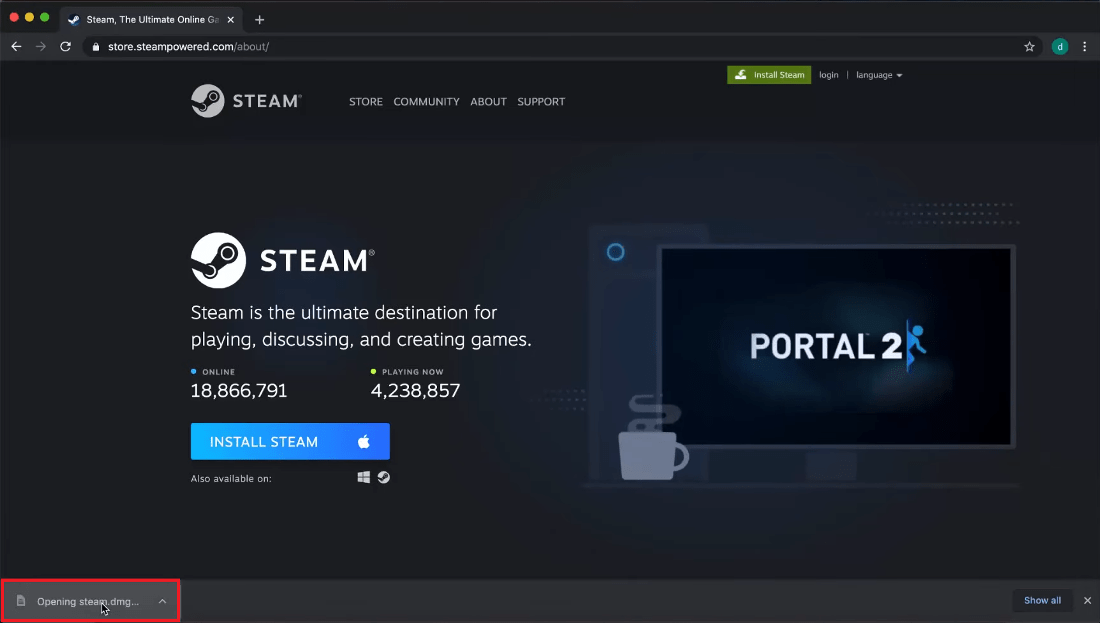
The macOS Installation Process
Apple’s ecosystem requires a different approach:
- Download: Download the
steam.dmgfile from the official site. - Mounting the Disk Image: Open the
.dmgfile and drag the Steam icon into your “Applications” folder. - Permissions: Upon the first launch, macOS may prompt you for permission to run an app downloaded from the internet. Go to System Settings > Privacy & Security to “Open Anyway” if prompted.
- Accessibility Access: To use the Steam Overlay (which allows you to chat while in-game), you will need to grant Steam accessibility permissions in your Mac’s system settings.
Deploying Steam on Linux and SteamOS
For the open-source community, Steam is often available directly through package managers.
- Ubuntu/Debian: Open the terminal and type
sudo apt update && sudo apt install steam. - Flatpak: Many users prefer the Flatpak version for better sandboxing. You can install it via
flatpak install flathub com.valvesoftware.Steam. - SteamOS: If you are using a Steam Deck, the software is pre-installed as the core operating system, requiring only a login to get started.
Initial Configuration and Security Best Practices
Once the software is installed, the technical setup is only half complete. Securing your digital assets and optimizing how the software handles data is the next priority for any professional user.
Creating Your Account and Steam Guard Setup
Your Steam account is a valuable digital asset. Upon launching the client:
- Account Creation: Click “Create a New Account.” Use a strong, unique password and a verified email address.
- Steam Guard: This is Valve’s proprietary Two-Factor Authentication (2FA). It is highly recommended to download the Steam Mobile App on your smartphone and enable the Steam Guard Mobile Authenticator. This adds a layer of security that requires a physical code from your phone to log in from a new device, significantly reducing the risk of account hijacking.
Optimizing Library Folders and Storage Management
If you have multiple hard drives, you should configure “Steam Libraries.”
- Navigate to Settings > Storage.
- Here, you can add a new drive as a secondary installation location. For example, you might want to install your most-played games on a fast NVMe SSD, while keeping smaller indie titles on a larger, slower HDD.
- This section also allows you to move existing games between drives without having to re-download them, a feature that saves both time and bandwidth.
Troubleshooting Common Installation and Connectivity Issues
Even with a professional setup, software conflicts can occur. Understanding how to diagnose these technical hurdles is essential.
Resolving Connection Errors and “Steam is Already Running”
One of the most common issues users face is a “failed to connect” error during the initial update.
- Firewall Exceptions: Ensure that
Steam.exeis whitelisted in your Windows Firewall or third-party antivirus software. Steam uses specific ports (UDP 27000-27015) that must be open for communication with Valve’s servers. - Process Conflicts: If you receive a message stating Steam is already running, open your Task Manager (Ctrl+Shift+Esc), find any lingering Steam processes, and “End Task” before attempting to relaunch.
Updating Drivers and Fixing Corrupt Installation Files
If the client crashes or games fail to launch after installation:
- GPU Drivers: Ensure your Graphics Processing Unit (GPU) drivers are up to date. Both NVIDIA and AMD release frequent updates specifically optimized for the Steam API.
- Verify Integrity: If a specific game isn’t working, right-click the game in your Library, select Properties > Installed Files, and click Verify integrity of game files. Steam will compare your local files with the official version on the server and replace any corrupted data automatically.
- Clear Download Cache: If downloads are stalling, go to Settings > Downloads and click Clear Download Cache. This flushes temporary files that might be causing a bottleneck in the software’s data processing.
By following this comprehensive guide, you have transformed a simple software installation into a robust, secure, and optimized gaming environment. Steam is more than just an application; it is a gateway to a global community, and setting it up correctly is the foundation of a superior digital experience.
aViewFromTheCave is a participant in the Amazon Services LLC Associates Program, an affiliate advertising program designed to provide a means for sites to earn advertising fees by advertising and linking to Amazon.com. Amazon, the Amazon logo, AmazonSupply, and the AmazonSupply logo are trademarks of Amazon.com, Inc. or its affiliates. As an Amazon Associate we earn affiliate commissions from qualifying purchases.