
In an increasingly digitized world, the internet has become an indispensable part of our daily lives, serving as a hub for information, entertainment, communication, and commerce. However, this vast digital landscape often comes with a significant downside: an relentless barrage of advertisements. From intrusive pop-ups and autoplay videos to tracking banners and deceptive ads, these interruptions not only disrupt our browsing experience but also pose potential security risks and slow down our devices. This is where ad blockers, and specifically popular tools like AdBlock, come into play.
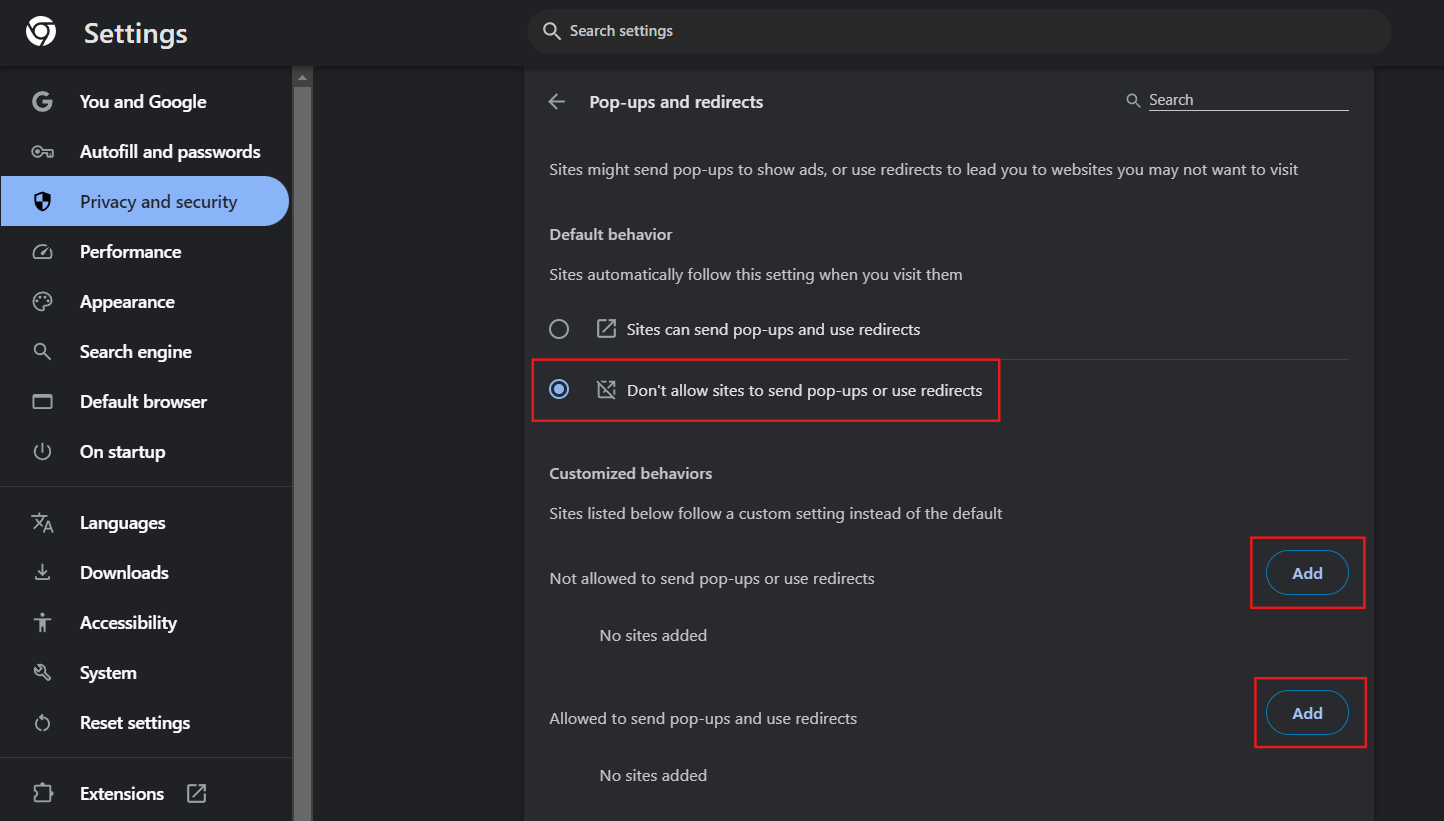
Ad blocking technology has revolutionized how millions navigate the web, offering a shield against the digital noise and reclaiming control over their online environment. Installing an ad blocker isn’t just about removing ads; it’s about enhancing productivity, safeguarding privacy, and ensuring a smoother, faster, and more secure internet experience. Whether you’re a casual browser, a diligent student, a professional working remotely, or someone simply seeking a more serene online existence, understanding how to effectively install and utilize an ad blocker is a fundamental skill in today’s digital age. This comprehensive guide will walk you through everything you need to know, from the core benefits of ad blocking to step-by-step installation instructions for various platforms and expert tips for optimization.
Understanding Ad Blockers: Why You Need Them
The digital realm, while incredibly empowering, has also become a battleground for attention. Advertisers employ increasingly sophisticated techniques to capture user focus, often at the expense of user experience. This pervasive advertising environment has made ad blockers not just a convenience, but a near necessity for many.
The Ubiquitous Nature of Online Advertisements
Every click, every scroll, and every website visit often triggers a cascade of advertisements. These can range from static banner ads that clutter the screen to highly dynamic and interactive ads that consume bandwidth and CPU cycles. Beyond mere annoyance, many ads are part of elaborate tracking networks designed to collect your browsing data, creating a detailed profile of your online habits. This data is then used to serve even more targeted ads, sometimes leading to a feeling of constant surveillance. The sheer volume and variety of ads can significantly detract from the primary content you wish to consume, turning what should be a straightforward browsing session into a frustrating exercise in evasion.
Key Benefits: Speed, Security, and Serenity
The advantages of deploying an ad blocker extend far beyond simply removing visual clutter. They touch upon critical aspects of your digital life, aligning perfectly with the principles of digital security and productivity.
Firstly, enhanced browsing speed is one of the most immediate and noticeable benefits. Ads, especially those with rich media content, JavaScript, and external scripts, are resource-intensive. By blocking these elements, your browser has fewer assets to load, process, and render. This dramatically reduces page load times, allowing you to navigate websites more quickly and efficiently. For users with slower internet connections or older hardware, the difference can be transformative. This boost in performance directly contributes to increased productivity, as less time is spent waiting for pages to load.
Secondly, improved digital security is a less obvious but profoundly important benefit. Malvertising, or malicious advertising, is a growing threat where cybercriminals inject malware or phishing scams into legitimate ad networks. Even visiting a reputable website can expose you to such threats if their ad provider has been compromised. Ad blockers act as a crucial first line of defense, preventing these malicious ads from loading and executing their harmful payloads. They also block many trackers that attempt to collect sensitive personal data, thereby bolstering your privacy and reducing your digital footprint. This aligns with modern tech trends emphasizing robust cybersecurity and data protection.
Finally, a more serene and focused browsing experience contributes to overall well-being. Eliminating distractions like autoplay videos, flashing banners, and pop-ups allows you to concentrate on the content that matters. This reduction in cognitive load makes reading articles, watching videos, or conducting research more enjoyable and less fatiguing. For professionals and students, this translates directly into higher productivity and better information retention, as attention is not constantly diverted by irrelevant stimuli.
A Brief History and Evolution of Ad Blocking Technology
The concept of ad blocking isn’t new; it emerged almost as soon as online advertising became prevalent. Early ad blockers were often simple host file modifications or rudimentary browser plugins that blocked specific URLs. However, as advertising technology evolved, so did ad blocking. The late 2000s and early 2010s saw the rise of sophisticated browser extensions like AdBlock and Adblock Plus, which used filter lists to dynamically block ads based on their source, content, or behavior.
Today, ad blocking technology is incredibly advanced, capable of detecting and blocking a wide array of ad types, including display ads, video ads, pop-ups, and even some forms of in-app advertising. Furthermore, the discussion around ad blockers has expanded beyond individual user experience to broader debates concerning the digital economy, content monetization, and user privacy, highlighting its significance in the tech landscape.
Choosing the Right Ad Blocker for Your Needs
While the term “AdBlock” often refers to a specific popular extension, it has also become a generic term for any software that blocks online advertisements. When embarking on your journey to a cleaner web, understanding the various types of ad blockers available is crucial to selecting the best fit for your specific browsing habits and devices.
Browser Extensions: The Most Popular Choice
For the vast majority of internet users, browser extensions are the go-to solution for ad blocking due to their ease of installation and effectiveness. These extensions integrate directly into your web browser, filtering content as it loads.
- AdBlock: Often capitalized as “AdBlock,” this is one of the most widely used and recognizable ad blockers. It boasts a user-friendly interface and robust blocking capabilities, effectively stopping most pop-ups, banner ads, and video ads on platforms like YouTube and Facebook. AdBlock is available for Chrome, Firefox, Edge, Safari, and Opera. Its simplicity makes it an excellent choice for beginners.
- Adblock Plus (ABP): Despite its similar name, Adblock Plus is a separate entity from AdBlock. It pioneered the concept of “Acceptable Ads,” which allows certain non-intrusive ads to pass through by default, aiming to support content creators while still offering a cleaner experience. Users can, of course, disable Acceptable Ads if they prefer to block everything. ABP is also available across all major browsers and offers comprehensive ad blocking.
- uBlock Origin: Often praised for its efficiency and minimal resource consumption, uBlock Origin is a powerful ad blocker for users who prioritize performance. It’s not just an ad blocker but a broad-spectrum content blocker that can also block trackers and malware sites. While it offers advanced customization options, it’s also highly effective right out of the box. Many tech enthusiasts recommend uBlock Origin for its lean footprint and strong blocking capabilities.
- Ghostery/Privacy Badger: While primarily focused on privacy and blocking trackers, these extensions also effectively block many ads that are tied to tracking networks. They offer a more granular control over what specific trackers are blocked, providing insights into the “invisible” elements loading on web pages.
Standalone Applications and DNS-Level Blockers
For those seeking a more comprehensive, system-wide approach to ad blocking, beyond just browser extensions, standalone applications and DNS-level blockers offer powerful alternatives.
- Standalone Applications: These are desktop programs that filter traffic at a network level, blocking ads not just in your browser but potentially in other applications as well. Examples include AdGuard (which also offers browser extensions) or desktop VPNs with built-in ad blocking features. While more powerful, they often require installation outside of the browser and might come with a subscription cost.
- DNS-Level Blockers: Solutions like Pi-hole (for network-savvy users setting up their own server) or public DNS services with ad-blocking capabilities (e.g., AdGuard DNS, NextDNS) block ads at the domain name system level. This means that when your device tries to resolve the domain of an ad server, the DNS blocker simply doesn’t provide an IP address, effectively preventing the ad from loading on any device connected to that network, be it a smart TV, phone, or computer. This offers universal ad blocking but requires a bit more technical setup.
Built-in Browser Solutions
Some modern web browsers are now incorporating ad blocking features directly into their core functionality, offering a clean browsing experience without the need for additional extensions.
- Brave Browser: Brave is a privacy-focused web browser that comes with a robust ad and tracker blocker built-in. It automatically blocks ads and trackers by default, leading to significantly faster loading times and enhanced privacy. Brave also has a unique “Brave Rewards” program where users can opt-in to view privacy-respecting ads and earn cryptocurrency, providing an alternative monetization model for content creators.
- Opera Browser: Opera also features a native ad blocker that can be enabled with a single click in its settings. While perhaps not as comprehensive as some dedicated extensions, it offers a good baseline for users who prefer an integrated solution.
When choosing, consider your primary usage:
- Casual User: AdBlock or Adblock Plus extensions are excellent choices for their ease of use.
- Performance-focused User: uBlock Origin is highly recommended.
- Privacy-conscious User: Consider uBlock Origin, Ghostery, Privacy Badger, or the Brave browser.
- Tech-savvy User wanting network-wide blocking: Explore DNS-level blockers or standalone apps.
Step-by-Step Installation Guides for Major Platforms
Once you’ve decided which ad blocker suits your needs, the installation process is typically straightforward. Here, we’ll focus on installing browser extensions like AdBlock, Adblock Plus, and uBlock Origin, as they are the most common and accessible solutions.
Installing Ad Blockers on Desktop Browsers
The process is remarkably similar across most modern web browsers, usually involving a visit to the browser’s respective extension store.
Google Chrome
- Open Chrome: Launch your Google Chrome browser.
- Go to the Chrome Web Store: In the address bar, type
chrome.google.com/webstoreand press Enter, or simply search for “Chrome Web Store” on Google. - Search for your Ad Blocker: In the search bar on the left, type “AdBlock,” “Adblock Plus,” or “uBlock Origin” (or your preferred ad blocker) and press Enter.
- Select the Extension: From the search results, find the official extension. Ensure it’s the legitimate one by checking the publisher name and the number of users/reviews. For “AdBlock,” look for “AdBlock by getadblock.com.” For “uBlock Origin,” look for “uBlock Origin by Raymond Hill.”
- Add to Chrome: Click the blue “Add to Chrome” button.
- Confirm Installation: A pop-up will appear asking for permissions. Click “Add extension.”
- Pin the Extension (Optional): Once installed, a small puzzle piece icon might appear in your toolbar. Click it, then click the pin icon next to your ad blocker to make its icon permanently visible for quick access.
Mozilla Firefox
- Open Firefox: Launch your Mozilla Firefox browser.
- Go to Firefox Add-ons: In the address bar, type
addons.mozilla.organd press Enter, or go to the Firefox menu (three horizontal lines in the top-right) and select “Add-ons and themes.” - Search for your Ad Blocker: Use the search bar at the top of the Add-ons page to search for “AdBlock,” “Adblock Plus,” or “uBlock Origin.”
- Select the Extension: Find the official extension in the results.
- Add to Firefox: Click the blue “Add to Firefox” button.
- Confirm Installation: A pop-up will ask for permissions. Click “Add.”
- Allow in Private Windows (Optional): You may be asked if you want the extension to run in Private Browsing windows. Decide based on your preference.
Microsoft Edge
- Open Edge: Launch your Microsoft Edge browser.
- Go to Edge Add-ons: In the address bar, type
microsoftedge.microsoft.com/addonsand press Enter, or go to the Edge menu (three horizontal dots in the top-right) and select “Extensions,” then “Get extensions for Microsoft Edge.” - Search for your Ad Blocker: Use the search bar to find “AdBlock,” “Adblock Plus,” or “uBlock Origin.”
- Select the Extension: Choose the official extension.
- Get / Add extension: Click the “Get” or “Add extension” button.
- Confirm Installation: Click “Add extension” in the confirmation pop-up.
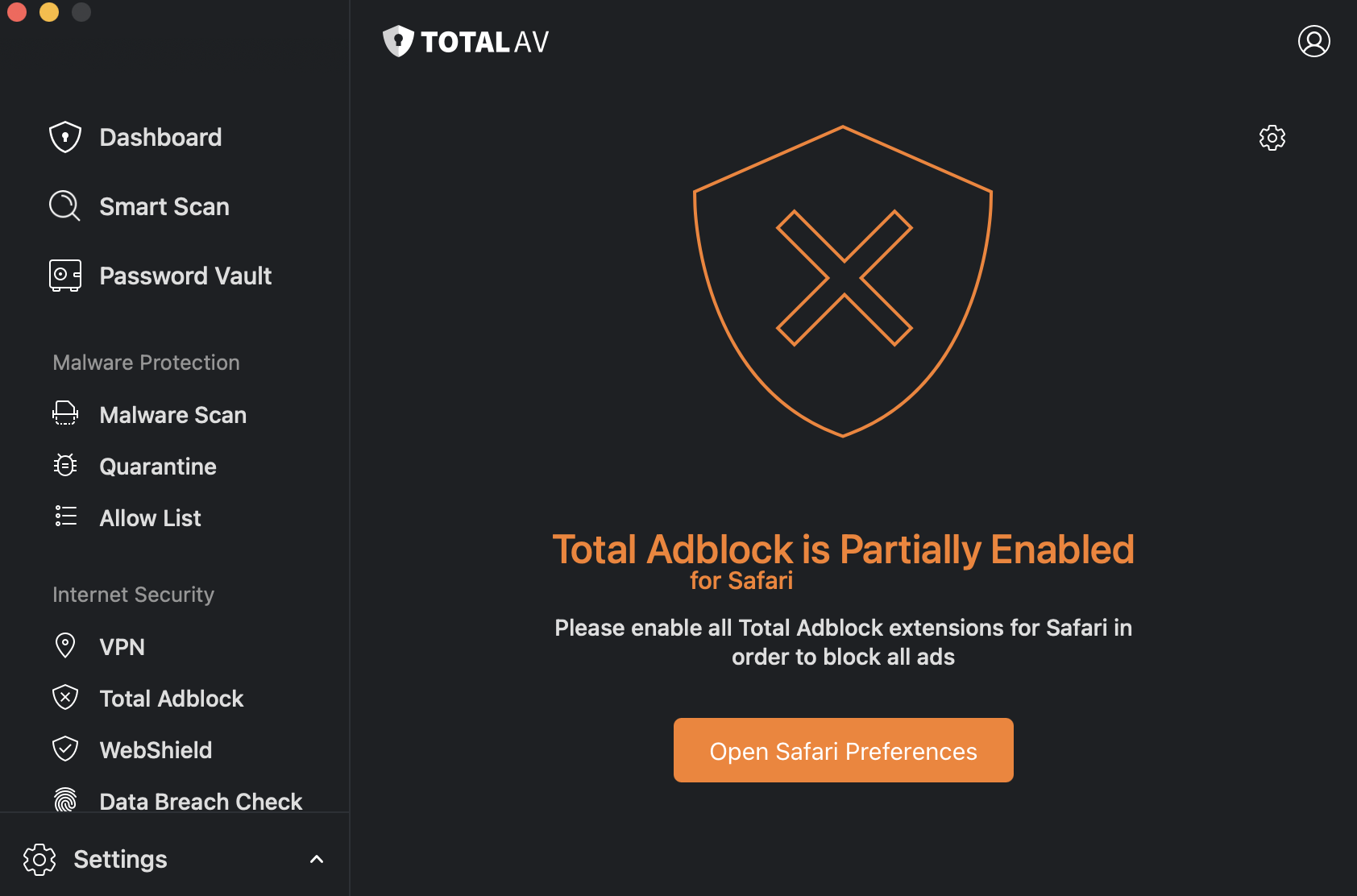
Apple Safari
Safari handles extensions differently than other browsers. As of Safari 13 and later, extensions are installed via the Mac App Store.
- Open Safari: Launch your Apple Safari browser.
- Open Safari Preferences: Go to the Safari menu in the top-left corner of your screen and select “Preferences.”
- Go to Extensions Tab: Click on the “Extensions” tab.
- More Extensions: Click the “More Extensions…” button, which will open the Mac App Store.
- Search and Install: Search for your desired ad blocker (e.g., “AdBlock for Safari,” “Adblock Plus for Safari”).
- Install: Click “Get,” then “Install” and enter your Apple ID password if prompted.
- Enable in Safari: After installation from the App Store, return to Safari’s Preferences > Extensions tab. You will see your newly installed ad blocker listed. Check the box next to it to enable it.
Ad Blocking on Mobile Devices
Mobile ad blocking can be a bit more nuanced depending on your operating system and preferred approach.
Android
- Browser with Built-in Ad Blocker: The simplest method is to use a mobile browser that has ad blocking built-in, such as Brave Browser, Opera Mobile, or Firefox for Android with extensions.
- Download Brave, Opera, or Firefox from the Google Play Store.
- For Firefox, once installed, you can go to its settings, then “Add-ons,” and search for “uBlock Origin” or “Adblock Plus” to install them just like on desktop.
- Standalone Ad Blocker Apps: Apps like AdGuard for Android provide system-wide ad blocking by creating a local VPN service. This allows them to filter traffic for all apps, not just your browser. These are often paid solutions but offer comprehensive protection.
- Download AdGuard (or similar) from its official website or the Play Store if available (Play Store versions often have limitations due to Google’s policies).
- Follow the in-app instructions to set up the local VPN.
iOS
- Content Blockers for Safari: iOS allows “Content Blockers” for Safari, which are apps that provide Safari with rules for what to block.
- Go to the App Store and search for “Ad Blocker Safari” or specific apps like “AdGuard for Safari” or “1Blocker.”
- Download and install the app.
- After installation, go to iOS Settings > Safari > Extensions (or Content Blockers on older iOS versions).
- Toggle on the ad blocker you just installed. You might need to enable multiple categories within the blocker’s own app settings.
- Browser with Built-in Ad Blocker: Similar to Android, using browsers like Brave or Opera Touch (which has an ad blocker) can provide an ad-free experience within those specific browsers.
- Download Brave or Opera Touch from the App Store.
Optimizing Your Ad Blocker: Beyond Basic Installation
Installing an ad blocker is the first step, but to truly harness its power and ensure a balanced online experience, a little optimization and understanding of its settings can go a long way. This includes customizing filter lists, judiciously whitelisting sites, and knowing how to troubleshoot common issues.
Customizing Filter Lists and Preferences
Most ad blockers come with a default set of filter lists that are highly effective. However, you can often fine-tune these to your specific needs.
- Enabling/Disabling Filter Lists: Dive into your ad blocker’s settings (usually accessible by clicking its icon in your browser toolbar). You’ll typically find a section for “Filter Lists” or “Blocklist.” Here, you can enable additional lists for specific purposes, such as social media blocking, anti-tracking, or even regional ad lists. Conversely, if a site is breaking, you might temporarily disable a more aggressive list.
- Creating Custom Filters: For advanced users, ad blockers often allow you to create your own custom filters. This is useful for blocking specific elements on a webpage that the default lists might miss, or for unblocking elements that are mistakenly blocked. This usually involves right-clicking on an element and selecting “Block element” or inspecting the page’s source code.
- General Settings: Explore other settings such as blocking pop-ups, enabling context menu items, or choosing whether to show the number of blocked ads. These preferences can significantly impact your daily browsing.
Whitelisting Websites: Supporting Your Favorite Creators
While ad blocking offers immense benefits, it’s essential to acknowledge its impact on content creators and publishers who rely on advertising revenue to sustain their operations. Many websites offer free content because they are supported by ads. When you block these ads, you effectively reduce their income.
- The Ethical Dilemma: This creates an ethical dilemma for users. On one hand, you want a clean, fast, and secure browsing experience. On the other hand, you want to support the valuable content you consume.
- Whitelisting as a Solution: Most ad blockers provide a “whitelisting” feature, allowing you to disable the ad blocker on specific websites. This is typically done by clicking the ad blocker icon in your toolbar when on the website you wish to support, and then selecting an option like “Don’t run on this site,” “Pause on this site,” or “Whitelist site.”
- A Balanced Approach: Consider whitelisting sites whose content you genuinely value and trust, especially if they show non-intrusive ads. This balanced approach allows you to enjoy an ad-free experience on most of the web while still contributing to the financial viability of your preferred online sources. This relates directly to the ‘Money’ aspect of website content, as it highlights the interplay between user experience and online income models for digital businesses and content creators.
Troubleshooting Common Issues
Even the most robust ad blockers can sometimes encounter issues. Here are a few common problems and their solutions:
- Website Functionality Breaks: Sometimes, an ad blocker can be too aggressive and block legitimate content or scripts necessary for a website to function correctly (e.g., login buttons, navigation menus, video players).
- Solution: Temporarily pause your ad blocker for that specific site (by whitelisting it, as described above) and reload the page. If the issue resolves, the ad blocker was the cause. You can then try to identify the specific filter that caused the problem or simply keep the site whitelisted.
- Ads Still Appearing: If you’re seeing ads despite having an ad blocker installed, it could be for a few reasons:
- Outdated Filter Lists: Ensure your filter lists are up-to-date. Most ad blockers update automatically, but you can manually force an update in the settings.
- Specific Ad Types: Some newer or highly targeted ads might bypass default filters. Try enabling more aggressive filter lists or report the ad to your ad blocker’s community.
- Another Extension Conflict: Other browser extensions might conflict with your ad blocker. Try disabling other extensions one by one to identify the culprit.
- Malware: In rare cases, persistent ads might be caused by malware on your system, not just standard web ads. Run a reputable anti-malware scan.
- Slow Browser Performance: While ad blockers typically speed up browsing, in rare instances, a poorly optimized or overly complex ad blocker (especially if you have many filter lists enabled) can consume resources.
- Solution: Consider switching to a lightweight ad blocker like uBlock Origin, or review your enabled filter lists and disable any that are unnecessary.
The Broader Impact: Ad Blocking, Privacy, and the Digital Economy
Beyond the immediate personal benefits, the widespread adoption of ad blockers has catalyzed significant discussions about online privacy, the sustainability of free content, and the evolution of the digital economy. These conversations are crucial for understanding the future of the internet, touching upon themes of digital security, content monetization, and brand strategy for online entities.
Enhanced Privacy and Data Protection
Ad blockers play a pivotal role in enhancing online privacy. Many ads are not just visual elements; they are conduits for trackers that collect vast amounts of data on user behavior. This data can include your IP address, browsing history, search queries, location, and even demographic information. This collected data is then used to create detailed user profiles, which are valuable assets for advertisers and data brokers.
By preventing these trackers from loading, ad blockers significantly reduce your digital footprint and limit the amount of personal information shared with third parties. This aligns perfectly with growing public awareness and regulatory efforts (like GDPR and CCPA) around data privacy. It empowers individuals to regain control over their personal data, making the internet a safer and more private space. This aspect of ad blocking firmly places it within the “Tech” category, specifically under Digital Security and AI Tools (as AI is often used for targeted advertising and tracking).
The Ethical Debate: Ad Blockers and Content Monetization
The rise of ad blocking has ignited an ongoing ethical debate within the digital economy. The vast majority of online content, from news articles and blogs to videos and podcasts, is offered to users “for free.” This “freeness” is largely subsidized by advertising revenue. When users block ads, they indirectly reduce the income of content creators, publishers, and platforms. This can have tangible consequences, potentially leading to:
- Reduced Quality of Free Content: Less revenue might force publishers to cut costs, impacting the quality or quantity of content they can produce.
- Increased Paywalls: To compensate for lost ad revenue, more websites might opt for subscription models or “paywalls,” potentially limiting access to information for some users.
- Alternative Monetization Strategies: Publishers are increasingly exploring alternative monetization methods, such as sponsored content, affiliate marketing, or direct reader donations. This shift requires them to rethink their “Brand Strategy” and how they communicate value to their audience beyond traditional advertising.
This complex interplay directly relates to the “Money” topic, particularly online income and business finance. It highlights the challenges content creators face in generating revenue in a world where users increasingly demand an ad-free experience.

A Balanced Approach to Online Advertising
The future likely lies in a more balanced approach to online advertising, one that respects user experience while also supporting content creators.
- Non-Intrusive Ad Formats: Many publishers are moving towards less intrusive ad formats, such as native advertising that blends seamlessly with content, or static, non-animated banners, as favored by “Acceptable Ads” programs.
- User Choice and Transparency: Empowering users with choice and transparency regarding data collection and ad preferences is crucial. Browsers like Brave, which offer a built-in ad blocker alongside an opt-in rewards system, represent one vision for this future.
- Direct Support Models: The growth of platforms like Patreon, YouTube Memberships, and Substack demonstrates a rising trend of users directly supporting creators through subscriptions or donations, bypassing traditional ad-based models. This shifts the “Money” paradigm from ad impressions to direct audience engagement and loyalty, which also reinforces the importance of “Personal Branding” for creators.
In conclusion, installing an ad blocker like AdBlock is a powerful step towards a more enjoyable, secure, and productive online experience. By understanding its capabilities, customizing its settings, and engaging with the broader implications, you can navigate the digital world with greater confidence and control, contributing to a healthier internet ecosystem for everyone.
aViewFromTheCave is a participant in the Amazon Services LLC Associates Program, an affiliate advertising program designed to provide a means for sites to earn advertising fees by advertising and linking to Amazon.com. Amazon, the Amazon logo, AmazonSupply, and the AmazonSupply logo are trademarks of Amazon.com, Inc. or its affiliates. As an Amazon Associate we earn affiliate commissions from qualifying purchases.