
In an increasingly digital world, the quest for a seamless, secure, and productivity-enhancing online experience has become paramount. Web browsers, our primary gateways to the internet, are constantly evolving, but so too are the methods employed by advertisers to capture our attention. For users of Apple’s Safari browser, the solution to intrusive pop-ups, autoplaying videos, and disruptive banner ads often lies in ad-blocking technology. This comprehensive guide will walk you through the process of installing AdBlock on Safari, transforming your browsing experience from a cluttered obstacle course into a streamlined journey. We’ll delve into why ad blocking is more crucial than ever, provide detailed installation instructions, explore customization options, and even touch upon the broader implications for digital security, privacy, and the evolving ecosystem of online content. Whether you’re a seasoned tech enthusiast or simply seeking a cleaner web, understanding how to leverage AdBlock for Safari is an essential step towards reclaiming control of your online environment.
The Imperative of Ad Blocking in Today’s Digital Landscape
The internet, while a phenomenal resource for information, entertainment, and connection, has simultaneously become a battleground for attention. Advertisements, once a subtle presence, have grown increasingly aggressive, complex, and pervasive. For Safari users, navigating this landscape without an effective ad blocker can lead to frustration, slower performance, and even potential security risks. The benefits of installing an ad blocker extend far beyond simply removing visual clutter; they touch upon the core aspects of digital well-being and efficiency.
Why Ad Blocking Matters: Enhancing Your Browsing Experience
The most immediate and noticeable benefit of an ad blocker is the dramatic improvement in your browsing experience. Imagine visiting your favorite news site, a recipe blog, or an online store, only to find the content obscured by multiple pop-ups, banners covering half the screen, or videos that start playing unexpectedly. This isn’t just annoying; it’s a significant impediment to productivity and enjoyment. By eliminating these distractions, AdBlock allows you to focus solely on the content you came to see. Pages load faster because your browser isn’t spending time downloading and rendering dozens of ad scripts and images. This speed boost is particularly noticeable on slower internet connections or older Mac devices, making the web feel snappier and more responsive.
Beyond aesthetics and speed, ad blocking plays a crucial role in digital security. Many malicious advertisements, often referred to as “malvertising,” can carry malware, spyware, or lead to phishing scams. Even legitimate ad networks can sometimes be compromised, exposing users to risks. By preventing these ads from loading, AdBlock acts as a proactive defense mechanism, significantly reducing your exposure to potential online threats. From a “Tech” perspective, this aligns directly with the goal of fostering a secure and resilient digital environment. Furthermore, the reduction in tracking scripts often embedded within ads contributes to greater privacy, limiting the data advertisers can collect about your online habits – a critical concern for those prioritizing “Digital Security” and “Productivity” in their online lives. For brands striving to build a positive reputation, understanding that intrusive ads can drive users to ad blockers is a key insight into effective “Brand Strategy” and user experience.
Understanding AdBlock and Its Role in Safari
AdBlock is one of the most popular and widely recognized ad-blocking extensions available. It operates by intercepting requests to known advertising servers and filtering out content identified as ads before your browser even renders them. While AdBlock is available across various browsers, its implementation and effectiveness on Safari are specifically tailored to Apple’s ecosystem. Safari, with its strong emphasis on privacy and user experience, integrates with extensions in a way that allows them to enhance browsing without compromising security.
Apple’s approach to Safari extensions has evolved over the years, moving towards a more secure and controlled environment, primarily through the Mac App Store. This ensures that extensions like AdBlock meet Apple’s stringent security and privacy guidelines. When you install AdBlock for Safari, you’re not just getting a simple script; you’re integrating a sophisticated tool designed to work harmoniously within Safari’s architecture, leveraging its native capabilities for content blocking. It’s a prime example of how third-party “Software” can enhance a core “Gadget” (your Mac) to improve user interaction and “Productivity.” For those interested in “AI Tools,” while AdBlock itself isn’t an AI, the evolving landscape of ad blocking often involves intelligent filtering and pattern recognition to combat ever more sophisticated ad technologies.
Step-by-Step Installation: Getting AdBlock Up and Running on Safari
Installing AdBlock on your Safari browser is a straightforward process, thanks to Apple’s streamlined extension management. Unlike older methods that might have involved manual downloads from third-party sites, the current approach primarily utilizes the Mac App Store, ensuring a secure and reliable installation. Follow these steps to begin your journey to an ad-free browsing experience.
Preparing Your Safari Browser for AdBlock
Before diving into the installation, it’s always a good practice to ensure your Safari browser and macOS are up to date. While AdBlock is designed to be compatible with a range of macOS versions, running the latest software helps prevent potential compatibility issues and ensures you have the most secure and performant browser environment.
- Update macOS: Go to System Settings (or System Preferences on older macOS versions) > General > Software Update. Install any available updates.
- Update Safari: Safari updates are typically delivered as part of macOS updates. By updating your operating system, you’re also updating Safari to its latest version.
- Check Safari Preferences (Optional but Recommended): Open Safari, then go to Safari > Settings (or Preferences) in the menu bar. Take a moment to familiarize yourself with the “Extensions” tab. This is where AdBlock will eventually appear and be managed.
These preparatory steps, while seemingly minor, are crucial for maintaining “Digital Security” and ensuring optimal “Software” performance. A well-maintained system is the foundation for a productive and secure online experience.
Acquiring and Installing AdBlock from the Mac App Store
The Mac App Store is the official and recommended avenue for downloading and installing extensions for Safari. This method guarantees that you’re downloading a legitimate version of AdBlock and that it has been vetted by Apple.
- Open the Mac App Store: Click on the App Store icon in your Dock or search for it using Spotlight (Cmd + Space, then type “App Store”).
- Search for AdBlock: Once in the App Store, use the search bar (usually in the top-left or top-right corner) and type “AdBlock.”
- Identify the Official AdBlock: Look for the official AdBlock application. It typically has a distinctive red hand icon. There might be several ad blockers available, so ensure you select the one developed by “AdBlock, Inc.” or “FutureMind” (which acquired AdBlock). Read the reviews and description to confirm.
- Download and Install: Click the “Get” button, then “Install.” You may be prompted to enter your Apple ID password or use Touch ID/Face ID to authorize the download. The app will download and install itself automatically.
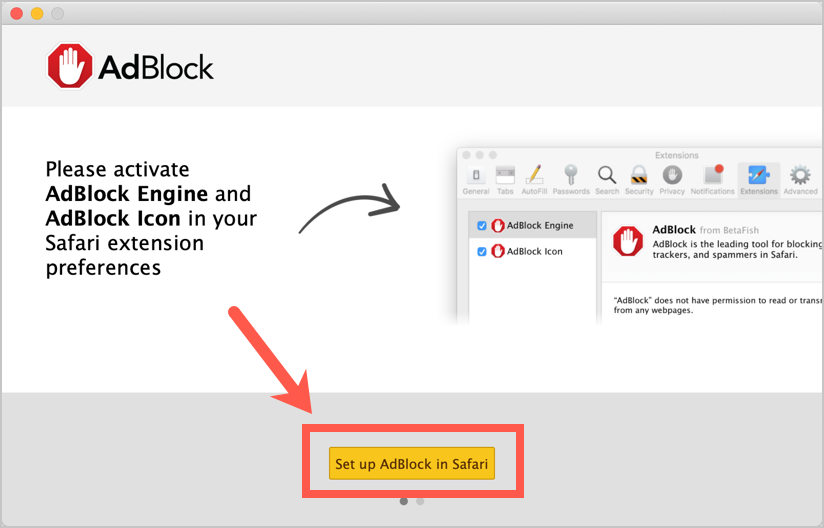
- Launch AdBlock (Initial Setup): After installation, an AdBlock icon might appear in your Applications folder. Open it. The first time you launch AdBlock, it will typically guide you through a brief setup process. This might involve an introductory screen explaining its features or prompting you to enable it in Safari. Follow these on-screen instructions. This is where the “Tutorials” aspect of the website’s “Tech” topics truly comes into play.
Activating and Managing AdBlock within Safari Preferences
Once AdBlock is installed from the App Store, the final crucial step is to enable it within Safari’s own preferences. Safari requires explicit user permission to activate any installed extension.
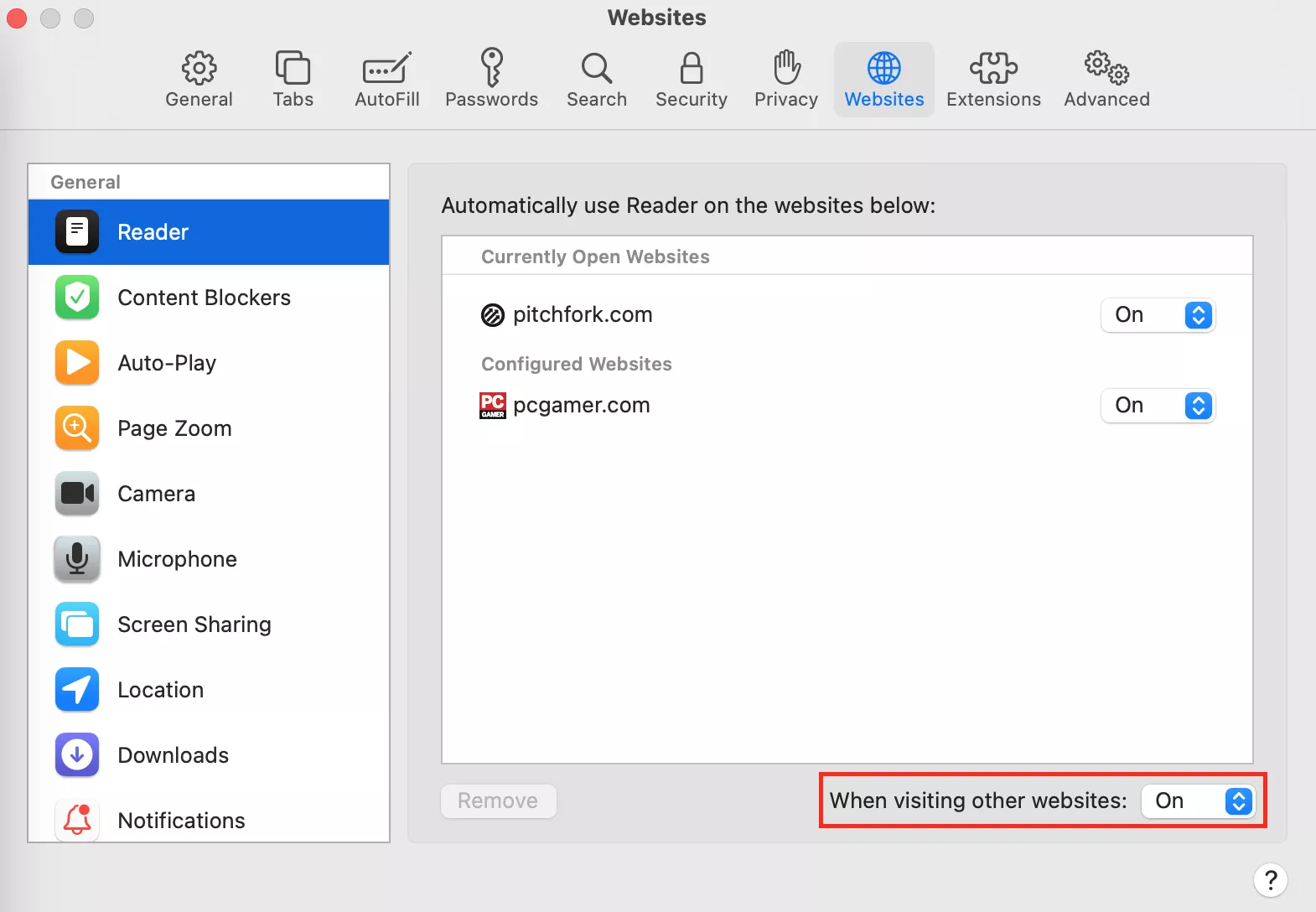
- Open Safari Preferences: Launch Safari, then go to Safari > Settings (or Preferences) from the menu bar at the top of your screen.
- Navigate to the Extensions Tab: In the Preferences window, click on the “Extensions” tab.
- Enable AdBlock: On the left sidebar of the Extensions tab, you should see “AdBlock” listed among your installed extensions. Click the checkbox next to “AdBlock” to enable it.
- Review AdBlock Settings (Optional but Recommended): After enabling, you might notice additional options appear on the right side of the Extensions tab for AdBlock. This is where you can often access specific settings, such as “Block pop-ups on websites,” “Block analytics tracking,” or “Allow some non-intrusive advertising” (the latter is often enabled by default in AdBlock and can be unchecked if you want a complete block).
- Verify AdBlock Functionality: Close the Preferences window. To confirm AdBlock is working, visit a website you know to be ad-heavy. You should immediately notice a difference in the absence of ads. You’ll also typically see a small AdBlock icon (the red hand) appear in your Safari toolbar, indicating it’s active. Clicking this icon usually brings up a quick menu for managing AdBlock on the current page.
This detailed, step-by-step process aligns perfectly with providing clear “Tutorials” for “Software” installation, a core offering for the website’s “Tech” focus.
Optimizing Your AdBlock Experience: Advanced Settings and Troubleshooting
Installing AdBlock is just the first step. To truly harness its power and ensure it aligns with your specific browsing needs, it’s essential to understand its customization options and know how to troubleshoot common issues. A well-configured ad blocker enhances “Productivity” and contributes significantly to “Digital Security.”
Customizing AdBlock: Whitelisting, Filter Lists, and More
AdBlock isn’t a one-size-fits-all solution; it offers several customization features to fine-tune its performance.
- Whitelisting Websites: There might be websites you wish to support by allowing their ads to display. Many content creators and news sites rely on ad revenue to provide free content. AdBlock allows you to “whitelist” specific sites. To do this, click the AdBlock icon in your Safari toolbar while on the desired website. You’ll typically see an option like “Don’t run on this page” or “Pause AdBlock.” This can be a conscious decision from a “Brand Strategy” and “Money” perspective, supporting content creators you value.
- Managing Filter Lists: AdBlock uses filter lists to identify and block ads. These lists are regularly updated by a community of volunteers.
- Default Lists: AdBlock comes with standard filter lists enabled (e.g., EasyList, Acceptable Ads).
- Additional Lists: You can often subscribe to additional, more aggressive lists for specific types of blocking (e.g., privacy filters, social media ad blockers, or region-specific lists). Access these through AdBlock’s detailed options, which you can usually find by right-clicking the AdBlock icon or through Safari’s Extensions settings for AdBlock.
- Custom Filters: For advanced users, AdBlock allows you to create your own custom filters to block elements not caught by default lists. This offers granular control over your browsing experience.
- Blocking Element Manually: If an ad or an annoying element still slips through, AdBlock often provides a “Block element” tool. Click the AdBlock icon, select “Block element” (or similar), and then click on the unwanted element on the webpage. AdBlock will generate a custom filter to block it in the future.
- Acceptable Ads Program: AdBlock, by default, often allows some “non-intrusive” ads as part of its “Acceptable Ads” program. This is a contentious feature, aimed at supporting publishers while still filtering out annoying ads. If you prefer a complete ad-free experience, you can disable this option in AdBlock’s settings. This decision reflects a tension between user experience and the “Online Income” models of many publishers, highlighting an important aspect of the “Money” topic.
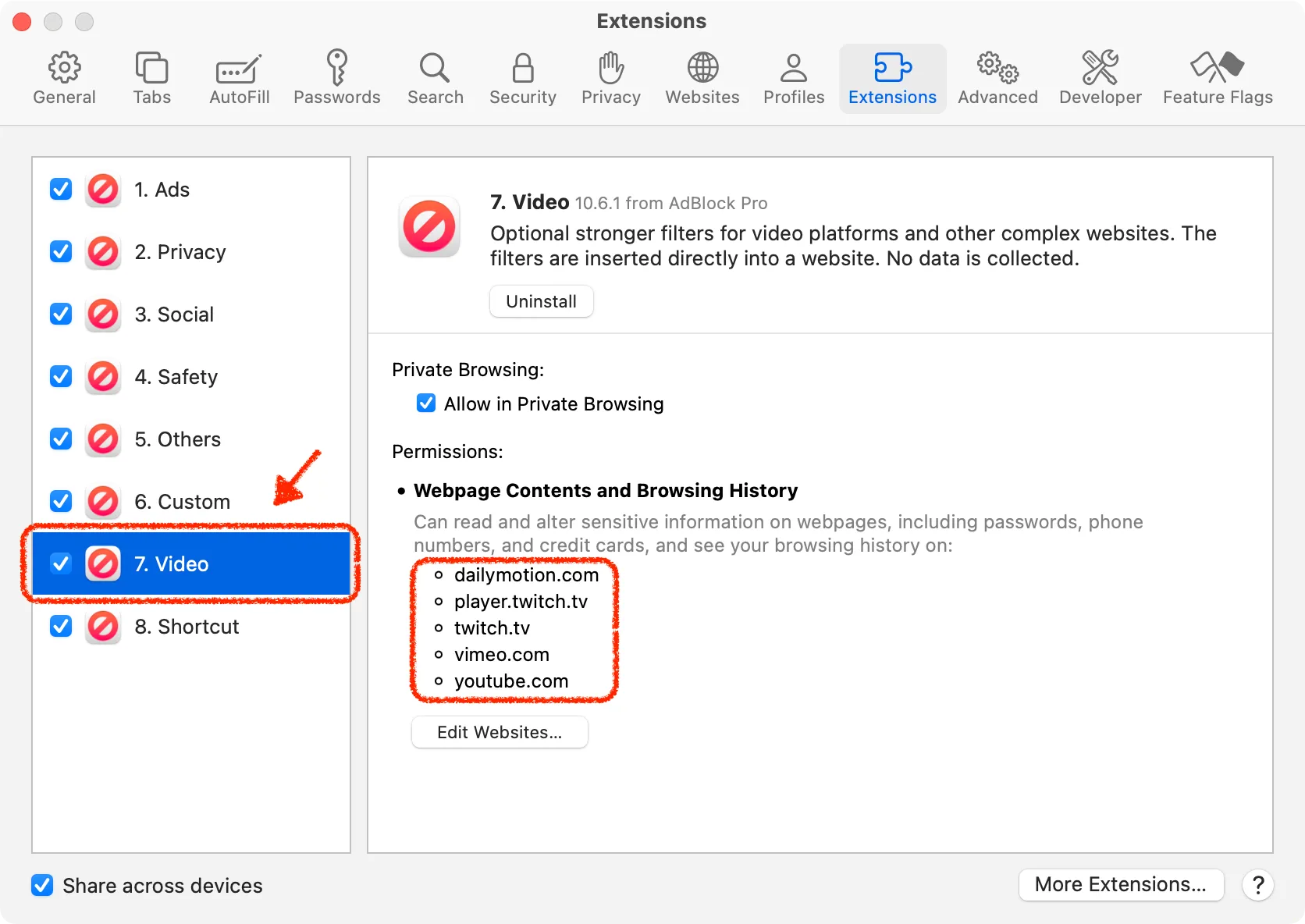
These customization features ensure that AdBlock works precisely how you want it to, giving you ultimate control over your online environment and truly embodying the concept of personalized “Software” for enhanced “Productivity.”
Addressing Common Issues: When AdBlock Isn’t Working as Expected
Even the best “Software” can encounter hiccups. Here are some common issues users face with AdBlock on Safari and how to troubleshoot them:
- AdBlock Icon Missing or Not Active:
- Check Safari Extensions: Go to Safari > Settings > Extensions and ensure AdBlock is checked.
- Restart Safari: Close and reopen Safari.
- Restart Mac: Sometimes a full system restart can resolve minor glitches.
- Ads Still Appearing on Some Sites:
- Update Filter Lists: Ad networks constantly evolve. Open AdBlock’s options (usually by right-clicking its icon or going through Safari Extensions and clicking AdBlock’s settings) and ensure your filter lists are up to date. Manual updates are often available.
- Clear Safari Cache/Cookies: Sometimes cached ad content can persist. Go to Safari > Settings > Privacy > Manage Website Data, search for the problematic site, and remove its data. Also, consider Safari > Clear History.
- Test with Custom Blocking: Use AdBlock’s “Block element” tool to manually block persistent ads.
- Disable and Re-enable AdBlock: Toggle the extension off and then back on in Safari’s Extensions settings.
- Website Functionality Broken by AdBlock:
- Whitelist the Site: Some websites might detect ad blockers and restrict access, or certain functionalities (like video players or login forms) might be inadvertently blocked. If a site breaks, try whitelisting it temporarily (click the AdBlock icon and select “Don’t run on this page”). If this resolves the issue, you can consider permanently whitelisting the site or reporting the issue to AdBlock support.
- Check Other Extensions: Sometimes conflicts between multiple Safari extensions can occur. Temporarily disable other extensions to see if AdBlock starts working correctly or if the website issue resolves.
- Performance Issues (Slow Safari): While ad blockers generally improve speed, poorly maintained filter lists or conflicts can sometimes cause slowdowns.
- Review Filter Lists: Only enable the filter lists you truly need. Too many lists can sometimes consume more resources.
- Reset AdBlock: In AdBlock’s advanced settings, there’s often an option to reset it to its default configuration, which can resolve complex issues.
Troubleshooting these issues effectively reinforces your understanding of “Software” management and contributes to a more productive and frustration-free “Tech” experience.
Beyond AdBlock: Exploring Alternative Ad Blockers for Safari
While AdBlock is a popular and effective choice, the ecosystem of Safari ad blockers is diverse. Exploring alternatives can provide different features, performance characteristics, or privacy policies that might better suit individual preferences. This aligns with a balanced “Reviews” approach within the “Tech” category.
A Glimpse at Other Top-Rated Safari Ad Blockers
Several other robust ad blockers are available for Safari, each with its unique strengths:
- AdGuard: Often praised for its comprehensive filtering capabilities, AdGuard goes beyond just blocking ads to also block trackers, analytics, and social media widgets. It’s known for its robust protection against malvertising and phishing. AdGuard offers a standalone app in the Mac App Store, providing system-wide ad blocking across Safari and other applications, including its Safari extension.
- Wipr: Designed specifically for Safari, Wipr focuses on being lightweight and efficient. It uses Safari’s native content blocker API, which can lead to faster performance and lower battery consumption compared to some extensions. Its philosophy is “install and forget,” with minimal configuration required.
- Ka-Block!: Another Safari-native content blocker, Ka-Block! is open-source and prioritizes efficiency and privacy. It’s known for being very resource-friendly and effective, though its customization options might be less extensive than some other blockers.
- Ghostery Lite / Privacy Badger: While primarily focused on privacy and tracker blocking rather than just ads, these extensions often block many ads as a byproduct of their tracker-blocking efforts. They are excellent choices for users whose primary concern is “Digital Security” and data privacy, offering insights into which trackers are active on a page.
Each of these “Apps” offers a slightly different approach to achieving a cleaner, more secure web.
Weighing the Pros and Cons of Different Ad Blocking Solutions
When choosing an ad blocker, consider the following factors:
- Effectiveness: How well does it block ads, pop-ups, and trackers? Read recent “Reviews” to gauge performance.
- Performance Impact: Does it slow down your browser or consume excessive system resources or battery life? Safari’s native content blocker API is generally more efficient.
- Privacy Features: Does it block trackers, prevent fingerprinting, and respect your data? For many, “Digital Security” is a key motivator.
- Customization: Do you prefer a “set it and forget it” solution, or do you want granular control over filter lists, whitelisting, and manual blocking?
- Cost: While many basic ad blockers are free, some offer premium features or standalone applications for a subscription fee. This ties into “Personal Finance” considerations for premium software.
- Developer Reputation: Opt for reputable developers with a history of regular updates and good support.
Choosing the right ad blocker depends on your personal priorities. For some, maximum ad blocking is key; for others, privacy protection or minimal system impact takes precedence. This informed decision-making process is vital in navigating the complex world of “Tech” tools.
The Broader Impact: Navigating the Ethics and Future of Ad Blocking
The rise of ad blocking technology has sparked considerable debate, touching upon the sustainability of online content, user rights, and the future of digital advertising. Understanding these broader implications is crucial for a holistic perspective.
The Double-Edged Sword: Supporting Content Creators vs. User Experience
The ethical dilemma at the heart of ad blocking revolves around the “Money” aspect of the internet. Many websites, especially those offering free content like news, blogs, and entertainment, rely heavily on advertising revenue to fund their operations. When users block ads, these sites lose a significant source of income, potentially jeopardizing their ability to produce quality content. This is a critical consideration for “Business Finance” and “Online Income” models across the web.
On one hand, users are increasingly fed up with intrusive, data-hungry, and often malicious advertisements that degrade their “User Experience” and compromise their “Digital Security.” They argue for the right to control their browsing environment. On the other hand, publishers and “Brand” marketers argue for fair compensation for the value they provide.
This tension has led to various responses:
- Ad-blocker detection: Some websites detect ad blockers and ask users to disable them or subscribe for an ad-free experience.
- “Acceptable Ads” programs: Initiatives like the one AdBlock participates in aim to define a standard for non-intrusive advertising that users might tolerate, seeking a middle ground.
- Shift to subscription models: Many publishers are moving towards paywalls or subscription services as an alternative revenue stream.
This delicate balance underscores the complexity of modern digital economics and highlights how “Brand Strategy” must adapt to evolving user preferences.
Digital Security and Privacy Benefits of Ad Blocking
Beyond mere annoyance, ad blocking is a powerful tool for enhancing “Digital Security” and “Privacy.” Malvertising, as mentioned earlier, is a significant threat, injecting malware or leading to dangerous sites. By preventing these ads from loading, ad blockers act as a frontline defense. Moreover, many ads come bundled with tracking scripts designed to monitor your browsing behavior across websites. This data is collected to build comprehensive profiles, which can then be used for targeted advertising or, in worst-case scenarios, sold to third parties. Ad blockers significantly curtail this tracking, protecting your personal data and giving you greater control over your online footprint. This is invaluable in an age where data breaches and privacy concerns are rampant, contributing directly to a more secure and private “Tech” experience.
The Future of Ad Blocking and Safari’s Evolving Ecosystem
The future of ad blocking on Safari is intertwined with Apple’s ongoing commitment to user privacy and performance. Apple continuously refines Safari’s content blocking APIs and introduces features like Intelligent Tracking Prevention (ITP) which, while not a full ad blocker, significantly limits cross-site tracking. This evolution suggests a future where browsers themselves might integrate more sophisticated ad and tracker blocking features natively, reducing the reliance on third-party extensions for basic protection.
However, as ad technology becomes more advanced, so too will ad blockers. The “Tech” landscape is one of constant innovation, with both sides of the ad equation continually developing new methods. Users will likely continue to seek out powerful ad-blocking “Software” to customize their experience, ensuring that their online activities remain private, secure, and productive. As “AI Tools” become more prevalent, we might even see AI-driven ad blockers capable of adapting to new ad formats in real-time. For “Brands” and publishers, this necessitates a move towards more respectful and value-driven advertising models, recognizing that user experience and trust are paramount for long-term success.
In conclusion, installing AdBlock on Safari is a straightforward yet impactful decision that empowers you to control your online experience. It’s a proactive step towards a cleaner, faster, more secure, and ultimately more productive digital life. By following this guide, you’ve not only equipped yourself with a valuable “Software” tool but also gained insight into the broader “Tech” trends, “Digital Security” imperatives, and the evolving “Money” dynamics of the modern web.
aViewFromTheCave is a participant in the Amazon Services LLC Associates Program, an affiliate advertising program designed to provide a means for sites to earn advertising fees by advertising and linking to Amazon.com. Amazon, the Amazon logo, AmazonSupply, and the AmazonSupply logo are trademarks of Amazon.com, Inc. or its affiliates. As an Amazon Associate we earn affiliate commissions from qualifying purchases.