
The world of Linux is renowned for its flexibility, power, and the sheer volume of open-source software available. While package managers like apt, yum, and dnf simplify software installation for most users, there are times when you need to go beyond pre-compiled binaries and delve into the source code itself. This is where “tarballs” come into play – compressed archives containing the raw materials needed to build software from scratch.
Installing a tarball, or compiling software from source, is a fundamental skill for any intermediate to advanced Linux user or developer. It grants you unparalleled control over the software, allowing for custom configurations, access to the very latest features, or the ability to install niche applications not found in your distribution’s repositories. This comprehensive guide will walk you through the entire process, from understanding what a tarball is to successfully running your newly compiled application, equipping you with a crucial tool in your technical arsenal.

Understanding Tarballs: The Basics of Source Code Distribution
Before we dive into the practical steps, it’s essential to grasp what a tarball is, why it exists, and how it differs from other software distribution methods you might be familiar with. This foundational knowledge will demystify the process and highlight the power it gives you.
What is a Tarball?
A tarball is essentially a collection of files bundled together into a single archive, typically for distribution. The name “tarball” comes from the tar (tape archive) utility, which is used to create and manipulate these archives. While tar itself only archives files, tarballs are almost always compressed using tools like gzip (resulting in .tar.gz or .tgz extensions) or bzip2 (resulting in .tar.bz2 or .tbz2). More recently, xz compression (.tar.xz or .txz) has also become popular for its efficiency.
At its core, a tarball for software installation usually contains:
- Source code: The human-readable programming instructions.
- Build scripts: Files like
configure,Makefile.am,Makefile.inthat automate the compilation process. - Documentation:
README,INSTALL,COPYINGfiles providing instructions, licensing information, and general project details. - Assets: Any other files required by the software, such as icons, data files, or configuration templates.
Think of a tarball as a meticulously organized kit of parts for a piece of software. Instead of receiving a ready-to-use gadget, you get all the components and the blueprints to assemble it yourself, tailor-made for your specific environment.
Why Install from Source?
The primary reason to install software from a tarball is control and customization. While package managers offer convenience, they often provide a “one-size-fits-all” solution. Installing from source offers several distinct advantages:
- Latest Features and Bug Fixes: Software in official repositories might be slightly older to ensure stability and compatibility. Compiling from source allows you to get the absolute newest version, including the latest features, performance improvements, or crucial bug fixes that haven’t yet made it into your distribution’s official packages.
- Custom Configuration: Many applications offer compilation flags and options that allow you to enable or disable specific features, optimize for your hardware, or integrate with other custom components on your system. This level of fine-tuning is rarely available through package managers.
- Niche or Unpackaged Software: Some specialized tools, cutting-edge projects, or software developed for specific purposes might not be packaged for your Linux distribution at all. In these cases, the tarball is often the only distribution method.
- Learning and Understanding: Going through the compilation process provides a deeper understanding of how software is built, how dependencies are managed, and how your Linux system operates at a fundamental level. It’s an invaluable learning experience for aspiring developers or system administrators.
- Specific System Requirements: Sometimes, an application might require a specific version of a library or a compiler that conflicts with what your package manager offers. Compiling from source can allow you to resolve these conflicts manually or use a different toolchain.
Tarballs vs. Package Managers
It’s crucial to understand that tarball installation isn’t meant to replace package managers entirely. Instead, it serves a different, more specialized purpose.
- Package Managers (e.g.,
apt,yum,dnf,pacman):- Pros: Automated dependency resolution, easy updates, system-wide integration, verified packages, simple uninstallation, security patches.
- Cons: Often provide older versions, limited customization options, reliant on maintainers for specific software availability.
- Tarballs (Source Code Compilation):
- Pros: Latest versions, maximum customization, install anything, deeper system understanding.
- Cons: Manual dependency resolution, no automatic updates, manual uninstallation (if supported), potential for system instability if not done carefully, requires developer tools.
In general, if a package is available and meets your needs via your distribution’s package manager, that’s almost always the recommended approach due to its convenience and safety. Turn to tarballs when you explicitly require the benefits listed above.
Preparing Your System for Tarball Installation
Before you can compile anything, your system needs to be equipped with the necessary tools. Think of it as preparing your workshop with all the necessary wrenches, screwdrivers, and soldering irons before starting an assembly project.
Essential Development Tools
The core requirement for compiling software from source is a compiler and related build tools. These are typically not installed by default on minimal Linux installations but are readily available through your distribution’s repositories.
- C/C++ Compiler (GCC/G++): The GNU Compiler Collection (GCC) is the standard for most Linux systems.
- Debian/Ubuntu-based systems: Install the
build-essentialpackage, which includes GCC, G++, Make, and other crucial development headers.
bash

sudo apt update

sudo apt install build-essential
- Fedora/RHEL/CentOS-based systems: Install the “Development Tools” group.
bash

sudo dnf groupinstall "Development Tools"

# Or for older yum: sudo yum groupinstall "Development Tools"
- Debian/Ubuntu-based systems: Install the
- Make: This utility controls the compilation process using a
Makefile. It’s usually included withbuild-essentialor “Development Tools”. - Autotools (Autoconf, Automake, Libtool): Many open-source projects use the GNU Build System, which relies on these tools to generate the
configurescript andMakefiles. While you don’t typically run these tools directly, having them installed might be a dependency for some projects if theirconfigurescript needs to be regenerated or if they use more advanced features.
bash

# Debian/Ubuntu

sudo apt install autoconf automake libtool

# Fedora/RHEL

sudo dnf install autoconf automake libtool
- Development Libraries (Header Files): Software often depends on other libraries (e.g., for graphics, networking, compression). When compiling from source, you need not just the library itself, but also its development files (headers and static libraries), which typically have a
-devor-develsuffix in their package name. For example, if a project needszlib, you might need to installzlib1g-dev(Debian/Ubuntu) orzlib-devel(Fedora/RHEL). Identifying these can be the trickiest part of tarball installation and often requires careful reading ofconfigurescript output or the project’s documentation.
System Updates and Cleanliness
Before starting any major installation, it’s good practice to ensure your system is up-to-date and has sufficient resources:
- Update Your System: This ensures all your existing packages and libraries are current, reducing potential compatibility issues.
bash

# Debian/Ubuntu

sudo apt update && sudo apt upgrade

# Fedora/RHEL

sudo dnf update
- Check Disk Space: Compiling large projects can consume significant disk space temporarily. Ensure you have enough free space, especially in your
/tmpdirectory or wherever you’ll extract the tarball. - Secure Download Source: Always download tarballs from official project websites, reputable GitHub repositories, or trusted mirrors. Never download source code from unknown or suspicious sources, as it could contain malicious code. If checksums (MD5, SHA256) are provided, verify them after downloading to ensure the file hasn’t been tampered with.
The Step-by-Step Tarball Installation Process (The “Configure, Make, Make Install” Paradigm)
The vast majority of tarball installations follow a predictable pattern often summarized as “configure, make, make install.” This sequence of commands orchestrates the entire compilation and installation process.
Step 1: Downloading the Tarball
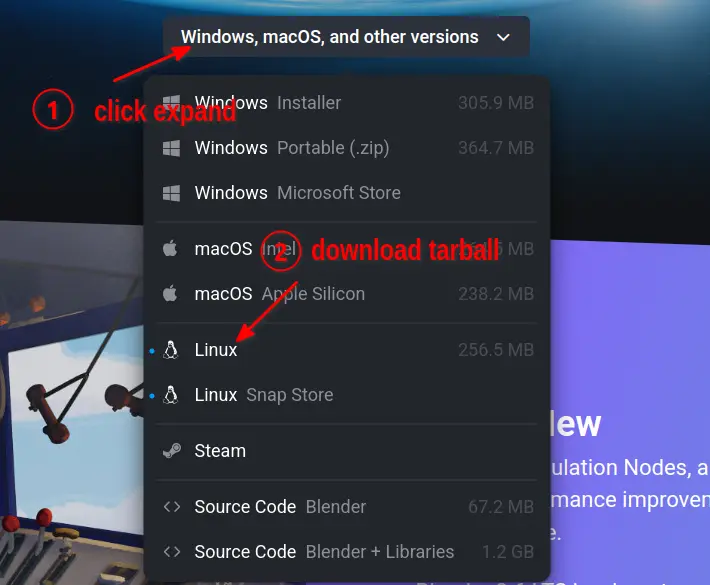
First, you need to obtain the tarball itself. This usually involves downloading it from the project’s official website or a code hosting platform like GitHub.
- Using
wgetorcurl: These command-line utilities are ideal for downloading files directly to your server or local machine.
bash

wget https://example.com/software-1.0.tar.gz

# or

curl -O https://example.com/software-1.0.tar.gz
- Verifying Integrity (Highly Recommended): If the project provides checksums (MD5, SHA256, etc.), always verify the downloaded file to ensure it’s not corrupted or maliciously altered.
bash

sha256sum software-1.0.tar.gz

# Compare the output with the checksum provided by the project.
Step 2: Extracting the Contents
Once downloaded, the tarball needs to be extracted to reveal its contents.
- Creating a Dedicated Directory: It’s good practice to create a clean directory for extraction to keep things organized.
bash

mkdir ~/src_software

mv software-1.0.tar.gz ~/src_software/

cd ~/src_software
- Extracting with
tar: Thetarcommand is used with specific options for extraction.- For
.tar.gzor.tgz:
bash

tar -xvf software-1.0.tar.gz
-x: Extract-v: Verbose (show files being extracted)-f: Specify the archive file
- For
.tar.bz2or.tbz2:
bash

tar -xvf software-1.0.tar.bz2
- For
.tar.xzor.txz:
bash

tar -xJvf software-1.0.tar.xz

# Or often, just tar -xvf will work for newer tar versions that detect compression automatically.
After extraction, a new directory (e.g.,software-1.0) will be created containing the source code.
- For
Step 3: Navigating the Source Directory
Change into the newly extracted directory. This is where you’ll perform the rest of the installation steps.
cd software-1.0
Once inside, take a moment to look around. You’ll typically find:
READMEorREADME.md: Essential information about the project.INSTALL: Detailed installation instructions, which you should always consult as they might contain project-specific steps or dependencies.configure: The script that checks your system and prepares the build.Makefile.am,Makefile.in: Templates for creating the actualMakefile.
Step 4: Configuring the Build (./configure)
The configure script is a crucial step. It automatically assesses your system’s environment, checks for necessary dependencies (libraries, headers, other tools), and creates the Makefile specific to your system. This Makefile will guide the make command in the next step.
./configure
- Understanding Output: Pay close attention to the output of
configure. It will tell you if any dependencies are missing. If it reports errors about missing libraries or tools, you must install them (e.g.,sudo apt install libsome-library-dev) and then re-run./configureuntil it completes successfully. - Customization Options:
configureoften supports various options to customize the build. To see a list of available options, use:
bash

./configure --help
Common options include:--prefix=/opt/my-app: Specifies the installation directory. By default, most software installs to/usr/local. Installing to/opt/my-appor~/localcan be useful for keeping custom software separate or for installing without root privileges.--enable-feature/--disable-feature: Toggles specific features of the software.--with-library=path: Specifies the location of a dependency ifconfigurecan’t find it automatically.
Step 5: Compiling the Software (make)
Once configure has successfully generated the Makefile, you can proceed to compile the source code into executable binaries. This is the step that translates the human-readable code into machine instructions.
make
- Parallel Compilation: For large projects, you can speed up compilation by using multiple CPU cores with the
-joption:
bash

make -j$(nproc) # Uses all available CPU cores

# Or for a specific number, e.g., 4 cores:

make -j4
- Time and Output: This step can take anywhere from a few seconds to several hours, depending on the software’s size and your system’s processing power. You’ll see a lot of output as various files are compiled.
- Troubleshooting
makeerrors: Ifmakefails, it usually indicates a problem with the source code, missing headers, or an incompatible compiler version. The error messages can be cryptic, but searching the first unique error line online often yields solutions. Ensure you’ve installed all necessary development libraries.
Step 6: Installing the Application (make install)
After successful compilation, the final step is to install the compiled binaries and other files into their designated system directories.
sudo make install
sudoRequirement:make installtypically requires superuser privileges (sudo) because it copies files to system-wide directories like/usr/local/bin,/usr/local/lib,/usr/local/share, etc.- Installation Paths: If you used the
--prefixoption withconfigure,make installwill respect that. For example, if you used--prefix=/opt/my-app, the software will be installed under/opt/my-app/bin,/opt/my-app/lib, etc. - Caution: Because
sudo make installmodifies system directories, it’s a powerful command. Always be confident in the software you’re installing. If you’re unsure, consider using a--prefixto install it to your home directory or a dedicated opt-in location, or practice in a virtual machine first.
Upon successful completion, your software should be installed and ready to use!
Post-Installation and Troubleshooting
Installing a tarball often requires a few extra steps to ensure the software runs smoothly and to manage your system effectively. Knowing how to handle common issues is also vital.
Setting Up Environment Variables and Path
If you installed the software to a non-standard location (e.g., using --prefix=/opt/my-app or ~/local), your shell might not immediately find the executables or libraries.
- Adding to PATH: To run the executable without specifying its full path, add its directory to your system’s
PATHenvironment variable.
bash

echo 'export PATH="/opt/my-app/bin:$PATH"' >> ~/.bashrc

source ~/.bashrc # Or ~/.zshrc if you use Zsh
- Updating Library Paths (
LD_LIBRARY_PATHorldconfig): If your new software depends on shared libraries installed in a custom location, the system’s dynamic linker might not find them.- Temporarily:
export LD_LIBRARY_PATH="/opt/my-app/lib:$LD_LIBRARY_PATH" - Permanently (better for system-wide libraries): Create a new file in
/etc/ld.so.conf.d/(e.g.,sudo nano /etc/ld.so.conf.d/my-app.conf) and add the library path:
/opt/my-app/lib
Then, update the dynamic linker cache:sudo ldconfig
- Temporarily:
- Man Pages: If the software includes manual pages, they might also need to be added to your
MANPATH:
bash

echo 'export MANPATH="/opt/my-app/share/man:$MANPATH"' >> ~/.bashrc
Cleaning Up Your Workspace
After a successful installation, you can clean up the temporary build files to save disk space.
make clean: This command removes object files and other intermediate files created during the compilation process, but leaves theMakefileandconfigurescript.
bash

make clean
make distclean: This goes further, removing everything created byconfigure(like theMakefile) as well as the object files. This essentially returns the source directory to its pristine, downloaded state.
bash

make distclean
- Keeping the Source Tree: It’s often a good idea to keep the extracted source directory (or at least the tarball) in case you need to uninstall or recompile later. Some projects provide
make uninstall(though not all), which relies on theMakefileto remove the installed files.
Common Installation Errors and Solutions
Even with careful preparation, you might encounter issues. Here are some common problems and their solutions:
- “Command not found” after install:
- Solution: Check your
PATHvariable. Ensure the directory where the executable was installed (e.g.,/usr/local/binor your--prefix/bin) is included. Log out and back in, orsource ~/.bashrc.
- Solution: Check your
- “Missing dependencies” during
./configure:- Solution: Read the
configureoutput carefully. It usually states which library or header file is missing. Install the corresponding development package for your distribution (e.g.,libfoo-devon Debian/Ubuntu,foo-develon Fedora/RHEL). Re-run./configure.
- Solution: Read the
- “Permission denied” during
make install:- Solution: You forgot
sudo.make installalmost always requires root privileges to write to system directories.
- Solution: You forgot
- Compilation errors (during
make):- Solution: These are often the hardest to debug.
- Missing headers: Ensure all
-dev/-develpackages for dependencies are installed. - Incompatible compiler: Your GCC version might be too old or too new. Check the project’s requirements.
- Source code bug: Less common for stable releases, but possible. Search the exact error message online; others likely encountered it.
- Missing headers: Ensure all
- Solution: These are often the hardest to debug.
- “Makefile not found” error:
- Solution: You are either not in the correct source directory, or the
./configurestep failed to generate theMakefile. Go back to Step 3 and 4.
- Solution: You are either not in the correct source directory, or the
make uninstallis missing or fails:- Solution: Many projects don’t provide a reliable
make uninstall. If you installed to a custom--prefix, you can often manually delete the directory (e.g.,sudo rm -rf /opt/my-app). If you installed to/usr/local, manual removal is much riskier and should only be done if you know exactly which files were installed (refer to theMakefileormake installoutput).
- Solution: Many projects don’t provide a reliable
When to Opt for Tarballs (and When to Stick to Packages)
Understanding the nuances of tarball installation helps you decide when it’s the right tool for the job and when more convenient alternatives exist.
Advantages of Source Compilation
- Unparalleled Customization: You dictate the features, optimizations, and integration points, creating software specifically tailored to your needs and hardware.
- Access to the Absolute Latest: Be at the forefront of software development, utilizing features or bug fixes that might take weeks or months to appear in stable distribution repositories. This is critical for developers or users needing specific bleeding-edge functionality.
- Installing Unpackaged Software: For niche tools, proprietary software with source-code distribution, or new projects, compiling from source might be the only viable installation method on your Linux distribution.
- Deeper System Insight: The process itself provides a valuable learning curve, enhancing your understanding of how software integrates with your operating system, dependency management, and system administration principles.
Disadvantages and Alternatives
Despite its power, source compilation comes with trade-offs:
- Manual Dependency Resolution: This is often the biggest hurdle. You’re responsible for identifying and installing all required libraries and their development headers, which can be time-consuming and sometimes frustrating.
- No Automatic Updates: Unlike package managers, tarball installations won’t notify you of updates or integrate into your system’s automatic patching routines. You’ll need to manually download, re-compile, and re-install new versions, a process that can be error-prone.
- Difficult Uninstallation: Unless the project provides a
make uninstalltarget (which is not guaranteed or always reliable), removing manually installed software can be challenging, often requiring you to keep track of every file installed. - Potential for System Instability: If not handled carefully, installing software from source, especially to system-wide directories, can introduce conflicts or break existing applications if not properly managed.
For these reasons, consider alternatives if your needs don’t strictly require source compilation:
- Snap, Flatpak, AppImage: These are universal Linux package formats that bundle applications and their dependencies into self-contained units. They offer sandboxing, easy installation/uninstallation, and often provide newer versions than distribution repositories, without the complexity of manual compilation.
- Docker/Containerization: For developers or server applications, Docker allows you to run software in isolated environments (containers). This ensures consistency, simplifies dependency management, and avoids conflicts with your host system.
- Vendor-Provided Binaries: Some software vendors provide pre-compiled
.deb,.rpm, or generic.runinstallers that are easier to manage than raw tarballs, while still potentially offering newer versions than standard repositories.

Conclusion
Installing a tarball from source is a powerful skill that unlocks a new level of control and flexibility over your Linux system. It allows you to access the latest software, implement custom configurations, and deepen your understanding of the underlying operating system. While package managers remain the go-to for convenience, mastering the “configure, make, make install” paradigm empowers you to tackle any software challenge that comes your way.
Remember to always consult the README and INSTALL files provided with the software, pay close attention to the output of configure, and be prepared to troubleshoot missing dependencies. With practice, you’ll find that compiling software from source isn’t just a technical task, but an act of customization and empowerment, truly making your Linux machine your own. So, go forth, explore the vast world of open-source software, and confidently compile!