
In today’s digitally driven world, Microsoft Office remains an indispensable suite of productivity tools for individuals, students, and businesses alike. From crafting compelling documents with Word to managing vast datasets in Excel and delivering impactful presentations with PowerPoint, Office empowers users to achieve their professional and academic goals. However, the installation process can sometimes feel a little daunting, especially for those less familiar with software deployment. This guide aims to demystify the process, offering clear, step-by-step instructions and valuable insights, drawing upon our expertise in technology, brand building, and financial literacy to ensure you get the most out of your Microsoft Office experience.

Understanding Your Microsoft Office Options
Before diving into the installation itself, it’s crucial to understand the different versions of Microsoft Office available and how they align with your needs. This is where a bit of strategic thinking, akin to brand positioning, comes into play. Choosing the right Office suite is not just about functionality; it’s about selecting the solution that best fits your budget, usage patterns, and long-term objectives.
Microsoft 365 vs. Office Perpetual Licenses
The primary distinction in today’s market lies between Microsoft 365 subscriptions and traditional, one-time purchase Office perpetual licenses. Each offers a unique value proposition, and understanding these differences will prevent potential financial missteps and ensure you’re not overpaying for features you won’t use.
Microsoft 365: The Subscription Advantage
Microsoft 365 represents Microsoft’s modern approach to software delivery, embracing a cloud-centric model. This subscription service offers access to the latest versions of Office applications, including Word, Excel, PowerPoint, Outlook, Publisher, and Access (for PC). Beyond the core applications, Microsoft 365 subscribers benefit from a host of additional advantages that directly impact productivity and digital security:
- Always Up-to-Date Applications: One of the most significant benefits of Microsoft 365 is that you always have the newest features, security updates, and performance enhancements as soon as they are released. This eliminates the need for future costly upgrades and ensures you’re always working with the most robust and secure software. This continuous evolution mirrors the dynamic nature of technology trends we often explore.
- Cloud Services and Storage: Microsoft 365 integrates seamlessly with cloud services like OneDrive. Each subscriber typically receives a generous amount of cloud storage (often 1TB per user), allowing for easy file sharing, collaboration, and access to your documents from any device with an internet connection. This accessibility is paramount in today’s remote and hybrid work environments.
- Cross-Device Compatibility: Depending on your subscription plan, Microsoft 365 can be installed on multiple devices, including PCs, Macs, tablets, and smartphones. This “install anywhere” capability ensures your productivity is not tied to a single machine.
- Additional Applications and Services: Many Microsoft 365 plans include access to other valuable tools and services such as Microsoft Teams for communication and collaboration, Skype for business, and advanced security features.
- Scalability for Businesses: For businesses, Microsoft 365 offers flexible plans that can be easily scaled up or down as team size and needs change, providing cost-effective IT management and enhanced collaboration.
When considering Microsoft 365, think of it as investing in a continuously evolving brand of productivity. The recurring cost is an investment in ongoing innovation and support, which can be particularly beneficial for individuals or businesses aiming to stay at the forefront of technological advancements.
Office Perpetual Licenses: The One-Time Purchase Model
Office perpetual licenses, such as Office Home & Business 2021 or Office Professional 2021, offer a traditional model where you purchase a license once and own that specific version of Office indefinitely. This option appeals to users who prefer a fixed, one-time cost and don’t necessarily need the latest features or cloud-based services.
- Fixed Cost, Permanent Ownership: The primary appeal of perpetual licenses is the single upfront payment. You own the software forever, without ongoing subscription fees. This can be financially attractive if you use a specific version of Office for many years without needing updates.
- No Internet Required for Core Functionality: Once installed, the core applications of Office perpetual licenses do not require a constant internet connection to function, making them suitable for environments with limited or unreliable internet access.
- Limited Feature Set: The main drawback is that you are locked into the features available in the version you purchase. You will not receive new features, major updates, or the latest security patches unless you purchase a new version. This means you might miss out on advancements in AI-powered features or enhanced collaboration tools that are standard in Microsoft 365.
- No Cloud Services Included: Unlike Microsoft 365, perpetual licenses do not typically include significant cloud storage like OneDrive or advanced collaborative tools.
When choosing a perpetual license, consider it a strategic investment in a stable, unchanging asset. This approach might appeal to individuals or small businesses with very specific, unchanging needs and a strong preference for a single, upfront financial commitment.
Installing Microsoft Office: Step-by-Step
The installation process for Microsoft Office is generally straightforward, whether you’re opting for a Microsoft 365 subscription or a perpetual license. The core principles involve accessing your account or product key, downloading the installer, and following the on-screen prompts.
Installing Microsoft 365
For Microsoft 365, the installation process is tightly integrated with your Microsoft account. This is where the “brand” experience comes into play – your account is your portal to Microsoft’s ecosystem.
- Sign in to Your Microsoft Account:
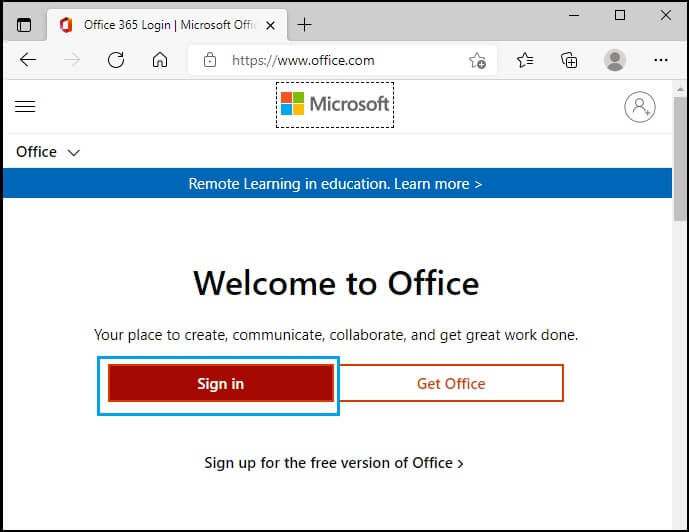
- Navigate to office.com or account.microsoft.com.
- Sign in using the Microsoft account credentials (email address and password) associated with your Microsoft 365 subscription. If you don’t have a Microsoft account, you’ll need to create one.

-
Accessing Your Install Options:
- Once logged in, you should see an option to “Install Office,” “Install apps,” or a similar prompt, often located prominently on the dashboard or under your subscription details.
- Click on this option. You will likely be presented with a choice of which Office apps you want to install and the language.
-
Downloading and Running the Installer:
- Click the “Install” button. This will download a small setup file (e.g.,
Setup.X.X.X.exe). - Locate the downloaded file in your browser’s download folder or by clicking “Run” directly from the browser.
- Allow the installer to make changes to your device by clicking “Yes” if prompted by User Account Control (UAC).
- The installer will begin downloading and installing Office in the background. You’ll see a progress indicator. This is an opportune moment to consider your digital security; ensure your antivirus software is up-to-date.
- Click the “Install” button. This will download a small setup file (e.g.,
-
Completing the Installation:
- Once the installation is complete, you’ll receive a confirmation message. You can now close the installer.
- To launch an Office application, search for it in your Start Menu (Windows) or Applications folder (macOS).
- The first time you open an Office app (e.g., Word), you will be prompted to sign in with your Microsoft account to activate your subscription. Enter your account credentials again.
Installing Office Perpetual Licenses
For perpetual licenses, the process usually involves using a product key and downloading the installation files from a specific Microsoft portal. This is akin to redeeming a voucher – you’ve paid, now you collect your reward.
-
Redeem Your Product Key:
- If you purchased a physical copy, you’ll have a product key on a card or sticker. If you bought digitally, the product key will be in your confirmation email or purchase history.
- Go to setup.office.com.
- Sign in with your Microsoft account or create one if you don’t have one.
- Enter your 25-character product key.
-
Download the Installer:
- After redeeming your product key, you will be directed to a page where you can download the Office installer.
- Select your language and version (32-bit or 64-bit, though 64-bit is recommended for most modern systems).
- Click the download button to save the setup file to your computer.
-
Run the Installer and Activate:
- Locate the downloaded setup file and run it.
- Allow the installer to make changes if prompted by UAC.
- The installation will proceed. Once it’s finished, close the installer.
- Open any Office application (e.g., Word).
- You will be prompted to enter your product key again or sign in with the Microsoft account you used to redeem the key to activate your perpetual license.
Post-Installation and Best Practices
Once Office is installed, the journey to maximizing its benefits has just begun. This involves understanding how to leverage its features for productivity, and in the case of Microsoft 365, how to manage your subscription effectively, which touches upon financial planning and personal branding.
Maximizing Productivity with Office Apps
The true value of installing Microsoft Office lies in its ability to streamline your work and enhance your output.
- Word: Go beyond basic text editing. Explore features like templates, styles, track changes for collaboration, and even accessibility checkers to ensure your documents are professional and inclusive. For marketing professionals, mastering Word’s layout and design features can be crucial for creating impactful collateral.
- Excel: Dive into its powerful data analysis capabilities. Learn about formulas, functions (like VLOOKUP and SUMIF), pivot tables, and charts to transform raw data into actionable insights. This is essential for anyone involved in business finance or personal investing.
- PowerPoint: Craft engaging presentations that capture your audience’s attention. Utilize design ideas, animations, and transitions effectively. For personal branding, a well-designed presentation can be a powerful tool to convey your expertise and vision.
- Outlook: Manage your communications efficiently. Master email rules, calendar management, and task lists to stay organized.
Managing Your Microsoft 365 Subscription and Finances
For Microsoft 365 users, managing your subscription is an ongoing financial consideration.
- Billing and Renewal: Be aware of your billing cycle. Microsoft typically charges annually or monthly for subscriptions. You can manage your payment methods and view billing history by signing into your Microsoft account.
- Subscription Management: Within your Microsoft account, you can view your subscription details, add or remove users (for family or business plans), and make changes to your plan if needed. This proactive management helps avoid unexpected charges and ensures you are on the most cost-effective plan for your current needs.
- Understanding Costs: Regularly review the cost of your Microsoft 365 subscription against its perceived value. If you’re not using all the features or the cost feels prohibitive, explore alternative software or consider a different Microsoft 365 plan. This aligns with principles of personal finance, where budgeting and value assessment are key.
Ensuring Digital Security
With any software installation, and especially with cloud-connected services, digital security is paramount.
- Strong Passwords and Two-Factor Authentication: Use a strong, unique password for your Microsoft account and enable two-factor authentication (2FA). This adds an extra layer of security, making it much harder for unauthorized users to access your account and data.
- Keep Software Updated: While Microsoft 365 automatically updates, for perpetual licenses, ensure you periodically check for security updates from Microsoft. For any software, keeping it updated is a fundamental aspect of digital security.
- Be Wary of Phishing: Be cautious of emails or messages that ask for your Microsoft account credentials. Microsoft will not typically ask for your password via email.
By following these guidelines, you can confidently install Microsoft Office and harness its full potential to boost your productivity, manage your digital life effectively, and achieve your goals. Whether you’re a student, a professional, or a business owner, having the right tools at your fingertips is a significant advantage.
aViewFromTheCave is a participant in the Amazon Services LLC Associates Program, an affiliate advertising program designed to provide a means for sites to earn advertising fees by advertising and linking to Amazon.com. Amazon, the Amazon logo, AmazonSupply, and the AmazonSupply logo are trademarks of Amazon.com, Inc. or its affiliates. As an Amazon Associate we earn affiliate commissions from qualifying purchases.