
In the dynamic world of computing, the desire to enhance performance is a constant for enthusiasts and professionals alike. Laptops, in particular, often represent a significant investment, leading many users to wonder if they can extend their device’s lifespan and capabilities by upgrading a crucial component: the graphics card. The allure of running the latest games at higher frame rates, accelerating demanding creative applications, or even powering advanced AI workloads on a portable machine is undeniably strong. However, unlike their desktop counterparts, laptops present unique challenges when it comes to internal hardware upgrades, especially concerning the GPU.

This comprehensive guide will demystify the process of “installing a graphics card in a laptop.” We’ll delve into the realities of internal upgrades, introduce the most viable and popular solution – the external Graphics Processing Unit (eGPU) – and provide a detailed roadmap for setting one up. By the end, you’ll have a clear understanding of your options, the technical hurdles involved, and how to make an informed decision to elevate your laptop’s graphical prowess.
The Allure of an Upgraded Laptop GPU: Why Performance Matters
For many laptop users, the integrated graphics processing units (iGPUs) that come standard with most mobile processors simply don’t cut it. While perfectly adequate for daily tasks like browsing, word processing, and video streaming, they quickly hit their limits when faced with more graphically intensive operations. The aspiration to upgrade stems from a fundamental need for more power, whether for entertainment, professional productivity, or cutting-edge computational tasks.
Unlocking Enhanced Gaming Experiences
The most common driver for a GPU upgrade is gaming. Modern video games are incredibly demanding, pushing the boundaries of graphical fidelity and requiring significant processing power to render intricate worlds, complex character models, and realistic physics. An upgraded graphics card translates directly into:
- Higher Frame Rates: Smoother, more responsive gameplay, especially crucial for competitive titles.
- Improved Visual Quality: The ability to play games at higher resolutions (e.g., 1080p, 1440p, or even 4K) and with advanced graphical settings enabled (anti-aliasing, shadow quality, texture detail).
- Access to Newer Titles: Many contemporary games simply won’t run acceptably, or even at all, on older or integrated GPUs. An upgrade opens the door to the latest gaming experiences.
- VR Readiness: Virtual Reality gaming demands extremely high frame rates and resolution to prevent motion sickness and deliver an immersive experience, a feat only powerful dedicated GPUs can achieve.
For a tech-savvy gamer, the difference between an integrated GPU and a powerful discrete graphics card is literally night and day, transforming a stuttering slideshow into a fluid, visually stunning adventure.
Accelerating Creative Workflows
Beyond gaming, a powerful GPU is an indispensable tool for a growing number of creative and professional applications. The parallel processing capabilities of a graphics card make it uniquely suited for tasks that involve complex computations over large datasets.
- Video Editing and Production: Rendering timelines, applying effects, and exporting high-resolution video files are significantly sped up by a capable GPU. This reduces waiting times and allows for more iterative creative work.
- 3D Modeling and Animation: Professionals in CAD, architectural visualization, game development, and CGI rely heavily on GPUs for real-time viewport performance, realistic rendering, and complex simulations.
- Graphic Design and Image Manipulation: While CPUs handle many core Photoshop tasks, certain filters, effects, and AI-powered features benefit immensely from GPU acceleration.
- Data Science and Machine Learning: The architecture of GPUs is ideal for training neural networks and performing large-scale data computations, making them crucial for AI researchers and data scientists.
- Live Streaming and Content Creation: Encoding video streams, running overlays, and managing multiple cameras simultaneously can strain a system, where a dedicated GPU offloads much of the processing burden.
For professionals whose livelihood depends on these applications, an upgraded GPU is not just a luxury but a critical tool for productivity and efficiency, often translating directly into saved time and increased output.
Future-Proofing and Productivity Gains
In an era of rapidly evolving software and increasingly demanding applications, investing in better graphics hardware can also serve as a form of future-proofing. While no component can guarantee indefinite relevance, a stronger GPU extends the useful life of your laptop by enabling it to handle more demanding tasks as they emerge. Moreover, the general snappiness and responsiveness of a system, especially when multitasking with graphically intensive applications, are noticeably improved. From digital security tools that leverage GPU acceleration for certain analyses to productivity apps integrating AI features, the benefits of a robust graphics card permeate many aspects of modern computing.
The Reality Check: Internal Laptop GPU Upgrades Are (Mostly) a Myth
The dream of simply opening up your laptop, swapping out a weak graphics card for a powerful new one, and closing it back up is, unfortunately, largely a fantasy for the vast majority of laptop owners. Unlike desktop PCs, which are designed with modularity in mind, laptops prioritize compactness, portability, and thermal efficiency, often at the expense of upgradeability.
The Integrated Design Challenge
The primary reason why internal laptop GPU upgrades are so rare boils down to fundamental design principles:
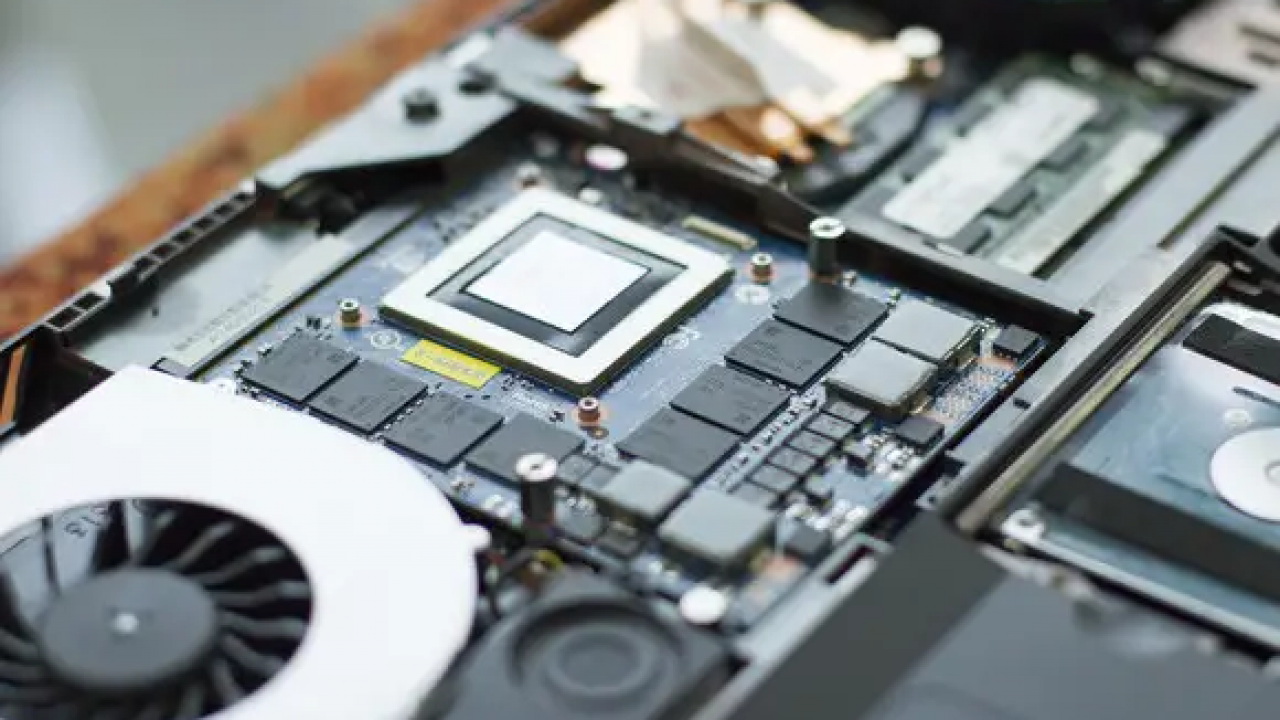
- Soldered Components: Most modern laptops feature GPUs that are soldered directly onto the motherboard (Ball Grid Array or BGA). This means the graphics chip is a permanent fixture, integrated into the system’s architecture. Desoldering and replacing such a component is an extremely complex and risky operation, requiring specialized equipment and expertise, and is generally not feasible for consumers.
- Proprietary Designs and Form Factors: Even if a GPU were not soldered, laptops use highly customized, proprietary designs. There’s no standardized “laptop GPU slot” like the PCIe slot on a desktop motherboard. Different manufacturers use different board layouts, power delivery systems, and cooling solutions, meaning a graphics card from one laptop model almost certainly won’t fit or function in another, let alone an aftermarket upgrade.
- Thermal Limitations: Powerful GPUs generate significant heat. Laptops have meticulously designed cooling systems tailored to their specific components. Introducing a more powerful GPU, even if physically possible, would likely overwhelm the existing thermal solution, leading to overheating, throttling, performance degradation, and potential hardware damage.
- Power Delivery: A more powerful GPU requires more power. Laptop power supplies and motherboards are designed to deliver a specific amount of wattage to their components. An aftermarket GPU could exceed these limits, leading to instability or power supply failure.
- BIOS/Firmware Compatibility: The laptop’s Basic Input/Output System (BIOS) or Unified Extensible Firmware Interface (UEFI) contains firmware that recognizes and initializes the specific hardware components installed. An unrecognized, aftermarket GPU might not be detected or properly supported by the laptop’s firmware.
The Rare Exceptions: Modular Laptops and MXM Modules
While largely a myth, there have been a handful of exceptions that offered a glimmer of hope for internal laptop GPU upgrades, primarily in the niche market of high-end gaming laptops:
- MXM (Mobile PCI Express Module): A few high-performance gaming laptops, particularly older models or specialized workstations, used a standardized MXM form factor. This allowed the GPU to be a removable module, similar to a RAM stick. However, MXM cards are proprietary, expensive, hard to find (especially newer models), and still subject to thermal and power limitations of the host laptop. The availability of upgrade options for a specific MXM slot is extremely limited.
- Framework Laptops: Framework is a company that has championed modularity and repairability, offering laptops with replaceable components. While their current models focus on CPU upgrades and other parts, the concept of a truly modular laptop suggests that GPU upgrades could be a theoretical possibility in future designs, though still challenging due to thermal envelopes.
For the vast majority of consumer laptops purchased today, these exceptions do not apply, and the dream of an internal GPU swap remains largely out of reach.
The Decision: Is Your Laptop Even Eligible?
Before exploring external options, a quick check can confirm your laptop’s upgrade potential (or lack thereof):
- Consult Your Laptop Manufacturer’s Documentation: The user manual or official product page for your specific model will confirm if any components are user-upgradable.
- Search Online Forums: Enthusiast communities often have detailed discussions about the upgradeability of various laptop models.
- Physical Inspection (with caution): If you’re comfortable, opening the laptop’s bottom panel might reveal if the GPU is a separate module or soldered. However, do not proceed if you’re unsure, as this can void warranties or damage components.
For 99% of users, the conclusion will be clear: an internal GPU upgrade is not a practical or feasible option. This leads us to the most viable and increasingly popular solution.
The Viable Solution: Embracing External Graphics Processing Units (eGPUs)
Given the insurmountable challenges of internal laptop GPU upgrades, the external Graphics Processing Unit (eGPU) stands out as the primary, and often only, practical way to significantly boost a laptop’s graphics performance. An eGPU essentially allows you to connect a full-sized, desktop-class graphics card to your laptop, transforming it into a formidable gaming or workstation machine when at your desk.
What is an eGPU and How Does It Work?
An eGPU system comprises three main components:
- The Graphics Card (GPU): This is a standard desktop graphics card (e.g., NVIDIA GeForce RTX 40-series, AMD Radeon RX 7000-series).
- The eGPU Enclosure: This is a specialized chassis that houses the graphics card, provides power to it, and connects it to your laptop. Enclosures come in various designs, some being compact boxes, others resembling small desktop cases.
- The Connection Cable: The enclosure connects to your laptop via a high-bandwidth cable, typically Thunderbolt 3 or Thunderbolt 4. This cable carries both the display data from the GPU and the power required by the enclosure and potentially charges the laptop.
How it works: Your laptop’s CPU and RAM still handle the core processing, but when a graphically intensive application runs, the data is sent over the Thunderbolt cable to the eGPU enclosure. The desktop graphics card within the enclosure performs the heavy lifting of rendering images and then sends the processed video signal back to your laptop’s screen or an external monitor connected directly to the eGPU. This effectively bypasses the laptop’s integrated or weaker discrete GPU for demanding tasks.
Essential Prerequisites for eGPU Setup
Before diving into an eGPU setup, ensure your laptop meets these critical requirements:
- Thunderbolt 3 or Thunderbolt 4 Port: This is non-negotiable. Thunderbolt is an Intel-developed technology that combines PCI Express (for data) and DisplayPort (for video) into a single, high-bandwidth cable. A USB-C port is not necessarily a Thunderbolt port, though Thunderbolt ports use the USB-C connector. Look for the lightning bolt symbol next to the port. Older standards like USB 3.0/3.1/3.2 are not fast enough to carry the necessary data for an eGPU.
- Compatible Operating System: Windows 10/11 or macOS (with specific driver support for certain GPUs) are generally required.
- Adequate Laptop CPU and RAM: While the eGPU handles graphics, a weak CPU or insufficient RAM can still bottleneck performance. A mid-range to high-end Intel Core i5/i7 (8th Gen or newer) or AMD Ryzen 5/7 (2000-series or newer) with at least 8GB (preferably 16GB) of RAM is recommended to prevent the CPU from limiting the eGPU’s potential.
- Sufficient Budget: eGPUs are not a cheap upgrade. You’ll need to account for the cost of the enclosure itself, a new or used desktop graphics card, and potentially an external monitor if you want to maximize performance (more on this later).
Choosing the Right eGPU Enclosure and Graphics Card
Selecting the components is crucial for a successful and satisfying eGPU experience.
eGPU Enclosure Considerations:
- Thunderbolt Version: Ensure compatibility with your laptop’s Thunderbolt port (e.g., Thunderbolt 3 enclosure for Thunderbolt 3 laptop).
- Power Delivery (PD): Many enclosures offer power delivery, meaning they can charge your laptop through the Thunderbolt cable, reducing cable clutter. Check the wattage (e.g., 60W, 90W, 100W PD).
- GPU Size and Clearance: Enclosures specify the maximum length, height, and width of the graphics card they can accommodate. Make sure your chosen GPU fits.
- Internal Power Supply (PSU): Check the wattage of the PSU built into the enclosure. It needs to be sufficient to power your chosen graphics card (e.g., 400W, 550W, 650W).
- Portability vs. Features: Some enclosures are compact and designed for occasional travel, while others are larger, offering more features like additional USB ports or Ethernet.
- Brand Reputation: Stick with reputable brands known for their eGPU enclosures, such as Razer Core, Sonnet Breakaway Box, Akitio, and Gigabyte Aorus Gaming Box.
Graphics Card Considerations:
- Performance vs. Price: Decide on your budget and performance expectations. Newer, high-end GPUs offer the best performance but come at a premium. Older generation cards can offer excellent value.
- Power Consumption: Match the GPU’s power requirements to the eGPU enclosure’s PSU capacity.
- Physical Size: As mentioned, ensure the card physically fits within the enclosure.
- Compatibility (macOS): If you’re using a Mac, GPU compatibility is more restricted. Apple officially supports AMD Radeon cards, but NVIDIA cards generally do not work well due to lack of driver support.
- New vs. Used: Used GPUs can offer significant savings, but buy from trusted sources and verify functionality.
Remember that Thunderbolt bandwidth limitations mean that an eGPU will rarely achieve 100% of the performance of the same GPU installed directly in a desktop PC. Performance can range from 70-90% depending on the specific GPU, application, and whether you’re using the laptop’s internal screen or an external monitor. Using an external monitor connected directly to the eGPU’s display outputs generally yields better performance by avoiding the “round trip” of video data back to the laptop’s screen.
Step-by-Step Guide to Installing and Setting Up Your eGPU
Once you’ve made the informed decision to go the eGPU route and gathered all your components, the actual installation and setup process is relatively straightforward, though it requires attention to detail.
Gathering Your Arsenal
Before you begin, ensure you have everything you need:
- eGPU Enclosure: Unboxed and ready.
- Desktop Graphics Card: Fresh out of its packaging or carefully handled if used.
- Thunderbolt 3/4 Cable: High-quality, certified cable (usually included with the enclosure).
- Laptop: Powered off and disconnected from its charger.
- External Monitor (Optional but Recommended): And a display cable (HDMI, DisplayPort) to connect it to the eGPU.
- Tools: A Phillips head screwdriver (most enclosures are tool-less, but some might require one).
- Internet Access: For downloading drivers.
- Patience: As with any tech setup, troubleshooting might be necessary.
Physical Assembly: Slotting in the GPU
This step involves opening the eGPU enclosure and installing the graphics card.
- Unpack and Prepare: Carefully remove the eGPU enclosure from its packaging. Most enclosures have a release mechanism (a lever, button, or thumbscrews) to open the chassis.
- Open the Enclosure: Follow the manufacturer’s instructions to open the enclosure and expose the PCIe slot and power connectors.
- Install the Graphics Card:
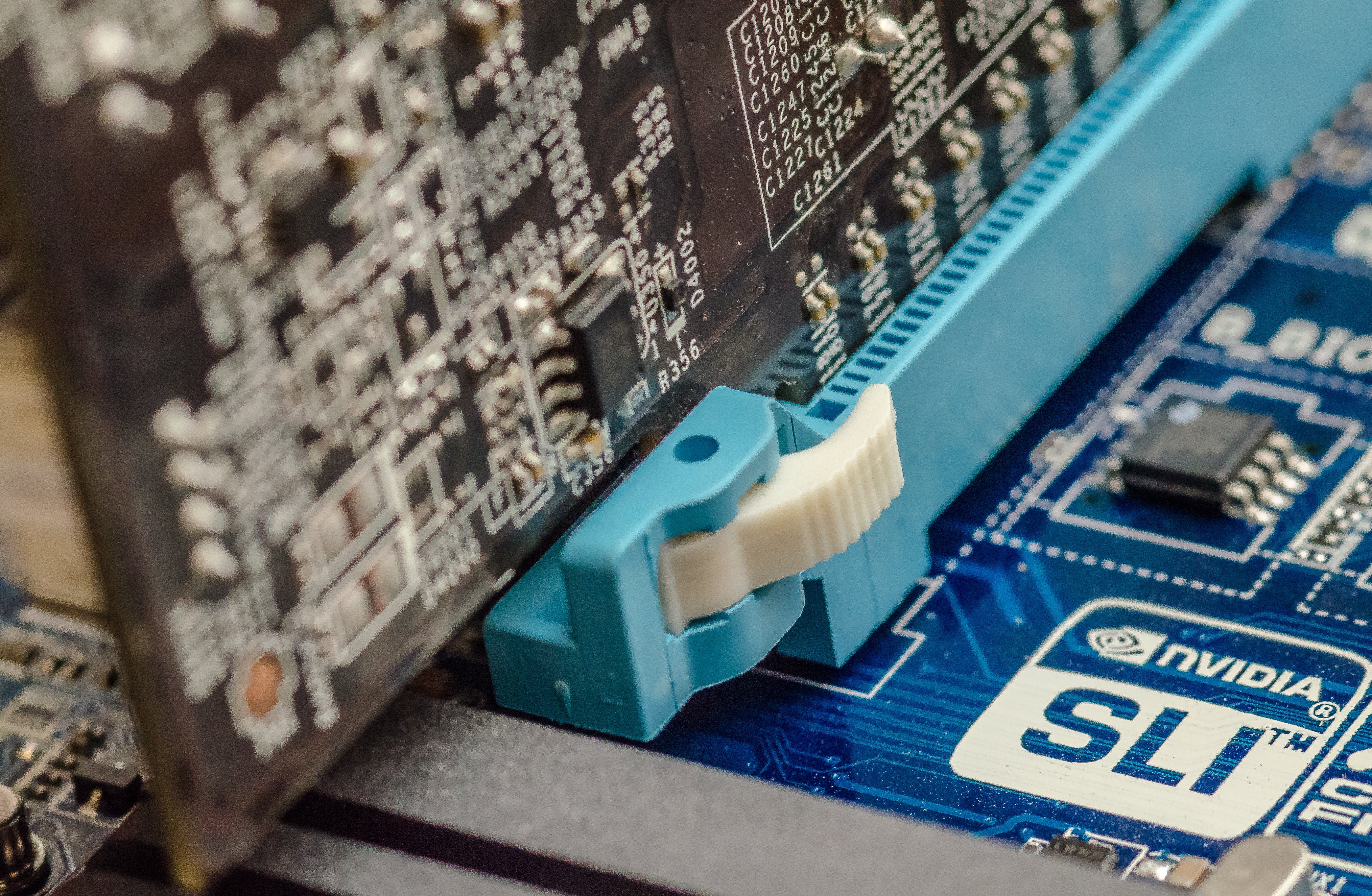
- Align your desktop graphics card with the PCIe x16 slot inside the enclosure.
- Gently but firmly push the card into the slot until it is fully seated. You should hear a click or feel it lock into place.
- Secure the card with the provided screws or latch mechanism that typically holds PCIe cards in place within an enclosure.
- Connect Power Cables: Connect the necessary PCIe power cables from the enclosure’s internal power supply to your graphics card. Modern GPUs usually require one or two 6-pin or 8-pin power connectors. Ensure all connectors are securely plugged in.
- Close the Enclosure: Carefully close the eGPU enclosure, making sure all cables are tucked away and not pinched. Secure any latches or screws.
Connecting to Your Laptop and Initial Power-Up
With the graphics card securely installed in the enclosure, it’s time to connect it to your laptop.
- Connect Thunderbolt Cable: Plug one end of the Thunderbolt cable into the eGPU enclosure and the other end into a Thunderbolt 3/4 port on your laptop.
- Connect External Monitor (if applicable): If you’re using an external monitor, connect it directly to one of the display outputs (HDMI, DisplayPort) on the eGPU itself, not your laptop. This configuration typically yields better performance.
- Connect Power: Plug the eGPU enclosure’s power cord into a wall outlet or power strip.
- Power On: Turn on the eGPU enclosure (it may have a power switch). Then, power on your laptop.
Your laptop should ideally recognize the new hardware upon boot. You might see a notification indicating a new Thunderbolt device has been connected.
Software Installation and Configuration
The hardware is connected, but the system needs the right software to fully utilize the eGPU.
- Driver Download:
- Identify your graphics card’s manufacturer (NVIDIA or AMD) and model.
- Go to the official website of the GPU manufacturer (NVIDIA.com/drivers or AMD.com/drivers).
- Download the latest stable drivers specifically for your graphics card model and operating system. Avoid beta drivers unless you know what you’re doing.
- Important: If you already have drivers for a different GPU (e.g., your laptop’s integrated GPU or an older discrete card), it’s often a good idea to perform a clean installation. Use a tool like Display Driver Uninstaller (DDU) in safe mode to thoroughly remove old drivers before installing the new ones.
- Driver Installation: Run the downloaded driver installer. Follow the on-screen prompts. This process may involve screen flickering and several restarts.
- OS Recognition and Configuration:
- Once drivers are installed, Windows should recognize the eGPU. Go to
Settings > System > Displayand thenGraphics settings(orGraphics) to confirm the eGPU is listed and assign it to specific applications for optimal performance. - In NVIDIA Control Panel or AMD Radeon Software, you can further configure settings, monitor GPU usage, and optimize game profiles.
- Once drivers are installed, Windows should recognize the eGPU. Go to
- Troubleshooting Common Issues:
- Not Detected: Ensure all cables are securely connected, the eGPU has power, and your laptop’s Thunderbolt drivers are up to date. Check the BIOS/UEFI settings for Thunderbolt security options; some require authorization for external devices.
- Performance Issues: Ensure you’re running the application with the eGPU, not the internal GPU. Check drivers, monitor temperatures, and consider using an external monitor.
- Driver Conflicts: Perform a clean driver installation using DDU.
Benchmarking and Optimizing Performance
After installation, it’s wise to verify performance and make any necessary tweaks.
- Run Benchmarks: Use popular benchmarking tools like 3DMark, Unigine Heaven, or Unigine Valley to get objective performance scores. Compare these scores to others with similar eGPU setups to gauge if you’re getting expected performance.
- Test with Games/Applications: Load up your favorite games or demanding creative applications and monitor frame rates or rendering times.
- Driver Updates: Regularly check for new GPU drivers from NVIDIA or AMD, as these often bring performance improvements and bug fixes.
- Game/Application Settings: Adjust in-game or application settings to find the sweet spot between visual quality and performance.
Beyond eGPUs: Other Considerations and Alternatives
While eGPUs offer a compelling solution, they are not without their trade-offs. It’s important to consider the full picture and explore other avenues if an eGPU doesn’t perfectly align with your needs.
The Cost-Benefit Analysis of an eGPU
Investing in an eGPU setup can be substantial. You’re looking at the cost of the enclosure (typically $200-$400+), plus the cost of a desktop graphics card (anywhere from $200 to $1000+). Add to that potentially a new external monitor. This financial outlay needs to be weighed against the performance gains.
- Is it cheaper than a new laptop? Often, yes, especially if your current laptop has a capable CPU and sufficient RAM. A high-end gaming laptop or workstation laptop can easily cost $1500-$3000+, while an eGPU setup might come in at $600-$1500.
- Is it better than a new desktop? If you only need the high-end GPU performance when stationary and value the portability of your laptop for other tasks, an eGPU can be a good compromise. However, a dedicated desktop PC will almost always offer better raw performance for the same price, superior upgradeability, and better thermal management.
The “money” aspect of this decision is critical. For many, an eGPU represents a way to squeeze more life out of an existing investment without committing to a full system replacement.
Portability vs. Performance: A Compromise
The very nature of an eGPU implies a compromise on portability. While your laptop remains portable, the eGPU setup itself is not designed for on-the-go usage. It’s a “docking station” that transforms your laptop into a powerful desktop when you’re at your home office or workstation. If you need high-performance graphics everywhere you go, an eGPU is not the answer. In that scenario, a dedicated gaming laptop or mobile workstation is the only true solution.
The Ultimate Upgrade: Investing in a New Gaming Laptop or Desktop PC
Sometimes, an eGPU simply isn’t enough, or your existing laptop is too old to be a good eGPU candidate (e.g., lacking Thunderbolt, weak CPU). In these cases, the most direct and often most effective “upgrade” is to invest in new hardware:
- New Gaming Laptop: If portability is paramount, a purpose-built gaming laptop with a powerful integrated discrete GPU (e.g., RTX 4070/4080/4090 Mobile) offers an all-in-one solution for high-performance mobile gaming and creative work.
- Desktop PC: For maximum performance, upgradeability, and cost-effectiveness per frame, a custom-built or pre-built desktop PC remains the king. If you don’t need to game or create on the go, a desktop provides the best value and longest lifespan for demanding tasks. This is where the “Tech” and “Money” aspects often converge, as desktops offer the most bang for your buck in terms of raw power.
Exploring Cloud Gaming and Remote Desktops
For users who want to access high-end gaming or workstation performance without buying expensive hardware, cloud-based solutions have emerged as viable alternatives:
- Cloud Gaming Services (e.g., NVIDIA GeForce Now, Xbox Cloud Gaming, Amazon Luna): These services stream games from powerful remote servers to your laptop (or any device) over the internet. You only need a decent internet connection; your laptop’s internal GPU barely matters. This offers access to high-end games on virtually any device, though it requires a subscription and is dependent on your internet speed and latency.
- Remote Desktop/Virtual Workstations: For professional users, services that offer access to powerful virtual machines (VMs) with dedicated GPUs can be an option. This is similar to cloud gaming but geared towards creative applications, AI/ML, and professional software. It bypasses your laptop’s limitations entirely, leveraging data center power.
These “Tech Trends” solutions are becoming increasingly sophisticated, offering alternatives for those who find hardware upgrades too complex or costly.
Conclusion
The journey to “install a graphics card in a laptop” reveals a nuanced landscape. While the dream of swapping out an internal GPU remains largely impractical for most, the advent of Thunderbolt technology has made the external Graphics Processing Unit (eGPU) a highly viable and transformative solution. An eGPU allows you to harness the raw power of a desktop-class graphics card, unlocking enhanced gaming experiences, accelerating demanding creative workflows, and future-proofing your laptop for computationally intensive tasks, all while maintaining the portability of your primary device.
However, a successful eGPU setup hinges on several crucial factors: possessing a Thunderbolt 3 or 4 port, a capable CPU, and a willingness to invest in the enclosure and a suitable GPU. Furthermore, understanding the performance trade-offs inherent in an external connection and carefully navigating the installation process, including driver management, are key to maximizing your investment.
Ultimately, the decision to pursue an eGPU, invest in a new gaming laptop or desktop, or embrace cloud-based alternatives boils down to your specific needs, budget, and desired level of portability. By understanding these options and the technological realities, you can make an informed choice that truly elevates your mobile computing experience and empowers you to tackle the most demanding digital challenges.
aViewFromTheCave is a participant in the Amazon Services LLC Associates Program, an affiliate advertising program designed to provide a means for sites to earn advertising fees by advertising and linking to Amazon.com. Amazon, the Amazon logo, AmazonSupply, and the AmazonSupply logo are trademarks of Amazon.com, Inc. or its affiliates. As an Amazon Associate we earn affiliate commissions from qualifying purchases.