
The allure of macOS is undeniable. Its sleek interface, robust ecosystem, and powerful performance have made it a popular choice for creators, professionals, and everyday users alike. Whether you’re embarking on your first Mac journey or looking to refresh your current installation, understanding the process is key to a smooth and successful experience. This guide will walk you through the essential steps and considerations, drawing from the core principles of technology, brand perception, and the financial implications of your digital choices.
Understanding Your Mac Installation Options
Before diving into the installation process itself, it’s crucial to understand the different avenues available for getting macOS onto your machine. This decision often hinges on whether you’re acquiring a new Mac, upgrading an existing one, or perhaps venturing into the realm of custom builds (though this is a more advanced topic and often less straightforward with Apple’s hardware ecosystem).

Installing macOS on a New Mac: The Unboxing Experience
For most users, the journey begins with a brand-new Mac. Apple has meticulously crafted the initial setup experience to be as intuitive as possible, aiming to onboard new users seamlessly.
- Initial Boot-Up and Setup Assistant: Upon powering on your new Mac for the first time, you’ll be greeted by the Setup Assistant. This guided process will prompt you to select your country and language, connect to a Wi-Fi network, and then move on to crucial account and privacy settings.
- Apple ID Integration: This is a pivotal step. Signing in with your Apple ID unlocks the full potential of your Mac. It allows you to sync iCloud data, download apps from the App Store, access Apple Music and other services, and ensure your devices are interconnected. If you don’t have an Apple ID, the Setup Assistant will guide you through creating one.
- Data Migration (Optional but Recommended): If you’re transitioning from another Mac or a Windows PC, the Setup Assistant offers robust tools for migrating your data. This can include applications, user accounts, documents, and settings. For Mac-to-Mac transfers, Time Machine backups are invaluable, allowing for a comprehensive restoration. For Windows users, Apple provides the “Migration Assistant” application, which can transfer your essential files and settings. This not only saves time but ensures you don’t lose precious personal or professional data.
- Privacy Settings and Analytics: Apple places a strong emphasis on user privacy. During setup, you’ll be presented with options regarding data sharing for diagnostics and usage analytics. Carefully review these options and choose what aligns with your comfort level.
- Setting Up Siri and Touch ID/Face ID: For Macs equipped with these features, you’ll have the opportunity to configure Siri for voice commands and set up Touch ID (fingerprint authentication) or Face ID (facial recognition) for secure and convenient logins.
This initial setup is more than just an installation; it’s the foundation of your digital identity on the Mac. It’s where the brand experience of Apple truly begins for a new user, and getting these initial settings right sets the stage for future productivity and security.
Upgrading macOS on an Existing Mac: Maintaining Momentum
For existing Mac users, upgrading to the latest version of macOS is a common and generally straightforward process. Apple typically releases major macOS updates annually, offering new features, performance enhancements, and security patches.
- System Requirements and Compatibility: Before attempting an upgrade, it’s essential to check if your Mac model is compatible with the new macOS version. Apple provides clear lists of supported hardware on their website. Attempting to install on an unsupported machine can lead to instability or complete failure.
- Back Up Your Data: This is arguably the most critical step for any software upgrade. While macOS upgrades are usually stable, unforeseen issues can arise. Using Time Machine to create a complete backup of your Mac is paramount. This ensures that if anything goes wrong during the upgrade, you can restore your system to its previous state without data loss. Think of this as a financial safety net for your digital assets.
- App Store Updates: For most recent macOS versions, upgrades are distributed through the App Store. You’ll typically receive a notification when a new version is available. Simply navigate to the App Store, find the macOS update, and click “Download” or “Install.”
- Clean Installation vs. In-Place Upgrade: While an in-place upgrade is convenient, some users opt for a “clean install.” This involves erasing your Mac’s drive and then installing macOS from scratch. This can sometimes resolve persistent software glitches and ensure a pristine system. However, it requires more effort in reinstalling applications and restoring data from a backup. This is a decision that balances the immediate convenience of an upgrade against the long-term potential for a more stable system.
- Post-Upgrade Checks: After the upgrade is complete, take some time to verify that all your essential applications are working correctly, that your files are accessible, and that your system settings are as you expect them. Occasionally, some applications may require their own updates to be fully compatible with the new macOS version.
Upgrading is a vital part of maintaining the technological edge of your Mac. It ensures you benefit from the latest innovations and security measures, which in turn can positively impact your productivity and digital security posture.
Advanced Installation Scenarios and Considerations

While the above scenarios cover the majority of users, there are more nuanced situations and considerations that might come into play, particularly for those with specific technical needs or a desire for greater control over their operating system.
Installing macOS on Non-Apple Hardware (Hackintosh): A Complex Endeavor
The concept of installing macOS on non-Apple hardware, often referred to as a “Hackintosh,” is a technically demanding and often legally grey area. Apple’s macOS is designed to run exclusively on their proprietary hardware, and installing it on other machines involves bypassing various security and hardware compatibility measures.
- Technical Expertise Required: This is not a process for the faint of heart. It demands a deep understanding of computer hardware, bootloaders, drivers, and kernel extensions. You’ll need to research compatible components and meticulously configure software to trick macOS into believing it’s running on genuine Apple hardware.
- Reliability and Stability Concerns: Hackintosh systems are rarely as stable or reliable as genuine Macs. Hardware compatibility issues can lead to unexpected crashes, feature malfunctions, and difficulties with future macOS updates. It’s a constant battle to keep the system running smoothly.
- Evolving Landscape: The Hackintosh community is active and resourceful, but Apple’s ongoing efforts to tighten its hardware and software integration mean that methods that worked yesterday may not work tomorrow. Keeping a Hackintosh up-to-date can be a time-consuming and frustrating endeavor.
- Brand and Legal Implications: It’s important to acknowledge that installing macOS on non-Apple hardware violates Apple’s End User License Agreement (EULA). While enforcement is rare for individual users, it’s a factor to consider from a brand and legal perspective. The experience also deviates significantly from the curated brand experience Apple intends.
- Financial Considerations (Paradoxical): While the initial appeal might be cost savings compared to a genuine Mac, the time, effort, and potential need for replacement parts due to compatibility issues can negate these savings. The financial cost of troubleshooting can become substantial.
Given these complexities, for most users, the robust and reliable experience of a genuine Mac is well worth the investment. The seamless integration and guaranteed compatibility are key aspects of the Apple brand promise.
Reinstalling macOS for Troubleshooting and Performance
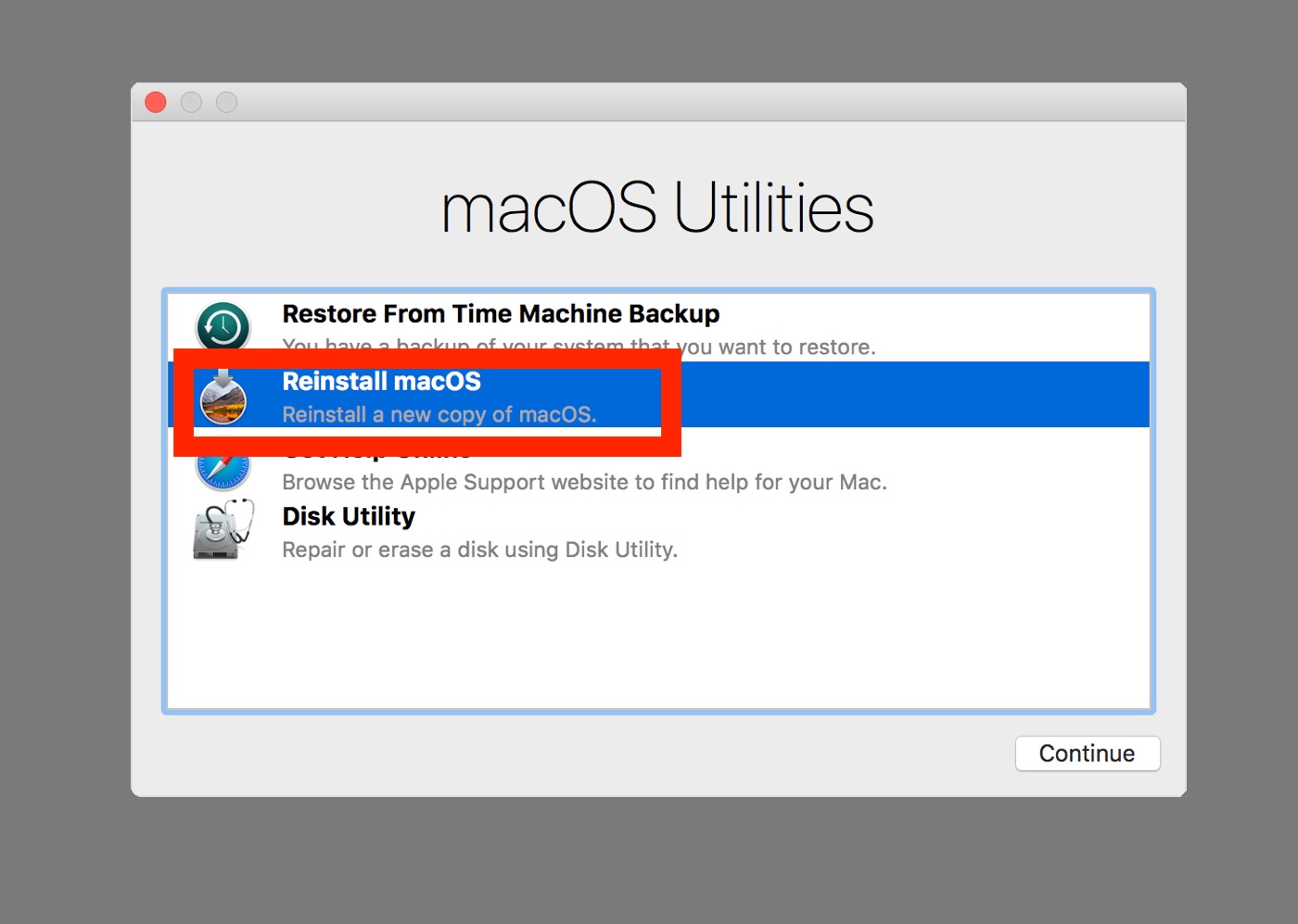
Sometimes, despite best efforts, a Mac may encounter persistent software issues, slowdowns, or corrupted files. In such cases, reinstalling macOS can be a powerful troubleshooting tool. This can range from a simple recovery mode reinstallation to a full erase and reinstall.
- macOS Recovery: This built-in utility allows you to reinstall macOS without a startup disk. You can access macOS Recovery by restarting your Mac and holding down Command (⌘)-R until you see the Apple logo or a spinning globe. From there, you can choose to reinstall macOS, which will download and install the latest compatible version of macOS for your Mac. This is often the first step in troubleshooting without erasing all your data.
- Erase All Content and Settings (for newer Macs): Newer macOS versions (from macOS Monterey onwards) offer a simplified “Erase All Content and Settings” option within System Settings. This is similar to a factory reset on a smartphone, quickly preparing your Mac for a new user or a fresh start without needing to boot into Recovery Mode.
- Disk Utility and Formatting: For a truly clean slate, you can use Disk Utility within macOS Recovery to erase your Mac’s startup disk before installing macOS. This is crucial for resolving deep-seated software conflicts or preparing a drive for a new installation. Crucially, ensure you have a complete backup before proceeding with disk erasure.
- Importance of Backups: As reiterated throughout this guide, a reliable backup is your ultimate safety net. Before any significant system changes, including reinstallation, ensure your Time Machine backup is current and accessible.
Reinstalling macOS, while sometimes a last resort, can breathe new life into a struggling Mac, ensuring optimal performance and a smooth technological experience. It reinforces the idea that even with advanced technology, proactive maintenance and data management are key.
Post-Installation Best Practices: Maximizing Your Mac’s Potential
Once macOS is successfully installed, your journey with your Mac is just beginning. Implementing a few best practices will ensure you get the most out of your investment and maintain a secure, efficient, and enjoyable computing experience.
- Regular Software Updates: Beyond major macOS upgrades, ensure you regularly install smaller system updates and app updates. These often contain critical security patches that protect you from emerging threats. This is a fundamental aspect of digital security.
- Utilize iCloud and Cloud Services: Leverage iCloud for seamless syncing of documents, photos, and settings across your Apple devices. Consider other cloud storage solutions for additional backup or collaboration needs. This enhances productivity and data accessibility.
- Explore Productivity Apps and AI Tools: The Mac ecosystem is rich with powerful applications. Explore productivity suites, note-taking apps, project management tools, and AI-powered assistants that can streamline your workflow and boost efficiency. The “Tech” category on this website is a great resource for discovering these.
- Secure Your Mac: Implement strong passwords, enable FileVault encryption to protect your data, and be mindful of phishing attempts and malware. Understanding digital security is crucial in today’s connected world.
- Optimize Performance: Keep your storage drive reasonably free, uninstall unused applications, and restart your Mac periodically to ensure optimal performance.
By following these steps, you’ll not only have a functional Mac but one that is optimized for your needs, secure, and a powerful tool for achieving your goals. The installation is just the first step; a well-maintained Mac is a testament to good technological stewardship and smart financial planning for your digital life.
aViewFromTheCave is a participant in the Amazon Services LLC Associates Program, an affiliate advertising program designed to provide a means for sites to earn advertising fees by advertising and linking to Amazon.com. Amazon, the Amazon logo, AmazonSupply, and the AmazonSupply logo are trademarks of Amazon.com, Inc. or its affiliates. As an Amazon Associate we earn affiliate commissions from qualifying purchases.