
In the modern digital landscape, YouTube has evolved from a simple video-sharing site into a comprehensive ecosystem of entertainment, education, and professional development. For the average user, “getting a YouTube subscription” can refer to two distinct but equally important actions: following a creator to populate your feed or signing up for YouTube Premium to enhance the technical viewing experience. Navigating these options requires an understanding of the platform’s interface, notification algorithms, and the underlying software features that power the world’s most popular video application.
Mastering the Basics: How to Subscribe to YouTube Channels
Subscribing to a channel is the fundamental way to personalize your YouTube experience. From a technical perspective, a subscription acts as a bookmark that tells the YouTube algorithm which content types you prefer, directly influencing your “Home” feed and populating your dedicated “Subscriptions” tab.
Subscribing on Desktop and Mobile
On a desktop browser, the process is straightforward. While signed into your Google Account, navigate to any video or channel homepage. The red “Subscribe” button is located immediately below the video player or on the right side of the channel header. Once clicked, the button turns grey and changes to “Subscribed,” confirming the action.
On mobile devices (Android and iOS), the interface is optimized for touch. The subscription button remains prominent below the video title. A key technical feature of the mobile app is the “Subscription” tab at the bottom of the screen, which provides a chronological feed of every video posted by creators you follow, bypassing the algorithmic recommendations of the main landing page.
The Role of the Notification Bell
A common point of confusion for users is why they don’t see every video from a subscribed channel. This is due to the “Personalized” notification default. When you subscribe, YouTube’s software uses a machine-learning model to decide which new uploads to alert you about based on your past watch history.
To override this and ensure you receive a push notification or email for every single upload, you must click the “Bell” icon next to the subscription button and select “All.” This technical manual override is essential for users who rely on YouTube for time-sensitive news, stock market updates, or limited-time tech releases.
Managing Subscriptions via the Channel Manager
For users who have been on the platform for years, subscription lists can become cluttered. YouTube provides a “Manage” tool within the Subscriptions tab. This interface allows you to view an alphabetical or “Most Relevant” list of every channel you follow. From here, you can bulk-unsubscribe or adjust notification settings for dozens of channels simultaneously without having to visit each individual page.
YouTube Premium: Navigating the Paid Subscription Ecosystem
Beyond following individual creators, “getting a YouTube subscription” often refers to the platform’s paid service: YouTube Premium. This is a software-as-a-service (SaaS) model that removes advertisements and unlocks a suite of technical features that fundamentally change how the app functions on mobile and desktop devices.
The Technical Advantages of Ad-Free Viewing
The primary driver for the Premium subscription is the removal of pre-roll, mid-roll, and overlay advertisements. From a technical standpoint, this significantly reduces the data overhead when streaming on mobile networks. Advertisements often use different caching mechanisms than the video content itself; by removing them, the handshake between the YouTube app and the Content Delivery Network (CDN) becomes more streamlined, often resulting in faster initial load times.
Background Play and Picture-in-Picture (PiP)
For mobile users, the most significant software enhancement provided by a Premium subscription is “Background Play.” On the standard free version of the app, video playback ceases the moment the app is minimized or the screen is locked. Premium unlocks the ability for the audio buffer to remain active while the app is in the background.
Furthermore, Picture-in-Picture (PiP) mode allows the video player to shrink into a small, floating window that stays on top of other applications. This is particularly useful for multitasking—such as following a coding tutorial while having a code editor open, or watching a tech review while checking prices on a retail app.
Offline Downloads and Bitrate Enhancements
YouTube Premium also introduces a robust “Downloads” feature. Users can choose to cache videos in various resolutions (from 144p up to 1080p or 4K, depending on the device) for offline viewing. This is managed through the app’s internal storage settings, allowing for a seamless experience in areas with poor connectivity, such as airplanes or subways.

Recently, YouTube has introduced a “1080p Premium” setting. This is a higher-bitrate version of standard high-definition video. While the resolution remains 1920×1080, the increased bitrate provides more data per frame, which reduces compression artifacts in fast-moving scenes—a crucial feature for viewers who prioritize visual fidelity in gaming or cinematic content.
YouTube Music: The Integrated Streaming Service
When you get a YouTube Premium subscription, you are also technically subscribing to YouTube Music. This is a direct competitor to services like Spotify and Apple Music, but it leverages the vast library of user-uploaded content found on the main YouTube site.
Seamless Integration Between Video and Audio
The technical brilliance of YouTube Music lies in its “Switch” toggle. If a user is listening to a song and decides they want to see the music video, a single tap transitions the experience without losing the timestamp of the track. This is possible because the YouTube database links the official audio track with its corresponding video asset.
Smart Downloads and Algorithmic Discovery
YouTube Music utilizes the same recommendation engine as the main platform. The “Smart Downloads” feature can be configured to automatically download up to 500 songs based on your listening history during the night when your device is on Wi-Fi and charging. This ensures that your local library is always updated with fresh content without requiring manual intervention.
Privacy, Security, and Subscription Management
Managing your YouTube subscriptions—both the channels you follow and your paid Premium status—requires an understanding of Google’s security and privacy infrastructure.
Making Subscriptions Private
By default, your channel subscriptions may be visible to others depending on your account’s age and settings. To manage this from a privacy perspective, users should navigate to “Settings” > “Privacy.” Here, you can toggle “Keep all my subscriptions private.” This prevents other users from seeing which creators you follow, which is a vital step for maintaining digital privacy and preventing social engineering or profiling based on your interests.
Securing Your Paid Subscription
Because YouTube Premium is tied to your Google Account and a saved payment method, security is paramount. Users should ensure that Two-Factor Authentication (2FA) is enabled on their Google Account to prevent unauthorized access to their subscription settings.
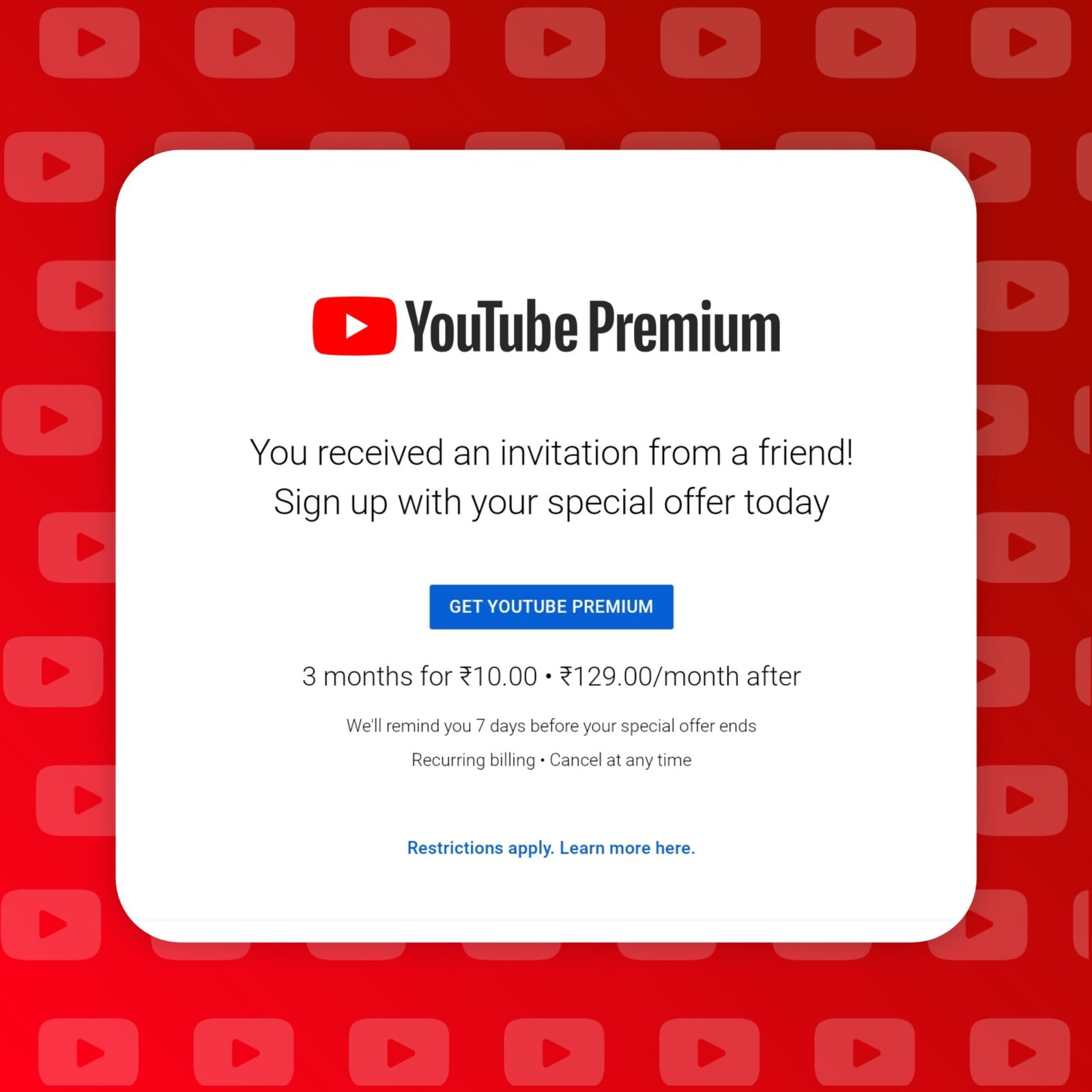
If you need to manage the billing aspect of your subscription, the “Purchases and Memberships” section in the YouTube app provides a clear breakdown of your next billing date, payment method, and the ability to pause or cancel the service. Pausing is a unique technical feature that allows you to stop being billed for up to six months while retaining your library and preferences, which is ideal for users who may be traveling or looking to reduce digital expenses temporarily.
The Evolution of Channel Memberships
In addition to standard subscriptions and YouTube Premium, the platform offers “Channel Memberships.” This is a localized subscription model where viewers pay a monthly fee directly to a specific creator in exchange for badges, emojis, and exclusive content.
Technical Implementation of Member-Only Features
When a user joins a channel membership, the YouTube interface dynamically updates for that user. In the live chat, a custom badge appears next to their name, and they gain access to “Members-only” community posts and videos. These are gated by YouTube’s permissions system, ensuring that only users with an active membership token in their account metadata can access the restricted files on Google’s servers.
Gifting and Community Support
YouTube has recently introduced “Membership Gifting,” a feature that allows users to purchase subscriptions for other viewers. This uses a specialized distribution algorithm that prioritizes active viewers of the channel who are not currently members. This technical integration helps foster community growth and provides a streamlined way for creators to monetize their content beyond traditional ad revenue.
By understanding these various layers of “getting a YouTube subscription,” users can fully customize their digital experience. Whether you are technically optimizing your feed through notification management, upgrading your viewing experience with Premium’s high-bitrate streaming, or supporting creators directly through memberships, YouTube offers a sophisticated suite of tools designed to put the viewer in control of their content consumption.
aViewFromTheCave is a participant in the Amazon Services LLC Associates Program, an affiliate advertising program designed to provide a means for sites to earn advertising fees by advertising and linking to Amazon.com. Amazon, the Amazon logo, AmazonSupply, and the AmazonSupply logo are trademarks of Amazon.com, Inc. or its affiliates. As an Amazon Associate we earn affiliate commissions from qualifying purchases.