
In an era defined by digital content consumption, YouTube stands as a colossal hub for entertainment, education, and inspiration. From viral videos and music clips to in-depth documentaries and live streams, its diverse library caters to billions globally. While mobile devices and computers offer convenient access, the desire to enjoy this rich content on the grandeur of a television screen remains paramount. The immersive experience of a larger display, coupled with superior audio systems, transforms casual viewing into a shared cinematic event. This guide delves into the myriad technological pathways available to bring YouTube from your pocket or desktop directly into your living room, ensuring a professional, insightful, and engaging exploration of each method.

The Ubiquity of YouTube and the Desire for the Big Screen Experience
YouTube has evolved far beyond its humble beginnings as a video-sharing platform. It has become a central pillar of modern media consumption, challenging traditional broadcasting models and fostering a new generation of content creators and viewers. The sheer volume and variety of content available make it an indispensable resource for virtually any interest.
Why Bigger is Better: Enhancing the Viewing Experience
Viewing content on a large screen offers several distinct advantages. Details become clearer, colors more vibrant, and the overall visual impact is significantly heightened. For cinematic content, gaming streams, or even educational lectures, the increased screen real estate contributes to a more engaging and less fatiguing experience. Furthermore, television sets often boast superior sound systems or are connected to external audio setups, delivering an auditory richness that small device speakers simply cannot match. This makes watching YouTube on TV ideal for family viewing, social gatherings, or simply for those who appreciate a more immersive media environment.
YouTube’s Evolution: From Desktop to Living Room
Initially, YouTube was primarily a desktop and laptop phenomenon. However, as smart televisions and dedicated streaming devices gained traction, the platform strategically expanded its presence to these living room hubs. Developers refined the user interface to be intuitive with remote controls, ensuring seamless navigation and discovery of content tailored for a lean-back experience. This evolution reflects a broader trend in technology: the convergence of digital content platforms with home entertainment systems, offering users unparalleled flexibility in how and where they consume their preferred media.
Direct Integration: Smart TVs and Built-in Solutions
The most straightforward and often preferred method for accessing YouTube on a television is through a smart TV. Modern smart televisions come equipped with internet connectivity and a robust operating system that supports a wide array of applications, including the official YouTube app.
Accessing YouTube on Your Smart TV
Most smart TVs from major manufacturers like Samsung, LG, Sony, Panasonic, and others, include the YouTube app pre-installed or readily available for download from their respective app stores. The process typically involves:
- Connecting to the Internet: Ensure your smart TV is connected to your home Wi-Fi network or via an Ethernet cable for optimal performance.
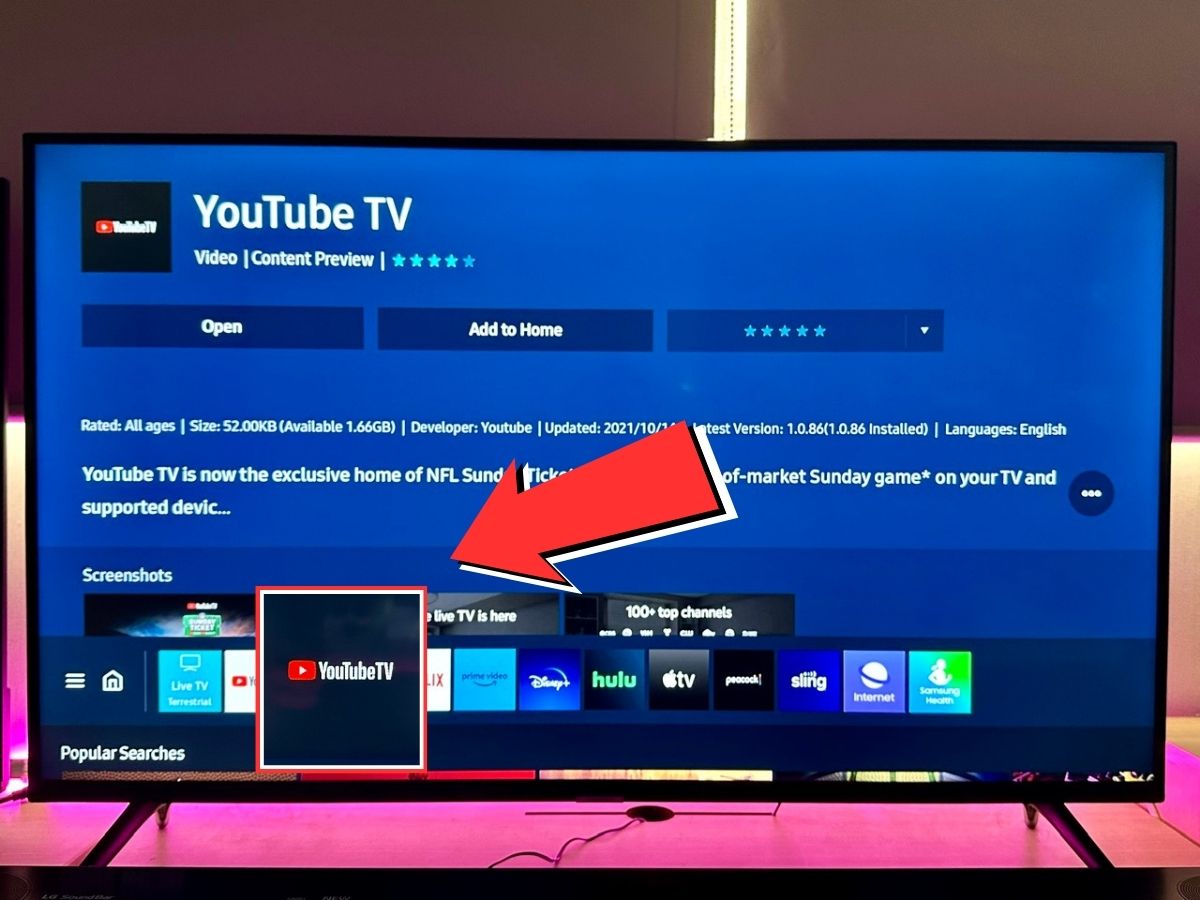
- Locating the App: Navigate to your TV’s home screen or app launcher. Look for the YouTube icon. If it’s not immediately visible, check the “Apps” section or search within the TV’s app store.
- Logging In (Optional but Recommended): Once the app is launched, you can watch content directly. However, to access your subscriptions, watch history, playlists, and personalized recommendations, you’ll need to log in with your Google account. This usually involves either entering your credentials directly on the TV or scanning a QR code with your smartphone and completing the login process on your phone, which is generally more convenient.
- Navigation and Playback: Use your TV’s remote control to browse, search, and play videos. Many smart TV remotes also feature voice control capabilities, allowing for hands-free searching.
Keeping Your Smart TV App Updated
Like any software, the YouTube app on your smart TV benefits from regular updates. Updates often bring new features, performance improvements, and critical security patches. Most smart TVs are configured for automatic updates, but it’s wise to occasionally check manually. Access your TV’s settings, navigate to the app management section, and look for an option to update apps or the system software. Keeping the app current ensures you have the best possible viewing experience and access to the latest functionalities.
Troubleshooting Common Smart TV Issues
While generally reliable, smart TV apps can occasionally encounter hiccups. Common issues include freezing, slow loading, or playback errors.
- Restart the App: Often, simply closing the YouTube app and relaunching it can resolve minor glitches.
- Restart the TV: A full power cycle of your television (unplugging it from the power outlet for a minute and then plugging it back in) can clear temporary software issues.
- Check Internet Connection: Verify that your TV is still connected to the internet and that your Wi-Fi signal is strong.
- Clear Cache/Data: Some smart TVs allow you to clear the cache or data for individual apps. This can resolve persistent issues by removing corrupted temporary files. Be aware that clearing data might log you out of the app.
- Reinstall the App: As a last resort, uninstalling and then reinstalling the YouTube app can fix deeper software conflicts.
Dedicated Streaming Devices: Your Gateway to Endless Content
For televisions that aren’t “smart” or whose smart features feel outdated, dedicated streaming devices offer an excellent and often superior alternative. These compact gadgets plug into your TV’s HDMI port and provide access to a vast ecosystem of streaming apps, including YouTube, with dedicated processors for smooth performance.
Google Chromecast and Google TV: The Native Experience
Google’s own streaming solutions offer deeply integrated YouTube experiences.
- Chromecast (Legacy): These devices primarily function as “receivers” for content cast from a smartphone, tablet, or computer. You open the YouTube app on your mobile device, tap the Cast icon (a rectangle with a Wi-Fi symbol), select your Chromecast, and the video begins playing on your TV, while your phone acts as a remote. This method is incredibly intuitive for mobile-first users.
- Chromecast with Google TV: This newer iteration transforms a regular TV into a full-fledged smart TV experience with a remote control and a user interface powered by Google TV. The YouTube app is pre-installed, offering a traditional app-based browsing experience, much like a smart TV. It also retains the casting functionality of older Chromecasts.
Roku Devices: Simplicity and Broad Compatibility
Roku devices (sticks, boxes, and TVs with built-in Roku OS) are renowned for their user-friendly interface and extensive channel store. The YouTube app is readily available and provides a clean, responsive experience. Roku’s universal search function can also help you find YouTube content alongside results from other streaming services, enhancing content discovery.
Amazon Fire TV Stick: Integrating with the Amazon Ecosystem
Amazon’s Fire TV Stick series offers a robust streaming experience, often bundled with Alexa voice control. The YouTube app is a staple, providing full functionality and deep integration with the Fire TV interface. Its strong tie-in with the Amazon ecosystem makes it a popular choice for Prime members, though it functions perfectly for all YouTube users.
Apple TV: Premium Streaming for Apple Enthusiasts
Apple TV (the set-top box, not the streaming service) provides a premium streaming experience, especially for users invested in the Apple ecosystem. The YouTube app on Apple TV is polished, integrates well with Siri voice commands, and offers high-quality playback, including 4K HDR where available. It’s often chosen for its robust performance and seamless interaction with other Apple devices via AirPlay.
Other Devices: NVIDIA Shield, Gaming Consoles (Xbox, PlayStation)
Beyond the main players, several other devices effectively bring YouTube to your TV:
- NVIDIA Shield TV: A powerful Android TV device known for its gaming capabilities and advanced media playback features. The YouTube app runs flawlessly, often supporting higher quality streams due to its robust processing power.
- Gaming Consoles: Modern consoles like the Xbox One/Series X|S and PlayStation 4/5 all feature dedicated YouTube apps. These apps are optimized for console controllers, offering a familiar interface for gamers. They provide a high-quality streaming experience, leveraging the console’s powerful hardware.
Casting and Screen Mirroring: Wireless Convenience
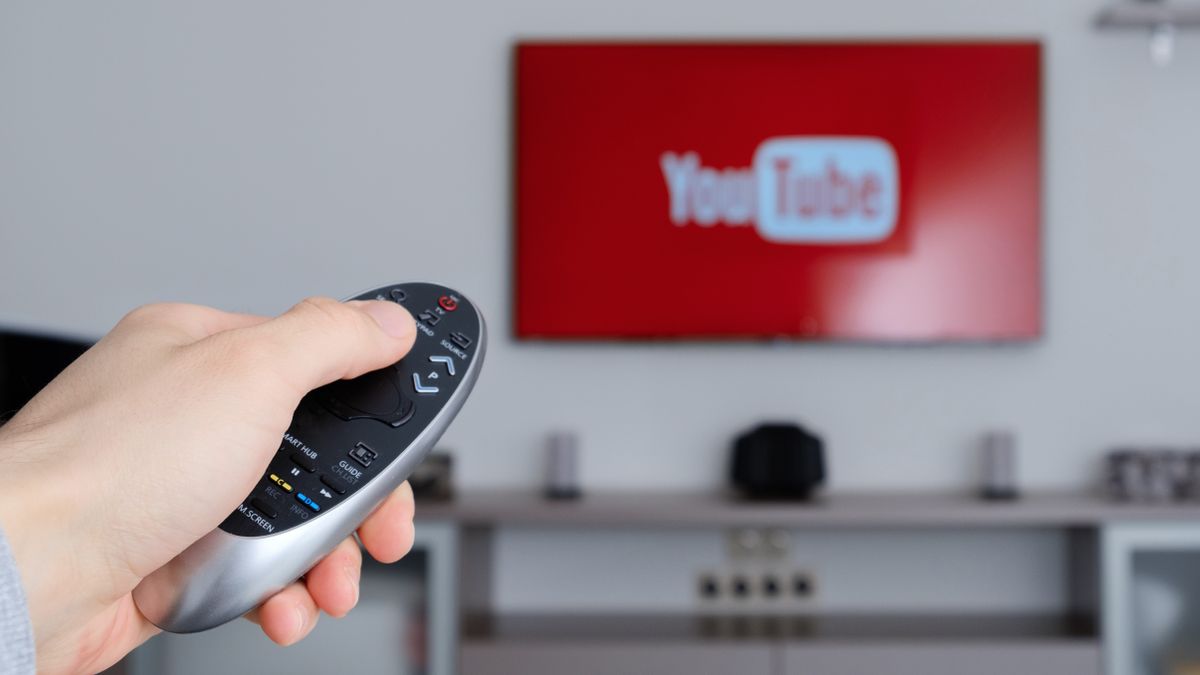
Sometimes, you might want to quickly share a video from your phone or mirror your entire device screen to your TV. Casting and screen mirroring technologies offer this wireless flexibility, making them invaluable tools in the tech arsenal.
Understanding Chromecast Built-in and Google Cast
Many smart TVs and streaming devices now come with “Chromecast built-in” (also known as Google Cast). This technology allows you to cast content directly from YouTube (or other Cast-enabled apps) on your smartphone, tablet, or Chrome browser to your TV without needing a separate Chromecast dongle. It’s a highly efficient method where the TV retrieves the content directly from the internet after receiving instructions from your phone, preserving battery life on your mobile device.
AirPlay for Apple Devices
Apple’s AirPlay technology provides a similar casting experience for users with Apple devices (iPhones, iPads, Macs) and AirPlay 2-compatible smart TVs or Apple TV devices. From the YouTube app on an Apple device, tap the AirPlay icon (a rectangle with an upward-pointing arrow) and select your AirPlay-enabled TV. The video will then play on your television. AirPlay offers robust performance and excellent integration within the Apple ecosystem.
Screen Mirroring (Miracast, Smart View) Explained
Screen mirroring is distinct from casting. While casting sends specific media content to the TV, screen mirroring duplicates your entire device’s display onto the television. Technologies like Miracast (found on many Android devices and Windows PCs) and Samsung’s Smart View enable this. To use it, your TV must support the specific mirroring protocol. This is useful for showing photos, presentations, or anything else that appears on your device screen, including the YouTube interface itself, though it’s generally less optimized for video playback than direct casting.
Tips for Optimal Wireless Performance
Wireless streaming relies heavily on a stable and robust network.
- Strong Wi-Fi Signal: Ensure your TV or streaming device is within good range of your Wi-Fi router. Consider a mesh Wi-Fi system or a Wi-Fi extender if coverage is poor.
- Minimize Interference: Other wireless devices, microwave ovens, and even physical obstructions can interfere with Wi-Fi signals. Try to reduce these sources of interference.
- Router Placement: Position your router centrally and elevated for better signal distribution.
- Bandwidth: If multiple devices are actively streaming or downloading, your network bandwidth might be strained. Consider a higher-speed internet plan if consistently experiencing buffering.
Wired Connections: The Reliable Analog Method
Despite the convenience of wireless technologies, sometimes a good old-fashioned wired connection is the most reliable path, especially when dealing with older equipment or challenging network environments.
Connecting a Computer via HDMI
Virtually all modern televisions and computer monitors have HDMI (High-Definition Multimedia Interface) ports. This is the simplest and most effective way to connect a computer (laptop or desktop) to your TV:
- HDMI Cable: Obtain an HDMI cable of suitable length.
- Connect Ports: Plug one end into your computer’s HDMI output and the other into an available HDMI input on your TV.
- Select Input: Use your TV’s remote control to select the correct HDMI input source.
- Configure Display Settings: On your computer, navigate to display settings. You can choose to duplicate your computer’s screen on the TV or extend your desktop, allowing you to use the TV as a second monitor. Adjust resolution for optimal viewing if needed.
- Audio: HDMI cables transmit both video and audio. Ensure your computer’s audio output is set to the HDMI device to play sound through your TV speakers.
USB-C to HDMI Adapters for Laptops and Tablets
Many newer laptops and some tablets feature USB-C ports with “DisplayPort Alternate Mode” capability. This allows them to output video signals. With a USB-C to HDMI adapter or a USB-C dock with an HDMI port, you can connect these devices to your TV just like a traditional HDMI output. This is a common solution for sleek ultrabooks that may lack a dedicated HDMI port.
When Wired is the Best Option: Stability and Quality
Wired connections offer unmatched stability and often superior quality, especially for high-resolution content or situations where wireless interference is problematic. There’s no buffering due to Wi-Fi fluctuations, and the direct digital signal transmission minimizes potential loss of fidelity. This method is particularly recommended for critical viewing, gaming from a PC to a TV, or when troubleshooting persistent wireless streaming issues.
Optimizing Your YouTube on TV Experience
Getting YouTube onto your TV is just the first step. To truly elevate your viewing, consider these optimization tips.
Ensuring a Strong Wi-Fi Connection
As reiterated, a robust and stable Wi-Fi connection is paramount for any streaming activity. Beyond the basic checks, consider upgrading to a newer Wi-Fi router that supports Wi-Fi 6 (802.11ax) for improved speeds and efficiency, especially in congested network environments. Prioritize your streaming device in your router’s Quality of Service (QoS) settings if available.
Adjusting Video Quality Settings
YouTube automatically adjusts video quality based on your internet speed, but you can manually override this. Within the YouTube app on your TV, during playback, look for the ‘Settings’ or ‘Gear’ icon. Here, you can select specific resolutions (e.g., 1080p, 4K) if your internet connection and TV support them. Higher resolutions consume more bandwidth but offer a significantly sharper image.
Personalizing Your YouTube Interface
Take advantage of your YouTube account’s personalization features. Log in to your account on the TV app to access your subscriptions, watch history, custom playlists, and ‘Watch Later’ queue. The TV interface is often optimized for content discovery, offering curated recommendations based on your viewing habits, which can be further refined by liking or disliking videos.
Exploring YouTube Premium Benefits
For an uninterrupted, ad-free experience, consider a YouTube Premium subscription. Beyond removing ads, Premium subscribers gain access to background playback on mobile devices, downloads for offline viewing, and YouTube Music Premium. While primarily mobile-centric benefits, the ad-free experience seamlessly extends to your TV, making extended viewing sessions more enjoyable.
Conclusion: Embracing the Future of Television
The journey to bring YouTube to your television is a testament to the ongoing evolution of home entertainment technology. Whether through the integrated intelligence of a smart TV, the versatility of a dedicated streaming device, the convenience of wireless casting, or the steadfast reliability of a wired connection, myriad options exist to suit every setup and preference. By understanding these diverse methods and optimizing your viewing environment, you unlock the full potential of YouTube on the big screen, transforming your living room into a dynamic hub for endless digital content. Embrace the future of television, where the line between traditional broadcast and online streaming continues to blur, offering you unprecedented control over your entertainment experience.
aViewFromTheCave is a participant in the Amazon Services LLC Associates Program, an affiliate advertising program designed to provide a means for sites to earn advertising fees by advertising and linking to Amazon.com. Amazon, the Amazon logo, AmazonSupply, and the AmazonSupply logo are trademarks of Amazon.com, Inc. or its affiliates. As an Amazon Associate we earn affiliate commissions from qualifying purchases.