
Roku devices have revolutionized home entertainment, providing a straightforward gateway to an expansive universe of streaming content. For many users, YouTube stands as a cornerstone of this digital landscape, offering everything from viral videos and educational tutorials to music, documentaries, and live streams. Integrating YouTube seamlessly into your Roku experience is a fundamental step for anyone looking to maximize their streaming potential. This guide will walk you through the process, ensuring you can enjoy YouTube’s vast library directly on your television via your Roku device.
Understanding Roku and YouTube Compatibility
Before diving into installation, it’s beneficial to understand the relationship between Roku devices and the YouTube platform. Roku operates as a dedicated streaming hardware ecosystem, designed to host and deliver various “channels” (apps) to your TV. YouTube, as one of the world’s largest video platforms, is a standard offering within this ecosystem, ensuring broad compatibility across most modern Roku devices.

Roku Device Generations
Roku has released numerous devices over the years, from early streaming sticks to high-end Ultra boxes and integrated Roku TVs. Generally, any Roku device running a relatively recent version of the Roku operating system (Roku OS) will fully support the official YouTube channel. Extremely old or entry-level models might have slight performance differences, but the core functionality for YouTube remains consistent. Always ensure your Roku device is updated to the latest available software version for optimal performance and access to new features.
The Official YouTube Channel
The primary way to access YouTube on Roku is through its official channel. This app is developed and maintained by Google (YouTube’s parent company) to provide a tailored viewing experience for the Roku platform. It offers most of the features found on other smart TV apps, including personalized recommendations, subscription feeds, watch history, and the ability to sign in to your YouTube account for a synchronized experience. There’s also a separate “YouTube TV” channel, which is a live TV streaming service and distinct from the standard YouTube video platform. This guide focuses on the standard YouTube application.
YouTube TV vs. Standard YouTube
It’s crucial to differentiate between the standard YouTube application and YouTube TV. The “YouTube” channel provides access to the vast library of user-generated content, official music videos, movie trailers, and more that you typically browse on a web browser or mobile app. “YouTube TV,” on the other hand, is a subscription-based service offering live TV channels from major networks, sports, news, and on-demand content, designed to replace traditional cable. While both are available on Roku, they are separate applications and require different subscriptions/logins. This article pertains to the standard, free YouTube platform.
Step-by-Step Guide to Installing YouTube
Installing the YouTube channel on your Roku device is a straightforward process, primarily accomplished through the Roku Channel Store.
Using the Roku Channel Store
The Roku Channel Store is your central hub for discovering and adding new channels.
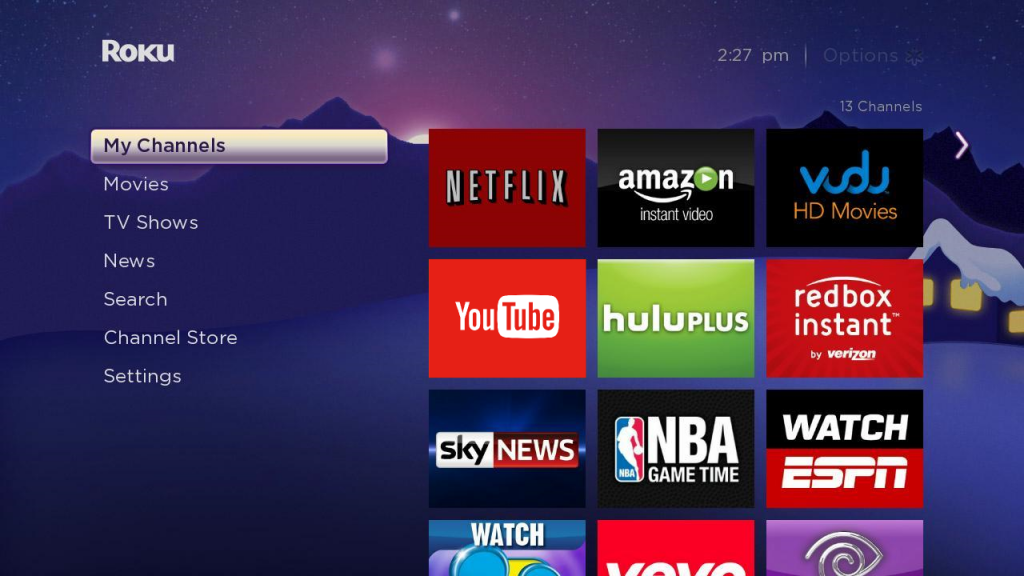
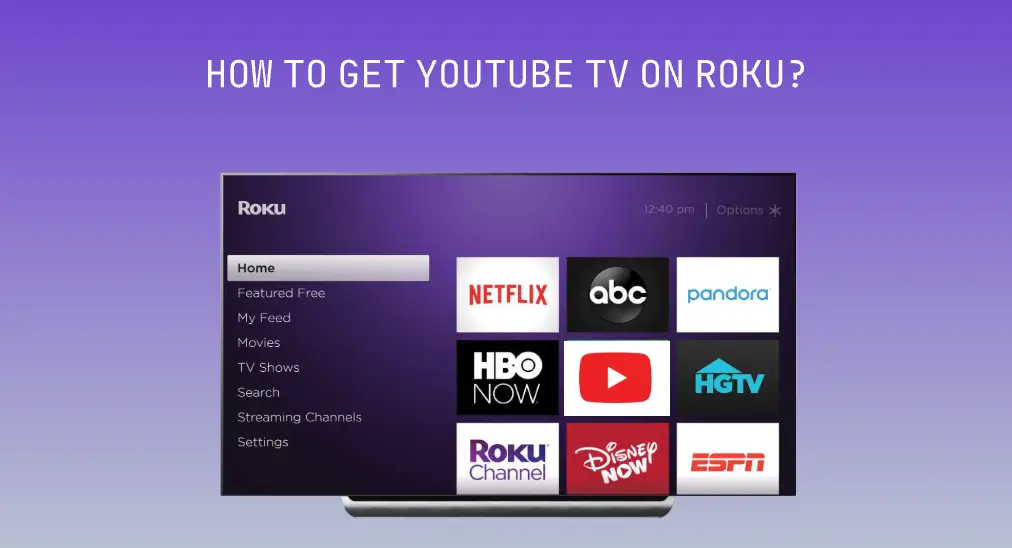
- Navigate to the Roku Home Screen: Turn on your TV and select the HDMI input connected to your Roku device. From the Roku home screen, scroll down using your remote’s directional pad.
- Select “Streaming Channels”: This option usually appears towards the bottom of the left-hand menu. Selecting it will open the Roku Channel Store.
- Search for YouTube: Once in the Channel Store, you can either browse categories or use the search function. It’s often quicker to use search. Select “Search Channels” (usually represented by a magnifying glass icon).
- Type “YouTube”: Using the on-screen keyboard, enter “YouTube.” As you type, relevant results will appear. Select the official “YouTube” channel from the list. Ensure it’s the standard YouTube app, often depicted with its familiar red and white logo, not “YouTube TV.”
- Add Channel: On the channel’s detail page, select “Add channel.” Your Roku device will then download and install the app.
- Locate and Launch: Once installed, a confirmation message will appear. You can choose to “Go to channel” immediately, or you can find it later on your Roku home screen, usually at the bottom of your channel list. You can reposition it higher in the list by highlighting the channel, pressing the asterisk (*) button on your remote, and selecting “Move channel.”
Adding via the Roku Mobile App
For those who prefer using their smartphone or tablet, the Roku mobile app offers a convenient alternative for adding channels.
- Download the Roku App: If you haven’t already, download the official Roku app from your device’s app store (Google Play Store for Android, Apple App Store for iOS).
- Connect to Your Roku: Open the app and ensure your mobile device is connected to the same Wi-Fi network as your Roku. The app should automatically detect and connect to your Roku player.
- Navigate to Channels: Within the Roku app, find the “Channels” or “Channel Store” section.
- Search and Add: Use the search bar to find “YouTube.” Select the YouTube channel and then tap “Add channel” on your mobile device. The channel will then be installed on your Roku player.
Reinstalling or Troubleshooting
If you previously had YouTube installed but it’s no longer working correctly, or if you accidentally deleted it, the process to reinstall is the same as adding it for the first time. If the channel is installed but not functioning, removing it and then reinstalling can often resolve minor glitches. To remove a channel:
- On the Roku home screen, highlight the YouTube channel.
- Press the asterisk (*) button on your Roku remote.
- Select “Remove channel” from the options.
- Confirm the removal, then follow the steps above to add it again.
Enhancing Your YouTube on Roku Experience
Once YouTube is installed, there are several steps you can take to personalize and optimize your viewing experience.
Linking Your YouTube Account
To access your subscriptions, watch history, personalized recommendations, and playlists, you’ll need to link your Google/YouTube account.
- Open the YouTube App: Launch the YouTube channel on your Roku.
- Select “Sign In”: You’ll typically find a “Sign In” option on the left-hand menu.
- Follow On-Screen Instructions: The app will provide a code and instruct you to visit
youtube.com/activateon a computer or mobile device. - Enter the Code: On your external device, sign into your Google account (if not already) and then enter the activation code provided by the Roku app.
- Confirm: Once activated, your Roku’s YouTube app will refresh, displaying your personalized YouTube home screen.
Optimizing Playback Settings
YouTube offers various playback settings to enhance your viewing.
- Video Quality: Within a playing video, you can usually press the down arrow on your remote to bring up playback options, including video quality. If you have a fast internet connection and a high-definition TV, select the highest available resolution (e.g., 1080p, 4K). If you’re experiencing buffering, lowering the quality can help.
- Captions/Subtitles: Many videos offer closed captions. During playback, you can often enable or disable them through the on-screen options. You can also customize their appearance in the YouTube app’s general settings.
- Autoplay: The YouTube app usually has an “Autoplay” feature enabled by default, which automatically plays the next recommended video. You can toggle this off within the app’s settings or during video playback if you prefer to manually select subsequent content.
Voice Search and Remote Shortcuts
Modern Roku devices, especially those with voice remotes, significantly enhance the YouTube experience.
- Voice Search: If your Roku remote has a microphone button, press and hold it, then simply say “YouTube” to launch the app, or say “Search YouTube for ” to directly find content within the app.
- Remote Shortcuts: The asterisk (*) button on your Roku remote is a context-sensitive menu button. When a channel is highlighted on the home screen, it allows you to move, remove, or check for updates. Within the YouTube app itself, it might bring up specific options depending on what you’re doing.
Common Issues and Troubleshooting Tips
While the YouTube app on Roku is generally stable, occasional issues can arise. Here are some common problems and their solutions.
Channel Not Loading or Crashing
If the YouTube app won’t open, crashes frequently, or displays an error message:
- Restart Roku: The simplest fix is often a device restart. Go to
Settings > System > Power > System restarton your Roku. For older models without a power menu, unplug the Roku device from its power source for 10-15 seconds, then plug it back in. - Check for Channel Updates: Highlight the YouTube channel on the home screen, press the asterisk (*) button, and select “Check for updates.”
- Reinstall Channel: As mentioned before, remove the channel and then add it again from the Channel Store. This clears any corrupted data.
- Check Internet Connection: Ensure your Roku is properly connected to your Wi-Fi network. You can check this in
Settings > Network > Check connection.
Buffering and Playback Problems
Lagging, frequent buffering, or poor video quality despite a high-speed internet connection can be frustrating.
- Internet Speed: Confirm your internet speed meets YouTube’s recommendations (e.g., at least 3 Mbps for standard definition, 20 Mbps for 4K). You can test your internet speed using a device connected to the same network.
- Router Proximity: Move your Roku closer to your Wi-Fi router or eliminate obstructions. If possible, consider using a wired Ethernet connection for Roku Ultra models.
- Reduce Network Congestion: If other devices on your network are heavily using bandwidth (e.g., large downloads, multiple streaming devices), pause or reduce their activity.
- Change Video Quality: Manually lower the video quality within the YouTube app’s playback settings to see if performance improves.
- Clear Cache (Implied by Reinstall): While Roku doesn’t offer a direct “clear cache” for individual apps, reinstalling the channel effectively achieves this.
Account Sync Errors
If your YouTube account isn’t syncing properly, or you can’t sign in:
- Re-activate Account: Sign out of your YouTube account on the Roku app and then re-link it using the
youtube.com/activatemethod. - Check Google Account: Ensure your Google account itself is active and has no issues. Try logging into YouTube on a computer or phone to confirm.
- Date and Time Settings: Incorrect date and time settings on your Roku device can sometimes interfere with secure connections and account logins. Verify these are set correctly in
Settings > System > Time.
Outdated Roku Software
Running an old version of Roku OS can lead to compatibility issues with updated apps.
- Check for Roku OS Updates: Go to
Settings > System > System update > Check now. Install any available updates and then restart your device.
By understanding these common scenarios and applying the appropriate troubleshooting steps, you can maintain a smooth and enjoyable YouTube viewing experience on your Roku device. The integration of YouTube is a core feature that enhances the utility of any Roku streamer, opening up a world of content at your fingertips.
aViewFromTheCave is a participant in the Amazon Services LLC Associates Program, an affiliate advertising program designed to provide a means for sites to earn advertising fees by advertising and linking to Amazon.com. Amazon, the Amazon logo, AmazonSupply, and the AmazonSupply logo are trademarks of Amazon.com, Inc. or its affiliates. As an Amazon Associate we earn affiliate commissions from qualifying purchases.