
The transition of digital video from the small screens of desktop monitors to the expansive canvases of modern 4K and 8K televisions represents one of the most significant shifts in home entertainment history. YouTube, once a repository for low-resolution viral clips, has evolved into a sophisticated streaming titan offering high-bitrate HDR content, live television, and professional-grade cinema. Bringing this ecosystem into your living room is no longer a matter of simply plugging in a cable; it involves navigating a complex landscape of operating systems, hardware protocols, and network configurations.

Whether you are looking to revitalize an older “dumb” television or optimize the experience on the latest OLED panel, understanding the technical pathways available is essential. This guide explores the diverse methods of integrating YouTube into your home theater setup, focusing on hardware compatibility, software optimization, and the technical nuances that ensure a seamless viewing experience.
The Era of Smart TV Integration
For the majority of modern consumers, the easiest way to access YouTube is through the native operating system of a Smart TV. Manufacturers like Samsung, LG, Sony, and Vizio have integrated sophisticated software layers designed to handle high-bandwidth streaming without the need for external peripherals.
Understanding Smart TV Operating Systems
The experience of YouTube on a Smart TV varies significantly depending on the underlying platform. Samsung utilizes Tizen OS, LG employs webOS, and many others, including Sony and Hisense, have adopted Android TV or Google TV.
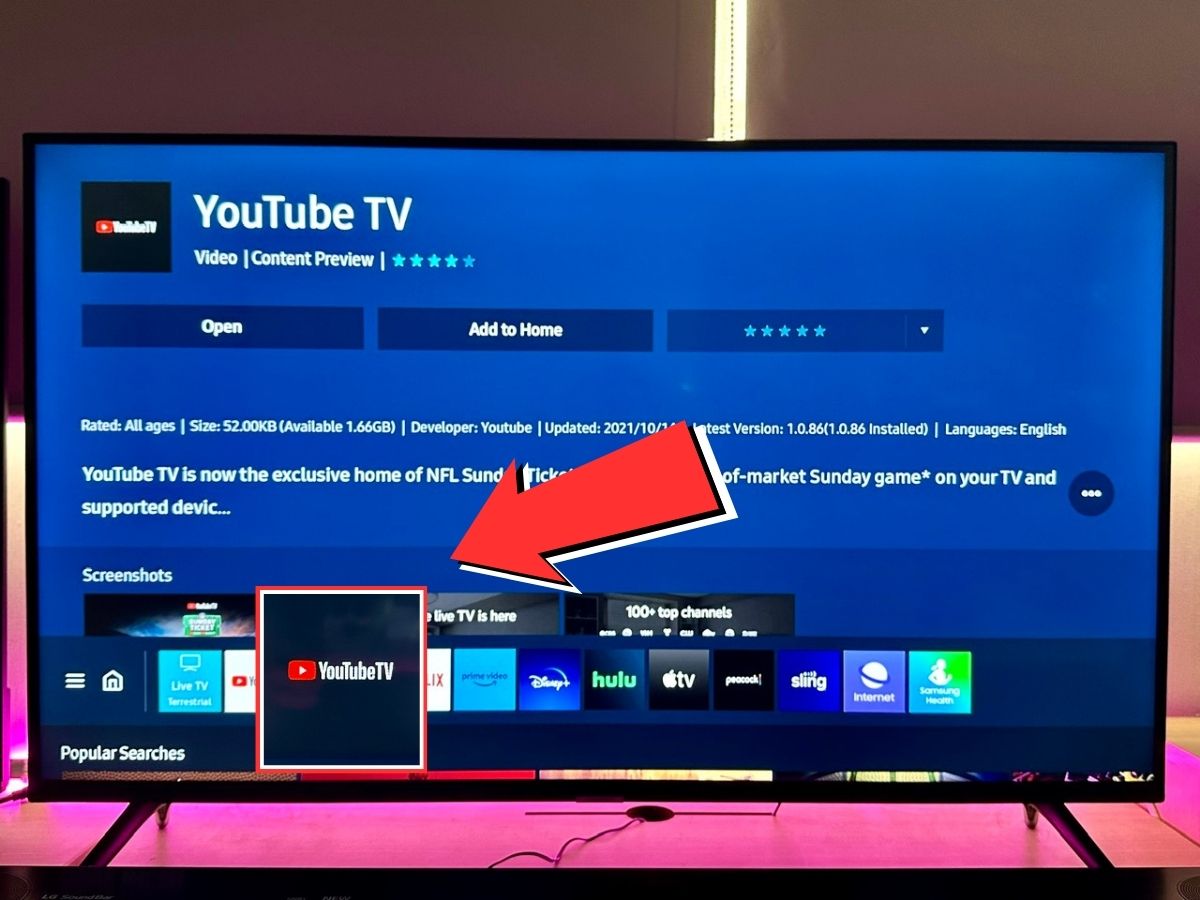
To get started, you must ensure your television is connected to a stable internet connection via Wi-Fi or, preferably, an Ethernet cable for 4K playback. Most modern TVs come with the YouTube app pre-installed. If it is missing, you must navigate to the platform’s specific app store (e.g., the LG Content Store or the Google Play Store), search for “YouTube,” and initiate the download.
Authentication and Synchronized Viewing
Once the app is installed, the technical challenge often lies in the “Sign In” process. Rather than using a clunky on-screen keyboard via a remote control, most Smart TV apps utilize an OAuth-based authentication system. When you select “Sign In,” the TV displays a code. By visiting youtube.com/activate on a smartphone or laptop logged into your Google account, you can bridge the devices. This technical handshake allows your TV to access your subscriptions, history, and “Watch Later” playlists without exposing your password directly to the TV’s hardware.
Firmware and App Maintenance
A common technical hurdle is the “app hang” or “connection error.” To avoid these, users must ensure both the YouTube app and the TV’s firmware are updated. Developers frequently release patches to support new video codecs—such as the transition from VP9 to AV1—which improve compression efficiency and visual fidelity. Regular updates ensure that the hardware decoders in your TV remain compatible with YouTube’s evolving delivery standards.
Dedicated Streaming Media Players
For users with older televisions or those who find their TV’s built-in software sluggish, dedicated streaming media players (SMPs) offer a superior technical solution. These devices are specialized computers designed for a single task: decoding and rendering high-quality video.
The Power of HDMI Dongles and Boxes
Devices like the Chromecast with Google TV, Roku Streaming Stick, and Amazon Fire TV Stick connect directly to a television’s HDMI port. These devices often boast more powerful processors and more RAM than the chips found inside mid-range Smart TVs.
The installation process is straightforward:
-
Insert the device into an available HDMI 2.0 or 2.1 port.
-
Power the device using the provided USB cable and wall adapter (avoiding the TV’s USB port if it provides insufficient amperage).
-
Follow the on-screen setup to connect to the local network.
-
Download the YouTube app from the device’s proprietary store.
High-End Performance: Apple TV and Nvidia Shield
For the tech enthusiast, the Apple TV 4K or the Nvidia Shield TV Pro represent the pinnacle of YouTube playback. The Nvidia Shield, for example, utilizes AI upscaling to enhance lower-resolution YouTube content to near-4K quality. Meanwhile, the Apple TV offers a highly polished interface and deep integration with the Apple ecosystem. These devices support higher bitrates and advanced audio pass-through, making them the preferred choice for users with high-end sound systems.

Codec Compatibility and HDR
A critical technical consideration when choosing hardware is support for HDR10 and HLG (Hybrid Log-Gamma), the formats YouTube uses for High Dynamic Range. Not all streaming sticks support YouTube’s specific implementation of HDR. When selecting a device, ensure it supports VP9 Profile 2 or the newer AV1 codec, as these are required to trigger the HDR metadata on your display.
Gaming Consoles as Media Hubs
If you own a PlayStation 5, Xbox Series X, or even previous-generation hardware like the PS4 and Xbox One, you already possess a highly capable YouTube streaming machine. Gaming consoles are built with massive graphical processing power, making them exceptionally stable for video playback.
Setting Up the Console Environment
On a PlayStation, the YouTube app is located under the “Media” tab or within the PlayStation Store. On Xbox, it is found in the Microsoft Store. Because consoles are designed for high-speed gaming, they often feature superior Wi-Fi antennas and gigabit Ethernet ports, which helps in maintaining a buffer-free 4K stream.
Controller vs. Remote Navigation
One drawback of using a console is the interface; navigating a video app with a dual-axis controller can be cumbersome. However, most modern consoles support HDMI-CEC (Consumer Electronics Control). When enabled in the console’s settings, this allows you to use your standard TV remote to navigate the YouTube app on the console. Additionally, both Sony and Microsoft sell dedicated media remotes for those who use their consoles as primary streaming hubs.
Wireless Casting and Mobile Integration
One of the most versatile ways to get YouTube on a TV is through wireless protocols like Google Cast (formerly Chromecast built-in) and Apple AirPlay 2. This method turns your smartphone or tablet into the “remote” while the TV handles the actual data stream.
How Casting Works
When you tap the “Cast” icon in the YouTube mobile app, you aren’t actually sending video from your phone to the TV. Instead, your phone sends a signal to the TV (or streaming device) containing the video’s URL and timestamp. The TV then opens its own hidden YouTube player and pulls the data directly from the internet. This preserves battery life on your mobile device and ensures the highest possible resolution.
AirPlay 2 for Apple Users
For users in the Apple ecosystem, many modern TVs from Sony, LG, and Samsung now support AirPlay 2. This allows you to “mirror” your screen or, more efficiently, “AirPlay” a specific YouTube video to the screen. This is particularly useful for sharing unlisted videos or quickly showing a clip to a group without signing into an account on the TV itself.
The “Link with TV Code” Method
In environments where devices aren’t on the same Wi-Fi network—such as a hotel or a university dormitory—the “Link with TV Code” feature is a vital workaround. By navigating to the “Settings” menu within the YouTube app on the TV and selecting “Link with TV Code,” you are provided with a numeric string. Entering this code into the mobile app’s “Watch on TV” settings establishes a direct peer-to-peer link, bypassing the need for complex network discovery protocols like mDNS.
Optimizing Performance and Digital Security
Successfully getting YouTube onto your TV is only the first step. Ensuring that the stream is high-quality and your data is secure requires a deeper dive into technical settings.
Network Stability and Bandwidth Management
To stream YouTube in 4K, a consistent download speed of at least 25 Mbps is required. However, network congestion in the 2.4 GHz spectrum (common in apartment buildings) can cause “dropped frames” and buffering. To optimize this:
-
Use the 5 GHz band: If your TV or streaming stick is close to the router, use the 5 GHz Wi-Fi band for higher throughput and less interference.
-
Ethernet is King: For 4K HDR content, a hardwired Cat6 Ethernet connection eliminates the variables of wireless interference.
-
Check “Stats for Nerds”: Within the YouTube app settings on most TVs, you can enable “Stats for Nerds.” This overlay shows real-time data on your connection speed, current resolution, and dropped frames, allowing for precise troubleshooting.
Privacy and Account Security
As your TV becomes a hub for your Google account, security is paramount. Smart TVs are notoriously lax regarding software security updates compared to smartphones. To protect your digital identity:
-
Enable Two-Factor Authentication (2FA): Ensure your Google account is protected by 2FA.
-
Use Guest Mode: if you are in a shared living space, use YouTube’s “Guest Mode” or “Incognito” to prevent your viewing habits from affecting your account’s recommendation algorithm.
-
Limit Ad Tracking: Navigate to the TV’s system settings to limit personalized ad tracking, which prevents the TV manufacturer from harvesting your viewing data to sell to third-party marketers.
By understanding these various hardware and software pathways, you can transform your television into a powerful window into the world of YouTube, tailored to your specific technical requirements and hardware availability.
aViewFromTheCave is a participant in the Amazon Services LLC Associates Program, an affiliate advertising program designed to provide a means for sites to earn advertising fees by advertising and linking to Amazon.com. Amazon, the Amazon logo, AmazonSupply, and the AmazonSupply logo are trademarks of Amazon.com, Inc. or its affiliates. As an Amazon Associate we earn affiliate commissions from qualifying purchases.