
In an age where digital content reigns supreme, YouTube has solidified its position as a cornerstone of online entertainment, education, and community. While the convenience of watching videos on a smartphone, tablet, or computer is undeniable, there’s a unique satisfaction in experiencing your favorite creators, documentaries, music videos, and live streams on the expansive canvas of a television screen. The larger display, superior audio, and communal viewing potential transform the YouTube experience from personal consumption to a shared, immersive event. Fortunately, the evolution of smart home technology and media streaming has made getting YouTube onto your TV simpler and more accessible than ever before, regardless of your television’s age or capabilities.

This comprehensive guide delves into the myriad technical methods available, offering insights and step-by-step instructions to help you unlock the full potential of YouTube on your big screen. From the seamless integration of smart TVs to the versatility of streaming devices, wireless casting solutions, and even reliable wired connections, we’ll explore each avenue, ensuring you can choose the optimal approach for your home setup and technical comfort level.
Direct Integration: Smart TVs and Built-in Apps
The most straightforward and often preferred method for accessing YouTube on a TV is through a smart television. Modern smart TVs are essentially televisions with integrated internet connectivity and an operating system, allowing them to run applications much like a smartphone or tablet. This built-in intelligence eliminates the need for external hardware, offering a streamlined and intuitive user experience.
Identifying a Smart TV
If you’ve purchased a television in the last five to ten years, there’s a high probability it’s a smart TV. Brands like Samsung (Tizen OS), LG (webOS), Sony (Android TV/Google TV), Vizio, TCL (Roku TV), and others incorporate smart platforms directly into their sets. You can usually identify a smart TV by the presence of a dedicated “Home” or “Smart Hub” button on its remote control, or by the appearance of an app-centric interface when you turn it on. If in doubt, consult your TV’s manual or look for its specifications online using the model number.
Navigating to the YouTube App
Once you’ve confirmed you have a smart TV, accessing YouTube is typically very simple.
- Turn on your TV: Ensure it’s connected to your home Wi-Fi network. This is a crucial first step; most smart TVs will prompt you to connect during the initial setup. If not, navigate to the network settings in your TV’s menu.
- Go to the Home Screen/Smart Hub: Press the designated “Home” or “Smart” button on your remote. This will bring up an interface displaying various installed applications and streaming services.
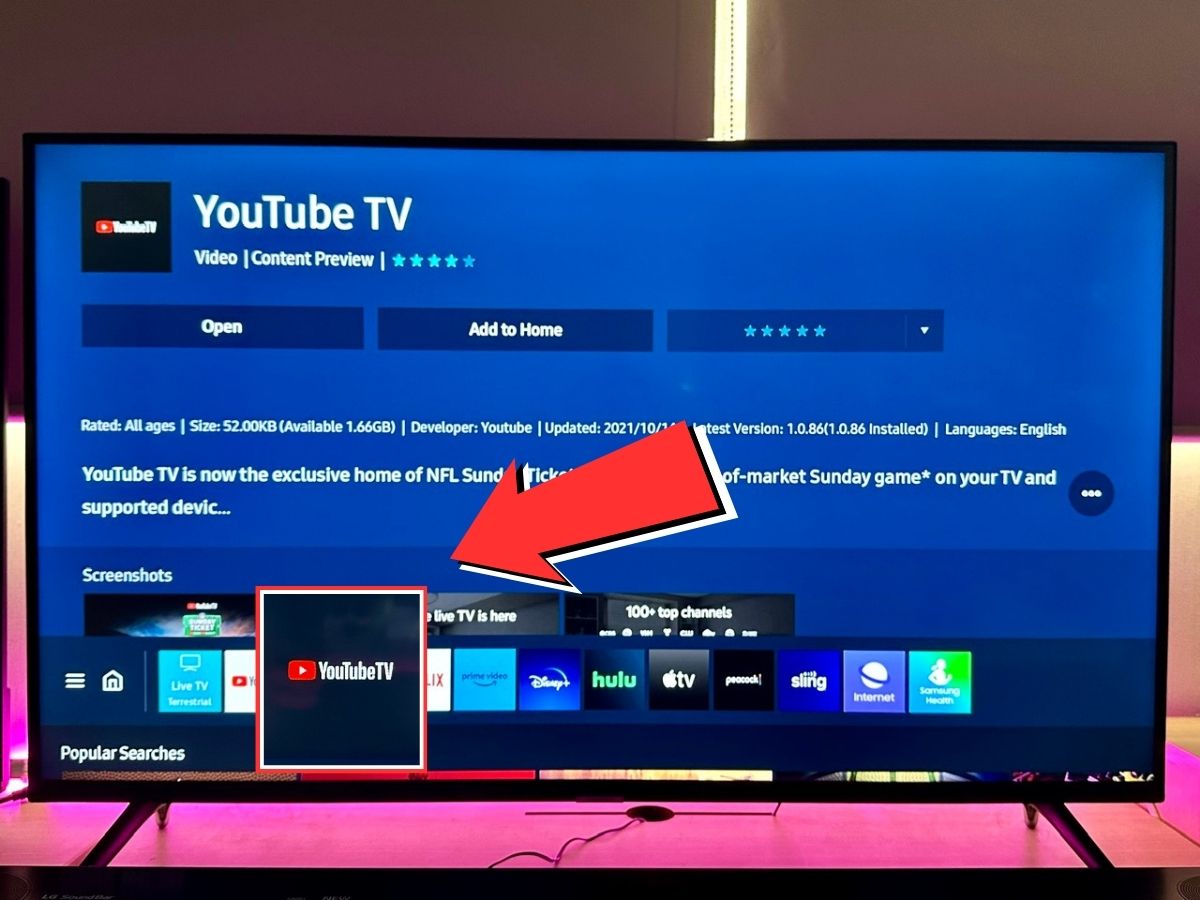
- Locate the YouTube App: YouTube is almost universally pre-installed on smart TVs. Look for its distinctive red play button logo. If you can’t find it immediately, it might be in an “Apps” section or a customizable row.
- Launch the App: Select the YouTube icon to open the application.
Signing In for Personalized Experience
While you can browse and watch many videos without signing in, logging into your Google account (which is linked to your YouTube account) unlocks a personalized experience. This includes access to your subscriptions, watch history, playlists, recommendations tailored to your viewing habits, and the ability to comment or like videos.
- Open YouTube: Launch the app on your TV.
- Navigate to Sign In: Look for a “Sign In” option, usually found in the left-hand menu or settings.
- Follow On-Screen Prompts: Your TV will typically provide a code or a QR code and instruct you to visit
youtube.com/activateon a computer or mobile device. - Enter the Code: On your external device, sign into your Google account and enter the code displayed on your TV. Once activated, your TV’s YouTube app will sync with your account.
Troubleshooting Common Smart TV App Issues
Occasionally, you might encounter issues like slow loading, freezing, or an unresponsive app.
- Restart the App: Close the YouTube app and reopen it.
- Restart the TV: Unplug your TV from the power outlet for a minute, then plug it back in. This performs a hard reset, often resolving minor glitches.
- Check Internet Connection: Ensure your Wi-Fi is stable and strong. Run a speed test on another device.
- Update TV Software: Navigate to your TV’s settings and check for system software updates. Outdated firmware can cause app compatibility issues.
- Reinstall App (if possible): Some smart TV platforms allow you to uninstall and reinstall apps, which can clear corrupted data.
Streaming Devices: Bridging the Gap for Non-Smart TVs
For those with older, non-smart TVs, or even smart TVs with clunky interfaces, external streaming devices offer a powerful and often superior YouTube experience. These compact gadgets plug into your TV’s HDMI port and provide a dedicated platform for streaming apps, including a robust YouTube client.
Popular Streaming Sticks and Boxes
The market is rich with excellent streaming devices, each with its own ecosystem and features:
- Roku (Sticks, Express, Ultra): Known for its simple interface and extensive app selection.
- Amazon Fire TV (Stick, Cube): Deeply integrated with Amazon’s ecosystem, often featuring Alexa voice control.
- Apple TV (HD, 4K): Premium device with a focus on seamless integration with Apple products and services, great performance.
- Google Chromecast (with Google TV, or older basic Chromecast): The basic Chromecast allows casting from mobile devices, while Chromecast with Google TV offers a full app-based interface and remote.
- Android TV/Google TV devices: Various manufacturers (e.g., Nvidia Shield TV, Onn Google TV box) produce devices running Google’s TV operating system, offering a wide range of apps and Google Assistant integration.
Setup Process for Streaming Devices
The setup process for most streaming devices is remarkably similar:
- Plug In: Connect the device to an available HDMI port on your TV. Many sticks also require external power via a USB cable, which can often be plugged into a USB port on your TV or a wall adapter.
- Switch Input: Use your TV remote’s “Input” or “Source” button to select the HDMI input where your streaming device is connected.
- Initial Device Setup: Follow the on-screen instructions from the streaming device. This will typically involve selecting your language, region, and connecting to your home Wi-Fi network.
- Account Creation/Login: You’ll usually need to create an account for the streaming platform (e.g., Roku account, Amazon account) or log in if you already have one.
Connecting to Wi-Fi and Installing YouTube
Wi-Fi connectivity is paramount for any streaming device. During the initial setup, you’ll be prompted to select your Wi-Fi network and enter the password. Once connected, you can proceed to install the YouTube app.
- Navigate to App Store: On your streaming device’s home screen, look for an “App Store,” “Channels,” or “Apps” section.
- Search for YouTube: Use the search function (often represented by a magnifying glass icon) and type “YouTube.”
- Install the App: Select the official YouTube app and follow the prompts to install it.
- Launch and Sign In: Once installed, launch the YouTube app. The sign-in process is identical to that on a smart TV, involving a code and
youtube.com/activate.
Remote Control and Voice Commands
Most streaming devices come with their own dedicated remote controls, making navigation intuitive. Many also feature voice search capabilities, allowing you to simply speak your desired video or channel into the remote, greatly enhancing convenience. For example, on a Fire TV Stick, you can hold down the microphone button and say, “Open YouTube” or “Search for cat videos on YouTube.”
Casting and Mirroring: Wireless Solutions from Your Mobile Device
For ultimate flexibility, or for those who prefer to initiate playback from their smartphone or tablet, casting and mirroring technologies provide seamless wireless integration with your TV.
Understanding Chromecast and Cast-Enabled Devices
Google’s Chromecast is perhaps the most well-known casting device, but the underlying “Cast” technology is now integrated into many smart TVs (often called “Chromecast built-in” or “Google Cast”) and Android TV devices. Casting differs from mirroring in that it sends a direct instruction to the TV or device to play the content from the internet, rather than replicating your phone’s screen. Your phone essentially acts as a remote control.
- Ensure Compatibility: Verify your TV or streaming device is Cast-enabled.
- Connect to Same Network: Your mobile device and the TV/streaming device must be connected to the same Wi-Fi network.
How to Cast from the YouTube Mobile App
This is arguably the most user-friendly method for many:
- Open YouTube App: Launch the YouTube app on your smartphone or tablet.
- Select a Video: Find the video you wish to watch.
- Tap the Cast Icon: Look for the cast icon (a small rectangle with a Wi-Fi signal in the corner) usually found at the top right of the video player or within the video’s playback controls.
- Choose Your Device: A list of available Cast-enabled devices on your network will appear. Select your TV or streaming device.
- Start Watching: The video will immediately begin playing on your TV. You can then use your mobile device to control playback (pause, skip, adjust volume, queue next videos) while still using your phone for other tasks.
Screen Mirroring for Other Devices (Android, iOS)
Screen mirroring, while less efficient than casting for dedicated apps like YouTube, allows you to display your entire mobile device screen onto your TV. This is useful for content that doesn’t have a dedicated cast button or for sharing photos and presentations.
- Android Devices: Most Android phones have a built-in “Screen Cast,” “Smart View,” “Cast,” or “Wireless Display” option in their quick settings or display settings. This typically connects to Miracast-compatible TVs or streaming devices.
- iOS Devices (iPhone/iPad): iPhones and iPads use “AirPlay.” You’ll need an Apple TV or an AirPlay 2-compatible smart TV. Swipe down from the top-right corner (or up from the bottom for older models) to open Control Center, then tap “Screen Mirroring” and select your AirPlay device.
Optimizing Your Network for Casting Performance
For smooth casting and mirroring, a stable and robust Wi-Fi network is essential.
- Strong Signal: Ensure your router is centrally located and not obstructed.
- Minimize Interference: Keep other Wi-Fi devices or electronics away from your router and casting devices.
- Upgrade Router: An older router might not handle multiple streaming demands well. Consider upgrading to a modern dual-band or Wi-Fi 6 router.
- Ethernet Connection: If your streaming device or smart TV has an Ethernet port, a wired connection will always provide the most reliable performance.
Connecting Via Gaming Consoles and Other Media Players
Beyond dedicated streaming devices, many common household electronics double as capable YouTube playback platforms, leveraging their internet connectivity and HDMI output.
PlayStation, Xbox, and Nintendo Switch Integration
Modern gaming consoles are powerful media hubs, and YouTube is a standard offering on all major platforms:
- PlayStation (PS4, PS5): From the PlayStation home screen, navigate to the “Media” or “TV & Video” section. You’ll find the YouTube app there. If not, download it from the PlayStation Store.
- Xbox (Xbox One, Xbox Series X/S): On the Xbox dashboard, go to the “Store” and search for YouTube. Once installed, it will appear in your “My Games & Apps” library.
- Nintendo Switch: The YouTube app is available for free download from the Nintendo eShop. Once downloaded, it will appear on your Switch’s home screen.
The experience is generally robust, leveraging the console’s processing power. Sign-in procedures are similar to other devices, using the youtube.com/activate method.
Blu-ray Players with Smart Features
Many Blu-ray players, especially those released in the last decade, came equipped with “smart” capabilities, including internet connectivity and a selection of streaming apps. If you have a Blu-ray player connected to your TV, check its “Smart Features,” “Apps,” or “Internet” menu. YouTube was a common app provided on these devices. While the interface might be older and less frequently updated compared to dedicated streaming devices, it can still serve as a viable option.
Navigating the Console Interface to Find YouTube
Using a game controller to navigate can be slightly different from a TV remote, but the principles are the same:
- Power On: Turn on your console and TV.
- Access Home Screen: Go to the console’s main dashboard or home screen.
- Locate App Store/Media Section: Find where applications or media services are listed.
- Search/Install: Search for and install the YouTube app if it’s not already present.
- Launch and Sign In: Open the app and follow the
youtube.com/activateprocess to log into your account.
Wired Connections: The Reliable Fallback
While wireless solutions offer unparalleled convenience, wired connections remain a highly reliable method, especially when Wi-Fi is problematic or for simply displaying content from a computer or mobile device.
Using HDMI Cables from Laptops/PCs
The simplest and most common wired method involves connecting a laptop or desktop computer directly to your TV using an HDMI cable.
- Connect Cable: Plug one end of an HDMI cable into your computer’s HDMI output port and the other end into an available HDMI input on your TV.
- Select Input: Use your TV remote’s “Input” or “Source” button to select the correct HDMI input.
- Configure Display Settings:
- Windows: Right-click on your desktop, select “Display settings,” and choose your TV’s display mode (e.g., “Duplicate these displays” or “Extend these displays”). You might also need to adjust the resolution.
- macOS: Go to “System Settings” > “Displays.” Your TV should appear as an external display. You can choose to mirror or extend your desktop.
- Open YouTube in Browser: Once your computer’s display is visible on the TV, simply open your preferred web browser (Chrome, Firefox, Edge, Safari) and navigate to
youtube.com. You can then maximize the video player for a full-screen experience.
Adapters for Mobile Devices (USB-C to HDMI, Lightning to HDMI)
For mobile devices that lack a direct HDMI output, adapters can bridge the gap:
- USB-C to HDMI: Many newer Android phones and iPads with USB-C ports support “DisplayPort Alternate Mode.” A simple USB-C to HDMI adapter (or a USB-C hub with an HDMI port) allows you to connect directly to your TV.
- Lightning to HDMI: iPhones and older iPads with Lightning ports require Apple’s proprietary “Lightning Digital AV Adapter.” This adapter plugs into the Lightning port and provides an HDMI output.
Once connected via an adapter and HDMI cable, your mobile device’s screen will be mirrored to the TV, allowing you to open the YouTube app and watch videos on the big screen.
Display Settings and Resolution Optimization
When using a wired connection, you may need to adjust your computer’s or device’s display settings to ensure optimal picture quality on your TV.
- Resolution: Select a resolution that matches your TV’s native resolution (e.g., 1920×1080 for 1080p TVs, 3840×2160 for 4K TVs). This prevents scaling issues and ensures crisp visuals.
- Refresh Rate: For video content, a 60Hz refresh rate is standard.
- Overscan/Underscan: Sometimes the image might be slightly cropped or have black borders. Look for an “overscan” or “underscan” setting on your TV (often under “Picture” or “Aspect Ratio” settings) or in your computer’s display preferences to adjust the fit.
Conclusion
The evolution of home entertainment technology has democratized access to digital content, making it easier than ever to enjoy YouTube on the grandeur of a television screen. Whether you’re leveraging the inherent intelligence of a smart TV, enhancing an older set with a versatile streaming device, taking advantage of the effortless connectivity of casting, transforming a gaming console into a media powerhouse, or relying on the steadfast reliability of a wired connection, there’s a solution tailored to every setup and preference.
By understanding these diverse technical pathways, users can confidently select the method that best aligns with their existing equipment, technical comfort, and desired user experience. The ultimate goal remains the same: transforming the personal act of watching YouTube into an immersive, shared, and truly enjoyable big-screen spectacle. So, choose your path, connect your devices, and dive into the vast, ever-expanding world of YouTube, now larger and more captivating than ever before.
aViewFromTheCave is a participant in the Amazon Services LLC Associates Program, an affiliate advertising program designed to provide a means for sites to earn advertising fees by advertising and linking to Amazon.com. Amazon, the Amazon logo, AmazonSupply, and the AmazonSupply logo are trademarks of Amazon.com, Inc. or its affiliates. As an Amazon Associate we earn affiliate commissions from qualifying purchases.