
In an era dominated by artificial intelligence, quantum computing, and augmented reality, it might seem counterintuitive to focus on a device as fundamental and seemingly rudimentary as the calculator. Yet, this unassuming gadget remains an indispensable tool in our daily lives, a testament to its enduring utility and a cornerstone of practical technology. Among its many functions, the ability to calculate percentages is arguably one of the most frequently used, bridging the gap between raw data and meaningful insights. Whether you’re a student grappling with statistics, a professional analyzing sales figures, or simply trying to figure out a discount at a store, mastering the percentage function on your calculator is a fundamental tech skill that enhances efficiency and accuracy.
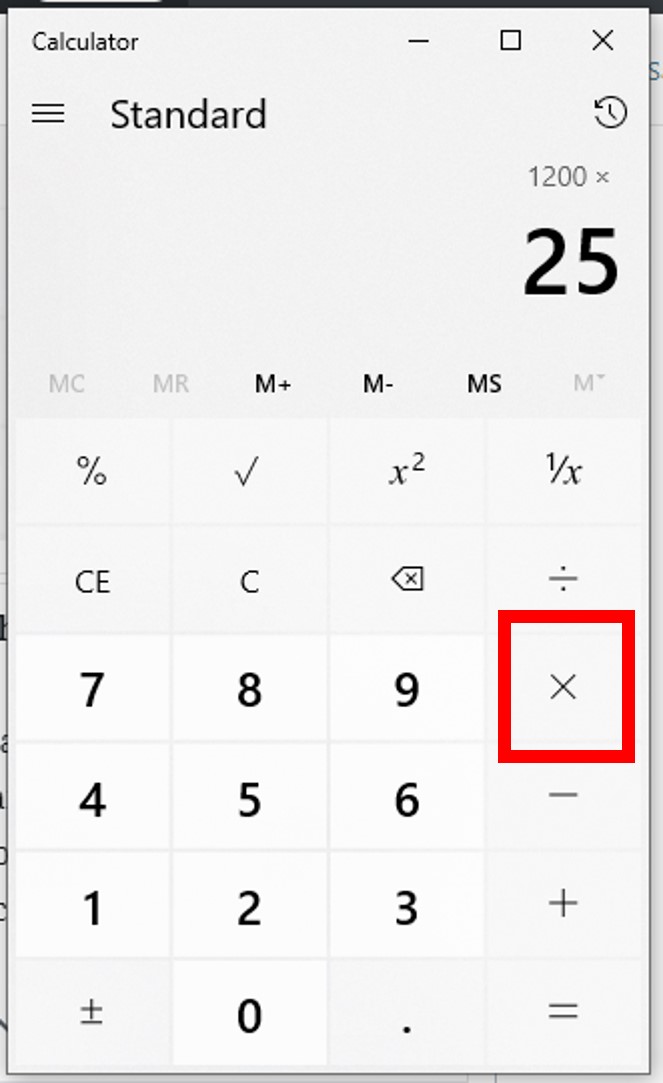
This guide will demystify the process, exploring the various methods to calculate percentages across different calculator types, from the simplest pocket device to advanced scientific models and smartphone apps. We’ll delve into the nuances of the percentage key, illustrate step-by-step procedures for common scenarios, and equip you with the knowledge to confidently tackle any percentage-related calculation. By the end, you’ll not only know how to get a percentage on a calculator but also understand the underlying principles that make this simple function so powerful.
The Anatomy of Your Calculator: Understanding Essential Functions
Before diving into specific calculations, it’s crucial to understand the basic layout and key functions of a typical calculator. While designs vary, the core operators and specialized keys remain largely consistent across most models, from a basic arithmetic calculator to a more complex scientific one. Understanding these elements is the first step to unlocking its full potential as a personal tech assistant.
Basic Arithmetic Operators (+, -, x, /)
At the heart of every calculator are the four fundamental arithmetic operations: addition (+), subtraction (-), multiplication (x or *), and division (/). Percentages are intrinsically linked to multiplication and division, as they represent a fraction of a whole (e.g., 25% is equivalent to 25/100 or 0.25). You will frequently combine these basic operators with the percentage function to achieve your desired result. For instance, finding 15% of a number involves multiplication, while adding a 10% tax involves multiplication and then addition.
The Percentage Key (%) and Its Variances
The percentage key (%) is often the source of confusion due to its varied behavior across different calculator models. On some calculators, pressing the percentage key automatically converts the preceding number into its decimal equivalent (e.g., entering 25 then % results in 0.25). On others, it acts as an operator, performing the percentage calculation directly based on the context of the operation.
-
Standalone Conversion: In some simpler calculators,
[number] %might display[number/100]. So25 %shows0.25. This is useful if you manually want to multiply. -
Operator-Based Calculation: More commonly, the
%key will perform a calculation. For instance,[number] x [percentage] %calculates the percentage of the number.[number] + [percentage] %adds that percentage to the number. -
Implied Operations: Some calculators may require you to explicitly state the operation (e.g.,
100 * 25 %), while others might interpret100 + 25 %as adding 25% of 100 to 100. Understanding your specific calculator’s logic is key, and a quick test with a known percentage (like 10% of 100) can clarify its behavior.
Memory Functions (M+, M-, MRC) for Complex Calculations
While not directly related to the percentage function itself, memory keys (M+, M-, MR/MC) are invaluable when dealing with multi-step percentage calculations. M+ adds the current display value to the memory, M- subtracts it, and MR/MC (Memory Recall/Clear) displays the memory content or clears it. For instance, if you need to calculate separate percentages of different numbers and then sum them up, memory functions prevent you from having to write down intermediate results, streamlining your workflow, and reducing errors – a true enhancement for personal productivity using a basic tech tool.
Core Percentage Calculations: Step-by-Step Tutorials
With a foundational understanding of your calculator’s interface, let’s explore the most common percentage calculations you’ll encounter. Each scenario will provide clear, step-by-step instructions, adaptable to most standard calculators.
Calculating a Percentage of a Number (e.g., 15% of 200)
This is perhaps the most fundamental percentage operation, frequently used for calculating taxes, tips, commissions, or portions of a whole.
Method 1: Using the Percentage Key (%)
-
Enter the total number:
200 -
Press the multiplication key:
x -
Enter the percentage value:
15 -
Press the percentage key:
% -
The result should appear:
30(15% of 200 is 30).
Method 2: Converting Percentage to Decimal (Universal Method)
This method bypasses the potentially ambiguous percentage key and relies solely on basic arithmetic, making it universally applicable across all calculators and even mental math.
-
Convert the percentage to a decimal by dividing it by 100 (or simply moving the decimal point two places to the left):
15 / 100 = 0.15 -
Enter the total number:
200 -
Press the multiplication key:
x -
Enter the decimal equivalent:
0.15 -
Press the equals key:
= -
The result should appear:
30.
Adding a Percentage (e.g., price + VAT, tip calculation)
This is common for calculating sales tax, tips, or markups. Let’s say you want to add 20% VAT to a product priced at $50.
Method 1: Using the Percentage Key (%)
-
Enter the original number:
50 -
Press the addition key:
+ -
Enter the percentage value:
20 -
Press the percentage key:
% -
The result should appear:
60(50 + 20% of 50, which is 10, equals 60).- Note: On some calculators, you might need to press
=after%for the final sum. Experiment with your specific model.
- Note: On some calculators, you might need to press
Method 2: Manual Calculation (More Reliable)
-
Calculate the percentage of the number:
50 x 0.20 = 10
-
Add this result to the original number:
50 + 10 = 60
Subtracting a Percentage (e.g., discount calculation)
Ideal for calculating sale prices after a discount. Let’s say an item costs $120, and you get a 25% discount.
Method 1: Using the Percentage Key (%)
-
Enter the original number:
120 -
Press the subtraction key:
- -
Enter the percentage value:
25 -
Press the percentage key:
% -
The result should appear:
90(120 – 25% of 120, which is 30, equals 90).- Again, check if your calculator requires
=after %.
- Again, check if your calculator requires
Method 2: Manual Calculation
-
Calculate the percentage of the number:
120 x 0.25 = 30
-
Subtract this result from the original number:
120 - 30 = 90
Finding the Percentage One Number Is of Another (e.g., test score percentage)

This tells you what proportion of a total a particular value represents. For example, if you scored 85 out of 110 on a test.
Steps:
-
Enter the part (the score):
85 -
Press the division key:
/ -
Enter the whole (total possible score):
110 -
Press the equals key:
=(Result:0.7727...) -
To convert this decimal to a percentage, multiply by 100:
x 100 = -
The result should appear:
77.27(approximately 77.27%).- Note: Some advanced calculators or smartphone calculator apps might have a dedicated function for this, but the multiply-by-100 step is universal.
Advanced Percentage Applications and Common Pitfalls
Beyond the basic operations, percentages are crucial for analyzing growth, decline, and financial trends. Understanding more advanced applications and being aware of common errors can significantly improve your accuracy and efficiency.
Percentage Change (Increase/Decrease)
Calculating percentage change is vital for tracking growth (e.g., sales growth year-over-year) or decline (e.g., stock price drop).
Formula: ((New Value – Old Value) / Old Value) x 100
Let’s say sales went from $500 (Old) to $650 (New).
-
Calculate the difference:
650 - 500 = 150 -
Divide the difference by the old value:
150 / 500 = 0.3 -
Multiply by 100 to get the percentage:
0.3 x 100 = 30 -
Result: A 30% increase.
If sales went from $650 to $500:
-
Calculate the difference:
500 - 650 = -150 -
Divide by the old value:
-150 / 650 = -0.2307... -
Multiply by 100:
-0.2307... x 100 = -23.07 -
Result: A 23.07% decrease (the negative sign indicates a decrease).
Reversing Percentage Calculations (e.g., finding original price before tax)
This is a slightly more complex application but incredibly useful. For instance, if an item costs $60 after a 20% VAT has been added, what was its original price?
You know that Original Price + 20% of Original Price = $60.
This can be written as: Original Price * (1 + 0.20) = $60
Or: Original Price * 1.20 = $60
To find the original price: Original Price = $60 / 1.20
Steps:
-
Enter the final amount:
60 -
Press the division key:
/ -
Enter
1followed by the decimal equivalent of the percentage (for increase) or1minus the decimal equivalent (for decrease). For a 20% increase, this is1.20. -
Press the equals key:
= -
Result:
50(The original price was $50).
For a discount (e.g., an item is $90 after a 25% discount), the logic changes: Original Price * (1 – 0.25) = $90, so Original Price * 0.75 = $90.
-
Enter the final amount:
90 -
Press the division key:
/ -
Enter
0.75(which is1 - 0.25). -
Press the equals key:
= -
Result:
120(The original price was $120).
Understanding Calculator Model Differences and Key Behavior
As highlighted, the most significant “pitfall” isn’t a lack of understanding percentages but rather the unpredictable behavior of the % key across different calculator brands and models.
-
Practice is key: Test your calculator with simple, known percentage calculations (e.g., 10% of 100).
-
Manual method reliability: If the
%key is inconsistent or confusing, always default to converting percentages to decimals (divide by 100) and using standard multiplication/division. This method is universal and foolproof. -
Check the manual: For more complex scientific or graphing calculators, consulting the user manual (often available online) can clarify specific function behaviors.
Integrating Percentages into Daily Tech Usage
The calculator isn’t just a physical device; it’s a concept integrated into much of our digital ecosystem. Mastering percentages on a handheld device translates directly to various tech applications, enhancing your overall digital literacy and efficiency.
Beyond the Handheld: Percentages on Smartphone Calculators and Spreadsheets
Most smartphones come with built-in calculator apps that mimic traditional calculators, often with both basic and scientific modes. The same principles and steps outlined above apply directly to these apps.
Furthermore, spreadsheet software like Microsoft Excel, Google Sheets, or Apple Numbers are powerful tools for managing and analyzing data, with percentages being a core component. Here, you don’t typically use a % key in the same way; instead, you format cells as percentages and use formulas.
- In Spreadsheets: To find 15% of a number in cell A1, you would type
=A1*0.15into another cell. To add 20% tax, you’d use=A1*(1+0.20)or=A1*1.2. To find what percentage A1 is of B1, you’d use=A1/B1and then format the cell to display as a percentage. Understanding the decimal conversion method is particularly crucial here.
Practical Scenarios: Tech Specs, Data Analysis, and Personal Productivity
Percentages are woven into the fabric of technological discourse and practical application:
-
Tech Specs: Battery life percentage, storage used percentage, screen-to-body ratio percentage are all common metrics for gadgets.
-
Data Analysis: In business, tech, and science, percentages are used to show market share, growth rates, error margins, data completion, and survey results. Your ability to quickly calculate and interpret these values, even with a basic calculator, empowers better decision-making.
-
Personal Productivity: Budgeting apps, fitness trackers, and financial management tools often present data using percentages (e.g., budget spent, progress towards a goal). Being adept at calculating these helps you understand your digital footprint and personal metrics more deeply.

Conclusion
The humble calculator, a foundational piece of personal technology, remains an essential tool for navigating a world increasingly reliant on data and numerical interpretation. Mastering how to get percentages on your calculator is not just about operating a device; it’s about acquiring a fundamental skill that underpins financial literacy, analytical thinking, and overall digital competence.
By understanding your calculator’s functions, embracing the reliable decimal conversion method, and practicing the core percentage operations, you can confidently tackle discounts, taxes, growth rates, and a myriad of other calculations. Whether you’re using a physical gadget or a sophisticated software application, the principles remain the same. So, dust off that calculator, open that smartphone app, and embrace the power of percentages – a simple yet profoundly impactful technological skill that continues to empower us in countless daily scenarios.
aViewFromTheCave is a participant in the Amazon Services LLC Associates Program, an affiliate advertising program designed to provide a means for sites to earn advertising fees by advertising and linking to Amazon.com. Amazon, the Amazon logo, AmazonSupply, and the AmazonSupply logo are trademarks of Amazon.com, Inc. or its affiliates. As an Amazon Associate we earn affiliate commissions from qualifying purchases.